 |
SWMMVis
6.0.0-alpha.4
Qt6/C++ GIS-based graphical user interface for the SWMMVis engine (6.0.0-alpha.4)
|
|
SWMMVis
6.0.0-alpha.4
Qt6/C++ GIS-based graphical user interface for the SWMMVis engine (6.0.0-alpha.4)
|
Configure a storage node as a layered LID, edit its physical properties and combine fixed removal, decay and expressions for individual pollutants. The control can contain any number of MEDIA and AGGREGATE layers. Layer numbers always refer to the authored stack from top to bottom.
Copy docs/manual/tutorials/models/lid_storage_treatment.inp to a working folder and open the copy. It is a self-contained five-minute model using CFS, Dynamic Wave and QUALITY_SOLVER LEGACY, with a 0.1-second routing step. Storage S has a constant 1 cfs inflow containing 10 mg/L TSS. Orifice D discharges to outfall O from the bottom of the surface layer. The model starts with a six-inch surface, twelve-inch media and six-inch aggregate stack. Its initial saturation is 10%. The numbers illustrate the workflow; they are not calibrated treatment performance or design recommendations.
Select storage S in the map or Object Browser and find LID Control in its properties. The supplied model already references Stack. LID Initial Saturation (%) sets the starting moisture condition; it is not a pollutant removal percentage. The storage remains a normal network node and receives water from its connected network and external inflows. Direct rainfall over its footprint must be supplied through a contributing subcatchment or inflow.
Open LID Controls from the data-object editors (see 17 — Time Series, Curves, Patterns and Calibration Data) and select Stack. To create a separate control, use New layered LID. It creates a NODE control; existing standard subcatchment LIDs retain their own editor and usage workflow.
The Media / aggregate layers counter counts only porous layers. In the supplied model it reads 2; the table has three physical rows because SURFACE is included separately. Select the MEDIA row and use Physical properties to edit thickness, porosity, field capacity, wilting point, conductivity, conductivity slope and suction. The form displays project units: inches and inches/hour here; millimetres and millimetres/hour in SI projects. Porosity and moisture parameters are fractions, not percentages.
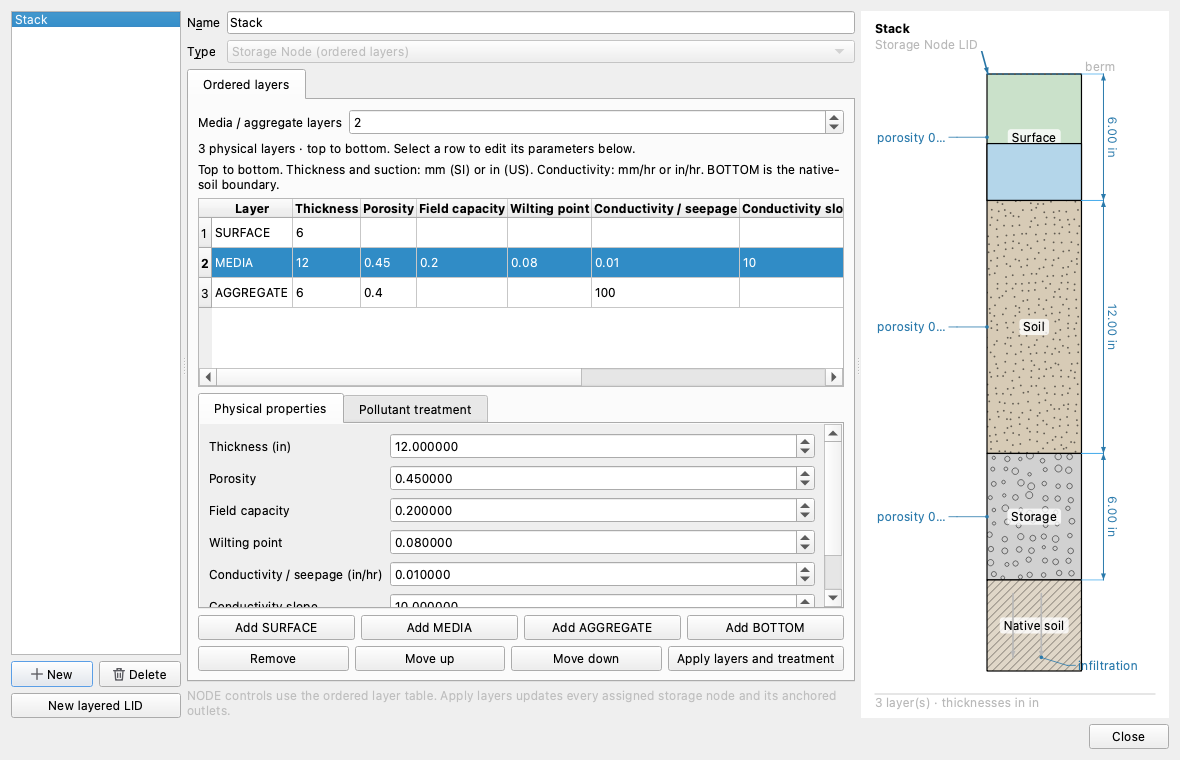
Select a porous row to change its kind between MEDIA and AGGREGATE. Use the layer controls to insert, remove or move porous layers; SURFACE stays first and an optional BOTTOM boundary stays last. The BOTTOM row represents seepage and clogging parameters and has no physical thickness or treatment rule. Increasing the counter adds porous layers; decreasing it removes layers and their associated treatment. Inspect the stack before applying a reduction.
Use Apply layers and treatment to validate and commit the draft to the loaded model. The engine updates the maximum depth of assigned storage nodes and anchored outlet offsets. Invalid geometry or treatment leaves the prior configuration intact. Applying changes is separate from saving the project. Switching controls or closing with a draft offers Apply, Discard or Cancel.
Select MEDIA, then Pollutant treatment. Each row targets one existing pollutant. Use Add pollutant to add a rule; create missing pollutants in the pollutant editor first. Double-click a numeric cell to edit its value, or an expression cell to use the familiar treatment expression editor with syntax highlighting, completion and validation.
| Column | Meaning | Example |
|---|---|---|
| Pollutant | Existing pollutant identifier | TSS |
| Removal (%) | Fraction removed when water exits this layer; 0–100 | 10 |
| Decay (1/day) | Additional first-order decay while mass resides in the layer | 1.25 |
| Expression | Optional removal fraction R = ... or effluent concentration C = ... | R = 0.35 |
Leave the expression blank to use rates alone; set either rate to zero to disable that component. Fixed removal is applied before the expression. Thus 10% removal followed by R = 0.35 removes 41.5% at that exit, before any residence-time decay. C = C * 0.9 instead removes 10% of the concentration remaining after fixed removal. Expressions cannot increase pollutant mass. Decay uses an exponential factor: a rate of 1.25/day leaves exp(-1.25*t) of the mass after t days, excluding transport and other reactions.
The following capture shows the optional seven-porous-layer variation, with MEDIA selected and both a rate and an expression entered. Treatment stays attached to a layer when that layer is moved in this editor.
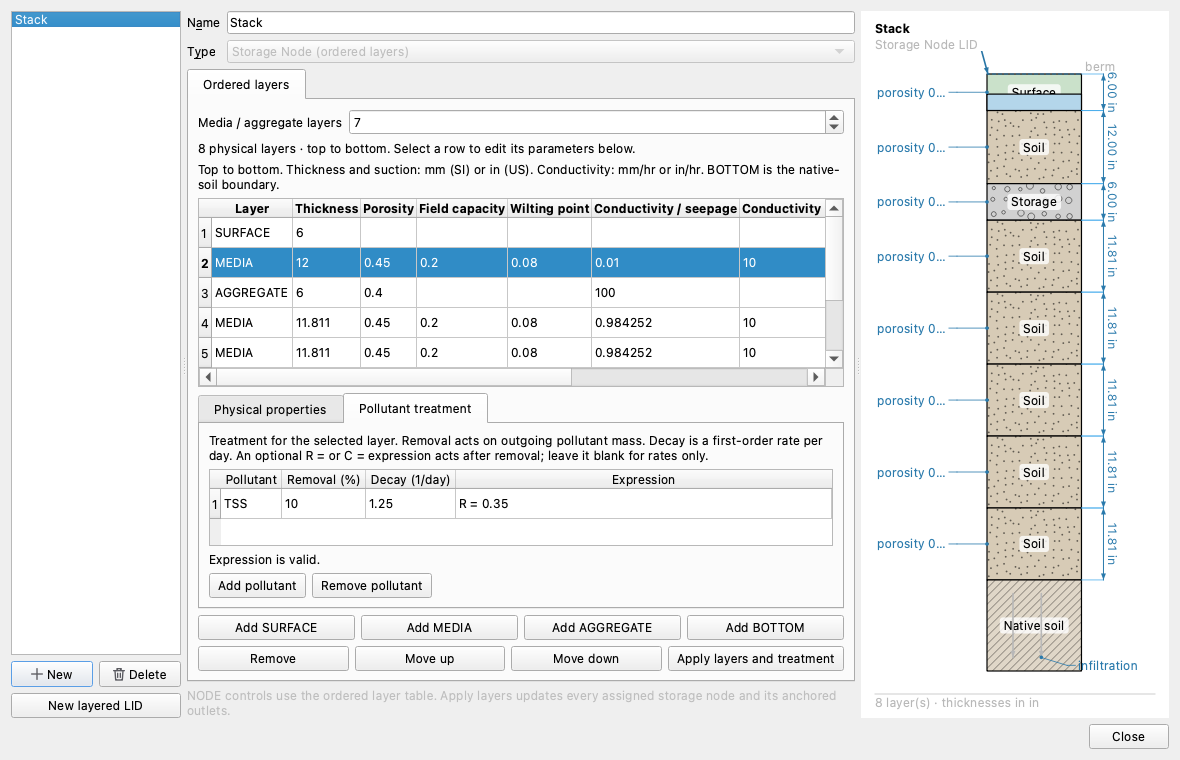
Click Apply layers and treatment. Re-select the control to check that the values remain. A rule applies to its selected physical layer, not to every numerical subdivision inside it. A surface bypass uses surface treatment; it does not receive all the media rules below it.
Select orifice D and inspect its LID outlet layer and position properties. In the supplied model layer 1, BOTTOM means the bottom of SURFACE, 1.5 ft above the storage invert. This is a layer-relative anchor. After changing thicknesses, check the resulting offset and hydraulic capacity. Layer indices include SURFACE but exclude the BOTTOM boundary. A link between two LID nodes requires explicit offsets rather than a single-ended anchor.
Save the model. Native INP output stores layer definitions in [LID_CONTROLS], assignments in [LID_NODES], anchors in [LID_NODE_OUTLETS], and rules in [LID_LAYER_TREATMENT]. GeoPackage also preserves these definitions. Reopen the saved model and inspect both editor tabs to confirm the round trip. Export to the legacy SWMM 5 format cannot preserve storage-node LID behavior.
For the first run, use the unmodified supplied model. Keep Dynamic Wave and the Legacy quality solver. Run the simulation and inspect storage depth and volume, outlet flow, TSS concentration, and water/quality continuity in the report. The outlet starts above the invert, so ponding precedes discharge. The small outlet cannot carry the supplied inflow and the example deliberately floods; include flooding losses when reading the water and pollutant balances. Reported storage volume includes retained pore water and mobile water.
Save a second copy, change only one treatment setting, and compare the runs. Treatment changes should affect pollutant fate without changing the physical stack. Repeat with a smaller routing step before trusting a rapid-filling case; a small water continuity error alone does not establish quality accuracy.
Increase the porous-layer counter to seven as in the treatment figure, then adjust each layer's kind and thickness. Keep realistic total depth and inspect all outlet anchors. Add a second MEDIA layer with a different conductivity or treatment rule. Compare a surface outlet with a deeper outlet, remembering that the hydraulic flow paths and residence times also change.
For expressions, DT is seconds and HRT is hours; concentration uses the pollutant's units, while flow, depth and area use project units. D is the full authored layer thickness. V follows the engine's existing internal cubic-foot convention. Native V10 hotstarts preserve retained pollutant mass and modified Green–Ampt history as well as moisture; an ordinary model file saves configuration, not a restart.
Conductivity slope uses the legacy SWMM exponential soil relation K = Ks * exp(-slope * (porosity - theta)) above field capacity, with zero drainage below it. It is not a power-law exponent. A zero slope is valid. SURFACE → first MEDIA infiltration uses modified Green–Ampt with accepted volume history and the actual ponded depth. Aggregate drainage uses its specified conductivity, bounded by water availability and receiving space.
A reversed hydraulic link enters at its physical port. Rising mobile water fills submerged pores and reconciles the infiltration history with the wetting. After full media resaturation and recession, a subsequent storm starts from remaining moisture. This remains a gravity-drainage and wetting-front approximation; it does not compute adjacent-cell matric-head gradients. Compatible older hotstarts reconstruct missing infiltration history and issue an exact-continuation warning. T10 contains the equations, a six-minute reversal test and a simulated resaturation animation.
 1.9.8
1.9.8