 |
SWMMVis
6.0.0-alpha.4
Qt6/C++ GIS-based graphical user interface for the SWMMVis engine (6.0.0-alpha.4)
|
|
SWMMVis
6.0.0-alpha.4
Qt6/C++ GIS-based graphical user interface for the SWMMVis engine (6.0.0-alpha.4)
|
Create and edit the four families of data objects the rest of the model refers to by name: time series ([TIMESERIES]), curves ([CURVES]), time patterns ([PATTERNS]), and the observed data used for calibration comparison plots. Each has a dedicated three-pane editor — a list of every object of that kind, a grid, and a live chart — and every edit goes through the project's undo stack so the Object Browser, the Properties panel and any other open view stay in step.
FIGURE PLACEHOLDERdocs/manual/images/17_data_objects_menu.png
| Object | Menu | Object Browser |
|---|---|---|
| Time series | Model → Data Objects → Time Series… | Time Series category |
| Curves | Model → Data Objects → Curves… | Curves category |
| Time patterns | Model → Data Objects → Time Patterns… | Patterns category |
The same three commands sit on the ribbon Model tab. None of them carry a default shortcut. Double-clicking an item in the Object Browser — or right-clicking it and choosing Edit… — opens its editor with that item selected. This works for every data-object category: time series, curves, patterns, control rules, transects, unit hydrographs, inlets, LID controls, pollutants, land uses, aquifers, snowpacks and streets. The Properties panel's Open in <Editor>… button does the same. Right-clicking a category offers Add New…. For pollutants, land uses, aquifers, streets and inlets, the category menu also offers Open in Attribute Table, which lists every object in one table so you can edit many at once (see 11 — Attribute Tables and the Attribute Calculator). Every picker elsewhere in the application that takes a series, curve or pattern name — the inflow editor, the DWF editor, storage and pump properties, evaporation, the outfall stage series — can also open the matching editor inline and hand back the name you created.
All three editors are non-modal with no OK/Cancel: edits commit live and are undone with Edit → Undo (or the Undo/Redo buttons in the editor's own toolbar). They remember their window geometry, splitter positions and plot-style toggles between sessions.
Every data-object name — a time series, curve, pattern, pollutant, land use, aquifer, snowpack, transect, street, inlet or LID control — is a SWMM identifier: it is written to the .inp as a single whitespace-delimited word. A name must therefore contain no spaces and none of ;, [ or ]; use _ or CamelCase instead (Total_Nitrogen, TotalN, never Total Nitrogen). The editors refuse a name that would not survive saving to .inp and say why, so a space in a name is caught when you type it rather than when the file is reopened with the name cut short.
FIGURE PLACEHOLDERdocs/manual/images/17_name_validation.png
Model → Data Objects → Time Series… opens a three-pane editor: the list of every series in the project on the left, the point grid in the middle, and an interactive chart on the right.
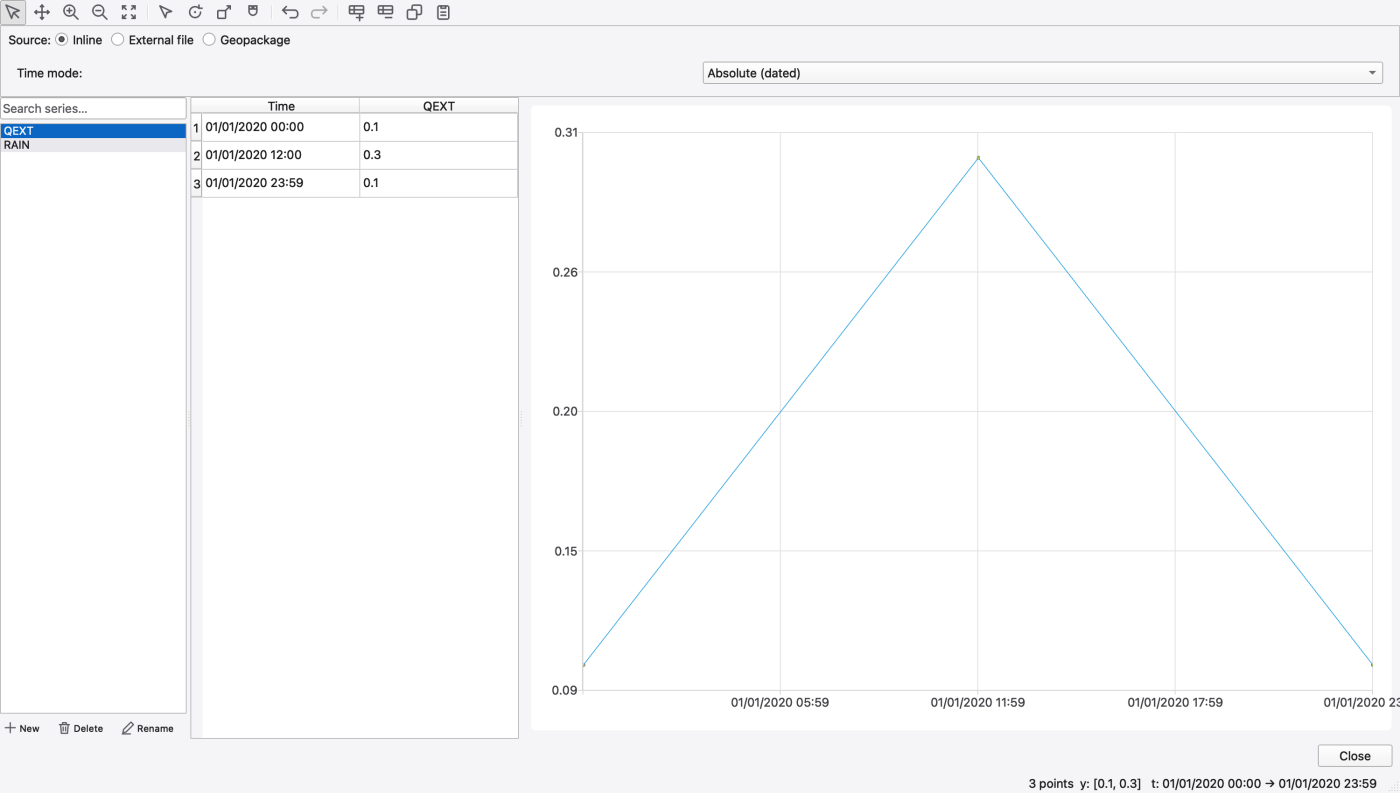
The portable tutorials/models/node_editor_example.inp provides this example. Open a copy, then select QEXT in the Time Series editor: its values are 0.1, 0.3 and 0.1 cfs at midnight, noon and 23:59 on January 1, 2020. The rightmost chart date label is clipped in this capture; read the complete endpoint in the grid or status line. The same model includes HOURLY, a 24-factor weekday pattern assigned to J1's dry-weather flow. Its factors sum to 23.8, with mean 0.9917; they have not been normalized to an exact mean of one. See 14 — Hydraulics: Nodes, Links, Cross-Sections, Streets, Inlets and Controls for the populated node assignments and the example's simulation limitations.
List pane. A filter box narrows the list by case-insensitive substring. New, Delete and Rename act on the selection; renaming is also available in place (names must be unique, ignoring case). Selecting a different series rebinds the grid, the chart and the source card.
Creating a series. New shows a create card above the splitter with a Name field (validated for uniqueness — a duplicate name disables Create and explains why) and a Source combo:
| Source | What it means |
|---|---|
| Inline (table in .inp) | Points are written into the [TIMESERIES] section of the .inp |
| External file (FILE "path") | The .inp carries a name FILE "path" reference and the file supplies the points |
| Geopackage observed series | Present in the combo but not implemented in this build — the pane shows a placeholder |
Grid. One row per point. When several sibling series share exactly the same time vector the grid widens to Time | V0 | V1 | …, one value column per series — the layout you get when one CSV feeds several series. When the time vectors differ, the grid falls back to Time | Value for the selected series only. Times must be strictly increasing; an edit that would break that is rejected and the reason appears in the status bar.
| Toolbar action | What it does |
|---|---|
| Add Row | Insert a point (Insert key) |
| Delete Rows | Delete the selected rows (Delete key) |
| Copy | Copy the selected rows as TSV (Ctrl/Cmd+C) |
| Paste | Paste rows from an Excel / CSV / TSV clipboard (Ctrl/Cmd+V) |
| Undo / Redo | The project undo stack |
Paste is the quickest way to get a series in from a spreadsheet: copy two columns in Excel and paste into the grid. Rows whose time duplicates an existing point or whose text will not parse are skipped, and the status bar reports how many were pasted and how many were skipped. The same four commands are on the grid's right-click menu.
Chart. The right pane is an interactive chart with Select, Pan, Zoom In, Zoom Out and Zoom to Extent modes, plus two editing modes:
| Mode | What it does |
|---|---|
| Edit Points | Y-drag a point to change its value (X is locked so monotonicity survives); Shift-drag rubber-bands a multi-selection; dragging a selection translates every value; the right-click menu offers Insert here, Delete selected and Clear selection |
| Rotate | Rotates the selection about a pivot — set the pivot time, pivot value and angle in the numeric panel and press Apply; centroid pivot uses the selection's centroid |
| Scale | Scales the selection about an anchor — anchor time, anchor value, X factor and Y factor, then Apply |
With no selection, Rotate and Scale act on every point. The numeric panel appears only while the corresponding mode is active. The Snap toggle snaps inserted and dragged times to the reporting step.
The status bar under the chart shows the point count, the value range and the first and last date-time, and carries transient messages such as a rejected edit.
FIGURE PLACEHOLDERdocs/manual/images/17_timeseries_chart_edit.png
Source card — inline versus external file. The card under the toolbar switches the bound series between Inline, External file and Geopackage:
| Control | What it does |
|---|---|
| File | The linked file, shown relative to the project directory where possible; the tooltip gives the resolved absolute path |
| Browse… | Pick a .csv, .tsv, .tsf, .dat or .txt file |
| Column | Which column of a multi-column file this series binds to; populated from the file's header row |
| Reload | Re-read the file from disk |
| Detach → Inline | Copy the currently loaded points into the project and break the file link — one way |
The status line under the card reports the load: Loaded at …, ⚠ File changed on disk — Reload to pick up, or ⚠ File not found. While a series is file-backed the grid and the chart are read-only and Add / Delete / Paste / Rotate / Scale all refuse with an explanatory message — use Detach → Inline first if you want to edit the numbers.
A file with no header row can only bind its first column; the combo says so and offers (no header — single column). Behind the scenes a multi-column reference is written as a path:column token in the .inp — you never type the colon, the editor composes and splits it.
FIGURE PLACEHOLDERdocs/manual/images/17_timeseries_source_card.png
Time mode. For inline series a Time mode row selects how times are written to the .inp:
| Mode | Written as |
|---|---|
| Absolute (dated) | Name MM/DD/YYYY HH:MM value |
| Relative to simulation start | Name H:MM value — elapsed hours from the simulation start |
A badge explains what the current choice means and warns when a series saved as elapsed time will re-anchor if the simulation start date changes. Switching to relative times is refused when the project has no start date or when the first point precedes it. A file the model read with a mix of elapsed and dated rows shows a read-only Mixed (elapsed prefix + dated rows) entry.
The engine reads the legacy row forms an external file may use — elapsed H:MM, decimal hours, dash dates and month-name dates — and a FILE reference is preserved verbatim on save, so round-tripping a deck does not rewrite it.
Model → Data Objects → Curves… opens the three-pane curve editor: list, X/Y grid, and a live preview chart. The grid's column headers and the chart's axis titles follow the curve type and show the project's units, for example "Head (ft)" and "Flow (CFS)", or "Head (m)" and "Flow (CMS)" in an SI model. Shape and control curves are dimensionless and show no unit.
A curve is part of the model as soon as you create it, so you can assign it to a pump, storage unit, outlet or outfall while the editor is still open. A pump's curve list offers only pump curves (types 1–5), and a tabular outlet's offers only rating curves.
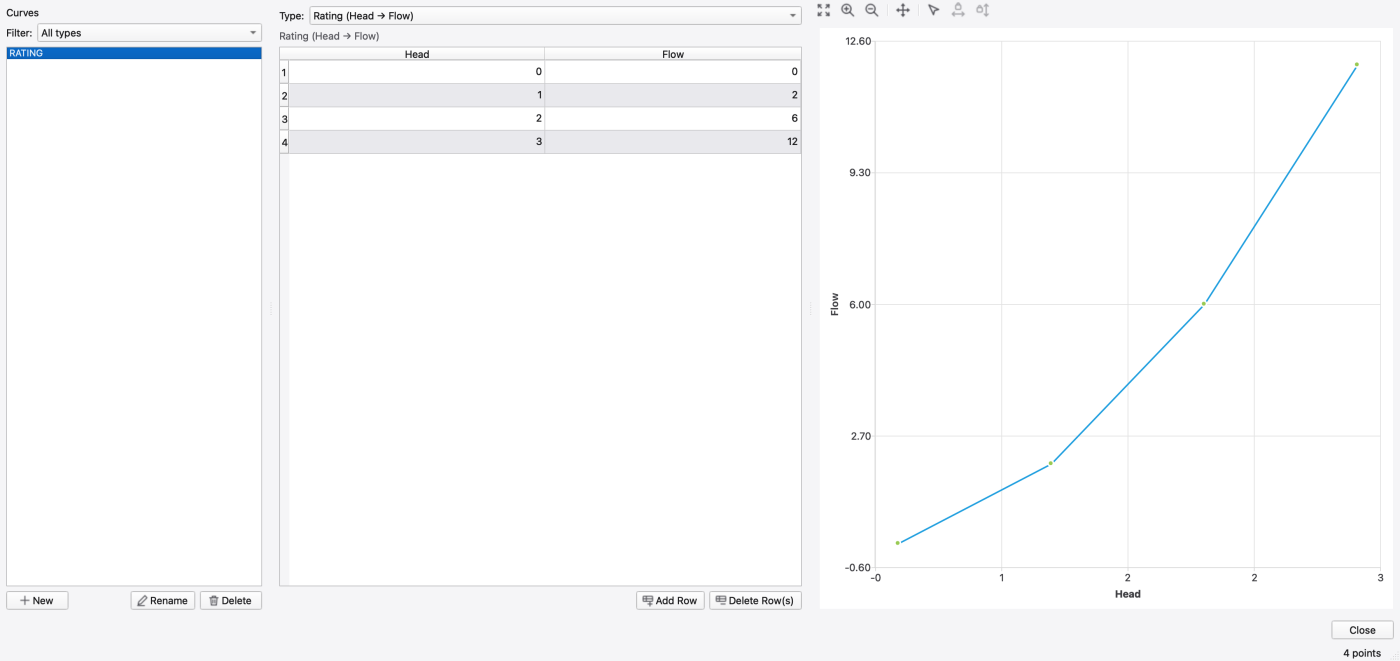
For a reproducible curve example, open a copy of tutorials/models/data_objects_example.inp and select RATING. Its four (head in feet, flow in cfs) pairs are (0, 0), (1, 2), (2, 6) and (3, 12). The curve is supplied for editor inspection and is not assigned to a link. The chart's head ticks are rounded; use the point grid for exact values.
| Type | X | Y |
|---|---|---|
| Storage | Depth | Surface Area |
| Diversion | Inflow | Diverted Flow |
| Rating | Head | Flow |
| Shape | Depth/Full | Width/Full |
| Control | Variable | Setting |
| Tidal | Hour | Stage |
| Pump 1 | Volume | Flow |
| Pump 2 | Depth | Flow (on/off) |
| Pump 3 | Head | Flow (continuous) |
| Pump 4 | Depth | Flow (continuous) |
| Pump 5 | Head | Flow (variable speed) |
The list pane has a Filter combo (All types, or one type) alongside New, Rename and Delete; the right-click menu offers the same. Deleting a curve warns that model objects referencing it will lose the reference.
Points must be strictly ascending in X. Add Row and Delete Row(s) work on the grid, Copy and Paste move X,Y pairs through the clipboard (a paste reports how many rows were taken and how many lines were skipped), and the right-click menu carries all four. Editing a Y value leaves X alone; editing X is validated against the neighbouring points.
The chart toolbar has Fit (zoom to extent, F), Zoom in (Ctrl++), Zoom out (Ctrl+-), Pan and Edit points (E), plus Lock X and Lock Y to constrain a vertex drag to one axis.
Changing a curve's Type rewrites the grid headers and axis labels but keeps the points.
FIGURE PLACEHOLDERdocs/manual/images/17_curve_type_combo.png
Model → Data Objects → Time Patterns… opens the pattern editor: list, factor table, and a step-line preview.
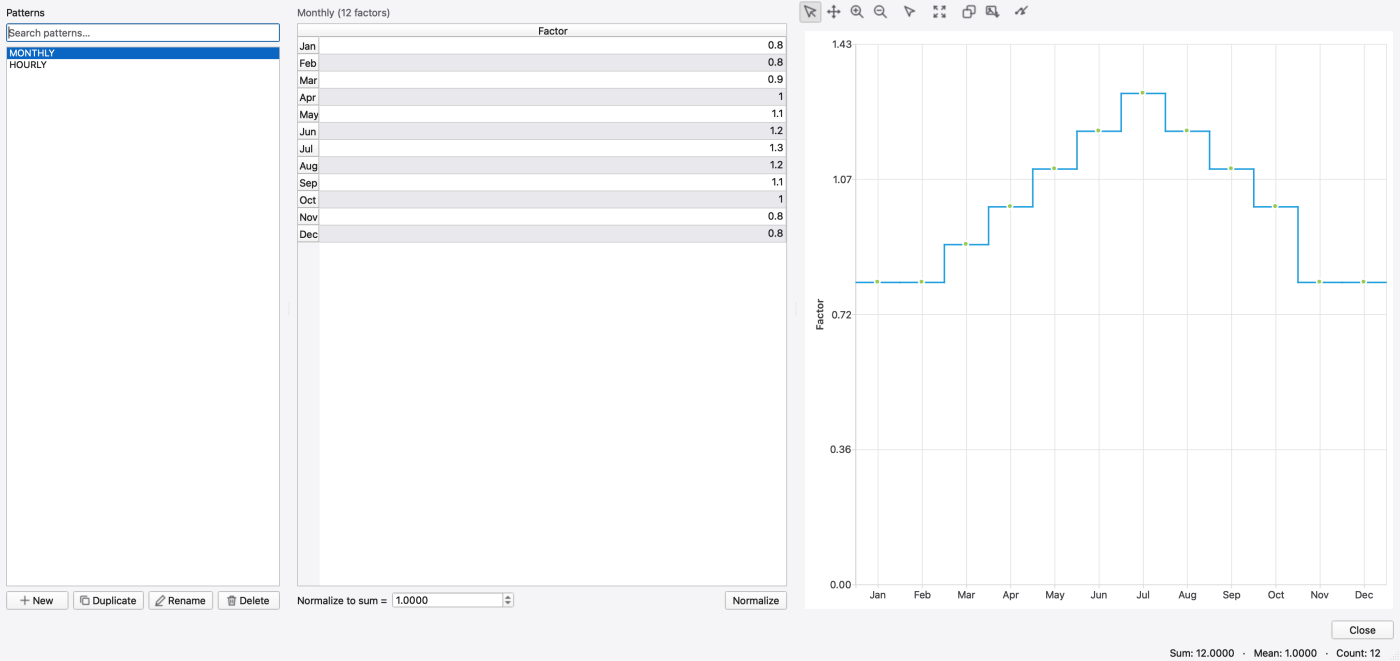
The same data_objects_example.inp contains MONTHLY. Its twelve factors sum to 12 and average 1.0; it is not assigned to the model's dry-weather flow. The separately supplied HOURLY pattern is assigned to J1. A reference run of this uncalibrated editor example completed with routing continuity −0.097 percent. It contains no pollutant treatment and does not validate the water-quality behavior of the node-editor example described above.
| Type | Factors | Row labels |
|---|---|---|
| Monthly | 12 | Jan … Dec |
| Daily | 7 | Sun … Sat |
| Hourly | 24 | 00:00 … 23:00, weekdays |
| Weekend | 24 | 00:00 … 23:00, weekends |
The factor table has one Factor column; row labels come from the type. Negative factors are rejected. A Normalize to sum = target with a Normalize button rescales every factor so the set sums to the target — the usual case being 1.0 for a distribution, or the factor count for a set of multipliers averaging one. The status line shows the sum, the mean and the count.
The list pane offers a Search patterns… filter and New, Duplicate, Rename and Delete; each entry shows its type after the name. Duplicate clones the selected pattern under a new name — the fastest way to build a variant.
The preview is a step line on the same interactive chart used elsewhere: zoom, pan, zoom-to-extent, Copy chart to clipboard (PNG), Export chart… (PNG or SVG), and a plot-style menu for markers and step-versus-smooth. In Edit vertices mode a vertical drag changes a factor and a horizontal drag swaps two slots.
Creating a pattern shows the same create card as the other editors, with a Type combo (Monthly (12), Daily (7), Hourly (24), Weekend (24)) and a uniqueness-validated Name.
Native observation collections belong to Layers → Time Series. They retain original site metadata, measurement/statistic identities, time text, units, approval/qualifier fields and missing values. Downloading, plotting or linking a series to a feature does not create model forcing. See 07 — Layers and Data Sources and 22 — Time-Series and Comparison Plots for inspection and plotting.
Select one usable series and choose Use in model…. The native dialog creates a model-owned copy, optionally binding it to a node FLOW inflow, outfall stage or rain gage. Create time series only makes it available in existing model editors and selectors. It does not create a live link to the downloaded file.
Stage binding requires a reviewed datum offset in model length units. Rain-gage binding requires compatible rainfall units, recording interval and intensity/volume/cumulative interpretation; daily-statistic holding is not a rainfall interval conversion. A node that already has a FLOW inflow is refused by the shortcut: create the series only and select it in the existing inflow editor. Existing named time series are never silently replaced.
Creation, optional binding and conversion provenance form one Undo/Redo step. Cancel or a failed checked write leaves the model unchanged. Removing the source layer or downloading a newer record does not alter a prepared model copy. Unknown/incompatible conversions, conflicting times after whole-second rounding, and preparations exceeding one million points require correction or a shorter period. Regional daylight-saving time-zone conversion and arbitrary filling transformations are not offered by this initial dialog.
The Comparison plot's Load Observed… still loads wide CSV, TSV, TSF and DAT files directly as plot sources. It is separate from persistent native observation layers and does not parse the Data plugin's long-form metadata exports.
The old model editor's Geopackage observed series source-mode placeholder and the dormant Calibration Data dialog are not the native observation store. The latter saves object/file bindings but has no active menu or consuming workflow. Use native Time Series layers for downloaded observations.
Every editor that takes an external file — the time series source card, the Simulation Options file slots, the rain gage rainfall file — uses the same path picker. It stores the absolute path so the engine can always open the file, but displays it relative to the project directory when the file lives at or under it, with the resolved absolute path in the tooltip. A path that cannot be made relative is shown absolute with a warning tooltip.
When the project is saved elsewhere, relative references are rewritten against the new destination and absolute ones are rebased. See 03 — Working with Projects for the project-portability options and A2 — File Formats for the file types involved.
path:column by the editor; a hand-typed colon in a file name will not do what you expect.EXT build-up series referenceOpen Model → LID Control, then select New layered LID to create a storage-node control. Media / aggregate layers sets the number of porous layers without a fixed limit. Select a row in Ordered layers to edit its Physical properties in project units. Add Surface or Bottom boundaries as needed; move media and aggregate rows to define the top-to-bottom order.
Select Pollutant treatment for the selected layer and Add pollutant. The pollutant must already be defined in the model. Double-click a numeric value to edit Removal (%) or Decay (1/day) using the same spin boxes as other property editors. Double-click Expression to use syntax highlighting, completion (Ctrl+Space), and live validation. Leave the expression blank for rate-only treatment, or use R = 0.2 for an additional 20% removal and C = C * 0.8 for an effluent concentration expression. Removal and an expression can be combined; removal is applied first. Decay acts on resident water.
Apply layers and treatment validates and saves the whole stack. Reordering a layer carries its treatment settings with it. Closing or switching controls with unapplied changes offers Apply, Discard, or Cancel. The Bottom boundary has no pollutant treatment. Layer pollutant routing uses the Legacy quality solver with Dynamic Wave hydraulics; check continuity and time-step convergence for transient inflows.
For a complete model and illustrated steps, see T9 — Layered LID Storage and Pollutant Treatment.
 1.9.8
1.9.8