 |
SWMMVis
6.0.0-alpha.4
Qt6/C++ GIS-based graphical user interface for the SWMMVis engine (6.0.0-alpha.4)
|
|
SWMMVis
6.0.0-alpha.4
Qt6/C++ GIS-based graphical user interface for the SWMMVis engine (6.0.0-alpha.4)
|
Start the SWMM engine on the active project, watch its progress in the Simulation Status dock and the Message Logs dock, pause or stop it mid-flight, and read the files it leaves behind — the .rpt report, the .out 1D binary results and, for a 2D model, the .2d.h5 HDF5 results. You will also learn what SWMMVis does before the engine starts (auto-save, 2D pre-flight, output-overwrite guard) and what it does the moment the run ends (auto-load the results, make them the active results layer, offer them to the report viewer).
FIGURE PLACEHOLDERdocs/manual/images/20_run_overview.png
| Command | Menu | Ribbon | Shortcut |
|---|---|---|---|
| Execute | Analysis → Execute | Home → Run | Ctrl+R |
| Pause Execution | Analysis → Pause Execution | Home → Run | — |
| Cancel Execution | Analysis → Cancel Execution | Home → Run | Ctrl+. |
| Summarize Results | Analysis → Summarize Results | Analysis → Report | — |
| Report | Analysis → Report | Analysis → Report | — |
| Show Mass Balance | Analysis → Show Mass Balance | Analysis → Network Analysis | — |
Two docks carry the run:
Ctrl+Alt+6). It is shown and raised automatically when a run starts.Ctrl+Alt+7).The status bar carries a progress bar while any run is in flight, and a permanent Engine version combo that selects which engine the next run uses.
Execute refuses to start and writes a warning to Message Logs unless all of the following hold:
| Precondition | What happens if it fails |
|---|---|
| A project window is active and its model layer has an open engine handle | Log warning: Open a SWMM project first to run a simulation. |
The model has a .inp path on disk (it has been saved at least once) | Log warning: Save the project before running — Run uses the .inp on disk. |
No other in-flight run is already writing the same .out | Blocking Output file in use message box; the run does not start |
If the project has unsaved edits, SWMMVis saves it automatically before starting — the engine reads the .inp from disk, so what is in memory has to be written out first. The log records Auto-saved before running. If the save fails the run is abandoned with a Run failed message box.
FIGURE PLACEHOLDERdocs/manual/images/20_run_preconditions_log.png
When 2D Surface Routing is enabled for the project but no mesh resolves — neither inline [2D_*] sections in the .inp nor a valid [2D_MESH_FILE] reference — SWMMVis puts up a 2D mesh not found prompt. Answering Yes runs the model 1D-only (and logs that it did); answering No cancels the run so you can generate or select a mesh first (see 19 — 2D Overland Flow: Meshes, Cell Parameters, Boundary Conditions and 1D–2D Coupling).
When a mesh does resolve but [2D_OPTIONS] has no OUTPUT_FILE, the engine would run the 2D solver without writing anything to disk. SWMMVis therefore sets OUTPUT_FILE to <model-stem>.2d.h5 (relative to the .inp directory), saves the project, and logs the substitution. Set OUTPUT_FILE yourself in Simulation Options if you want it somewhere else.
| File | Default location | Set by |
|---|---|---|
.rpt — the text status report | <model-stem>.rpt beside the .inp | Simulation Options → Files/Output/Plugins → Output → Report file |
.out — the binary 1D results | <model-stem>.out beside the .inp | Simulation Options → Files/Output/Plugins → Output → Results output file |
.2d.h5 — the 2D HDF5 (UGRID) results | <model-stem>.2d.h5 beside the .inp | [2D_OPTIONS] OUTPUT_FILE |
| Hot-start files | as typed, relative to the .inp directory | Simulation Options → Files → Scheduled hot-start saves |
The .rpt / .out overrides are a per-machine preference, not part of the .inp: they are stored per project path in the application settings and are re-applied on every run. A relative override is resolved against the .inp directory; an absolute one is used verbatim. When either differs from the sibling default the log records Using output overrides — rpt: … / out: … so you can see where the run is writing.
If the resolved .out or .2d.h5 already exists on disk with content, or is currently loaded as a results layer in any open project window, SWMMVis asks Overwrite output? and names exactly which streams will be replaced. Answer No and the run is cancelled. Answer Yes and SWMMVis:
.out (the layer object survives; only its file handle is dropped, so plots bound to it keep their identity);.h5 and deletes the file so the engine can recreate it. FIGURE PLACEHOLDERdocs/manual/images/20_overwrite_prompt.png
One top-level row per (model, engine version) pair. Re-running the same model with the same engine reuses its row rather than accumulating duplicates; opening a model creates an Idle row so you can read its simulation window before any run. Engine warnings appear as child rows under the job.
| Column | Shows |
|---|---|
| Name | The .inp file name |
| Status | Idle / Running / Success / Failed / Cancelled |
| Progress | Percent of simulated time completed |
| Start Date | Engine-side simulation start, from [OPTIONS] |
| Current Date | The engine's current simulation clock, pushed every tick |
| End Date | Engine-side simulation end |
| Runoff Err | Cumulative runoff continuity error, in percent |
| Routing Err | Cumulative routing continuity error, in percent |
| 2D Err | Cumulative 2D surface continuity error; — when the run has no 2D model |
| Duration | Wall-clock seconds once the run finishes |
| Avg Timestep | Running average of the engine's step size, in seconds |
| Version | The engine version this row was run with |
All three continuity errors are live — they are polled in the step loop, not only reported at the end, so a run that is diverging shows it while it is still running.
FIGURE PLACEHOLDERdocs/manual/images/20_simulation_status_dock.png
The Message Logs dock is a three-column table — Time, Type, Message — with severities Information, Warning and Error. Every engine warning is mirrored here as well as into the Simulation Status tree, prefixed with its numeric code and the model name. Right-click for Copy (the selected rows) or Copy All (the whole log, with a header line); rows are copied as tab-separated text that pastes straight into a spreadsheet. Ctrl+C copies the selected rows whenever the log view has focus.
At start-up SWMMVis also logs any thread-count environment variables it inherited from the launching shell — OMP_NUM_THREADS, OMP_THREAD_LIMIT, OPENSWMM_2D_THREADS, SWMM_DW_THREADS — because each of them silently caps or overrides [OPTIONS] THREADS. They are never unset for you.
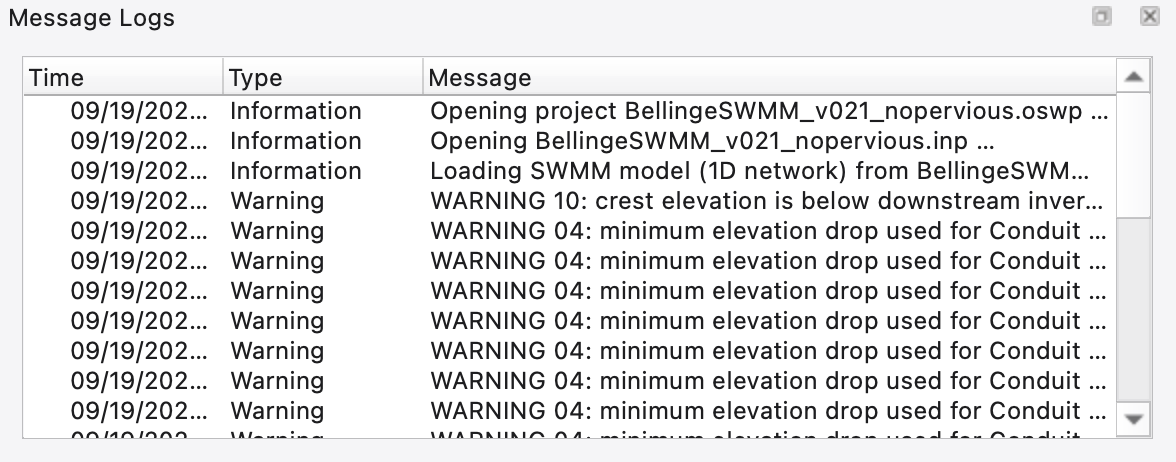
Pause Execution is a checkable toggle. It parks the engine's step loop in a short sleep; toggling it again resumes. Cancel Execution pauses first, then asks Stop simulation for confirmation — answering No resumes the run.
Cancelling is not the same as aborting: the runner still calls the engine's end, report and close steps, so the partial .out and .rpt are flushed to disk and loaded as results. The log records Simulation cancelled. Partial results: ….
When more than one run is in flight, Pause and Cancel act on the job selected in the Simulation Status dock. With nothing selected they act on the single in-flight run; with several running and no selection, a message box asks you to select one first. Both actions are disabled unless at least one run is active.
Live rendering on the Animation ribbon follows the incoming results selected in the Analysis tab's 1D results and 2D results selectors. Both use one time cursor: the 1D output drives when it has frames, and the 2D output shows its latest frame at or before that time. A 2D-only run can drive the cursor directly, including while the 1D output is still empty.
Drag the timeline slider, press Pause, or turn Live rendering off to review the available history. Incoming results continue to accumulate; they do not pull the display back to the newest time. Play advances through that history at the selected speed. Enable Live rendering again to return to the newest available time. Stop clears Play, Pause and live following, then rewinds both selected outputs and the slider to the beginning.
The .out layer grows in place as the run writes it, extending the animation range, profile plots and comparison plots. The 2D source retains a bounded history in memory while the run continues. When the run ends, the 2D source is replaced by the saved .h5 history for playback of the whole run.
.out is opened (or the live layer finalised in place), its colour ramp auto-stretched, and it becomes the project's active 1D results layer — the one the analysis toolbar combos, the animation controller and every plotting tool act on..h5 and becomes the active 2D results layer..rpt path is remembered on the results layer so the report viewer can list this run alongside others.A run that reports success but wrote no .out is not treated as a success: SWMMVis logs an error pointing you at the .rpt, because that almost always means the engine failed while parsing input or setting up and the report file carries the real ERROR line.
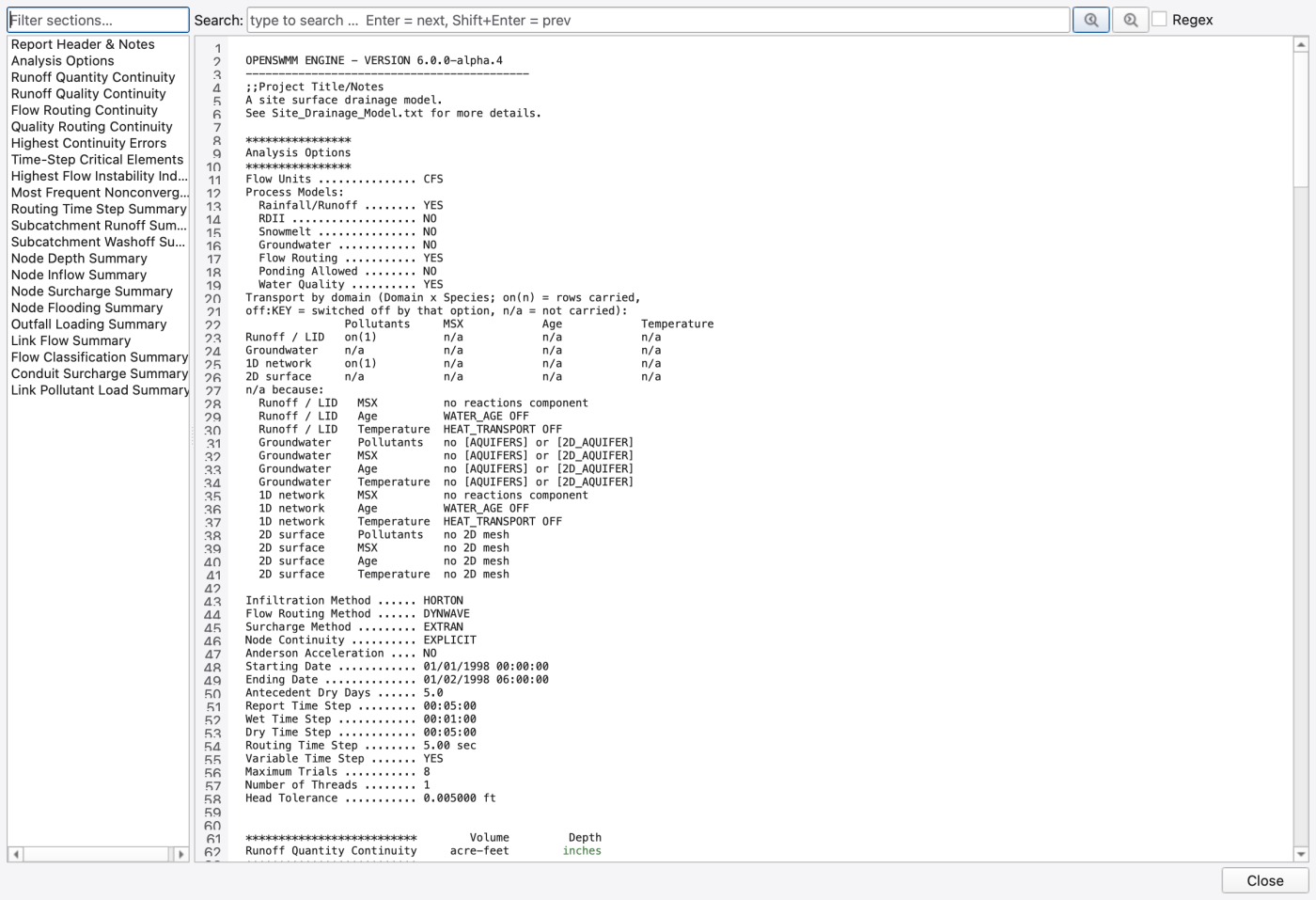
Analysis → Report and Analysis → Show Mass Balance open the same two-panel report viewer over the .rpt file. (They are wired to the same handler; Show Mass Balance is a labelled second entry point to the same report — where the continuity sections live — not a separate dialog, and it does not pre-select those sections for you.)
| Part | What it does |
|---|---|
| Run combo (top) | One entry per loaded run — the scenario or layer name plus the .rpt that run wrote. Only shown when more than one report is available. Preselects the active results layer's report. |
| Continuity banner | Appears above the viewer only when a Continuity Error (%) value in the report exceeds the alert threshold |
| Section list (left) | Every *****-delimited section of the .rpt in file order, with a filter box above it. Clicking a section scrolls the viewer to it |
| Report text (right) | The full report in a monospace, syntax-highlighted view |
| Search bar | Find text in the report, with a regular expression toggle, next/previous buttons and a match counter |
Typical sections include the analysis options echo, element counts, the raingage/subcatchment/node/link summaries, Runoff Quantity Continuity, Flow Routing Continuity, Quality Routing Continuity, the highest-continuity-error and time-step-critical element lists, node depth/inflow/flooding summaries, outfall loadings, link flow and conduit-surcharge summaries, and the 2D and coupling ledgers when those processes ran. The viewer shows whatever the engine wrote — which sections exist depends on the [REPORT] flags and the processes the model turned on.
If no .rpt exists yet the viewer reports the path it looked at and tells you to run a simulation.
Analysis → Summarize Results opens the statistics dashboard over the active 1D results layer. It reads the engine's cumulative statistics rather than re-scanning the .out, and shows three sortable tables — Node, Link, Subcatchment. It needs results: with no active results layer it puts up a No Results message box telling you to run a simulation or load a .out. The dashboard is documented in full in 25 — Analysis Tools: Flow Balance, Travel Time, Rainfall Visualisation, 2D Cell Time Series.
Hot-start handling is configured in Simulation Options, not at run time:
[FILES] HOTSTART USE)..inp directory.See 18 — Simulation Options for the full page-by-page reference.
openswmm-legacy-worker executable, so its progress and warnings arrive over the worker's standard output — everything else in this chapter (status columns, pause/cancel, live 1D results) behaves the same. Because the status model keys rows on *(model, engine version)*, running the same model on both engines gives you two rows to compare..inp / .out / .rpt writers and are selected in Simulation Options → Files/Output/Plugins; see A3 — Plugins.[OPTIONS] THREADS sets the OpenMP worker-thread count for the run. It is edited in Simulation Options (and its default for new projects in Preferences). Remember the environment variables listed above override it — which is exactly why they are logged at start-up..inp on disk. Unsaved edits are written out first; if you want to keep the previous state, save a copy before you press Ctrl+R..out is a failure. Open the report; the cause is almost always an input-parsing error..out as a comparison run will be flagged.[2D_OPTIONS] OUTPUT_FILE gets one defaulted for it. If you never want the .h5, clear the key again after the run — the live view works without it, but nothing can be reopened afterwards.THREADS, the [FILES] block and the output overrides 1.9.8
1.9.8