 |
SWMMVis
6.0.0-alpha.4
Qt6/C++ GIS-based graphical user interface for the SWMMVis engine (6.0.0-alpha.4)
|
|
SWMMVis
6.0.0-alpha.4
Qt6/C++ GIS-based graphical user interface for the SWMMVis engine (6.0.0-alpha.4)
|
Define the rainfall that drives the model, build subcatchments and give them subareas and an infiltration model, attach LID controls, snow packs, aquifers and groundwater exchange, and set up unit hydrographs for RDII.
| Object | Where |
|---|---|
| Rain gage | Model → Add Rain Gauge (ribbon Model ▸ Rain Gages) places one on the map |
| Assign rain gages | Model → Assign Rain Gages… (ribbon Model ▸ Tools) |
| Subcatchment | Model → Add Subcatchment (ribbon Model ▸ Subcatchments) |
| LID controls | Model → Data Objects → LID Controls… (ribbon Model ▸ Data Objects ▸ LID Control) |
| Aquifers | Model → Data Objects → Aquifers… (ribbon Model ▸ Data Objects ▸ Aquifer) |
| Snowpacks | Model → Data Objects → Snowpacks… — menu only; this one has no ribbon button |
| Unit hydrographs | Model → Data Objects → Unit Hydrographs… — menu only |
| Climate / snowmelt settings | Model → Climate → … (see 15 — Climate: Temperature, Evaporation, Wind, Snowmelt and Solar Radiation) |
Every entry in Model → Data Objects opens the category's editor in browse mode: nothing is created until you press the editor's own New button. The Object Browser's category header carries an Add New… context-menu item that opens the same editor already in create mode (see 10 — Object Browser, Properties and Section View).
FIGURE PLACEHOLDERdocs/manual/images/13_model_data_objects_menu.png
Open a working copy of docs/manual/tutorials/models/hydrology_editor_example.inp from the source checkout. It defines S1, RG1, aquifer AQ1, bioretention control BC1, snowpack SP1 and hydrograph group UH1, with groundwater and RDII assigned to J1. The figures below use this synthetic, uncalibrated CFS example. It is an editor demonstration, not a design recommendation or a snowmelt validation case.
[LID_USAGE], [GROUNDWATER], [GWF] and [LOADINGS] in the input..oswp, compare the relevant input sections and rerun it. Preserve the original report before changing parameters. The figures demonstrate loaded controls; they do not establish every edit/save workflow.A rain gage is a placed object: it has [SYMBOLS] map coordinates and a [RAINGAGES] definition. Select one and edit it in the Properties panel or the rain-gage attribute table — both edit the same values, so they stay in sync.
| Property | What it does | Writes |
|---|---|---|
| Name | Gage id | [RAINGAGES] name |
| X Coordinate / Y Coordinate | Map position in project units | [SYMBOLS] |
| Rain Type | INTENSITY / VOLUME / CUMULATIVE — how each series value is interpreted | [RAINGAGES] rain type |
| Recording Interval (s) | Series recording interval; edited through an H:MM interval combo | [RAINGAGES] interval |
| Snow Catch Factor (SCF) | Catch-deficiency correction for snow | [RAINGAGES] SCF |
| Rainfall Scale Factor | Multiplier applied to the gage's values | [RAINGAGES] |
| Data Source | TIMESERIES or FILE | [RAINGAGES] source keyword |
| Series Name | The [TIMESERIES] this gage reads (source TIMESERIES) | [RAINGAGES] |
| Rain File (path) | The rain file to read (source FILE); stored relative to the project when possible | [RAINGAGES] / file path table |
| Rain File (resolved) | Read-only — the absolute path the resolver settled on | — |
| Rain File Column | Column / station token inside a multi-column file | [RAINGAGES] |
| Rain File Format | Auto-detect; Standard rain file; Multi-column | [RAINGAGES] |
| Station ID | Station identifier inside the file | [RAINGAGES] |
| Rain Units | IN or MM for file data | [RAINGAGES] |
| Current Rainfall | Read-only — the resolved value at the current animation time | — |
| User Flags | Per-object user flags (see 03 — Working with Projects) | [USER_FLAGS] |
The Rainfall Scale Factor scales the gage's precipitation before it is partitioned into rain and snow. A value of 10 gives ten times the source precipitation. Snow Catch Factor (SCF) acts only on the snow portion; it does not increase warm-weather rainfall or the Rainfall Visualization plot. Setting both factors to 10 therefore gives ten times the rain and one hundred times the snow, before any per-subcatchment factors. Subcatchment rain and snow scale factors apply to their respective portions after this partition.
The three file formats are the only ones the engine ever assigns: the parser records USER_CSV for a path:column token and STAN_PRCP for a bare path, the resolver promotes STAN_PRCP to USER_CSV on detection, and a gage that never had a file stays Auto-detect. The NWS / DSI / HLY format codes exist in the engine but are never written, so they are deliberately not offered.
Rain gage series can be inspected with the Rainfall Visualization dialog — overlay and per-gage charts plus a summary table, with an Intensity / Depth-per-interval / Cumulative-depth basis selector. It is reached from the Analysis menu, from the Object Browser's Rain Gages context menu, and from the gage property editor's Plot Rainfall… button; it is documented in 25 — Analysis Tools: Flow Balance, Travel Time, Rainfall Visualisation, 2D Cell Time Series.
FIGURE PLACEHOLDERdocs/manual/images/13_raingage_properties.png
Model → Assign Rain Gages binds gages to subcatchments and to RDII inflows spatially, in one undoable step. Nothing is written until you press Apply; Preview shows the full plan first.
| Control | What it does |
|---|---|
| Nearest gage (Thiessen area majority) | Assigns the gage whose Thiessen (Voronoi) cell covers the largest share of the subcatchment's polygon — not of a representative point. An RDII node, being a point, takes its nearest gage |
| Natural-neighbour interpolation (creates gages) | Area-averages natural-neighbour weights over the gage network per subcatchment (and takes the weights at the node for RDII); groups objects whose weights agree and creates one generated gage plus a generated time series per cluster |
| Weighting | Sibson (area stealing) or Laplace (Voronoi facet) — interpolated method only |
| Group weights within | Percent tolerance for treating two weight vectors as the same cluster |
| Subcatchments / RDII inflows | What to assign. RDII is checked by default when the model has [RDII] entries |
| All objects / Selected subcatchments and nodes (N) | Scope of the assignment |
| Preview | Computes the plan in the background (with a progress bar and Cancel) and fills the table: Object; Type; Current gage; New gage; Detail (area share, weight vector, or unit hydrograph change) |
| Apply | Commits the whole plan as a single undo step. A preview of the current model and options is reused, not recomputed |
SWMM binds exactly one gage per subcatchment, which is why an interpolated rainfall field has to be expressed as generated gages. The dialog reports how many generated gages were created, reused or removed, warns when gages have no map location or share a location, and warns when snow catch factors differ across the sources. A volume-conservation check runs before anything is written, so a failed check aborts with the model untouched.
RDII and unit hydrograph groups. In SWMM the rain gage belongs to the unit hydrograph group in [HYDROGRAPHS], not to the node in [RDII], and several nodes can share one group. When a group's nodes fall under different gages the group is split: it keeps the gage that carries the most sewer area, and a copy named <group>_<gage> — same R/T/K, initial-abstraction and decay rows — takes each other gage, with its nodes moved onto the copy. Running the tool again reuses those copies, so a second run changes nothing. With Selected scope, a group that also serves an unselected node keeps its gage; only the selected nodes move to a copy.
FIGURE PLACEHOLDERdocs/manual/images/13_assign_rain_gages.png
| Property | What it does | Writes |
|---|---|---|
| Name / Tag | Identity and free-form label | [SUBCATCHMENTS] / [TAGS] |
| Rain Gage | Driving gage (picker over [RAINGAGES]) | [SUBCATCHMENTS] |
| Outlet | Receiving node or receiving subcatchment | [SUBCATCHMENTS] |
| Area | Catchment area | [SUBCATCHMENTS] |
| Width | Characteristic overland-flow width | [SUBCATCHMENTS] |
| Slope (%) | Average surface slope | [SUBCATCHMENTS] |
| % Imperv | Impervious fraction | [SUBCATCHMENTS] |
| N-Imperv / N-Perv | Manning's n for the two subareas | [SUBAREAS] |
| Dstore-Imperv / Dstore-Perv | Depression storage depths | [SUBAREAS] |
| % Zero Imperv | Impervious area with no depression storage | [SUBAREAS] |
| Rainfall Scale Factor / Snow Scale Factor | Per-subcatchment multipliers | [SUBCATCHMENTS] |
| Snow Pack | Assign a named snowpack; clearing the picker removes the assignment | [SUBCATCHMENTS] / [SNOWPACKS] |
| Infil. Model and its parameters | See below | [INFILTRATION] |
| Aquifer | Aquifer picker; clearing it removes the [GROUNDWATER] row | [GROUNDWATER] |
| Groundwater | Summary + Edit… → Groundwater Exchange dialog | [GROUNDWATER] / [GWF] |
| Land Uses | Summary + Edit… → coverage matrix | [COVERAGES] |
| LID Usage | Summary + Edit… → LID usage table | [LID_USAGE] |
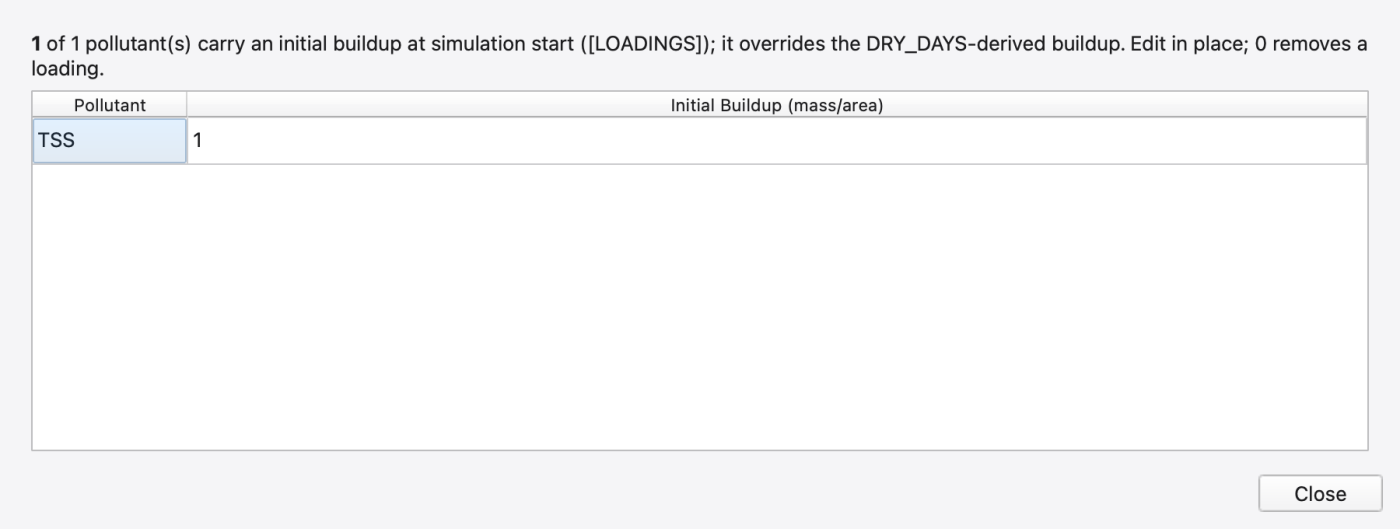
| Initial Loadings | Summary + Edit… → per-pollutant initial buildup | [LOADINGS] |
| User Flags | Per-object user flags | [USER_FLAGS] |
| Total Precipitation / Total Runoff Volume / Peak Runoff | Read-only; populated after a run | — |
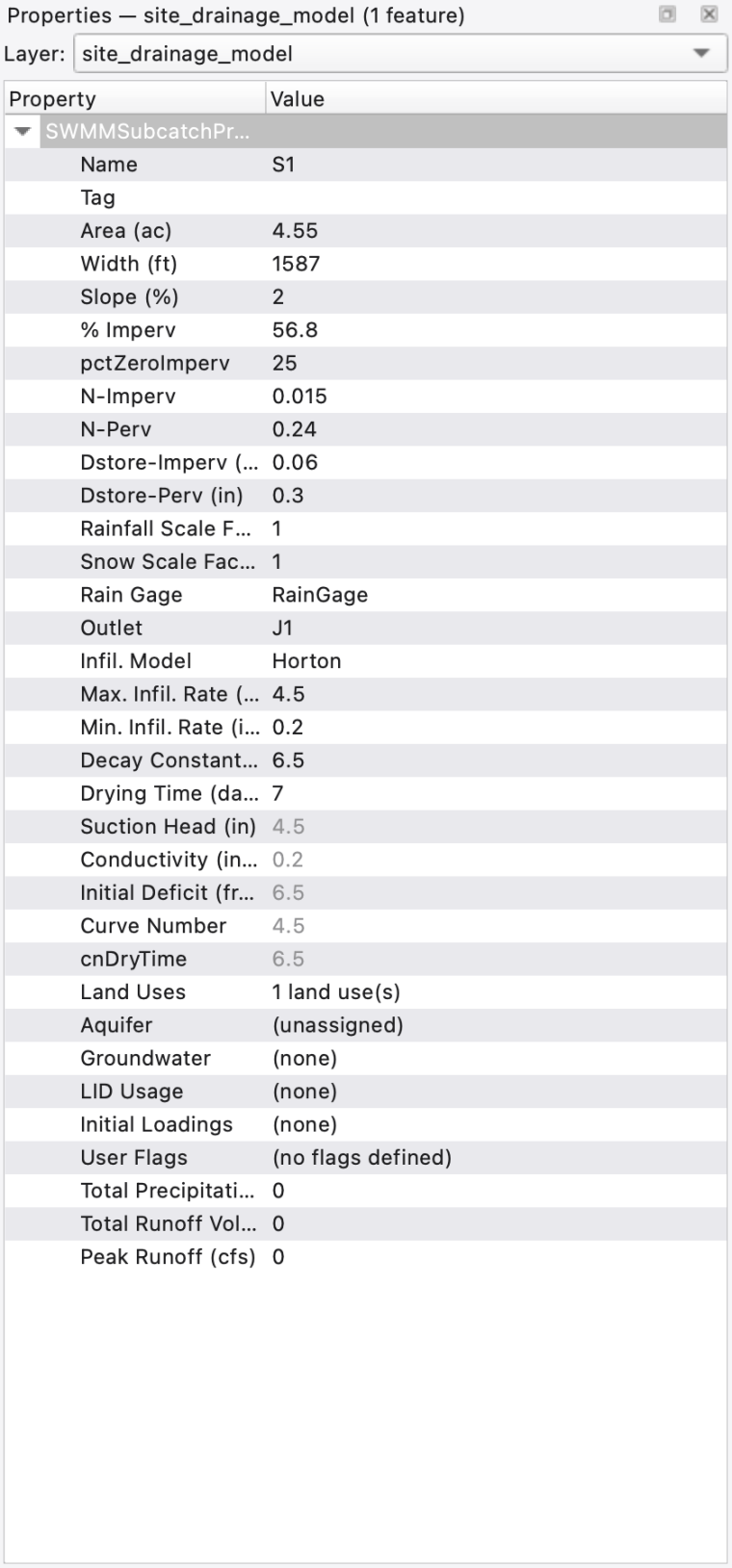
The Infil. Model row offers five models, and the parameter rows that follow it are the ones the chosen model actually uses.
| Model | Parameter rows |
|---|---|
Horton | Max. Infil. Rate; Min. Infil. Rate; Decay Constant (1/hr); Drying Time (days) |
ModHorton | Same four rows as Horton |
GreenAmpt | Suction Head; Conductivity; Initial Deficit (frac.) |
ModGreenAmpt | Same three rows as Green-Ampt |
CurveNumber | Curve Number; Drying Time (days) |
Modified Horton and Modified Green-Ampt share their predecessors' parameter rows — only the model differs. Editing one number rewrites the whole parameter group and keeps the chosen model, so editing one number on a Mod-Horton subcatchment cannot silently demote it to plain Horton.
The project-wide default infiltration model is an [OPTIONS] key set in the Simulation Options dialog (18 — Simulation Options); the object-creation default is in Preferences (04 — Preferences).
**"Assign Infiltration to Selection…"** is a 2D-mesh tool, not a subcatchment tool. It writes a whole infiltration row (method plus up to five parameters plus a destination) to the mesh cells picked on the map, either as per-cell [2D_INFILTRATION] overrides or as one [2D_INFILTRATION_DEFAULTS] region row when every selected cell shares a tag. Its methods are Horton, Modified Horton, Green-Ampt, Modified Green-Ampt, Curve Number and Constant, and its destinations are Lost, Subcatchment Aquifer and 2D Aquifer. See 19 — 2D Overland Flow: Meshes, Cell Parameters, Boundary Conditions and 1D–2D Coupling.
The Land Uses, LID Usage and Initial Loadings rows open one shared dialog, showing only the form matching the row you clicked. There are no tabs for switching between these forms; close it and open the other property row. Edits apply to the engine as you make them (there is no separate Save step), and the cell summary refreshes on close. The Groundwater row is the exception — it opens its own dialog (below).
[COVERAGES].[LID_USAGE].[LOADINGS].
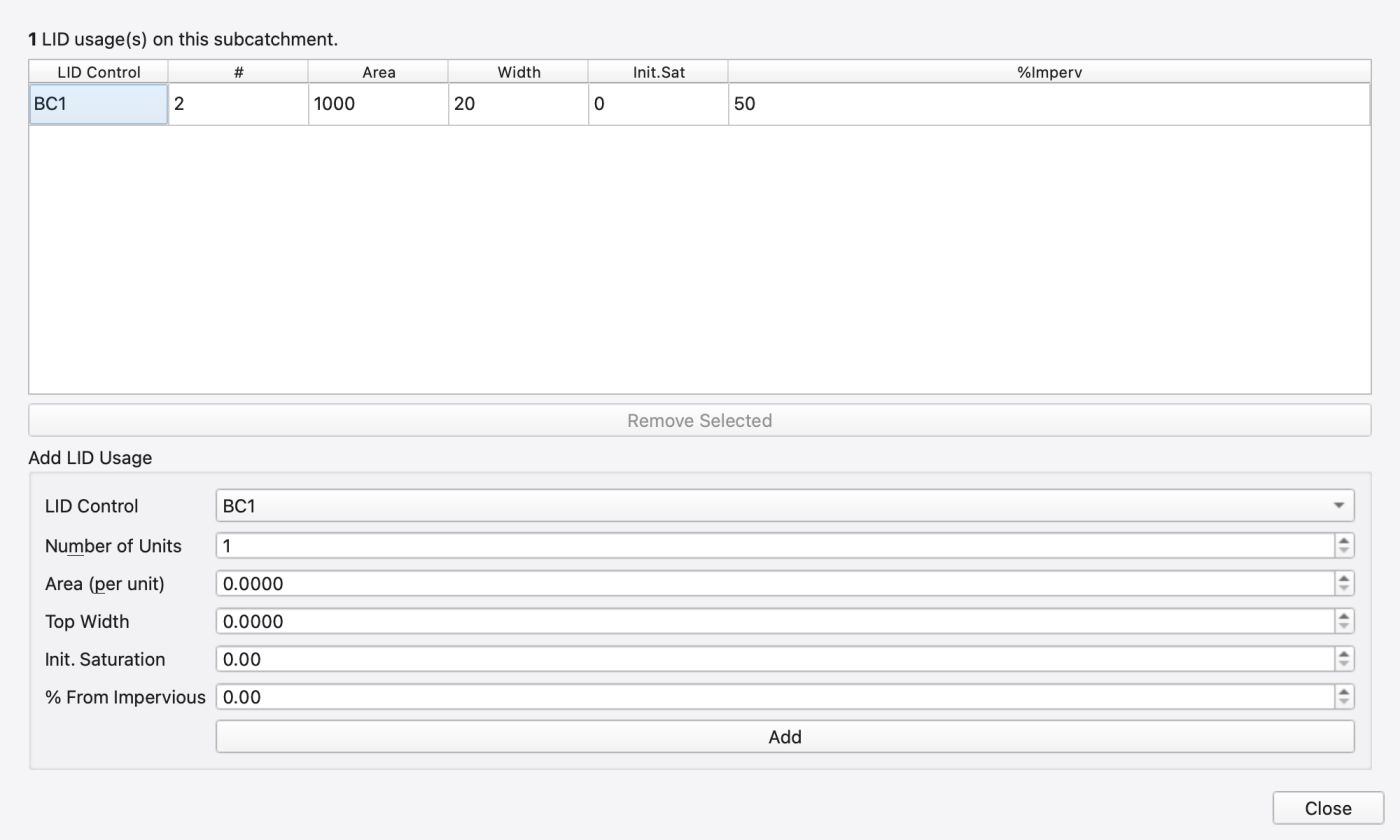
In this CFS example the usage area is in square feet and top width is in feet. The two units occupy 2000 ft² of a five-acre subcatchment; % From Impervious is 50 and initial saturation is zero. Values in the lower Add form do not represent the selected existing row. The upper table is read-only. To change an existing assignment, select its row and use Remove Selected, then enter the replacement in the lower form and press Add. Both operations apply immediately. Preserve any additional [LID_USAGE] fields from an imported input: this form does not expose every usage parameter, including the return-to-pervious flag.
Model → Data Objects → LID Controls… opens a three-pane editor: the control list with New / Delete, a form with Name and Type, and a live layer-stack diagram that redraws from the current widget values and highlights the active tab.
Types: Bio-Retention Cell, Rain Garden, Green Roof, Infiltration Trench, Permeable Pavement, Rain Barrel, Rooftop Disconnection, Vegetative Swale.
| Tab | Fields |
|---|---|
| Surface | Storage Depth; Roughness (n); Slope (%) |
| Soil | Thickness; Porosity; Field Capacity; Wilting Point; Conductivity; Conductivity Slope |
| Storage | Thickness; Void Fraction; Seepage Rate |
| Drain | Coefficient; Exponent; Offset |
All four tabs are always present; which layers a type actually has is what the diagram shows (a rain barrel has no soil layer, a green roof has a drainage mat rather than storage).
Engine limitation, stated in the dialog itself: the engine lets the editor write LID layer values but not read them back, so a control loaded from an existing .inp displays defaults rather than its stored values, and editing it overwrites all four layers. Only new or user-edited controls are written back. Treat the editor as authoritative for controls you create in SWMMVis, and check [LID_CONTROLS] when round-tripping someone else's model.
Assigning a control to a subcatchment is done on the LID Usage page above, which writes [LID_USAGE].
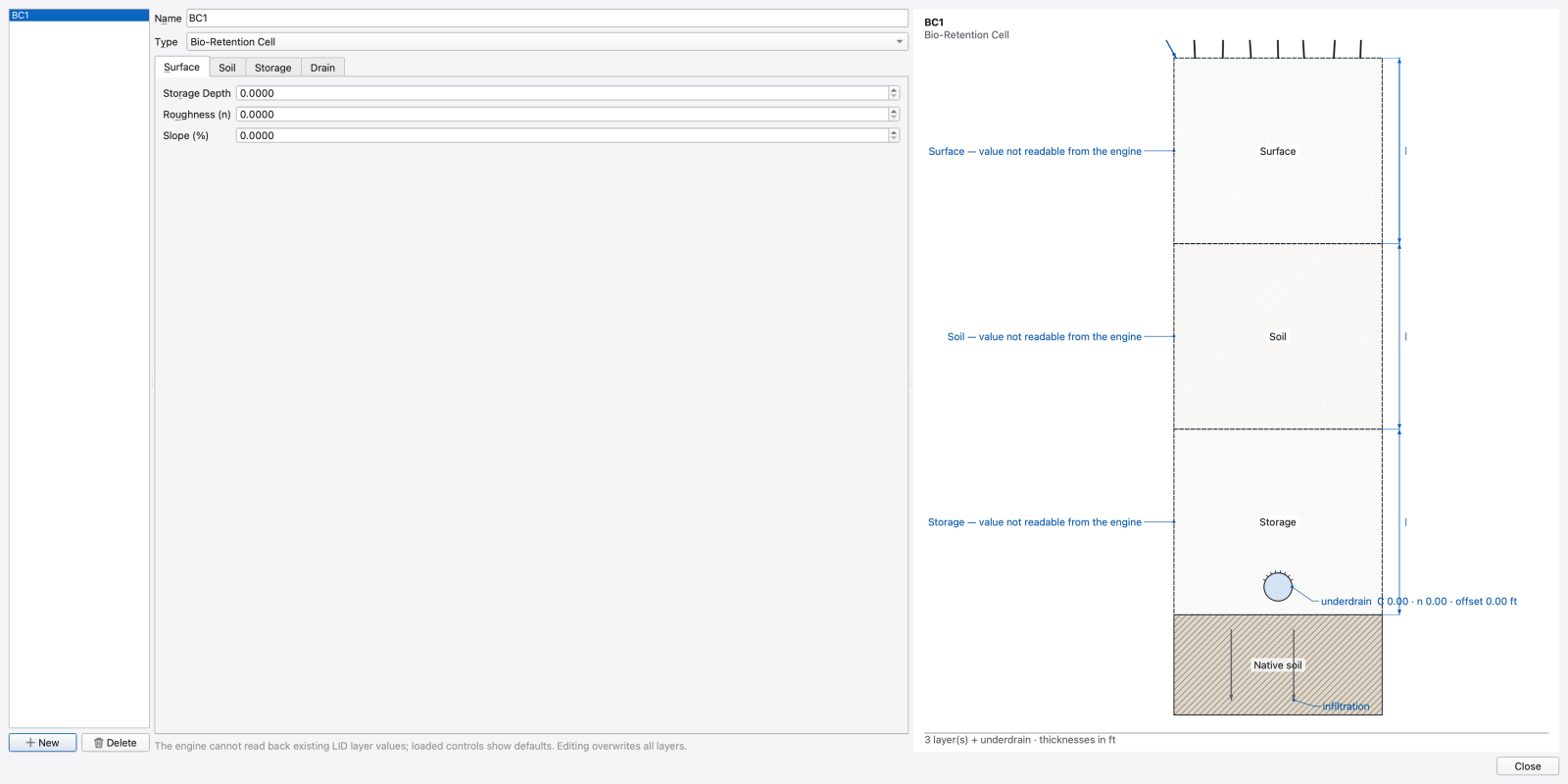
FIGURE PLACEHOLDERdocs/manual/images/13_lid_types.png
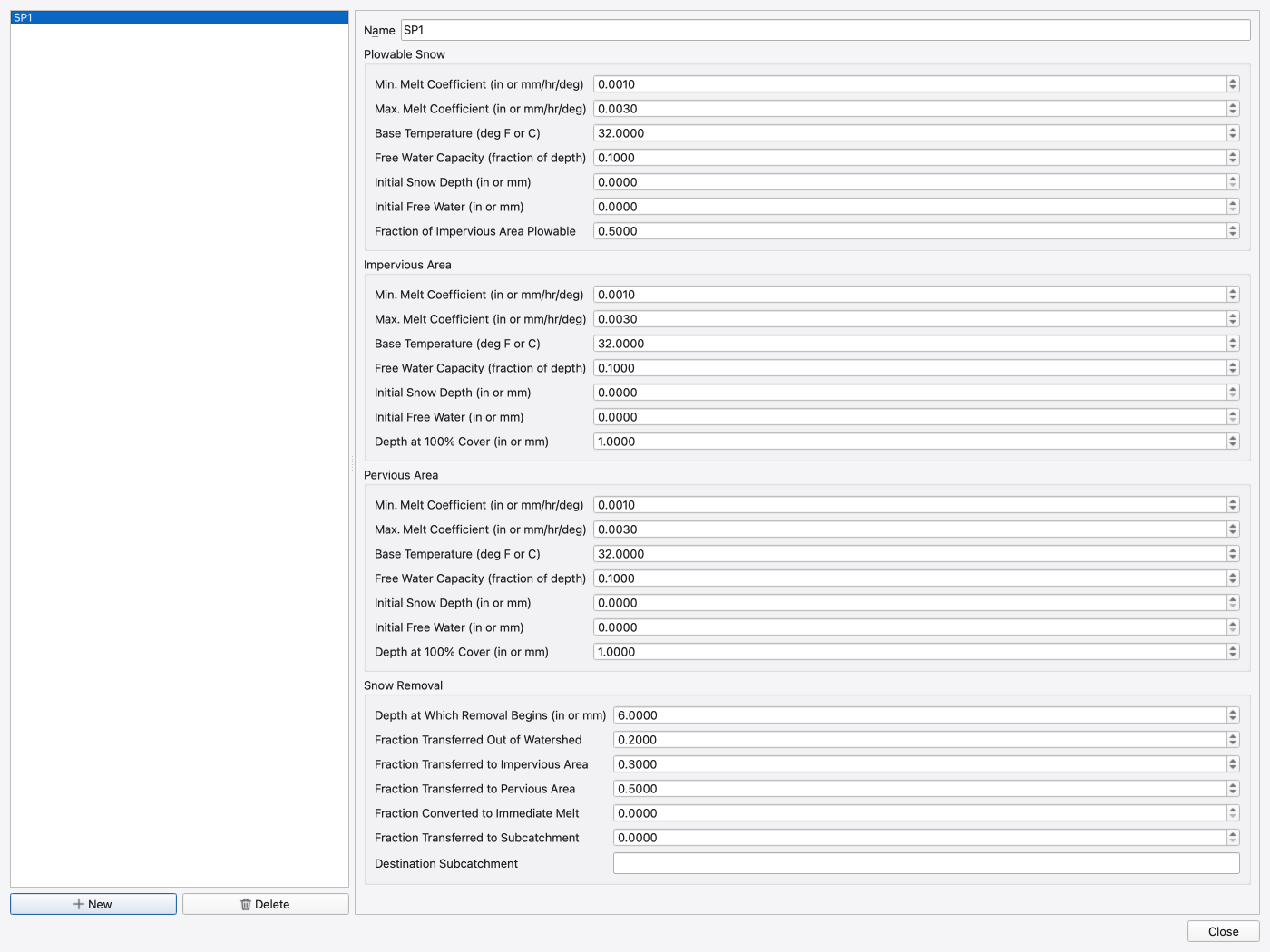
Model → Data Objects → Snowpacks… opens a two-pane editor (list + form) over the [SNOWPACKS] parameters and optional UEB site fields. The Model picker selects Project default, Degree day, or UEB energy balance. Project default follows the Climatology dialog's Default snow model. Changes to a named snowpack affect every subcatchment and mesh cell assigned to it.
The classic parameter groups are:
| Group | Fields |
|---|---|
| Plowable Snow | Min. / Max. Melt Coefficient; Base Temperature; Free Water Capacity; Initial Snow Water Equivalent; Initial Free Water; Fraction of Impervious Area Plowable |
| Impervious Area | The same six surface values, then Depth at 100% Cover |
| Pervious Area | The same six surface values, then Depth at 100% Cover |
| Snow Removal | Depth at Which Removal Begins; fractions transferred Out of Watershed, to Impervious Area, to Pervious Area, Converted to Immediate Melt, Transferred to Subcatchment; and the Destination Subcatchment for that last fraction |
Initial snow values are water equivalent, in the displayed inches or millimetres. Under UEB, the degree-day melt coefficients, base temperature and free-water-capacity controls are retained but disabled. The UEB site group adds forest fraction, snow drift factor, ground heat flux (W/m²), albedo extinction depth (m), and initial snow energy (kJ/m²); these fields enable only for UEB. Shared UEB material and solver settings, radiation sources and depletion curves live in Climatology — see 15 — Climate: Temperature, Evaporation, Wind, Snowmelt and Solar Radiation.
Assign the named pack through the subcatchment's Snow Pack property or its attribute-table cell before running. Clear the picker to remove the assignment. Its editor button can create or edit a pack and return the selected name.
For mesh cells, select the mesh layer and choose Assign snow… from its cell actions. The assignment editor accepts whole-mesh defaults, region tags, and selected-cell overrides, in that precedence order from least to most specific. Review the Effective pack, Assignment source, and Terrain preview, then press Apply. Automatic — enabled when assigned activates mesh snow when assignments exist; Enabled and Disabled are explicit choices. A zero UEB update interval uses the global snow step. Mesh assignments preserve the pack's existing subcatchment assignments and support Undo; stop and reset a run before editing them.
Mesh UEB uses the project's Pervious [ADC] curve to evolve fractional snow cover as the pack melts. The covered fraction sets the area of reciprocal UEB to soil heat contact; the exposed fraction remains available to the mesh ground boundary. The mesh UEB energy ledger reports the energy change from cover/depth remapping separately. Mesh snow does not inherit subcatchment plowing or snow state.
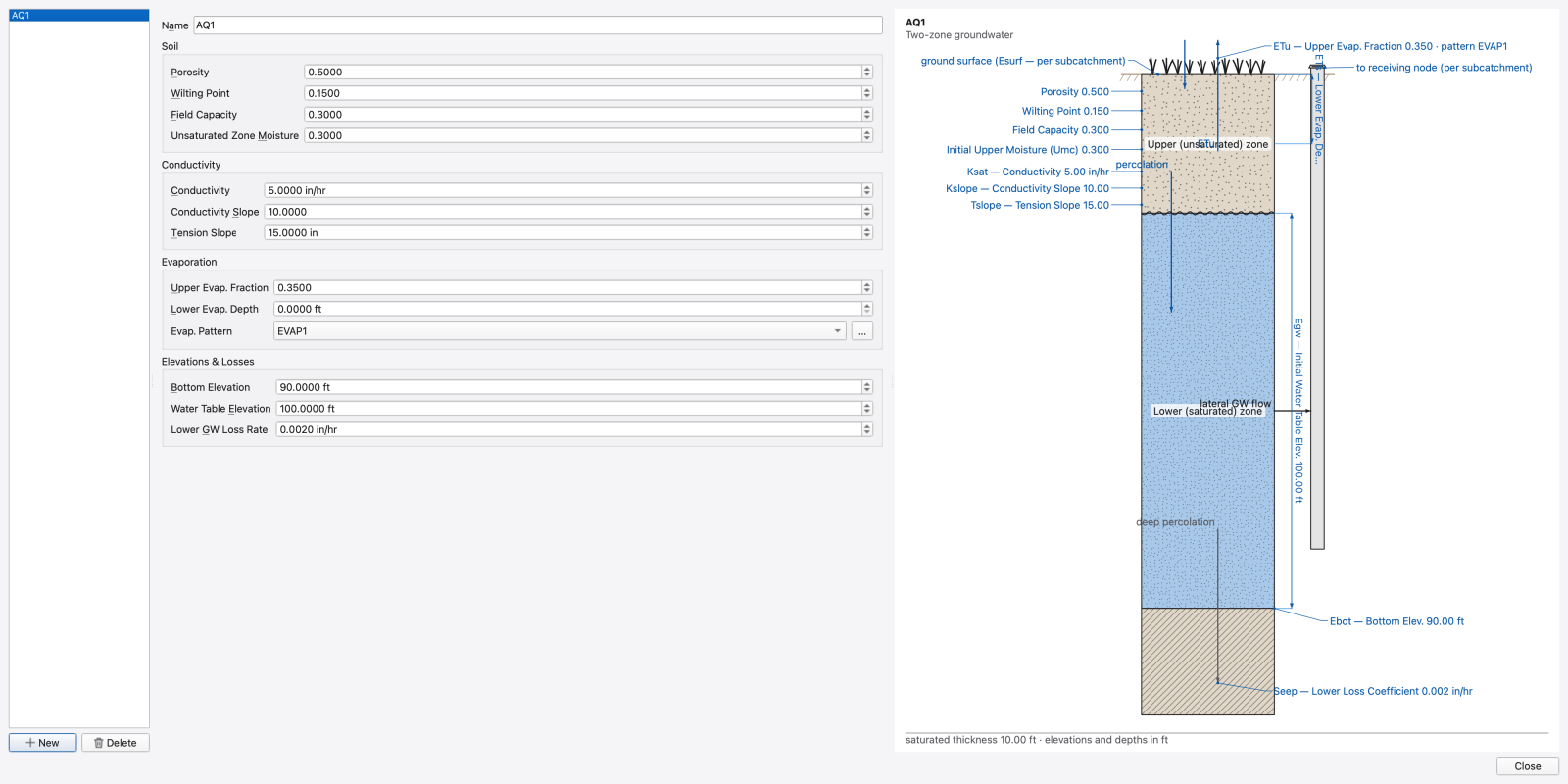
Model → Data Objects → Aquifers… opens a three-pane editor: the aquifer list with New / Delete, a grouped form, and a live two-zone cross-section illustration whose callouts track the form and emphasise the field that has keyboard focus.
| Group | Fields |
|---|---|
| Soil | Porosity; Wilting Point; Field Capacity; Unsaturated Zone Moisture |
| Conductivity | Conductivity; Conductivity Slope; Tension Slope |
| Evaporation | Upper Evap. Fraction; Lower Evap. Depth; Evap. Pattern (optional monthly pattern, with a "…" button that opens the Pattern editor) |
| Elevations & Losses | Bottom Elevation; Water Table Elevation; Lower GW Loss Rate |
Units follow the project unit system (ft/m, in/hr/mm/hr). Soft-validation warnings — wilting point above field capacity, field capacity above porosity, initial moisture above porosity, water table below bottom elevation — appear under the form and in the illustration; they do not block editing. The spin-box ranges are the engine's hard limits.
All of this writes [AQUIFERS]. Assign an aquifer to a subcatchment on the subcatchment's Aquifer property row; clearing the pick removes the subcatchment from [GROUNDWATER].
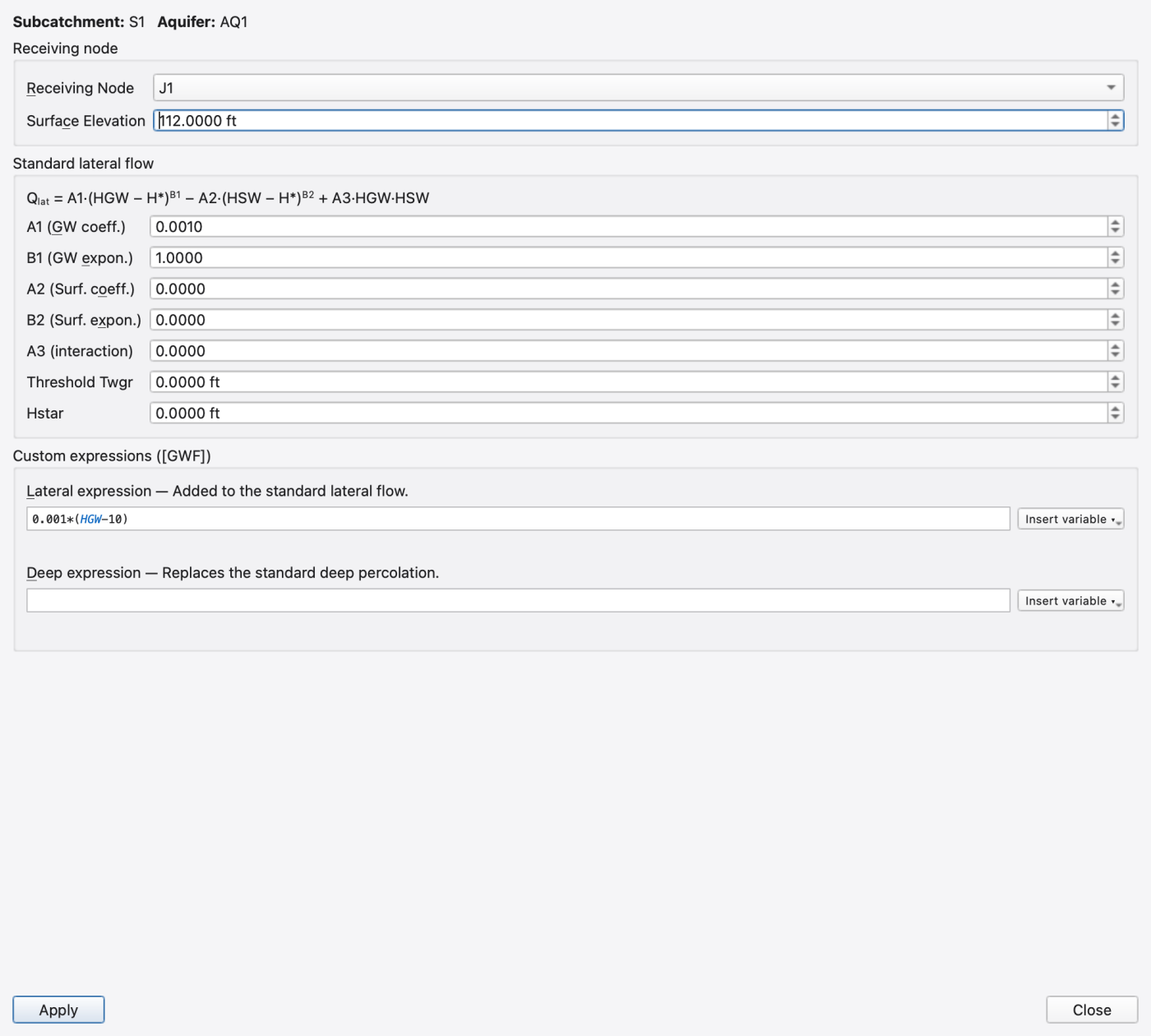
The subcatchment's Groundwater row (Properties panel or attribute table) shows a summary such as AQ1 → J12 (custom) and an Edit… button. The dialog is modeless and stays disabled until an aquifer is assigned.
| Group | Control | Writes |
|---|---|---|
| Receiving node | Receiving Node — the node that receives lateral groundwater flow | [GROUNDWATER] |
| Surface Elevation — ground surface for the subcatchment | [GROUNDWATER] | |
| Standard lateral flow | A1 (GW coeff.); B1 (GW expon.); A2 (Surf. coeff.); B2 (Surf. expon.); A3 (interaction); Fixed surface-water depth (Dsw) (0 = the node's computed depth); Threshold water-table elev. (Egwt) with Use receiving node invert (* in the file; a typed value such as -99 is a literal elevation) | [GROUNDWATER] |
| Custom expressions ([GWF]) | LATERAL — added to the standard lateral flow | [GWF] |
| DEEP — replaces the standard deep percolation | [GWF] |
The lateral-flow formula Q_lat = A1·(HGW − H*)^B1 − A2·(HSW − H*)^B2 + A3·HGW·HSW is shown above the coefficients for reference.
Both expression editors highlight syntax, offer completion (type two characters or press Ctrl+Space) with a one-line description of each variable, and validate against the engine as you type. Apply stays disabled while an expression is invalid, and the offending column number is reported under the field. An Insert variable ▾ button lists the vocabulary. The variable and function lists are read from the engine at construction, so the editor cannot drift from the grammar.
[GWF] expression vocabulary (case-insensitive):
| Variable | Meaning |
|---|---|
HGW | Water table height above the aquifer bottom |
HSW | Surface-water head at the receiving node above the aquifer bottom |
HCB | Channel bottom height above the aquifer bottom (Hstar) |
HGS | Ground surface height above the aquifer bottom |
KS | Saturated hydraulic conductivity |
K | Unsaturated hydraulic conductivity |
THETA | Upper-zone moisture content (fraction) |
PHI | Soil porosity (fraction) |
FI | Surface infiltration rate |
FU | Upper-zone percolation rate |
A | Subcatchment area |
Functions: abs sgn sqrt log exp sin cos tan asin acos atan step min max cot sinh cosh tanh coth log10 acot. log is the natural logarithm; min and max take exactly two arguments and every other function exactly one. Operators are + - * / ^ with parentheses and unary minus. An empty expression is invalid — clear the field entirely to remove the [GWF] row.
Every node's property sheet carries a read-only Groundwater Sources row listing the subcatchments that discharge groundwater to it (from S1, S3); its Edit… button opens this same dialog for the chosen subcatchment. Deleting such a node warns that those subcatchments lose their receiving node.
Model → Data Objects → Unit Hydrographs… opens a non-modal three-pane editor over [HYDROGRAPHS] and [RDII_DECAY]. It can also be opened by double-clicking a unit hydrograph in the Object Browser, from the Edit… button on a unit hydrograph's Parameters property row, and from the "…" button next to the UH picker on a node's RDII page.
Left pane — group list. A Search groups… box filters as you type. The toolbar has New (prompts for a name), Delete and Rename. Deleting a group cascades to its [HYDROGRAPHS] rows, its rain-gage assignment, its [RDII_DECAY] rows and every [RDII] node assignment that names it; the confirmation says so.
Middle pane — group details. The group name, a Rain Gage: combo (*(none)* clears the assignment) and a Season: combo (All plus the twelve calendar months). Two tabs sit below:
Dmax, Drec and Do. Exponential IA decay (season-agnostic) is an eleven-column table: the response label, an Active checkbox, the six decay parameters (k_dep, k_0, k_T, T_ref, theta_rec, T_freeze), a Snow checkbox and its two columns (snow_T, snow_ddf). Existence of the [RDII_DECAY] row is the Active flag — unchecking removes the row and falls back to the linear model; checking a blank row seeds defaults (T_ref = 10). The snow columns stay greyed out until both Active and Snow are checked.Right pane — UH preview. The three RTK triangles are drawn filled with a dashed Composite summation series over them, on a Time (h) × Unit flow chart. Empty response rows drop out of both plot and legend. The chart carries the standard interactive affordances — rubber-band zoom, wheel zoom, pan, zoom-to-extent, a plot-style menu (per-series visibility, fill colour, outline width, line style), axis label format and Chart Properties….
A status strip along the bottom reports the number of groups defined, the parameter-row count of the current group and how many decay rows are active.
Assigning RDII to a node is done on the node's RDII compound-editor page (14 — Hydraulics: Nodes, Links, Cross-Sections, Streets, Inlets and Controls): a table of UH Group / Sewer Area rows with Remove Selected, and an Add / Update RDII Assignment form with a UH Group Name picker (whose "…" button opens this editor) and a Sewer Area value. That page writes [RDII].
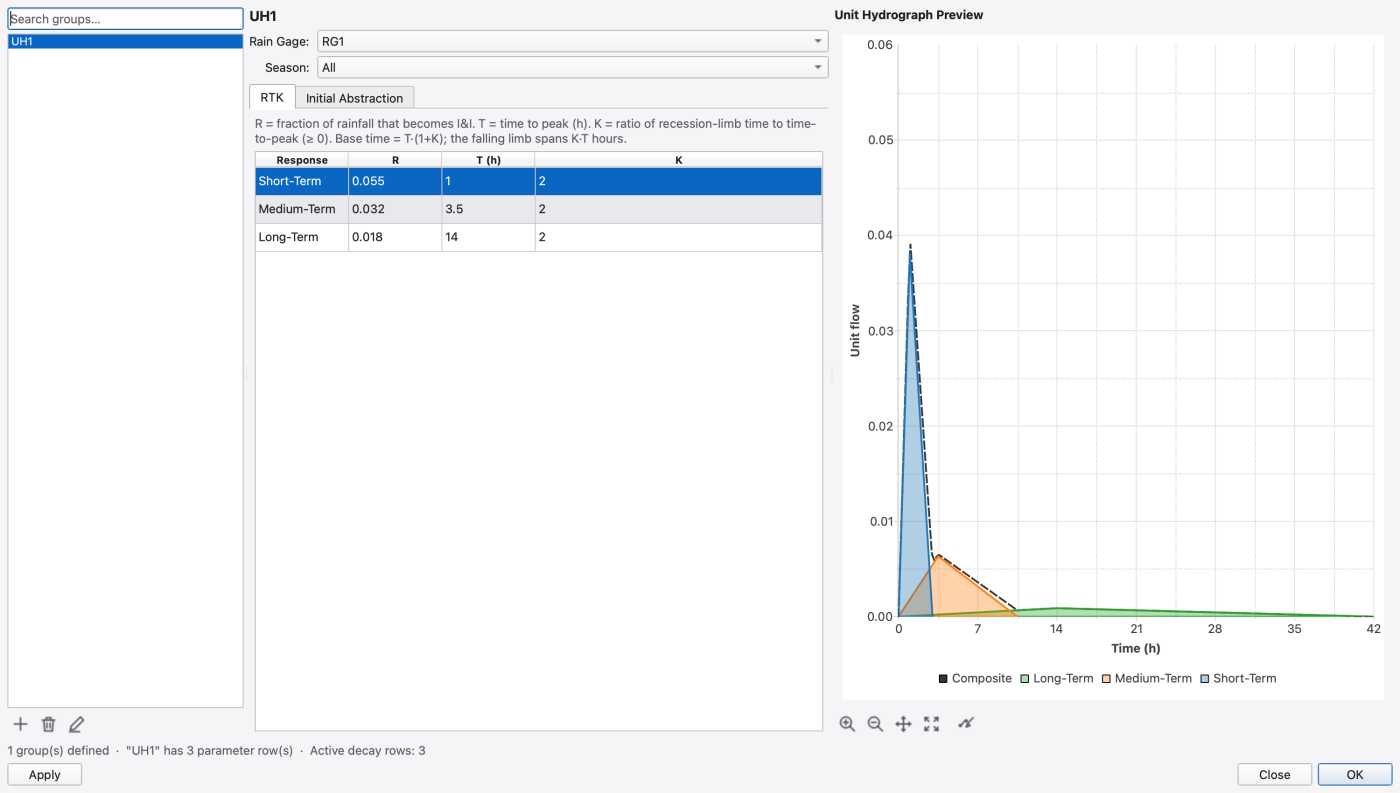
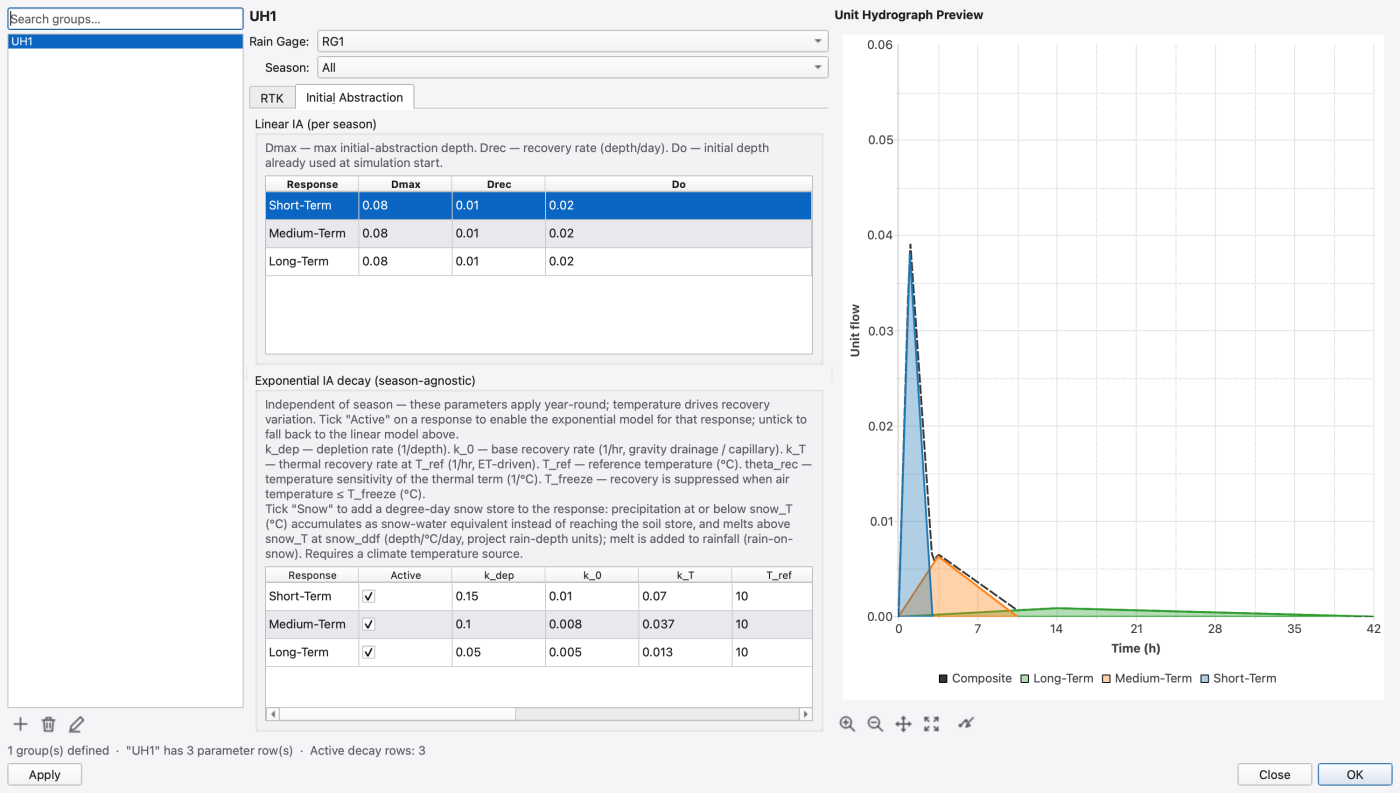
Use the lower table’s horizontal scrollbar to reach theta_rec, T_freeze, Snow, snow_T and snow_ddf. The synthetic example has all three decay rows active and snow disabled. Its report warns that there is no temperature source: recovery is evaluated at T_ref throughout the run. Add climate temperature data before using this case to investigate temperature or seasonal recovery.
INFILTRATION optionA storage node can reference an ordered layered LID control. The layer editor supports arbitrary MEDIA and AGGREGATE layers and per-layer pollutant treatment. See T9 — Layered LID Storage and Pollutant Treatment for a runnable example and editor walkthrough.
 1.9.8
1.9.8