 |
SWMMVis
6.0.0-alpha.4
Qt6/C++ GIS-based graphical user interface for the SWMMVis engine (6.0.0-alpha.4)
|
|
SWMMVis
6.0.0-alpha.4
Qt6/C++ GIS-based graphical user interface for the SWMMVis engine (6.0.0-alpha.4)
|
Look up any default shortcut, learn the keys the map canvas and its tools respond to, and rebind anything you like.
Help → Keyboard Shortcuts… opens the Preferences dialog on its Keyboard page. View → Command Palette… (Ctrl+Shift+P) runs any command by name without a shortcut at all.
Throughout this appendix, Ctrl means ⌘ (Command) on macOS. Qt maps Qt::CTRL to the Command key there, so every "Ctrl+…" below is "⌘+…" on a Mac. The shortcut editor and the command palette both display keys in native form, so a macOS screenshot shows ⌘ ⌥ ⇧ glyphs where this table writes Ctrl, Alt and Shift.
Some actions use a Qt standard key rather than a literal sequence, so their binding is whatever the platform convention is. Those rows give both.
| Command | macOS | Windows / Linux | Menu |
|---|---|---|---|
| New | ⌘N | Ctrl+N | File |
| Open | ⌘O | Ctrl+O | File |
| Save | ⌘S | Ctrl+S | File |
| Save As | ⇧⌘S | Ctrl+Shift+S | File |
| Map Image | — | — | File |
| ⌘P | Ctrl+P | File | |
| Clear Recent Files | — | — | File → Open Recent |
| Preferences | ⌘, | Ctrl+, | Tools |
| Quit | ⌘Q | Ctrl+Q | File |
Preferences and Quit use literal Ctrl+, and Ctrl+Q rather than the platform standard keys, so they are identical everywhere (⌘, and ⌘Q on macOS).
| Command | macOS | Windows / Linux | Menu |
|---|---|---|---|
| Undo | ⌘Z | Ctrl+Z | Edit |
| Redo | ⇧⌘Z | Ctrl+Shift+Z (also Ctrl+Y on Windows) | Edit |
| Copy | ⌘C | Ctrl+C | Edit |
| Search | ⌘F | Ctrl+F | Edit |
| Edit Existing | ⌘E | Ctrl+E | Edit |
| Invert Selection | — | — | Edit |
| Select Upstream | — | — | Edit |
| Select Downstream | — | — | Edit |
Search raises the Object Browser and focuses its filter box; there is no separate Find dialog.
| Command | macOS | Windows / Linux | Menu |
|---|---|---|---|
| Pan | — | — | View |
| Zoom In | ⌘+ | Ctrl++ | View |
| Zoom Out | ⌘− | Ctrl+− | View |
| Zoom Extent | ⇧⌘F | Ctrl+Shift+F | View |
| Zoom To Selection | ⇧⌘J | Ctrl+Shift+J | View |
| Select | — | — | Edit |
| Select By Polygon | — | — | Edit |
| Measure | ⇧⌘M | Ctrl+Shift+M | View |
| Command | Shortcut | Menu |
|---|---|---|
| Execute | Ctrl+R | Analysis |
| Pause Execution | — | Analysis |
| Cancel Execution | Ctrl+. | Analysis |
| Command | Shortcut | Menu |
|---|---|---|
| Tabular View | Ctrl+Shift+A | Analysis |
| Plot Time Series | Ctrl+T | Analysis |
| Plot Profile | Ctrl+Shift+T | Analysis |
| Plot 2D Profile | — | Analysis |
| Summarize Results | — | Analysis |
| Report | — | Analysis |
| Flow Balance Upstream / Downstream | — | Analysis |
| Travel Time Upstream / Downstream | — | Analysis |
| Show Mass Balance | — | Analysis |
| Command | Shortcut | Menu |
|---|---|---|
| Layers | Ctrl+Alt+1 | View → Panels |
| Object Browser | Ctrl+Alt+2 | View → Panels |
| Properties | Ctrl+Alt+3 | View → Panels |
| Attribute Table | Ctrl+Alt+4 | View → Panels |
| Legend | Ctrl+Alt+5 | View → Panels |
| Simulation Status | Ctrl+Alt+6 | View → Panels |
| Message Logs | Ctrl+Alt+7 | View → Panels |
| Layer Styling | Ctrl+Alt+8 | View |
| Section View | Ctrl+Alt+9 | View → Panels |
| Style Manager | — | Tools |
| Show Legend | — | View |
| Show Welcome | — | Help |
| Command | macOS | Windows / Linux | Menu |
|---|---|---|---|
| Command Palette | ⇧⌘P | Ctrl+Shift+P | View |
| Minimize | ⌘M | Ctrl+M | Window |
| Zoom (window) | — | — | Window |
| Plugins | — | — | Tools |
| Keyboard Shortcuts | — | — | Help |
| Help | ⌘? | F1 | Help |
| About | — | — | Help |
Every command in these groups is available from the ribbon — and, except for the ribbon-only 2D-mesh tools noted below, from the menus too — and none of them ships with a default shortcut; they are the natural candidates for your own bindings. The list, by menu path:
The Mesh group is contextual: those commands appear on the Mesh 2D ribbon tab and are enabled only while a 2D mesh is active.
The canvas takes strong focus, so these work whenever it is focused, regardless of the active tool.
| Key | Effect |
|---|---|
| ← → ↑ ↓ | pan by 10 % of the current extent |
| Shift + arrow | fine pan — 2 % of the extent |
| + or **=** | zoom in |
| − | zoom out |
| mouse wheel | zoom about the cursor, ×1.5 per notch |
| middle-button drag | pan, regardless of the active tool |
Anything the canvas does not consume is forwarded to the active tool.
| Tool | Keys |
|---|---|
| Select | Esc — cancel an in-flight vertex drag and leave edit mode, otherwise clear the selection on every layer. Delete / Backspace — delete selected vertex handles in edit mode, otherwise delete the selected objects. Shift-click or -drag adds, Ctrl-click or -drag subtracts, a plain click replaces; a plain click on empty space clears, but Shift or Ctrl on a miss keeps the selection. |
| Select By Polygon | Esc cancel, Return / Enter finalise (double-click also finalises). Ctrl subtract, Shift union, plain replace. |
| Add Link | Esc cancels the in-progress link. |
| Add Subcatchment | Esc cancel, Return / Enter commit the polygon. |
| Edit Vertex | Esc clears the active link. |
| Move Node | Esc cancels the drag preview. |
| Measure | Esc clears all points but keeps the tool active; Backspace / Delete removes the last vertex. |
| Select Profile | Esc resets the selection. Ctrl toggles, Shift extends. |
| Plot Pick | Esc cancels. |
| Select Mesh Vertices | Esc clears the vertex selection and any drag. Shift add, Ctrl toggle, plain replace. |
| Select Mesh Edges | Esc once clears a pending path anchor, twice clears the selection. A includes interior edges, B returns to boundary edges only. Ctrl-click picks a path along the boundary; Shift adds; plain replaces. |
| Mesh Profile | Return / Enter finish the trace (needs at least two vertices), Esc cancel. |
| Pick 2D Cells | Esc clears selection, drag and lasso. B box mode, L lasso mode. Shift add, Ctrl toggle, plain replace. |
No tool uses Alt or Space.
FIGURE PLACEHOLDERdocs/manual/images/a01_mesh_edge_path_pick.png
These are owned by individual dialogs and widgets rather than by the action catalog, so they do not appear in the shortcut editor.
| Where | Key | Effect |
|---|---|---|
| Time-series editor | Insert | add a row |
| Delete | delete the selected rows | |
| Ctrl+C | copy rows as tab-separated text | |
| Ctrl+V | paste from Excel, CSV or TSV | |
| Curve editor | Ctrl+C / Ctrl+V | copy / paste, from either the table or the chart |
| F | zoom to extent | |
| E | toggle drag-to-edit of chart points | |
| Transect editor | F | zoom to extent |
| Ctrl++ / Ctrl+− | zoom in / out | |
| Delete / Backspace | delete the selected stations on the chart | |
| Inlet editor | F | zoom to extent |
| Ctrl++ / Ctrl+− | zoom in / out | |
| Profile plot, mesh profile plot, raster profile plot | Home | fit |
| Comparison plot | Ctrl+Shift+C | toggle the animation cursor |
| Ctrl+Shift+F | Charts Only | |
| Simulation Options → Title / Notes | Ctrl+B, Ctrl+I, Ctrl+U | bold, italic, underline |
| Any time-series or plot chart view | Esc | abort a drag, pan or X-range rubber band; with no drag active, clear the persisted X-range selection |
| Range slider and animation cursor slider | ← / → | nudge by 1 % (5 % with Shift) |
| Home / End | jump to start / end | |
| Control-rule editor, and the groundwater-flow, reaction and treatment expression editors | Ctrl+Space | force the completer open |
| Enter, Esc, Tab, Backtab | consumed by the completer while its popup is visible |
FIGURE PLACEHOLDERdocs/manual/images/a01_timeseries_editor_keys.png
| Where | Key | Effect |
|---|---|---|
| Attribute table | Delete / Backspace | delete the selected rows' objects, through the undo stack |
| Ctrl+C | copy the selected rows to the clipboard as tab-separated text | |
| Enter / Return | stays inside the cell editor and does not leak to global shortcuts; focus returns to the table after the edit commits | |
| Properties panel | Enter / Return | same commit-and-refocus behaviour |
The attribute table's Ctrl+C is deliberately the main window's Copy action routed to the focused panel, not a shortcut of the table's own; the toolbar button is labelled Copy (Ctrl+C) purely for discoverability. There is no paste and no fill-down in the attribute table — the nearest equivalent is the context menu's bulk "apply value to selected rows". Paste is implemented only in the time-series and curve editors.
Help → Keyboard Shortcuts… opens Preferences on the Keyboard page.
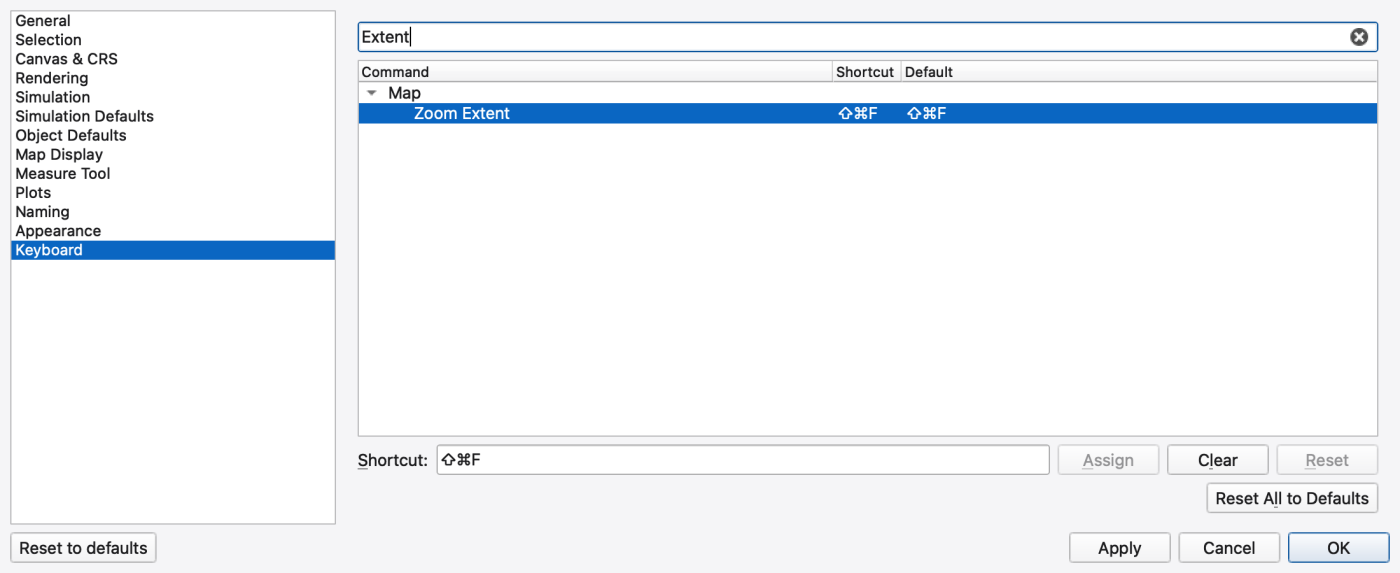
| Control | What it does |
|---|---|
| Filter commands… | case-insensitive substring match on the command text or its category; categories with no visible children hide |
| Command tree | three columns — Command, Shortcut, Default — grouped under category rows (File, Edit, Map, Model, Climate, Data, Import, Simulation, Playback, Analysis, Mesh 2D, View, Panels, Tools, Window, Application, Help) |
| Shortcut: | a key-sequence recorder — click it and press the combination you want |
| Assign | commit the recorded sequence |
| Clear | remove the binding entirely, leaving the command with no shortcut |
| Reset | restore this command's default; enabled only when it has an override |
| Reset All to Defaults | drop every override |
A bold entry in the Shortcut column means a user override is in effect. Sequences are shown in native form, so a Mac shows ⌘ where a PC shows Ctrl. There is no pending-apply state: Assign takes effect immediately and is persisted at once.
Conflicts. Two kinds:
Where overrides are stored. In the application's QSettings store, under the group **SWMMVis::Shortcuts**, keyed by the command's stable dotted id (file.open, sim.run, view.dock.layers, …) with the sequence in Qt's portable text form. A missing key means "use the default"; a key present but empty means "deliberately no shortcut".
The application registers itself as organisation hydrocouple with domain calebbuahin.github.io and application name OpenSWMM Stormwater Management Model, so the store lives at:
| Platform | Location |
|---|---|
| macOS | ~/Library/Preferences/<reversed-domain>.OpenSWMM Stormwater Management Model.plist |
| Windows | HKEY_CURRENT_USER\Software\hydrocouple\OpenSWMM Stormwater Management Model |
| Linux | ~/.config/hydrocouple/OpenSWMM Stormwater Management Model.conf, section [SWMMVis::Shortcuts] |
Deleting the group by hand is equivalent to Reset All to Defaults.
Ctrl+Shift+P opens a frameless search box over the main window.
| Key | Effect |
|---|---|
| type | fuzzy-match filter |
| ↓ / ↑ | move by one |
| Page Down / Page Up | move by eight |
| Return / Enter | run the highlighted command |
| Esc | dismiss |
It also dismisses when the window loses focus.
Matching is a scored fuzzy subsequence over the command's text and over "<Category> <Text>", so panels layers finds Layers in the Panels category. It does not match the dotted action id. With an empty filter it lists every registered command in catalog order.
Each row shows the command's category chip and its current shortcut, in native form — which makes the palette the fastest way to discover a shortcut as well as to run something without one. Disabled commands are greyed and cannot be triggered.
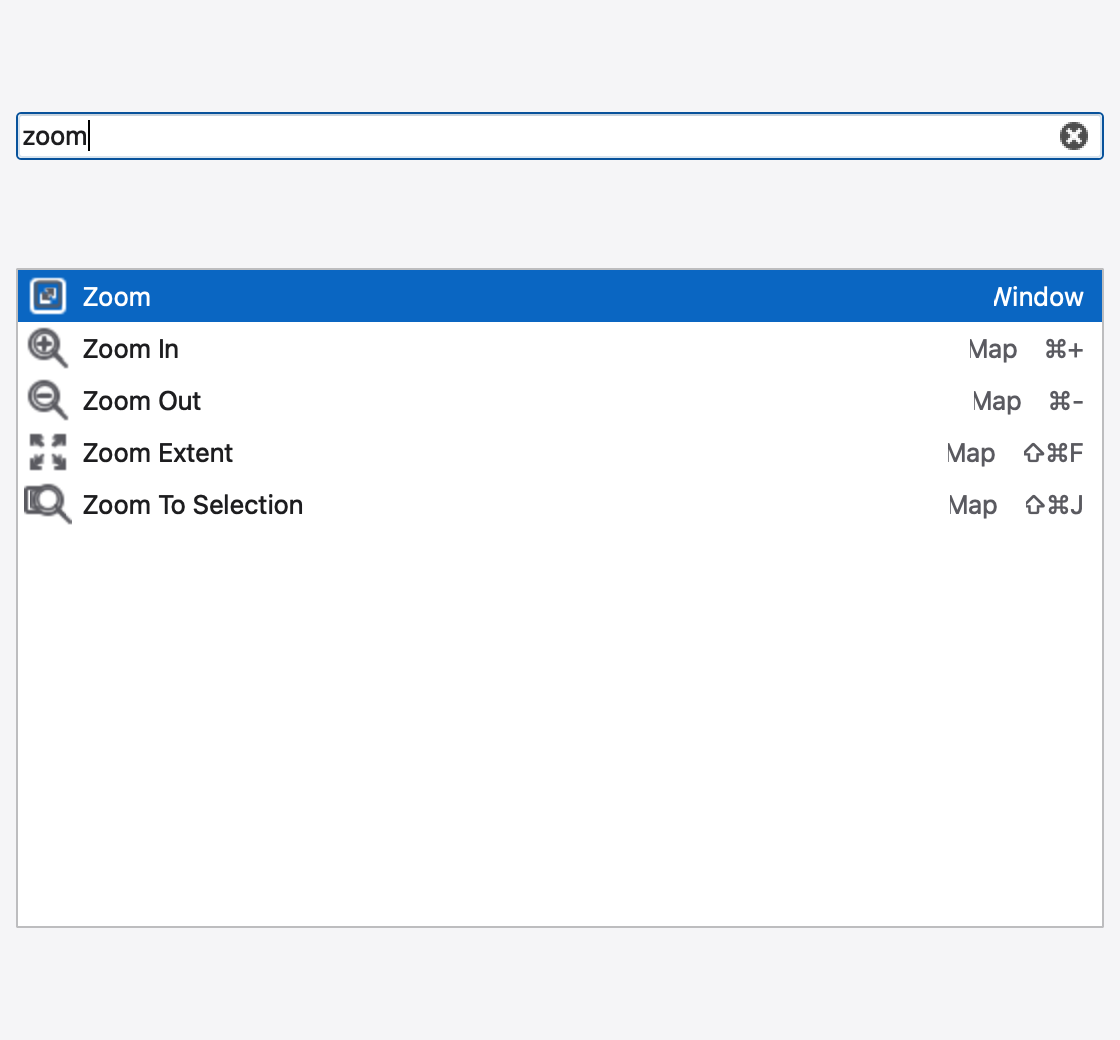
Ctrl++ and Ctrl+- (Command on macOS) select the Zoom In and Zoom Out map tools. Click the map to perform the zoom. With the canvas focused, bare + and - immediately zoom one step. These actions are separately rebindable in Preferences → Keyboard.
 1.9.8
1.9.8