 |
SWMMVis
6.0.0-alpha.4
Qt6/C++ GIS-based graphical user interface for the SWMMVis engine (6.0.0-alpha.4)
|
|
SWMMVis
6.0.0-alpha.4
Qt6/C++ GIS-based graphical user interface for the SWMMVis engine (6.0.0-alpha.4)
|
Build the unstructured triangular mesh the SWMM 6 engine routes surface water on: prepare a DTM and the vector layers that shape it, generate the mesh (or import one), edit vertices, edges and cells, assign per-cell roughness, initial depth and infiltration, set boundary conditions edge by edge, and couple the mesh to the 1D pipe network. Everything here writes the [2D_*] sections of the .inp — inline, or into a sibling .2dm file referenced by [2D_MESH_FILE].
FIGURE PLACEHOLDERdocs/manual/images/19_2d_overview.png
| What | Where |
|---|---|
| Generate Mesh | Model → Generate Mesh; ribbon Model and Mesh 2D tabs |
Add 2D Mesh… (import a .2dm) | File → Import → Add 2D Mesh…; ribbon Home tab |
| Mesh picker, vertex / edge / cell editors | The ribbon Mesh 2D tab (the Mesh Editing toolbar) |
| Select Vertices / Select Edges | Model → Mesh →, and the Mesh 2D tab |
| From Raster… / From Shapefile… (Cell Data) | Ribbon Mesh 2D tab |
| Assign Infiltration to Selection… | Model → Mesh →, and the Mesh 2D tab while cells are selected |
| Aquifer… / Initial Conditions… (2D groundwater) | Ribbon Mesh 2D tab |
| Assign Groundwater… | Model menu and mesh cell tools |
| Active terrain raster, vertical unit, invert offsets | The Terrain toolbar |
| Terrain Profile | Model → Terrain Profile; ribbon Model tab |
| Which mesh the engine reads; 2D solver options | Model → Simulation Options… → Mesh and 2D Surface Routing |
The Mesh 2D ribbon tab and its actions are contextual — they appear when the project has a 2D mesh. None of these commands carry a default shortcut.
The mesh takes its elevations from a DTM raster added like any other raster layer (07 — Layers and Data Sources). Two things must be right before you generate:
The Terrain toolbar carries the active terrain raster used for interactive editing, in three groups:
FIGURE PLACEHOLDERdocs/manual/images/19_terrain_toolbar.png
| Group | Control | What it does |
|---|---|---|
| Active Terrain | Raster combo | The raster used for Z sampling and invert estimation; **(none)** disables it |
| Vertical Units | DEM combo | The DEM's vertical unit — m (metres) or ft (feet) |
| × factor | Multiplier applied to raw DEM values to reach model vertical units; derived from the two units, editable | |
| Invert Offsets | Node Δ | Signed offset added to the converted DEM elevation for a new node's invert |
| Link Δ | Signed offset applied at each link endpoint, used to estimate conduit slope | |
| Profile | Terrain Profile | Trace a polyline and plot the terrain elevation along it — see 23 — Profile Plots |
Model → Generate Mesh opens a tabbed dialog — Sources, Quality, Hydraulics, and Run log — with the output destination in a fixed footer. Generation runs in the background with a progress bar and a live stage label; Cancel Generation stops it cleanly at the next stage boundary.
The Quality settings navigation column is docked beside its settings page. Drag its title bar to move it to the left or right, or float it as a separate panel. Its minimum width follows the longest category name and the current font, so category labels stay readable when text is enlarged. The text column fills the navigation panel and follows its width as the dock or dialog is resized.
The Run log opens when generation starts and remains available afterward. It lists elapsed times, stages, diagnostics, and separate triangle/quad counts; working vertex counts can include unused slots and are not cell counts. Open-area quad generation identifies its second pass explicitly. Overall progress never moves backward when that pass starts.
Filter warnings/errors or search a stage or message. Select a row to read its full details, use Follow latest after scrolling back, and Copy log or Export… to save retained messages as text or JSON Lines. The log keeps at most 10,000 rows and combines repeated progress updates. Any messages omitted by the retention limits are counted in the display and export. Each generation has its own log; export it before selecting Generate again if you want to retain it. Exception highlighting selects at most 10,000 cells; the final report retains the total count and states when the highlighted set is a sample.
The final report distinguishes completion, completion with exceptions, cancellation, failure, and a resource limit. A resource-limited candidate is not applied to the project; the previous mesh remains available. Review its report and adjust the cell budget or requested resolution before generating again. Successful generation leaves the dialog open for review; Close returns to the map.
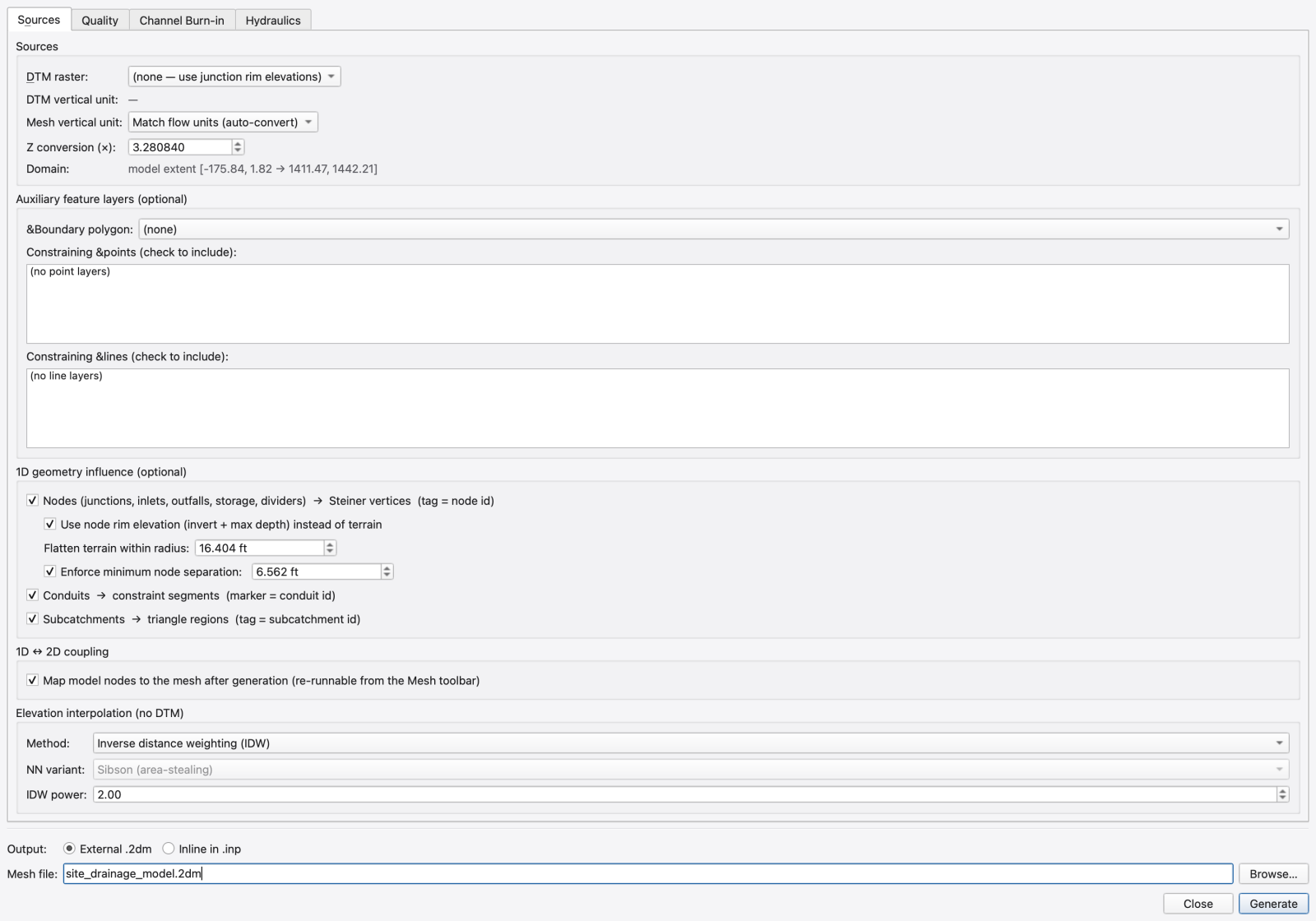
Sources tab — Sources group
| Control | What it does |
|---|---|
| DTM raster | The raster sampled for elevations; **(none)** falls back to interpolating from junction rim elevations |
| DTM vertical unit | Read-only, auto-detected from the raster CRS |
| Mesh vertical unit | Match flow units (auto-convert), Metres (m) or Feet (ft) |
| Z conversion (×) | Multiplier applied to every raw DTM Z before it is written to the mesh; recomputed from the two units above, editable |
| Domain | Read-only summary of the meshing domain (the model extent when no boundary layer is chosen) |
Auxiliary feature layers (optional)
| Control | What it does |
|---|---|
| Boundary polygon | The polygon layer whose features define the meshing boundary. Interior rings become holes that the mesher leaves unmeshed. **(none)** falls back to the SWMM model bounding rectangle plus 5%; Use SWMM subcatchment polygons dissolves the subcatchments into the boundary |
| Constraining points | A checkable list of point layers; every feature becomes a Steiner point. Layers with 3D geometry also offer use feature Z |
| Constraining lines | A checkable list of line layers; every feature becomes a constraint segment, so the mesh has edges along it. Breaklines, walls, kerbs and road centrelines belong here |
1D geometry influence (optional) — these shape the PSLG only; the 1D–2D coupling itself is authored after generation.
| Control | What it does |
|---|---|
| Nodes (junctions, inlets, outfalls, storage, dividers) → Steiner vertices (tag = node id) | Pins a mesh vertex at every node of every type except virtual junctions, which are split points on a conduit with no rim of their own. On by default; the minimum node separation below keeps close node clusters such as weir and orifice endpoints from forcing tiny cells |
| Conduits → constraint segments (marker = conduit id) | On by default; mesh edges follow the pipe alignments |
| Subcatchments → triangle regions (tag = subcatchment id) | On by default; each subcatchment becomes a tagged mesh region, which is what gives the region-defaults table its rows |
| Use node rim elevation (invert + max depth) instead of terrain | Nodes take their rim elevation rather than the sampled terrain. On by default |
| Flatten terrain within radius | Forces every terrain or refinement vertex within this radius of a node to that node's rim elevation, removing the slivers that terrain/rim misalignment creates. **(off)** at 0 |
| Enforce minimum node separation | A node candidate closer than this to an already-kept node is not pinned as a vertex; it stays in the coupling list and the post-generation mapper couples it to its containing cell instead. On by default |
1D ↔ 2D coupling
| Control | What it does |
|---|---|
| Map model nodes to the mesh after generation | Runs the node→mesh mapper once mesh generation finishes. Independent of the junctions-as-Steiner box, and re-runnable later from the toolbar's Remap 1D↔2D |
| Map only coupleable nodes | On by default. Filters out nodes whose effective structure is NONE; does not change the geometry-influence controls above |
| Set coupleable… | Opens the node selector to stage eligibility and structure changes, filter by category/name or map selection, and Apply as one undo step. The readout reports eligible nodes; it is not a count of successful spatial mappings |
Elevation interpolation (no DTM) — the whole group is disabled while a DTM is selected.
| Control | What it does |
|---|---|
| Method | Inverse distance weighting (IDW) or Natural neighbour |
| NN variant | Sibson (area-stealing) or Laplace (edge-ratio); natural neighbour falls back to IDW outside the seed convex hull |
| IDW power | Shepard exponent |
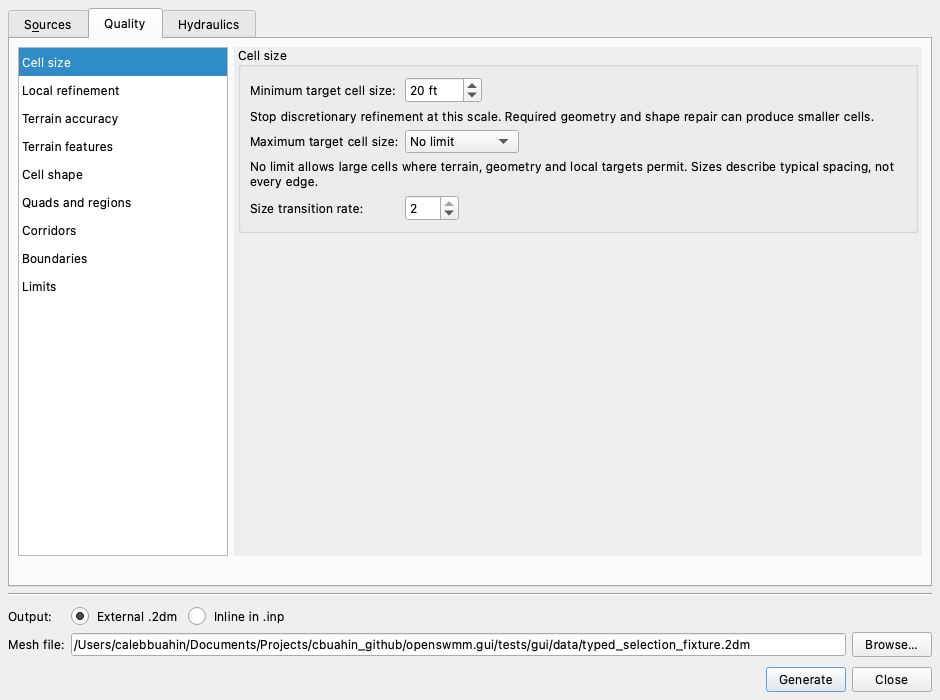
Quality tab — Resolution and terrain accuracy
Select a category on the left to show its settings on the right: Cell size, Local refinement, Terrain accuracy, Terrain features, Cell shape, Quads and regions, Corridors, Boundaries, or Limits. Only the selected page scrolls; the category list and generation buttons remain available. The region and corridor links in Local refinement open the corresponding page.
The constrained Delaunay generator starts with coarse cells and inserts vertices where size, angle, geometry or terrain accuracy requires them. It compares the actual triangle surface with valid samples of the selected terrain reference. A constant slope can therefore be as coarse as flat ground. The retired normal-dot-product node-removal controls are no longer used.
| Control | What it does | Default |
|---|---|---|
| Minimum target cell size | Stops discretionary size and terrain refinement at this scale. Required geometry and shape repair can produce smaller cells, reported after generation | 20 ft / 6.096 m |
| Maximum target cell size | No limit or an independent length in ft/m. No limit allows coarsening wherever terrain, geometry and local targets permit | No limit |
| Refine near selected features | Optional extra refinement near included nodes, lines and rings. Its target inherits the minimum or uses a custom length. Source geometry remains included when this is off | Off |
| Refine to match terrain | Refine actual triangles against the selected DEM reference | On |
| Elevation tolerance | Allowed vertical deviation. Automatic estimates the larger of 0.1 m and three detected whole-unit elevation increments; the resolved value is reported | Automatic estimate |
| Terrain reference | Averaged DEM or Full DEM. Averaging follows the minimum target unless a custom scale is chosen in Terrain accuracy | Averaged DEM |
| Align edges with terrain features | Detect ridges, banks and slope breaks as constrained mesh edges | On |
| Terrain features | Independent breakline detection tolerance, minimum line length and line count | Breakline estimates automatic; minimum length four times minimum target |
| Size transition rate (Cell size) | Background-field growth; verified/strict rules also audit the ratio of nominal sizes across shared cell faces. Any finite value at least 1.05, with no fixed upper cap | 2 |
| Advanced terrain settings (Terrain accuracy) | Terrain refinement method and direct DEM reading | Adaptive elevation error; use a local copy |
Sizing rules, on Cell size, selects a versioned contract. Legacy targets retains saved construction behavior. Verified sizes — report exceptions applies footprint size limits and bounded local repair, then reports unresolved limits. Strict sizes — refuse unmet limits uses the same construction and refuses a candidate that fails a delivered size, transition or separately requested edge-floor requirement. Old settings load as legacy; changing the mode is explicit and is saved in project options and Preferences.
In verified/strict rules, nominal size is the equilateral side with a triangle's area, sqrt(4 A / sqrt(3)), or the square side with a quad's area, sqrt(A). Maximum target cell size bounds that metric. Minimum target cell size still controls discretionary refinement and is advisory for delivered cells. Minimum delivered edge is a separate optional geometric floor. Strict mode refuses a protected source edge already shorter than that floor before meshing. It reports other unresolved edge-floor conflicts after construction.
The construction cap uses a conservative bound over the whole cell bounding box, including interpolation support samples and the bounding boxes of explicit local regions. This can refine more ground around a narrow or nonrectangular region; it avoids missing fine requests between the centroid and the cell edges. A compact minimum pyramid accelerates field queries. The new nominal cap does not use the legacy 1.22 spacing calibration.
After ordinary refinement, smoothing, terrain insertion and optional coarsening, up to two local repair passes (at most 200,000 additional vertices) address size and triangle-to-triangle transition failures. The job cell budget remains a hard resource ceiling. Constraints retain their coordinates; ordinary constrained edges may be subdivided and fixed quad stations remain fixed. Changed triangle terrain errors are checked during repair and the finished mesh receives the existing final terrain check. Fixed quads are not rebuilt in this pass: remaining quad or interface conflicts are reported, and strict sizing refuses them.
The independent final audit measures every cell and shared face, including mixed triangle/quad interfaces. It reports advisory undersized nominal cells, actual edge-floor conflicts, global/footprint maximum exceedances and transition faces. Examples identify cell/neighbour IDs and locations; highlighted exceptions use the existing bounded selection. Invalid connectivity, cancellation or audit work/ memory exhaustion prevents acceptance. A successful sizing audit certifies these size metrics; it is not a general mesh-overlap or terrain certificate.
Sizes describe characteristic cell spacing, not a guaranteed length of every edge. A 20 ft minimum target and a 0.5 ft elevation tolerance describe different quantities: horizontal mesh spacing and vertical terrain discrepancy. Raising elevation tolerance no longer changes breakline detection. Large elevation changes across a planar hillside do not themselves constitute interpolation error.
No limit removes the global upper size target. Terrain accuracy, geometric constraints and selected local targets still determine the mesh. Use an explicit maximum when terrain error alone does not describe the resolution you need. Changing a feature target does not change the maximum.
The averaged reference requires a writable project mesh cache. If that reference cannot be prepared, generation stops with an explanation instead of silently using full-resolution terrain. The result reports the actual averaging block.
Choose an explicit tolerance appropriate to the DEM and the features that matter to the model. Automatic tolerance is a starting value, not an estimate of DEM survey accuracy. For metre-quantized SRTM it resolves to 3 m. Small channels, crests or walls absent from the DEM need authored geometry or a better terrain source. The error check does not claim knowledge of terrain between source measurements.
Shape, boundaries and resource limits
| Control | What it does | Default |
|---|---|---|
| Minimum angle | Smallest requested triangle angle; constrained acute corners and fixed strips can prevent it | 33° |
| Prioritize worst triangle angles | Process poor angles first; turn off to compare FIFO refinement | On |
| Quads between facing break lines | Build aligned quads in suitable streets and ditches | On |
| Conduit quad strip width / region layer / corridors | Explicit local alignment and spacing requirements | 10 ft / 3.048 m conduit strips; no region override |
| Trim boundary vertices: max turn / max deviation | Simplify boundary, hole and auxiliary-line geometry within the requested deviation | 5° / minimum target ÷ 10 |
| Cell budget | Stop refinement and report the unmet requirements at the resource limit | 20,000,000 |
| Terrain cache | Budget per DEM-tile or feature-mask cache. Automatic uses one eighth of physical memory, from 256 MiB to 8 GiB. A larger cache speeds up large DEMs and never changes the mesh. Large feature masks spill to disk; mesh arrays, summaries and feature chains use additional memory | Automatic |
Off (triangles only) disables all generated quad sources, including conduit strips and four-sided regions. Region outlines, tags and local sizes still apply. A prebuilt quad patch conflicts with this mode: remove the patch or enable quads. The mixed modes prefer quads where they fit; they do not target a quad percentage.
On Quality → Quads and regions, choose Unified patch planning to plan mapped regions and open blocks before triangulating the remaining area. This selects verified sizing unless strict sizing is already active. Saved projects keep legacy routing until changed.
| Cell choice | Unified behavior |
|---|---|
| Global triangles only | Every generated region/strip uses triangles; an explicit required quad is a conflict |
Region cells=triangles | Keep that region triangular, overriding the dialog's default requirement |
Region cells=auto or empty | Prefer a mapped patch where geometry, size, angle and terrain permit; otherwise retain its outline and fill with triangles |
Region cells=required_quads | Require a conforming mapped patch; stop with a reason if bounded repair cannot meet its limits |
| Require mapped quads in selected regions | Apply the hard requirement to selected regions unless their feature explicitly requests triangles |
Matching full logical sides share the same exact stations, including authored junctions. Partial sides must already have matching atomic subdivisions; otherwise split the source region into conforming pieces. Mapped candidates currently need four logical sides. A region containing a hole or crossing a protected line uses triangles, or is refused if required. Required points must be incident to delivered cells. Lines, boundaries and holes retain their constraints.
The planner allows up to three subdivision repairs and three exceptional regeneration retries. It refines triangular neighbours of fixed patch edges where possible. A preferred patch with an unresolved interface conflict falls back to triangles; a required generated patch can receive finer stations. A prebuilt patch has fixed stations and is refused if they prevent a valid transition. Each mapped patch is limited to 250,000 cells; larger required regions need conforming pieces. This keeps each patch operation bounded while allowing a much larger total mesh.
The Run log records decisions for up to 100 regions and totals for the remaining regions. The result reports quad shares by cell count and area, without a target percentage. Full delivered geometry, sizing and terrain checks still run after assembly. These checks do not guarantee every triangle's requested angle or terrain tolerance; inspect the reported exceptions and strict-size outcome.
On Quality → Boundaries, Default geometry policy controls source cleanup:
Preserve and bounded modes retain closely spaced constraint coordinates rather than welding them at the minimum target size. Conduit paths retaining more than two vertices use plain constrained edges so strip resampling cannot discard authored vertices. Quad-region and prebuilt-patch outlines remain protected. Invalid protected holes stop the run so their source can be repaired. Lines with a mixture of inside/outside vertices must be clipped to the domain first; these modes refuse the previous behavior of deleting outside intermediate vertices and straightening the path. Geometry mode is saved with the project; existing recipes keep their previous mode until changed.
In preserve/bounded modes, auxiliary line features can override the default through mesh_simplify (inherit, preserve, or simplify), mesh_xy_tol (mesh horizontal units), and mesh_z_tol (mesh elevation units, after the configured source conversion). Invalid override values stop the run. Source-specific limits sets preserve/simplify and optional XY, elevation, corner, ring-area and clearance limits for a boundary source or line layer. An unchecked limit inherits the default. Feature attributes take precedence over the source settings. Conduits inherit preservation unless explicitly changed. Selecting a source here does not include it: include layers on Sources. These overrides are saved with the project in physical units; changing display units does not change the limits. Unavailable saved sources remain listed so their settings can be reviewed or reset.
Exactly shared original segments are assembled into shared chains and simplified once under the stricter owner limits. Preserve wins; ring-area rejection restores the whole connected shared component. Differently sampled overlaps are retained conservatively. Work or memory limits also retain the original constraints.
The run log identifies source layer/feature IDs, removals, deviations, area changes, rejected shortcuts and rollbacks, with bounded examples. The library API additionally returns retained source-vertex mappings. An independent preparation audit checks the full geometry, and a delivered-mesh audit checks required paths against actual incident cell edges, including domain/hole sides and retained authored elevations. A failed or incomplete audit prevents adoption. This checks constraints; it is not a general proof that arbitrary cells never overlap.
Preview constraints… runs preparation and its audit, then opens Constraint preview without generating or replacing a mesh. Compare the prepared original paths (blue dashed), proposed paths (green) and removed samples (red); select a source row to focus, or use Fit overview. Drawing is capped at 50,000 vertices and 500 features, with sampled display explicitly labelled. Counts and audits use the full geometry. Changing an input marks the preview stale. Polygon preparation may dissolve selected polygons before this comparison, so the overlay compares prepared constraints rather than the undissolved GIS features.
Remove unnecessary vertices after refinement, on Cell shape, optionally reduces cell count while retaining the minimum-angle rules, local target size and certified elevation tolerance. It never removes the mesh's input representation of a feature: node pins, constraint vertices and quad-region vertices are retained. Only free vertices added during meshing can be removed. Triangle-only regions remain eligible for coarsening under their local size limits; only actual mapped quad patches protect their interiors. Unknown DEM coverage prevents removal. Advanced coarsening settings limit reconsideration to 1–10 attempts per vertex (3 when enabled). The option is off by default and stays off when older projects are loaded. The results show removed vertices and triangles, rejection counts and elapsed time. A vertex can be reconsidered after a neighbouring removal, so rejection counts are not unique vertex counts. With No limit, flat open areas can become large triangles; set a maximum target when their size matters. The log distinguishes unavailable terrain certification, no eligible free vertices, and attempted removals that were all rejected by the geometry or accuracy checks.
Final verification uses the exported geometry and elevations. Fixed strips, minimum spacing, missing DEM data or prescribed rim elevations may prevent the requested tolerance. The result then includes counts and example locations; model elevation offsets are distinguished from insufficient terrain resolution. The final Run log report separates requested targets from achieved edge lengths, shape, terrain error bounds and resource limits. Highlight exception cells marks cells with short edges, small angles, terrain exceedances or unknown coverage on the map. An upper error bound is not an exact measured maximum. Verification of an averaged reference does not certify detail removed from the original DEM.
Existing projects migrate their multiplier to an explicit finite maximum, and copy their old elevation tolerance into an independent breakline threshold. Saved values, including 20 ft tolerances, are retained. The stronger minimum stop can change regenerated meshes; existing mesh files are not changed merely by opening the dialog.
The dialog remembers its settings when closed, including Close without Generate. It reloads them on reopening; saving the project also stores them in the .oswp sidecar. Distances are stored in canonical units, and layer choices use stable layer identifiers. The last generation's cell count and terrain result appear in the Quality tab.
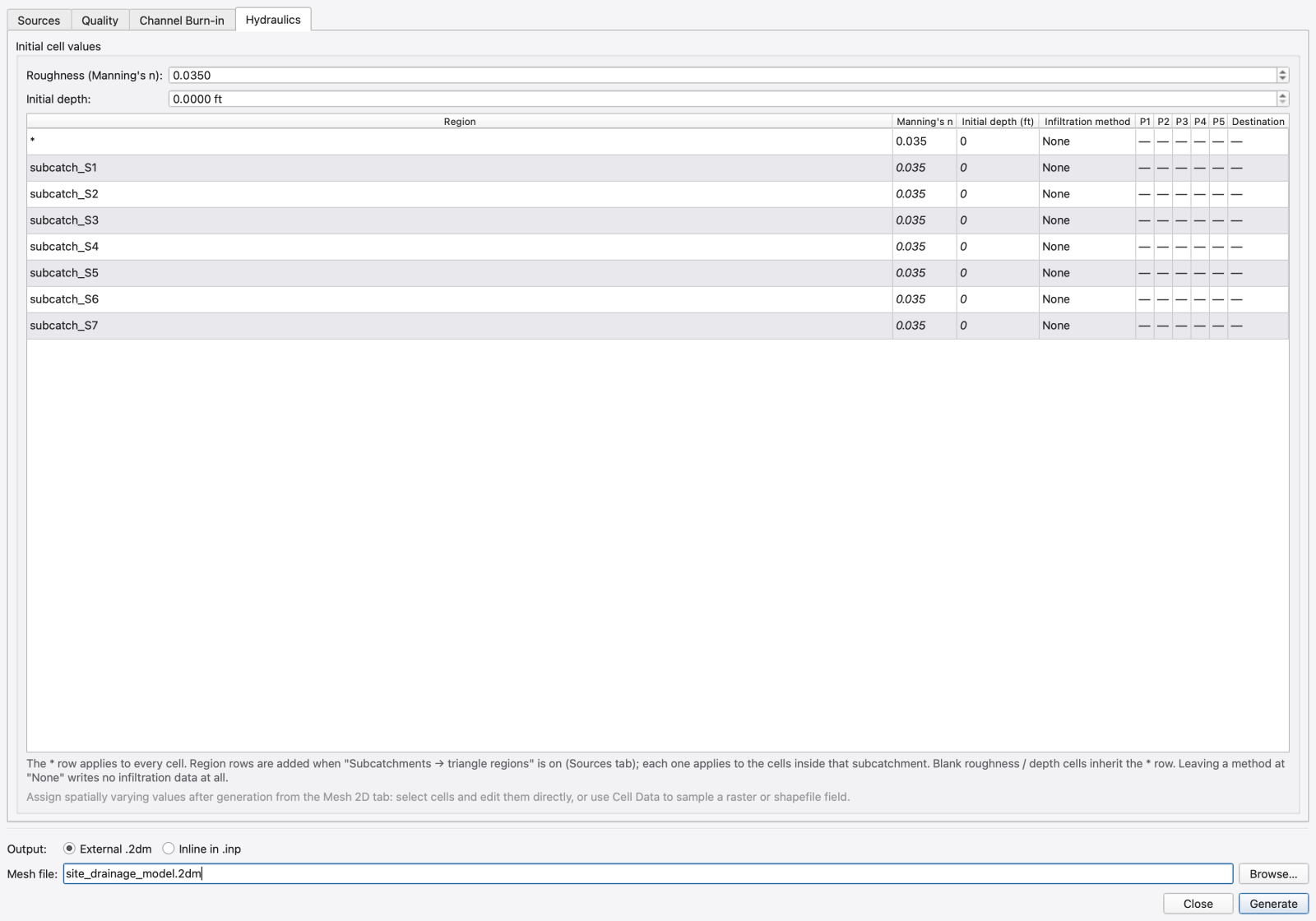
Hydraulics tab — Initial cell values
| Control | What it does | Writes |
|---|---|---|
| Roughness (Manning's n) | Written to every generated cell | [2D_TRIANGLES] MANNINGS_N |
| Initial depth | Standing water depth at the start of the run; 0 starts the cell dry | [2D_TRIANGLES] INIT_DEPTH |
Region defaults — one row per region tag the mesh will carry (subcatchment tags, when Subcatchments → triangle regions is on), plus a * row that is always present and always first. Columns: Region, Manning's n, Initial depth, Method, P1 … P5 and Destination.
* row's Manning's n and Initial depth cells are a read-only mirror of the two spin boxes above; a project where you never touch the table produces exactly the mesh it would have without it.* value in italics until you type into it, and only rows you actually filled in are stamped onto their cells.— and refuse edits. Parameters are in project units — the same numbers you would type into [INFILTRATION].* row → none — so region rows go to [2D_INFILTRATION_DEFAULTS] verbatim and are never flattened into per-cell rows. A table where every row is None writes no [2D_INFILTRATION*] section at all.Output (footer)
| Control | What it does |
|---|---|
| External .2dm | Writes a standalone .2dm referenced by [2D_MESH_FILE] in the .inp |
| Inline in .inp | Embeds [2D_VERTICES], [2D_TRIANGLES] and the rest directly in the .inp |
| Mesh file / Browse… | Destination path; defaults to <project>.2dm |
The generated file carries ;; SOURCE_CRS: and ;; UNITS: header lines so it is self-describing. Freshly generated meshes are renumbered along a Hilbert curve of their triangle centroids — the engine's cell index is the file line order, so spatial neighbours being index-adjacent measurably helps both the solver's cache behaviour and the map renderer. It is a pure permutation: the geometry and every per-element attribute are unchanged.
Existing projects retain constant elevation tolerance and the existing flatness order. These new choices are opt-in and select verified sizing when needed.
On Quality → Cell shape, enable Remove unnecessary vertices after refinement, then open Advanced coarsening settings → Removal order → Resolution and flatness. The order favors redundant sampling relative to the prescribed target and uses compatible physical units for facet normals. It keeps one queue entry per vertex. Switching the checkbox off disables removal. The order does not grant permission to remove a boundary, hole, line, node, or fixed patch vertex, or to exceed the target size, angle, or terrain checks.
On Quality → Terrain accuracy → Tolerance rule, choose Scale with target cell size (experimental). Under Advanced terrain settings, set the target size at the reference tolerance, an optional smallest tolerance, and a largest tolerance. Zero largest tolerance uses the ordinary elevation tolerance. The linear rule is:
For a reference tolerance of 0.10 m at a target size of 10 m, targets of 2 m and 10 m allow 0.02 m and 0.10 m respectively. Coarser targets remain capped at 0.10 m unless a larger cap is explicitly entered. A zero floor does not impose an extra lower clamp. These are tolerances against the chosen DEM reference; they do not establish physical accuracy beyond the source data.
The smallest target over the full cell footprint governs the tolerance. Narrow fine regions cannot disappear between samples. For directional regions the finer prescribed direction is used, without forcing nominal quad sizes to that finer isotropic size. Bounding boxes can conservatively tighten nearby ground. Unbounded target areas use the cap. The prescribed field stays fixed during removal, so deleting vertices cannot relax the error allowance.
Refinement, preferred/fixed quad checks, removal certificates, and final delivered terrain checks use this same rule. Unknown coverage rejects removal. Required fixed patches are refused when their stations cannot certify the requested terrain tolerance; preferred patches can use triangles. Minimum spacing, fixed geometry, or a resource limit can still leave terrain exceptions. Inspect the Run log's applied tolerance range, largest error/tolerance ratio, and highlighted cells. Strict sizing remains a separate size/edge/transition setting.
Weighted tolerance requires an adaptive terrain reference and a selected DEM. Turning terrain refinement off deactivates the weighted rule. The rule selector remains available when a raster is removed, allowing a saved weighted request to be switched back to constant tolerance. Averaging changes the reference itself; weighting cannot recover detail already removed from it.
Generate or import a mesh first, then choose Burn Channels… in the Model tab's Mesh 2D group or the Mesh 2D tab's Mesh group. The tool uses the active mesh and the model's open-channel cross-sections. A DEM is not required: the surrounding elevations come from the existing mesh.
Select all open channels, a query such as ‘link_tag = 'creek’`, or a list of conduit IDs. Closed pipes are excluded. Channels are clipped to the mesh boundary and its holes; outside intervals stay in 1D.
| Control | Meaning |
|---|---|
| Channel cell size | Target along-channel spacing; zero matches the existing mesh |
| Minimum spacing divisor | Minimum row and column spacing is cell size divided by this value (default 4); this is not a strict aspect-ratio guarantee |
| Minimum burn half-width | Within this width, replace existing elevations; farther out, lower elevations only |
| Maximum incision | Limit the cut below the existing surface; zero is unlimited |
| Channel elevation tolerance | Report deviations from the authored section, in metres |
| Maximum total mesh cells | Limit the complete result, including retained cells and quads |
| Use quadrilaterals where they fit | Use quads in regular channel runs and triangles near boundaries and confluences |
| Replace burned channel intervals in the 1D model | Remove replaced intervals, retain outside intervals and create interface couplings |
The tool opens local cavities around the selected channels, inserts the channel cells and stitches them to the retained mesh. Domain and building outlines stay fixed. Vertical banks become ramps at least one minimum-spacing cell wide. Cells outside the affected area retain their attributes; boundary conditions, existing couplings, infiltration overrides and layer display settings are carried forward. An interior edge assignment that cannot be retained is reported.
If a cavity cannot be stitched within the limits, its original cells remain and only channel elevations are painted on its vertices. The result reports this fallback, channel elevation error, and before/after counts of poor-angle cells. Accuracy warnings do not prevent applying a valid mesh. Inspect these warnings before relying on the replacement's hydraulic behavior.
With 1D replacement enabled, unreferenced interior junctions are removed. Delivery points, storage and other protected nodes are preserved; interfaces receive mesh couplings. A junction with one surviving link becomes a coupled outfall without changing the surviving pipe's invert or offsets. The model and mesh must use the same CRS for 1D replacement. Unsupported saved cell-indexed sections are refused before work starts. Every required interface must have a mesh coupling; if one cannot be connected, the operation leaves the mesh and 1D network unchanged.
The mesh and network changes form one Undo operation. Undo/Redo restores both, including after saving. Applying a burn changes the in-memory model; Save or Save As writes the channel deletions and updated mesh to disk. Cancellation and model changes during processing prevent adoption of the result. Generate Mesh has no channel-burn stage.
Optional raster output is off by default. Enable Also prepare a burned DEM copy and report, choose a source DEM and its elevation-unit conversion (1 for metres, 0.3048 for feet), and optionally select an output folder. The operation stages a VRT, changed-pixel GeoTIFF tiles and a CSV report. Project Save publishes them together; the source DEM remains unchanged. Export failure leaves the mesh and network unchanged. By default outputs go into terrain/ beside the model, with a unique filename suffix.
Use the bundled Channel Burn at the Study Boundary example for the separate generate → burn → undo/redo → save/reopen workflow.
File → Import → 2D Mesh loads an OpenSWMM .2dm file and attaches it to the active project as a mesh layer. The file dialog offers *.2dm (and All Files); this build reads no other mesh format — convert externally if your mesh comes from another tool. The import runs asynchronously with the progress bar; the outcome is reported in the Message Logs panel.
The Mesh page of Model → Simulation Options… is where you choose which mesh the engine actually reads when a project has several — see 18 — Simulation Options.
The Select button at the beginning of this tab returns to the same selection tool used on Home. Use it to switch back from Select Vertex, Select Edge or Select 2D Cells without changing ribbon tabs.

The Mesh Editing toolbar is organised into captioned groups. Clusters appear and disappear with the selection, so the tab shows the editors that apply right now.
Mesh group
| Control | What it does |
|---|---|
| Mesh combo | Which mesh layer is active — this is the layer every other control on the tab acts on |
| Z: hover readout | Elevation under the cursor, interpolated linearly across the triangle it is inside; blank off-mesh. It is also mirrored into the status-bar coordinate readout |
Vertices group
| Control | What it does | Writes |
|---|---|---|
| Select Vertex (toggle) | Click a vertex to select it; Esc clears | — |
| Vertex info label | The selected vertex index, its tag and its coupled node | — |
| Z spin | Elevation of the selected vertex in project vertical units | [2D_VERTICES] Z |
| Tag field | Descriptive vertex tag | [2D_VERTICES] TAG |
| Coupled node combo | The SWMM node this vertex couples to; blank = uncoupled | [2D_VERTEX_NODE_MAP] |
| Cd spin | Discharge coefficient for the selected coupled vertices | [2D_VERTEX_NODE_MAP] CD |
| Area spin | Exchange area (mesh length units squared) for the selected coupled vertices | [2D_VERTEX_NODE_MAP] AREA |
The Z spin coalesces edits — it applies on Enter, focus-out or an arrow step, so a mesh recompute is not triggered per keystroke.
Edges group
| Control | What it does |
|---|---|
| Select Edge (toggle) | Click a boundary edge, or drag a box to select several. Ctrl/⌘-click two boundary edges to add the whole run between them — the shortest chain by geometric length. Esc clears |
| Edge info label | The selected edge, its tag, or the count and how many of them are boundary edges |
| BC type combo | The boundary condition; changes apply immediately to every selected edge |
| Parameter page | Follows the BC type (see the table below) |
| Conveyance spin | Per-edge flux attenuation in [0, 1]; 1.0 is unrestricted. Applies to every edge, interior and boundary, and is mirrored onto the neighbouring triangle's matching slot so mass conservation holds |
Coupling group — Auto-couple and Remap 1D↔2D, described below.
2D Results and Profile groups — Pick 2D Cells and the mesh profile tracer, plus the per-cell editors that appear while cells are selected. See 25 — Analysis Tools: Flow Balance, Travel Time, Rainfall Visualisation, 2D Cell Time Series and 23 — Profile Plots.
Select cells with Pick 2D Cells — single-click selects (Shift adds, Ctrl toggles), drag a box or press L to lasso, Esc clears — then use the cell editor that appears beside the cell info label.
FIGURE PLACEHOLDERdocs/manual/images/19_cell_editor.png
| Control | What it does |
|---|---|
| Parameter combo | Which per-cell attribute to prescribe |
| Value editor | A spin box, or a combo when the parameter is an enumeration (the infiltration method) |
| Cell tag field | Descriptive triangle tag ([2D_TRIANGLES] TAG) |
| Assign Infiltration to Selection… | The whole-row infiltration form for the selected cells — method, parameters and destination in one undo entry, applied to the cells or to the region tag they share. Enabled only while cells are selected |
The editable per-cell parameters are:
| Parameter | Meaning | Writes |
|---|---|---|
| Manning's n | Surface roughness | [2D_TRIANGLES] MANNINGS_N |
| Initial Depth | Standing water depth at t = 0; 0 starts the cell dry | [2D_TRIANGLES] INIT_DEPTH |
| Infiltration Method | Per-cell infiltration model; inherited from the cell's region tag until it is set here | [2D_INFILTRATION] METHOD |
| The method's parameters | Positional, in project units; a parameter the resolved method does not use reads — and refuses edits | [2D_INFILTRATION] P1…P5 |
Values read back resolved, not raw: a cell with no override reads its region tag's numbers (or the * row's), which is what the engine will run. Editing one creates a per-cell override; undoing that edit puts the cell back to inheriting, not to an override carrying the same numbers.
The legacy cell-parameter selector still disables its groundwater entries. Use Model → Assign Groundwater… for aquifer properties, initial water state, SAT/UNSAT initial species concentrations and injection/extraction sources. These values use the engine's groundwater authoring records and project undo.
Every cell edit goes onto the project undo stack and refreshes the map, the Properties panel and the attribute table together, so no view can drift.
From Raster… and From Shapefile… on the Mesh 2D tab open the Assign 2D Cell Data dialog. Where the toolbar's cell editor prescribes one value to a hand-picked selection, this prescribes a spatially varying field to the whole mesh or the current selection, in one undoable step.
FIGURE PLACEHOLDERdocs/manual/images/19_assign_cell_data.png
Mapping mode
| Mode | What it does |
|---|---|
| Single numeric target | One band or field → one cell parameter |
| Multiple numeric targets | N bands or fields → N parameters in one pass (Horton's f0, fmin and decay together), still one undo entry |
| Classified infiltration lookup | A categorical key field (land-use code, hydrologic soil group), optionally a second key, mapped through an editable lookup table to a complete infiltration row. Curve Number by land use × hydrologic soil group is the canonical two-key case |
Source — Raster (with Band, Scale and Offset) or Vector layer (with Layer, Field and Use selected features only).
Sampling is orthogonal to the mode:
| Sampling | What it does |
|---|---|
| Cell centroid (point sample) | One sample at the cell centroid |
| Overlay — automatic (by source type) | Majority for a categorical source, area-weighted mean for a continuous one |
| Overlay — area-weighted mean | Explicit override |
| Overlay — majority (largest share) | Explicit override |
| Natural neighbour | For scattered point sources rather than coverages; Sibson or Laplace variant |
Offering the wrong overlay statistic for a source type produces plausible nonsense, which is why the automatic choice is bound to the source's declared type and the override is explicit.
Write as (infiltration modes) — Per-cell overrides writes one [2D_INFILTRATION] row per cell, correct when the source really does vary cell by cell; Region defaults (by tag) writes one [2D_INFILTRATION_DEFAULTS] row per source key, preserving tag inheritance. A Leave cells that already inherit these values unchanged option keeps inheriting cells inheriting.
Apply to — All cells or Selected cells (the count is shown).
The lookup table has Add Row, Remove Row, Load CSV… and Save CSV…, so an agency standard table can be reused across projects. A trailing (unmatched) row applies to every key the table does not list.
Preview samples without writing and reports what it found; Apply writes. Sampling runs in the background and the mesh is untouched until it finishes successfully, so cancelling mid-run leaves the mesh exactly as it was.
Select boundary edges with Select Edge, then choose a type. Boundary edges you never touch default to WALL (zero flux).
FIGURE PLACEHOLDERdocs/manual/images/19_edge_bc.png
| Type | Parameter | Writes ([2D_BOUNDARY_CONDITIONS] TYPE) |
|---|---|---|
| Wall | none | WALL |
| Normal Flow | Slope: bed slope, dimensionless — must be > 0; the engine treats 0 as a wall | NORMAL_FLOW |
| Specified Stage (Constant) | Stage: water-surface elevation in project vertical units | SPECIFIED_STAGE |
| Specified Stage (Timeseries) | TS: a time series name | TS_STAGE |
| Specified Flow (Constant) | Flow/m: discharge per metre of edge, outward-positive | SPECIFIED_FLOW |
| Specified Flow (Timeseries) | TS: a time series name | TS_FLOW |
| Rating Curve | Curve: a curve name | RATING_CURVE |
The time-series and curve fields are editable combos over the project's data objects; pick an existing one, or type a name and press the browse button to create or edit it in the matching editor (17 — Time Series, Curves, Patterns and Calibration Data). Edits apply immediately to every selected edge — there is no separate Apply.
Edges can also carry a group name, which the .inp writes in the GROUP column so a run of edges reads as one named boundary.
Edge conveyance ([2D_EDGE_CONVEYANCE]) is separate from the BC type and applies to interior edges too. It is the way to model a leaky berm, a kerb or a partially blocking wall: set the conveyance of the edges along the feature to the fraction of the flux the geometry would otherwise allow. The engine mirrors each row onto the neighbouring triangle's matching slot so antisymmetry — and therefore mass conservation — is preserved.
A node needs both a hydraulic structure and a spatial map. Set the structure in the node property view's 2D Coupling group or in the node attribute table. Map it to the mesh after generation or with Remap 1D↔2D. The node can be eligible while still unmapped; eligibility alone transfers no water.
| Saved section | Purpose | Edited from |
|---|---|---|
[2D_NODE_COUPLING] | Eligibility, structure, geometry and per-node overrides | Node properties, node attribute table; type/eligibility also in Set coupleable… and Remap 1D↔2D |
[2D_VERTEX_NODE_MAP] | Connects a node to a coincident mesh vertex | Meshing mapper, remap, vertex controls/table, Auto-couple |
[2D_TRIANGLE_NODE_MAP] | Connects a node to a containing mesh cell; multiple nodes may share a cell | Meshing mapper and remap |
[2D_OPTIONS] | Global exchange law, head sampling, ponding and numerical controls | Simulation Options → 2D Surface Routing → Coupling |
Both map types support ORIFICE and WEIR_ORIFICE. Optional map Cd and Area are hydraulic overrides, not the node's chamber size. Map areas use mesh length units squared; node geometry uses project length units squared. This distinction matters when a US project uses an SI-tagged mesh.
| Structure | Use and eligible node classes | When no row has been authored |
|---|---|---|
NONE / Not coupleable | Excludes the node from surface exchange. Existing map rows for it are ignored at run initialization | Default for inlet junctions and virtual junctions |
MANHOLE | Circular access opening, with optional geometry overrides. Junction, divider or storage | Default for ordinary junctions and dividers |
GRATE | Grated opening: enter the effective exchange area and weir perimeter. Junction, divider or storage | Explicit choice |
CURB | Curb opening: enter its hydraulic opening area and effective weir length/perimeter. Junction, divider or storage | Explicit choice; currently shares the grate geometry resolution |
OPEN | Open-top pond/storage represented by a storage node's area-depth relationship | Default for storage nodes; legal only on storage |
OUTFALL | Transfers connected-link flow to/from the surface and uses surface tailwater | Default for outfall nodes; outfalls accept only OUTFALL or NONE |
2D Coupleable = NO sets NONE and clears structure overrides. YES restores the class default; a class whose default is NONE is explicitly set to MANHOLE. Changing the structure also clears its old overrides. Set the structure first, then its parameters. Undo restores the complete previous configuration, including inherited values. Enabling an inlet junction can introduce a second street-to-sewer route alongside its inlet representation; choose the intended route deliberately. A virtual split junction normally stays NONE.
Blank numeric editors and **(inherit)** choices omit the override. The table shows NULL for an unauthored numeric override; this does not mean zero. A displayed default structure does not mean a row is saved in the INP. Lengths below are m for SI projects and ft for US projects; areas are m² or ft². All numeric values must be finite. Positive means strictly greater than zero.
| Field / INP key | Meaning and configuration |
|---|---|
Opening diameter / D | Positive diameter. MANHOLE derives area as πD²/4 and perimeter as πD. Default 1.2 m or 4 ft. Grate/curb use this circular area as a fallback when no area is provided; specify their actual area/perimeter |
Weir perimeter / PERIMETER | Positive effective exchange length. Overrides the derived perimeter. For GRATE/CURB, default is 4√A; for OPEN, √(4πA). It is a hydraulic opening dimension, not a mesh-cell boundary length |
Opening area / AREA | Positive flow opening area. Overrides diameter-derived area. OPEN otherwise uses storage surface area at full depth. A map-row area can override this again |
Chamber area / CHAMBER_AREA | Positive above-rim chamber plan area used by the chamber/tracking ponding treatment. Under WEIR_ORIFICE, defaults to resolved opening area before lid scaling. It does not replace a storage node's storage curve |
Lid open fraction / LID_OPEN_FRACTION | Fraction in (0,1], default 1. Scales both flow opening area and weir perimeter, not chamber area. Use NONE to disable exchange; zero is invalid |
Crest policy / CREST | NODE_RIM (default) uses invert + maximum depth; MESH_BED uses mapped vertex elevation or cell-centroid bed; MAX/MIN use the higher/lower of these. Fix datum/elevation mistakes before selecting a policy |
Exchange law / LAW | Inherit global COUPLING_LAW, or choose ORIFICE / WEIR_ORIFICE. ORIFICE uses map/global Cd and area; the diameter, perimeter, opening fraction, crest and coefficient-preset controls describe WEIR_ORIFICE and do not redefine that legacy orifice |
Coefficient preset / COEFFS | Inherit global preset, or choose DEFAULT, RUBINATO2017, _LOWER, _UPPER. The numerical values and conventions are in the hydraulic reference's node coupling section. Rubinato presets reproduce a laboratory coefficient set, not universal calibration |
Free-weir / CW | Positive free-drainage coefficient; overrides preset. In DEFAULT, changing CW also sets the default CSW to 2CW/3 |
Submerged-weir / CSW | Positive submerged-drainage coefficient; overrides preset or 2CW/3 relationship |
Drainage orifice / COI | Positive surface-to-sewer coefficient. Explicit map Cd overrides it |
Surcharge orifice / COO | Positive sewer-to-surface coefficient. Explicit map Cd overrides it |
Outfall spread / SPREAD | Nonnegative radius in project length units, default 0. Positive discharge reaches the original receiving cells plus connected cells in the radius that are wet or no higher than the original footprint's highest bed; area weighted. Reverse flow uses the original donor reservations |
Tailwater relaxation / TAILWATER_RELAX | Nonnegative seconds, default 0 (immediate feedback). Positive values smooth the cached surface tailwater with a bounded Δt/τ update. This affects timing; check timestep sensitivity. The ordinary outfall flap-gate setting controls reverse link flow |
Outfall tables expose spread and relaxation instead of opening-law geometry. Junction, storage and divider tables expose all opening-law parameters, even when inherited or unused by the current law. Set NONE nodes to the desired structure before entering parameters. See 11 — Attribute Tables and the Attribute Calculator for single-cell, selected-row and spreadsheet-block paste.
WEIR_ORIFICE before generating or remapping. New mapper rows then leave Cd/Area unauthored so the structures govern. An existing authored map override remains significant, even if a per-node law is later changed.Auto-couple is the simpler vertex-only action: it finds coincident nodes within 1e-6 times the mesh bounding-box diagonal (minimum 1e-9), works on selected vertices or the whole mesh, and leaves already-coupled vertices alone. It does not supply the containing-cell fallback or the eligibility review of Remap. Use Remap for a full review of node eligibility and registration.
Individual vertex mappings can also be edited with Coupled SWMM node, Cd and Area in the vertex controls/table. Blanking the node removes that map. For WEIR_ORIFICE, an explicitly authored map Area overrides the node opening area, and map Cd overrides both COI and COO. Old maps can therefore mask a new node parameter. COUPLING_AREA AUTO derives an area from connected conduits only for ORIFICE; it does not replace structure-based WEIR_ORIFICE geometry.
For a surveyed open manhole in an SI project, select MANHOLE, WEIR_ORIFICE, enter its measured D, and use NODE_RIM after verifying the rim datum. A 0.24 m opening is the Rubinato laboratory geometry, not a typical default for all sites. Use the measured opening geometry and suitable coefficients for the site. A street grate instead needs its effective AREA and PERIMETER; a storage pond normally starts from OPEN and its storage curve. An outlet at the edge of a meshed channel uses OUTFALL, its normal 1D boundary/gate settings, and optional spread/relaxation only where physically and numerically justified.
These illustrative rows require existing nodes of the stated classes and appropriate mesh maps. The Rubinato example's experimental limitations are reported in T11 — Sewer-Surface Exchange: Rubinato Laboratory Comparison.
On save, the GUI's edits — vertex Z, per-edge conveyance, per-edge boundary conditions — are pushed back into the live engine's in-memory 2D mesh before the deck is serialised. The engine, not the GUI mesh model, is the source of truth on save: it round-trips coupling maps, Manning's n, units and options that the lightweight GUI model does not retain, so syncing only the editable fields back into it is lossless for everything you did not touch.
Rain reaches the 2D surface according to [2D_OPTIONS] RAINFALL_MODE, set on 2D Surface Routing > Processes in Model → Simulation Options…:
| Mode | What it does |
|---|---|
| Natural neighbour (all gages) | Spatially interpolates every located rain gage onto each cell, falling back to inverse-distance outside the gage hull |
| Nearest neighbour (closest gage) | Uses the closest located gage, including outside the gage hull; equal-distance ties use the first gage in model order |
| System (uniform gage mean) | Applies one uniform value — the mean of all gages |
| None (no direct rainfall) | No direct rainfall on the mesh; the surface only receives water through coupling and boundaries |
Rain gages are placed and edited like any other model object (13 — Hydrology: Rain Gages, Subcatchments, LID, Snow, Groundwater and RDII); the 2D module reads their locations, so there is no per-cell gage assignment to make. To check what a run actually applied, select cells with Pick 2D Cells and right-click: the attribute menu offers Rainfall (intensity) and Rain Volume (cumulative), alongside depth, HGL and velocity, and plots the chosen series for the selected cells. Right-click also works on selected edges and vertices with their own attribute lists. Rainfall series require a run whose 2D output carries the per-cell rainfall datasets — attributes the open results do not carry are greyed in the menu.
Rainfall plots use mm/hr, even for US models (1 in/hr = 25.4 mm/hr). Rain Volume is m³ per cell, not rainfall depth. Divide by cell area in m² to obtain depth in metres. A cell can have positive rain and zero water depth because of infiltration or drainage.
The run warnings report gages without locations, invalid coordinates and colocated duplicates (the first gage is retained), plus inverse-distance fallback cells. If no gage has a usable location, spatial modes use the uniform system mean. Valid zero-rain readings remain zero; nearest neighbour does not switch to a more distant wet gage. The engine currently treats a coordinate of exactly (0,0) as unlocated.
Aquifer… and Initial Conditions… on the Mesh 2D tab open the operational groundwater editor. It edits aquifer properties and initial water state, preserving global, tag and cell inheritance. Values are checked before Apply; invalid or stale edits do not partially overwrite the model.
Groundwater ET offers Automatic, None, Boundary ET, Capillary rise and Both in both editors. Automatic resolves using the aquifer mode: Both for MESH, None for PER_SUBCATCH. The status distinguishes saved choices from use in the current model. Spatial variation comes from aquifer properties and surface coverage; the ET policy and wilting suction apply to the whole mesh.
Groundwater temperature transport carries water temperature. Porous soil heat storage and conduction are opt-in: select Porous soil heat storage under Transport and thermal settings, and enable groundwater and the required temperature/heat processes. Thermal boundaries, material mixing and fixed thermal resolution are edited there. SIGMA chemistry and thermal layers may use different resolutions. These thermal profiles retain first-order coupling. Channel bed exchange is configured separately in Heat Configuration and is not a mesh hyporheic flow model.
For a consistent spatial workflow, choose Model → Assign Groundwater…:
Property and initial-state inputs do not create a continuing flow. Source flow is signed m³/s: positive values inject, negative values extract available water and its in-situ dissolved quality. A manual constant or named time series can represent each cell's flow or a total distributed by selected cell area. Feature/raster per-cell rate values retain that meaning. Raster flux density instead integrates each original pixel's overlap with each cell and converts the area to m², producing per-cell m³/s. Preview reports valid and uncovered area and total flow. Complete coverage is the default; the explicit valid-area policy excludes NoData/outside portions without renormalizing the remaining flow. Cells with no valid coverage also require the explicit preserve-NoData choice.
Conservative density integration requires equivalent projected raster and mesh CRSs and convex triangle/quad cells. Declared projected foot units and rotated rasters are supported. Geographic/different projections are refused; prepare the raster in the mesh CRS first and review the resampling method. Opposite-sign nonzero densities within one cell are refused: netting injection and extraction would lose their separate species exchange. Use separate same-sign assignments when both processes must act on the same cell. Distinct positive and negative cells remain supported. Spatial region-total and time-series assignments are refused rather than interpreted implicitly.
Source CONC terms use each species' native concentration units. Pollutant MASS uses native mass/s; unresolved species mass dimensions are refused. Groundwater age uses seconds. Each source Apply adds new named sources; repeating it adds forcing again. Undo removes that batch. NoData can preserve existing cells when explicitly selected; otherwise missing coverage refuses the batch. Overlapping ambiguous vector features and failed transformations also refuse the preview.
Save preserves authored records in the model and assignment provenance in the project sidecar. Provenance records the reviewed snapshot; reopening does not reapply or automatically refresh the source layer. Exterior groundwater HEAD/FLOW edges require their own hydraulic binding and explicit inflow chemistry; quality rows do not create water flow.
The matching development engine supports standalone CPU FULL_SWE reconstruction order 2 with CLOSED_FORM, ENSLAVED or SIGMA aquifers, bulk or SIGMA-layered pollutant/MSX/age/water-temperature transport, and symmetric aquifer/surface reactions. Water temperature uses surface HEAT_MODEL TRANSPORT_ONLY and groundwater THERMAL_MODEL WATER_ONLY; cold Celsius values are supported. This profile uses one global tier and authored well/edge forcing. The porous RK2 profile supports soil energy, conduction, chemical/age inventories and phase-aware reactions with surface TRANSPORT_ONLY, sensible or latent soil ET, and constant, project-series or held AIR thermal boundaries. Thermal knots align the shared stages; only accepted soil evaporation receives latent cooling. A separate finite-contact profile uses COUPLED/GROUND_COLUMN, complete aquifer coverage and nonlinear radiation/sensible atmosphere and accepted surface latent cooling, with reciprocal heat, chemical/age contact, reactions and exact component continuation. It protects accepted exports and uses the physical VFR wetted footprint. Further heat owners, network/catchment coupling and borrowed owners retain first-order requirements. Surface reaction laws support enabled BULK/pollutant dependencies and DT/TEMP (local transported temperature when enabled); unavailable hydraulic and WALL dependencies are refused. See the engine transport profiles for activation, numerical limits and exact component restart scope.
Managed numerical, binary or combined mesh-HDF5 RK2 sessions also support water-only networks without shared exchanges. The existing hydraulic owner preserves actual node/link stores and native clocks alongside the RK2 aquifer; flowing-network continuation and both independent trajectories are verified. Qualified native LEGACY pollutant networks also continue independently alongside RK2. Shared RK2 node maps/beds, link seepage, channel contacts and catchment ownership remain guarded. This support is supplied by the matching engine and C/Python session API.
Native LEGACY network pollutants now support numerical/binary checkpoint continuation, including signed native loads, current/old concentrations, load statistics and pollutant balances. First-order matched conservative mesh/aquifer rows can share actual surface/node exchange; an independent RK2 mesh can retain the native network quality owner alongside its own integrator. Pollutant order, units, decay, defaults and per-element initial quality participate in model identity. This profile excludes catchments, LIDs, treatment expressions, native heat/age and multispecies reactions. Shared network RK2, ARD/LARD continuation and broader quality owners remain guarded. This continuation is supplied by the matching engine and its C/Python session API.
Managed RK2 sessions can also initialize an immutable hourly weather cache from [TEMPERATURE] MET_FILE. All loaded values, including future hours, participate in checkpoint compatibility. Both fresh sessions must load matching weather; subsequent file edits or removal do not change their running state. Native weather cadence is retained. Midnight continuation qualifies with water-only or reactive porous heat and exact numerical/binary/mesh-HDF5 history; live file streams and file-backed surface boundary tables remain guarded.
Owned water-only degree-day/UEB mesh snow also supports RK2 and all four checkpoint output modes through the matching engine. Two chronological snow half steps deliver integrated liquid once around the coupled water step. Actual point state, accepted cover, signed vapor deposition/sublimation, liquid and energy ledgers resume with exact paired clocks. Native or immutable cached weather qualifies, including pending batches and midnight continuation. This profile requires zero surface/GW transport rows, native heat disabled and no reciprocal soil contact. Copied runtime weather, snow/soil heat and meltwater quality remain guarded. Smooth water-source refinement qualifies separately from the native point model's accuracy and weather cadence; melt-out has no blanket order claim.
The matching engine's managed global-RK2 checks now combine skewed quad/mixed meshes, heterogeneous aquifers, independent chemical/thermal grids, groundwater HEAD/FLOW and surface stage/flow/normal/rating boundaries, reactions, age and optional latent cooling with cached weather. Physical budgets and exact numerical/combined-output continuation are checked together. Shared network/catchment/channel/LID RK2 and reciprocal snow heat/quality remain guarded; use their qualified first-order profiles. These integration tests do not establish general spatial order on distorted field meshes.
Matched mesh-only transport also supports native binary and combined output checkpoints through the C/Python API, under first-order or RK2. Binary files retain the native 1D/system format; combined mode adds mesh/GW chemical and thermal histories in HDF5. Configure fresh paths for both writers. Restore validates physical state and both output prefixes before publishing either; exact split runs and model-mismatch refusal qualify.
The matching engine also qualifies copied surface and groundwater runtime source frames under standalone CPU RK2. Water, chemical/age/signed-temperature and heat receipts share bounded beginning donors and chronological expiry. Component restart binds prescriptions and preserves cleared/expired receipts; it does not capture an external provider program. Capability flags expose both source domains, optional water heat and atomic source frames; authored surface STAGE/FLOW, in-memory series/rating and normal-flow boundaries now qualify alongside copied overrides with explicit quality and authored fallback. Groundwater rows share beginning drainable water after committed exports and intrinsic sinks, with independent chemical sinks limited to remaining beginning dissolved mass. Heater-power joules and advected temperature-volume retain distinct receipts.
Copied runtime aquifer HEAD/FLOW boundaries now also share this CPU transaction. They require an exterior hydraulic edge and complete inflow quality, with accepted water/species/physical heat receipts. HEAD uses absolute elevation; FLOW is outward-positive total flow. Component identities bind the prescribed value and edge while retaining evaluated HEAD flow separately. Clear preserves receipts; authored overlaps, invalid bindings, incompatible state and corrupted receipts are refused. Surface runtime boundary frames retain their separate guard.
Runtime rain/quality, evaporation demand and paired infiltration also share the accepted RK2 water transaction on wall-bounded surfaces or copied constant surface STAGE/FLOW overrides with wall fallback. Beginning donors exclude already accepted face exports, preserving passive temperature bounds during cold-rain dry-out. Rain that expires between report times remains in cell and HDF5 cumulative reports; heat evaporation diagnostics now match accepted hydraulic evaporation. Surface plugins need an ABI7 rebuild. Historical finite-heat RK2 component identities without the accepted-evaporation policy refuse exact continuation; this remains distinct from a full engine/session checkpoint. Sensible surface exchange also supports latent cooling from actual accepted native or copied evaporation. Use EVAPORATION CLIMATE for native project demand; YES is forcing-only. Sensible water export and latent joules remain separate. Finite thermal inadmissibility retries the whole interval through at most 12 bisections, then refuses atomically; no temperature clipping is used and wet/dry switching has no second-order claim. Surface boundary evaluations use held beginning-stage water/momentum and share remaining donor budgets across edges. Clear preserves receipts; active and cleared histories support exact component and managed-session/HDF5 continuation. Clear restores authored constant hydraulic values and quality while retaining history; incoming authored quality defaults to clean water. Restart binds hidden fallback quality as well as the active tuple. Authored TS_STAGE/TS_FLOW uses immutable SI signals at the actual Euler times, with shared knots and flow reversals. Clear re-enables authored series and quality. Restart checks evaluated head/flow against the completed clock; failed stages restore those values and every physical owner. Normal-flow uses beginning-stage depth and its signed slope; in-memory rating curves use beginning-stage elevation and preserve existing extrapolation. Accepted-state curve diagnostics and hidden fallback quality survive restart/clear, with atomic invalid-state refusal. File-based surface signals and borrowed owners remain guarded. Earlier managed RK2 router snapshots without the new boundary receipt/fallback record are refused safely. Managed standalone RK2 sessions now own the engine/native-weather calendar and cursors, pending coupling batches and copied prescriptions, with numerical-only or mesh-HDF5 continuation. Water, matched chemistry/age, reactions and qualified thermal grids pass exact split-run and atomic-refusal checks. HDF5 scientific values, attributes and schema match exactly; internal file allocation addresses may differ. Restore needs a fresh session without copied runtime prescriptions. Shared RK2 network/catchment owners, wider network quality, source journals, snow heat/quality coupling and external provider programs remain outside that profile. Binary/combined output and immutable hourly meteorology qualify as described above.
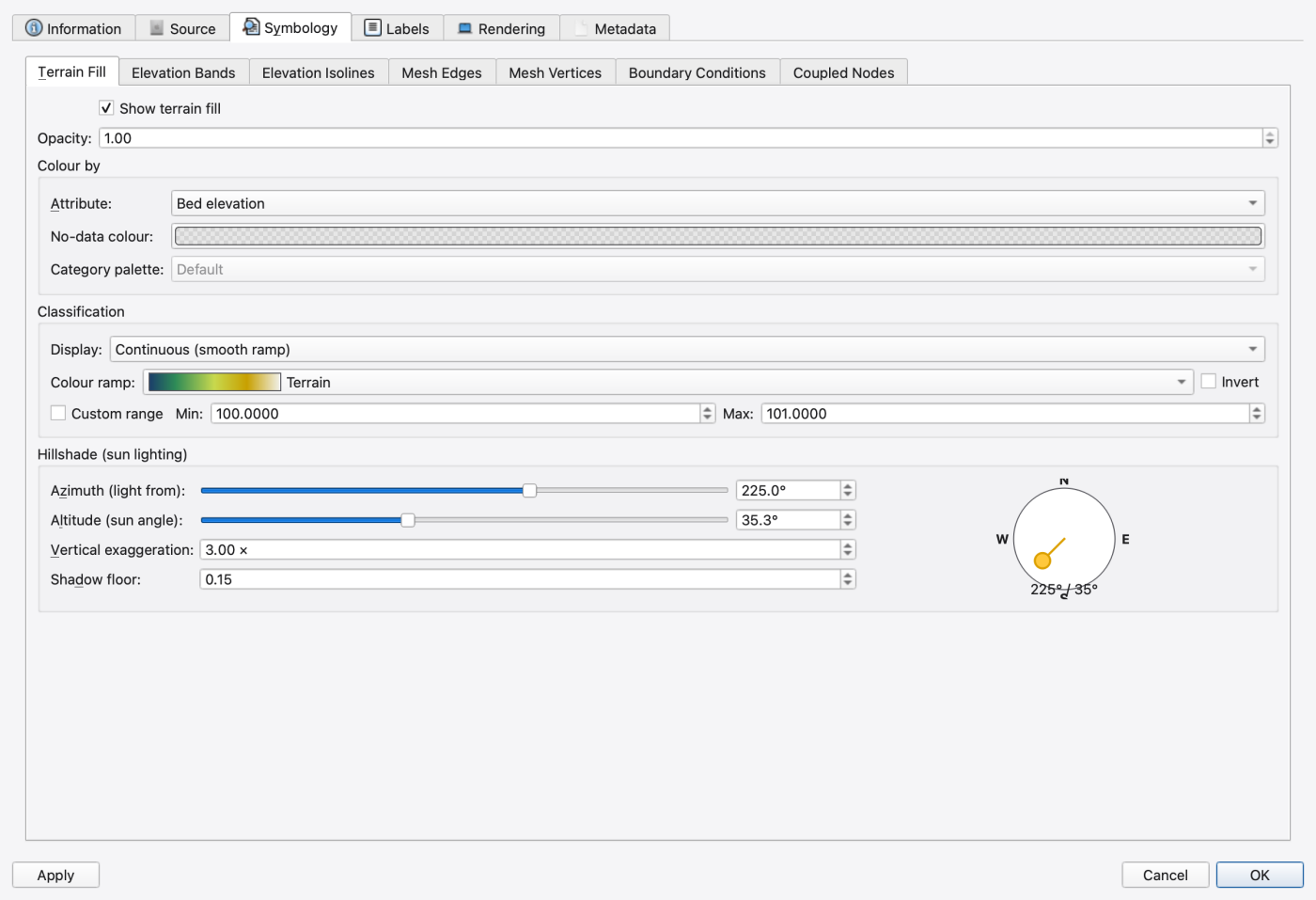
A mesh layer's appearance is edited in its style panel, which has one tab per sublayer: Terrain Fill, Elevation Bands, Elevation Isolines, Mesh Edges, Mesh Vertices, Boundary Conditions and Coupled Nodes. Right-clicking a sublayer in the Layers panel and choosing Edit Sublayer Style… opens the matching tab directly. See 08 — Styling, Labels and Legends.
| Choice | What the .inp carries |
|---|---|
| Inline in .inp | [2D_VERTICES], [2D_TRIANGLES], [2D_VERTEX_NODE_MAP], [2D_TRIANGLE_NODE_MAP], [2D_BOUNDARY_CONDITIONS], [2D_EDGE_CONVEYANCE] and the [2D_INFILTRATION*] family, written directly into the deck |
| External .2dm | The same sections in a sibling .2dm, referenced by [2D_MESH_FILE] FILE <path> |
The engine also reads [2D_INITIAL_VELOCITY], [2D_INITIAL_QUALITY] and [2D_BOUNDARY_QUALITY]. SWMMVis has no editor for those three — it round-trips them unchanged, so hand-edited values survive a save.
Layer-level state that is not part of the SWMM model — styling, sublayer visibility, panel layouts, the active mesh layer — lives in the project's .oswp sidecar beside the .inp. See 03 — Working with Projects.
NORMAL_FLOW with slope 0 is a wall.** The engine needs a positive bed slope for that BC to pass any water..2dm over inline (it keeps the .inp readable and lets several decks share one mesh); leave the Hilbert reordering alone, since it is what keeps the renderer and the solver cache-friendly; turn off elevation isolines and vertex rendering while editing; and see A4 — Performance and Redraw Policy for redraw policy and solver threading.In Mesh Snow Assignment, choose selected cells, a region tag or the whole mesh, then Fill from raster / layer field…. Pick a loaded raster band or feature-layer field, preview the before/after values, then Stage values. Continuous UEB site values default to area averages over each cell footprint; snowpack classes default to Majority. Enter one class = snowpack mapping per line; NONE disables snow for a class. Sources are transformed to the mesh CRS. NoData, invalid values and unmapped classes retain their old values. Slope and aspect must be supplied together before applying the snow draft.
Apply in the snow editor saves all staged rows as one Undo operation. Preview and Undo text name the source layer/field or raster/band. The assignment is a snapshot; later GIS changes do not automatically modify the model.
Under Preserve or Bounded geometry policies, a line may end exactly on a boundary vertex or edge. Independent lines may share a junction or overlap a boundary segment in either direction. Adjacent domain polygons may share an edge. These contacts are accepted without moving authored coordinates. Shared edges receive matching generated subdivisions and are checked against the combined meshing domain and holes. Nearby distinct vertices remain distinct; strict minimum-edge requirements may therefore identify a real sizing conflict. Self-intersecting rings, genuinely outside source geometry and missing required edges still produce errors.
The independently buildable native meshing API and streaming codecs are described in MeshKit's native API. Native triangle/mixed jobs, mapped planning, source cleanup, size fields, bilinear terrain checks, MKB and SMS 2DM I/O work without Qt. The GUI's planning, sizing and constraint facades use those same implementations. Python bindings provide owned array views, progress and cancellation. MeshKit is Apache-2.0 under the rights holder's recorded authorization; this GUI remains GPL.
 1.9.8
1.9.8