 |
SWMMVis
6.0.0-alpha.4
Qt6/C++ GIS-based graphical user interface for the SWMMVis engine (6.0.0-alpha.4)
|
|
SWMMVis
6.0.0-alpha.4
Qt6/C++ GIS-based graphical user interface for the SWMMVis engine (6.0.0-alpha.4)
|
Learn what every part of the SWMMVis window is and what every command does. This is a reference chapter — use the tables to find a command, then follow the chapter link to the chapter that explains the workflow behind it.
The whole main window. Commands live in three places at once:
Ctrl+Shift+P), which searches all of them by name.Keyboard shortcuts listed here are the defaults; rebind any of them in Help → Keyboard Shortcuts… (see A1 — Keyboard Shortcuts).
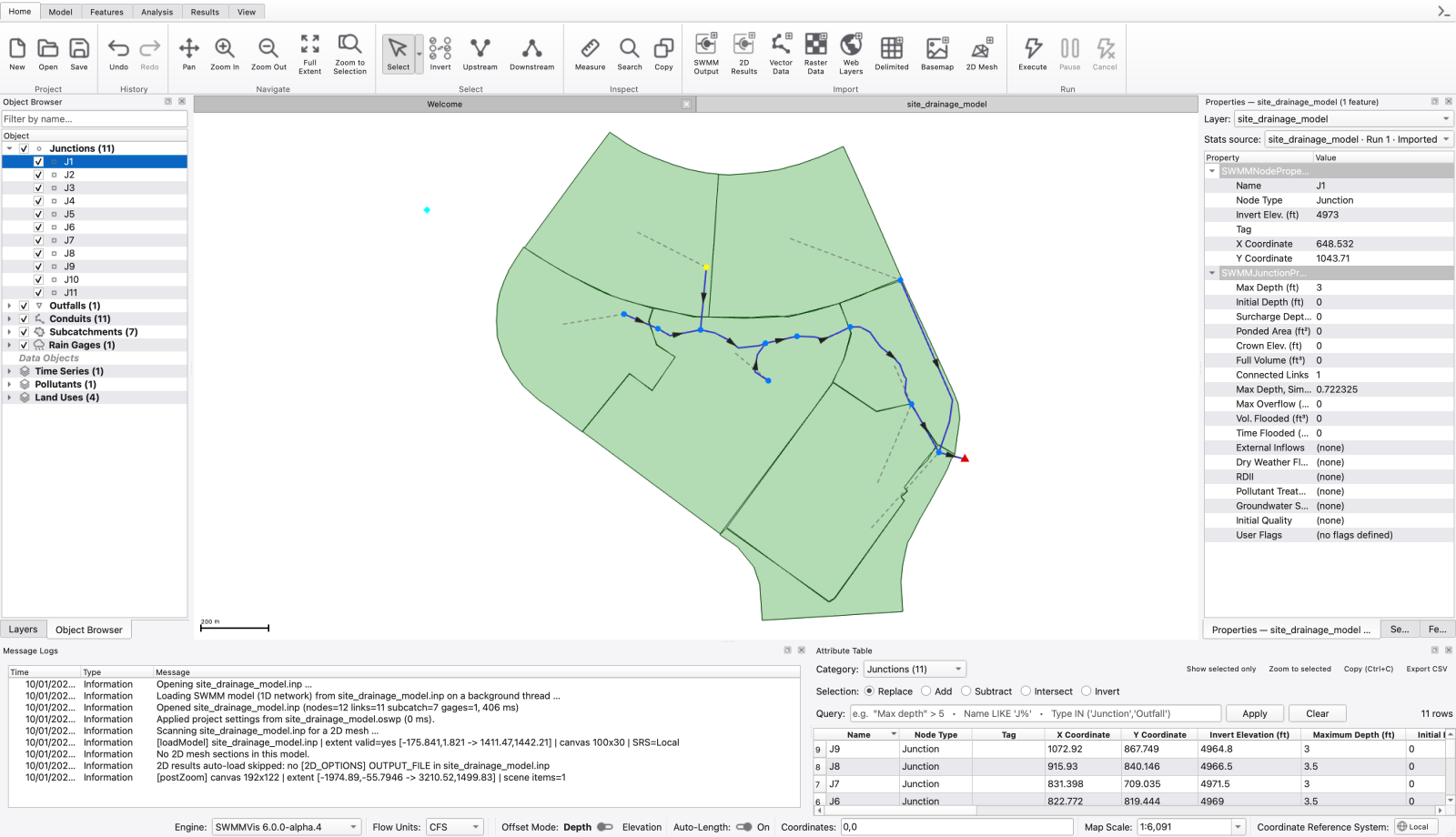
The screenshot above shows a real SWMMVis session with the site-drainage example open. The numbered overlays identify the regions in the guide below; the underlying image is an unaltered application capture. Docks can be moved or tabbed together, so a saved workspace may have a different arrangement.
| Region | How to recognize it | What to do there |
|---|---|---|
| 1. Ribbon tabs and command row | Home; Model; Features; Analysis; Results and View across the top | Choose a task family; then use its labeled command groups |
| 2. Project tabs | Welcome and the model name immediately above the map | Switch projects or return to the Welcome page |
| 3. Map canvas | The network and subcatchment polygons in the center | Navigate; select; draw; inspect layers and results |
| 4. Layers and Object Browser | Dock tabs listing map layers or SWMM object categories | Choose a layer or find an object by name |
| 5. Properties and Section View | Values and cross-sections for the selected object | Inspect and edit the model; check the selected object's geometry |
| 6. Bottom panels | Message Logs; Attribute Table and Simulation Status | Read messages; edit/query tables; inspect simulation progress |
| 7. Status bar | Engine; flow units; offset mode; coordinates; scale and CRS | Check the active project's units and coordinate context |
View → Layer Styling Dock opens the live style editor. Its dock position can differ from the screenshot because the application remembers your workspace. The mesh editing controls are on the contextual Mesh 2D ribbon tab, shown when the active project has a mesh; terrain controls are on Terrain, shown when the active project has a raster. Import a mesh or raster to reveal them.
On macOS the menu bar is at the top of the display, outside the captured application client area. On Windows and Linux it normally belongs to the window. The Terrain and Mesh 2D tabs appear when the project has the corresponding layers.
Docks may be nested, tabbed together, dragged as a group, or floated; the layout is saved on exit and restored at the next launch. Right-clicking an empty part of the ribbon row opens a short menu of the dock toggles — the ribbon rows themselves are managed by the tab strip and cannot be hidden individually.
The ribbon is one row of buttons under a tab strip. Only the current tab's toolbar is visible; the tab you were last on is restored at the next launch (SWMMVis::MainWindow/CompactToolbarTab).
Buttons are grouped into captioned ribbon groups — a caption under a row of buttons, closed by a vertical rule, in the ArcGIS Pro idiom.
| Tab | Groups (left to right) |
|---|---|
| Home | Project (New; Open; Save) · History (Undo; Redo) · Navigate (Pan; Zoom In; Zoom Out; Full Extent; Zoom to Selection) · Select (Select ▾ split button; Invert; Upstream; Downstream) · Inspect (Measure; Search; Copy) · Import (SWMM Output; 2D Results; Vector Data; Raster Data; Web Layers; Delimited; Basemap; 2D Mesh) · Run (Execute; Pause; Cancel) |
| Model | Select · Edit (Edit Existing) · Nodes (Junction; Virtual Junction; Inlet Junction; Outfall; Flow Divider; Storage) · Links (Pipe; Pump; Orifice; Weir; Outlet) · Subcatchments · Rain Gages · Annotation (Text) · Climate (split button over Temperature; Wind; Snow; Evaporation; Solar Radiation) · Data Objects (Time Series; Curve; Pattern; Control Rule; Transect; Street; Inlet; Aquifer; LID Control; Pollutant; Land Use; Reaction System; Heat) · Setup (Simulation Options; User Flags; Import Feature Layer) · Tools (Assign Rain Gages) · Mesh 2D (Generate Mesh; Burn Channels) |
| Terrain *(contextual)* | Active Terrain · Vertical Units · Invert Offsets · Profile |
| Mesh 2D *(contextual)* | Mesh (Generate Mesh; Burn Channels) · Cell Data (From Raster; From Shapefile) · Groundwater (2D) (Aquifer Parameters; Initial Conditions) — plus the Mesh Editing toolbar's own groups: Mesh · Vertices · Edges · 2D Results · Profile · Coupling |
| Features | Select · Layer (New Layer) · Edit (Edit Mode; Delete) · Draw (Point; Line; Polygon) · Modify (Add Part; Add Hole; Edit Vertices; Move) — see 12A — Editable GIS Feature Layers |
| Analysis | Select · Results Layers (the 1D and 2D results pickers) · Report (Summarize; Report; Tabular View) · Plots (Time Series; Profile; 2D Profile) · Network Analysis (Flow Balance Downstream/Upstream; Travel Time Downstream/Upstream; Mass Balance) |
| Animation | Playback (Skip Back; Skip Forward; Play; Pause; Stop) · Timeline (scrubber; Window: look-back; time cursor; Speed:; Cycle) · Display (Show Legend; Set Style; Live 2D; Live 1D) |
| View | Panels (the dock toggles) · Plots (Time Series; 1D Profiles; 2D Profiles) · Styling (Layer Styling; Styles) · Start (Welcome) |
| Extension tabs | Each loaded GUI extension can add its own named tabs, such as Data for USGS monitoring sites and elevation footprints |



| Tab | Appears when |
|---|---|
| Terrain | The active project's canvas holds at least one raster layer |
| Mesh 2D | The active project's canvas holds a 2D mesh layer or a 2D results layer |
Both are hidden again as soon as the last qualifying layer is removed, and they follow the active project tab.
GUI extensions can add their own named ribbon tabs and command groups. An extension can provide multiple tabs, each with independent visibility and commands.
Two groups use last-used split buttons: Select on the Home tab (Select / Select by Polygon) and Climate on the Model tab. The button's face mirrors the member you used last — including its checked state, so pressing Esc to fall back to the Select tool is visible on the ribbon — and the arrow opens the family menu. The remembered member persists under SWMMVis::Ribbon/LastUsed/<family>.
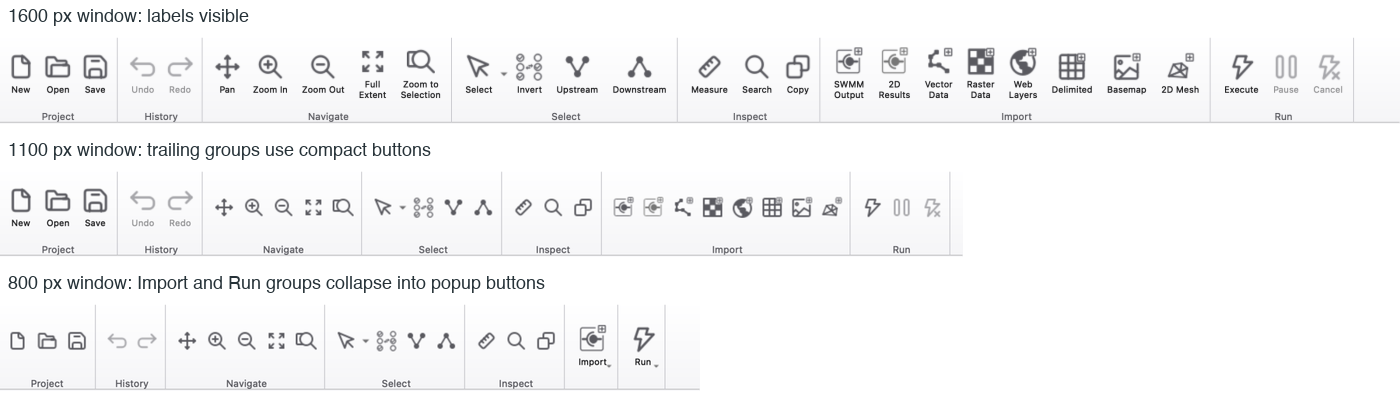
Each ribbon row watches its own width. As the window narrows, groups shed detail from the trailing end first, in three steps:
| Mode | Appearance |
|---|---|
| Full | Large icons with the label under each icon; caption shown |
| Compact | Small icon-only buttons; caption still shown |
| Collapsed | The whole group becomes one popup button titled by its caption |
Groups are promoted back only after the row has 32 px of slack, so dragging the window edge across a threshold does not make the ribbon flicker. Groups that host widgets rather than buttons — Results Layers, Timeline, the Terrain groups — never collapse. The Command Palette launcher sits at the right end of the tab strip.
Shown on the Mesh 2D tab beside the Mesh 2D groups.
| Group | Contents |
|---|---|
| Mesh | Mesh: active-mesh picker · Z: live elevation readout interpolated inside the triangle under the cursor |
| Vertices | Select Vertex toggle; vertex info label; Z spin box for retyping the picked vertex's elevation |
| Edges | Select Edge toggle; edge info label; the boundary-condition editor pages; Browse Object |
| 2D Results | Cell picking; the cell info label; the per-cell parameter page; Assign Infiltration to Selection… |
| Profile | The mesh profile-plot tool |
| Coupling | Auto-couple and Re-map 1D nodes onto the active mesh |
See 19 — 2D Overland Flow: Meshes, Cell Parameters, Boundary Conditions and 1D–2D Coupling.
Shown on the Terrain tab.
| Group | Controls | What it does |
|---|---|---|
| Active Terrain | Raster picker | Chooses the DEM used for Z sampling and invert estimation |
| Vertical Units | DEM: unit combo (m / ft); conversion label; × factor spin box | ModelZ = DEM_Z × factor — auto-detected from the raster CRS and the project flow units; override when the detection is wrong |
| Invert Offsets | Node Δ: and Link Δ: spin boxes with unit labels | InvertElev = DEM_Z × factor + Δ, signed, in model vertical units |
| Profile | Terrain profile tool | Traces a terrain profile — see 23 — Profile Plots |
Every table below lists the menu's items in the order they appear, including the items that are added at run time.
| Item | Shortcut | What it does |
|---|---|---|
| New | Ctrl+N | Creates a blank untitled project immediately from your preference defaults — no dialog. See 03 — Working with Projects |
| Open | Ctrl+O | Opens a .inp; .gpkg or .oswp |
| Open Recent ▸ | Up to 20 previously opened files by short name — full path on the tooltip — followed by Clear Recent Files | |
| Save | Ctrl+S | Writes the model back to its own file |
| Save As… | Ctrl+Shift+S | Writes to a new path; the format comes from the file-type dropdown |
| Import ▸ | See the sub-table below | |
| Map Image… | Exports the active map view. PNG is written; SVG / DXF / EMF are offered but not implemented and report so | |
Ctrl+P | Prints the active view | |
| Exit | Ctrl+Q | Quits — each dirty or untitled project gets its close prompt first. On macOS Qt moves this to the application menu |
File → Import ▸
| Item | What it adds | Chapter |
|---|---|---|
| Open SWMM Output | A SWMM binary .out results layer | 21 — Results Layers, Result Styling and Animation |
| Add 2D Results… | A SWMM 6 .h5 2D results file | 21 — Results Layers, Result Styling and Animation |
| Add Vector Data | Any GDAL/OGR vector source | 07 — Layers and Data Sources |
| Add Raster Data | Any GDAL raster source | 07 — Layers and Data Sources |
| Add WMS Data | A WMS / WMTS / WCS service layer | 07 — Layers and Data Sources |
| Add WFS Data | Features from a Web Feature Service | 07 — Layers and Data Sources |
| Add Basemap | A stored XYZ / tile basemap; its Local File tab also adds local raster basemaps | 07 — Layers and Data Sources |
| Add Delimited Data | A delimited-text table — as points or as a tabular layer | 11 — Attribute Tables and the Attribute Calculator |
| Add 2D Mesh… | An existing .2dm mesh | 19 — 2D Overland Flow: Meshes, Cell Parameters, Boundary Conditions and 1D–2D Coupling |
| Item | Shortcut | What it does |
|---|---|---|
| Undo | Ctrl+Z | Undoes the last map/model edit on the active project's stack |
| Redo | Ctrl+Shift+Z / Ctrl+Y | Redoes it |
| Copy | Ctrl+C | Copies the active view to the clipboard |
| Select | Activates the click / rubber-band selection tool | |
| Select by Polygon | Selects everything inside a polygon you draw | |
| Invert Selection | Selects what was not selected | |
| Select Upstream | Traces the network upstream of the selection | |
| Select Downstream | Traces the network downstream of the selection | |
| Search | Ctrl+F | Opens the attribute/name search |
| Edit Existing | Ctrl+E | Toggles the edit session. Must be on to move; reshape or delete existing geometry; adding new features does not need it |
See 09 — Selection and Search and 12 — Editing the Network on the Map.
| Item | Shortcut | What it does |
|---|---|---|
| Zoom In | Ctrl++ | Zoom-in tool (checkable) |
| Zoom Out | Ctrl+- | Zoom-out tool (checkable) |
| Zoom Extent | Ctrl+Shift+F | Fits every visible layer |
| Zoom To Selection | Ctrl+Shift+J | Fits the union of the selected objects |
| Pan | Pan tool (checkable) | |
| Measure | Ctrl+Shift+M | Measures distances and areas on the canvas |
| Show Legend | Toggles the draggable legend overlay on the active canvas | |
| Panels ▸ | The dock toggles, including Time Series, 1D Profiles and 2D Profiles — see the table below | |
| Layer Styling Dock | Ctrl+Alt+8 | Shows or hides the live layer-styling editor; opening it loads the layer selected in Layers |
| Appearance ▸ | System / Light / Dark; mirrors the Preferences Appearance page | |
| Command Palette… | Ctrl+Shift+P | Opens the palette |
| Item | What it does | Chapter |
|---|---|---|
| Add Node ▸ | Add Junction · Add Virtual Junction · Add Inlet Junction (street conduits only) · Add Outfall · Add Flow Divider · Add Storage. Every node tool places freely on empty canvas; clicking a conduit inserts the node there by splitting it (outfalls excepted) | 12 — Editing the Network on the Map |
| Add Link ▸ | Add Conduit · Add Pump · Add Orifice · Add Weir · Add Outlet | 12 — Editing the Network on the Map |
| Add Subcatchment | Draws a subcatchment polygon | 13 — Hydrology: Rain Gages, Subcatchments, LID, Snow, Groundwater and RDII |
| Add Rain Gauge | Places a rain gage | 13 — Hydrology: Rain Gages, Subcatchments, LID, Snow, Groundwater and RDII |
| Climate ▸ | Temperature · Evaporation · Wind · Snow · Solar Radiation — all five open the tabbed Climatology dialog on the matching tab (Solar Radiation opens the Evaporation tab, since solar feeds Hargreaves ET) | 15 — Climate: Temperature, Evaporation, Wind, Snowmelt and Solar Radiation |
| Add Text | Places a text annotation | 12 — Editing the Network on the Map |
| Assign Rain Gages… | Binds gages to subcatchments and RDII inflows spatially — Thiessen area majority or natural-neighbour weights — previewed first and applied as one undo step | 13 — Hydrology: Rain Gages, Subcatchments, LID, Snow, Groundwater and RDII |
| Data Objects ▸ | See the sub-table below | 17 — Time Series, Curves, Patterns and Calibration Data |
| Import Feature Layer… | Converts GIS features into SWMM objects with column mapping and update/skip handling | 12 — Editing the Network on the Map |
| Simulation Options… | The paged [OPTIONS] editor | 18 — Simulation Options |
| Water Age Sources... | Initial age of water entering by each source pathway (WATER_AGE_SOURCES) | 16 — Water Quality, Reaction Systems, Water Age and Heat |
| Initial Quality... | Per-node and per-link initial concentrations (INITIAL_QUALITY) | 16 — Water Quality, Reaction Systems, Water Age and Heat |
| Reaction System... | Species; kinetics and the .rxn file (REACTION_*) | 16 — Water Quality, Reaction Systems, Water Age and Heat |
| Heat Configuration... | [HEAT_SOURCES]; [HEAT_FLUXES] and radiative / solar / cloud forcing | 16 — Water Quality, Reaction Systems, Water Age and Heat |
| User Flags… | Defines the [USER_FLAGS] schema | 03 — Working with Projects |
| Generate Mesh… | Opens the 2D mesh generator. A DTM raster is optional — without one; vertex elevations come from junction rim elevations | 19 — 2D Overland Flow: Meshes, Cell Parameters, Boundary Conditions and 1D–2D Coupling |
| Burn Channels… | Burns selected open-channel sections into the active mesh, with undoable network replacement; no DEM is required | 19 — 2D Overland Flow: Meshes, Cell Parameters, Boundary Conditions and 1D–2D Coupling |
| Set Project CRS… | Chooses or changes the project's coordinate reference system | 06 — Coordinate Reference Systems |
| Mesh ▸ | Select Vertex · Select Edge · Assign Infiltration to Selection… — menu mirrors of the Mesh Editing toolbar tools | 19 — 2D Overland Flow: Meshes, Cell Parameters, Boundary Conditions and 1D–2D Coupling |
| Terrain Profile | Traces a terrain profile | 23 — Profile Plots |
Model → Data Objects ▸ — every entry opens that category's editor in browse mode: nothing is created automatically; use the editor's own Add/**New** button. Categories without an editor in this build are shown disabled with a tooltip naming what is missing.
| Item | Editor |
|---|---|
| Time Series… | [TIMESERIES] — inline records or an external file |
| Curves… | [CURVES] — storage; diversion; rating; shape; control; tidal and the five pump types |
| Time Patterns… | [PATTERNS] |
| LID Controls… | [LID_CONTROLS] |
| Pollutants… | [POLLUTANTS] |
| Land Uses… | [LANDUSES]; [BUILDUP]; [WASHOFF] |
| Aquifers… | [AQUIFERS] |
| Snowpacks… | [SNOWPACKS] |
| Control Rules… | [CONTROLS] |
| Transects… | [TRANSECTS] |
| Streets… | [STREETS] |
| Inlets… | [INLETS] |
| Unit Hydrographs… | [HYDROGRAPHS] |
| Item | Shortcut | What it does | Chapter |
|---|---|---|---|
| Execute | Ctrl+R | Runs the active project | 20 — Running a Simulation |
| Pause Execution | Pauses the selected run — checkable; toggle again to resume | 20 — Running a Simulation | |
| Cancel Execution | Ctrl+. | Pauses; then asks whether to stop. Stopping flushes whatever the engine produced to .out / .rpt and loads the partial results | 20 — Running a Simulation |
| Summarize Results | The run summary | 25 — Analysis Tools: Flow Balance, Travel Time, Rainfall Visualisation, 2D Cell Time Series | |
| Report | The two-panel report viewer over the project's .rpt | 20 — Running a Simulation | |
| Tabular View | Ctrl+Shift+A | Raises the Attribute Table dock and focuses it — it is not a separate window | 24 — Tabular Results and Reports |
| Plot Time Series | Ctrl+T | Plots the selection; or arms a one-shot map pick | 22 — Time-Series and Comparison Plots |
| Plot Profile | Ctrl+Shift+T | Picks a path of nodes and links and plots the HGL profile | 23 — Profile Plots |
| Plot 2D Profile | Draws a polyline across the 2D mesh: terrain plus the active 2D results layer's animated depth and maximum-depth envelope | 23 — Profile Plots | |
| Rainfall Visualization… | Compares every rain gage's series on one chart | 25 — Analysis Tools: Flow Balance, Travel Time, Rainfall Visualisation, 2D Cell Time Series | |
| Flow Balance Downstream | Flow balance over the downstream sub-network | 25 — Analysis Tools: Flow Balance, Travel Time, Rainfall Visualisation, 2D Cell Time Series | |
| Flow Balance Upstream | Flow balance over the upstream sub-network | 25 — Analysis Tools: Flow Balance, Travel Time, Rainfall Visualisation, 2D Cell Time Series | |
| Travel Time Downstream | Travel time downstream of the selection | 25 — Analysis Tools: Flow Balance, Travel Time, Rainfall Visualisation, 2D Cell Time Series | |
| Travel Time Upstream | Travel time upstream of the selection | 25 — Analysis Tools: Flow Balance, Travel Time, Rainfall Visualisation, 2D Cell Time Series | |
| Show Mass Balance | Wired to the same handler as Report — opens the same report viewer; the continuity ledgers are sections of the .rpt. There is no separate mass-balance dialog | 20 — Running a Simulation |
| Item | What it does |
|---|---|
| Play | Starts map animation (checkable) |
| Pause | Pauses it (checkable) |
| Stop | Stops and rewinds (checkable) |
| Backward | Steps one frame back |
| Forward | Steps one frame forward |
| Set Style | Opens the layer style dialog for the layer selected in Layers; falls back to the topmost visible layer |
See 21 — Results Layers, Result Styling and Animation.
| Item | Shortcut | What it does |
|---|---|---|
| Plugins… | Read-only listing of every file-format filter — built-in and engine-discovered. See A3 — Plugins | |
| Style Manager… | Browse; apply; save; import and export saved Rule Lists from the per-user style library. See 08 — Styling, Labels and Legends | |
| Preferences… | Ctrl+, | The Preferences dialog. On macOS Qt moves this into the application menu. See 04 — Preferences |
Built at run time, so the middle of the menu changes as you work.
| Item | Shortcut | What it does |
|---|---|---|
| Minimize | Ctrl+M | Minimizes the main window. Individual project tabs cannot be minimized |
| Zoom | Toggles the main window between maximized and normal | |
| *(project list)* | One checkable entry per open project sub-window; the active one is checked. Selecting one activates and focuses it | |
| *(open dialog list)* | One entry per open modeless dialog; most recently used first. Selecting one first clamps the dialog back onto a connected screen; then raises it — this is the recovery path for a dialog left on a monitor you have since unplugged | |
| Bring All to Front | Raises every project window; then the main window; then the dialogs | |
| Reset Window Positions | Discards saved geometry for the main window and every named dialog and gathers all open windows back onto the current screen. Dock layout; splitter sizes and header state are left alone |
| Item | Shortcut | What it does |
|---|---|---|
| Show Welcome Page | Re-opens the Welcome tab | |
| Help | F1 (platform help key) | Present in the menu but not connected to anything in this build — it does nothing |
| Keyboard Shortcuts… | Opens Preferences on the Keyboard page | |
| About | The About dialog with the component and licence browser. On macOS Qt moves this to the application menu |
FIGURE PLACEHOLDERdocs/manual/images/02_menu_model_expanded.png
The centre of the window is a tabbed document area. Each tab is one document:
* while it has unsaved changes.Tabs are movable and closable, and the close × is forced to the right of the tab label on every platform. Closing the Welcome tab only hides it. Closing a project tab runs that project's save prompt.
Each project window owns its own map canvas, model layer, selection manager, undo stack, results layers and engine handle. Switching tabs re-binds the ribbon, every dock, and the status-bar widgets to the newly active project — including its flow units, offset mode, engine version and CRS. Two projects with different unit systems can therefore be open side by side without interfering.
The document area's background and the Welcome tab track the application theme (mdiworkspacechrome), so the workspace does not flash a light panel in dark mode.
Dock panels have toggle actions in View → Panels ▸ and on the View ribbon tab. The ribbon's Plots group toggles Time Series, 1D Profiles and 2D Profiles. Hiding a plot panel retains its plot tabs so they are available when you show it again. Layer Styling has its own View-menu entry and shortcut.
| Panel | Shortcut | What it shows | Chapter |
|---|---|---|---|
| Layers | Ctrl+Alt+1 | The layer tree — ordered; groupable; per-layer visibility and opacity; filter box. Clicking a SWMM kind row focuses that category in the Object Browser | 07 — Layers and Data Sources |
| Object Browser | Ctrl+Alt+2 | Every SWMM object grouped by category; with per-category ordering and the Add New… entry points | 10 — Object Browser, Properties and Section View |
| Properties | Ctrl+Alt+3 | The property grid for the current selection. Its title tracks what is selected — Properties — <name> or Properties — <kind> (N features) | 10 — Object Browser, Properties and Section View |
| Attribute Table | Ctrl+Alt+4 | The tabular view of a layer's features; with the attribute calculator and selection sync | 11 — Attribute Tables and the Attribute Calculator |
| Legend | Ctrl+Alt+5 | The docked legend for the active canvas's layers | 08 — Styling, Labels and Legends |
| Simulation Status | Ctrl+Alt+6 | One row per running or finished simulation with progress; selecting a row targets Pause / Stop at that job | 20 — Running a Simulation |
| Message Logs | Ctrl+Alt+7 | Timestamped Information / Warning / Error messages from the GUI and the engine; auto-scrolled to the newest row | 20 — Running a Simulation |
| Layer Styling | Ctrl+Alt+8 | The always-open variant of the Symbology tab; edits apply live to the canvas and follow the layer selected in Layers | 08 — Styling, Labels and Legends |
| Section View | Ctrl+Alt+9 | The cross-section drawing for the selected link or transect | 10 — Object Browser, Properties and Section View |
| Features | Ctrl+Alt+0 | Editable GIS layers; fields; feature attributes; vertex coordinates and elevation sources | 12A — Editable GIS Feature Layers |
| Time Series | Time-series plot tabs; hiding the panel retains the plots | 22 — Time-Series and Comparison Plots | |
| 1D Profiles | Network profile plot tabs | 23 — Profile Plots | |
| 2D Profiles | Mesh profile plot tabs | 23 — Profile Plots |
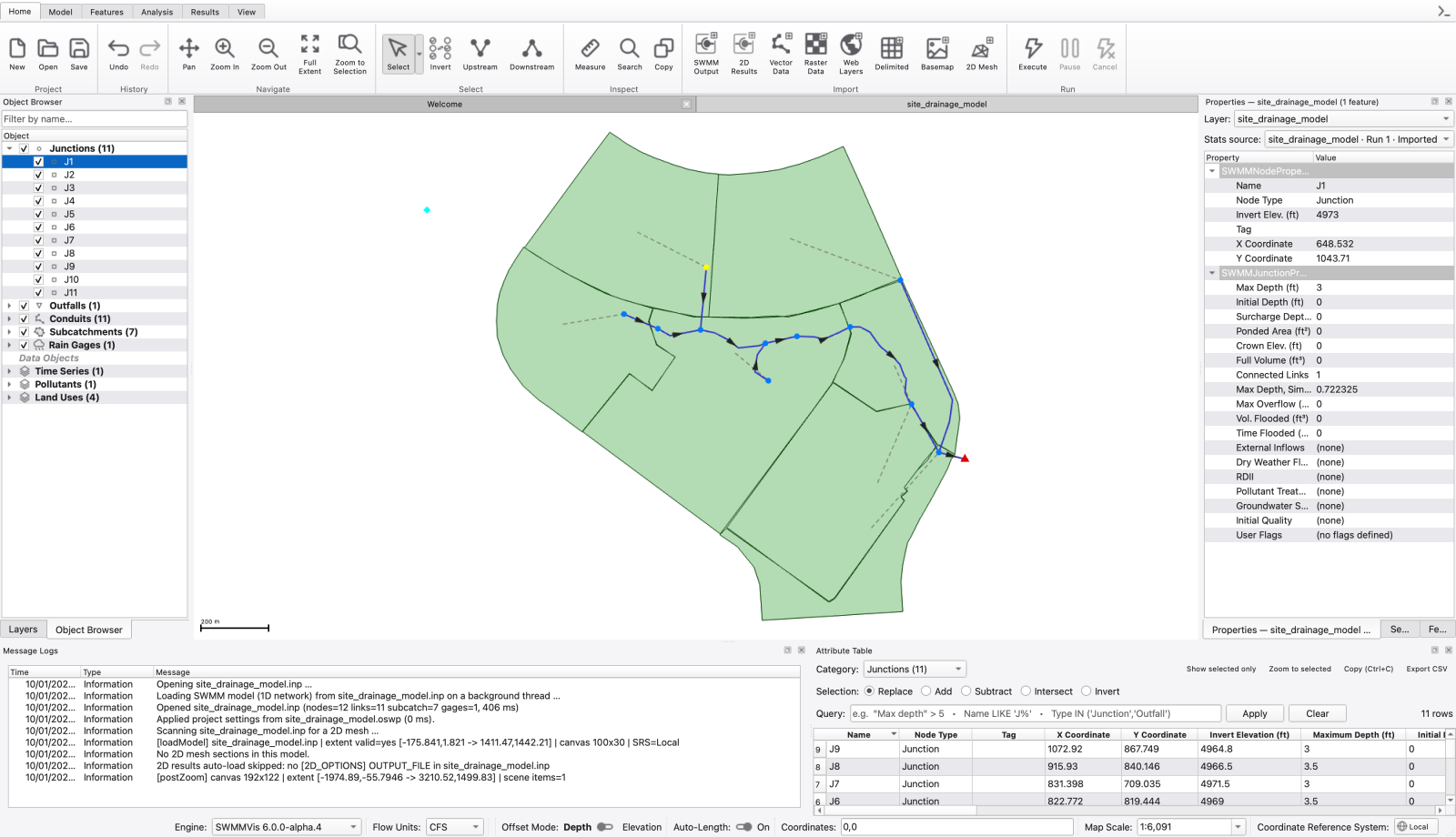
An Analysis Toolbox panel can appear in the initial dock layout, but it is empty and has no toggle action. Close it to give the other panels more space; use the Analysis menu or ribbon for analysis commands. The Overview Map navigator is not created in this build. See 05 — The Map Canvas for the supported navigation tools.
To reveal a long label or make room for more columns, drag the divider between two column headers. The last column can be resized too. Double-click a divider to fit that column to its contents. Dialogs that remember their layout restore your column widths when reopened; those widths remain adjustable.
In sortable tables, click a column header to sort ascending and click it again to reverse the order. The header arrow shows the current direction. Numeric results sort by value, including statistics and rainfall summaries. Sorting a profile-path or GIS-sublayer picker keeps each row attached to its original item, so select the desired row and accept as usual.
Tables whose row order defines the input keep that order: curve points, time-series entries, pattern factors, transect stations and rule sequences are examples. Resize their columns in the same way; use the editor's row controls to change the input sequence. For filtering and selecting objects with a query, see 11 — Attribute Tables and the Attribute Calculator.
Left to right, all of these are permanent widgets on the right-hand side of the bar; transient messages (Opening <file>…, tool hints) appear on the left.
| Widget | What it does | Writes |
|---|---|---|
| Engine: | Picks the engine used to run the active project: SWMMVis 6.0.0-alpha.4; SWMM 5.3.0 (Legacy); and SWMM 5.2.4 (EPA) when its worker is bundled. Disabled until a project is open | Per-project engine selection |
| Flow Units: | CFS · GPM · MGD · CMS · LPS · MLD. Changing it re-labels every unit suffix in the whole UI | [OPTIONS] FLOW_UNITS |
| progress | A stage label plus a bar; arbitrated between simulation runs; project opens and the plain busy spinner | |
| Offset Mode: | Depth [toggle] Elevation — the active side is bold. Flipping it offers to convert existing link offsets, exactly as EPA SWMM does; the prompt is skipped for a model with no links | [OPTIONS] LINK_OFFSETS |
| Auto-Length: | On / Off. When on; conduit lengths recompute from the polyline on every node move or vertex edit | [CONDUITS] length |
| Coordinates: | Live cursor position in canvas CRS units; with a Z: suffix when a terrain raster can be sampled | |
| Map Scale: | Editable combo — pick a preset or type 1:N | |
| Coordinate Reference System: | A button showing the canvas CRS authority code; click to open the CRS picker | Project CRS — see 06 — Coordinate Reference Systems |

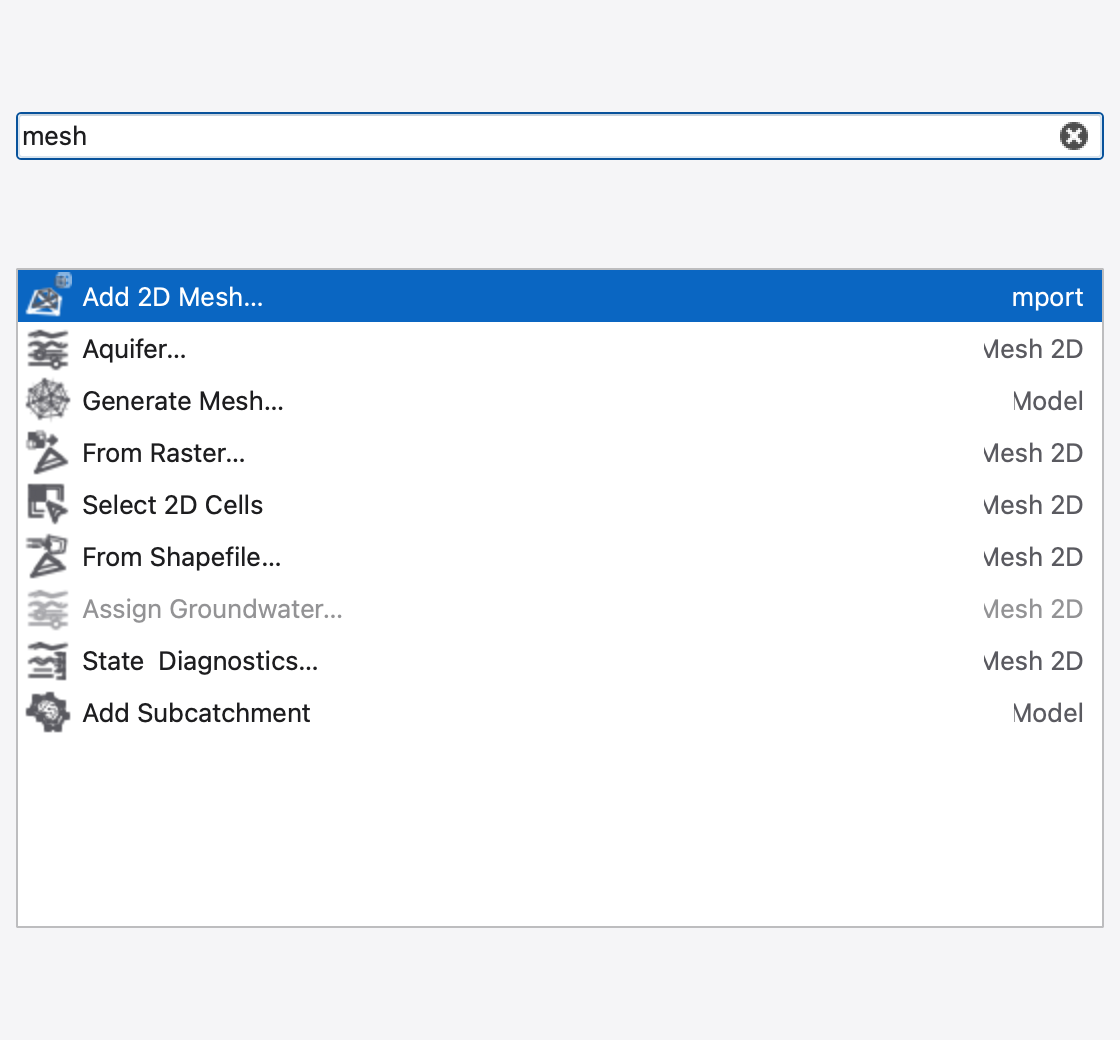
Ctrl+Shift+P, or the launcher at the right end of the ribbon tab strip.
A frameless popup with a filter box and a relevance-sorted list of every registered command — dock toggles and dialog launchers included. Type to filter; ↑/↓ to move; Enter to trigger or toggle the selected command; Esc, or clicking away, to dismiss. Commands that are currently disabled are greyed and cannot be triggered, which makes the palette a quick way to find out why something is unavailable.
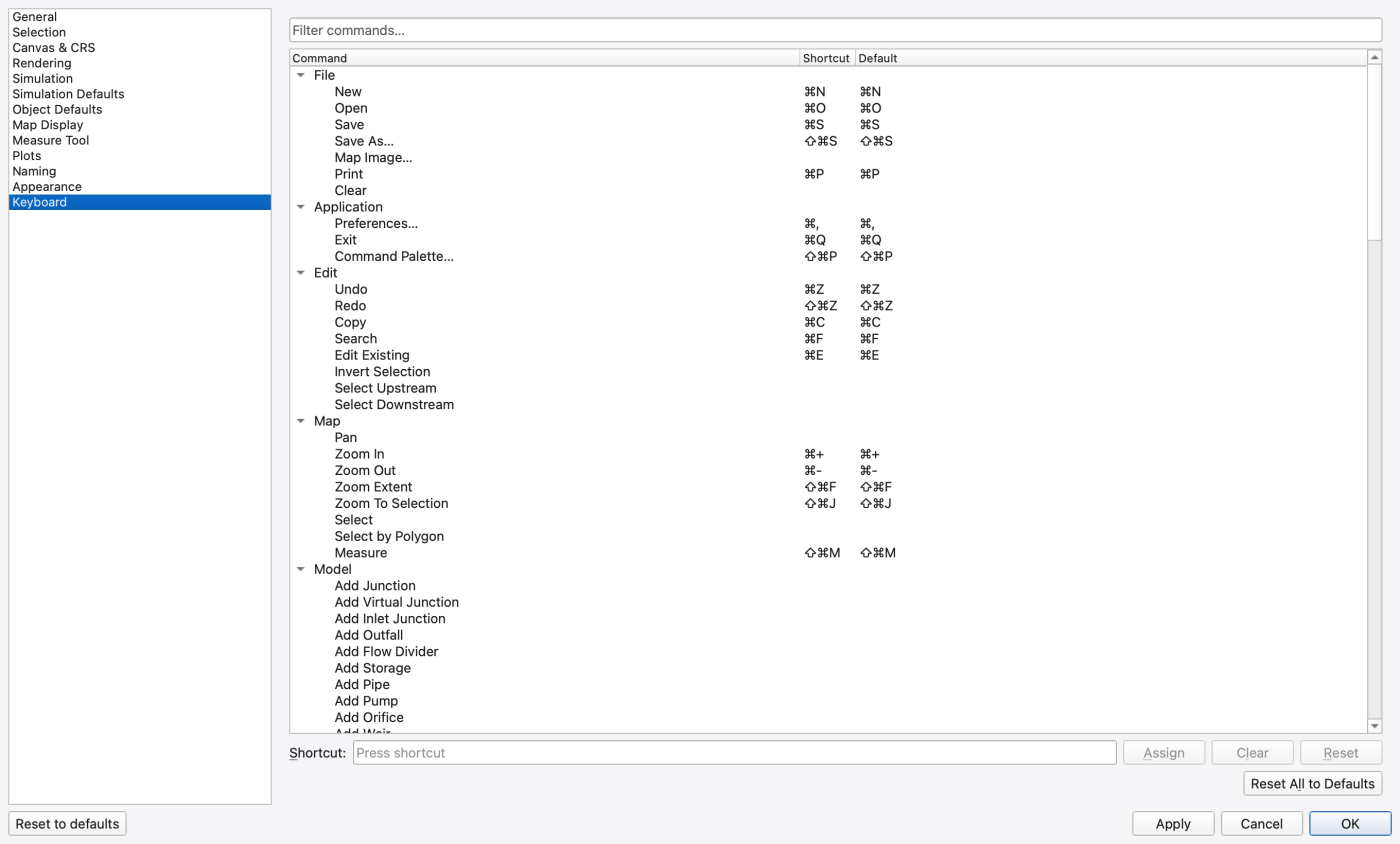
Help → Keyboard Shortcuts… opens Preferences on the Keyboard page, which hosts the shortcut editor.
| Control | What it does |
|---|---|
| Filter box | Narrows the command tree |
| Command tree | Every registered command; grouped by category; showing its current binding |
| Key-sequence editor | Records the new binding you press |
| Assign | Applies the recorded sequence — live and persisted immediately; there is no separate Apply |
| Clear | Removes the binding |
| Reset | Restores the selected command's default |
| Reset All | Restores every default |
| Conflict label | Explains why an assignment was blocked or warned about |
Conflict policy: an exact duplicate of another command's binding blocks Assign and names the command that holds it; a sequence on the platform-reserved list only produces a warning. Overrides are stored under SWMMVis::Shortcuts, keyed by the command's stable id, so they survive upgrades. The full default list is in A1 — Keyboard Shortcuts.
View → Appearance ▸ and Preferences → Appearance are two views of one setting.
| Mode | Behaviour |
|---|---|
| System | Follows the operating system's light/dark appearance; live |
| Light | Always light |
| Dark | Always dark |
The theme is a token-driven palette plus a small style-sheet overlay on top of Qt's Fusion style, and action icons are re-tinted through a theme-aware icon factory, so glyphs stay legible in both schemes. Changing the mode in either place updates the other immediately.
Drop .inp or .oswp files from your file manager anywhere on the main window and they open as projects — several at once if you drop several. Files of other types are rejected by the drag itself, so the cursor tells you before you let go. To add GIS data to an open project, use File → Import ▸ rather than dropping.
On the map canvas. There is no general canvas context menu. Right-click is handled by the active tool: with Select or Edit Vertex active, right-clicking a link offers Delete vertex / Delete this vertex on a vertex and Insert vertex here on a segment; with the mesh vertex tool active it reports the picked vertex's Elevation Z. See 12 — Editing the Network on the Map.
On a layer row in the Layers panel.
| Group | Items |
|---|---|
| Navigation | Zoom to Layer · Show in Overview |
| Data | Open Attribute Table · Show Feature Count · Plot Time Series… · Set as Active Results Layer (results layers only) |
| Order | Move to Top · Move Up · Move Down · Move to Bottom |
| Layer | Rename Layer · Duplicate Layer · Remove Layer |
| Display | Filter… · Set Layer Scale Visibility… · Hide Layer / Show Layer |
| Styling | Properties… · Styles ▸ (Edit Symbology… · Copy Style · Paste Style) |
On a category header row: Move Category Up · Move Category Down. On a SWMM kind sub-row: Show/**Hide <kind>** · Properties… · a list of that kind's features with Plot timeseries…, truncated with a … +N more (use Object Browser) entry.
On the Object Browser.
| Row type | Items |
|---|---|
| Category header | Add New… · Sort Category A→Z · Reset Category to Default Order |
| Object | Edit… · Properties… · Delete… · Move to Top / Move Up / Move Down / Move to Bottom · Reset to Default Order |
Object types whose editor is not yet implemented show Delete disabled with an explanatory tooltip. See 10 — Object Browser, Properties and Section View.
Esc returns to the Select tool** and the ribbon's Select split button shows it, because the split button mirrors its member's checked state. 1.9.8
1.9.8