 |
SWMMVis
6.0.0-alpha.4
Qt6/C++ GIS-based graphical user interface for the SWMMVis engine (6.0.0-alpha.4)
|
|
SWMMVis
6.0.0-alpha.4
Qt6/C++ GIS-based graphical user interface for the SWMMVis engine (6.0.0-alpha.4)
|
Set the application-wide preferences: appearance, selection and snapping behaviour, rendering, the defaults every new project and every newly drawn object starts from, map-display and measurement styling, plot number formats, naming prefixes, and keyboard shortcuts. You will also learn where those settings are stored and exactly what Reset to defaults does and does not touch.
| Route | Opens |
|---|---|
Tools → Preferences… (Ctrl+,) | The dialog on the page you last used |
| macOS application menu → Preferences… | The same dialog — Qt relocates the entry natively |
| Help → Keyboard Shortcuts… | The dialog pre-navigated to the Keyboard page |
| View → Appearance ▸ | The same setting as the Appearance page; without opening the dialog |
Preferences are application-wide, not per project. Changing them never modifies a model that is already open; the Simulation Defaults and Object Defaults pages only affect what happens next — a new project, or the next object you draw.
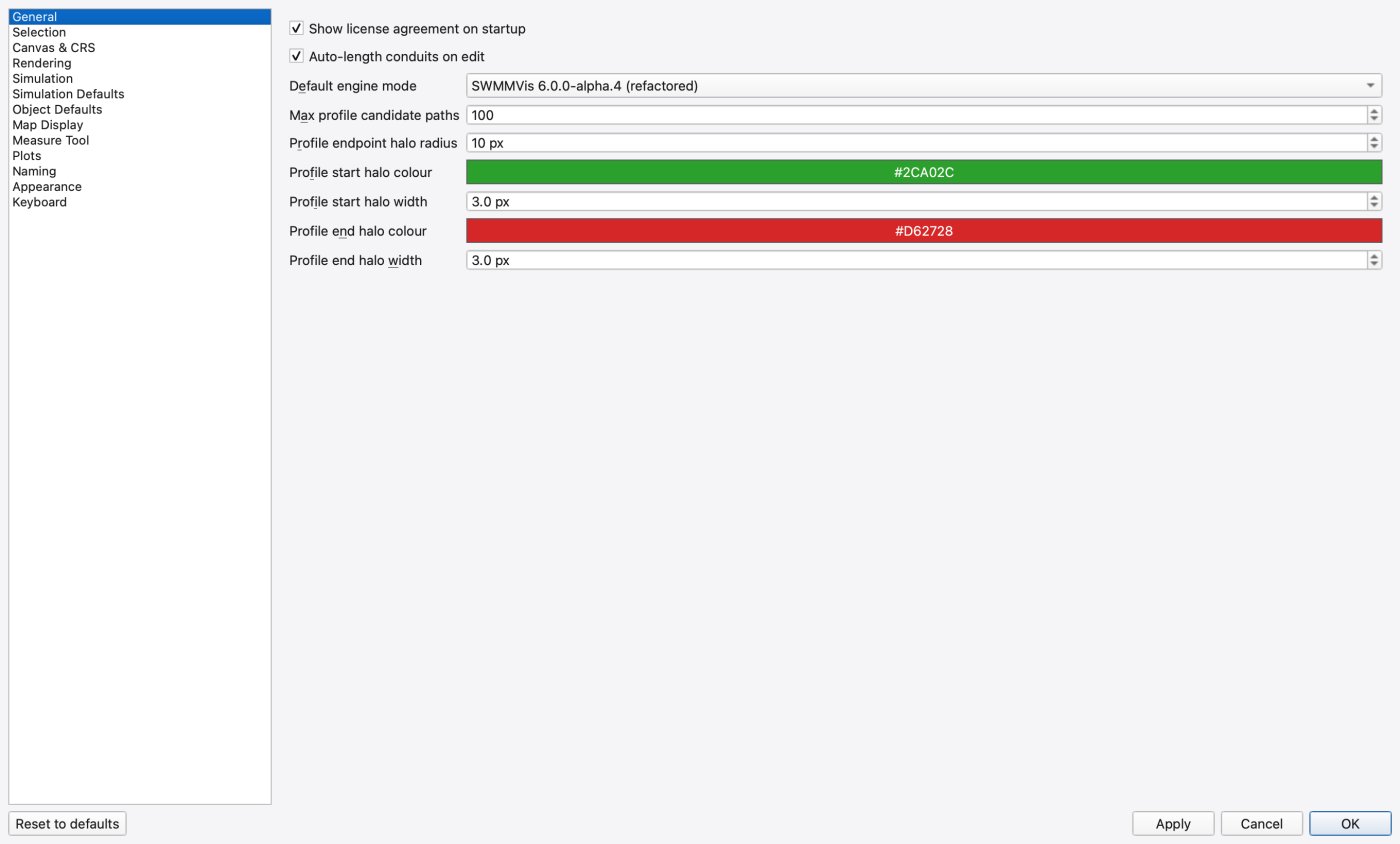
The dialog is a category list on the left and a stacked page on the right — the VS Code / macOS System Settings convention. The dialog opens on Selection the first time and afterwards on the page and geometry you left it at.
Two pages carry inner tabs that group their controls by what they configure, so neither is a single long scrolling column:
| Page | Tabs |
|---|---|
| Rendering | Labels / Network Symbols / GPU / 2D Mesh Edges |
| Simulation Defaults | Processes & Modules / Hydraulics & Schedule / Time Steps & Tolerances / Dynamic Wave / 2D Solver / 2D Coupling & Rainfall / 2D Mesh |
Simulation Defaults absorbed what used to be two separate sidebar rows, Dynamic Wave Defaults and 2D Defaults, as the four tabs after the first two. Everything they held is still there and still writes the same keys — it is one row instead of three.
Along the bottom:
| Button | What it does |
|---|---|
| Reset to defaults | Fills the widgets on every page with the compiled-in defaults. It does not write anything — press Apply or OK afterwards to commit |
| Apply | Writes the widgets through to the preference store and leaves the dialog open |
| Cancel | Closes without writing the pending widgets |
| OK | Writes and closes |
Three parts of the dialog bypass this cycle and take effect the moment you edit them, because they write straight through: the pen and brush trees (Selection Pens & Fills, Link Pens, Node Symbols, 2D Mesh Boundary-Condition Edges), the Keyboard page, and the Appearance radio buttons if you change the theme from the View menu instead. For those, Cancel and Reset to defaults have nothing to undo.
Every change takes effect without a restart — pen edits repaint open canvases immediately, a shortcut rebind is live on the next keypress.
| Control | What it does |
|---|---|
| Show license agreement on startup | Re-arms the startup License Agreement dialog. *(The tooltip on this control says "MIT license"; the dialog it controls actually presents the GNU GPL v3 notice.)* |
| Auto-length conduits on edit | Default for the status-bar Auto-Length switch: conduit lengths recompute from geometry whenever their endpoints move |
| Project Open folder | Preferred directory for File → Open. An existing configured folder takes precedence over the remembered model folder; clear it to use the last model/project directory. Other import dialogs retain their own directories |
| Default engine mode | Which engine a newly opened project starts on — OpenSWMM 6.0.0-alpha.4 (refactored) or SWMM 5.3.0 (legacy). The status-bar picker still overrides per project |
| Max profile candidate paths | How many candidate paths the profile tool enumerates between two picked nodes before truncating. Results are sorted shortest first; raising this exposes longer detours through loops. Enumeration is worst-case exponential — very high values can briefly freeze the UI on heavily meshed networks |
| Profile endpoint halo radius | Screen-pixel radius of the start/end halo drawn while picking a profile. Constant regardless of zoom |
| Profile start halo colour / width | Colour swatch and pen width for the start endpoint |
| Profile end halo colour / width | Same for the end endpoint |
| Control | What it does |
|---|---|
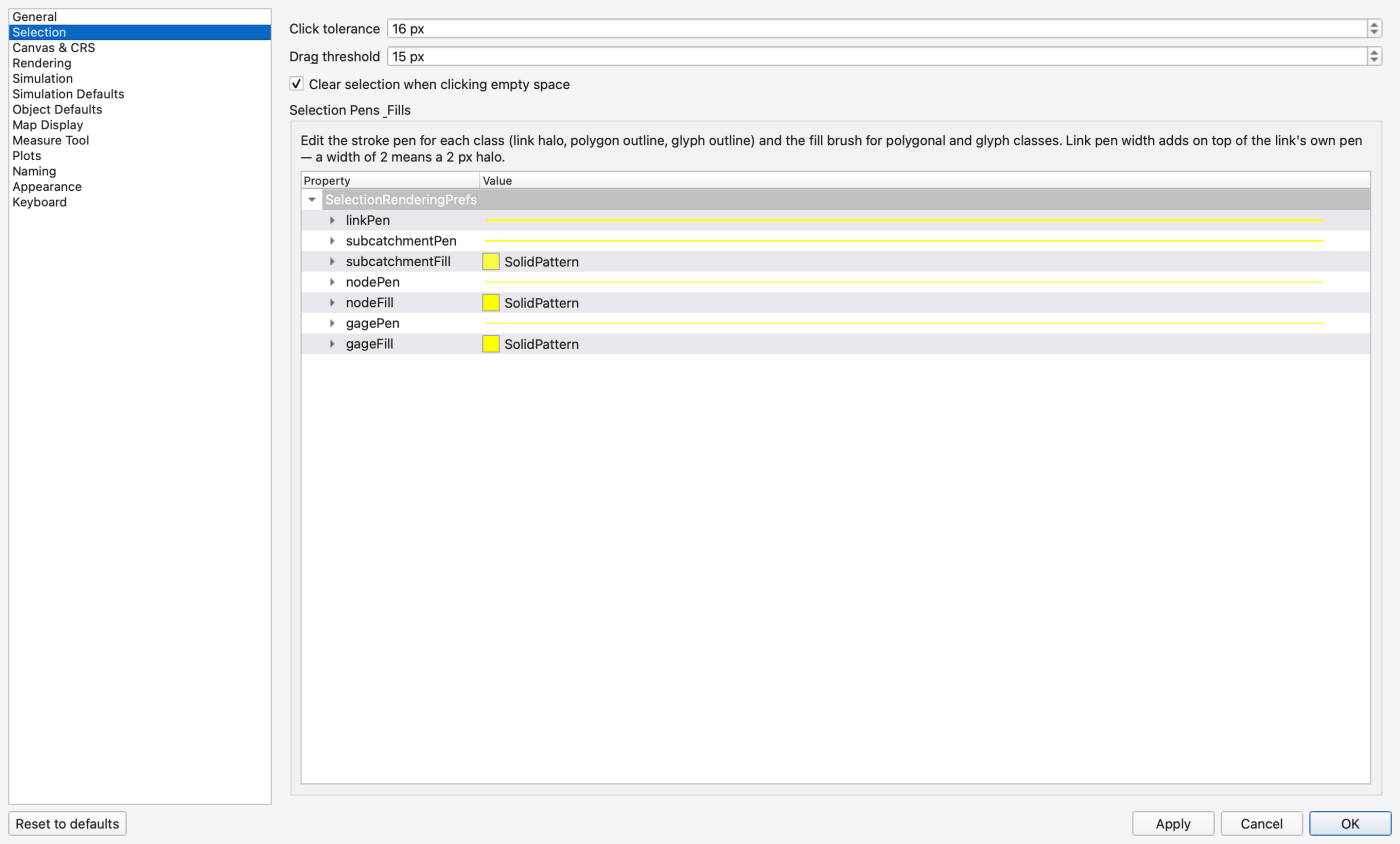
| Click tolerance | Minimum pick radius for click-selection. The effective radius is the larger of this and the biggest rendered glyph's half-bound plus a 4 px halo — so a click inside any visible marker always hits |
| Drag threshold | Cursor distance before a click becomes a rubber-band selection. Raise it to forgive trackpad jitter |
| Clear selection when clicking empty space | Whether a miss deselects |
| Selection Pens & Fills | A property tree with the stroke pen for each selection class (link halo, polygon outline, glyph outline) and the fill brush for the polygonal and glyph classes. Expand a row for colour, width, style, dash, cap and join. Link pen width is additive — a width of 2 draws a 2 px halo on top of the link's own pen |
| Control | What it does |
|---|---|
| Default tool on project open | Select; Pan or Zoom — the tool activated automatically when a project window opens |
| Default CRS (when .inp has no CRS) → Auto — use map units from .inp (recommended) | Reads the [MAP] Units field (FEET / METERS) and assigns a local projected CRS with the matching linear unit, so scale bars and distances are physically meaningful |
| … → Custom CRS: with authority and code | Uses a specific authority (e.g. EPSG) and code (e.g. 4326) instead. The two fields enable only when this radio is selected |
| Snapping → Enable snapping | Vertex placement in the drawing tools snaps to nearby features |
| … → Tolerance | Snap detection radius in screen pixels (4–64) |
| … → Also snap to link and subcatchment vertices | Adds intermediate link vertices and subcatchment polygon corners to the snap targets, on top of node and gage centres |
See 06 — Coordinate Reference Systems and 12 — Editing the Network on the Map.
Four tabs: Labels, Network Symbols, GPU and 2D Mesh Edges — one per group in the table below.
| Control | What it does |
|---|---|
| Label Rendering → Label zoom-out threshold (m11) | Minimum view-transform scale at which labels are drawn. Higher hides labels sooner when zooming out; lower keeps them at coarse zoom, at a performance cost |
| Link Pens | A property tree with a full pen per link type — colour, width, line style, cap, join, dash offset. Expand a row for the individual attributes. Changes apply immediately to open project views |
| Node Symbols | The same treatment per node type (Junction, Outfall, Storage, Divider, Virtual Junction, Inlet Junction): marker size, fill brush, and outline pen |
| Rain Gage | Marker size, fill, and outline pen for rain gages |
| Subcatchment | Fill, outline colour and outline width for subcatchment polygons |
| GPU Rendering → Use GPU rendering for SWMM layers (recommended) | Draws nodes, links, subcatchments and gages through the scene-graph overlay. The CPU painter path is skipped while this is on so the two pipelines never double-paint. Turn it off only for GPU-driver problems |
| … → Use GPU rendering for 2D terrain mesh layers (recommended) | Same for the 2D mesh — elevation fill, wireframe and contours. Required for smooth pan and zoom on large meshes. There is also an application-wide kill switch, the environment variable OPENSWMM_QSG_MESH=0 |
| 2D Mesh Boundary-Condition Edges | Default colour and width for the mesh's Boundary Conditions sublayer, one entry per BC type, plus a Colour by type toggle that shows or hides the sublayer on open meshes immediately. Wall edges are the interior wireframe and use the layer's own edge width. Edits apply live to open meshes you have not styled individually; a layer styled through its own Boundary Conditions tab keeps those settings and saves them with the project |
On the Network Symbols tab the node, rain-gage and subcatchment rows sit in the group Node, Rain Gage & Subcatchment Symbols. The Rain Gage and Subcatchment rows seed new layers: a model layer opened after you change them starts from these values, while a layer you have already styled keeps its own.
See 08 — Styling, Labels and Legends and A4 — Performance and Redraw Policy.
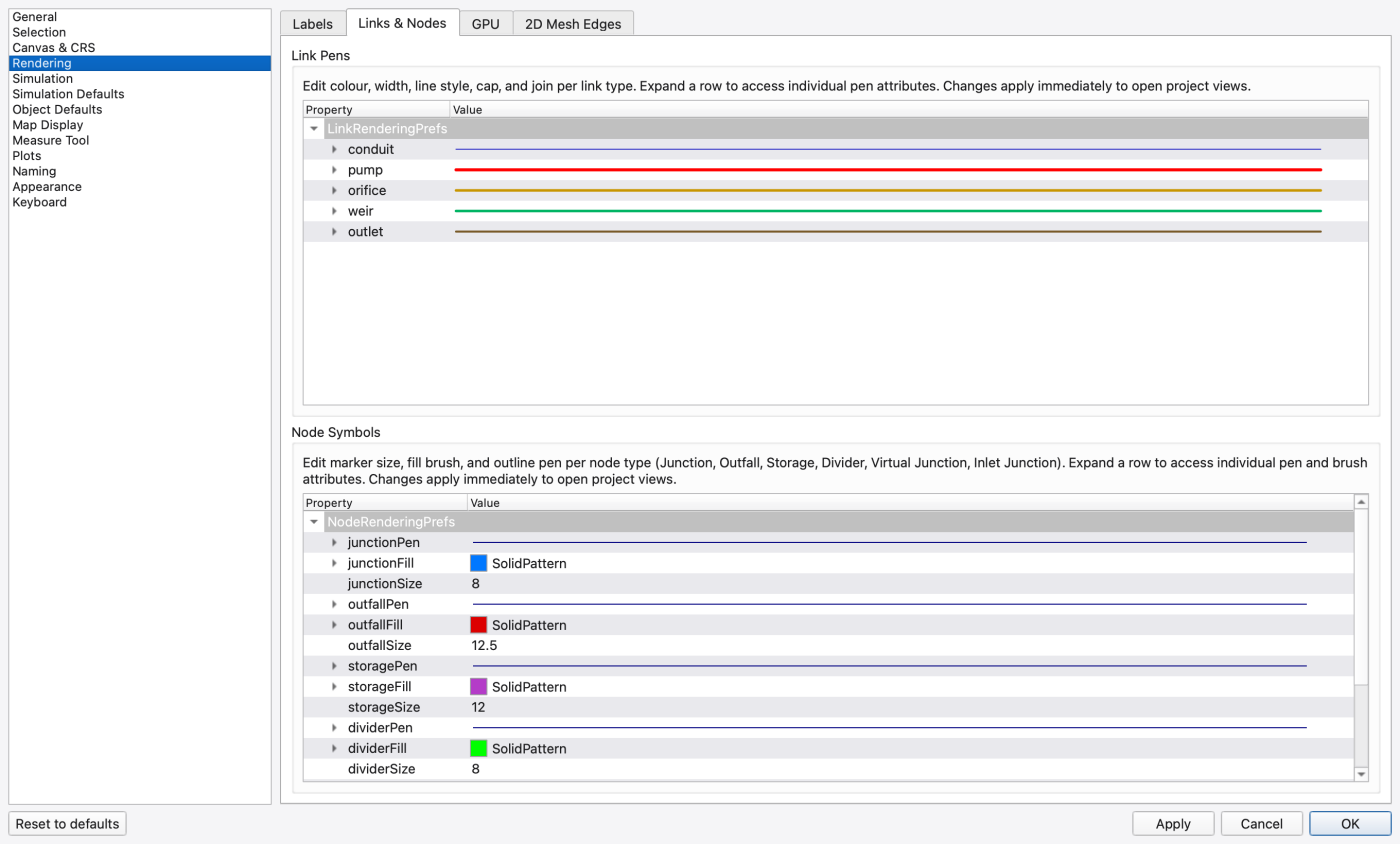
FIGURE PLACEHOLDERdocs/manual/images/04_preferences_network_symbols.png
| Control | What it does |
|---|---|
| Progress-tick interval | How often a running simulation pushes progress and current-time updates to the Simulation Status dock, 50–10000 ms. Lower is more live and costs more overhead; the default is 1000 ms |
See 20 — Running a Simulation.
Applied when File → New creates a blank project. Existing projects are unaffected — change those in Model → Simulation Options… (18 — Simulation Options).
Seven tabs. The first three are the general defaults; the fourth is the dynamic-wave-specific half of the same story; together the third and fourth are the former Dynamic Wave Defaults row. The last three seed the [2D_OPTIONS] block of a new project and the starting values of the mesh generator (the former 2D Defaults row — see 19 — 2D Overland Flow: Meshes, Cell Parameters, Boundary Conditions and 1D–2D Coupling).
| Tab | Groups |
|---|---|
| Processes & Modules | Process models · Process modules |
| Hydraulics & Schedule | Hydraulics · Schedule |
| Time Steps & Tolerances | Time steps · Solver tolerances · Variable timestep |
| Dynamic Wave | Conduit / channel · Solver |
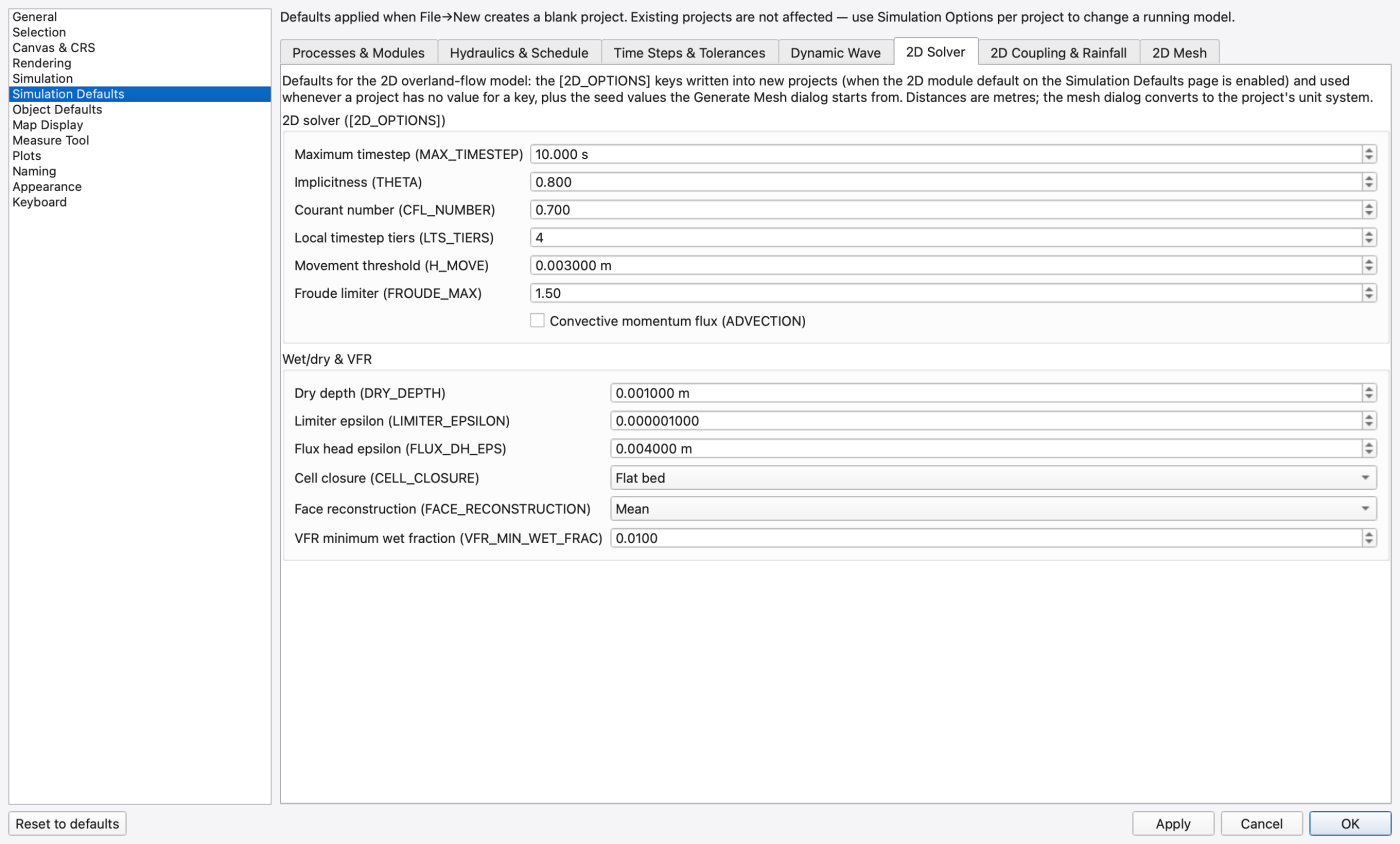
| 2D Solver | 2D solver · Wet/dry & VFR |
| 2D Coupling & Rainfall | 1D↔2D coupling · Rainfall & reporting |
| 2D Mesh | Mesh generation defaults |
| Group | Controls | Writes |
|---|---|---|
| Process models | Flow units (CFS/GPM/MGD/CMS/LPS/MLD) · Infiltration model (Horton; Modified Horton; Green-Ampt; Modified Green-Ampt; Curve Number) · Hydraulic routing method (Steady; Kinematic Wave; Dynamic Wave; Finite Volume) | FLOW_UNITS; INFILTRATION; FLOW_ROUTING |
| Process modules (off by default) | Ignore Rainfall · Ignore RDII · Ignore Snowmelt · Ignore Groundwater · Ignore Quality · Ignore Routing · 2D module | IGNORE_*; the 2D module flag |
| Hydraulics | Allow ponding · Skip steady state · Minimum conduit slope | ALLOW_PONDING; SKIP_STEADY_STATE; MIN_SLOPE |
| Schedule | Antecedent dry days | DRY_DAYS |
| Time steps | Reporting · Runoff dry-weather · Runoff wet-weather (minutes) · Control rule (seconds) · Routing (seconds) | REPORT_STEP; DRY_STEP; WET_STEP; RULE_STEP; ROUTING_STEP |
| Solver tolerances | System flow tolerance · Lateral flow tolerance · Max trials | SYS_FLOW_TOL; LAT_FLOW_TOL; MAX_TRIALS |
Dynamic Wave tabs
| Group | Controls | Writes |
|---|---|---|
| Conduit / channel | Inertial terms (None; Dampen; Ignore) · Normal flow criterion (Slope; Froude; Slope and Froude; Neither) · Force-main equation (Hazen-Williams; Darcy-Weisbach) · Surcharge method (EXTRAN (legacy); SLOT (Preissmann); DYNAMIC_SLOT; TPA (experimental)) · Unsteady friction (None; Vitkovsky) · Unsteady friction k3 | INERTIAL_DAMPING; NORMAL_FLOW_LIMITED; FORCE_MAIN_EQUATION; SURCHARGE_METHOD; UNSTEADY_FRICTION; UF_K3 |
| Variable timestep | Use variable timestep · Timestep relaxation (0–1) · Minimum variable timestep · Conduit lengthening | VARIABLE_STEP; MINIMUM_STEP; LENGTHENING_STEP |
| Solver | Head convergence · Node continuity (Explicit (legacy); Semi-implicit (new)) · Anderson acceleration · Worker threads | HEAD_TOLERANCE; NODE_CONTINUITY; ANDERSON_ACCEL; THREADS |
NODE_CONTINUITY and ANDERSON_ACCEL only exist on the refactored engine, so they are emitted into a new project only when the default engine mode is OpenSWMM 6.
2D tabs
| Group | Controls | Writes |
|---|---|---|
| 2D solver ([2D_OPTIONS]) | Maximum timestep · Implicitness · Courant number · Local timestep tiers · Movement threshold · Froude limiter | MAX_TIMESTEP; THETA; CFL_NUMBER; LTS_TIERS; H_MOVE; FROUDE_MAX |
| Wet/dry & VFR | Advection on/off · Dry depth · Limiter epsilon · Flux head epsilon · Cell closure (Flat bed; Volume-free-surface (VFR)) · Face reconstruction (Mean; VFR face) · VFR minimum wet fraction | DRY_DEPTH; LIMITER_EPSILON; FLUX_DH_EPS; CELL_CLOSURE; FACE_RECONSTRUCTION; VFR_MIN_WET_FRAC |
| 1D↔2D coupling | Discharge coefficient · Exchange interval · automatic coupling area | COUPLING_CD; COUPLING_SYNC |
| Rainfall & reporting | Direct 2D rainfall (Natural neighbour; System mean; None) · Report 2D results | RAINFALL_MODE; REPORT_2D |
| Mesh generation defaults | Minimum triangle angle · Maximum triangle area (m²) · Maximum Steiner points · IDW power · Simplify tolerance · Snap tolerance · Nodes as mesh vertices (except virtual junctions) · Use node rim elevation instead of terrain · Node flatten radius · Enforce minimum node separation and its distance · Thin DTM points with tolerance and pass count · Minimum terrain point spacing · Boundary point filter buffer · Densify long boundary edges with a maximum edge length · Constant Manning's n · Constant initial depth · write the mesh to an external .2dm | The mesh generator's starting values |
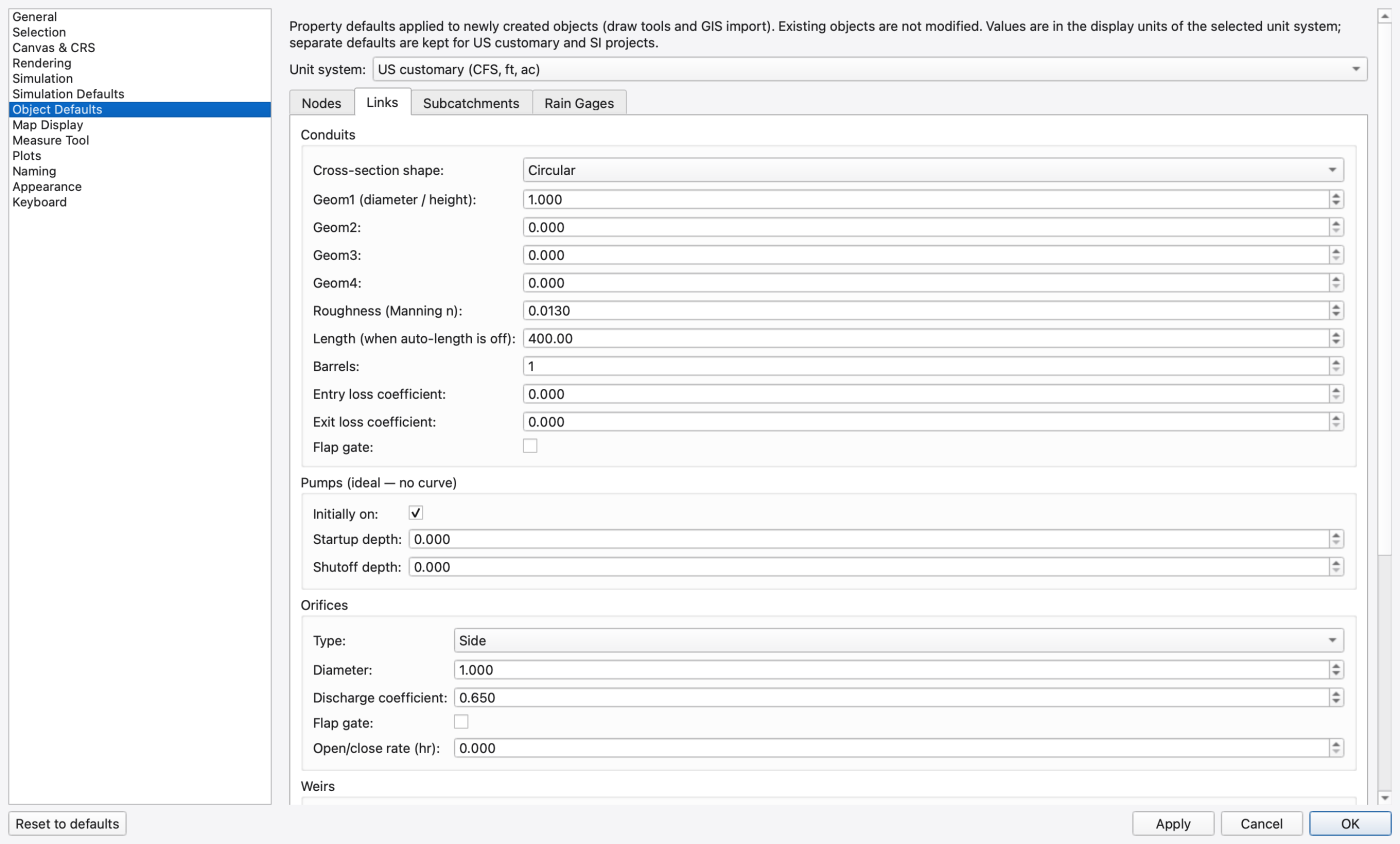
The property values given to each object the moment you draw it. Two complete sets are edited in one session — US customary (CFS, ft, ac) and SI metric (CMS, m, ha) — chosen with the Unit system: combo at the top. Applying writes both sets; newly drawn objects use the set that matches the project's unit system.
The Unit system selector remembers the last set you edited. US and SI defaults remain independent. This selector does not change current-project flow units; use the status bar for that, or Simulation Defaults → Flow units to choose the units for future projects.
The page is a four-tab form:
| Tab | Groups and the properties in each |
|---|---|
| Nodes | Junctions — Max depth (0 = highest crown); Initial depth; Surcharge depth; Storage area (0 = legacy behavior); Ponded area. Outfalls — Type; Flap gate. Storage units — Max depth; Area coefficient (a); Area exponent (b); Area constant (c); Seepage rate. Dividers — Type |
| Links | Conduits — Cross-section shape; Geom1 (diameter / height); Geom2; Geom3; Geom4; Roughness (Manning n); Length (when auto-length is off); Barrels; Entry loss coefficient; Exit loss coefficient; Flap gate. Pumps (ideal — no curve) — Initially on; Startup depth; Shutoff depth. Orifices — Type; Diameter; Discharge coefficient; Flap gate; Open/close rate (hr). Weirs — Type; Height (geom1); Length (geom2); Discharge coefficient; End contractions; Flap gate. Outlets (rating Q = C·hⁿ) — Rating basis; Coefficient (C); Exponent (n); Flap gate |
| Subcatchments | Surface — Area (when auto-area is off); Width; Slope (%); Imperviousness (%); N imperv; N perv; Depression storage imperv and perv; Zero-storage imperv (%). Infiltration — Horton max rate; Horton min rate; Horton decay (1/hr); Horton drying time (days); Green-Ampt suction head; Green-Ampt conductivity; Green-Ampt initial deficit; Curve number; Curve number drying time (days) |
| Rain Gages | Rain format; Recording interval (min); Snow catch factor |
Reset to defaults restores both sets to the compiled-in seeds — you still have to press Apply or OK.
Styling for the map's scale bar. See 05 — The Map Canvas.
| Control | What it does |
|---|---|
| Color | Scale-bar colour swatch |
| Line width | Pen width in pixels |
| Line style | Solid; Dash; Dot; Dash-Dot; Dash-Dot-Dot |
| Font | Label font, chosen through the font dialog |
| Units | Auto; Meters; Feet; Kilometers; Miles |
| Position | Bottom Left; Bottom Right; Top Left; Top Right |
| Max bar length | Longest bar the scale bar may draw, in pixels |
| Label decimals | Decimal places in the label; -1 means automatic |
| Compact notation | Abbreviates large label values |
Styling for the measure tool's rubber band and labels. See 05 — The Map Canvas.
| Group | Control | What it does |
|---|---|---|
| Lines & Vertices | Line & vertex color | Colour of the measured polyline and its vertex markers |
| Labels | Font · Decimal places | Label font and numeric precision |
| Area Fill | Fill color · Fill opacity | Colour and percentage opacity of the shaded area when measuring a polygon |
Default numeric formatting for plot axes, one dropdown per axis inside an X Axis and a Y Axis group. Each entry shows a worked example of the format rather than a jargon name:
| Family | Entries |
|---|---|
| Fixed decimals | 12 (integer) · 12.3 (1 decimal) · 12.35 (2 decimals) · 12.346 (3 decimals) · 12.3457 (4 decimals) · 12.345679 (6 decimals) |
| Significant figures | 3; 4 and 6 significant figures |
| Scientific | 1.23e+01 (scientific, 2 decimals) · 1.235e+01 (3 decimals) · 1.2346e+01 (4 decimals) |
| Engineering | 12.35e+00 (engineering, 2 decimals) · 12.346e+00 (3 decimals) |
| Thousands separated | 12,346 (thousands, integer) · 12,345.7 (1 decimal) · 12,345.68 (2 decimals) |
The defaults are integer on X and 2 decimals on Y. Individual plots can still override the format in their own chart-properties dialog — see 22 — Time-Series and Comparison Plots.
Prefixes for auto-generated element names. Each newly placed element takes its prefix followed by the next sequential number (J1, J2, …), and a change takes effect for the very next element you place. The prefixes apply to every Add tool, including Subcatchment (Sub) and Rain Gage (RG).
| Element | Default prefix |
|---|---|
| Junction | J |
| Outfall | O |
| Storage | S |
| Divider | D |
| Conduit | C |
| Pump | Pu |
| Orifice | Or |
| Weir | W |
| Outlet | Ou |
| Rain Gage | RG |
| Subcatchment | Sub |
Leaving a field blank falls back to the default shown as its placeholder.
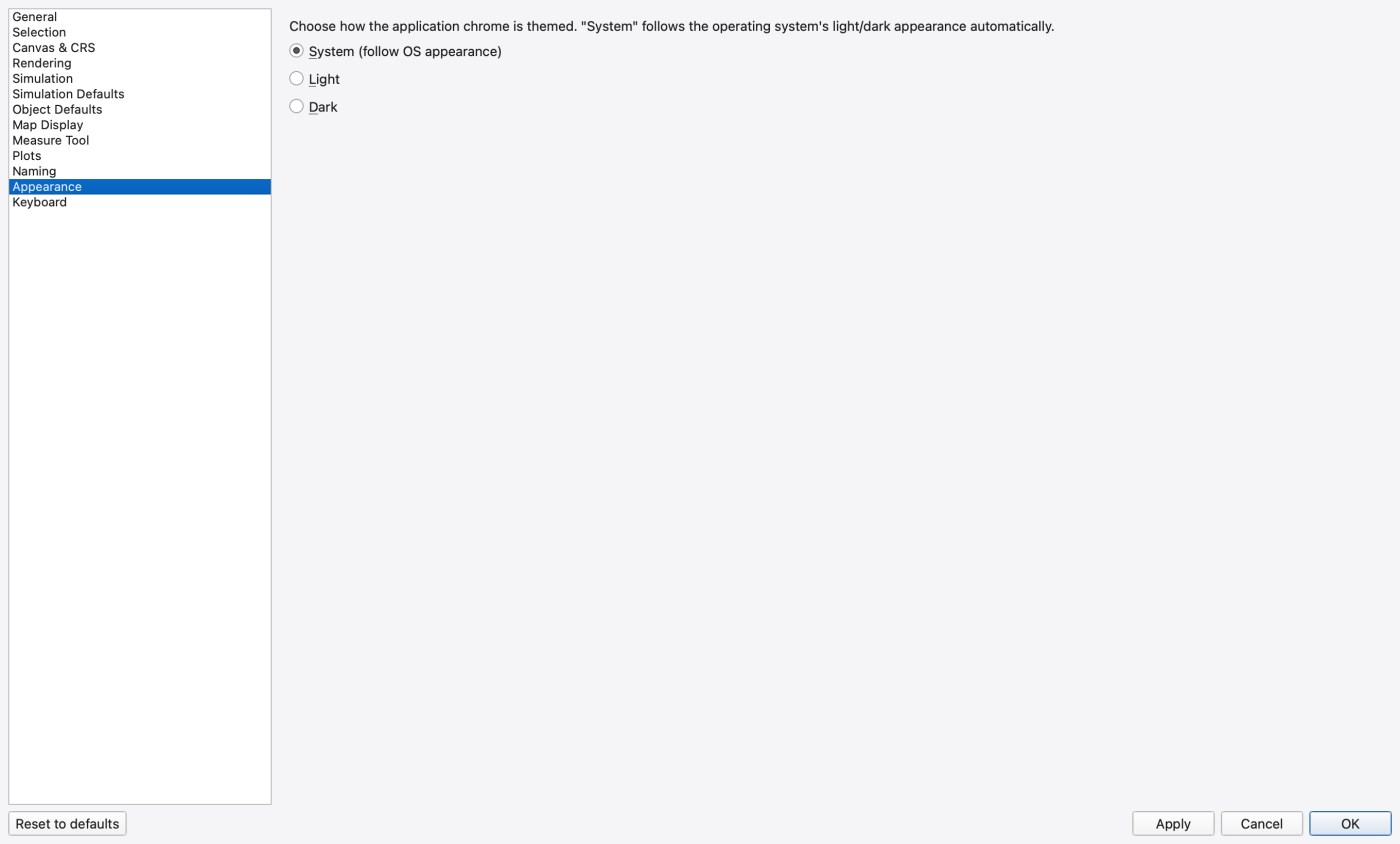
| Control | What it does |
|---|---|
| System (follow OS appearance) | Tracks the operating system's light/dark setting live |
| Light | Always light |
| Dark | Always dark |
This is the same setting as View → Appearance ▸; changing it in one place updates the other. The palette, the widget style and the action icons all follow the chosen mode.
Hosts the shortcut editor described in 02 — The Interface. Edits here are written through immediately — applied live and persisted — so Apply, Cancel and Reset to defaults do not affect this page; use its own Reset and Reset All buttons instead.
| Control | What it does |
|---|---|
| Filter box | Narrows the command tree |
| Command tree | Every registered command grouped by category with its current binding |
| Key-sequence editor | Records the sequence you press |
| Assign | Applies and persists it |
| Clear | Removes the binding |
| Reset / Reset All | Restores the selected command's default, or every default |
| Conflict label | Explains a blocked or warned assignment |
An exact duplicate of another command's binding blocks the assignment and names the command holding it; a platform-reserved sequence only warns. See A1 — Keyboard Shortcuts.
Everything is stored in the platform's native settings store under the application identity — organisation hydrocouple, organisation domain calebbuahin.github.io, application name OpenSWMM Stormwater Management Model:
| Platform | Location |
|---|---|
| Windows | Registry, under HKEY_CURRENT_USER\Software\hydrocouple\OpenSWMM Stormwater Management Model |
| macOS | A preferences property list under ~/Library/Preferences/, named from the reversed organisation domain and the application name |
| Linux | ~/.config/hydrocouple/OpenSWMM Stormwater Management Model.conf |
Inside that store, keys are grouped by purpose:
| Key group | What lives there |
|---|---|
SWMMVis/Preferences/… | Everything on this dialog: selection, canvas, rendering pens and brushes, simulation and 2D defaults, object defaults, map display, measure tool, plots, naming, appearance |
SWMMVis::MainWindow/… | Main-window geometry, window state, dock and toolbar layout (versioned), the recent-files list, and the last ribbon tab |
SWMMVis::Shortcuts/… | Keyboard overrides, keyed by the command's stable id — so they survive upgrades and menu reorganisations |
Dialogs/<DialogName>/… | Per-dialog geometry, splitter sizes, table header state, current tab and current page. Multi-instance dialogs of the same class share one key — last close wins |
SWMMVis::Ribbon/LastUsed/<family> | The remembered member of each ribbon split button |
SWMMVis/Project/<inp path>/… | Per-project memory such as the last Save-As filter and whether the 2D module is enabled |
SWMMVis/LicenseAgreement/showOnStartup | The startup licence dialog toggle |
SWMMVis::ShowWelcomeOnStartup | The Welcome-page toggle |
Preferences/AutoCreateOswpOnOpen | Whether opening a .inp with no sidecar creates one. On by default; no control in this dialog |
Other application data lives outside the settings store: the seeded example projects and the per-user style library are in the per-user application data folder (…/examples and …/styles).
Any top-level dialog with an object name has its layout remembered automatically — restored the first time it is shown and saved when it is hidden or closed. What is kept depends on what the dialog names: its own geometry always, plus each named splitter's sizes, each named table's header state, each named tab widget's current tab, each named navigation stack's current page, and each named checkable view toggle. Restored geometry is clamped to currently-available screen space, so a dialog saved on a monitor you have since unplugged still comes back somewhere you can reach it.
This is why the Preferences dialog reopens on the page you left it on. To reset it along with everything else, use Window → Reset Window Positions, which drops the saved geometry for the main window and every named dialog and gathers the open windows back onto the current screen. It deliberately leaves splitter sizes, header state, tab selection and the dock layout alone — those are your layout work, not a window-position problem.
| Scope | What Reset to defaults does |
|---|---|
| General; Selection scalars; Canvas & CRS; Rendering scalars; Simulation; Simulation Defaults (every tab); Object Defaults; Map Display; Measure Tool; Plots; Naming | Fills the widgets with the compiled-in defaults. Nothing is written until you press Apply or OK |
| Selection Pens & Fills; Link Pens; Node Symbols; 2D Mesh BC Edges | Untouched — these write through on edit and are not part of the reset |
| Appearance | Untouched |
| Keyboard | Untouched — use Reset / Reset All on that page |
Worker threads is a special case: resetting it does not restore a stored number but re-reads the machine's logical-processor count from the engine, falling back to Qt's own count.
 1.9.8
1.9.8