 |
SWMMVis
6.0.0-alpha.4
Qt6/C++ GIS-based graphical user interface for the SWMMVis engine (6.0.0-alpha.4)
|
|
SWMMVis
6.0.0-alpha.4
Qt6/C++ GIS-based graphical user interface for the SWMMVis engine (6.0.0-alpha.4)
|
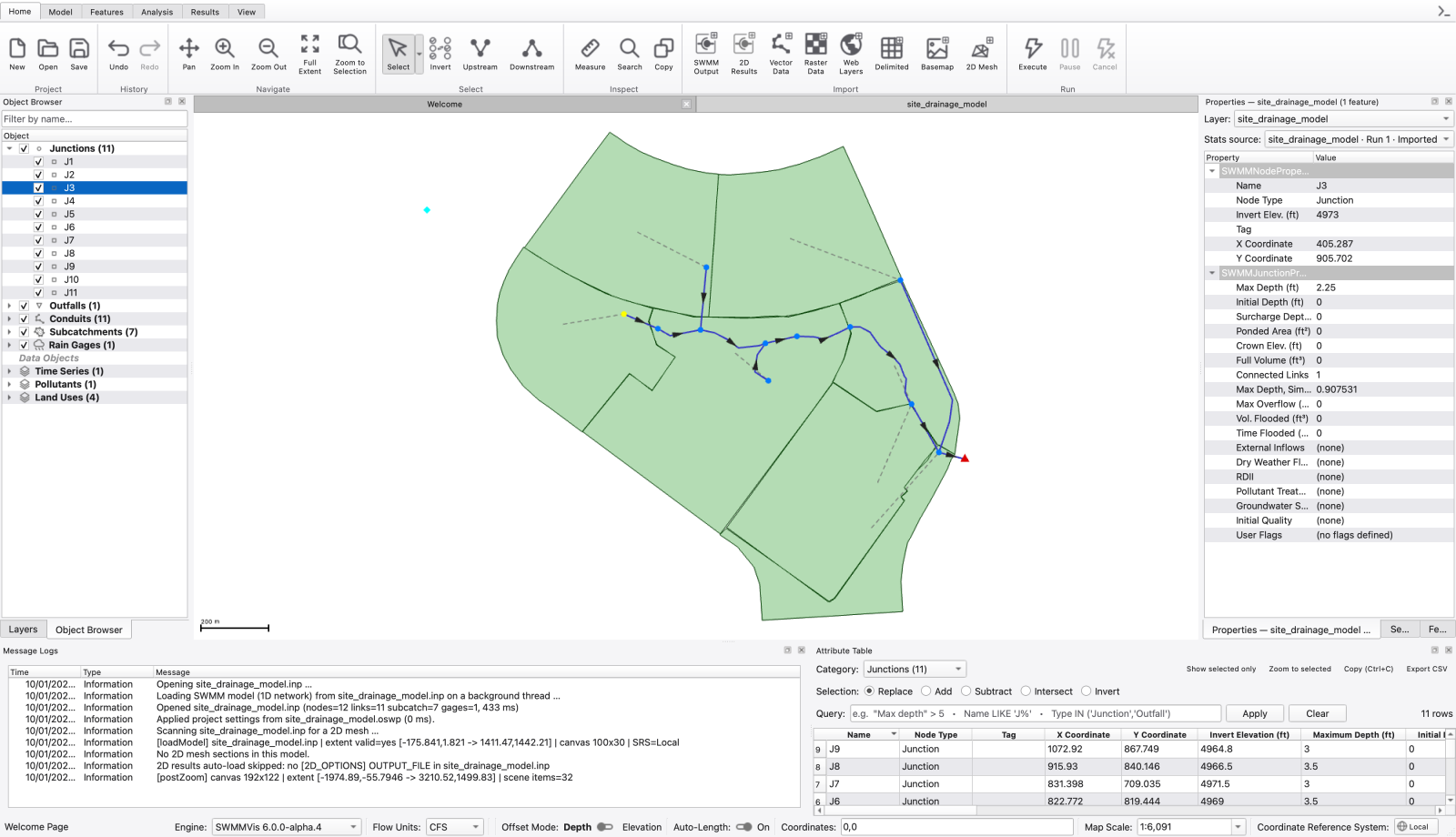
Pick the objects you want to work on — junctions, conduits, subcatchments, rain gages, GIS features, 2D mesh vertices/edges/cells — from whichever view is most convenient, and have every other view follow. Then edit them, plot them, trace the network from them, or delete them in bulk.
| Command | Menu | Ribbon | Shortcut |
|---|---|---|---|
| Select | Edit → Select | Home ▸ Select; Model ▸ Select | — |
| Select by Polygon | Edit → Select by Polygon | Home ▸ Select | — |
| Invert Selection | Edit → Invert Selection | Home ▸ Select | — |
| Select Upstream | Edit → Select Upstream | Home ▸ Select | — |
| Select Downstream | Edit → Select Downstream | Home ▸ Select | — |
| Search | Edit → Search | Home ▸ Inspect | Ctrl+F |
| Copy | Edit → Copy | Home ▸ Inspect | Ctrl+C |
| Edit Existing | Edit → Edit Existing | Model ▸ Edit | Ctrl+E |
| Zoom To Selection | View → Zoom To Selection | Home ▸ Navigate | Ctrl+Shift+J |
| Select Mesh Vertices / Edges | Model → Mesh | Mesh 2D | — |
Selection is also driven from the Object Browser (Ctrl+Alt+2), the Attribute Table (Ctrl+Alt+4) and the layer tree.
Each open project owns one SelectionManager — the canonical set of selected objects for that project. Every view that cares about selection subscribes to it and reports its own gestures back to it, so a click in one place is reflected everywhere without per-pair sync code.
Each entry is a *(type, name)* pair, not a bare name. SWMM keeps a separate name space per object class, so a node and a link — or a rain gage and a subcatchment — may legitimately share an id without being confused for one another.
The bus supports four modes:
| Mode | Effect |
|---|---|
| Replace | Discard the current selection and use the new set. |
| Add | Union the new set into the current selection. |
| Toggle | Flip each entry's membership. |
| Subtract | Remove each entry from the current selection. |
Selection is per project: switching project tabs swaps the active selection, so two open projects carry independent selections. Selection is not a model edit — changing or clearing it never marks the project dirty and never deletes anything.
Activate Select and click. The tool walks the visible layers top-down and the first hit wins, so one click never selects two overlapping objects.
| Gesture | Result |
|---|---|
| Click an object | Replace the selection with it |
| Shift-click | Add it to the selection |
| Ctrl-click (⌘ on macOS) | Subtract it from the selection |
| Drag a box | Replace with everything the rubber band touches |
| Shift-drag | Add the box contents |
| Ctrl-drag | Subtract the box contents |
| Click empty space | Clear every SWMM and GIS layer's selection |
| Shift/**Ctrl** + click empty space | Leave the selection alone |
| Esc | Clear the selection |
| Del / Backspace | Delete the selected objects (with confirmation) |
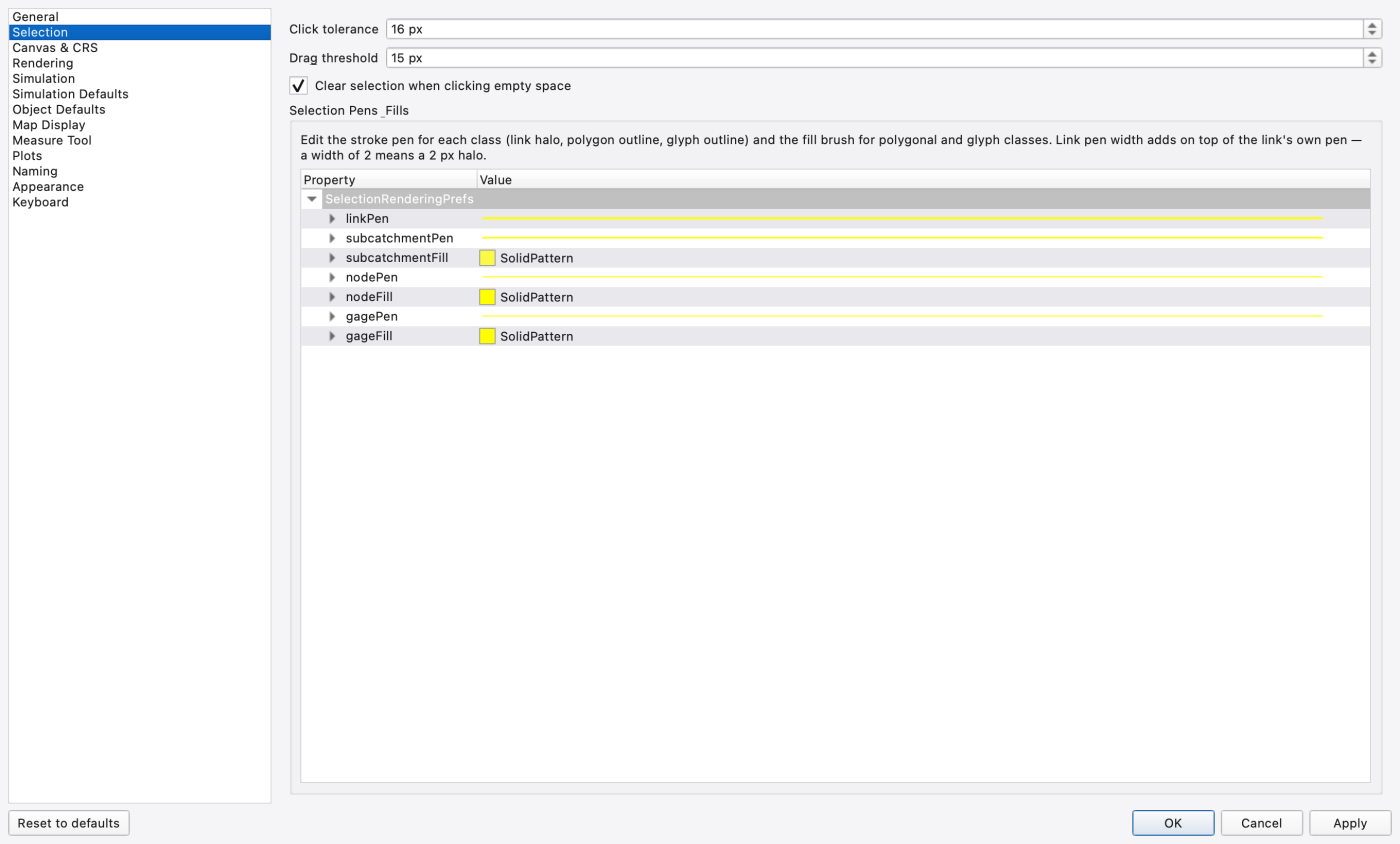
Two pick tolerances govern the tool, both on Tools → Preferences… → Selection:
max(tolerance, largest rendered glyph half-bound + 4 px halo), so a click anywhere inside a visible symbol always hits regardless of the number.The same page carries the selection pens and fills — the stroke for the link halo, polygon outline and glyph outline, and the fill brush for polygonal and glyph classes. A link pen width is additive: a width of 2 means a 2 px halo on top of the link's own pen.
Select by Polygon draws a lasso instead of a box.
Shift adds the enclosed objects to the current selection; Ctrl removes them; no modifier replaces. Only visible layers participate, and feature highlights and Attribute Table row selections follow the same selection.
FIGURE PLACEHOLDERdocs/manual/images/09_select_by_polygon.png
Both docks share the same selection: a pick in either shows in the other.
Ctrl-click toggles a row, Shift-click extends a contiguous range. A selection arriving from elsewhere scrolls the matching row into view and highlights it.Right-clicking on the map deliberately does not change the selection: the context menu acts on whatever is under the cursor without disturbing what is already highlighted.
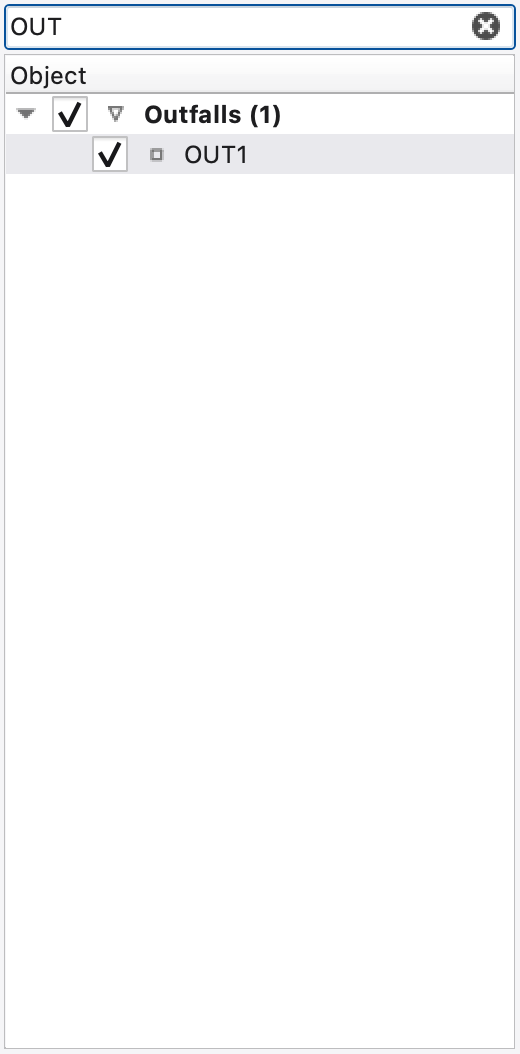
Edit → Search (Ctrl+F) is not a dialog. It raises the Object Browser dock and puts the caret in its Filter by name… box with the existing text selected, so you can type straight over it.
Filtering is case-insensitive, substring-based and recursive — a category stays visible while any object under it matches — and it waits until you pause typing, so a million-object project is not re-filtered on every keystroke. The (x) clear button restores the full tree.
The filter hides rows; it does not select them. Selecting an object whose name does not match the current filter will not clear the filter.
For finding commands rather than objects, use the Command Palette (Ctrl+Shift+P) — a frameless popup with a filter line over every registered action. See 02 — The Interface.
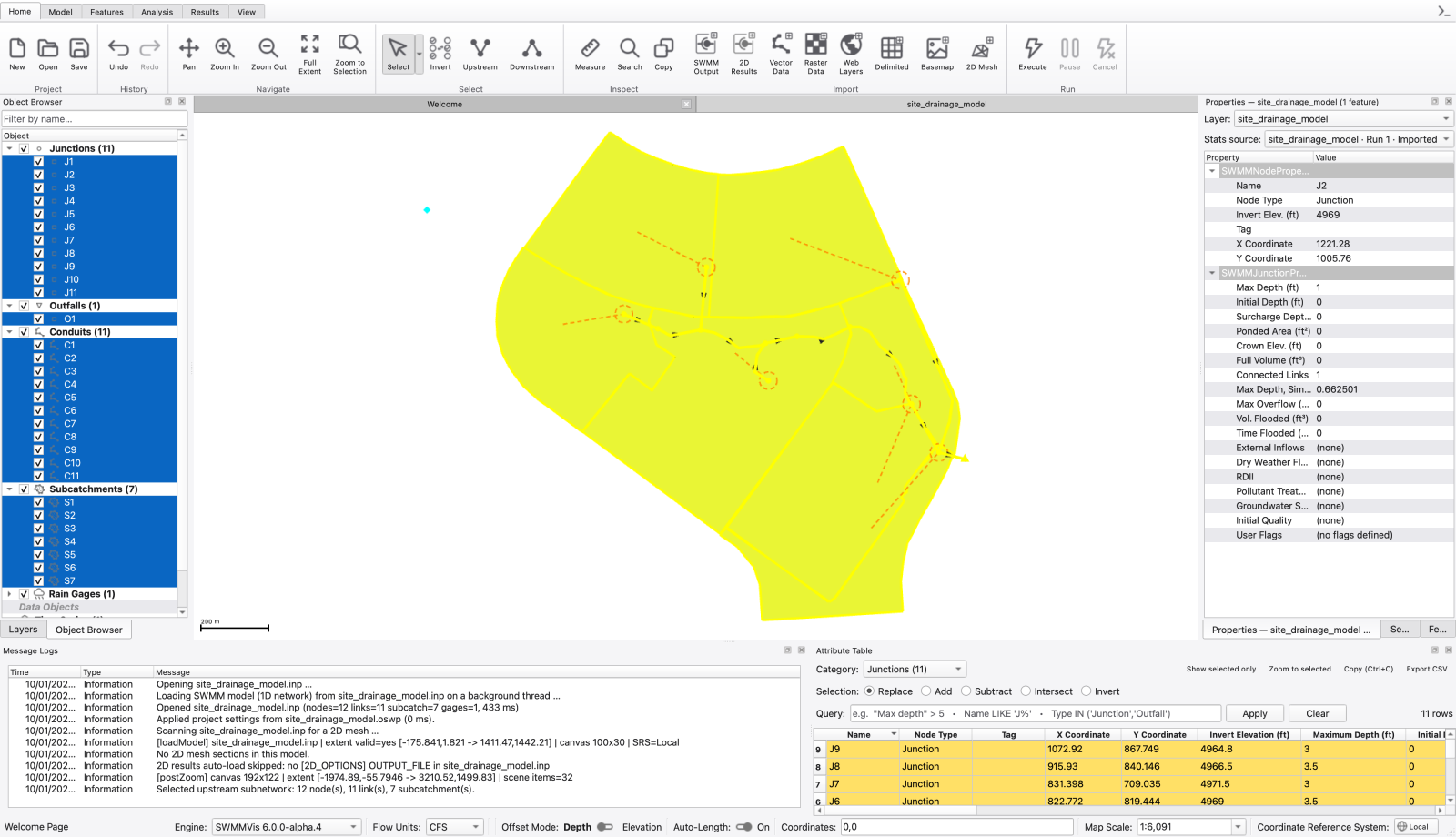
Both actions trace the routing graph from whatever is currently selected and replace the selection with the result. The status bar reports how many nodes, links and subcatchments were found.
Seeding rules:
The traversal is a breadth-first search over the directed link graph, reversed for upstream. A link joins the result only when both of its endpoints land inside the visited node set.
Subcatchments are asymmetric, and that is physical rather than an oversight: drainage runs subcatchment → node, so a subcatchment is always upstream of its outlet. Tracing upstream therefore pulls in every subcatchment draining to a visited node — and, transitively, every subcatchment draining into one of those. Tracing downstream picks up subcatchments only along the outlet chain of a subcatchment seed.
If nothing traceable is selected the command says so in the message log and does nothing.
Invert Selection is category-scoped when the selection is homogeneous. "Category" here is the fine object category — Junctions, Outfalls, Storage Units, Dividers, Conduits, Pumps, Orifices, Weirs, Outlets, Subcatchments, Rain Gages. Inverting a selection of three junctions therefore yields every other junction; a selection holding a junction and a conduit is mixed and inverts across all eleven categories.
Ctrl+Shift+J unions the bounding box of every selected object across every visible SWMM model layer and frames it. It is a view change only.
The Mesh 2D ribbon tab carries two picking tools.
| Gesture | Result |
|---|---|
| Click (12 px tolerance) | Replace |
| Shift-click | Add |
| Ctrl/⌘-click | Toggle |
| Drag a box | Replace with every vertex inside |
| Shift-drag | Add the box's vertices |
| Esc | Clear |
The tool binds to the active 2D mesh layer at activation; with no active mesh it is a no-op.
The edge tool defaults to boundary edges only — the subset a boundary condition can mean anything on. Press A while the tool is active to include interior edges (mainly diagnostic) and B to go back.
One click picks the nearest edge; a drag box picks every edge whose midpoint falls inside it.
FIGURE PLACEHOLDERdocs/manual/images/09_mesh_edge_selection.png
Assigning a boundary condition usually means selecting a long run of boundary edges — an outfall face, a road crest, the whole domain perimeter. Clicking each one is tedious, so the edge tool takes a path:
The starting edge is resolved in this order: an explicitly placed anchor; the edge this tool last selected on its own (a plain click, or the far end of the path it just committed — this is what makes runs chain); or the single selected edge when the selection holds exactly one for this mesh.
With nothing to start from, the first Ctrl-click instead drops a path anchor — drawn distinctly and confirmed in the status bar — and the next Ctrl-click commits the path from it. A box select leaves no single "last edge", so the Ctrl-click after one drops a fresh anchor rather than guessing.
"Shortest" means geometric length, not the fewest edges: on a mesh that is fine in one place and coarse in another, the path follows the physically shorter route around the boundary.
Press Esc once to drop a pending anchor; press it again to clear the selection.
Imported vector layers (Shapefile, GeoPackage, GeoJSON, …) join the same bus. A picked feature is carried as a Feature ref keyed by the layer's stable id and the feature id, so features from several layers coexist in one selection without collision. Picking on the map pushes into the bus and the bus pushes back into each layer's highlight, both directions under one guard so nothing bounces.
A point click does not stop at the first layer for GIS: the bridge rebuilds the refs from every GIS layer on the canvas so one layer's picks do not drop another's.
Feature attributes are read in the Attribute Table; the Properties panel does not yet show GIS features.
The Attribute Table's Query bar is the select-by-attribute route. Type a SQL-like WHERE clause, choose a selection mode with the radios above it, and press Apply — the rows are filtered and the chosen mode is applied to the matched rows.
| Radio | Effect on the current selection |
|---|---|
| Replace | Replace it with the matched rows |
| Add | Union the matched rows into it |
| Subtract | Remove the matched rows from it |
| Intersect | Keep only rows that are in both matched and selected |
| Invert | Replace it with every row in this category that is not selected (ignores the query) |
The grammar and worked examples are in 11 — Attribute Tables and the Attribute Calculator.
| Surface | Replace | Add | Subtract | Toggle |
|---|---|---|---|---|
| Map Select | click | Shift+click | Ctrl+click | — |
| Map Select by Polygon | close | Shift | Ctrl | — |
| Object Browser tree | click | Shift+click (range) | — | Ctrl+click |
| Attribute Table rows | click | Shift / Ctrl per Qt table rules | — | Ctrl+click |
| Select Mesh Vertices | click | Shift+click | — | Ctrl+click |
| Select Mesh Edges | click | Shift+click | — | Ctrl is path picking |
The mesh edge tool is the one place the modifier grammar differs: Ctrl/⌘ is path picking there, not Toggle.
Ctrl+C is registered once, on the main window, and routes to whatever has focus:
| Focus | What lands on the clipboard |
|---|---|
| Attribute Table | The selected rows as TSV — a header line plus one line per row, in the view's current sort and column order, hidden columns skipped. With no row selected it falls back to every visible row (what the query and show-selected-only filters leave). |
| Message Logs | The selected log rows. |
| Anywhere else | The active map canvas as an image. |
There is no .inp-fragment clipboard format: copying objects on the map copies a picture of them, not the model text.
Del or Backspace with the Select tool active — or the map's right-click Delete…, the Object Browser's Delete…, or the Attribute Table's Delete (Del) — deletes the selected objects. All four routes go through the same undoable command, so behaviour is identical wherever the delete starts.
What happens:
[INLET_USAGE] row that will be removed. FIGURE PLACEHOLDERdocs/manual/images/09_confirm_bulk_delete.png
Data objects (curves, time series, transects, …) are deleted from the Object Browser's data section. Kinds that cannot yet be deleted from there show a disabled Delete… with a tooltip saying so, rather than pretending.
Edit Existing (Ctrl+E, Model ▸ Edit) is a per-project toggle that opens an explicit edit session. It gates the Select tool's inline geometry editing: with the session off, double-clicking an object is an ordinary select with no edit side-effect; with it on, a double-click drops vertex and position handles onto the picked node, gage, link or subcatchment so you can drag them. Adding new objects is not gated — those tools are available whenever a project is open.
The toggle is disabled until a project opens, is remembered per project window, and its state follows you across tab switches. The editing gestures themselves are described in 12 — Editing the Network on the Map.
 1.9.8
1.9.8