 |
SWMMVis
6.0.0-alpha.4
Qt6/C++ GIS-based graphical user interface for the SWMMVis engine (6.0.0-alpha.4)
|
|
SWMMVis
6.0.0-alpha.4
Qt6/C++ GIS-based graphical user interface for the SWMMVis engine (6.0.0-alpha.4)
|
Create and edit GIS points, lines and polygons inside SWMMVis. Use them as mesh domains, breaklines, refinement regions, corridors and parameter zones, or as source features for importing SWMM objects. Feature layers keep their geometry and attributes in a GeoPackage beside the model; the project remembers their roles, styling and elevation settings.
Drawing a feature does not by itself create a SWMM node, conduit or subcatchment. Use Model → Import Feature Layer… when you want to convert features into model objects (12 — Editing the Network on the Map).
Ctrl+Alt+0): layers, fields, attributes, vertex coordinates and elevation controls.

<model>.features.gpkg file.The new layer uses the canvas CRS. When none is set, its coordinates are stored as drawn; assign the correct CRS before combining it with other spatial data. Horizontal CRS units and elevation units are separate choices; see 06 — Coordinate Reference Systems.
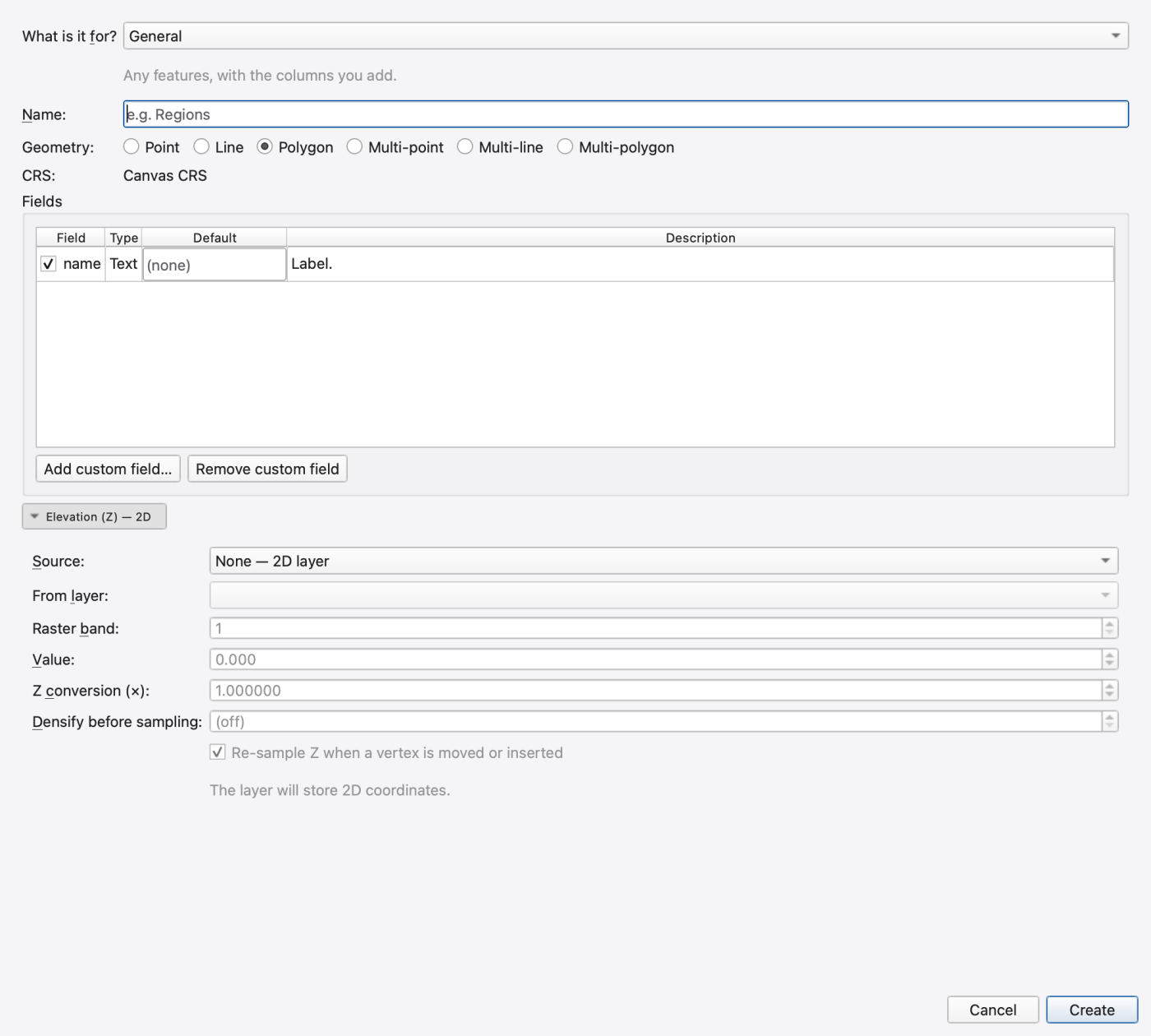
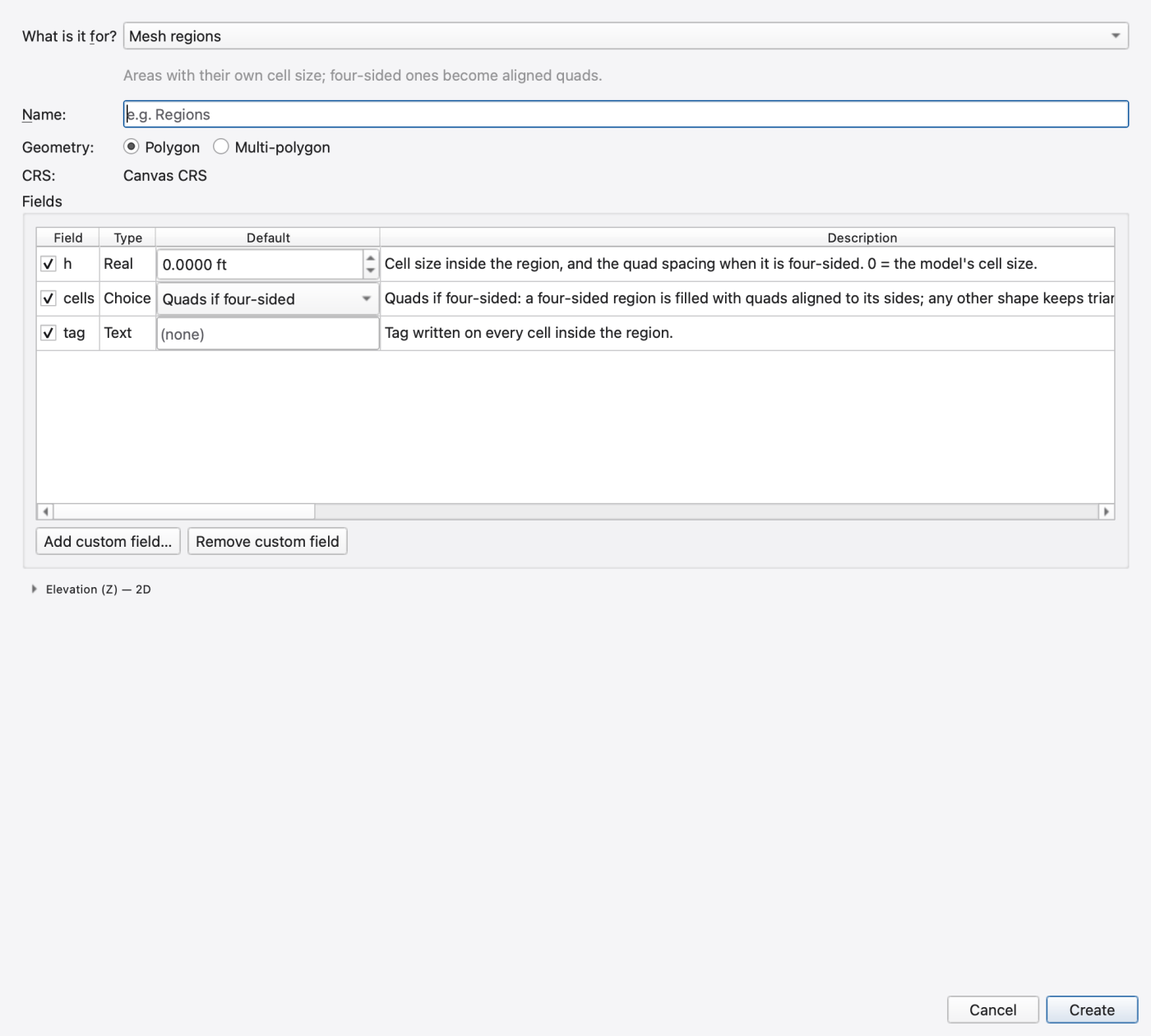
| Role | Geometry and fields | How it is used |
|---|---|---|
| General | Any supported geometry; name plus custom fields | An editable GIS layer for your own data |
| Mesh domain boundary | Polygon or multipolygon; required name | The area to mesh; interior rings become holes |
| Breaklines / hard points | Lines or points; optional name; elevation source | Lines mesh edges follow and points the mesh must include; the mesher reads geometry and Z |
| Mesh regions | Polygons; cell size h; cell mode cells; optional tag | Local sizing and alignment; h = 0 uses the model cell size. Quads if four-sided allows aligned quads for four-sided regions; Triangles keeps triangles |
| Corridors | Line or multiline; total width; optional tag | Road or river centerlines used by mesh corridor sources |
| Parameter zones | Polygons; optional mannings_n; init_depth; landuse; hsg | Sources for assigning cell attributes; select and map them in the assignment workflow |
| SWMM delineation | Geometry appropriate for import; object naming/type fields | Source geometry for Import Feature Layer… |
| Boundary-condition lines | Lines; boundary type; head; slope; flow; time-series/curve references; group; conveyance | Stores proposed boundary data. Automatic assignment from these lines is not implemented; assign active boundary conditions with Mesh Editing |
A role helps construct the schema; it does not automatically apply its values to an existing mesh. Choose the layer in the relevant mesh-generation or assignment dialog, inspect its preview and complete that operation separately.
Right-click a feature layer in the Layers panel and choose Properties → Symbology. Use Marker (points), Line, or Polygon to change its colours, sizes, line styles and outlines. The Labels tab controls its labels. Each layer has its own settings, including layers with the same geometry type or role. Changes preview on the map; Apply or OK keeps them and Cancel discards changes since the last Apply. Save the project to retain each layer's styling for the next session.
The selected layer in the Features panel is the target of drawing and editing. Check its name before using a tool, especially when several similar layers are visible. Tools for incompatible geometry types are unavailable.
| Tool or gesture | Use |
|---|---|
| Point | Place a feature at the clicked map position |
| Line / Polygon | Click vertices in sequence; double-click or press Enter to finish |
| Right-click while drawing | Remove the most recent vertex; cancel when there is no earlier segment |
| Esc while drawing | Cancel the unfinished geometry |
| Add Part | Add another part to a selected feature in a compatible multipart layer |
| Add Hole | Draw an interior ring in a selected polygon |
| Edit Vertices | Select and move existing vertices; use the vertex context menu for available edits |
| Move | Move the selected feature on the map |
| Delete | Delete selected features while Edit Mode is active |
| Select | Return to selection when you finish drawing or editing |
Geometry edits participate in the project's undo history. Use Undo immediately if the wrong layer or feature was changed. Unfinished geometry must satisfy its type's minimum vertex count and validity rules before it can be committed.
FIGURE PLACEHOLDERdocs/manual/images/12a_feature_vertices.png
The Attributes section describes the layer's columns; the Features table contains the values of individual features. With Edit Mode enabled, edit cells in the Features table. Its selection is linked to the map. Add column… and Remove column change the schema; removing a column also removes its values from every feature, so review the confirmation carefully.
Select exactly one feature to inspect the Vertices table. Its part and ring columns distinguish multipart geometry and holes. X and Y are in the layer's CRS. Editable Z values depend on the layer's elevation policy. A geometry with too many vertices to list directs you to the map vertex tool.
Update fields to role… previews schema changes for an older layer: additions, renames, defaults and value lists. Optional retired columns are explicitly listed for removal. Review the preview, then choose Update; the update is one undo operation. It does not implicitly reinterpret every existing feature value.
| Elevation setting | Meaning |
|---|---|
| None — 2D layer | Store horizontal geometry without Z |
| Constant source and Value | Store a fixed elevation |
| Raster source; From layer; Raster band | Sample a loaded raster at the feature vertices |
| 2D mesh source and From layer | Sample elevations from a loaded mesh |
| Z conversion (×) | Multiply sampled elevations to convert vertical units |
| Densify before sampling | Insert intermediate vertices at the specified spacing before sampling; useful where terrain changes between drawn vertices |
| Re-sample when a vertex moves | Refresh a moved vertex's elevation from its configured source |
| Resample Z now | Refresh the layer's features as one undo operation |
Read the coverage warning when sampling: a feature can extend beyond the raster or mesh. Check the resulting Z values and the source's units before using the layer as a breakline or channel input. A 2D layer cannot acquire 3D storage merely by changing a display setting; create an appropriate 3D layer when needed.
Use Import… in the Features panel to copy compatible vector data or a SWMM object class into the selected editable layer. Review the source, geometry and field choices before importing. Use Export… to write a selected feature layer for use elsewhere. See 07 — Layers and Data Sources for loading external GIS data and 12 — Editing the Network on the Map for the separate GIS-to-SWMM conversion workflow.
Feature edits are written to the companion GeoPackage as they are applied. Save retains the project's layer references and display settings; it is not a rollback boundary for the GeoPackage. Use Undo to reverse feature edits within the session. Keep the GeoPackage with the project when transferring it. Remove removes a feature layer from the map; its table remains in the GeoPackage. Removing a map layer and deleting its features are different actions.
 1.9.8
1.9.8