 |
SWMMVis
6.0.0-alpha.4
Qt6/C++ GIS-based graphical user interface for the SWMMVis engine (6.0.0-alpha.4)
|
|
SWMMVis
6.0.0-alpha.4
Qt6/C++ GIS-based graphical user interface for the SWMMVis engine (6.0.0-alpha.4)
|
Bring every kind of data a SWMM study needs onto the map — GIS files, web services, basemaps, tables, results and 2D meshes — and then organise, reorder, hide, inspect and remove it from the Layers panel.
Ctrl+Alt+1); it is on the ribbon's View tab.| Command | Menu | Ribbon tab |
|---|---|---|
| Open SWMM Output | File → Import | Home |
| Add 2D Results… | File → Import | Home |
| Add Vector Data | File → Import | Home |
| Add Raster Data | File → Import | Home |
| Add WMS Data | File → Import | Home |
| Add WFS Data | File → Import | — |
| Add Basemap | File → Import | — |
| Add Delimited Data | File → Import | Home |
| Add 2D Mesh… | File → Import | Home |
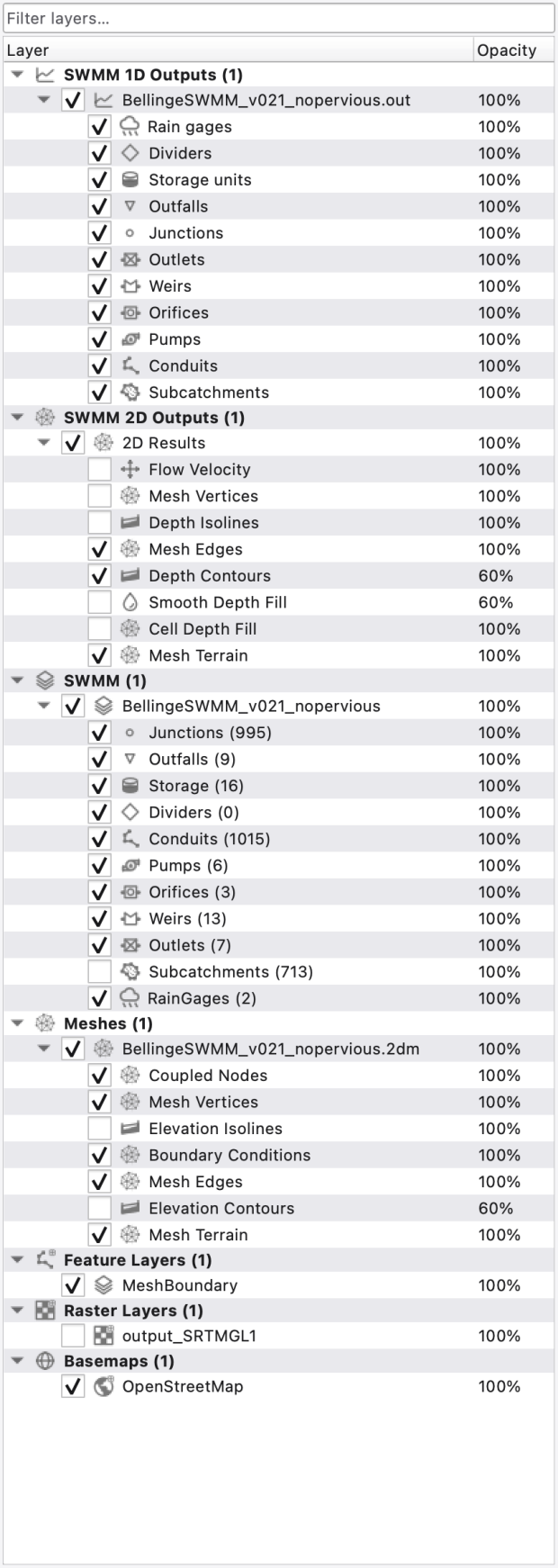
At the top is a Filter layers… box: type to filter the tree by name, case-insensitively and recursively, so a category disappears when none of its layers match. The clear button restores the full tree.
Below it is a two-column tree:
| Column | Contents |
|---|---|
| Layer | Visibility checkbox, type icon and name. Category rows show the same for the whole group. |
| Opacity | Per-layer opacity. Select the row, then click the cell to edit. |
The panel has no add-layer toolbar of its own — adding is done from File → Import and the ribbon. Everything else is on the context menu.
Layers are grouped into fixed categories, derived from layer type. Only non-empty categories appear, and within a category layers are listed top-of-stack first — the top row is drawn over everything below it.
| Category | Holds |
|---|---|
| SWMM | The project's SWMM model layer. |
| Meshes | 2D mesh layers. |
| SWMM 1D Outputs | .out results layers. |
| SWMM 2D Outputs | 2D (.h5) results layers. |
| Feature Layers | GIS vector layers, sub-project layers, annotation layers. |
| Raster Layers | GIS raster layers. |
| Basemaps | XYZ tiles, WMS, WMTS, ArcGIS REST and local-raster basemaps. |
| Tables | Delimited-text tables. |
| Time Series | Persistent observation collections, with optional monitoring locations and feature links. |
The dock follows the frontmost project tab, not keyboard focus: each open project has its own canvas and its own layer stack, and clicking around in other panels never clears the tree. It empties only when the last project closes.
Successful USGS observation downloads add a persistent collection under Time Series. Expand the collection to select individual series, or right-click View observations… to inspect its series metadata and paged observations. The series browser supports filtering and selection without editing downloaded samples. A series can have no location, its own monitoring point, or an explicit link to an existing permanent GIS feature or model object. Several series can share one station; the map draws one selectable station marker with its label.
Right-click a series or station and choose Plot time series…. It opens the existing Comparison plot tab without requiring simulation results. When a station has several series, choose the desired measurement/statistic. The plot panel's Add from Map… also recognizes stations and associated features.
Use Zoom to location in the series browser or a series context menu to frame its monitoring point. A series without its own location can use a resolved feature link; an unresolved or nonspatial series has no location zoom. Zoom to selected also frames selected GIS and time-series features, including a single station in a different coordinate system from the map.
To associate data with another feature, select exactly one persistent feature, then use Attach to selected feature… for the selected series. Detach from feature removes the relationship only. Temporary preview features are not permanent association targets. A missing/deleted feature leaves its series and source location intact, with an unresolved link rather than a different target.
The layer's visibility checkbox controls its map locations. Existing chart series and model inputs are independent of that checkbox. Catalogue preview points remain independently visible after download. Downloaded DEMs appear as normal raster layers; adding one does not automatically choose it as the model's terrain source.
Native observations live in a versioned GeoPackage beside the downloaded archive. The project sidecar stores a reference and presentation/link state; saving does not embed all samples into the project JSON. Layers remain usable when the Data plugin is disabled. Removing a layer leaves its data files on disk. Locate source… reconnects a missing package after checking dataset identity. Keep the package and its source archive with the project when moving or sharing it.
.oswp sidecar and restored on reopen. A layer is matched on reopen by its type, source (file path or service URL) and name, so a project whose source files were moved falls back to the default grouped order for those layers.Right-clicking a layer row gives the same set of entries for every layer type; entries that don't apply are shown greyed rather than hidden, so the menu keeps its shape.
| Item | What it does |
|---|---|
| Zoom to Layer | Frames the layer's extent, reprojected into the canvas CRS. |
| Show in Overview | Not implemented — permanently disabled. |
| Open Attribute Table | Opens the attribute table for the layer. Enabled for GIS vector, SWMM model, tabular and results layers (see 11 — Attribute Tables and the Attribute Calculator). |
| Show Feature Count | Not implemented — permanently disabled. |
| Plot Time Series… | 1D results layers open model-result plots; native Time Series collections offer their own Plot time series… action (see 22 — Time-Series and Comparison Plots). |
| Set as Active Results Layer | Results layers only. Checkable; makes this the layer every analysis and animation tool targets. |
| Move to Top / Move to Bottom | To the first / last row of the layer's category; disabled when already there. |
| Move Up / Move Down | One row within the layer's category; disabled at the ends. |
| Rename Layer / Duplicate Layer | Not implemented — permanently disabled. Rename the layer in Properties… → Information instead. |
| Remove Layer | Drops the layer from the canvas. |
| Filter… / Set Layer Scale Visibility… | Not implemented — permanently disabled. |
| Hide Layer / Show Layer | Same as the checkbox. |
| Properties… | Opens the Layer Properties dialog (see 08 — Styling, Labels and Legends). |
| Styles ▸ Edit Symbology… | Opens the same dialog on its Symbology tab. |
| Styles ▸ Copy Style / Paste Style | Not implemented — permanently disabled. |
Right-clicking a kind row under the SWMM model or results layer (Junctions, Conduits, …) gives Show / Hide <kind>, Properties… (the style dialog focused on that kind) and Plot timeseries ▸ with a list of that kind's objects. Right-clicking a sublayer row — the display components of a 2D mesh or 2D results layer — gives Properties…, Show / Hide <name> and Move to Top / Move Up / Move Down / Move to Bottom within that layer's paint order.
FIGURE PLACEHOLDERdocs/manual/images/07_layer_context_menu.png
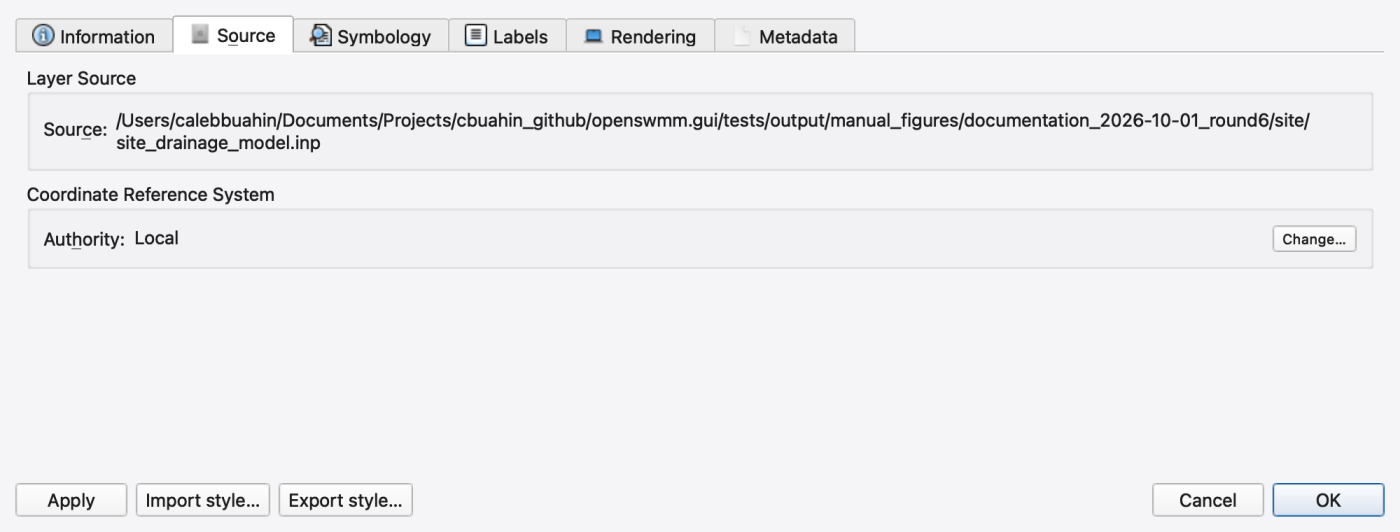
Properties… opens the unified Layer Properties dialog with a vertical sidebar. Only the tabs the layer type supports are shown.
| Tab | Contents |
|---|---|
| Information | Editable layer Name; read-only Type; a properties summary. |
| Source | Read-only Source path or service URL; Authority (the layer CRS) with a Change… button that opens the CRS picker. |
| Symbology | The renderer editor — see 08 — Styling, Labels and Legends. |
| Labels | Label configuration — see 08 — Styling, Labels and Legends. |
| Rendering | Visible checkbox; Opacity slider paired with a percentage spin box. For basemap layers a Basemap adjustments group adds Brightness, Contrast, Saturation and a Resampling choice of Bilinear (smooth) or Nearest (crisp), with a Reset button. |
| Metadata | Read-only Property/Value table: ID, type, visibility, opacity, CRS, extent, child count, plus type-specific rows. A Refresh button re-reads it (useful while a live results file is growing); raster layers also get Rebuild pyramid. |
Apply commits without closing, OK commits and closes, Cancel rolls back every edit made since the dialog opened. The button bar also carries Import style… and Export style….
File → Import → Open SWMM Output attaches a SWMM binary output file to the active project's model. A project must be open — results layers hang off a model layer.
The file is opened on a background thread; the layer appears immediately and fills in when the open completes. Re-adding a file that is already loaded focuses and reloads the existing layer instead of duplicating it. On success the colour ramp is auto-stretched to the data and the layer becomes the active 1D results layer and the animation controller's primary layer. See 21 — Results Layers, Result Styling and Animation.
Vector, raster, delimited-text, and 1D/2D results file dialogs accept multiple files at once. Use Command-click on macOS (Ctrl-click on Windows/Linux) or Shift-click to select a range, then choose Open. Files load in selection order into the project that opened the dialog. A failed file is reported in the Message Log while the remaining selections continue. Each vector datasource still offers its own sublayer picker when needed; cancelling that picker skips that datasource and continues the batch.
File → Import → Add 2D Results… loads an OpenSWMM 2D results file (*.h5). The dialog opens in the model's folder, which is where a relative [2D_OPTIONS] OUTPUT_FILE lands. Loading resolves the simulation-start time anchor, inherits the CRS, scans for the peak frame and the ramp percentiles, and reads the model's DRY_DEPTH. Re-adding an already-open file focuses the existing layer. Coordinate placement and units are covered in 06 — Coordinate Reference Systems.
File → Import → Add Vector Data opens any OGR-readable vector datasource. The file-type filter is built from the GDAL/OGR drivers your build actually registered, so it never offers a format the program cannot open. The curated groups are:
| Format | Extensions |
|---|---|
| ESRI Shapefile | .shp |
| GeoPackage | .gpkg |
| GeoJSON | .geojson .json |
| Esri File Geodatabase | .gdb |
| SQLite / SpatiaLite | .sqlite .db |
| GML | .gml |
| KML | .kml .kmz |
| MapInfo | .tab .mif |
| CSV (point data) | .csv |
Shapefile, GeoPackage, GeoJSON, File Geodatabase and SQLite are present in the minimal build; GML, KML and MapInfo appear only when their optional GDAL module is compiled in.
Loading runs in three stages. First the sublayers are enumerated on a worker thread. If the datasource holds more than one, the Sublayer Selection dialog appears — one checkable row per OGR layer showing its name, geometry type, feature count and CRS, with a name filter and check-all / invert helpers. One GISVectorLayer is created per checked entry. Single-layer sources skip the dialog. Then each selected layer opens on a worker and joins the canvas as it finishes; the view refits once the last one lands.
A file that declares no CRS is assumed to be in the project CRS already, and a warning naming the file is written to the Message Logs — see 06 — Coordinate Reference Systems.
FIGURE PLACEHOLDERdocs/manual/images/07_sublayer_selection_dialog.png
File → Import → Add Raster Data opens any GDAL-readable raster. As with vectors, the filter reflects the registered drivers:
| Format | Extensions |
|---|---|
| GeoTIFF / COG | .tif .tiff |
| Arc/Info ASCII Grid | .asc |
| Erdas Imagine | .img |
| SRTM height | .hgt |
| USGS DEM | .dem |
| Military elevation (DTED) | .dt0 .dt1 .dt2 |
| ESRI / ENVI binary | .bil .bsq .flt |
| ENVI raster | .dat .raw |
| Surfer grids | .grd |
| Terragen terrain | .ter |
| PNG / JPEG images | .png .jpg .jpeg |
| GDAL virtual raster | .vrt |
| NetCDF / HDF5 / HDF4 | .nc .h5 .hdf5 .hdf |
NetCDF and HDF appear only when the optional GDAL modules are compiled in.
The file is opened and its statistics computed in the background. The renderer a raster opens with follows its content: a band carrying an embedded colour table (land use, classified outputs) opens as Paletted / unique values with the file's colours; three- and four-band 8-bit datasets open as Multiband colour (an RGB/RGBA composite); everything else opens as Singleband pseudocolor, a continuous grayscale stretch over the band's minimum and maximum. The renderer, the band to render, the classification (continuous or classified, with equal interval / quantile / natural breaks / standard deviation / logarithmic / exponential / manual methods, editable class colours and labels, custom range and clip out-of-range) and the hillshade relief are set in Properties… → Symbology (see 08 — Styling, Labels and Legends). The choice is saved with the project.
Rasters are drawn through a 256-pixel tile pyramid in canvas CRS, with a pooled set of GDAL handles and a coarser-tile fallback so a tile that is not ready yet paints as a blurry stand-in instead of a hole. On first load SWMMVis builds external .ovr overview pyramids in the background; while that runs the raster draws on the slow full-resolution path and the status bar and Message Logs say so. Properties… → Metadata → Rebuild pyramid forces a rebuild.
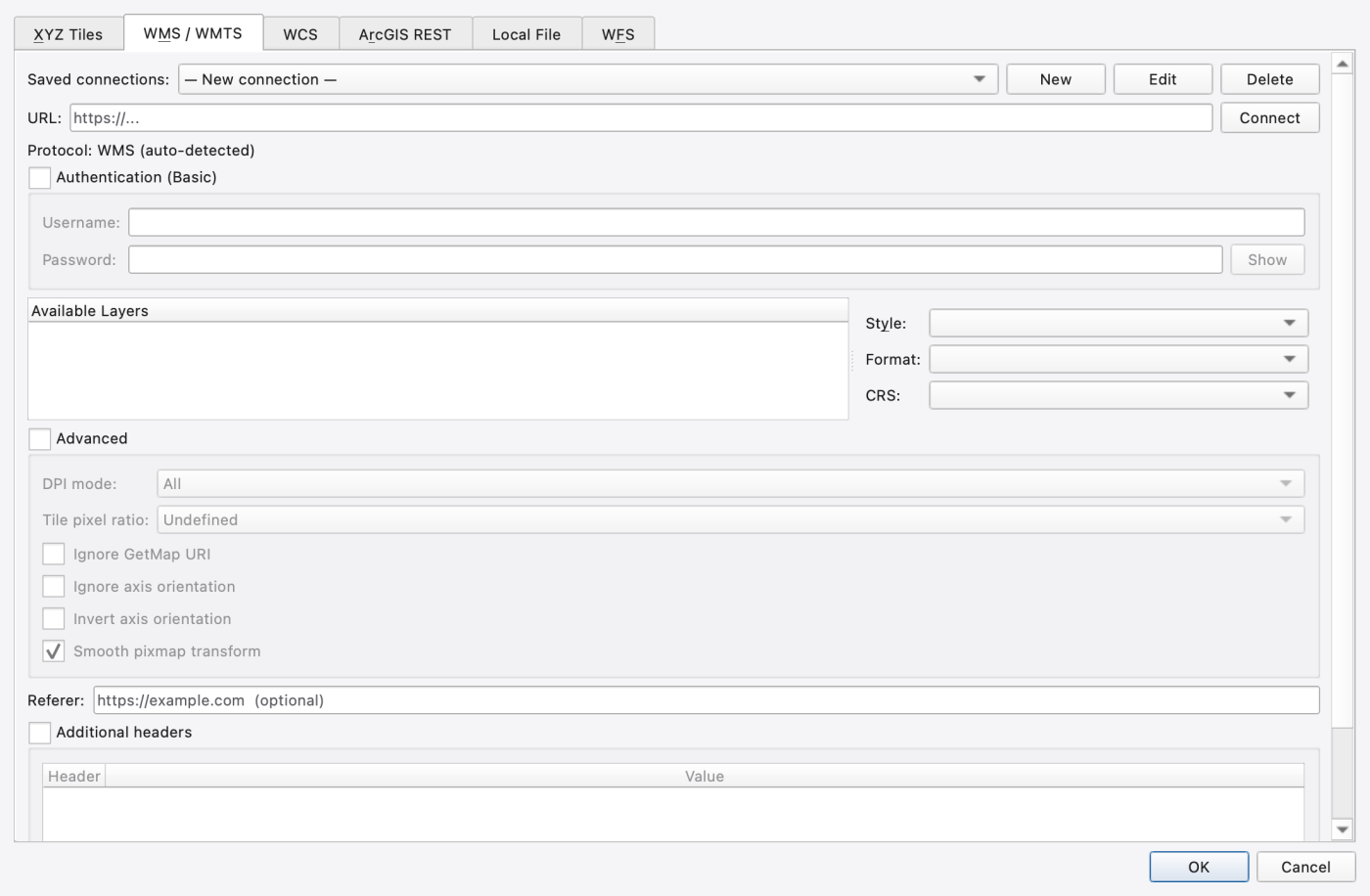
These three commands all open the same Add Basemap dialog on different tabs. Every service tab has the same saved-connection bar — a Saved connections combo with New, Edit and Delete — plus a Authentication (Basic) group (username, password, show/hide) and an HTTP-headers widget that carries a Referer field and a table of arbitrary extra headers. Connections are persisted per user; the built-in XYZ entries cannot be deleted.
| Control | What it does |
|---|---|
| Name | Connection name. |
| URL template | Slippy-map template, e.g. https://{s}.tile.openstreetmap.org/{z}/{x}/{y}.png. @2x in the template is literal text you type, not a modifier. |
| Zoom range | Min / Max zoom levels the service serves. |
| Tile pixel ratio | Undefined, Standard 96 DPI (256 px tiles) or HiDPI 192 DPI (512 px tiles). |
| Axis order | ZXY (standard OSM) or ZYX (ArcGIS REST). |
| Test Connection | Fetches one tile and reports the byte count or the network error. |
Five built-in, non-deletable providers ship with the application:
| Provider | Zoom range |
|---|---|
| OpenStreetMap | 0–19 |
| CartoDB Positron | 0–20 (HiDPI) |
| CartoDB Dark Matter | 0–20 (HiDPI) |
| Stadia Alidade Smooth | 0–20 (HiDPI) |
| ESRI World Imagery | 0–23 |
Tiles are fetched asynchronously and held in an in-memory LRU cache; already cached tiles paint instantly while missing ones arrive.
Enter the service URL and press Connect. The protocol is auto-detected — a URL containing SERVICE=WMTS or /WMTSCapabilities.xml is treated as WMTS, anything else as WMS — and the detected protocol is shown next to the field. GetCapabilities is fetched asynchronously and the result fills the Available Layers tree.
| Control | What it does |
|---|---|
| Style | Named style advertised for the selected layer. |
| Format | Image MIME type (default image/png). |
| CRS | Request CRS (default EPSG:3857). |
| Tile matrix set | WMTS only; hidden for WMS. |
| DPI mode (Advanced) | All (default), None, QGIS, UMN MapServer, GeoServer. |
| Tile pixel ratio (Advanced) | Undefined / Standard 96 DPI / HiDPI 192 DPI. |
| Ignore GetMap URI (Advanced) | Use the entered URL rather than the one the capabilities document advertises. |
| Ignore axis orientation / Invert axis orientation (Advanced) | Work around services that disagree about EPSG axis order. |
| Smooth pixmap transform (Advanced) | Smooth scaling of the returned image; on by default. |
URL plus Connect fetches GetCapabilities and lists Available Coverages; selecting one fetches DescribeCoverage. The options are Format, Output CRS, Range subset (e.g. band[1]; blank for all) and Interpolation (nearest, bilinear, bicubic). Rendering follows the WMS single-image pattern — one GetCoverage request per viewport, decoded through GDAL.
URL plus optional Portal endpoints (URL Prefix, Content endpoint, Community endpoint). Connect reads the service metadata and reports the service name and tile-level range; the tab then behaves as a derived XYZ connection.
Unlike the other service tabs, the WFS page fetches data once rather than describing a request that repeats. Enter the URL, press Connect, and the service is asked what it holds; the collection list shows which collections can be read and, for the others, why not (typically "offered only in formats this program cannot read"). OK stays disabled until a readable collection is selected, because a feature request can fail after you have chosen — the fetch happens before the dialog accepts, so a failure is reported where you are looking.
The request is bounded by the map's current extent, converted to longitude/latitude, so a service holding a whole country returns the catchment you are looking at rather than an arbitrary few thousand features. A canvas whose CRS cannot be expressed in degrees simply does not limit the request. There are no format or resolution options — what a collection can be read in is the service's answer, not yours. The result joins the tree as a queryable, styleable feature layer, not as a picture behind the model.
The Local File tab — which is where the plain Add Basemap command opens — adds a basemap from a local image.
| Control | What it does |
|---|---|
| Name | Connection name. |
| Raster file + Browse… | GeoTIFF, PNG, JPEG, BMP or any other GDAL raster. |
| Status line | Reports what georeferencing was found: an embedded CRS, a georeference with no CRS, or neither. |
| World file + Browse… | Optional .tfw / .pgw / .jgw / .bpw / .wld. Needed when the image is not georeferenced. |
| CRS + Select CRS… | Read-only field set from the CRS picker. Needed when the image carries no CRS, and overrides an embedded one when set. |
At add time the world file and CRS are written into the standard GDAL .aux.xml sidecar next to the image, so every later open — including project restore and the pooled tile handles — sees the georeferencing. Rendering reuses the raster tile pyramid, so large scanned maps behave like any other raster. The layer lands in the Basemaps category.
File → Import → Add Delimited Data loads a delimited text file (*.csv, *.tsv, *.txt) as a non-spatial table layer. The delimiter is chosen from the extension — comma for .csv, tab for .tsv and .tab, comma for anything else — and the first row is treated as the column headers. Quoted fields with embedded delimiters are handled.
There is no import wizard in this release: no delimiter chooser, no X/Y column mapping and no time-column parsing. The layer participates in the layer tree (visibility, order, properties) and its rows are readable from the attribute table, but it draws nothing on the map. .xlsx is recognised and refused — Excel import is only available in builds compiled with Excel support.
File → Import → Add 2D Mesh… loads an OpenSWMM 2D mesh (*.2dm) into the active project's model. The dialog opens in the project folder.
Meshes can also arrive inside the .inp: the reader parses [2D_VERTICES], [2D_TRIANGLES], [2D_VERTEX_NODE_MAP], [2D_TRIANGLE_NODE_MAP], [2D_BOUNDARY_CONDITIONS], [2D_EDGE_CONVEYANCE] and the per-cell [2D_INFILTRATION*] family directly, and follows a [2D_MESH_FILE] FILE <path> indirection to an external .2dm when one is present.
An imported .2dm is staged into the project folder so the model references it relatively and stays portable. If a file of the same name is already there you are asked whether to overwrite it or keep both — the existing file may be the one the model currently runs on, so nothing is clobbered silently. An unsaved project has no folder yet, so the mesh is read where it lies and the first save writes the reference. Everything else about meshes is in 19 — 2D Overland Flow: Meshes, Cell Parameters, Boundary Conditions and 1D–2D Coupling.
The model layer is a single layer with eleven object kinds beneath it, each with its own visibility and its own symbology: Junctions, Outfalls, Storage, Dividers, Conduits, Pumps, Orifices, Weirs, Outlets, Subcatchments and RainGages. Toggle a kind from its row in the tree, or from the kind row's context menu. Results layers expose the same kind structure for the objects they carry.
2D mesh and 2D results layers instead expose display sublayers — terrain fill, elevation bands, isolines, mesh edges, mesh vertices, boundary conditions, coupled nodes for a mesh; depth fills, contour bands, isolines and velocity vectors for results. Each is independently visible, reorderable and styleable (see 08 — Styling, Labels and Legends).
Model → Text Layers manages named layers containing custom text and labels generated from SWMM or GIS features. Create or rename layers, move selected text between them, and use the Layers dock to control their visibility, opacity and order. Empty text layers are saved, along with their settings, in the project. Older projects with a single Annotations list load into one text layer.
With Edit Existing on, use Select to click and edit text or drag it in any visible text layer. Choose Edit on map to add text to the selected layer. Generated labels can display feature names or attribute expressions and use callout lines that follow their features. Automatic placement considers visible text layers together; pinned text keeps its position. See 12 — Editing the Network on the Map.
.oswp sidecar, not in the .inp — see 03 — Working with Projects..oswp sidecar stores 1.9.8
1.9.8 