 |
SWMMVis
6.0.0-alpha.4
Qt6/C++ GIS-based graphical user interface for the SWMMVis engine (6.0.0-alpha.4)
|
|
SWMMVis
6.0.0-alpha.4
Qt6/C++ GIS-based graphical user interface for the SWMMVis engine (6.0.0-alpha.4)
|
Create, open, save and close projects; understand what lives in the .inp and what lives in the .oswp sidecar; work with several projects at once; undo and redo; schedule hot-start saves; keep a project portable when you move or share it; and define user flags for tagging model objects.
| Command | Menu | Ribbon | Shortcut |
|---|---|---|---|
| New | File → New | Home ▸ Project | Ctrl+N |
| Open | File → Open | Home ▸ Project | Ctrl+O |
| Open Recent | File → Open Recent ▸ | — | — |
| Save | File → Save | Home ▸ Project | Ctrl+S |
| Save As | File → Save As… | — | Ctrl+Shift+S |
| Undo / Redo | Edit → Undo / Redo | Home ▸ History | Ctrl+Z / Ctrl+Shift+Z |
| Map Image export | File → Map Image… | — | — |
| File → Print | — | Ctrl+P | |
| User Flags | Model → User Flags… | Model ▸ Setup | — |
| Hot-start saves | Model → Simulation Options… → Files | Model ▸ Setup | — |
The Welcome page duplicates New Project ..., Open ..., the recent-files list and Clear Recent Files.
FIGURE PLACEHOLDERdocs/manual/images/03_file_menu.png
File → New (Ctrl+N) creates a blank, untitled project immediately — there is no wizard. Everything about the new model comes from your preferences:
| Source | Supplies |
|---|---|
| Preferences → Simulation Defaults | FLOW_UNITS; INFILTRATION; FLOW_ROUTING; the IGNORE_* process switches; time steps; tolerances; MAX_TRIALS |
| Preferences → Simulation Defaults → Dynamic Wave tabs | INERTIAL_DAMPING; NORMAL_FLOW_LIMITED; FORCE_MAIN_EQUATION; SURCHARGE_METHOD; variable-step settings; HEAD_TOLERANCE; NODE_CONTINUITY; ANDERSON_ACCEL; THREADS |
| Preferences → Simulation Defaults → 2D tabs | The [2D_OPTIONS] solver keys and the mesh-generation seeds |
| Preferences → Object Defaults | The property values given to each object you draw afterwards |
| Preferences → General | The engine mode the new project starts on |
Two things are decided at creation rather than read from preferences: the simulation window starts at today's midnight and ends 24 h later, and THREADS is raised to the machine's logical-processor count when your stored default is 0 (engine auto).
The new project exists only in memory — swmm_engine_new, no file on disk — until the first Save As. Its tab is titled Untitled, and its CRS is derived from the flow units (Local (ft) or Local (m)), so no CRS picker appears.
A
NewProjectDialogclass exists in the source tree — it would collect a name, flow units, infiltration model, routing method, simulation window and CRS — but nothing in this build opens it. File → New bypasses it entirely. Set your defaults in Preferences instead.
FIGURE PLACEHOLDERdocs/manual/images/03_new_untitled_project.png
SWMMVis keeps the model and the GUI's view of the model in two files that sit side by side.
| File | Written by | Holds |
|---|---|---|
model.inp | The engine's input writer | The model — every SWMM section: objects; geometry; hydrology; hydraulics; quality; options; and the SWMM 6 extension sections ([2D_*]; [REACTION_*]; [HEAT_*]; [RDII_DECAY]; [USER_FLAGS]) |
model.oswp | SWMMVis | Everything the .inp format cannot express — a JSON sidecar |
The sidecar's path is always the .inp's directory and base name with the extension swapped, so runs/model.inp pairs with runs/model.oswp. Its current schema is version 5; older schemas are migrated in memory on load, and keys a newer build writes are skipped silently by an older one.
What the .oswp carries:
| Block | Contents |
|---|---|
sessions[ ] | One entry per model window in the project: the .inp path; the selected engine version; the project notes; and the model layer's block below |
| ↳ model layer | Layer CRS authority + code; Object Browser category order and per-category object order; hidden objects |
| ↳ results | Loaded results layers with their sublayer state; per-kind renderers and the matching .rpt path |
| ↳ terrain | The active terrain raster; node and link invert offsets; the DEM vertical unit |
| ↳ 2D | Mesh-layer display state; 2D results layers; the legend-overlay style; annotations |
canvas | Canvas CRS authority + code and the saved map extent |
basemaps[ ] | Every basemap layer — local raster; XYZ; WMTS or WMS — with its URL; style; format; tile-matrix set and custom headers |
gisLayers[ ] | Loaded GIS raster and vector layers with path; name; visibility; opacity and the OGR sublayer name |
Every path inside the .oswp is stored relative to the .oswp's own directory, so moving the folder keeps the references intact. A referenced file that no longer exists is skipped with a warning in the Message Logs rather than failing the load.
Two automatic behaviours follow from this pairing:
.inp save also writes the sidecar. The first time it appears, a Creating sibling project file: line is logged; later saves are silent. Plugin-driven exports such as .gpkg are standalone and skip the sidecar..inp that has no sidecar creates one, capturing the canvas's current state, so the project file shows up in your file manager immediately. This is governed by the Preferences/AutoCreateOswpOnOpen setting (default on), which has no control in the Preferences dialog in this build.Opening a .oswp restores the whole session; opening the .inp alone gets you the model plus whatever sidecar sits beside it. See A2 — File Formats.
File-open and import dialogs remember separate folders for each file category, including vectors, rasters, meshes, results and time series. These locations persist between launches. If a remembered folder disappears, the picker uses its project/current-path default or your home folder. Cancelling a picker keeps the remembered location. Multiple-file selection remains available for dataset imports.
| Command | Behaviour |
|---|---|
| Open | The file dialog lists every readable input format contributed by the engine's input plugins (.inp, .gpkg, …) plus .oswp. It starts in the last model/project folder you selected, when that folder still exists. A .oswp restores the session; anything else is opened as a single model with its sidecar applied opportunistically |
| Open Recent ▸ | Up to 20 entries, most recent first, labelled by file name with the full path on the tooltip. Clear Recent Files empties the list — it appears both at the bottom of this submenu and on the Welcome page |
| Save | Rewrites the model to its current path, then the sidecar. An untitled project falls through to Save As |
| Save As… | One dialog; the target format comes from the file-type dropdown: .oswp (project), .inp, .gpkg, or any other writable format a plugin contributes. The chosen filter is remembered per project |
| Close a tab | Runs the project's save prompt if needed |
| Exit | Walks every open project and runs each save prompt; cancelling any one of them cancels the quit |
Save As details worth knowing.
.oswp filter does not write only a sidecar: the engine still writes <stem>.inp and the .oswp is written beside it.model.inp.oswp; SWMMVis normalises that to model.inp plus model.oswp and logs what it collapsed. The collapse only applies when both halves are known writable kinds, so a deliberate model.bak.bak is left alone.The close prompts.
| Situation | Prompt |
|---|---|
| Saved project with unsaved edits | The model "<name>" has unsaved changes. Save before closing? — Save / Discard / Cancel |
| Untitled project (edited or not) | *"Untitled" has never been saved…* — Save As… / Discard / Cancel. Save As… hands off to the normal Save As flow; cancelling it keeps the window open |
An untitled project always prompts, even with zero edits, because closing it destroys the whole model.
FIGURE PLACEHOLDERdocs/manual/images/03_save_as_dialog.png
A project is dirty from the moment anything changes the engine state — a property edit, a drawn object, a dialog applied with changes, a flow-unit switch, an offset-mode flip. Two things show it:
*;OpenSWMM — <project title>, follows the same marker for the active project.Saving clears the marker. Dirty state is per project: one tab can be dirty while another is clean.
Every open model is an independent project window with its own engine handle. The following are per project, not application-wide:
| Per-project state | Where you see it |
|---|---|
| Engine version | Status bar Engine: |
Flow units (FLOW_UNITS) | Status bar Flow Units: |
Link offset mode (LINK_OFFSETS) | Status bar Offset Mode: |
| Auto-length | Status bar Auto-Length: |
| Canvas CRS and extent | Status bar CRS button; the canvas |
| Layers; selection; undo stack | Layers panel; canvas; Edit → Undo |
| Active 1D and 2D results layers | Analysis ▸ Results Layers |
| Dirty flag and file path | Tab title |
| Last Save-As filter | Remembered under SWMMVis/Project/<path>/LastSaveAsFilter |
Switching tabs re-binds every one of these. Open a CFS model and a CMS model side by side and watch the whole UI's unit labelling change as you switch. Nothing edited in one project affects the other.
Contextual ribbon tabs follow the same rule: Mesh 2D and Terrain appear or disappear as you switch to a project that has (or has not) a mesh or a raster.
FIGURE PLACEHOLDERdocs/manual/images/03_two_projects_tabs.png
Each project window's canvas owns a map undo stack. Edit → Undo (Ctrl+Z) and Edit → Redo are routed to the active project's stack, and they enable and disable themselves as you switch tabs, so the pair always mirrors the visible canvas.
The stack covers map and model editing — adding, moving, reshaping and deleting objects, vertex edits, and the bulk operations that are deliberately recorded as a single entry (assigning rain gages, importing a feature layer, assigning infiltration to a set of 2D cells). Preferences, layer styling, and window layout are not model edits and are not on the stack.
[FILES] SAVE HOTSTART slots are edited in Model → Simulation Options… → Files as a small table, one row per scheduled save.
| Column | Meaning |
|---|---|
| Path | Where to write the hot-start file, shown relative to the .inp directory. The cell carries a browse button |
| Datetime | When to write it. The special value **(end of run)** means write at the end of the simulation |
Rows can be added, removed and reordered; each row's path field, browse button and date-time picker are open for editing without first clicking into the cell. The same Files page carries the six single-slot [FILES] references — RAINFALL, RUNOFF, RDII, INFLOWS, OUTFLOWS and the hot-start USE file. See 18 — Simulation Options.
FIGURE PLACEHOLDERdocs/manual/images/03_hotstart_saves_table.png
SWMMVis treats projects as movable artifacts. Whether you save as a SWMM .inp text file or a GeoPackage .gpkg container, the goal is the same: hand the file to a colleague, drop it in a different folder, zip it for an archive, and have it just open.
A SWMM model can reference many external files — rainfall data, hot-start snapshots, climate observations, routing-interface flows. Baked-in absolute paths (C:\Users\alice\proj\rain.dat) break the moment anyone else opens the model. Paths stored relative to the project (rain.dat, ../shared/climate.dat) keep working as long as the relative layout is preserved.
Two complementary strategies are used:
.inp projects** — every external file reference is written relative to the directory of the .inp itself. Move the whole tree anywhere and references still resolve..gpkg projects** — the contents of the external files are imported into structured tables inside the GeoPackage. The result is one self-contained file.The .oswp sidecar follows the same relative-path rule for everything it references.
Save and Save As rebase every external-file reference against the destination directory.
Where in the .inp | Slot |
|---|---|
[FILES] | RAINFALL / RUNOFF / RDII / INFLOWS / OUTFLOWS / HOTSTART save and use |
[TEMPERATURE] | FILE "..." reference |
[RAINGAGES] | Per-gage FILE "..." source |
[TIMESERIES] | Per-series FILE "..." source; with its optional :column suffix |
[2D_MESH_FILE] | External .2dm mesh reference |
[2D_OPTIONS] | OUTPUT_FILE 2D results file |
[LID_USAGE] | Per-unit LID report file |
[PROCESS_COMPONENTS] | config= file; copied alongside on Save As |
[PLUGINS] paths are the deliberate exception: they name installed shared libraries, not model data, so they stay absolute.
A relative path may climb at most 16 ../ levels. Beyond that the relative form is longer and less readable than the absolute one, so the absolute path is written instead.
An external .2dm behaves differently from the other references, because the mesh is part of the model rather than an input feeding it. On save, SWMMVis writes the current in-memory mesh to a .2dm beside the destination .inp and keeps the reference local. A Save As into a new folder therefore produces a complete, self-contained pair of files, carrying every edit you made after loading the mesh — vertex elevations, conveyance, boundary conditions. The original .2dm is never modified.
The exception is a mesh that could not be loaded — a missing or unreadable .2dm. There is nothing in memory to write, so the reference is re-anchored to keep pointing at the file it originally named rather than silently resolving to a non-existent file in the new folder.
A reference that cannot be expressed relative to the destination — for example a Windows path on a different drive (D:\data\rain.dat while the project is on C:) — is preserved in absolute form and surfaces as a warning in the Message Logs:
The save still succeeds; the warning tells you that reference will not survive a move to a machine without the same drive layout.
Some legacy tools refuse to honour relative paths in .inp files. For those, set the project-level option:
With YES, paths are emitted absolute unconditionally. The default is NO. It is a genuine project option, so it round-trips: a deck saved with the escape hatch armed reopens with it still armed.
Saving as .gpkg imports the content of every external file the model references into dedicated relational tables inside the GeoPackage:
| External file kind | GeoPackage tables |
|---|---|
| Time-series CSV | input_timeseries rows — with ‘source = 'imported_from_file’;source_filenameandsource_column\ilinebr </td> </tr> <tr class="markdownTableRowEven"> <td class="markdownTableBodyNone"> Rain-gage data \ilinebr </td> <td class="markdownTableBodyNone">raingage_data— per-gage records \ilinebr </td> </tr> <tr class="markdownTableRowOdd"> <td class="markdownTableBodyNone"> Climate file \ilinebr </td> <td class="markdownTableBodyNone">climate_data— one row per day \ilinebr </td> </tr> <tr class="markdownTableRowEven"> <td class="markdownTableBodyNone"> Routing interface (INFLOWS / OUTFLOWS / RDII) \ilinebr </td> <td class="markdownTableBodyNone">routing_interface_node+routing_interface_node_pollutants\ilinebr </td> </tr> <tr class="markdownTableRowOdd"> <td class="markdownTableBodyNone"> Routing interface (RUNOFF) \ilinebr </td> <td class="markdownTableBodyNone">routing_interface_subcatch\ilinebr </td> </tr> <tr class="markdownTableRowEven"> <td class="markdownTableBodyNone"> Routing interface (RAINFALL) \ilinebr </td> <td class="markdownTableBodyNone">routing_interface_gage\ilinebr </td> </tr> <tr class="markdownTableRowOdd"> <td class="markdownTableBodyNone"> Hot-start file \ilinebr </td> <td class="markdownTableBodyNone">hotstart_slots+hotstart_{node,link,subcatch}_state+hotstart_{node,link,subcatch}_pollutant_state` |
Every row carries a real foreign-key relationship into the model's existing tables (nodes, links, subcatchments, rain_gages, pollutants, simulations). Deleting or renaming a model object cascades through every dependent row, and orphan rows are rejected at insert time — PRAGMA foreign_keys = ON is set on every connection.
When the engine wants a file, not a row. The solver still expects to open the legacy on-disk formats (HSF binary for hot-start, SWMM 5 text for the routing interface, CSV for time series). To bridge that, opening a GeoPackage writes a scratch file for each role in a sibling directory named after the project:
The scratch directory is regenerated from the GeoPackage every time you open it; inspect it to see exactly what the engine is consuming.
USE files must exist at save time. USE-direction slots (INFLOWS, RDII, HOTSTART_USE, RAINFALL, climate, rain-gage data, time series) must reference readable files on disk when you save to .gpkg, or the import fails and the save is rolled back. SAVE-direction slots (OUTFLOWS, RUNOFF, HOTSTART_SAVE) are written by the engine after the run, so a missing file at save time is the expected state and produces no error; hot-start SAVE slots are recorded with ‘status = 'pending’` and populated at run end.
Wherever a dialog asks for an external file path, the field shows that path relative to your project whenever it can; hover it to see the resolved absolute path in a tooltip. The Simulation Options Files page and the Time Series editor's external-file panel both use this anchored display.
Save As runs a pre-flight pass over the model's external-file slots before writing, and reports what it finds in the Message Logs:
.gpkg target, USE-direction slots whose referenced file is missing.The check is non-blocking: warnings appear and the save proceeds. The authoritative rebase happens inside the engine's writer; the pre-flight exists so the surprises show up in the log next to the save-success line instead of inside the saved file.
| Action | .inp project | .gpkg project |
|---|---|---|
| Copy the whole project folder to a USB stick | Just works | Just works — copy only the .gpkg |
Send a colleague only the .inp | Breaks references they do not already have | N/A — send the .gpkg |
| Open from a cloud-sync folder | Works if the relative structure is preserved | Works regardless |
| Run on Windows after authoring on macOS | Forward slashes are accepted; case sensitivity can bite when a referenced file's case differs from disk | Works regardless — content travels inside the container |
Cross-volume D: reference | Falls back to absolute plus a warning | Content is imported; the original path is irrelevant after save |
FIGURE PLACEHOLDERdocs/manual/images/03_portability_warnings.png
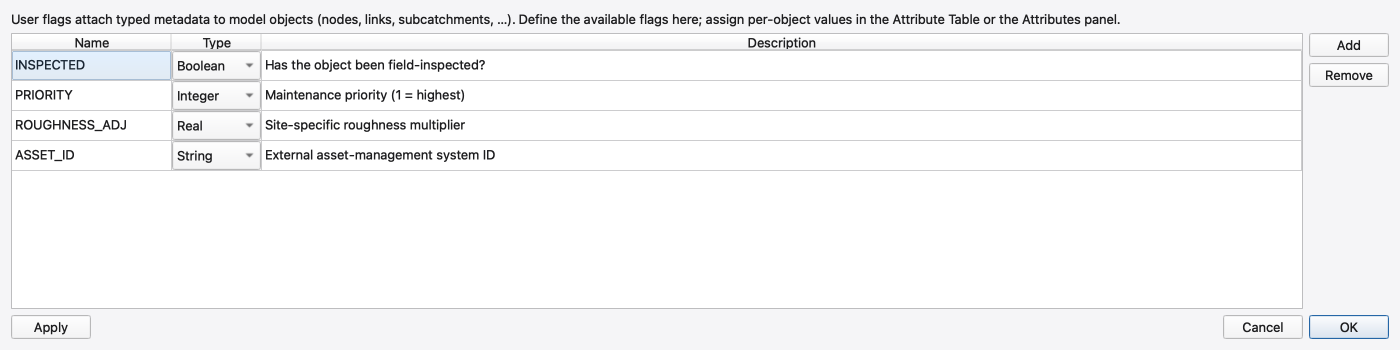
User flags are a SWMM 6 extension for tagging model objects with your own attributes. They live in the [USER_FLAGS] section and are edited in two places.
Model → User Flags… (ribbon Model ▸ Setup ▸ User Flags) defines which flags exist. One row per flag definition:
| Column | What it holds |
|---|---|
| Name | The flag's identifier; must be non-empty and unique |
| Type | Boolean; Integer; Real or String |
| Description | Free text |
Add appends a row, Remove deletes the selected one. Edits are staged in the table and only committed to the model when you press Apply or OK; Cancel discards them. Two changes are destructive and ask for confirmation first: removing a flag that is already defined, and changing the type of a flag that may carry values. A round that actually changed something marks the project dirty.
Opened from the User Flags row in the Properties panel. One row per defined flag:
| Column | Editor |
|---|---|
| Flag | The flag name (read-only) |
| Type | The declared type (read-only) |
| Value | Boolean flags use an (unset) / YES / NO combo; Integer, Real and String flags are typed as text where blank means unset |
Edits are staged and committed on OK; Cancel discards. A value the engine rejects — a non-numeric string for an Integer flag, say — is reported and the commit stops there. Because values are written through the same model, any other view of them refreshes: user-flag columns in the Attribute Table update immediately.
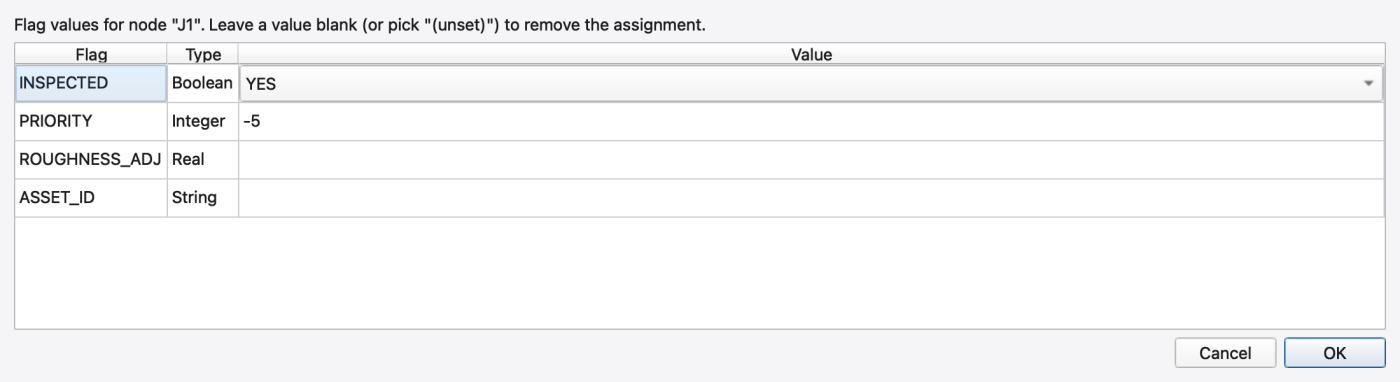
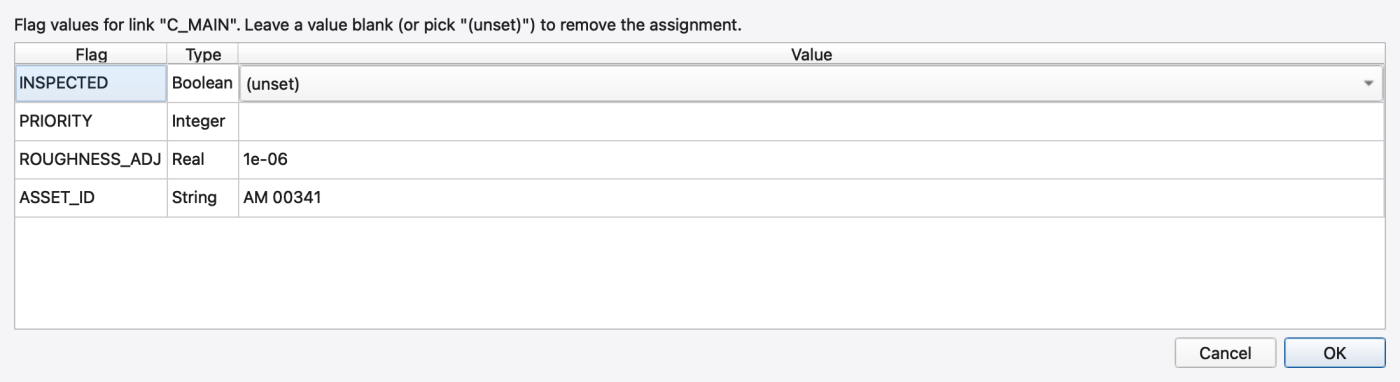
The portable tutorials/models/user_flags_example.inp loads four definitions and typed values. Open a copy and use Model → User Flags… to inspect the schema. Open J1's User Flags property to inspect its boolean and integer values. C_MAIN instead holds ROUGHNESS_ADJ = 1e-6 and ASSET_ID = AM 00341. These values demonstrate parsing and display, not recommended maintenance priorities or roughness changes. Flags are metadata; the real flag does not automatically alter the conduit roughness. Captures of loaded values do not establish that newly edited values survive saving and reopening.
| Command | What it does |
|---|---|
File → Print (Ctrl+P) | Opens the system print dialog, then prints a grab of the active map canvas scaled to the printable area with the aspect ratio preserved |
| File → Map Image… | Saves the active map view. PNG is written by a canvas grab; SVG, DXF and EMF appear in the file-type list but are not implemented and report so when chosen |
Edit → Copy (Ctrl+C) | Focus-aware: over the Attribute Table it copies the selected rows as TSV; over the Message Logs it copies the selected log rows; anywhere else it copies the map view as an image |
There is no Combine Projects command in this build — the EPA SWMM 5 feature of merging two models into one has no equivalent here. To bring objects from another model into the current one, export them as GIS features and use Model → Import Feature Layer… (see 12 — Editing the Network on the Map).
Map layout, scale bar and legend placement for printed and exported output are covered in 05 — The Map Canvas.
.inp and the .oswp together. Move or copy them as a pair, or you lose layer CRSs, browser ordering, basemaps, results wiring and the saved extent. Zipping the whole project folder is the safe move..gpkg save is an export, not a project save. No .oswp sidecar is written alongside it, by design.Save As to a new folder is the portability test.** Do it, read the Message Logs, and fix anything the pre-flight names before you hand the project over.Ctrl+Z. 1.9.8
1.9.8