 |
SWMMVis
6.0.0-alpha.4
Qt6/C++ GIS-based graphical user interface for the SWMMVis engine (6.0.0-alpha.4)
|
|
SWMMVis
6.0.0-alpha.4
Qt6/C++ GIS-based graphical user interface for the SWMMVis engine (6.0.0-alpha.4)
|
Draw a network on the canvas: place nodes, split conduits with virtual and inlet junctions, draw links and subcatchments, drop rain gages, add text annotations — then move things, edit their vertices, snap them to each other, and undo any of it. Or skip the drawing entirely and import an existing GIS feature layer as SWMM objects.

Everything lives on the Model menu and the Model ribbon tab.
| Command | Menu | Ribbon group |
|---|---|---|
Edit Existing (Ctrl+E) | Edit → Edit Existing | Model ▸ Edit |
| Junction | Model → Add Node → Junction | Model ▸ Nodes |
| Virtual Junction | Model → Add Node → Virtual Junction | Model ▸ Nodes |
| Inlet Junction | Model → Add Node → Inlet Junction | Model ▸ Nodes |
| Outfall | Model → Add Node → Outfall | Model ▸ Nodes |
| Flow Divider | Model → Add Node → Flow Divider | Model ▸ Nodes |
| Storage | Model → Add Node → Storage | Model ▸ Nodes |
| Pipe | Model → Add Link → Pipe | Model ▸ Links |
| Pump / Orifice / Weir / Outlet | Model → Add Link → … | Model ▸ Links |
| Subcatchment | Model → Add Subcatchment | Model ▸ Subcatchments |
| Rain Gage | Model → Add Rain Gauge | Model ▸ Rain Gages |
| Text Layers | Model → Text Layers | Model ▸ Annotation |
| Import Feature Layer… | Model → Import Feature Layer… | Model ▸ Setup |
| Assign Rain Gages… | Model → Assign Rain Gages… | Model ▸ Tools |
| Undo / Redo | Edit → Undo / Redo | Home ▸ History |
Two per-project switches sit in the status bar: the Offset mode (Depth ↔ Elevation) and the Auto-Length toggle.
The add-object tools are enabled whenever a project is open. Editing objects that already exist additionally requires the Edit Existing session.
Edit Existing (Ctrl+E) is a toggle, per project window, disabled until a project opens.
The state follows the project across tab switches. The add-object tools only need a project to be open, which is why they never grey out while one is.
With an edit session open, activate Select and double-click an object. Handles appear as an overlay on the map, and you stay on the Select tool throughout.
| Object | Handles |
|---|---|
| Node | One circle-and-crosshair handle at the node; dragging it moves the node |
| Rain gage | The same single handle |
| Link | One square handle per interior vertex. Endpoints belong to the from- and to-nodes and are moved by moving those nodes |
| Subcatchment | A filled square at the centroid (dragging it translates the whole polygon) plus a circle at each polygon vertex |
| Gesture | Result |
|---|---|
| Drag a handle | Move that vertex or object; release commits |
| Drag on empty space inside edit mode | Rubber-band select several vertex handles |
| Drag a handle that is part of a multi-handle selection | Move the whole group by the same delta |
| Del / Backspace with handles selected | Delete those vertices |
| Right-click a vertex handle | Delete vertex — or Delete N selected vertices when several are picked |
| Right-click the line or polygon edge (within ~10 px) | Insert vertex here; the new vertex lands on the closest point of the geometry |
| Esc | Cancel an in-flight drag and leave edit mode |
| Double-click the same object again | Leave edit mode |
| Double-click empty space | Leave edit mode |
Drags are previewed live — the geometry follows the cursor before you release — and cancelled cleanly with Esc.
FIGURE PLACEHOLDERdocs/manual/images/12_inline_vertex_edit.png
A conduit may lose any number of interior vertices — down to a straight line between its two nodes — one at a time or as a group. Only subcatchments keep a minimum: a polygon must keep at least three vertices, so deleting more than that is refused with an explanation, the single-vertex delete is disabled with a tooltip when only three remain, and where the whole polygon would be destroyed you are offered the option of deleting the subcatchment instead.
FIGURE PLACEHOLDERdocs/manual/images/12_delete_single_vertex.png
Single-handle drags snap to the nearest node or link interior vertex within 15 px; the snap target is drawn while it is armed. Group drags and the subcatchment centroid translate are excluded — their delta is relative, so snapping one absolute position would skew the whole group. The handle's own pre-drag position is excluded from the candidates so a vertex cannot snap to itself.
The drawing tools use the preference-driven snap engine instead:
| Preference (Tools → Preferences… → Canvas & CRS) | Default |
|---|---|
| Enable snapping | on |
| Tolerance | 12 px |
| Also snap to link and subcatchment vertices | on — otherwise only node and gage centres |
Move a node or a gage by double-clicking it in an edit session and dragging its handle. Both commit through the undo stack, and consecutive drags of the same object merge into one undoable step, so a single Ctrl+Z returns to the pre-drag position rather than replaying fifty drag frames.
When Auto-Length is on, moving a node also recomputes the length of every conduit attached to it, as part of the same command. Rain gages have no attached links, so there is no auto-length leg for them.
A gage can also be repositioned by typing coordinates into its Properties rows.
Activate Junction, Outfall, Flow Divider or Storage and click the canvas. The name is auto-generated from a configurable prefix plus the next unused number:
| Type | Default prefix |
|---|---|
| Junction | J |
| Outfall | O |
| Storage | S |
| Divider | D |
| Conduit | C |
| Pump | Pu |
| Orifice | Or |
| Weir | W |
| Outlet | Ou |
| Rain gage | RG |
| Subcatchment | Sub |
Prefixes are edited on Tools → Preferences… → Naming.
What each node type is, when to use it and what its property rows mean is in node types.
If a DTM is selected on the Terrain toolbar, the node's invert elevation is filled from the raster: invert = terrain Z × unit factor + node offset, with the offset (negative for "below ground") set on that toolbar and the factor derived from the raster's vertical unit versus the model's.
FIGURE PLACEHOLDERdocs/manual/images/12_add_node_terrain.png
Every node tool — Junction, Storage, Flow Divider — inserts the node into a conduit when you click on one, instead of dropping it beside it:
<name>_B carries the downstream half. Cross-section, roughness and barrels are copied, the break-point invert is interpolated along the conduit's gradient, and any interior vertices are shared out between the two halves.Outfall is the exception: an outfall must end the network, so clicking a conduit with it puts a hint in the status bar (and draws the marker as a dotted ring while hovering) and places nothing.
The insertion is one undoable step, and undoing it re-fuses the two conduits.
Use a junction rather than a Virtual Junction when you want a real node — one that can take inflows, dry-weather flow or a third connecting link. Virtual junctions are computational break points and require dynamic-wave routing; a junction inserted this way carries no such restriction.
A virtual junction only exists between exactly two conduits, so it cannot be placed freely. Virtual Junction is a split tool:
The insertion is one undoable step, and undoing it re-fuses the two conduits. Deleting a virtual junction — or either of its conduits — offers Re-fuse Conduits as the default action. What a virtual junction is and the rules it must satisfy are in virtual junction.
Inlet Junction is the same split tool with two additions:
STREET** conduit. An inlet junction models a gutter inlet, so a pipe is not a legal host; clicking one shows a hint in the status bar instead of splitting. (A drop inlet on a RECT_OPEN or TRAPEZOIDAL channel is an inlet-*usage* case, edited from the conduit's Inlets row.)Undo re-fuses the conduits and removes the inlet assignment. What the inlet rows mean, and the rules an inlet junction must satisfy, are in inlet junction.
FIGURE PLACEHOLDERdocs/manual/images/12_inlet_junction_setup.png
Activate Pipe, Pump, Orifice, Weir or Outlet.
Which link type to draw, and what each type's property rows mean, is in link types.
FIGURE PLACEHOLDERdocs/manual/images/12_add_conduit_snap.png
Activate Subcatchment and draw a polygon:
| Gesture | Result |
|---|---|
| Left-click | Add a vertex; the rubber-band polygon updates |
| Double-click | Add the clicked point as the final vertex, then close the polygon and commit (minimum three vertices) |
| Enter / Return | Close and commit the vertices placed so far, without adding one |
| Right-click | Remove the last vertex, or cancel when fewer than two remain |
| Esc | Cancel |
The name uses the prefix from Tools → Preferences… → Naming (default Sub) plus the next free number. The subcatchment's Outlet is not assigned by drawing — set it on the Properties panel's Outlet row or the attribute table's Outlet column, both of which are closed pickers over the project's nodes and subcatchments; the subcatchment's property rows are described in 13 — Hydrology: Rain Gages, Subcatchments, LID, Snow, Groundwater and RDII.
To bind subcatchments to gages spatially rather than one at a time, use Model → Assign Rain Gages… — see 13 — Hydrology: Rain Gages, Subcatchments, LID, Snow, Groundwater and RDII.
Activate Rain Gage and click. The name uses the prefix from Tools → Preferences… → Naming (default RG) plus the next free number, and the gage receives the creation defaults for gages. Configure the rainfall source — an inline time series, or a rain file — in the Properties panel or the Rain Gages attribute table; the gage's property rows are described in 13 — Hydrology: Rain Gages, Subcatchments, LID, Snow, Groundwater and RDII.
To edit existing text, turn on Edit Existing and use Select. Click text in any visible text layer to open its editor, or drag it to move and pin it. This works for custom text and generated labels without opening the manager. Escape cancels a text drag; turning off Edit Existing also cancels an unfinished drag. Edits and moves support undo/redo.
To add text, open Model → Text Layers, choose a layer or create one, then choose Edit on map. This enables the text tool for the chosen layer.
Generate labels creates labels linked to existing SWMM or GIS features. Choose the source layer, optionally a SWMM category, and an expression such as {name} or {name}: {invertElev}. The attribute picker inserts source field names. Names and attribute values are read from the referenced feature when rendering. Generate again to add labels for new features; existing labels and custom edits are kept. Turn off labels drawn by the source layer prevents duplicate labels; it is enabled by default and is included in the generation undo step.
The text editor supports multiple lines, font and text color, optional halos, glyph outlines, backgrounds and rotation. Halos on/off in the manager applies to selected text, or all text if nothing is selected. Clear the Live label expression to use custom text while keeping the feature connection. Select a feature and enable Connect callout line to feature to draw a leader from its live location to the text. A removed feature is never silently replaced by another: its generated label is hidden until it can be resolved again; custom text keeps its saved fallback position without a leader.
Automatically avoid overlaps places unpinned text around its anchor while considering all visible text layers and labeled feature anchors. Halos, backgrounds, multiline text and rotation are included in collision bounds. Manual positions take priority. If nearby positions are all occupied, unplaced text is hidden at that view; zoom in or unpin/reposition text to make room. Placement does not rewrite saved coordinates. Text stays a constant screen size as the map zooms, and custom coordinates are reprojected from the text layer's stored CRS.
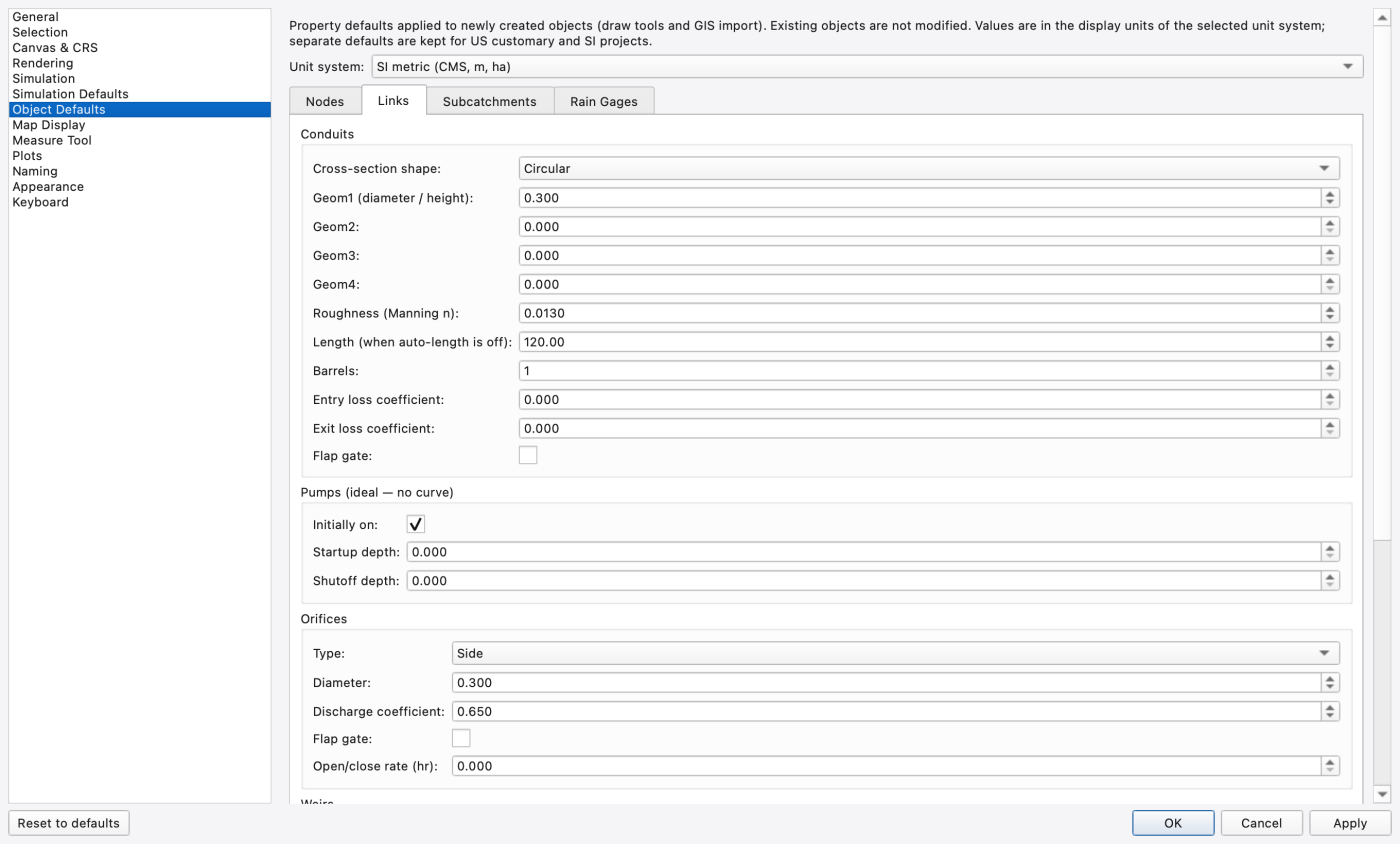
Newly drawn objects are not blank. Tools → Preferences… → Object Defaults holds a full set of creation defaults for all eleven object types, in two parallel sets — US customary and SI — because some values (weir discharge coefficient, outlet coefficient) are unit-semantic. A selector at the top of the page picks which set you are editing; it starts on the open project's unit system, and Apply writes both.
| Tab | Groups |
|---|---|
| Nodes | Junctions (max depth, initial depth, surcharge depth, ponded area); Outfalls (type, flap gate); Storage units (max depth, functional a/b/c, seepage rate); Dividers (type) |
| Links | Conduits (shape, geom1–4, roughness, length, barrels, entry and exit loss, flap gate); Pumps (initially on, startup and shutoff depth); Orifices (type, diameter, discharge coefficient, flap gate, open/close rate); Weirs (type, height, length, discharge coefficient, end contractions, flap gate); Outlets (rating basis, coefficient, exponent, flap gate) |
| Subcatchments | Surface (area, width, slope, imperviousness, Manning's n imperv./perv., depression storage imperv./perv., zero-storage imperv.); Infiltration — Horton, Green-Ampt and curve-number parameter sets, of which only the family matching the project's infiltration model is applied |
| Rain Gages | Rain format, recording interval, snow catch factor |
Defaults are applied immediately after the object is created and before geometry-derived values, so auto-length and terrain-derived inverts win over a default. The conduit length default and the subcatchment area default are skipped entirely when auto-length is on. Undoing a delete restores the deleted object's captured properties, never these defaults.
The status bar's Auto-Length switch is per project, persisted in preferences, and drives two behaviours:
Turn it off to keep hand-entered lengths and areas — the conventional SWMM GUI default.
Model → Import Feature Layer… turns an already-loaded GIS vector layer into SWMM objects. Load the layer first (File → Import → Add Vector Data…), then open the dialog.
FIGURE PLACEHOLDERdocs/manual/images/12_import_feature_layer.png
| Group | Controls |
|---|---|
| Source Feature Layer | Combo of the compatible vector layers on the canvas; Selected features only; an info line giving the feature count and the layer's CRS, with a warning when it differs from the model CRS |
| Target SWMM Object Type | Junction, Outfall, Storage, Divider, Rain Gage (point layers) or Conduit, Pump, Orifice, Weir, Outlet (polyline layers) |
| Attribute Mapping | One row per mappable attribute of the target type — bind it to a source field or a constant. Auto-match binds every unmapped attribute to an identically named source column. Preset: saves, loads and deletes named mappings, and reports any preset column that is missing from this layer. A validation line names anything required that is still unbound |
| Link Endpoints (link targets only) | Resolution order: use the mapped From Node / To Node columns, then snap endpoints to existing nodes within N map units, then create junctions at unresolved endpoints with a given prefix |
| Existing Objects | Skip — leave existing objects unchanged, or Update existing objects (matched by name) with separate Overwrite mapped attributes and Overwrite geometry checkboxes |
| Preview / Import | Preview runs a dry run in the background and fills a per-feature results table with what would happen and why. Any edit invalidates the plan and you must preview again before importing |
Coordinates are transformed from the source layer's CRS to the model layer's CRS during the read, so a layer in a different projection imports in the right place — but if either CRS is unknown the dialog says so rather than guessing. See 06 — Coordinate Reference Systems.
The import runs with a progress dialog and lands as one undo step: a single Ctrl+Z reverts the whole import. It reuses the ordinary add-object commands, so creation defaults apply and the mapped attributes are written afterwards — mapped values always win over a default.
Select objects and press Del / Backspace, or use the map's right-click Delete…. Cascades (a node's attached links), virtual and inlet junction re-fusing, and the batch behaviour are described in 09 — Selection and Search.
Every geometry and property edit goes onto the active project's map undo stack. Edit → Undo / Redo and the Home ▸ History ribbon buttons route to the focused project's stack, so the pair always mirrors the visible canvas and greys out when there is nothing to do.
What is undoable:
| Operation | Notes |
|---|---|
| Add node / link / subcatchment / gage / annotation | Including the defaults and auto-length legs applied with them |
| Move node / gage | Consecutive drags of the same object merge into one step |
| Edit / insert / delete vertices | A multi-vertex delete is one step |
| Cell and property edits | Same stack as geometry |
| Insert virtual or inlet junction | Undo re-fuses the split conduit |
| Delete (single or bulk) | The whole batch is one step |
| Bulk apply to selected rows | One step |
| Object Browser category and object reordering | |
| Feature-layer import | One macro for the entire import |
Type conversion is not undoable — the confirmation says so before it runs.
STREET conduit. 1.9.8
1.9.8