 |
SWMMVis
6.0.0-alpha.4
Qt6/C++ GIS-based graphical user interface for the SWMMVis engine (6.0.0-alpha.4)
|
|
SWMMVis
6.0.0-alpha.4
Qt6/C++ GIS-based graphical user interface for the SWMMVis engine (6.0.0-alpha.4)
|
Read results as numbers rather than as pictures: per-object summary statistics in the attribute table, sortable and filterable statistics tables, and the engine's own text report. Then get any of it out as CSV or into the clipboard.
| Command | Menu | Ribbon | Shortcut |
|---|---|---|---|
| Tabular View | Analysis → Tabular View | Analysis → Report | Ctrl+Shift+A |
| Summarize Results | Analysis → Summarize Results | Analysis → Report | — |
| Report | Analysis → Report | Analysis → Report | — |
| Attribute Table dock | View → Panels → Attribute Table | View | Ctrl+Alt+4 |
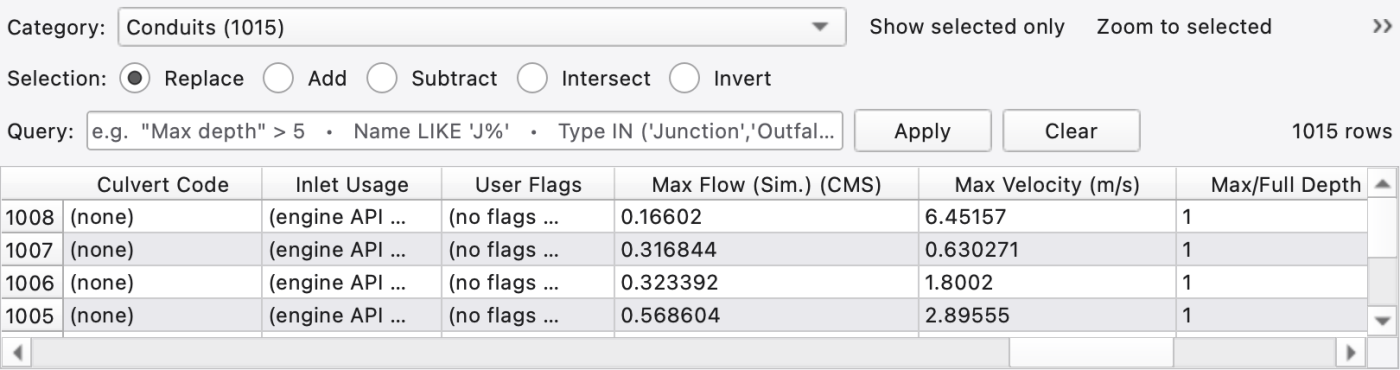
Tabular View (Ctrl+Shift+A) raises the Attribute Table dock and puts keyboard focus in it. It is not a separate window: the attribute table is where per-object numbers live, and after a run it grows a block of result columns.
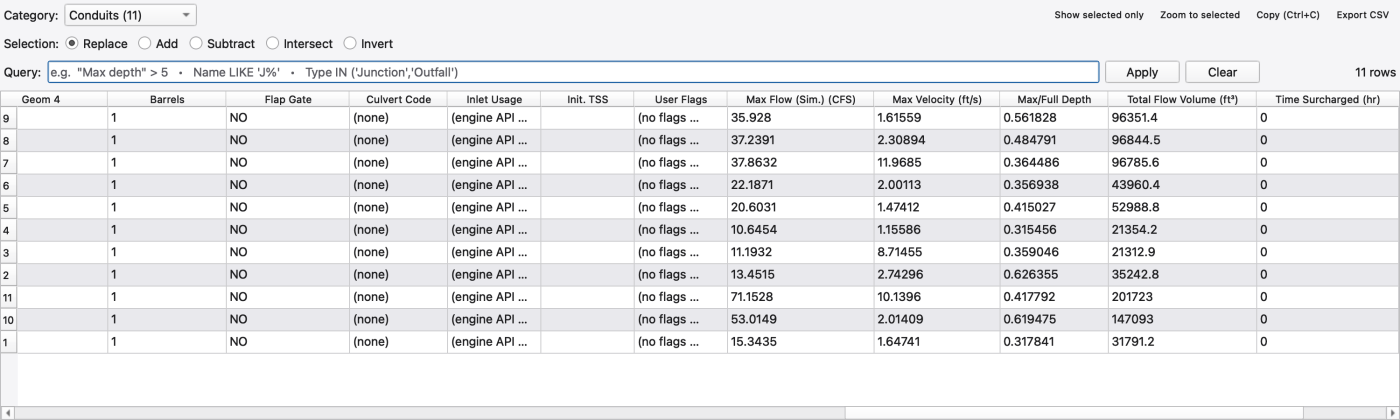
The table is documented in full in 11 — Attribute Tables and the Attribute Calculator — category picker, query bar, selection modes, editing, context menu, export. What matters here is the dynamics block: read-only columns appended at the right-hand end of each category's table, after the editable model attributes and the user-flag columns. The left of the table is always the model you can edit; the right is always what the last run produced.
| Category | Result columns |
|---|---|
| Junctions, Outfalls, Storage, Dividers | Max Depth (Sim.), Max Overflow, Vol. Flooded, Time Flooded (hr) |
| Conduits, Orifices, Weirs, Outlets | Max Flow (Sim.), Max Velocity, Max/Full Depth, Total Flow Volume, Time Surcharged (hr) |
| Pumps | the link columns above plus Pump Cycles, Pump On Time (hr), Volume Pumped |
| Subcatchments | Total Precipitation, Total Runoff Volume, Peak Runoff Rate |
| Rain gages | none — the engine keeps no statistics for gages |
Every one of these reads an engine statistics vector, so they are all zero until a run has been initialised. Max/Full Depth is the engine's maximum-depth ÷ full-depth ratio, and is therefore dimensionless. Pump Cycles is counted from the results file at report-step resolution and is a lower bound: a pump that switches off and back on between two report times is invisible to it — shorten REPORT_STEP if you need an exact count. The column's own tooltip says so.
Sorting, the query bar, Show selected only, Zoom to selected, Ctrl+C (copies the selected rows as tab-separated text) and Export CSV… all work on these columns exactly as they do on model attributes, so "every conduit whose
`"Max/Full Depth"` > 0.9, as a CSV" is one query and one button.
Analysis → Summarize Results opens the Statistics Dashboard over the active 1D results layer. With no active results layer it says so and stops — set one in the Analysis toolbar's 1D results: selector, or run a simulation.
| Tab | Columns |
|---|---|
| Nodes | Node, Max depth, Max head, Max overflow, Volume |
| Links | Link, Max flow, Max depth, Max velocity, Max capacity |
| Subcatchments | Subcatchment, Peak runoff, Total runoff, Total infil, Total evap |
The current dashboard displays tables only; a histogram is not shown.
| Control | What it does |
|---|---|
| Query | The same expression language as the attribute table — e.g. ‘Name LIKE 'J%’,"Max depth" > 5,"Max flow" >= 10`. Apply filters every tab; Clear restores. The status text reports matched of total |
| Table selection | Selecting rows selects the same objects on the map, and a map selection highlights the matching rows — the dashboard shares the project's selection bus |
| Right-click → Zoom to Selected | Zooms the map to the selected rows |
| Export CSV… | Writes all three tables (as currently filtered) into one CSV, each preceded by its section name |
| Column sorting | Every column sorts |
FIGURE PLACEHOLDERdocs/manual/images/24_statistics_dashboard.png
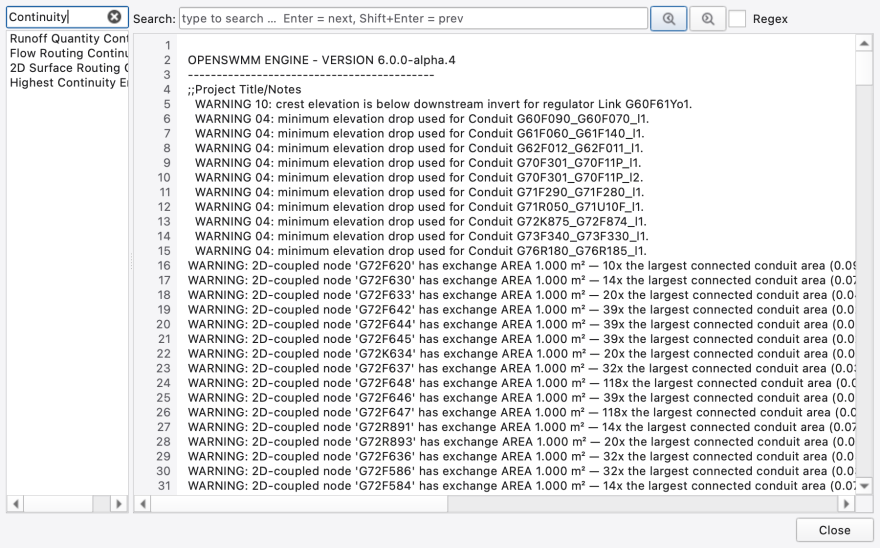
Analysis → Report (and Analysis → Show Mass Balance, which is wired to the same handler) opens the two-panel report viewer over the .rpt file the run wrote. It is described in 20 — Running a Simulation — a run selector when several runs are loaded, a filterable section list, the full monospace report with a search bar and a regular-expression toggle, and a continuity-error banner when a Continuity Error (%) value in the report exceeds the alert threshold.
The report is the engine's own output, so it is the authoritative record of what the run actually did — the mass-balance ledgers, the elements that drove the time step, the surcharge and flooding summaries, and the ERROR line when a run failed before writing any results.
| Source | Command | Format |
|---|---|---|
| Attribute Table | Export CSV… | CSV or TSV, the visible (filtered) rows and columns |
| Attribute Table | Ctrl+C | Selected rows to the clipboard as tab-separated text |
| Statistics Dashboard | Export CSV… | All three tables in one file |
| Comparison Plot | Export Data… | Wide CSV or SWMM .dat — see 22 — Time-Series and Comparison Plots |
| Message Logs | right-click → Copy / Copy All | Tab-separated Time / Type / Message |
| Report viewer | Select text and copy | Plain text |
Tab-separated clipboard text pastes cleanly into a spreadsheet; CSV timestamps written by the comparison plot are ISO yyyy-MM-dd HH:mm:ss and can be read back in as observed data.
Numeric formatting is a per-chart or per-panel setting rather than a global one:
| Where | Control |
|---|---|
| Comparison plot axes | Chart Properties… → X / Y number format |
| Comparison plot statistics | Chart Properties… → Statistics format |
| Profile plot axes | Display Options… → X / Y axis number format |
| Editor charts (curve, pattern, time series, transect) | Chart Properties… from the chart's own context menu |
Every one of them offers the same presets — integer; 1, 2, 3, 4 or 6 decimals; 3, 4 or 6 significant figures; scientific with 2, 3 or 4 mantissa decimals; engineering (exponent a multiple of three) with 2 or 3; and thousands-separated with 0, 1 or 2 decimals — plus an explicit format string when none of those fit. The starting values come from the application defaults in 04 — Preferences; a per-chart edit overrides them and sticks across replots.
The attribute table and the statistics dashboard format their values from the project's unit system rather than from these presets.
Two report-building dialogs exist in the build but have no entry point in the current user interface. They are described here so you do not go looking for them:
max, min, mean, sum, peak-time, time-above-thr) and a threshold, evaluated into a Clause / Object / Aggregate / Value table with CSV export. The statistics dashboard's query bar covers most of the same ground today.Ctrl+Shift+A focuses a dock, not a window.** If nothing seems to happen, check that the Attribute Table dock is visible (Ctrl+Alt+4)."Max depth" > 5..rpt is the record of truth for continuity and for failures — when the tables and the report disagree, the report is describing the run and the tables are describing the results file..dat export.rpt, .out and CSV formats  1.9.8
1.9.8