 |
SWMMVis
6.0.0-alpha.4
Qt6/C++ GIS-based graphical user interface for the SWMMVis engine (6.0.0-alpha.4)
|
|
SWMMVis
6.0.0-alpha.4
Qt6/C++ GIS-based graphical user interface for the SWMMVis engine (6.0.0-alpha.4)
|
Create saved flow-balance and travel-time maps for completed runs; compare upstream and downstream pathways; and use a dedicated window for comparing every rain gage's record, per-cell time series picked straight off the 2D mesh, and the sortable statistics dashboard.

| Tool | Menu | Ribbon | Needs |
|---|---|---|---|
| Flow Balance Downstream / Upstream | Analysis | Analysis → Network Analysis | A completed 1D output; choose the seed node on the map or by ID |
| Travel Time Downstream / Upstream | Analysis | Analysis → Network Analysis | A completed 1D output; choose the seed node on the map or by ID |
| Rainfall Visualization… | Analysis | — | Rain gages in the model |
| Pick 2D Cells | — | The Mesh 2D toolbar | A 2D results layer |
| Mesh Select Vertices / Select Edges | Model → Mesh | Mesh 2D | A mesh |
| Summarize Results | Analysis | Analysis → Report | An active 1D results layer |
Rainfall Visualization is also reachable from the Object Browser's Rain Gages context menu and from a rain gage property editor's Plot Rainfall… button.
Select an output in Layers, then click Analysis → Flow Balance Upstream/Downstream or Travel Time Upstream/Downstream. The tools use the selected output, falling back to the active output. The output's context menu offers the same actions.
analysis/<run-id>/. A progress dialog supports cancellation. There is no separate preparation step.Link widths use a common zero-based proportional scale. At a balanced split, an incoming flow of 10 divides into widths representing 6 and 4; at a confluence those widths add. Constant-flow reaches keep their width. There is no arbitrary narrowing toward a link's endpoint. Arrows indicate physical flow direction in both upstream and downstream analyses. Flow fractions or flow magnitudes give additive widths; widths themed by time or another quantity do not imply hydraulic conservation. Travel time initially uses time for color and flow fraction for width.
The analysis Style… dialog has Links, Nodes, and Labels tabs:
Edits preview on the map. OK retains the theme; Cancel restores the previous style. Flow Balance and Travel Time keep separate themes without recomputing their shared analysis.
Every rerun receives a new identity. Existing analysis sublayers remain attached to the original run, shown under a saved-output parent when needed. The next run prepares its own averages. Previous raw results and reports are retained when a run already has saved analysis, unless retention was disabled in the saved project. Projects preserve their analysis layers and styles, and reopen them even when the original output is unavailable. Save As carries managed analysis folders; explicitly external packages remain referenced.
These estimates use duration-weighted trapezoidal averages from the first through last saved report and do not follow animation time. Effective transport follows mean net flow; gross magnitude and reversal diagnostics are stored separately. Passage ratios may exceed one in circulating networks. Travel time uses conduit length divided by mean absolute velocity and storage volume divided by outgoing flow plus known sinks. Non-conduit controls have zero modeled delay. Missing or partially known times remain flagged with coverage. The sampled hydraulic balance is partial, not the simulation's exact continuity report. Imported outputs retain their model-pairing provenance. A one-report output is a snapshot without a duration-based balance.
FIGURE PLACEHOLDERdocs/manual/images/25_flow_balance_result.png
FIGURE PLACEHOLDERdocs/manual/images/25_travel_time_result.png
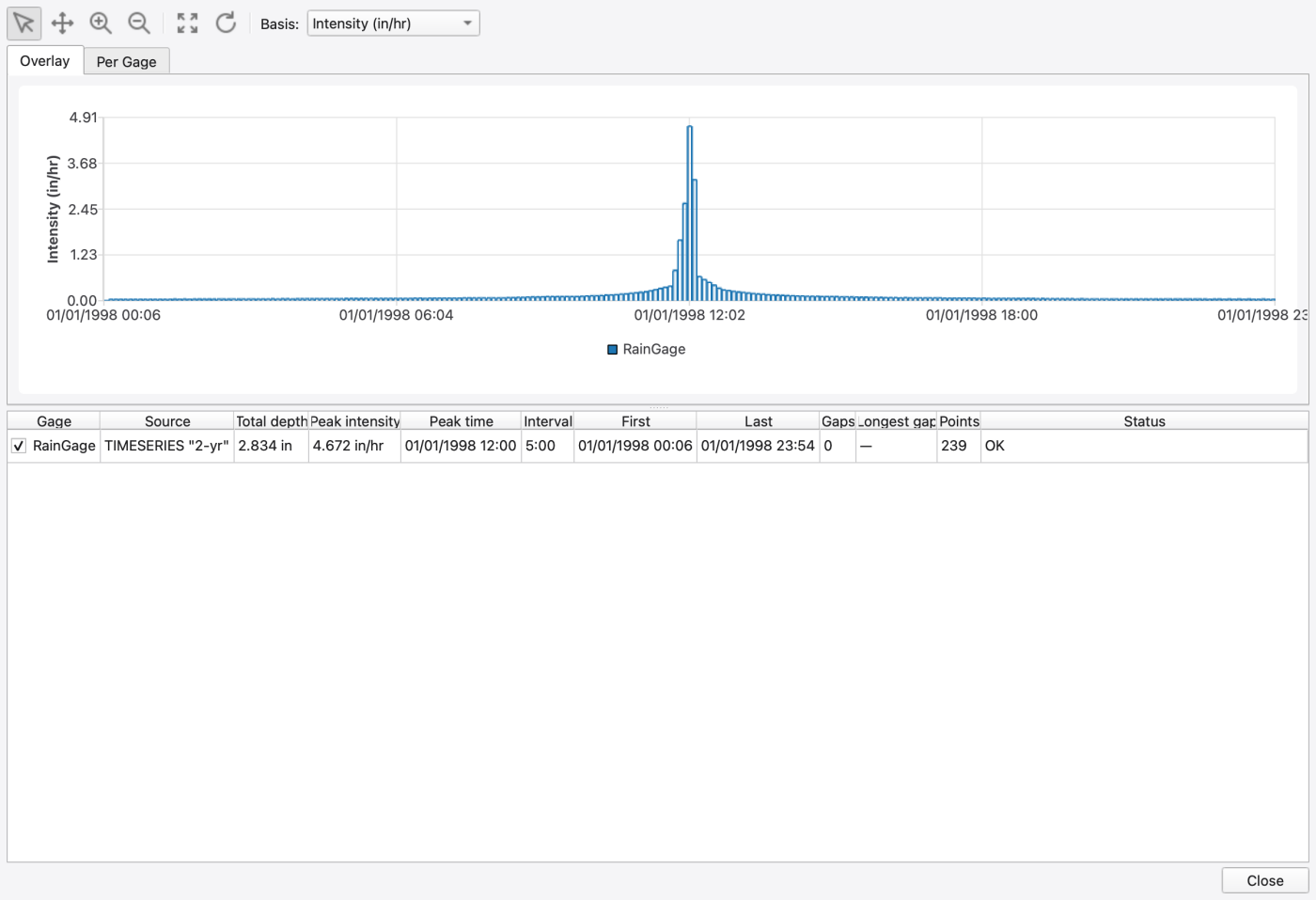
Analysis → Rainfall Visualization… opens a single modeless window comparing every rain gage in the project — inline [TIMESERIES] gages, standard SWMM rain files, and multi-column CSV/TSF files alike. Values are resolved through the engine, so what you see is exactly what a run would use.
| Region | Contents |
|---|---|
| Toolbar | Select, Pan, Zoom In, Zoom Out, Fit, Refresh, and the Basis selector |
| Overlay tab | Every visible gage on one chart with a legend |
| Per Gage tab | One stacked chart per gage on a synchronised time axis, sharing the available height |
| Summary table | One row per gage, with the per-gage visibility checkboxes |
The Basis selector converts each gage's record so the gages can be compared on equal terms:
| Basis | Units |
|---|---|
| Intensity | mm/hr or in/hr |
| Depth per interval | mm or in |
| Cumulative depth | mm or in — with this basis the Overlay tab is the cumulative-curve comparison |
The full rainfall file is loaded and plotted even when its dates fall outside the model's simulation period. Simulation dates do not trim or shift the source records; a run applies rainfall at its recorded times.
INTENSITY values are rates, VOLUME values are depths over the recording interval, and CUMULATIVE values are running depth readings. A decrease in a cumulative reading starts a new accumulation. The plots use the engine's converted intensities: cumulative depth rises during each wet interval and stays flat through dry gaps. For example, 0.25 in over 15 minutes is 1 in/hr.
The summary table columns are Gage, Source, Total depth, Peak intensity, Peak time, Interval, First, Last, Gaps, Longest gap, Points and Status. Source names where the data came from — TIMESERIES "name", FILE (rain file, station …) or FILE (CSV/TSF, column …). Status reads OK, no rainfall records, or file failed to load (0 entries), so a gage whose rain file is missing or misconfigured shows up here rather than silently plotting nothing.
Only the focused gage — or the first one — is plotted when the window opens; tick the others in the table to add them. Opening the window from a specific gage's context menu or property editor focuses that gage.
Everything the 2D mesh records can be plotted per element, straight from the map. All three routes feed the comparison plot (22 — Time-Series and Comparison Plots).
The Mesh 2D toolbar's cell-picking tool is checkable — turning it on activates the picker, turning it off returns to the select tool. It works on the active 2D results layer.
| Interaction | Effect |
|---|---|
| Click a cell | Selects it; Shift adds, Ctrl/⌘ toggles |
| Drag | Box selection (the default mode) |
Press L | Switch to lasso mode; press B to go back to box mode |
Esc | Clears the selection |
| Right-click | Pops the attribute menu for the selection — or for the cell under the cursor when nothing is selected |
Selected cells are outlined on the canvas at a constant pixel width, so they stay visible at any zoom.
The same menu style the 1D select tool uses:
| Kind | Attributes |
|---|---|
| Cell | Depth, HGL, |V|, Vx, Vy, Rainfall (intensity), Rainfall volume (cumulative), plus All attributes |
| Edge | Edge flow (volumetric), Edge flux (unit-width), plus All attributes |
| Vertex | Depth, HGL (both interpolated from the incident cells), plus All attributes |
Entries this run cannot serve are greyed out with the tooltip Not present in this run's 2D results — re-run with the current engine: velocity needs edge-flux data, and the rainfall entries need the per-cell rainfall datasets. Depth and HGL are always available.
Edges are picked with the mesh Select Edges tool and vertices with Select Vertices; right-clicking either pops the same picker (a vertex's menu also shows its elevation as a disabled header line).
A selection of N cells × M attributes produces N × M series across M chart rows. More than 500 series raises a confirmation first.
FIGURE PLACEHOLDERdocs/manual/images/25_pick_2d_cells_menu.png
Analysis → Summarize Results opens the statistics dashboard over the active 1D results layer: sortable Nodes, Links and Subcatchments tables, a query bar, two-way selection sync with the map, Zoom to Selected, and CSV export. It is covered in full in 24 — Tabular Results and Reports.
FIGURE PLACEHOLDERdocs/manual/images/25_statistics_dashboard_histogram.png
file failed to load will contribute no rainfall to a run. Check the Source column for the path or station the model asked for. 1.9.8
1.9.8