 |
SWMMVis
6.0.0-alpha.4
Qt6/C++ GIS-based graphical user interface for the SWMMVis engine (6.0.0-alpha.4)
|
|
SWMMVis
6.0.0-alpha.4
Qt6/C++ GIS-based graphical user interface for the SWMMVis engine (6.0.0-alpha.4)
|
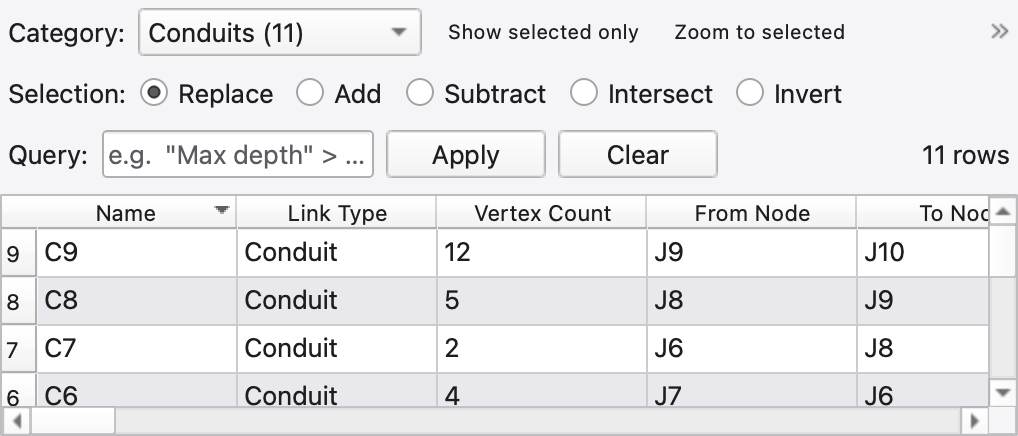
Put every object of one kind in a spreadsheet: sort it, query it, edit cells in place, apply one value to many rows at once, drive the selection from a WHERE clause, and copy or export what you see. The same dock lists 2D mesh vertices, edges and cells, imported GIS feature layers, and loaded CSV/TSV tables.
| Route | Notes |
|---|---|
Analysis → Tabular View (Ctrl+Shift+A) | Raises the dock and focuses it |
View → Panels → Attribute Table (Ctrl+Alt+4) | Toggles the dock |
| Layer tree → right-click a layer → Open Attribute Table | Jumps straight to that layer's table |
| Object Browser → right-click a Pollutants, Land Uses, Aquifers, Streets or Inlets category → Open in Attribute Table | Jumps to that data-object table |
The dock binds to the active project tab and re-binds on every tab switch.
The Category: combo at the top is the source picker. It lists, in order:
Junctions, Outfalls, Storage Units, Dividers, Conduits, Pumps, Orifices, Weirs, Outlets, Subcatchments, Rain Gages;◇ Data: Pollutants, Land Uses, Aquifers, Streets, Inlets (each listed only when the model has at least one);▾ Table: <name> (<rows>);◆ Features: <name> (<features>);△ Mesh <name> — Vertices (n), — Edges (n), — Cells (n).Mesh entries appear immediately on a progressively loaded mesh but stay greyed until the background load finishes, because the edge pairing and boundary flags are part of that load. They enable themselves when it lands; their tooltip says so meanwhile.
| Control | What it does |
|---|---|
| Show selected only | Filter the table down to the current selection |
| Zoom to selected | Frame the selected rows' objects on the map |
| Copy (Ctrl+C) | Put the selection on the clipboard as TSV |
| Export CSV… | Write what is visible to a .csv or .tsv file |
Ctrl+C always goes to the panel that has keyboard focus, so the toolbar button deliberately carries no shortcut of its own.
The footer under the table reads N of M selected, as in GIS attribute tables. M is every row of the current source, whatever the query shows, and N counts its selected rows, including selected rows the query filter hides. A loaded CSV/TSV table has no map selection, so its count is the rows highlighted in the table.
Each SWMM category has a fixed column schema, laid out left to right in four blocks so the table never shifts under you:
| Block | Contents |
|---|---|
| Inputs | Name, object type, tag, coordinates or endpoints, and every editable engine attribute for that kind |
| Initial quality | One editable column per constituent — Init. <pollutant>, plus Init. Water Age (hr) and Init. Temperature (°C) while those options are on. NULL means "no override": the global initial concentration applies, and clearing a cell removes the element's [INITIAL_QUALITY] row |
| User flags | One editable column per defined user flag, with the flag's description as the header tooltip |
| Dynamics | Read-only post-run statistics (see below) |
Examples of the input block:
| Category | Input columns include |
|---|---|
| Junctions | Invert Elevation, Maximum Depth, Initial Depth, Surcharge Depth, Ponded Area, plus the compound cells External Inflows, Dry Weather Flow, RDII, Pollutant Treatment, Groundwater Sources |
| Outfalls | Invert Elevation, outfall type, gated, and the stage data the type needs — fixed stage, tidal curve or stage time series |
| Storage Units | Maximum Depth, storage shape, functional coefficient/exponent/constant, three shape parameters (headers are generic; the per-shape meaning is the cell tooltip), seepage rate and the Green-Ampt exfiltration triple |
| Dividers | The junction set plus divider type |
| Conduits | From/To Node, Vertex Count, Length, roughness, offsets, initial and maximum flow, entry/exit/average loss, seepage rate, barrels, culvert code, Cross-Section and Inlets compound cells |
| Subcatchments | Vertex Count, Area, Width, Slope, % Impervious, % Zero-Impervious, Manning's n (imperv./perv.), depression storage (imperv./perv.), rain gage, outlet, Snow Pack, infiltration model and its parameters, plus the Land Use, LID Usage, Initial Loadings and Groundwater compound cells |
| Rain Gages | Rain format, recording interval, snow catch factor, data source, Station ID, Rain File (path) and Rain File Column |
Column headers carry the unit resolved from the project's flow-unit system, so switching between US customary and SI relabels them without touching the data. Link offset columns follow the LINK_OFFSETS mode — Inlet/Outlet Offset in depth mode, Upstream/Downstream Elevation in elevation mode. See 10 — Object Browser, Properties and Section View.
For conduits, pumps, orifices, weirs and outlets, click From Node (upstream) or To Node (downstream) to change the connection. Type the beginning of a node ID and choose a matching suggestion, or enter an existing ID in full. The same searchable picker appears in the Properties panel. Changes update the map immediately and support Undo/Redo; link bends, length and offsets are retained. Unknown IDs and connections back to the opposite endpoint are rejected. Virtual and inlet junctions keep their fixed conduit connections.
Drag the divider between column headers to change a width, including the last column. Double-click a divider to fit the column to its contents. Column widths are remembered per category (and per mesh element kind) across sessions, and every column is at least as wide as its header.
The right-hand block reads the project's active 1D results layer — the run chosen in the Analysis toolbar's Results combo — not the editing engine. It re-reads when that selection changes, so re-running into the same .out refreshes in place. With no results available the cells show NULL. A measured zero remains zero.
| Category | Dynamics columns |
|---|---|
| Node kinds | Max Depth (Sim.), Max Overflow, Vol. Flooded, Time Flooded (hr) |
| Link kinds | Max Flow (Sim.), Max Velocity, Max/Full Depth, Total Flow Volume, Time Surcharged (hr) |
| Pumps | The link block plus Pump Cycles, Pump On Time (hr), Volume Pumped |
| Subcatchments | Total Precipitation, Total Runoff Volume, Peak Runoff Rate |
| Rain Gages | none — the engine keeps no statistics for gages |
These are computed from the .out, which is written at report-step resolution: maxima are the largest reported value and volume and duration integrals use the report step as dt. Expect small disagreements with the .rpt summary tables when REPORT_STEP is much coarser than ROUTING_STEP. Pump Cycles is the worst case — a pump that switches off and back on between two report times is invisible, so the count is a lower bound. Shorten REPORT_STEP for an exact one.
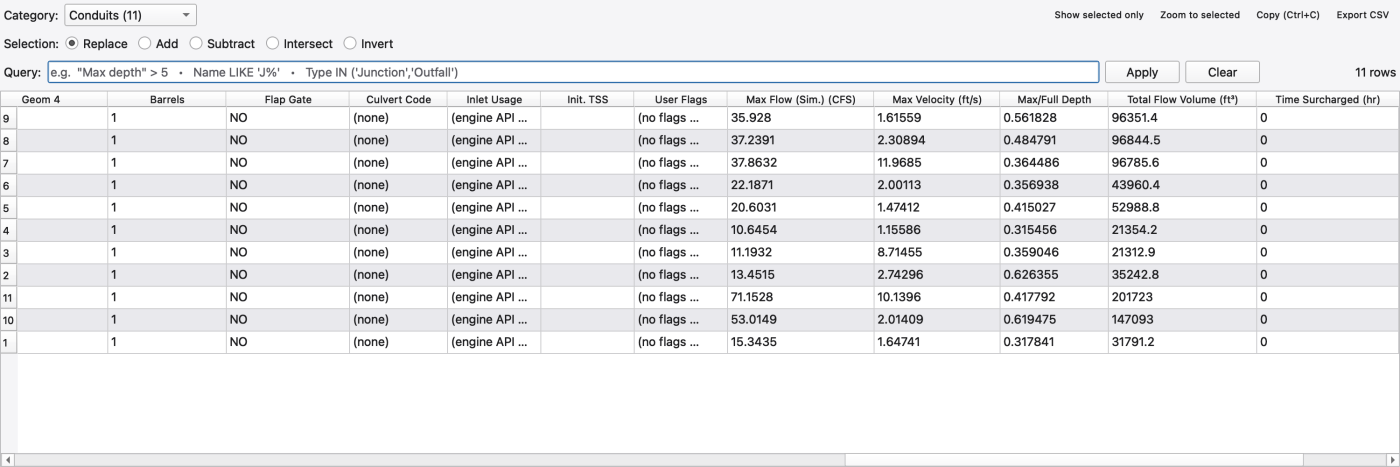
Click a column header to sort; click again to reverse. Sorting is numeric for numeric columns, so the smallest value really is the first row. Sorting is a view operation — the model's row order (which matches the Object Browser) is untouched, and the copy/export honour the sort you see.
Missing or inapplicable values display as muted NULL and sort last in both directions. Hover over one for its reason. Zero, NO/false and applicable inherited defaults remain real values. Copy and CSV/TSV export write NULL as an empty field; literal text such as NULL in an imported file remains text.
Use couplingCd IS NULL to find uncoupled vertices, couplingCd >= 0.65 to compare assigned coefficients, or couplingArea BETWEEN 2 AND 10. Reference fields also support queries, for example [Coupled Node] IS NULL. Numeric comparisons exclude NULL rows; use IS NULL or IS NOT NULL explicitly.
Type a SQL-like WHERE clause and press Apply to filter the rows. The status label to the right reports N of M matched; Clear removes the filter.
| Element | Rules |
|---|---|
| Column names | Quote with "double quotes" or [brackets] when they contain spaces. Lookup is case-insensitive |
| Numbers | 100, 3.14, -2, +.5, 1e-3 |
| Strings | Single-quoted — ‘'Junction’; double embedded quotes:'O''Brien'\ilinebr </td> </tr> <tr class="markdownTableRowEven"> <td class="markdownTableBodyNone"> Comparison \ilinebr </td> <td class="markdownTableBodyNone">=!=<><<=>>=\ilinebr </td> </tr> <tr class="markdownTableRowOdd"> <td class="markdownTableBodyNone">LIKE\ilinebr </td> <td class="markdownTableBodyNone"> Case-insensitive pattern match on a string column.%matches any sequence including none;_matches exactly one character \ilinebr </td> </tr> <tr class="markdownTableRowEven"> <td class="markdownTableBodyNone">IN\ilinebr </td> <td class="markdownTableBodyNone"> Match any of a list —Type IN ('Junction','Outfall')\ilinebr </td> </tr> <tr class="markdownTableRowOdd"> <td class="markdownTableBodyNone"> Negation \ilinebr </td> <td class="markdownTableBodyNone">NOT (condition),Name NOT LIKE 'OUT',Name NOT IN ('J1', 'J2')\ilinebr </td> </tr> <tr class="markdownTableRowEven"> <td class="markdownTableBodyNone"> Ranges \ilinebr </td> <td class="markdownTableBodyNone">Area BETWEEN 0.5 AND 2includes both endpoints;Area NOT BETWEEN 0.5 AND 2excludes the range.Length BETWEEN 10 AND 100works as typed; when you quote the full header with its unit, use brackets —[Length (ft)] BETWEEN 10 AND 100\ilinebr </td> </tr> <tr class="markdownTableRowOdd"> <td class="markdownTableBodyNone"> Missing values \ilinebr </td> <td class="markdownTableBodyNone">Field IS NULL,Field IS NOT NULL; an empty string is a value, not NULL \ilinebr </td> </tr> <tr class="markdownTableRowEven"> <td class="markdownTableBodyNone"> Booleans \ilinebr </td> <td class="markdownTableBodyNone">TRUE,FALSE; enumerations use the displayed labels, for example'Yes'\ilinebr </td> </tr> <tr class="markdownTableRowOdd"> <td class="markdownTableBodyNone"> Combining \ilinebr </td> <td class="markdownTableBodyNone">AND,OR,NOT, grouped with( ); precedence is comparison,NOT,AND, thenOR` |
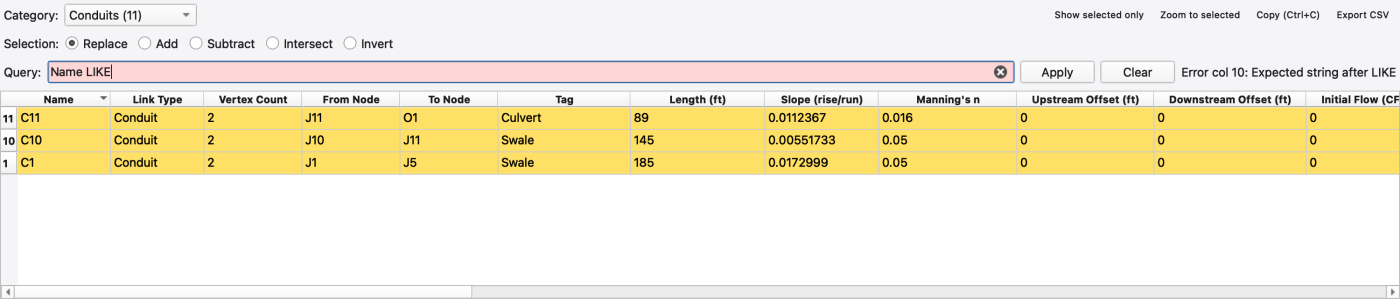
A malformed clause is reported in the status label with the error position, and the new clause is not applied. Any previous valid filter and selection remain in place. Correct the clause and press Apply, or use Clear to remove the previous filter.
Unknown columns and compound editor cells are reported as errors, preserving any previous filter and selection. Query scalar fields using a column header, label or schema key. Numbers use the table's displayed units. String equality is case-sensitive; LIKE is case-insensitive. NULL comparisons remain unknown even under NOT, so use IS NULL to find missing values.
Suggestions appear as you type column names and operators. Use Ctrl+Space to open suggestions at the cursor, arrow keys to choose, and Enter to insert. Completion replaces the current token and preserves the rest of the query. Fields with spaces are quoted automatically. Suggestions update when the table source or schema changes. An optional leading WHERE is accepted; this bar takes a predicate, not a full SELECT statement.
The query bar works on every source, including the read-only ones — the predicate evaluator runs over rows, not over the engine. SWMM objects, mesh vertices/edges/cells, data objects and GIS features support query selection. CSV/TSV sources support filtering and export; applying a query there preserves the current map selection.
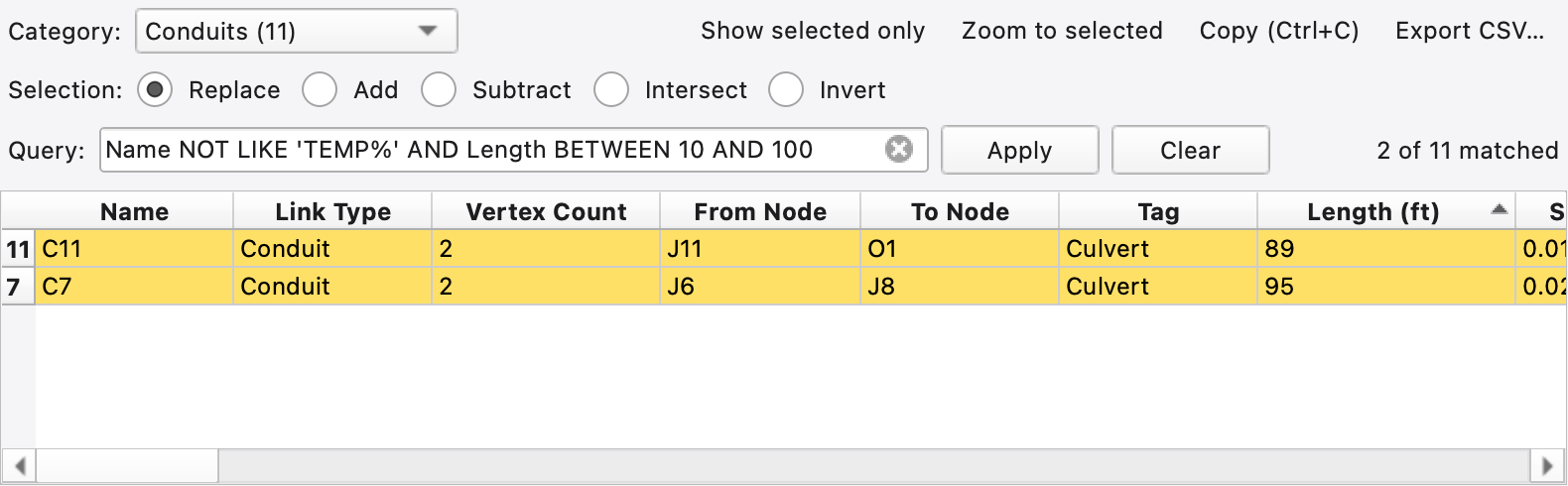
Na. Choose Name from the suggestions with the arrow keys and press Enter to insert it. You can also press Ctrl+Space at the cursor to request suggestions.Complete the clause below. It excludes names beginning with TEMP and includes lengths from 10 through 100, including both endpoints:
In the bundled Site Drainage example, the clause above matches C11 and C7. Their lengths are 89 and 95 ft. The ascending arrow in Length (ft) shows the sort direction, and the highlighted rows show the selected matches.
Enter accepts a highlighted suggestion while the suggestion list is open; with the list closed, Enter applies the query. To change part of an existing clause, place the cursor in that field or keyword and request suggestions; accepting one preserves the text after the token.
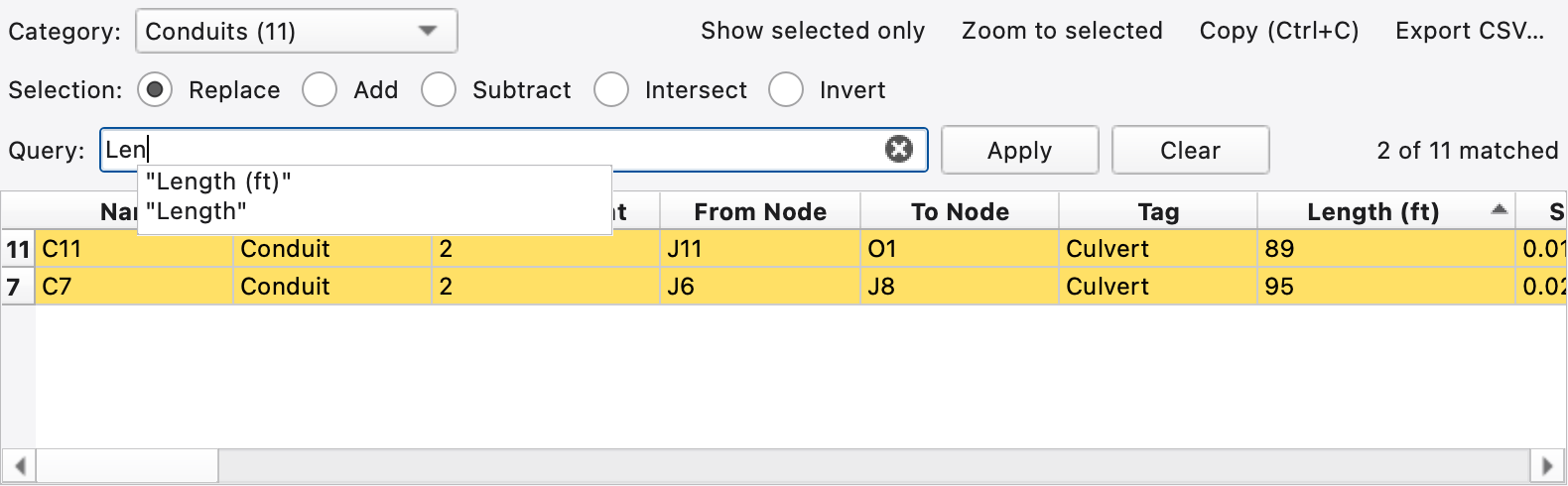
Opening suggestions does not apply the unfinished clause: the previous matches stay visible until you press Apply or apply a complete query with Enter.
To exclude several names, use ‘Name NOT IN ('C1’, 'C2'). To negate a group, useNOT (Name LIKE 'TEMP' OR Length < 10). For a field that can be missing, useField IS NULLorField IS NOT NULL, replacingFieldwith a scalar column from the chosen source.NOT (Field = 5)does not include missing values; useField IS NULL OR Field != 5` when that is the intended selection.
Choose the desired source in Category: before building the clause. Suggestions then show that source's fields. Use the headers in the current table; a field from the previous source may not exist in the new one.
| Source | Applying a valid query |
|---|---|
| SWMM object categories | Filters rows and updates object selection using the chosen selection mode |
| Data-object categories | Filters rows and selects the matching data objects |
| Mesh vertices, edges or cells | Filters rows and selects the matching elements of that mesh |
| GIS feature layers | Filters rows and selects features in that layer; field names containing spaces are quoted by completion |
| CSV/TSV tables | Filters rows for inspection, copying and export; the map selection stays in place |
Only sources offered by the picker have attribute queries. Raster pixels and rendering-only sublayers do not have a row table here. If Apply reports a syntax or field error, correct the reported position or choose a field from suggestions and apply again. The last valid filter and selection stay in place until the corrected clause succeeds or you press Clear.
The table shares the project's selection both ways: picking rows selects the objects everywhere, and a selection made on the map or in the Object Browser highlights the matching rows.
Double-clicking a row number in the left-hand strip zooms the map to that element (plus the rest of the selection). It sits on the vertical header, so the double-click-to-edit affordance on cells is untouched.
The Selection: radios decide what Apply does with the rows matched by the query. The sequence is: type the query, choose Replace, Add, Subtract or Intersect, then press Apply. Typing a query leaves the map selection unchanged; Apply filters the rows and then applies the chosen radio to the matched rows:
| Radio | Effect |
|---|---|
| Replace | Replace the current selection with the matched rows |
| Add | Union the matched rows into it |
| Subtract | Remove the matched rows from it |
| Intersect | Keep only rows that are in both matched and selected |
| Invert | Replace the selection with every row in this category that is not selected — ignores the query |
Add and Subtract act on the existing map selection: Add gives the union of the prior selection and the matched rows, Subtract removes the matched rows from it. With nothing selected, Add gives the same result as Replace and Subtract removes nothing. Select the objects on the map (or with a first Replace query), then run the second query with Add or Subtract. The selection ops always run against the full population of the category; the "show selected only" filter does not narrow them.
FIGURE PLACEHOLDERdocs/manual/images/11_query_between_add.png
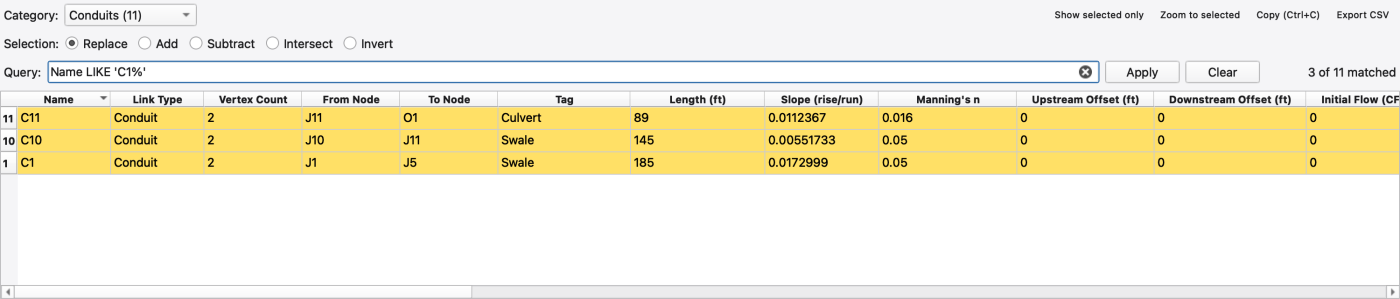
To reproduce this example, open a copy of the T1 drainage model, choose Conduits, select Replace, enter Name LIKE 'C1%' and press Apply. The status reads 3 of 11 matched and those three rows become selected. The percent sign includes the unsuffixed C1 as well as C10 and C11. Use Clear to remove the table filter; clearing the filter does not clear the selection.
Double-click a cell to edit it. The editor is chosen from the column's metadata:
| Column kind | Editor |
|---|---|
| Numeric | Double spin box with the column's range and decimals |
| Integer | Spin box |
| Enumeration | Combo of the valid values |
| Text | Line edit — Name and Tag |
| Interval | Editable combo of the legacy H:MM presets; the value round-trips to engine seconds |
| File path | Line edit plus a … file dialog carrying the column's name filter — the rain gage's Rain File |
| File column | Editable combo whose options are the headers read from that row's resolved data file |
| Compound | The cell shows a summary and a button that opens the node, link or subcatchment compound dialog at the right page |
| Reference | Closed picker combo plus … — mesh coupled node, boundary time series, rating curve |
| Read-only | Not editable — derived values and the dynamics block |
Every commit goes onto the canvas undo stack, so Ctrl+Z round-trips a cell edit, and it refreshes the Properties panel and the Section View for the same object. The reverse holds too.
Two edits are deliberately atomic: setting a rain gage's Rain File path also commits the column selector and the file-format flip that a column implies, as one undo step — otherwise undo would restore the path and keep a stale column.
In a SWMM object table, select the first target cell and press Ctrl/Cmd+V, or right-click and choose Paste. Paste values without a header row.
The 2D Coupling group in junction, divider and storage tables contains eligibility, structure, diameter, perimeter, opening/chamber areas, lid fraction, crest, law, coefficient preset and four coefficient overrides. Outfalls expose eligibility, structure, spread radius and tailwater relaxation. Numeric override cells display NULL when no override is authored; clear the editor to restore inheritance. Enum overrides have **(inherit)**. Changing structure or disabling coupling clears its parameters, so paste the structure first and geometry second. Undo restores the whole prior node configuration. Eligibility does not create or relocate a spatial mesh map. See Choosing a node structure for defaults, units, applicability and the meshing/remapping workflow.
Select several rows, right-click an editable cell, and pick one of:
The whole batch is one undo step. Rows whose cell is not editable are skipped — so bulk-applying a boundary Stage touches only the rows already set to a Specified Stage type. Picker columns offer only the copy-the-clicked-cell flavour, since their value has to come from the dropdown; that also makes "couple these twelve vertices to J1" a single gesture.
FIGURE PLACEHOLDERdocs/manual/images/11_apply_value_to_rows.png
The right-click menu on a SWMM row also carries:
The Delete and Backspace keys do the same thing as the menu item.
Copy puts the selection on the clipboard as TSV: a header line plus one line per selected row, in the view's current sort and column order, hidden columns skipped. With nothing selected it falls back to every visible row — what the query and show-selected-only filters leave.
Export CSV… writes what is visible to a file. The extension picks the separator: .tsv writes tab-separated with no quoting convention, anything else writes RFC-4180-style CSV — values containing a comma, a quote or a newline are wrapped in quotes and internal quotes are doubled. The header row uses the column headers as you see them, so a re-sorted or re-ordered view exports the way you see it, and the "show selected only" filter is honoured.
A field calculator — an expression editor writing a computed value into an existing column, a new [USER_FLAGS] field, or a preview-only column, scoped to all rows / selected rows / rows matching a WHERE clause — is designed but not implemented in this build. There is no Field Calculator… button on the toolbar or in the column-header menu.
Until it ships, the two facilities that cover most of its ground are:
For values that must be computed, export the category to CSV, compute elsewhere, and bring the result back as a user flag or by editing the .inp.
Selecting one of the △ Mesh … entries lists that mesh's elements. Rows are read straight from the mesh and written through the same undoable edits as the mesh-editing toolbar, so even a multi-million-cell mesh opens quickly.
| Table | Read-only columns | Editable columns |
|---|---|---|
| Vertices | Index, X, Y, Marker | Elevation, Tag, Coupled Node, Coupling Cd, Coupling Area |
| Edges | Edge (triangle:edge), Boundary, Length (map units) | Conveyance; and on boundary edges BC Type, Stage, Bed Slope, Flow, Time Series, Rating Curve, Group |
| Cells | Index, Area (map units²), Centroid X, Centroid Y | Tag, plus one column per per-cell parameter |
Coordinates are not editable here — move a vertex on the map. The same goes for the other derived columns (edge length, cell area, centroid): they are computed from the geometry, so an edit would have nowhere to write.
The per-cell parameter columns follow the mesh's parameter list, so a new parameter appears here the moment it is added. Today they are Manning's n and Initial Depth ([2D_TRIANGLES]), the per-cell infiltration set — Infiltration Method plus its positional parameters ([2D_INFILTRATION]) — and a greyed-out 2D groundwater block (Saturated Conductivity, Aquifer Thickness, Porosity, initial unsaturated and saturated depths). Edit groundwater through Model → Assign Groundwater… or the dedicated aquifer/initial-state dialog; the legacy table columns do not write groundwater records.
A cell showing NULL has no applicable or available scalar value:
Conveyance is the exception among the edge columns: it applies to interior edges too, and writing it mirrors the value onto the other half of the edge, because the engine requires both halves to agree.
Set BC Type first; the column it reads becomes editable and the rest show NULL:
| BC Type | Live parameter |
|---|---|
| Wall | *(none)* |
| Normal Flow | Bed Slope |
| Specified Stage (constant) | Stage |
| Specified Stage (time series) | Time Series |
| Specified Flow (constant) | Flow |
| Specified Flow (time series) | Time Series |
| Rating Curve | Rating Curve |
Group is independent of the type and stays available on any boundary edge. A value typed under a previous type is kept but hidden, so flipping back brings it into view — and only the live parameter is ever written to the .inp.
Three columns name something else in the model, and each is a closed picker — a dropdown of what is actually defined plus a … button onto that family's editor:
| Column | Offers |
|---|---|
| Vertices → Coupled Node | every SWMM node; blank removes the coupling |
| Edges → Time Series | the project's time series |
| Edges → Rating Curve | the project's curves |
Open a mesh without its model and these fall back to plain text entry — there is nothing to pick from, and an empty dropdown would be a dead cell.
The mesh stores each edge against a triangle corner, so an interior edge is held twice, once from each side. The Edges table lists it once, under the lower of the two slots. Selecting that edge on the map from either triangle highlights the same single row.
Tiny cells are what make a 2D run slow — a handful of sub-square-metre cells forced in around a coupling point can dominate the timestep. The usual hunt:
Area < 0.5 — and read the match count in the status label.This is the same measurement the layer-properties Metadata tab summarises as min / max / mean / median, so the smallest row here is exactly the minimum reported there.
FIGURE PLACEHOLDERdocs/manual/images/11_mesh_cells_smallest_first.png
Mesh elements cannot be added or deleted from the table: Delete is inactive for these sources and there is no Change Type.
Infiltration is not one parameter — it is a method, up to five positional values and a destination, and the values only mean anything together. So it has its own form rather than the toolbar's one-parameter cell editor: pick cells on the map with the 2D cell picker, then open Assign Infiltration to Selection….
Two write targets:
| Target | Writes | When it is offered |
|---|---|---|
| Per-cell overrides | one [2D_INFILTRATION] row per cell | always |
| Region tag | one [2D_INFILTRATION_DEFAULTS] row | only when every selected cell shares one non-empty tag |
The region route is the in-map way to edit a default instead of minting overrides, so a later region-level edit still reaches the cells. Undo restores the cells' original provenance — undoing an assignment made over an inheriting cell restores inheritance rather than leaving a per-cell override carrying identical numbers.
Parameter fields are masked by the chosen method, and destinations the engine does not accept in this release are shown disabled — the same two rules the attribute table and the region-defaults table follow.
FIGURE PLACEHOLDERdocs/manual/images/11_assign_infiltration_dialog.png
Pollutants, land uses, aquifers, streets and inlets each get a table with one row per object, so you can set a value on many of them at once — for example, the decay coefficient of every pollutant, or the road roughness of every street section — with Applying one value to many rows above.
(none).NULL and cannot be edited (for example, curb fields on a GRATE inlet).Curves, time series, patterns, unit hydrographs, transects, control rules, snowpacks and LID controls are lists of values rather than single records, so they are edited only in their own editors (17 — Time Series, Curves, Patterns and Calibration Data).
An imported vector layer's table lists its OGR features, keyed by feature id. It is read-only — a shapefile is not part of the model, so there is nothing to write to — but sorting, the query bar, copy, export and two-way selection all work.
To turn features into SWMM objects, use Model → Import Feature Layer…; see 12 — Editing the Network on the Map.
A CSV or TSV added with File → Import → Add Delimited Data… appears as ▾ Table: <name>. It is read-only by design — tabular layers are observation data, not model objects. The query bar still filters it, and copy and export behave as elsewhere. Selection ops are no-ops for this source: the layer carries no SWMM object references.
These layers are how observed series reach the calibration and comparison plots — see 22 — Time-Series and Comparison Plots.
m² when the mesh file is tagged SI and the project length unit squared otherwise..rpt. 1.9.8
1.9.8