 |
SWMMVis
6.0.0-alpha.4
Qt6/C++ GIS-based graphical user interface for the SWMMVis engine (6.0.0-alpha.4)
|
|
SWMMVis
6.0.0-alpha.4
Qt6/C++ GIS-based graphical user interface for the SWMMVis engine (6.0.0-alpha.4)
|
Plot any result variable of any object against calendar time; put several runs, several objects and observed measurements on the same chart; style each series; zoom, pan and read values off the chart; compute summary statistics and goodness-of-fit metrics against a baseline; and export the numbers or the picture.
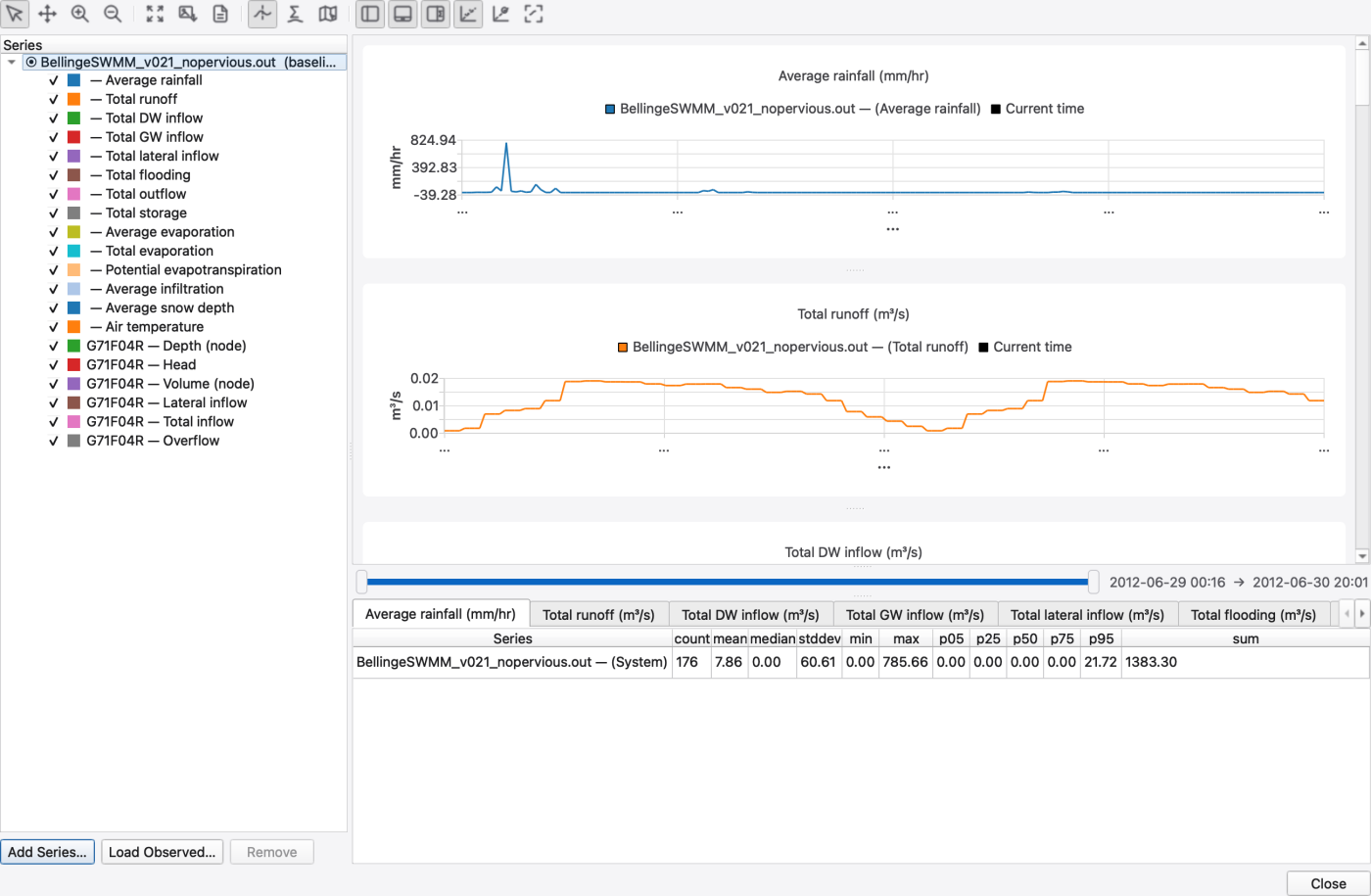
All of this happens in the dockable Time Series panel. Its Comparison tab collects map and Object Browser requests; each 1D profile can also open its own comparison tab.
| Entry point | What it adds |
|---|---|
Analysis → Plot Time Series (Ctrl+T), ribbon Analysis → Plots | Opens the Plot Variables picker: the 14 system-wide variables plus one checkable group per selected map feature. Everything you tick is added in one go |
| Right-click a node / link / subcatchment on the map → Plot Time Series | Pops the attribute menu for that kind; the pick is added as one series |
| Right-click an object in the Object Browser → Plot Time Series | Same. With more than one .out loaded the entry becomes a **Plot Time Series ▸ *run*** submenu so you choose which run |
| Right-click a 2D mesh cell / edge / vertex on the map | The mesh attribute menu — see 25 — Analysis Tools: Flow Balance, Travel Time, Rainfall Visualisation, 2D Cell Time Series |
| Add from Map… on the plot toolbar | Adds model/results objects, native monitoring stations or linked-feature observations to the invoking plot tab |
| Right-click a native Time Series layer/series or station → Plot time series… | Adds selected observation series without requiring a simulation result |
Map and Object Browser commands reuse the Comparison tab in the Time Series panel. A time-series request from a 1D profile opens a separate tab associated with that profile and uses its owning project's results. Add from Map… adds to the tab where it was activated; switching tabs or hiding the panel ends that pick mode.
Open a hidden panel from View → Panels → Time Series. Drag its title bar to move or float the entire panel, or dock it beside a profile for comparison. Closing the panel hides it and preserves all tabs; a tab's close button removes that plot. Closing a profile tab also closes its associated time-series tab. Ctrl+T needs an active 1D results layer — if none is set it tells you to pick one in the Analysis toolbar's 1D results: selector.
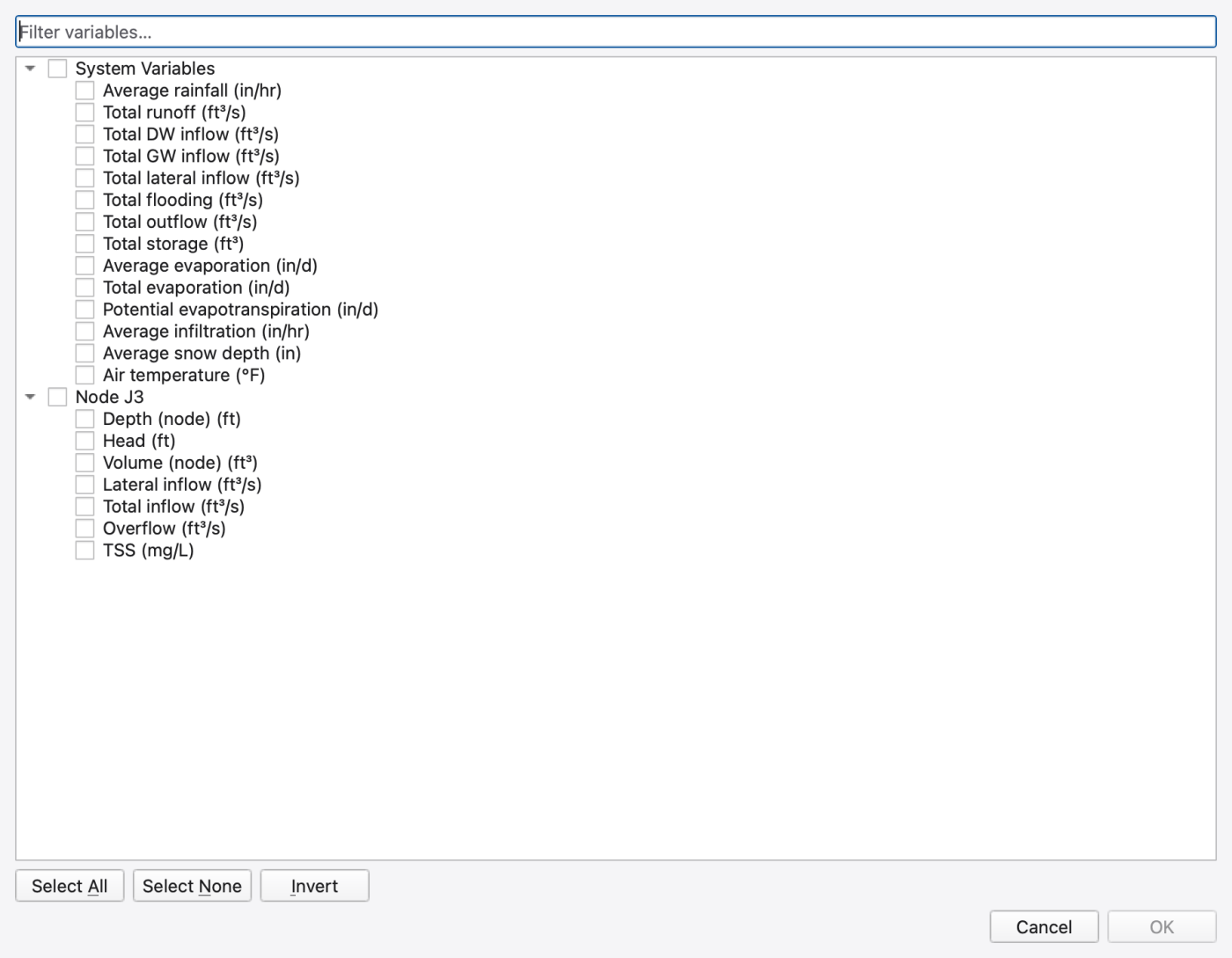
The picker lists:
Attributes the loaded run cannot serve are greyed out. Tick as many as you like and press OK; ticking more than 500 leaves raises a confirmation first, because that many series takes a while to build and clutters the charts.
| Object kind | Attributes |
|---|---|
| Node | Depth, Head, Volume, Lateral inflow, Total inflow, Overflow |
| Link | Flow, Depth, Velocity, Volume, Capacity |
| Subcatchment | Rainfall, Snow depth, Evaporation, Infiltration, Runoff; optional snow state and flux variables listed below |
| System | Rainfall, Snow depth, Evaporation (average rate), Infiltration, Runoff, Dry-weather inflow, Groundwater inflow, Lateral inflow, Flooding, Outflow, Storage, Total evaporation, Potential ET, Temperature |
| 2D mesh cell | Depth, HGL, Velocity magnitude, Velocity X, Velocity Y, Rainfall, Rainfall volume |
| 2D mesh edge | Flow (volumetric, m³/s), Unit-width flux (m²/s) |
| 2D mesh vertex | Depth, HGL (interpolated) |
| Observed file | Whatever attribute you assign the file's columns to |
Every 1D kind additionally offers one entry per water-quality species the run carries — each pollutant plus the reserved water-age and temperature columns. Species are carried by name, so a picked series keeps meaning the same constituent even if the model's pollutant order changes. Water age is reported in hours and temperature in degrees; ordinary pollutants use the run's concentration unit.
Units follow the run: a .out written in CFS/GPM/MGD labels axes in US units, one written in CMS/LPS/MLD in SI. The optional snow/ground variables retain explicit SI units in either project system:
| Snow variable | Units |
|---|---|
| Snow water equivalent | m |
| Snow/ground energy | kJ/m² |
| Snow/ground surface temperature; Snow/ground bulk temperature | °C |
| Snow/ground albedo; Snow cover fraction | Dimensionless |
| Snowmelt rate; Snow liquid surface input; Snow sublimation / condensation | m/s |
These entries enable only when the loaded result contains the corresponding columns. Snow depth is geometric depth and remains in the run's project units; it is not interchangeable with snow water equivalent. Mesh snow fields are also available in the live and HDF5 cell-variable views when present. Expand a run in Simulation Status to inspect its available subcatchment and mesh snow water budgets (m³) and UEB energy residuals (kJ).
Every attribute menu also carries an All attributes entry that adds one series per attribute for that object in a single click.
| Region | Contents |
|---|---|
| Toolbar (top) | Interaction modes, Fit, exports, view toggles, the 1v1 controls |
| Series panel (left) | A tree grouped by run, with Add Series…, Load Observed… and Remove underneath |
| Charts (centre) | A vertical stack of chart rows — one row per distinct plot attribute; scrolls when there are many |
| Range slider | An X-range slider under the charts with a date/time read-out |
| Statistics panel (bottom) | One tab per chart row |
Rows are separated by splitters you can drag. Dock placement and visibility are remembered between sessions, together with internal splitter sizes, table header layouts and view-toggle defaults. Switching tabs preserves each plot's current state. Unsaved plot tabs themselves are not restored after restarting the app.
The toolbar's Series Panel, Range Slider, Stats Panel and 1v1 Plots toggles hide and show each region; Charts Only (Ctrl+Shift+F) hides the first three at once and restores your previous widths when you toggle it back.
Series are grouped by run. The baseline run carries a ⊙ glyph and a *(baseline)* suffix; the others use ●. Each series row shows a colour swatch and a label of the form object — attribute; a mesh series reads Cell N and an observed column reads Observed: name. The checkbox on a row toggles that series' visibility without removing it.
| Action | How |
|---|---|
| Add a series | Add Series… — pick a run, then type the SWMM object ID for the chosen attribute |
| Add observed data | Load Observed… — see below |
| Add system series | Add System Series… on the toolbar |
| Add by clicking the map | Add from Map… on the toolbar (a checkable tool; Esc cancels it) |
| Remove | Select rows and press Remove, or right-click → Remove Series |
| Isolate | Right-click a series → Plot This Only |
| Edit style | Double-click a series, or right-click → Edit Properties… |
| Export one series | Right-click → Export Series Data… |
| Drop a whole run | Right-click the run row → Remove Run |
The first run added becomes the baseline. There is no separate "set baseline" command; to compare series that are not the baseline-vs-others default, configure explicit pairs (below).
FIGURE PLACEHOLDERdocs/manual/images/22_series_tree_context_menu.png
Right-click a collection, series or monitoring station and choose Plot time series…. The existing Comparison tab keeps its zoom, pan, styles and export controls. Multiple series at one station are offered in a chooser. Native plots also work for records with no location or feature link.
Axes retain the measurement, statistic and actual native unit. Different units or statistics remain distinct rows; data is never silently relabelled as SI/US. Continuous source times are displayed as UTC. Daily statistics use a labelled calendar-date axis and markers, not invented midnight UTC measurements. Irregular or missing observations are shown as samples without interpolated lines. Ordinary line-series NaN gaps are separated into finite segments.
When observations and model results share a plot, a prompt requires the model's fixed UTC offset before aligning continuous observations with the model's wall-clock fields. Daily data keeps its source calendar date. This changes only the plot view. Native observation fit/scatter pairing remains disabled: an explicit statistical matching/aggregation policy is required before those metrics can be meaningful.
Large observation plots load on a worker and use at most 12,000 display points per series/window, preserving extrema. Zooming requests a new bounded window; Fit returns to full coverage. Statistics are computed separately from all source samples in the loaded query window, never from the reduced display. Exact percentile summaries support up to one million samples per window; choose a shorter range for larger records. A selected statistics range is published only after its matching full-resolution query finishes.
Export Data for native series writes full-resolution long-form CSV with original timestamp text, source IDs, units, approval/qualifiers and metadata. It exports the complete selected source series, independent of zoom and display reduction, and can be cancelled without publishing a partial file. Export native observations and model-result series separately because their timestamp and metadata formats differ. Use Use in model… to prepare explicit model-clock and unit conversions before writing a model time series.
Load Observed… accepts *.csv, *.tsv, *.tsf and *.dat. Column 0 is the timestamp; every other column becomes one series. Timestamps are recognised as:
2026-01-01T00:15:00 or 2026-01-01 00:15:00;01/01/2026 00:15; Numeric hours-since-start values are not accepted by this plot loader because it has no simulation-start anchor. Use the model time-series editor when an explicit relative-time anchor is needed.After the file is chosen you are asked which attribute the value columns represent — Depth (node), Head, Total inflow, Overflow, Flow, Depth (link), Velocity (link), Rainfall or Runoff. That choice decides which chart row the columns land on. Column headers become the series names (col_1, col_2, … when the file has no header row). A unit suffix in the header (Depth_m, Flow_ft3s) is used to infer the unit system. To put one file's columns on several different rows, load the file more than once with a different attribute each time.
FIGURE PLACEHOLDERdocs/manual/images/22_load_observed.png
The toolbar's four mode buttons are mutually exclusive and apply to every row:
| Mode | Left button behaviour |
|---|---|
| Select | Passes through — hover shows a tooltip with the nearest sample's series name; date and value |
| Pan | Drag to scroll the axes |
| Zoom In | Click zooms 2× about the cursor; drag a rectangle zooms to it |
| Zoom Out | Click zooms out 2×; drag a rectangle does the inverse zoom |
Independent of the mode:
Right-clicking a chart gives Reset Zoom, Fit All Rows, Export Row Data… and Chart Properties….
Show Animation Cursor (Ctrl+Shift+C) draws a vertical line at the map animation's current time on every row, so scrubbing the map moves the cursor in the plots. It is on by default.
While a run is in flight with Live 1D enabled, the charts extend as the .out grows — points are appended and axes stretched outward rather than the charts being rebuilt, so your zoom and styling survive.

Double-clicking a series opens Edit series properties, a property tree with a live preview — the chart restyles as you edit, and Cancel puts back the pre-edit style.
| Group | Properties |
|---|---|
| Identity | Colour, Opacity (0–1), Legend name — blank means auto (run — object (attribute)) |
| Line | Show line, Width, Dash (Solid / Dash / Dot / DashDot / DashDotDot), Cap style, Join style |
| Markers | Show markers, Shape (Circle / Square / Triangle / Diamond / Cross / Plus), Size, Fill colour, Border colour, Border width |
| Point labels | Show point labels, Font, Colour, Precision, format mode (decimals or significant figures) or an explicit format string |
| Area fill | Show area fill, Colour |
Colours left invalid derive from the main series colour, so you only override what you care about. New series are assigned colours from a 12-colour cycle.
FIGURE PLACEHOLDERdocs/manual/images/22_series_style_editor.png
Chart Properties… (right-click a chart) opens a modeless editor that floats above the panel:
| Property | Effect |
|---|---|
| Title text, Title font | The chart's title |
| Y auto range | Off lets you pin the Y minimum and maximum |
| X gridlines, Y gridlines, Grid colour | Gridline visibility and colour |
| Axis label font, Tick label font | Axis typography |
| Background colour, Plot area colour | Chart chrome |
| Chart theme | The Qt Charts palette |
| X number format, Y number format | Decimals or significant figures with a digit count, or an explicit format string |
| Statistics format | The number format used for statistic values |
The editor charts elsewhere in SWMMVis (curve, pattern, time series, transect, hydrograph, scatter) share this dialog through a per-chart axis-format controller, so a format you set on one of those sticks across replots.
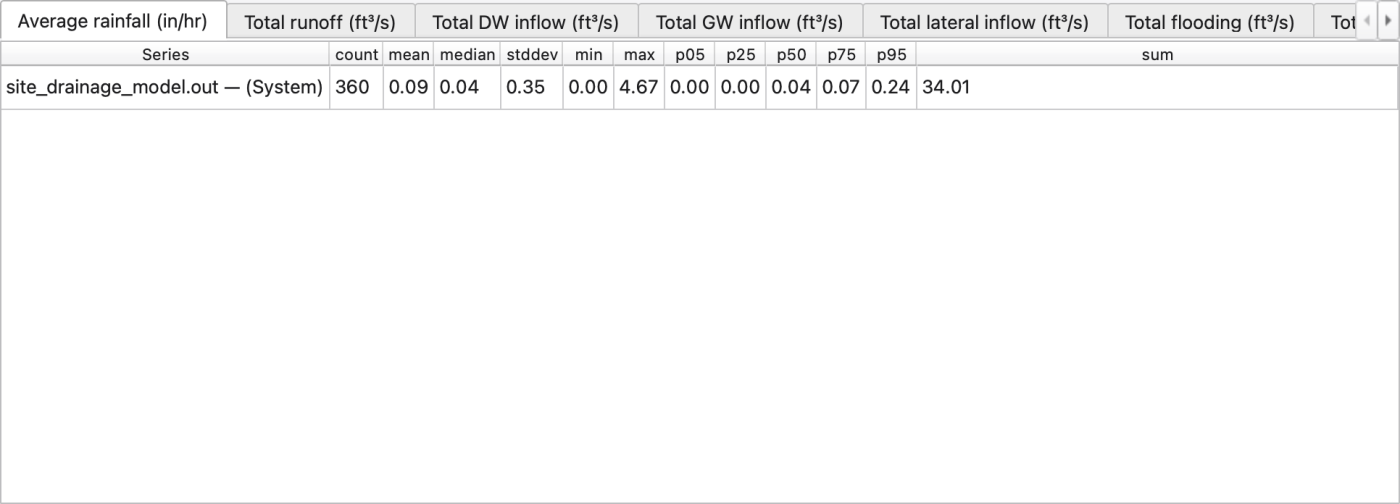
One tab per chart row; one table row per series.
| Column | Meaning |
|---|---|
| count | Finite samples used (NaN and infinite samples are skipped) |
| mean, median, stddev | Sample mean, median, sample standard deviation (N−1) |
| min, max, sum | Extremes and total |
| p05 / p25 / p50 / p75 / p95 | Percentiles (p50 repeats the median for column symmetry) |
| NSE, R², RMSE, PBIAS | Fit against the baseline — present only when a baseline run is set |
Right-click the table header to hide or show individual columns; the choice is remembered between sessions. A Shift-drag X selection on any chart narrows every tab's statistics to that time window; clearing the selection restores the full series.
With 1v1 Plots on, each row grows a second chart: baseline sample on X, comparison sample on Y, with a 45° dashed identity line. Perfect agreement puts every point on that line. The column appears only when there is something to pair — two or more runs, or explicitly configured pairs.
Samples are paired by nearest timestamp, not by index: the two streams are walked in lockstep and a pair is kept when the timestamps are within half the smaller of the two report steps. That is what lets a 1-minute observed record be compared against a 15-minute simulated one without resampling either.
Configure 1v1… opens a pair editor: choose an X series and a Y series, add the pair, and the scatter rebuilds live. An empty pair list means automatic mode — baseline against every other run, matched by object. Explicit pairs can compare two series of the same run (two objects, say), which automatic mode cannot.
The row title carries the fit metrics:
| Metric | Definition | Reading it |
|---|---|---|
| NSE | Nash–Sutcliffe efficiency — 1 − Σ(sim − obs)² ⁄ Σ(obs − mean obs)² | 1 is perfect; 0 means the simulation is no better than the observed mean; negative is worse than the mean |
| R² | Squared Pearson correlation of the paired samples | 0 to 1; measures the strength of the linear relationship, and is blind to bias |
| RMSE | Root mean square error, √(Σ(sim − obs)² ⁄ n) | Same units as the plotted variable; 0 is perfect |
| PBIAS | Percent bias, 100 × Σ(sim − obs) ⁄ Σ(obs) | 0 is unbiased; positive means the simulation over-predicts, negative under-predicts |
The baseline is treated as observed for the NSE and PBIAS sign conventions. Pairs where either sample is NaN are dropped; with fewer than two valid pairs every metric reads as undefined.
A calibration loop therefore reads: run the model (its run becomes the baseline), Load Observed… the measured record onto the same attribute row, read NSE / R² / RMSE / PBIAS, adjust parameters, re-run, watch the metrics move.
FIGURE PLACEHOLDERdocs/manual/images/22_1v1_scatter_metrics.png
| Command | Output |
|---|---|
| Export PNG… (toolbar) | Saves the chart pane as a .png |
| Export Data… (toolbar) | Every plotted series |
| Export Row Data… (chart right-click) | The series on that chart row |
| Export Series Data… (series right-click) | One series |
Both data exports offer two formats:
yyyy-MM-dd HH:mm:ss timestamp, one column per series, rows being the sorted union of all series' timestamps. Cells are blank where a series has no sample at that time. This is exactly what Load Observed… reads back, so an export can be re-imported..dat — the engine's external time-series format (MM/dd/yyyy HH:mm:ss value) preceded by a ;name comment. A .dat file carries one series, so exporting N series writes N files named <base>_<series>.dat beside the path you chose, and the dialog tells you which files it wrote. Non-finite values are dropped, because SWMM cannot parse them..dat formats read and written here  1.9.8
1.9.8