 |
SWMMVis
6.0.0-alpha.4
Qt6/C++ GIS-based graphical user interface for the SWMMVis engine (6.0.0-alpha.4)
|
|
SWMMVis
6.0.0-alpha.4
Qt6/C++ GIS-based graphical user interface for the SWMMVis engine (6.0.0-alpha.4)
|
Get simulation results onto the map: load a run's .out (1D) and .2d.h5 (2D) files as layers, choose which run is active for analysis, colour the network and the mesh by a result variable, read the legend, and play the whole run back as an animation on a shared time cursor.
FIGURE PLACEHOLDERdocs/manual/images/21_results_map_animated.png
| What | Where |
|---|---|
Load a .out | File → Import → Open SWMM Output; ribbon Home → Import |
Load a .2d.h5 | File → Import → Add 2D Results…; ribbon Home → Import |
| The loaded results layers | The Layers dock, under the SWMM Results category |
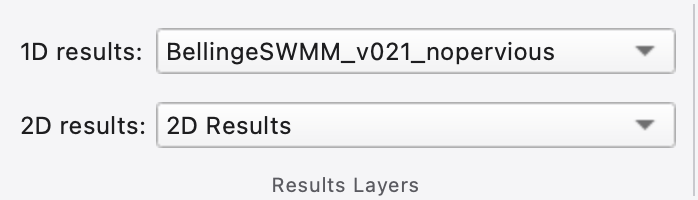
| Which run is active | The Results Layers group at the head of the Analysis ribbon tab — 1D results: and 2D results: combos |
| Playback | The Results menu and the Animation ribbon tab |
| Styling | Results → Set Style, or right-click a layer → Properties… |
| Legend | Results → Show Legend (canvas overlay); View → Panels → Legend (Ctrl+Alt+5) for the dock |
There are three routes:
.out as a results layer, auto-stretches its colour ramp and makes it the active 1D results layer. A 2D run's layer is created when the solver initialises and swaps to the on-disk .h5 when the run ends. See 20 — Running a Simulation..out. The layer attaches to the active project's model layer — the .out carries names, not geometry, so a project has to be open first. Loading the same file twice focuses and reloads the existing layer instead of stacking a duplicate.*.h5). The file picker starts in the model's own folder, because that is where a relative [2D_OPTIONS] OUTPUT_FILE lands. The layer is built exactly as an auto-load or a live run would build it: HDF5 UGRID mesh, simulation-start anchor, CRS inherited from the model, a peak-frame scan for the colour ramp, and the engine's DRY_DEPTH as the dry-cell threshold. FIGURE PLACEHOLDERdocs/manual/images/21_add_results_dialogs.png
Results layers appear under SWMM Results in the Layers dock and behave like any other layer — visibility checkbox, opacity, drag to reorder, right-click for Properties… and Zoom to Layer (see 07 — Layers and Data Sources). A 2D results layer is a sublayer host: expanding its row shows the individual visualization passes (cell depth fill, smooth depth fill, depth contours, isolines, velocity vectors, mesh edges, mesh vertices), each with its own visibility toggle, and right-clicking a sublayer row opens the styling dialog on that sublayer's tab.
The two combos in the Results Layers ribbon group name which loaded run every analysis tool acts on:
| Combo | Feeds |
|---|---|
| 1D results: | Comparison and profile plots, tabular view, statistics dashboard, colour-by-result, the animation controller |
| 2D results: | Mesh-cell time series, mesh profiles, 2D cell picking, 2D animation |
Choosing — none — returns the project to model editing. The 1D list is drawn from the project's loaded outputs, so each entry is the .out basename (with (2), (3) … appended when two runs share a basename) and its tooltip is the full path. A combo is disabled while the project has nothing of that kind loaded. Setting the active layer from the Layers dock context menu keeps the combos in step, and vice versa.
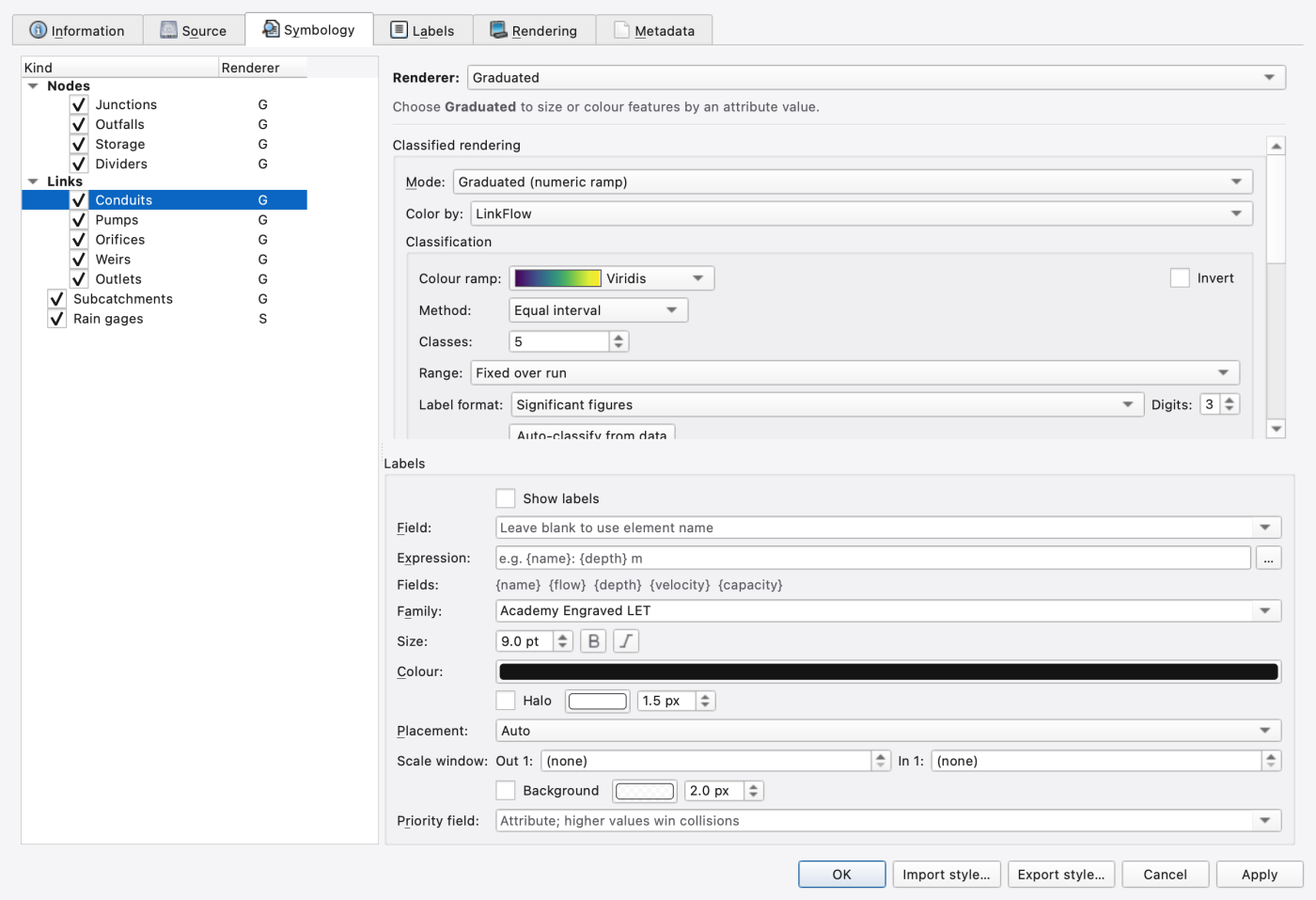
Results → Set Style opens the layer properties dialog for the layer selected in the Layers panel (falling back to the topmost visible layer). Its Symbology tab is the same kind-tree editor used for model layers — one row per element kind (Junctions, Outfalls, Storage, Dividers; Conduits, Pumps, Orifices, Weirs, Outlets; Subcatchments; Rain gages) with a renderer per kind.
What makes a results layer different is the attribute list a graduated or rule-based renderer can classify on. Alongside the static model fields, a results layer publishes the run's dynamic result fields, which are re-read at every animation step:
| Element kinds | Result attributes |
|---|---|
| Junctions, Outfalls, Storage, Dividers | depth, head, volume, inflow, overflow, lateralInflow |
| Conduits, Pumps, Orifices, Weirs, Outlets | flow, depth, velocity, capacity |
| Subcatchments | runoff, infiltration, evaporation, snowDepth |
| Rain gages | none — gages carry no per-feature engine output |
Every one of those kinds also publishes one attribute per water-quality species the run carries — each pollutant plus the reserved water-age and temperature columns. Species attributes are named qual:<SpeciesName> and are persisted by name, not by column index, so re-ordering pollutants in the model can never silently re-point a saved theme. A run with no quality constituents publishes no species attributes at all.
Because they are ordinary renderer attributes, everything the symbology system offers applies: graduated colour, graduated size, rule-based classes, classification methods, colour ramps and per-class overrides. Those controls are documented once in 08 — Styling, Labels and Legends. Auto-stretch sets the ramp range from the data minimum and maximum across all time steps for the current variable, so the colours stay comparable frame to frame.
Ctrl+Alt+5) opens the dockable Legend panel, which lists each visible layer's classes and lets you edit a class's style in place (Edit Style… on the class row).Whether a layer contributes to the legend at all is a per-layer setting on the layer's properties.
FIGURE PLACEHOLDERdocs/manual/images/21_legend_overlay_and_dock.png
The Animation tab (and the Results menu) carries the animation. One time cursor drives the 1D and 2D outputs selected in Analysis. The 1D report times are authoritative when available; otherwise the selected 2D output supplies the clock.
Playback group
| Control | Menu text | What it does |
|---|---|---|
| Backward | Results → Backward | Step one period back |
| Play | Results → Play | Start playback; checked while playing |
| Pause | Results → Pause | Pause; checked while paused |
| Stop | Results → Stop | Momentary action: clear playback/live following, then rewind |
| Forward | Results → Forward | Step one period forward |
Timeline group
| Control | What it does |
|---|---|
| Time slider | A single thumb — the current time cursor. Drag it or click the track to scrub. The shaded band behind it is the look-back window, drawn ending at the cursor |
| Window: | Width of the look-back window, in minutes. Each non-driving output shows its latest frame at or before the cursor; the window is what classifies an output as fresh or stale. 0 = latest-at-or-before with no band |
| Date/time display | The cursor's calendar date and time (MM/dd/yyyy hh:mm:ss.zzz), driven by the controller — read-only during playback |
| Speed: | Playback multiplier: 0.25×, 0.5×, 1×, 2×, 4×, 8×. The tick interval is the report step divided by the multiplier, floored at ~20 Hz — beyond that, higher speeds advance several frames per tick. Persisted across sessions |
| Cycle | On (the default) wraps to the start of the range at the end; off leaves playback paused at the end |
Display group
| Control | What it does |
|---|---|
| Show Legend | Toggles the canvas legend overlay |
| Set Style | Opens layer properties for the selected layer |
| Live rendering | Follows incoming 1D and 2D results selected in Analysis; turn off or scrub to review history, and turn on to return to the newest live time |
Playback applies to the outputs selected in Analysis. It is causal: the selected 2D output shows its latest frame at or before the 1D cursor. A 2D-only run still animates, including before the first 1D report arrives. Scrubbing or pausing disables live following so incoming frames do not override the chosen time. Stop is a momentary action: it clears Play, Pause and live following, then rewinds the selected results and slider.

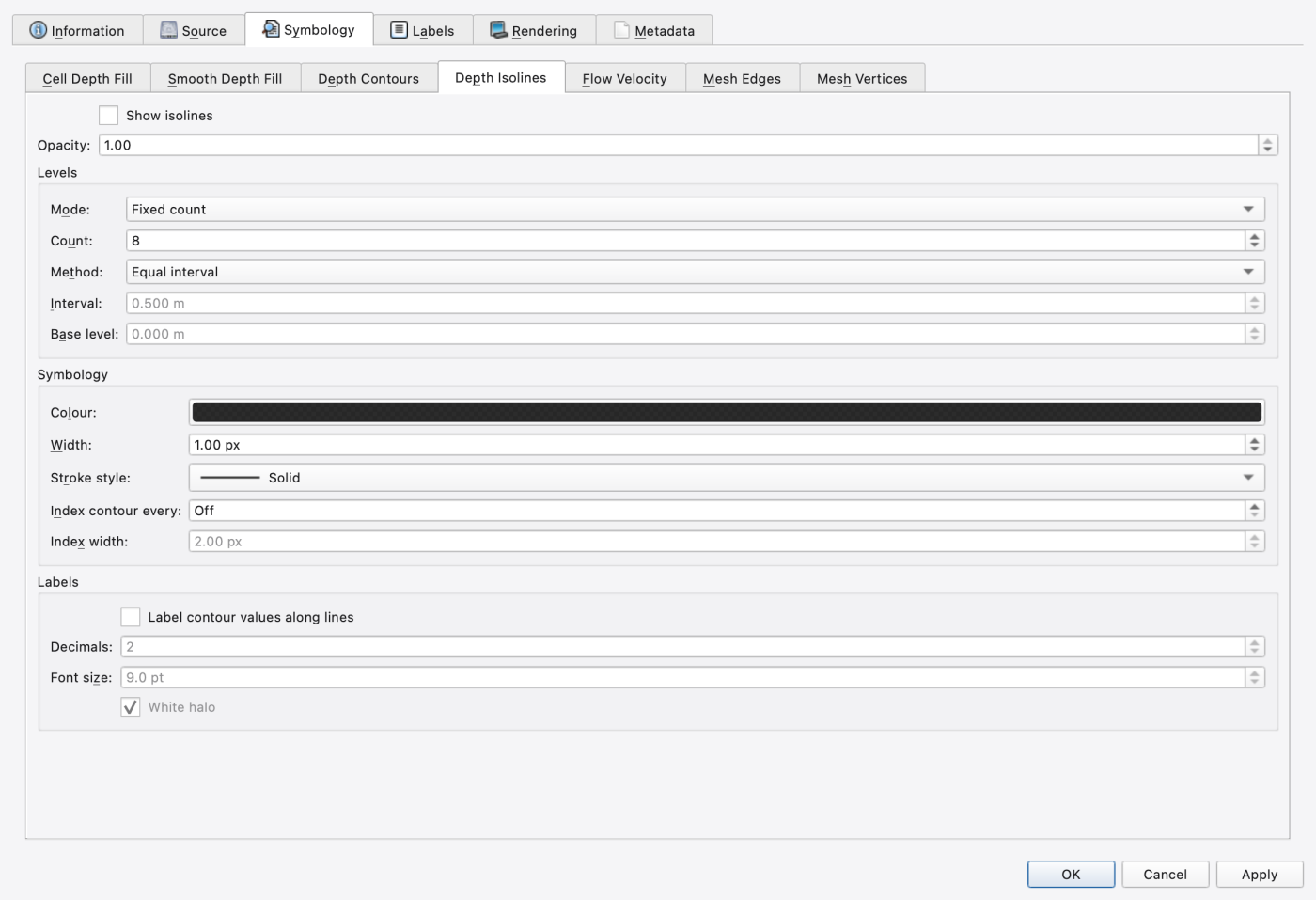
A 2D results layer's properties dialog carries a dedicated panel with one tab per visualization pass. Each tab starts with a Show … checkbox that toggles that sublayer, and every control writes straight through to the renderer, so edits repaint immediately.
| Tab | What it draws | Key controls |
|---|---|---|
| Cell Depth Fill | Flat per-cell scalar fill | Attribute (Depth / Elevation); classification editor — continuous ramp or classified bins, method, class count, range |
| Smooth Depth Fill | Gouraud per-vertex fill | Same controls as Cell Depth Fill |
| Depth Contours | Filled contour bands | Class scheme; Interpolate band boundaries (marching triangles) — on interpolates boundaries through the triangle, off gives flat per-cell bands |
| Depth Isolines | Stroked iso-depth lines | Mode (Fixed count / Fixed interval + base); Count; Method (Equal interval, Quantile, Natural breaks (Jenks), Standard deviation, Logarithmic, Exponential); Interval and Base level (contours fall at base + k × interval); colour, width, stroke style; Index contour every N with its own width; contour Labels with decimals, font size and white halo |
| Flow Velocity | Centroid arrow glyphs | Length scaling (Linear / Square root / Logarithmic); Scale in px per m/s; Min/**Max length**; Head size; Shaft width; Colour by magnitude (with its own class scheme) or a single colour; Spacing — minimum on-screen px between arrows, strongest cell per slot wins; Dry depth cutoff — suppress arrows in shallower water |
| Flow Streaks | Moving trails over wet areas | Colour or By speed; Density (Sparse / Normal / Dense); Motion; Trail (Short / Normal / Long). Advanced provides exact values, lifetime, width and fading settings |
| Mesh Edges | The triangulation's edges | Edge colour and width |
| Mesh Vertices | Vertex markers | Marker style |
Colour for the band and isoline classes comes from either a named colour ramp (with an Invert ramp option) or a two-colour gradient between a Low colour and a High colour.
Flow streaks illustrate flow direction. Their motion adjusts to the map zoom, and slower movement is boosted so it remains visible. Normal uses a 48 px/s reference speed; it does not represent particle travel time. By speed colours use the original velocities in m/s. Density follows the visible wet area, and the trails follow the layer's wet boundary.
Particles use the velocity field of the currently displayed result frame and adjust as that frame changes. When result time is held, they can continue moving through that fixed field to illustrate its direction. Animate flow streaks in the layer's context menu can freeze this illustrative motion separately; there is no separate Flow Motion control in the Animation ribbon. Older cached-path styles migrate to Normal motion and the nearest density/trail presets; existing particle styles keep their saved values.
For large meshes, the GPU renderer prepares depth contours in the background, including the first frame and changes to the live depth range. It keeps the last complete frame visible while preparing the next one; live display may therefore trail the simulation. Only one contour job runs at a time, and newer updates coalesce to the latest frame. Contours are prepared for the current view plus a pan margin; moving outside that region starts a new job. Zooming into an area reduces contour work without changing its wet boundaries or contour values.
Three behaviours are worth knowing because they explain what you see at the wet/dry boundary — none of them is a control you set:
[2D_OPTIONS] DRY_DEPTH for the run and uses that value, so the render boundary matches what the solver calls wet. Without it a GUI default would clip a fringe of shallow-but-wet cells to black.max(0, η − z). The result is that a pool against a rising bank tapers to the exact sub-cell bed intercept instead of stopping square at the cell edge, and the map agrees with the profile plot analytically rather than approximately.The maximum-depth envelope available to the profile tools is the per-vertex temporal maximum of exactly this field, so the envelope can never disagree with the animation that produced it.
Load more than one .out into the same project and all of them animate together: the active one drives the clock, the others follow causally. Practical notes:
For quantitative comparison — differences, statistics, fit metrics — use the comparison plots in 22 — Time-Series and Comparison Plots rather than the map.
There is no dedicated animation-frame exporter. To get an image out, park the time cursor where you want it and use File → Map Image… or File → Print, or Ctrl+C over the map to copy the current view to the clipboard (see 05 — The Map Canvas). Repeat per frame if you need a sequence.
.out needs its model. Results carry element names; the geometry comes from the project's model layer. Opening a .out against a different network will only theme the elements whose names match.qual:TSS survives a model edit that re-orders pollutants; a run that does not carry TSS simply renders no classes rather than mis-colouring.[2D_OPTIONS] DRY_DEPTH in the model rather than the styling panel..out-backed layers; the 2D combo enumerates the canvas. A 2D layer whose file was deleted underneath it will still be listed until you remove the layer.The 2D result style panel's Additional Results controls configure independent scalar sublayers by dataset, species name and groundwater zone. Each keeps its own colour classification, range, visibility, opacity and missing/waterless colours. Choose Cell fill, Contours (display interpolation) or Native cell labels. Add the same variable more than once to layer independent appearances; each presentation and its line/label settings is saved. Saved settings resolve species by name when reopened; a missing species remains unavailable instead of selecting another row.
File-backed results expose supported surface pollutants/multispecies and groundwater quantities. Groundwater concentration units come from the file's per-species metadata; older files without that information remain labelled unknown. Zero concentration is a valid value, separate from missing or waterless data. Groundwater values do not disappear merely because surface depth is zero.
The catalog is discovered from the output file; fields appear only when the simulation wrote them. The currently supported pollutant and groundwater fields are:
| Group | Fields available for independent styling |
|---|---|
| Surface chemistry | Concentration of each named pollutant or reaction species (Mesh2_face_species_conc), and buildup per species (Mesh2_face_buildup). Transported age/temperature appear when present in the species catalog. |
| Groundwater state | Water-table elevation, aquifer-base elevation, saturated thickness (gw_hg), equivalent unsaturated water storage (gw_hu), closure code, and water content in each sigma layer (gw_theta_sigma). |
| Groundwater exchange | Recharge/capillary rise, lateral Darcy flow, exchange with nodes, deep percolation, subsurface ET, saturation excess, infiltration input, and conduit seepage (gw_recharge, gw_lateral, gw_node_exchange, gw_deep, gw_et, gw_dunne, gw_infil_in, gw_link_seepage). |
| Infiltration accounting | Receiving capacity, remaining allowance, refresh time, pending volume, rejected delivery, cumulative rejection, and cumulative saturation excess (gw_infil_capacity, gw_infil_remaining, gw_infil_refresh, gw_infil_pending, gw_reject, gw_reject_cum, gw_dunne_cum). |
| Groundwater chemistry | Each named species' saturated and unsaturated concentrations (gw_sat_conc, gw_unsat_conc), plus dissolved concentration and total inventory for each saved soil layer (gw_layer_conc, gw_layer_mass). |
| Related surface/soil fields | Infiltration rate/cumulative infiltration; surface and potential ET rates; ET stress, refresh and pending demand; cumulative potential, surface, soil and unused ET; and single-value-per-cell water, bed and soil temperature/energy/heat-capacity fields when written. |
Names abbreviated above have the Mesh2_face_ prefix. The same catalog also exposes numeric scalar cell outputs such as depth, head, velocity components, rainfall, terrain elevation, roughness and maximum-depth/velocity envelopes. This is a plan-view display on the 2D cells: selecting a groundwater layer chooses a saved vertical slice, not a 3D volume view.
There are limits to discovery. Extra species/layer axes need explicit reader support: bed-species concentration/exchange/inventory and the separate Mesh2_face_soil_layer_* temperature/energy arrays are not currently exposed as these map sublayers. Basin-wide ledgers and cumulative node tables are not cell fields. The style panel reports unsupported or ambiguous dataset metadata instead of guessing axes or species identities.
Live groundwater snapshots include table/base elevations and SAT/UNSAT concentrations with native units. Captures remain readable after the simulation ends. Current-frame and explicit ranges work on retained live history; a whole-run range requires complete file-backed output. The live history can be thinned to reduce memory, so it cannot establish chemical extrema for the complete simulation. Groundwater age is in seconds and temperature in degrees C.
Named species can also be sampled in combined sections (23 — Profile Plots). Native-unit CSV includes values and validity status; unresolved units prevent scientific export. Contours reconstruct area-weighted nodal values from valid cell values for display. Missing/waterless cells remain gaps. Cell labels show original values and native units; collision avoidance reduces visible labels. Contour count/interval/base, stroke, index lines, labels and classification ranges are configurable. Very large contour workloads report an explicit limit; reconstruction and initial export snapshot capture can still occupy the GUI thread on large meshes.
Export GIS… captures the selected variable and current frame before opening the export dialog. The dialog identifies that captured time even if animation continues. GeoPackage writes actual cell polygons with native values, status, cell index, species/zone and unit metadata. GeoTIFF writes unsmoothed cell-containing values plus a separate availability-status band (0 valid, 1 missing, 2 waterless, 3 not applicable, 255 outside). Native zero and 255 remain valid values. Raster pixel size uses the projected CRS's linear units; it does not change chemical values or units.
GIS export requires known native scalar units and an explicit projected CRS. The worker uses detached data, can be cancelled by closing its dialog, and publishes one verified file atomically. Existing destination sidecars/journals or a changed destination cause refusal; they are never silently deleted. Geographic/reprojection export and generic Shapefile output are not supported by this route. Live surface chemical concentrations remain unavailable through the current engine interface.
Select an output in Layers, then click Analysis → Flow Balance Upstream/Downstream or Travel Time Upstream/Downstream. The tools use the selected output, falling back to the active output. The output's context menu offers the same actions.
analysis/<run-id>/. A progress dialog supports cancellation. There is no separate preparation step.Link widths use a common zero-based proportional scale. At a balanced split, an incoming flow of 10 divides into widths representing 6 and 4; at a confluence those widths add. Constant-flow reaches keep their width. There is no arbitrary narrowing toward a link's endpoint. Arrows indicate physical flow direction in both upstream and downstream analyses. Flow fractions or flow magnitudes give additive widths; widths themed by time or another quantity do not imply hydraulic conservation. Travel time initially uses time for color and flow fraction for width.
The analysis Properties… dialog has Links, Nodes, and Labels tabs:
Use Remove Layer on a Flow Balance or Travel Time child to remove that view from the map and project. Its output, sibling views and saved calculations remain available; the analysis tool can recreate the view from the saved results.
The legend names each quantity above its scale and shows compact values and units beside the samples. Line samples use the corresponding stroke widths; node samples use the corresponding marker sizes. Drag a legend edge or corner to resize it; the chosen size is retained when you release the mouse and when the project is reopened.
An output and its analysis views follow the Layers list: placing the output above the SWMM model keeps results above subcatchment fills. Moving the model above the output lets those fills cover the results. For this mixed rendering order, the map uses its ordered CPU renderer so the GPU overlay cannot cover higher results; large 2D scenes may render more slowly while this ordering is active.
Edits preview on the map. OK retains the theme; Cancel restores the previous style. Flow Balance and Travel Time keep separate themes without recomputing their shared analysis.
Every rerun receives a new identity. Existing analysis sublayers remain attached to the original run, shown under a saved-output parent when needed. The next run prepares its own averages. Previous raw results and reports are retained when a run already has saved analysis, unless retention was disabled in the saved project. Projects preserve their analysis layers and styles, and reopen them even when the original output is unavailable. Save As carries managed analysis folders; explicitly external packages remain referenced.
These estimates use duration-weighted trapezoidal averages from the first through last saved report and do not follow animation time. Effective transport follows mean net flow; gross magnitude and reversal diagnostics are stored separately. Passage ratios may exceed one in circulating networks. Travel time uses conduit length divided by mean absolute velocity and storage volume divided by outgoing flow plus known sinks. Non-conduit controls have zero modeled delay. Missing or partially known times remain flagged with coverage. The sampled hydraulic balance is partial, not the simulation's exact continuity report. Imported outputs retain their model-pairing provenance. A one-report output is a snapshot without a duration-based balance.
 1.9.8
1.9.8