 |
SWMMVis
6.0.0-alpha.4
Qt6/C++ GIS-based graphical user interface for the SWMMVis engine (6.0.0-alpha.4)
|
|
SWMMVis
6.0.0-alpha.4
Qt6/C++ GIS-based graphical user interface for the SWMMVis engine (6.0.0-alpha.4)
|
Download the portable inputs: coupled_plaza.inp.
Use a small synthetic plaza to inspect a vertex-to-node coupling map, run a storm and pipe inflow pulse, then distinguish spill, drainback and surface storage. The historical capped-street bundle is absent from this repository; this walkthrough uses the portable docs/manual/tutorials/models/coupled_plaza.inp. Copy it into a working folder before opening it. It has no external mesh, rainfall or terrain dependencies.
The input and its native report are verified. Map animation, cell selection, combined profiles and save/reopen of their display settings still need an interactive walkthrough in the documentation build. Configuration acceptance alone does not establish those results-display workflows.
| Item | Supplied value |
|---|---|
| Surface | 60 × 40 m rectangle at elevation 100 m; wall perimeter |
| Mesh | 35 vertices on a 10 m grid; 48 triangles; Manning's n 0.035 |
| J1 | (20, 20); invert 99 m; maximum depth 1 m; surcharge depth 0 |
| J2 | (40, 20); invert 98.8 m; maximum depth 1.2 m; surcharge depth 0 |
| OUT1 | (70, 20); free outfall; invert 98 m; uncoupled |
| C1 / C2 | 100 mm circular pipes; 20 / 30 m long; Manning's n 0.013 |
| Coupling | Vertex 16 → J1; vertex 18 → J2; Cd 0.65; area 0.02 m² each |
| Rain | 20 mm/h over the mesh for one hour, then zero |
| J1 external inflow | 0.1 m³/s through 00:25; linearly falling to zero at 00:30 |
| Run | Four hours; routing step 1 s; report interval 30 s |
| Routing | Dynamic Wave; Node continuity: Semi-implicit |
All geometry and elevations are in metres; flow units are CMS. EPSG:3857 keeps this synthetic mesh and network in the same display coordinate system; the coordinates do not represent a real site. The node rims match the surface elevation. There are no subcatchments, evaporation or infiltration. The rain contributes 2400 × 0.020 = 48 m³. The linearly interpolated node pulse contributes 165 m³. Use distinct 1D and 2D rainfall areas when adapting the example so rainfall is not counted twice.
Regenerate the input with python3 scripts/generate_manual_terrain_examples.py. For a disposable run, use scripts/prepare_manual_fixtures.py --case plaza --output <new-folder> --engine <OpenSWMM-executable> from the repository root.
File → Open… (Ctrl+O) → coupled_plaza.inp. The input contains both the pipe network and the inline [2D_VERTICES] / [2D_TRIANGLES] mesh. Select the mesh in Layers to reveal its tools on the contextual Mesh 2D ribbon. Use Full Extent to inspect the network and surface together.
FIGURE PLACEHOLDERdocs/manual/images/t04_project_open.png
Open Model → Simulation Options…. Check the dates and time steps, then Routing & Hydraulics → Routing → Node continuity. Retain Semi-implicit for the checked reference. The legacy explicit continuity setting gives about 2.920% ordinary 1D continuity error on this example; semi-implicit reduces it to about 0.325%. Reducing the routing step alone did not improve that check.
On 2D Surface Routing, retain explicit integration, maximum timestep 2 s, CFL number 0.7, dry depth 0.001 m, flat cell closure and mean face reconstruction. Under Processes, Rainfall mode is System (uniform gage mean). Under Performance & Output, enable 2D output and keep coupled_plaza.2d.h5 as the result file.
For the complete field definitions, inheritance rules and generation/remap workflow, see Choosing a node structure. These settings are also editable in the node attribute tables, including Yes/No eligibility and spreadsheet paste.
In the node property view, 2D Coupling groups Setup, Geometry, Exchange, and (for outfalls) Outfall settings. 2D Coupleable is a convenient switch: disabling it selects NONE; enabling it restores the node class's default structure. These settings are engine configuration, separate from custom User Flags.
The engine stores explicit node settings in a dedicated INP section:
Each row contains a node name, a structure (NONE, MANHOLE, GRATE, CURB, OPEN, or OUTFALL), and optional KEY=VALUE overrides. Lengths and areas use the project's units. Global exchange defaults live in [2D_OPTIONS]. A node setting alone does not establish exchange: [2D_VERTEX_NODE_MAP] or [2D_TRIANGLE_NODE_MAP] supplies the spatial connection. Custom [USER_FLAGS] / [USER_FLAG_VALUES] attributes do not replace these sections.
Select a mesh vertex with the Vertices tool on Mesh 2D. Its coupling controls show Coupled SWMM node, Cd and Area. Inspect vertex 16 and then 18. The map in the input is:
A vertex association defines the exchange location. It does not connect every cell to the nearest node. The per-row Cd and area override the global defaults on Simulation Options → 2D Surface Routing → Coupling. Area is square metres here; it must be consistent with the inlet opening being represented.
FIGURE PLACEHOLDERdocs/manual/images/t04_vertex_coupling_toolbar.png
Open Attribute Table and choose the mesh Vertices category. Check indices 16 and 18, coordinates, elevations and Coupled Node. Only two rows should have a node assignment. Inspecting this table is a useful way to find stale or misplaced associations before a run.
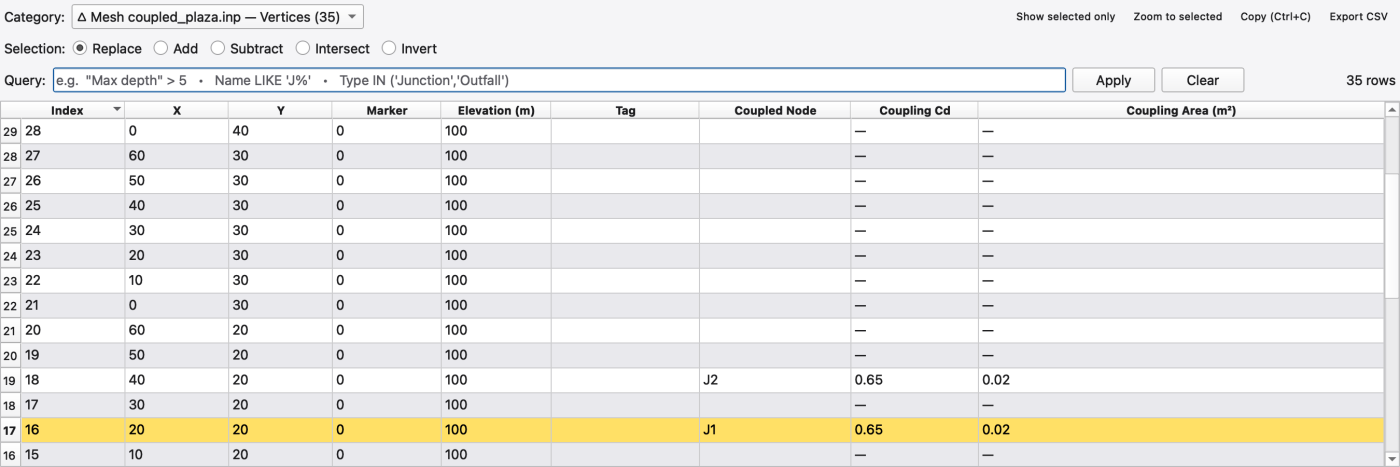
In the mesh's Symbology → Coupled Nodes tab, enable the coupled-node markers and choose a visible colour and size. Compare their locations with J1 and J2. The outfall has no surface association in this fixture.
FIGURE PLACEHOLDERdocs/manual/images/t04_coupled_nodes_style.png
Analysis → Execute (Ctrl+R). Keep the .rpt, .out and .2d.h5 beside the input. Use Analysis → Report to open the report, then select 2D Surface Routing Continuity. The checked October 2 run gives:
| Row | Volume |
|---|---|
| Rainfall Inflow | 48.000 m³ |
| 1D → 2D Spill Inflow | 138.544 m³ |
| 2D → 1D Drain Outflow | 159.313 m³ |
| Final Stored Volume | 27.231 m³ |
| Boundary inflow / outflow | 0 / 0 m³ |
| Infiltration / evaporation | 0 / 0 m³ |
The surface balance is 48 + 138.544 − 159.313 = 27.231 m³. The final output depths multiplied by cell areas independently give 27.231 m³. The report rounds the 2D continuity error to −0.000%; the ordinary 1D ledger reports 0.325%. There are 14,400 internal surface steps and 480 output frames. A successful process exit is insufficient: check these balances after every edit and investigate materially larger errors.
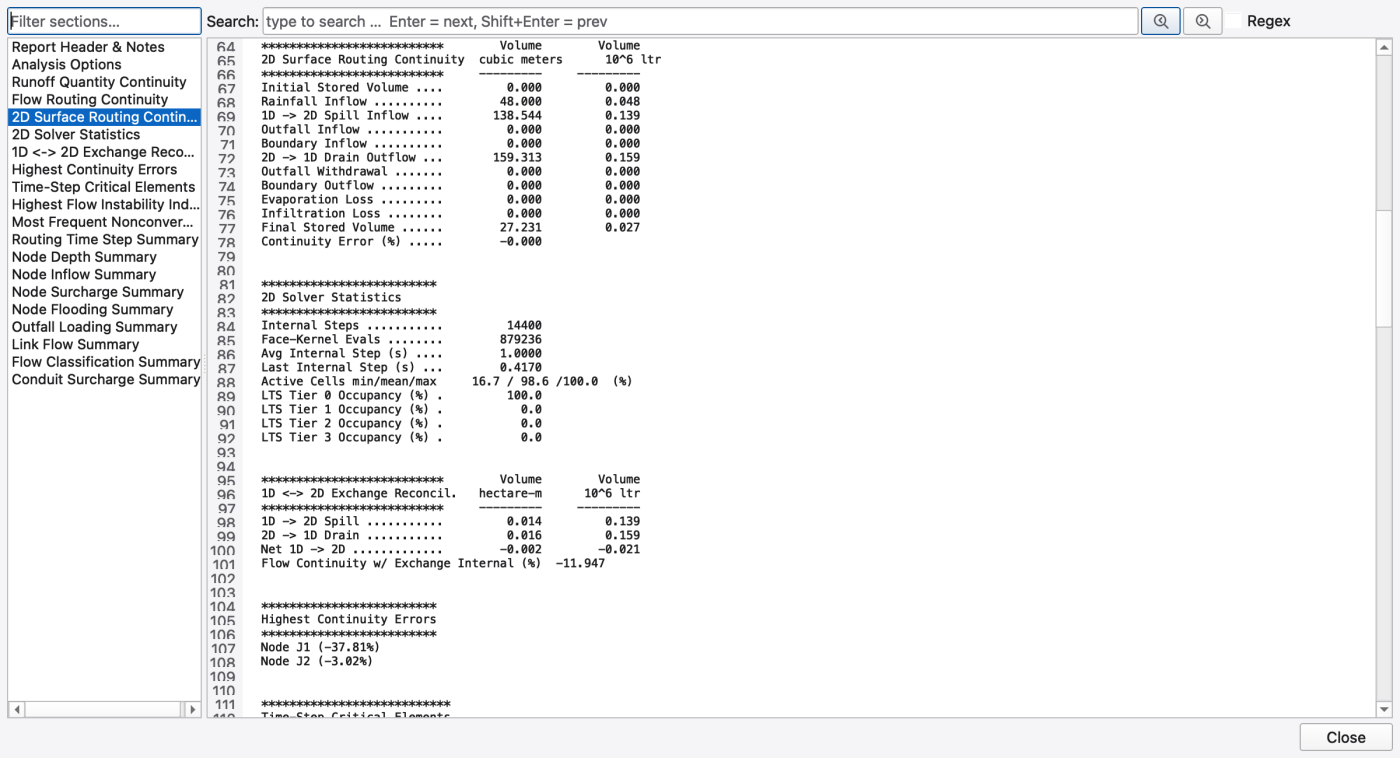
The ordinary 1D ledger counts drainback as External Inflow and routed surface spill as 2D Coupling Outflow. Do not expect the spill volume to appear as Flooding Loss. Repeated transfer means gross drainback can exceed the original rainfall volume: water can pass between the two domains more than once.
The current Flow Continuity w/ Exchange Internal (%) report calculation is unreliable for this combined rainfall/inflow case; its −11.947% value does not match the separate domain ledgers. Use the explicit surface equation and ordinary 1D continuity checks above. The report also flags individual-node continuity errors of −37.81% at J1 and −3.02% at J2. The checked exchange rows establish that both transfer directions occurred; they do not certify every node balance. Investigate those node diagnostics before using a modified model for design.
This teaching run is not a calibrated inlet-capacity or flood-risk benchmark.
Load the matching coupled_plaza.out and coupled_plaza.2d.h5 if they are not already present. Select the appropriate 1D and 2D result layers on Analysis. On Animation, choose the surface layer and Set Style → Cell Depth Fill. Use Fixed over run or a user range of 0–0.07 m. The checked maximum cell depth is about 0.0641 m at 01:00:00; final maximum depth is about 0.0116 m. All 48 cells still exceed 1 mm at the final frame.
FIGURE PLACEHOLDERdocs/manual/images/t04_animation_ponding.png
Plot J1 and J2 Head time series from the model, and surface Depth or HGL series from cells near their coupled vertices. The cell picker selects surface cells; it is separate from the node selector. Use a common time axis. Compare head with the 100 m rim and compare the surface response with the inflow pulse ending at 00:30. A node-head plot alone does not measure exchange volume; use the continuity report for that quantity.
FIGURE PLACEHOLDERdocs/manual/images/t04_comparison_1d_2d.png
Select J1 and OUT1, then Analysis → Plot Profile. In Display Options → Sources, choose the matching 1D result and 2D layer. Enable the available surface overlay and inspect the legend to distinguish pipe HGL, ground and surface water. The outfall lies outside the mesh: an overlay should stop at the mesh boundary rather than extend to the outfall.
FIGURE PLACEHOLDERdocs/manual/images/t04_profile_2d_overlay.png
Save As a project into the working folder. Keep the input and both output files with the .oswp. Close and reopen the saved project, checking both layer associations and the report. Reopen the plotting window and verify its source choices; do not assume every temporary plot setting is saved with the project.
Change one item in a copy, rerun and compare both domain ledgers:
 1.9.8
1.9.8