 |
SWMMVis
6.0.0-alpha.4
Qt6/C++ GIS-based graphical user interface for the SWMMVis engine (6.0.0-alpha.4)
|
|
SWMMVis
6.0.0-alpha.4
Qt6/C++ GIS-based graphical user interface for the SWMMVis engine (6.0.0-alpha.4)
|
Download the portable inputs: terrain_bowl.inp, terrain_bowl.asc, terrain_bowl.prj, terrain_bowl_domain.geojson.
Use the repository's synthetic terrain bowl to inspect a raster and an inline mesh, run a coupled surface/drain model, style depth, compare cell time series, and read the mass-balance report. The terrain is a teaching surface, not a surveyed site. The original Snoopy Lagoon bundle has been replaced with inputs that can be regenerated from a fresh checkout.
Copy these files from docs/manual/tutorials/models/ into a working folder:
| File | Purpose |
|---|---|
terrain_bowl.inp | Complete model, including 81 vertices, 128 triangles and the coupling map |
terrain_bowl.asc | GDAL-readable ESRI ASCII terrain grid, 240 × 240 one-metre cells |
terrain_bowl.prj | Raster coordinate-system companion; keep beside the ASCII grid |
terrain_bowl_domain.geojson | Projected square boundary for generating an alternative mesh |
The mesh covers a 200 × 200 m square. Its bed is 97 + 3 × min((x² + y²)/10000, 1) metres: the centre is 97 m and the perimeter is 100 m. Vertex 40 at (0, 0) couples to J1, with Cd 0.65 and exchange area 0.5 m². J1 has invert 96.5 m and maximum depth 0.5 m; its rim matches the centre vertex. Four 0.6 m pipes lead to free outfall OUT1 at (130, 0), invert 95.5 m. Flow units are CMS; coordinates and bed elevations are metres. The boundaries are walls. Both the model and terrain use EPSG:3857 for consistent display of this synthetic geometry near the origin; the coordinates do not identify a real site. Keep terrain_bowl.prj beside the ASCII grid.
One rain gage applies 20 mm/h directly to the mesh for an hour, then zero. There are no subcatchments, infiltration or evaporation. The four-hour run reports every 30 seconds. Do not add the same surface area as a rain-fed subcatchment: that would count its rainfall twice.
To regenerate both files, run python3 scripts/generate_manual_terrain_examples.py from the repository root. To make disposable copies and run them with a selected engine, use scripts/prepare_manual_fixtures.py --case bowl --output <new-folder> --engine <OpenSWMM-executable>.
The native settings, report, fixed-range depth map and velocity overlay have been checked against these inputs. The raster and boundary are verified to load from a saved working sidecar. Manual import, mesh generation, cell picking, playback controls and profile sequence still need an interactive walkthrough. The map capture selects a known output frame through the real timeline control.
File → Open… (Ctrl+O) → Open SWMM Model or Project → terrain_bowl.inp.
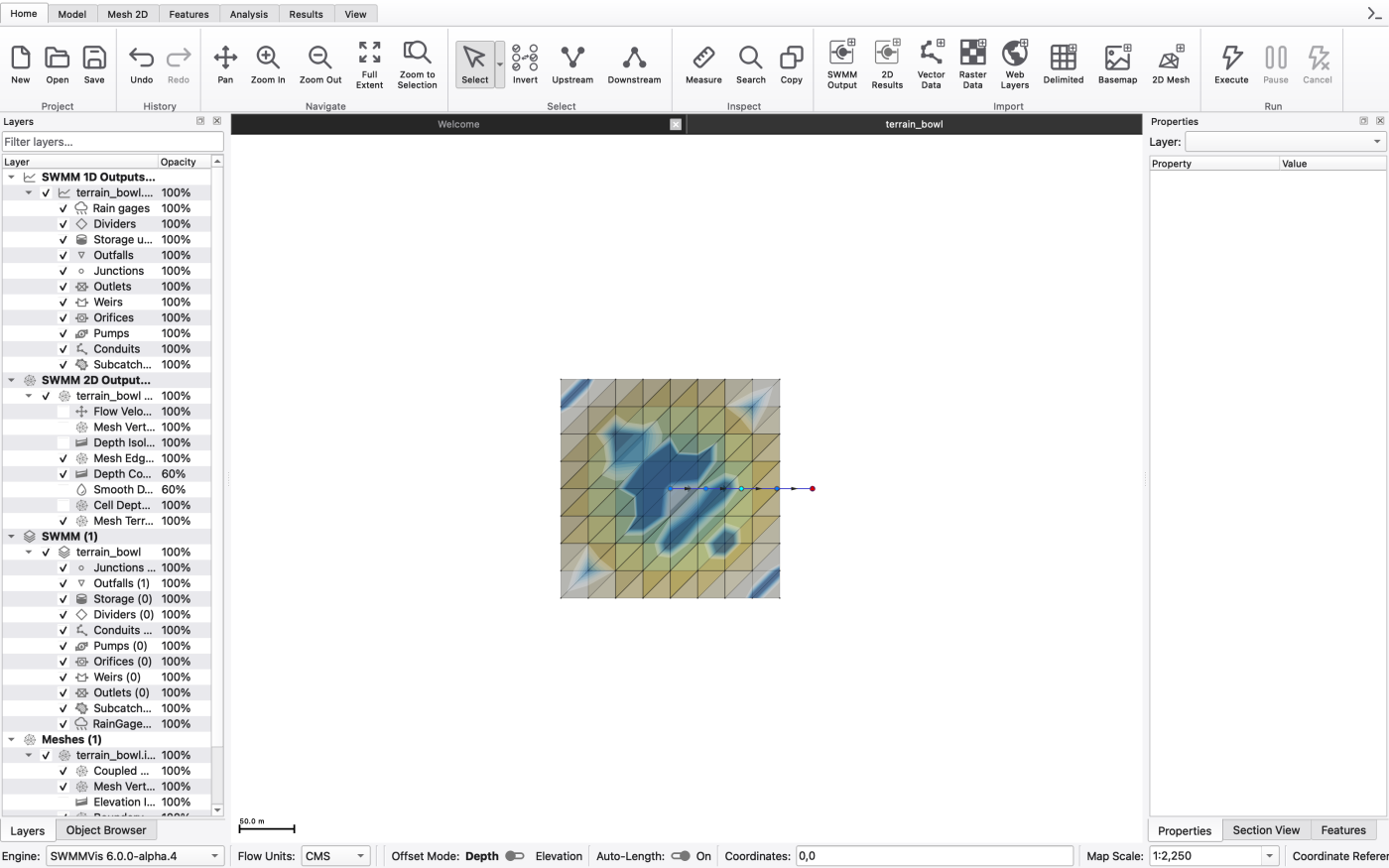
The 1D network — five nodes in a line running east from the bowl centre — draws on the canvas, and the Layers panel gains a mesh layer built from the inline vertices and triangles. Because a mesh layer is on the canvas, the contextual Mesh 2D ribbon tab appears, with the groups Mesh, Cell Data, Groundwater (2D), Vertices, Edges, 2D Results, Profile and Coupling.
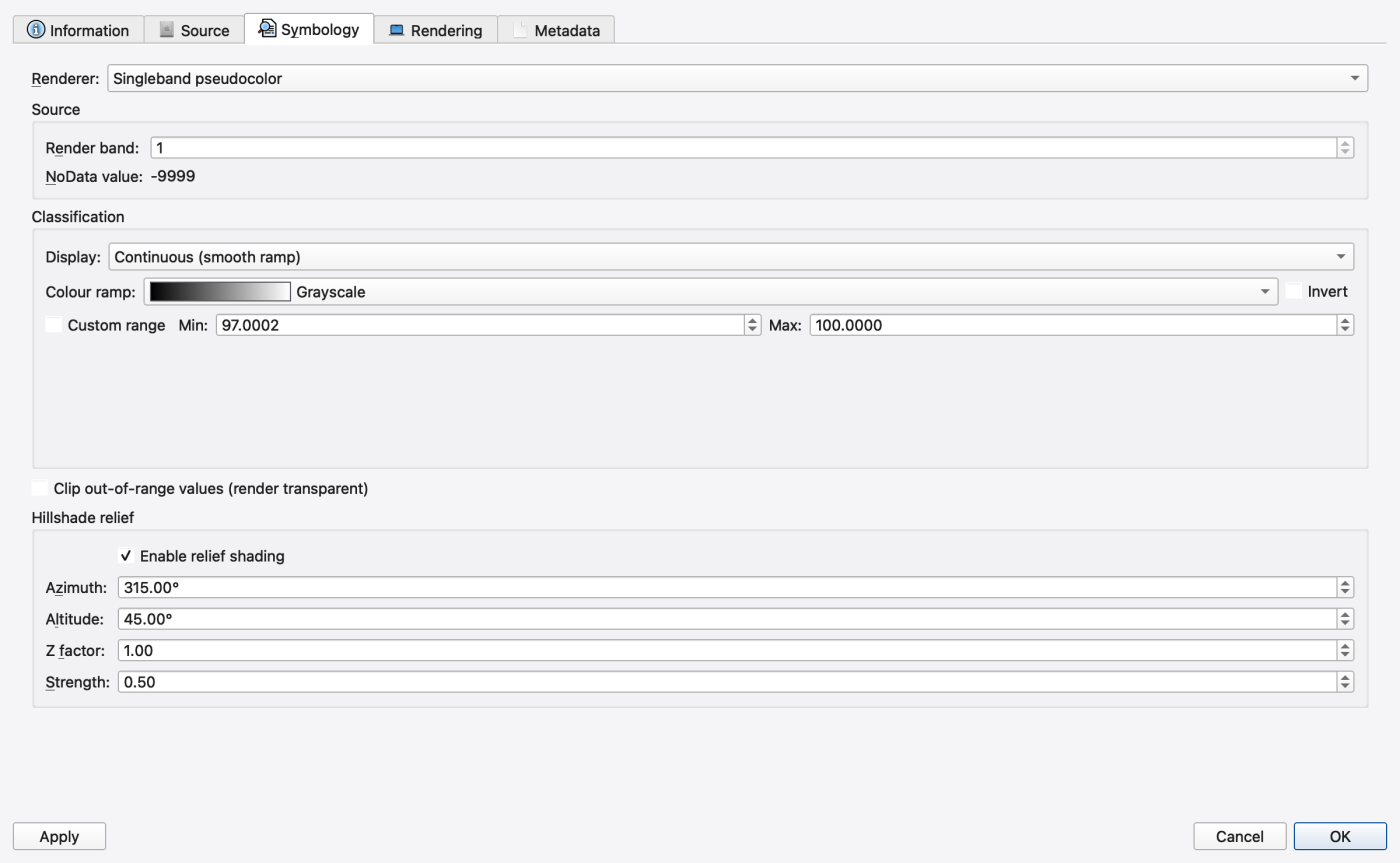
The supplied terrain_bowl.asc can be opened directly:
terrain_bowl.asc.The stretch already spans the band's own minimum and maximum (97–100 m here), so the 3 m bowl renders across the full ramp without any manual range. Pick a terrain-friendly ramp such as terrain, or switch to Classified with Quantile and press Auto-classify from data to get evenly populated elevation bands, then enable relief shading with a Z factor: of 5 or more. A 3 m bowl over 200 m is a very gentle dish; without exaggeration it looks flat.
The Terrain ribbon tab appears once a raster is loaded, with an Active Terrain group (a combo listing (none) and every raster), a Vertical Units group (DEM: in m (metres) or ft (feet), plus a × factor) and an Invert Offsets group.
Select the mesh layer and open its Symbology tab (or use the Layer Styling dock, Ctrl+Alt+8). The mesh style panel has seven tabs:
| Tab | What it draws |
|---|---|
| Terrain Fill | flat-shaded cells coloured by a cell attribute |
| Elevation Bands | filled elevation bands, optionally interpolated with marching triangles |
| Elevation Isolines | contour lines with Line count:, Line colour:, Line width: and Show elevation labels |
| Mesh Edges | the wireframe — Colour:, Width:, Stroke style:, Show edges at: (px/cell) and a Slope emphasis group that widens steep edges |
| Mesh Vertices | vertex markers — Colour:, Marker size:, outline and Show vertices at: |
| Boundary Conditions | per-BC-type colour and width; types absent from the mesh are marked *(none in mesh)* |
| Coupled Nodes | the mesh vertices coupled to 1D nodes — Colour: and Marker size: |
On Terrain Fill, set Attribute: to Bed elevation and let the Classification block do the work: Display: (Continuous (smooth ramp) or Classified (discrete bands)), Colour ramp: with Invert, Method: (Equal interval, Quantile, Natural breaks (Jenks), Standard deviation, Logarithmic, Exponential or Manual), Classes: and Range:. Press Auto-classify from data. The Hillshade (sun lighting) group beneath it has Azimuth (light from):, Altitude (sun angle):, Vertical exaggeration: and Shadow floor: — again, exaggerate.
The Attribute: combo also lists every cell parameter: Manning's n, Initial Depth, Infiltration Method and the infiltration parameters. Colour by Manning's n to confirm the whole bowl is 0.035.
Turn on Coupled Nodes to see the single coupled vertex at the bowl centre.
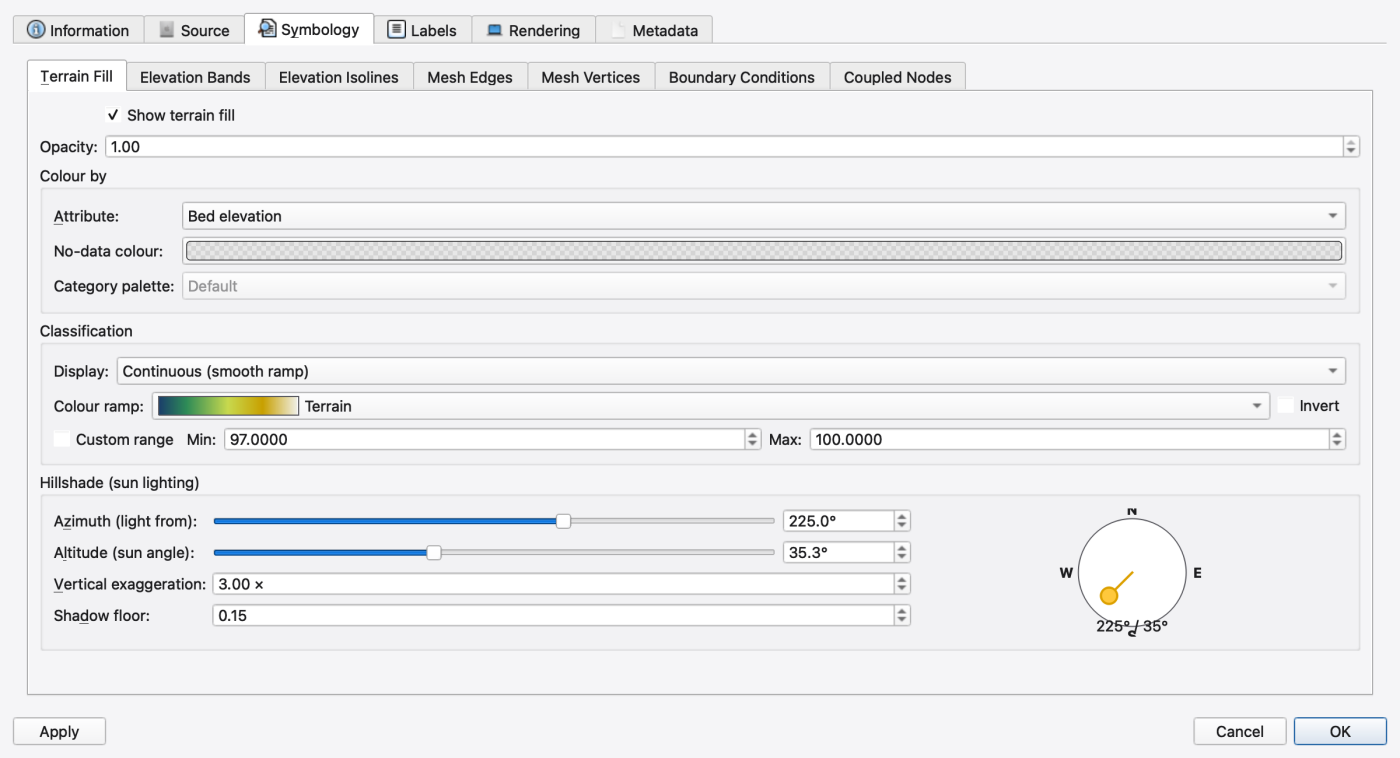
FIGURE PLACEHOLDERdocs/manual/images/t03_mesh_elevation.png
Open the Attribute Table dock (Ctrl+Alt+4). Its Category: combo now carries three mesh entries in the form △ Mesh <name> — Vertices (81), △ Mesh <name> — Edges (n) and △ Mesh <name> — Cells (128). A layer-tree right-click on the mesh has Open Attribute Table, which jumps straight to Vertices.
| Table | Columns |
|---|---|
| Vertices | Index, X, Y, Marker, Elevation, Tag, Coupled Node, Coupling Cd, Coupling Area |
| Edges | Edge, Boundary, Length (map units), Conveyance, Stage, Bed Slope, Flow, Time Series, Rating Curve, Group |
| Cells | Index, Area (map units²), Centroid X, Centroid Y, Tag, then one column per cell parameter — Manning's n, Initial Depth, Infiltration Method and the rest |
Sort Vertices by Elevation. The lowest vertex is index 40 at (0, 0), z = 97 m, coupled to J1. The vertices form a regular 9 × 9 grid at 25 m spacing; each square is split into two triangles.
The toolbar has Show selected only, Zoom to selected, Copy (Ctrl+C), Export CSV…, a Selection: mode group (Replace, Add, Subtract, Intersect, Invert) and a Query: box with Apply and Clear. The right-click menu on mesh rows can push one value to every selected row — Apply "<col>" value to N selected rows…
FIGURE PLACEHOLDERdocs/manual/images/t03_mesh_attribute_table.png
You do not need to do this to finish the tutorial — the mesh already exists — but it is worth walking the dialog once with the DTM loaded.
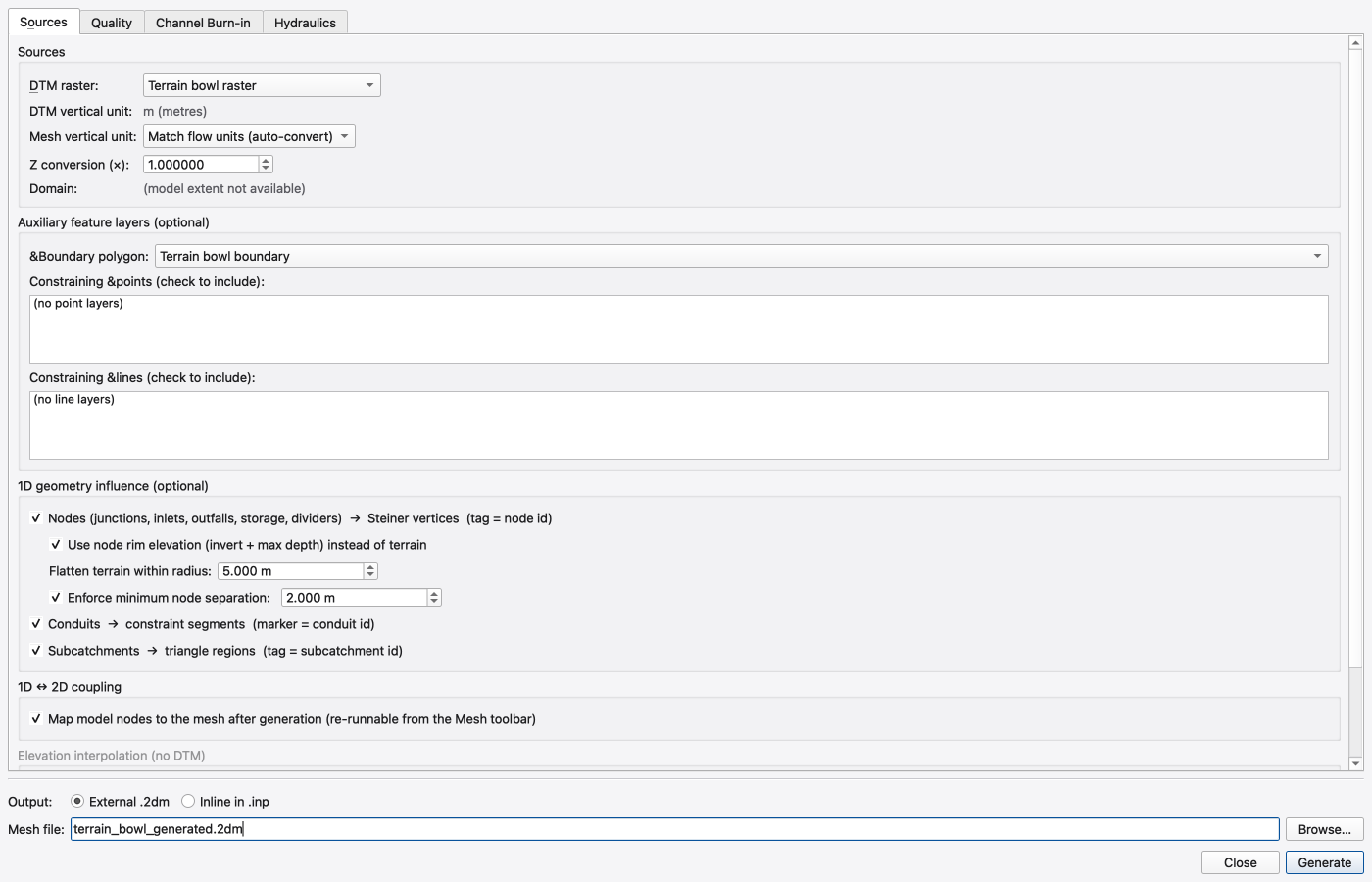
Model → Generate Mesh… (ribbon Model → Mesh 2D → Generate Mesh, or Mesh 2D → Mesh) opens Generate 2D Mesh, with tabs Sources, Quality and Hydraulics over a permanent footer.
On Sources:
| Control | Note |
|---|---|
| DTM raster: | (none — use junction rim elevations) or any loaded raster — pick terrain_bowl.asc |
| DTM vertical unit: | read-only, derived from the raster |
| Mesh vertical unit: | Match flow units (auto-convert), Metres (m) or Feet (ft) |
| Z conversion (×): | a manual scale on top of that |
| Domain: | read-only — always the model extent |
| Boundary polygon: | (none), Use SWMM subcatchment polygons, or any loaded polygon layer |
| Constraining points / lines | checkable lists of point and line layers, each with a use Z option |
| Junctions / outfalls / storage → Steiner vertices | forces mesh vertices at the nodes when generating an alternative mesh |
| Conduits → constraint segments, Subcatchments → triangle regions | the 1D-geometry influence group |
| Map model nodes to the mesh after generation | the 1D ↔ 2D coupling checkbox |
| Method: | Inverse distance weighting (IDW) or Natural neighbour, used only when there is no DTM |
The existing mesh is already inline in the input. To generate an alternative, import terrain_bowl_domain.geojson with Home → Import → Vector Data, then choose Terrain bowl boundary in the boundary combo (the imported layer name may differ until renamed). The polygon spans (-100, -100) to (100, 100). You can also create the same polygon with the Features ribbon. The generator will produce a different triangulation; do not expect its indices or numerical result to match the supplied grid.
Quality carries Max triangle area:, Min angle:, Size gradation:, Max Steiner points: and the Minimum Cell Size group (with a Suggest button); Hydraulics sets the Initial cell values (Roughness (Manning's n): = 0.035 here, Initial depth:) and a region-defaults table.
The footer chooses Output: — External .2dm (what an external-mesh alternative uses) or Inline in .inp — with a Mesh file: path, then Generate.
After generation, the Mesh 2D → Coupling group's Auto-couple button couples mesh vertices to coincident SWMM nodes, and Remap 1D↔2D clears and rebuilds every coupling — vertex-coupling nodes that sit on a vertex and cell-coupling the rest. To set the coupling by hand, activate the vertex tool in Mesh 2D → Vertices, click the vertex, and fill the Coupled SWMM node combo, the Cd: spin (0.001–1.0, default 0.65) and the Area: spin — they write the [2D_VERTEX_NODE_MAP] CD and AREA columns and only appear once the vertex is coupled.
Model → Simulation Options…. On Models / Processes → Modules, the Modules group has a 2D Surface Routing checkbox; the 2D Surface Routing category in the left-hand list is greyed until it is ticked.
This input already contains the mesh and [2D_OPTIONS]; no external .2dm selection is required. The Mesh page is useful when choosing an external mesh for a different model. Leave this tutorial's inline mesh unchanged.
The 2D Surface Routing page maps one-to-one onto [2D_OPTIONS]. Its five tabs are Hydrodynamics, Wetting & Drying, Coupling, Processes and Performance & Output; the groups below sit on them in that order:
| Group | Control | [2D_OPTIONS] key |
|---|---|---|
| Time stepping | Max timestep: (s) | MAX_TIMESTEP |
| Explicit marcher | Momentum θ: | THETA |
| CFL number: | CFL_NUMBER | |
| LTS tiers: | LTS_TIERS | |
| Movement threshold: (m) | H_MOVE | |
| Max Froude number: | FROUDE_MAX | |
| Convective momentum flux (ADVECTION) | ADVECTION | |
| Performance | Backend: — Auto / CPU (built-in marcher) / OpenMP (Kokkos) / CUDA / HIP / SYCL | BACKEND |
| Mesh | Dry depth threshold: (m) | DRY_DEPTH |
| Limiter epsilon: | LIMITER_EPSILON | |
| Flux head epsilon: (m) | FLUX_DH_EPS | |
| Cell closure | Cell closure: — Flat (η = z̄ + V/A, legacy) or VFR (planar-bed volume/free-surface) | CELL_CLOSURE |
| Face reconstruction: — Mean (upwind cell depth, legacy) or VFR face (edge depth + wetting gate) | FACE_RECONSTRUCTION | |
| VFR min wet fraction: | VFR_MIN_WET_FRAC | |
| 1D ↔ 2D coupling | Coupling Cd: | COUPLING_CD |
| Exchange interval: (s — Every routing step at 0) | COUPLING_SYNC | |
| Derive exchange areas automatically (COUPLING_AREA AUTO) | COUPLING_AREA | |
| Rainfall | Rainfall mode: — Natural neighbour (all gages), System (uniform gage mean) or None (no direct rainfall) | RAINFALL_MODE |
| Output | Write 2D results to output (REPORT_2D) | REPORT_2D |
| 2D results file: with Browse… | OUTPUT_FILE |
Rainfall mode: is the control that matters most for this demo. terrain_bowl.inp has no subcatchments — RAIN feeds nothing in 1D. The bowl fills only because rain falls directly on the mesh, which is what RAINFALL_MODE decides. With None (no direct rainfall) nothing happens at all.
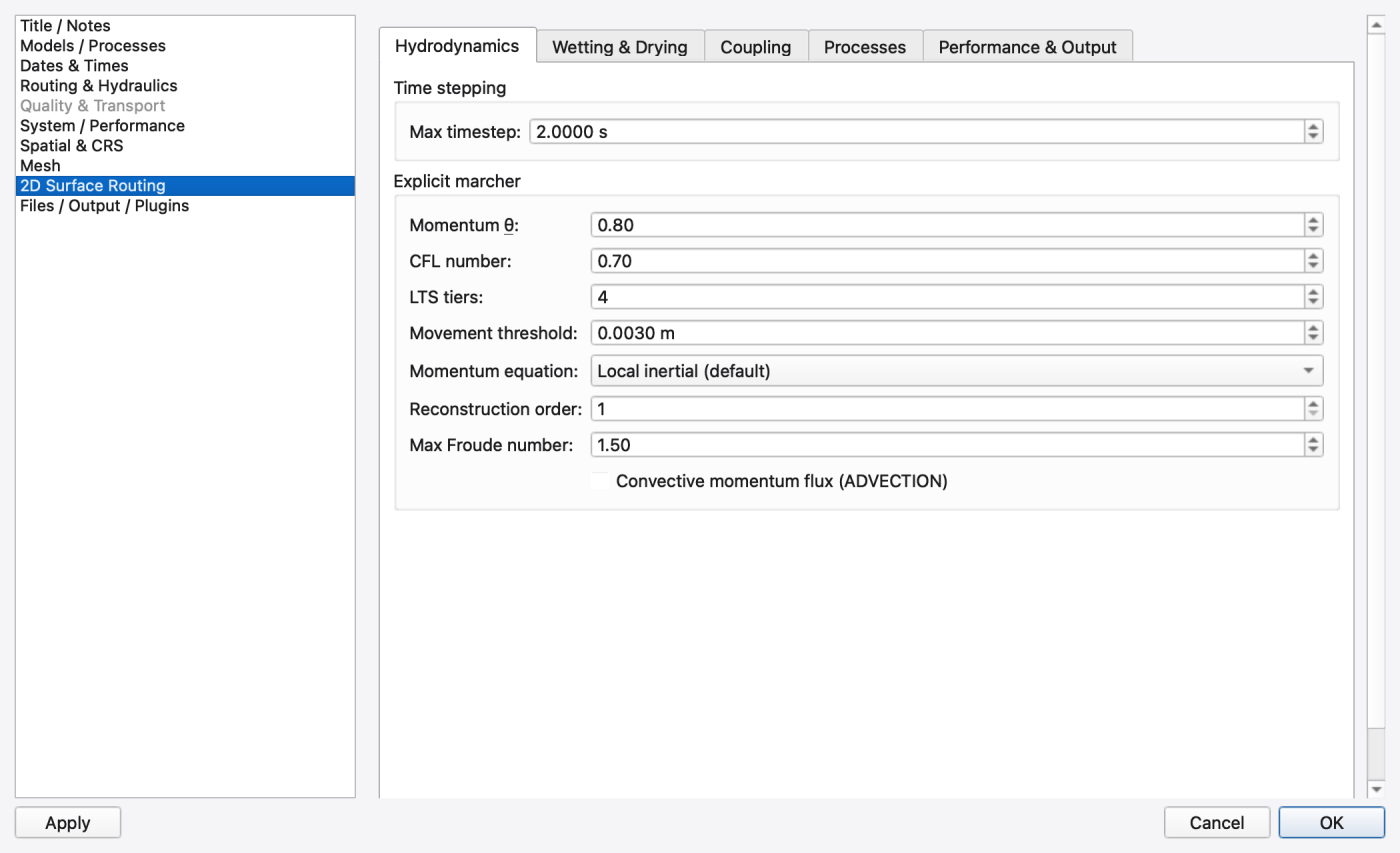
Analysis → Execute (Ctrl+R) runs the model. Confirm 2D Surface Routing is enabled and Performance & Output → Write 2D results is checked. The input sets OUTPUT_FILE terrain_bowl.2d.h5. Keep the .inp, .rpt, .out and .2d.h5 together. The checked run contains 480 frames on 128 cells, from 00:00:30 to 04:00:00.
To reload the surface results, use Home → Import → 2D Results and choose terrain_bowl.2d.h5 in Add 2D Results. Import results from this same geometry; matching filenames alone does not establish compatibility.
FIGURE PLACEHOLDERdocs/manual/images/t03_add_2d_results.png
Everything below is on the Animation ribbon tab.
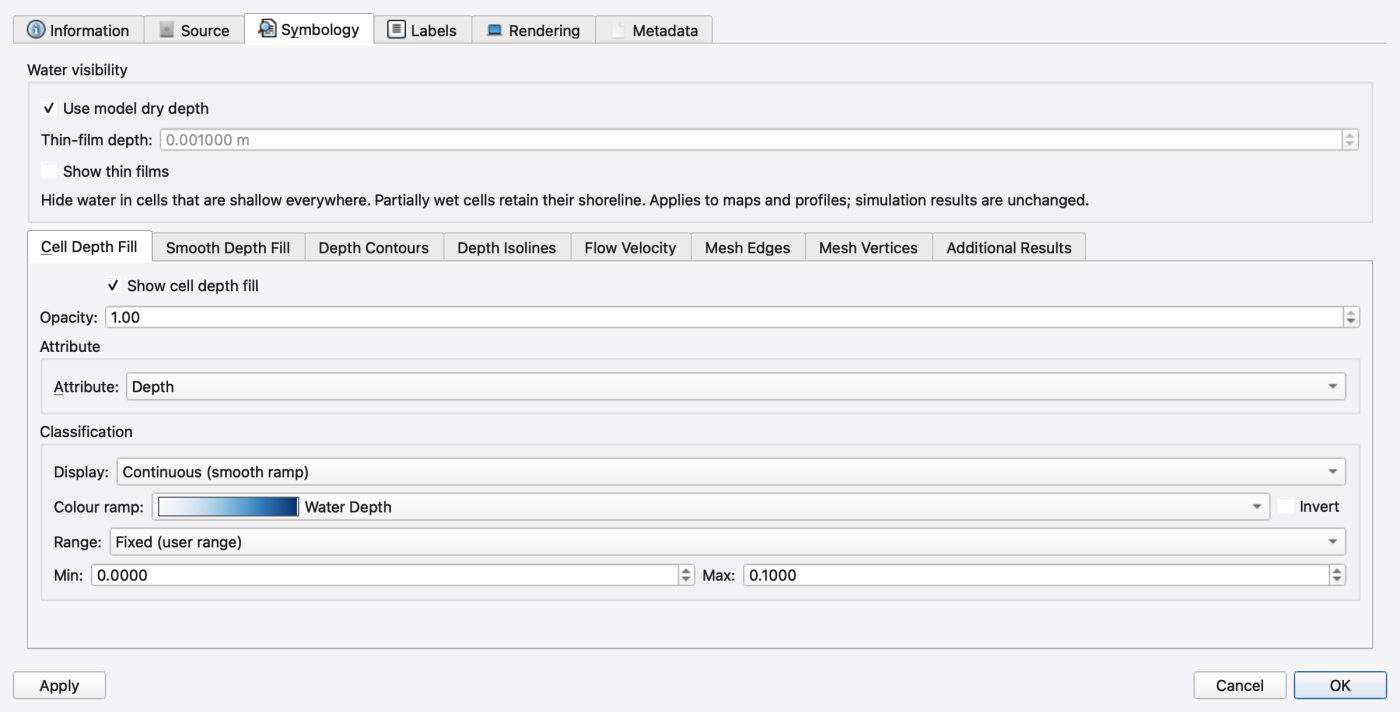
MM/dd/yyyy hh:mm box, choose a Speed: (0.25× … 8×) and leave Cycle ticked..h5 they are irrelevant.Rain wets the entire mesh, then gravity moves water toward the centre drain. The checked run reaches its largest cell depth, about 0.0956 m, at 00:56:30. The native date display uses this machine's local timezone: the capture shows 12/31/2023 19:56 for 01/01/2024 00:56 UTC model time. Compare output frame indices and report times when checking the same state on another machine. After four hours, 77 cells still exceed 1 mm depth. Flat-cell closure leaves thin films on the sloping bed; do not interpret every coloured cell as a continuous, level pool.
On the Flow Velocity tab, tick Show velocity vectors to overlay arrows, sized by Length scaling: (Linear, Square root or Logarithmic), Scale: (px per m/s), Min length:, Max length:, Head size: and Shaft width:, coloured by magnitude or a single colour, and thinned with Spacing: and Dry depth cutoff: — the vector cutoff suppresses arrows below the depth you set. The shared Water visibility controls above the tabs separately control model dry depth and thin-film visibility without changing the computed results. For this shallow dataset set it to a millimetre or less or you will see no arrows at all.
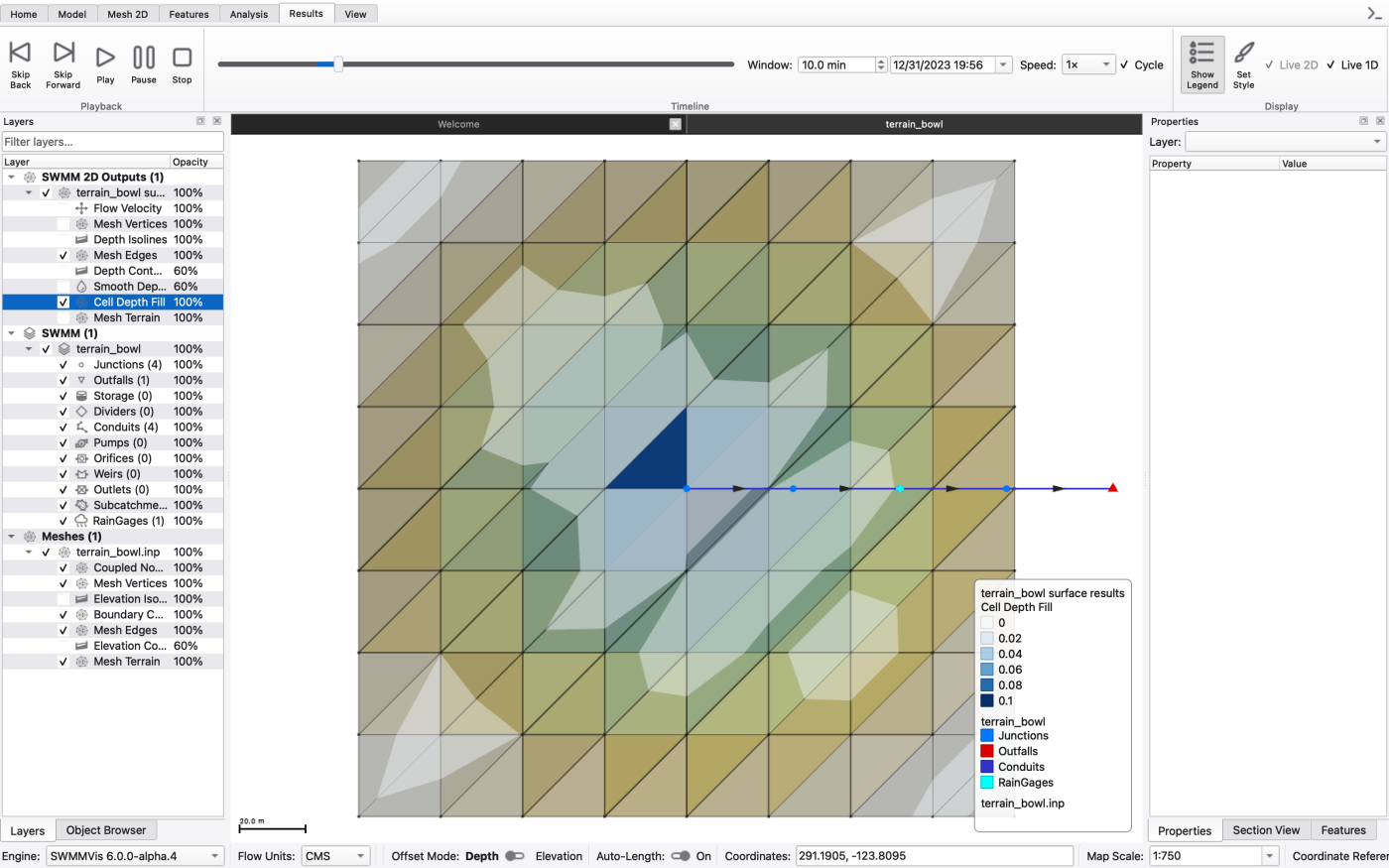
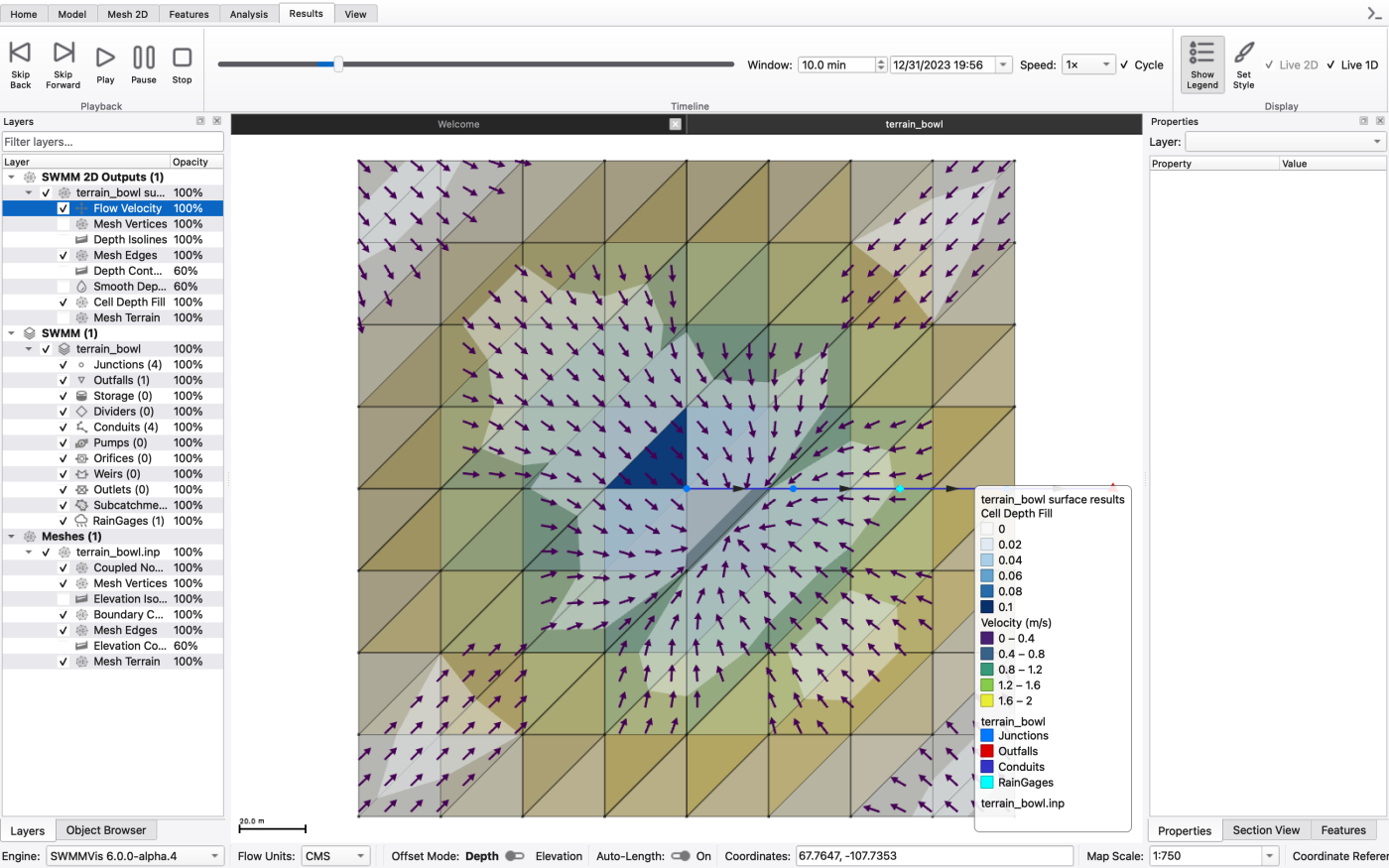
Activate the cell picker in Mesh 2D → 2D Results (an icon-only tool). Its tooltip explains the modifiers: Single-click selects and highlights a cell (Shift = add, Ctrl = toggle); drag a box or press L to lasso multiple. Right-click a selection to plot its depth / HGL / velocity time series. Esc clears. The toolbar readout beside it reads Cell: (none), then Cell number or Cells: N selected.
Click the cell at the bowl centre and right-click it. The attribute menu offers Depth (2D cell) (m), HGL (2D cell) (m), **|V| (2D cell) (m/s)**, Vx (2D cell) (m/s), Vy (2D cell) (m/s), Rainfall (2D cell), Rainfall volume (2D cell) (m³), and finally All attributes. Entries the results file cannot supply are disabled with a tooltip.
The series opens in the Comparison Plot, the same window the 1D time series use — there is no separate cell-time-series window. Pick a rim cell and a centre cell and plot both depths together: compare their timing and residual depths rather than assuming a particular wetting order. Both receive the same direct rainfall.
FIGURE PLACEHOLDERdocs/manual/images/t03_cell_timeseries.png
Analysis → Plot 2D Profile arms the polyline tool: Click to add vertices — double-click or Enter to finish — right-click to undo — Esc to cancel. Draw a line straight across the bowl through the centre, west to east.
The 2D Mesh Profile window draws the terrain plus the active 2D results layer's animated water depth and its maximum-depth envelope. The legend rows are Ground, Depth (current), Water surface and Max depth; the axes are Distance and Elevation. Its toolbar carries Select, Zoom In, Zoom Out, Fit, Pan, Cell boundaries (dots where the line crosses mesh-cell edges), Move marker on map (drag the position arrow along the profile on the canvas) and Display Options…, which opens Profile Display Options with toggles for the depth fill, the water-surface line, the maximum envelope fill and line, cell boundaries, pens and brushes, legend and timestamp.
Press Play on the Animation tab and watch the water surface rise and fall along the section.
The Mesh 2D → Profile tool is the terrain-only twin of this: it plots bed elevation along a polyline without the results overlay. Model → Terrain Profile does the same for a raster, in the Terrain Profile window.
FIGURE PLACEHOLDERdocs/manual/images/t03_2d_profile.png
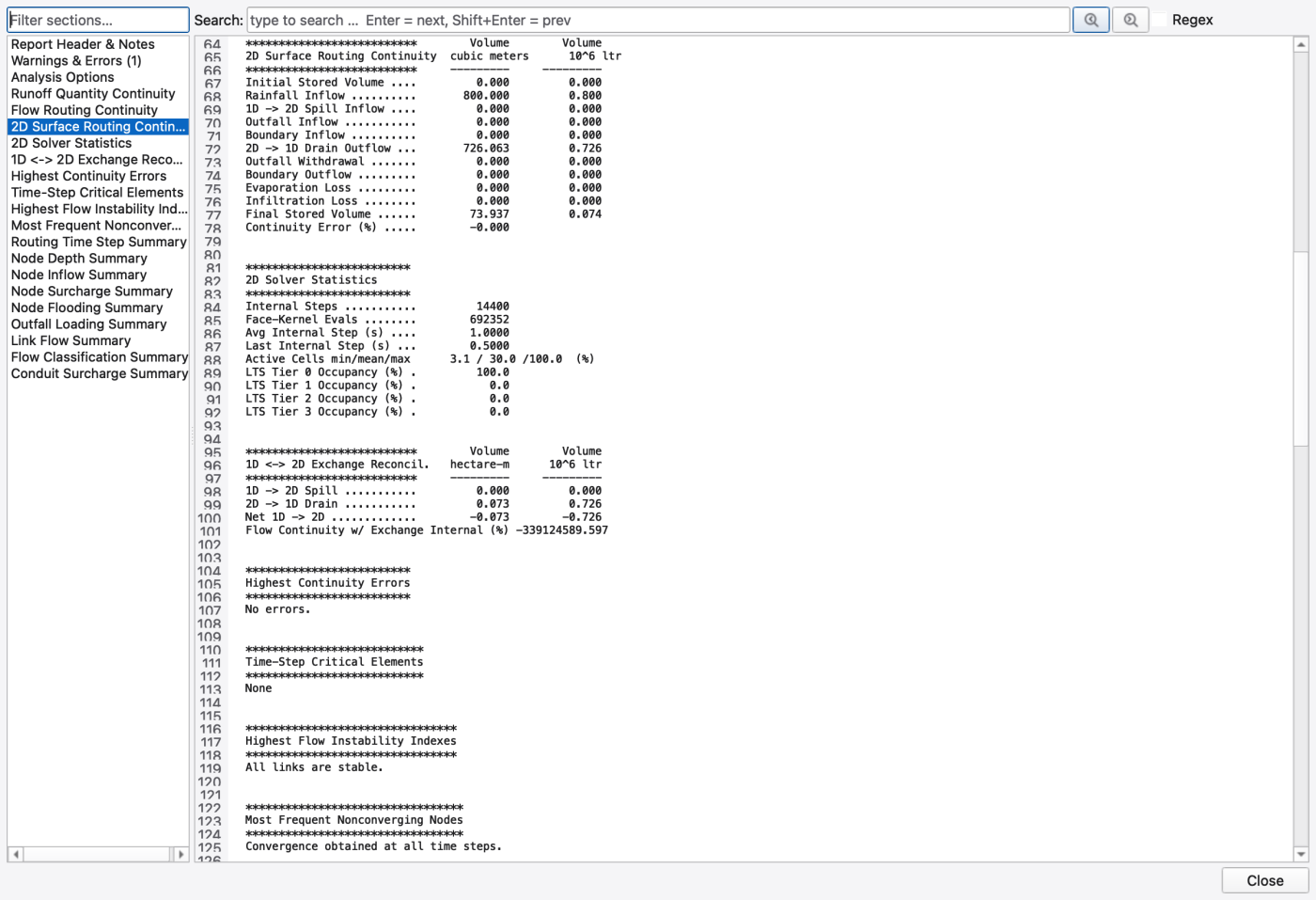
Analysis → Show Mass Balance — like Analysis → Report — opens the Report Viewer on the run's .rpt. There is no separate mass-balance dialog; the ledger is the engine's own text, and the viewer's left pane navigates to it.
A 2D run adds these blocks to the ordinary 1D ones:
| Section | Rows |
|---|---|
2D Surface Routing Continuity | Initial Stored Volume, Rainfall Inflow, 1D -> 2D Spill Inflow, Outfall Inflow, Boundary Inflow, 2D -> 1D Drain Outflow, Outfall Withdrawal, Boundary Outflow, Evaporation Loss, Infiltration Loss, Final Stored Volume, Continuity Error (%) |
2D Solver Statistics | Internal Steps, Face-Kernel Evals, Avg Internal Step (s), Last Internal Step (s), active-cell percentages and per-tier LTS occupancy |
1D <-> 2D Exchange Reconcil. | 1D -> 2D Spill, 2D -> 1D Drain, Net 1D -> 2D, and Flow Continuity w/ Exchange Internal (%) |
The checked October 2 run gives:
| Check | Reference value |
|---|---|
| Rainfall inflow | 800.000 m³ |
| Drain from 2D to 1D | 726.063 m³ |
| Final surface storage | 73.937 m³ |
| 2D continuity error | −0.000% at report precision |
| Ordinary 1D continuity error | 0.002% |
| Internal 2D steps | 14,400 |
800 − 726.063 = 73.937 closes the surface ledger. The output depth times cell area independently gives about 73.937 m³ at the final frame. The report also warns that the exchange area exceeds the largest connected pipe area; this is a deliberately generous central drain, not a calibrated inlet.
The current report's Flow Continuity w/ Exchange Internal (%) is unreliable for this rain-fed surface case: it produces a very large negative percentage. Use the ordinary 1D ledger and the explicit 2D volume equation above; do not quote that reconciliation percentage as the combined system's conservation.
.2d.h5 is the record. The 1D .out knows nothing about surface depth; if you close the project and reopen it, Add 2D Results… is how you get the animation back.Cycle Simulation Options → 2D Surface Routing → Processes → Rainfall mode: through its three values and re-run:
Rainfall Inflow goes to zero. Use it to confirm that the storm really is arriving through the mesh and not through a subcatchment.Regenerate the mesh with a tighter Max triangle area: or a smaller Minimum cell size: on the Quality tab of Generate 2D Mesh. Finer cells change the terrain approximation and computation cost; peak depth may increase or decrease. Compare the same cell location's depth series across the two runs in one Comparison Plot.
Simulation Options → 2D Surface Routing → Hydrodynamics → CFL number: governs the explicit marcher's stability. Try 0.5 and 0.3 and compare runtime, depths and continuity. A smaller CFL number does not guarantee a smaller mass-balance error. 2D Solver Statistics in the report tells you what it cost — Internal Steps and Avg Internal Step (s).
Related knobs on the same page: Max timestep:, Movement threshold: (H_MOVE), Max Froude number: and Dry depth threshold:. The Cell closure group's VFR (planar-bed volume/free-surface) option is the one to try when a shallow, gently sloping surface like this bowl wets and dries unrealistically at the margins.
 1.9.8
1.9.8