 |
SWMMVis
6.0.0-alpha.4
Qt6/C++ GIS-based graphical user interface for the SWMMVis engine (6.0.0-alpha.4)
|
|
SWMMVis
6.0.0-alpha.4
Qt6/C++ GIS-based graphical user interface for the SWMMVis engine (6.0.0-alpha.4)
|
Set everything the engine needs to run the active model: the process models it uses, the simulation window and time steps, the routing solver and its tolerances, the transport engine, threading, the project CRS, which 2D mesh is active, the 2D marcher, and the secondary files, report contents and plugins. Almost every control on this dialog maps to one [OPTIONS] key (or one [2D_OPTIONS], [REPORT], [FILES], [EVENTS] or [PLUGINS] entry) in the .inp file.
Model → Simulation Options…, or Simulation Options on the ribbon Model tab. No default shortcut. The dialog needs an open project.
The layout is a category list down the left and one page per category on the right. Five of those pages carry inner tabs that group their controls by what they apply to, so no page is a single long scrolling column:
| Page | Tabs |
|---|---|
| Models / Processes | Domains & Processes / Modules / Flags |
| Dates & Times | Simulation Window / Time Steps / Events |
| Routing & Hydraulics | Routing / Dynamic Wave / Finite Volume / Unsteady Friction |
| Quality & Transport | General / Eulerian ARD / Lagrangian (LARD) / Reserved Species |
| 2D Surface Routing | Hydrodynamics / Wetting & Drying / Coupling / Processes / Performance & Output |
Tabs and sidebar rows are activated contextually: a tab that does not apply to the current selection greys out rather than disappearing, and its tooltip says why ("Applies to Dynamic Wave routing only"). Nothing is hidden, so you can always see what a setting would look like before you switch to it. Switching a selector while you are looking at the tab it just disabled moves you to the nearest usable tab instead of leaving you on a dead one.
Two selectors sit in a page header above the tab bar rather than inside a tab, because each one gates tabs below it: Flow routing on Routing & Hydraulics and Solver on Quality & Transport.
The categories, in order:
The dialog re-reads every key from the active project's engine each time it opens, so the controls always reflect the current model rather than a snapshot. Options the running engine does not support are disabled with a tooltip saying why — a legacy SWMM 5.x engine, or a 6.x build that predates a given solver.
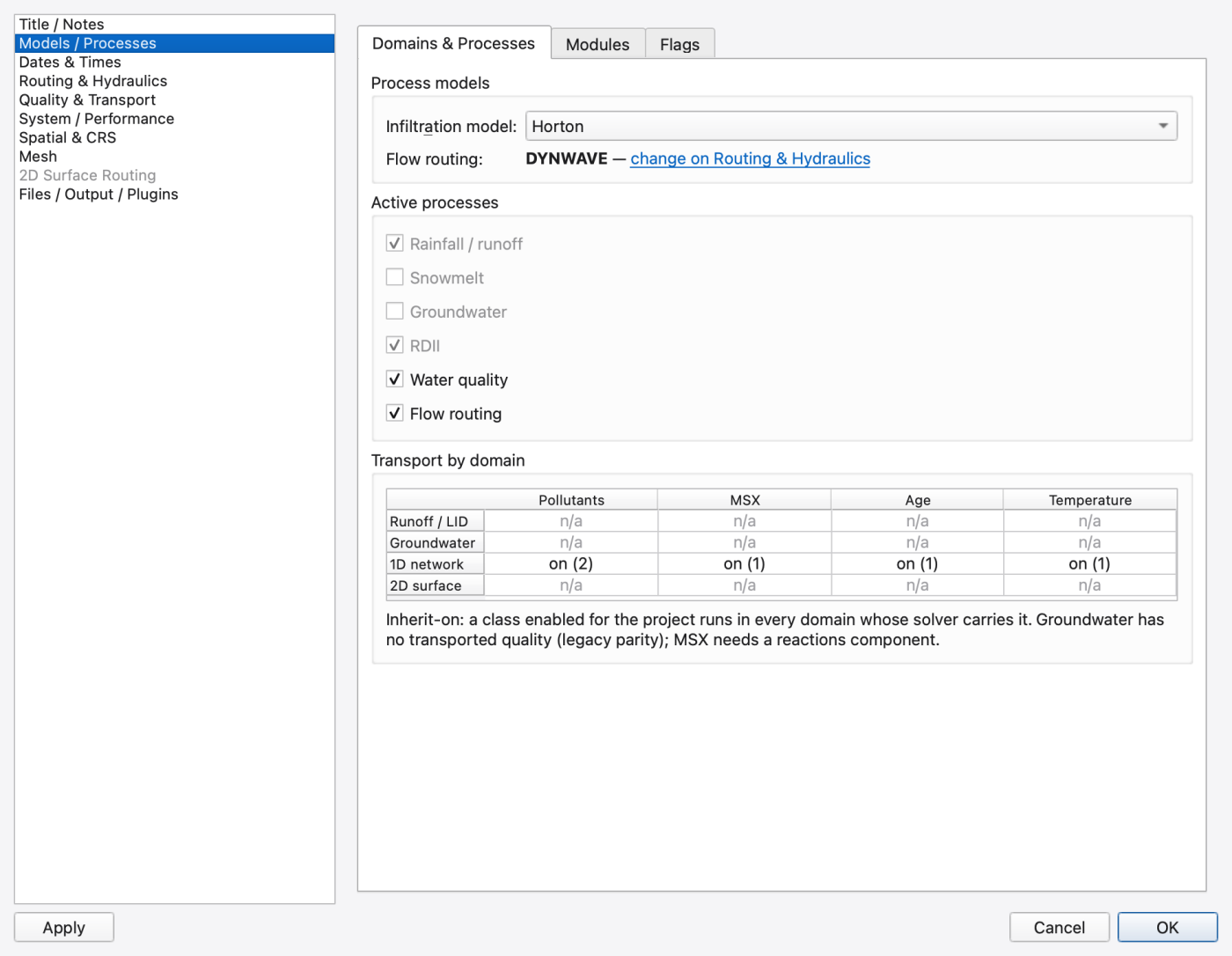
A rich-text editor for the model's [TITLE] section, with a small toolbar: Bold (Ctrl+B), Italic (Ctrl+I), Underline (Ctrl+U), Bulleted list and Numbered list. When the dialog was opened from a project window the formatted text is kept in the project's .oswp sidecar; the plain text always round-trips through the engine into [TITLE].
Three tabs: Domains & Processes, Modules and Flags.
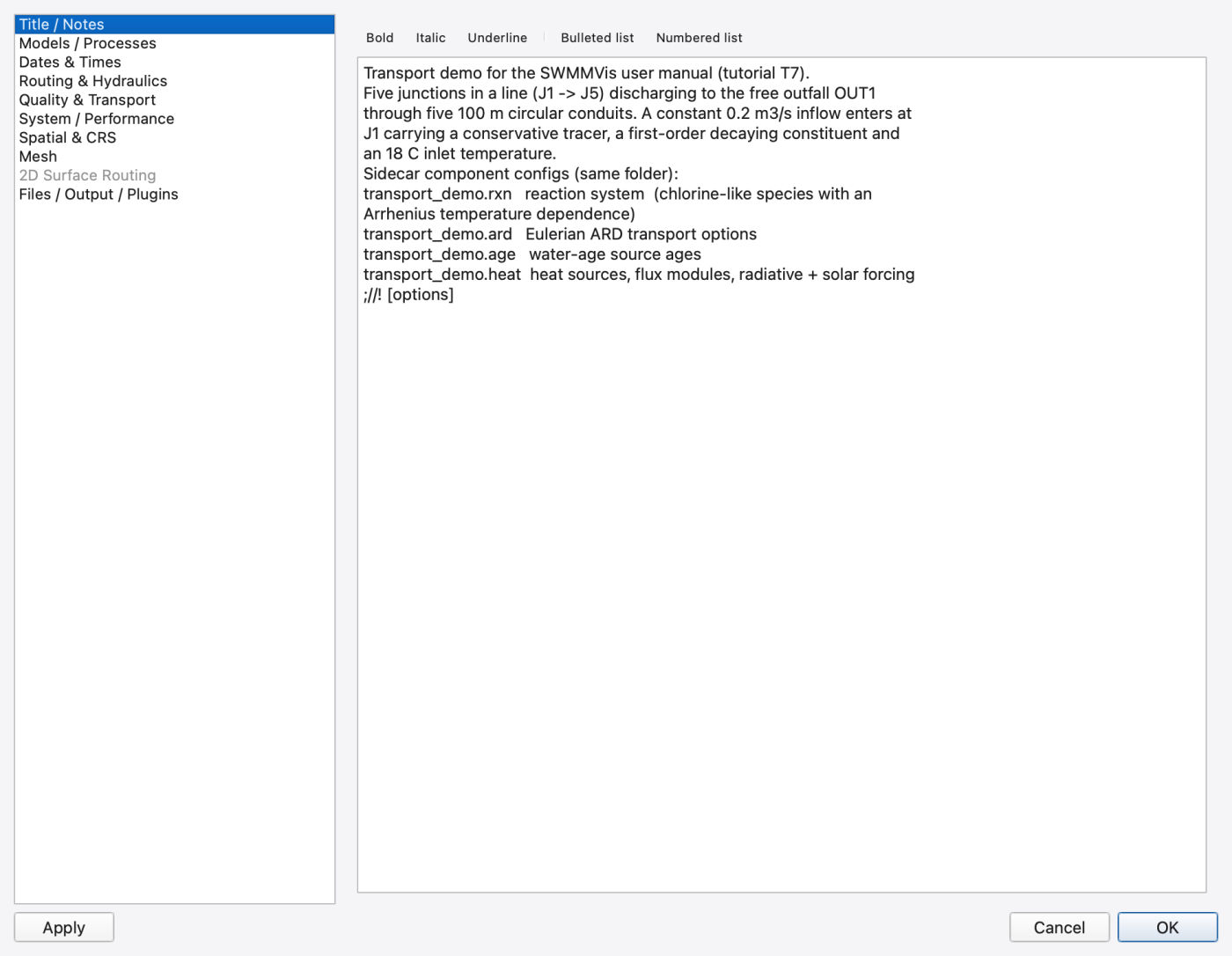
Process models
| Control | Options | Writes |
|---|---|---|
| Infiltration model | Horton / Modified Horton / Green-Ampt / Modified Green-Ampt / Curve Number | INFILTRATION |
| Flow routing | Read-only mirror of the selector on Routing & Hydraulics | — |
Flow routing used to be edited here. It now lives in the Routing & Hydraulics page header, because it gates three of that page's four tabs and could neither sit inside one of them nor stay two sidebar rows away. What remains here is a one-line read-only mirror — "**Dynamic Wave** — change on Routing & Hydraulics" — whose link jumps to that row. One key, one editor.
Active processes — six check boxes whose sense is inverted relative to the .inp: checked means the process runs, and unchecking writes the legacy IGNORE_* key as YES.
| Check box | Writes when unchecked |
|---|---|
| Rainfall / runoff | IGNORE_RAINFALL YES |
| Snowmelt | IGNORE_SNOWMELT YES |
| Groundwater | IGNORE_GROUNDWATER YES |
| RDII | IGNORE_RDII YES |
| Water quality | IGNORE_QUALITY YES |
| Flow routing | IGNORE_ROUTING YES |
| Check box | What it does |
|---|---|
| 1D Hydraulics (always on) | Always checked and disabled — the SWMM core cannot be turned off |
| 2D Surface Routing | A project-level flag stored with the project. When on, the Mesh and 2D Surface Routing pages become interactive; when off the 2D sidebar row is greyed out |
The engine itself activates its 2D solver from the presence of mesh sections in the deck, not from this flag; a model that already carries [2D_OPTIONS], [2D_VERTICES], [2D_TRIANGLES] or [2D_MESH_FILE] opens with the box already checked. In a build without the 2D module the flag still toggles the Mesh page — mesh generation works regardless — but the coupled run does not.
| Check box | Writes |
|---|---|
| Allow ponding at nodes (ALLOW_PONDING) | ALLOW_PONDING |
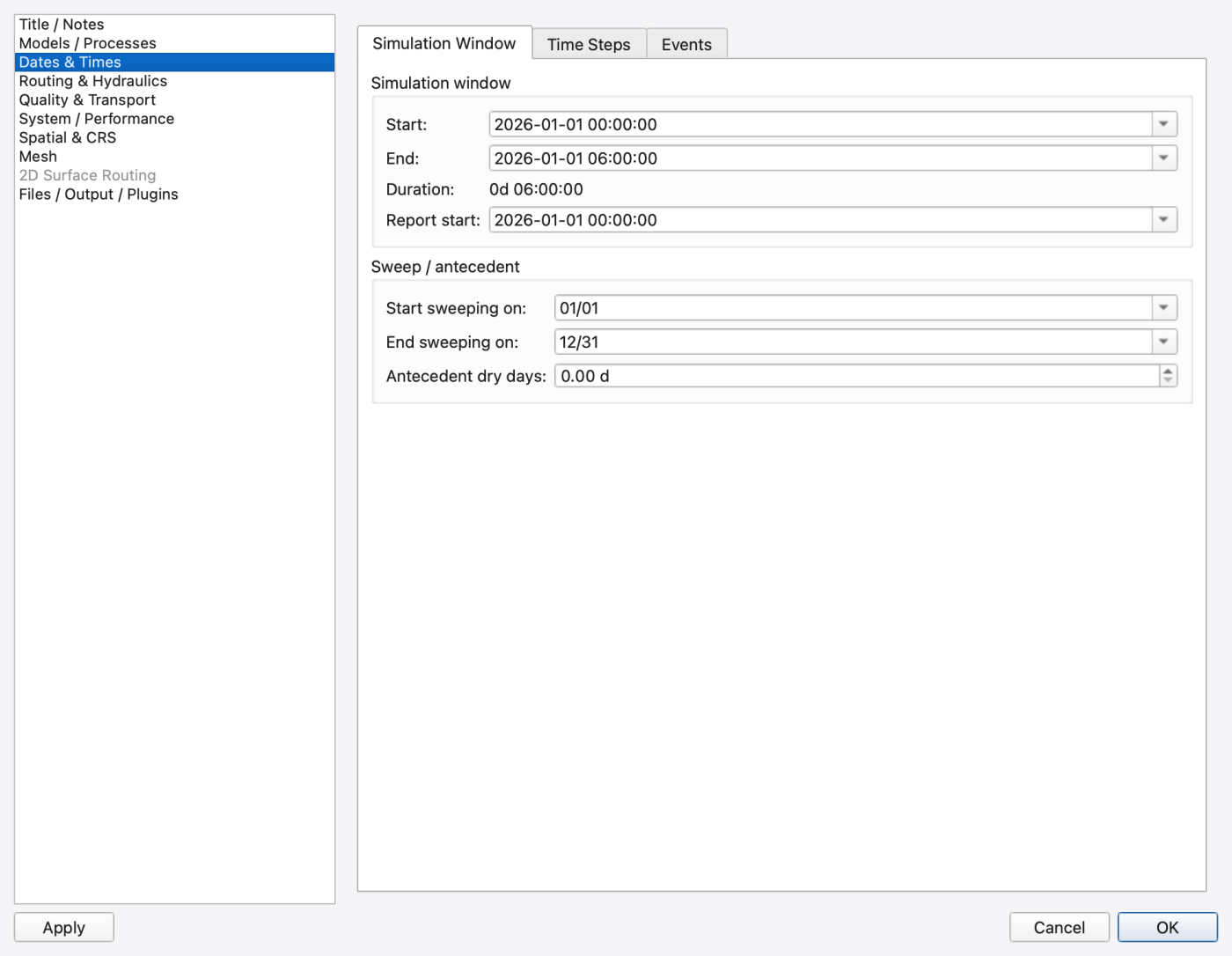
Three tabs: Simulation Window, Time Steps and Events.
| Control | Writes |
|---|---|
| Start | START_DATE + START_TIME |
| End | END_DATE + END_TIME |
| Duration | Read-only End − Start, shown as Dd HH:MM:SS |
| Report start | REPORT_START_DATE + REPORT_START_TIME — clamped so it can never precede Start |
Date-times are entered with a calendar popup in yyyy-MM-dd HH:mm:ss; the engine always sees the legacy MM/DD/YYYY + HH:MM:SS form.
Sweep / antecedent
| Control | Writes |
|---|---|
| Start sweeping on | SWEEP_START — MM/DD, no year |
| End sweeping on | SWEEP_END |
| Antecedent dry days | DRY_DAYS |
All but the routing step are entered as a timespan:
| Control | Writes |
|---|---|
| Reporting step | REPORT_STEP |
| Dry-weather step | DRY_STEP |
| Wet-weather step | WET_STEP |
| Control rule step | RULE_STEP — 0 evaluates rules every routing step |
| Routing step | ROUTING_STEP, in decimal seconds (a plain text box, 0.001–3600) |
Reporting, wet-weather and dry-weather timespans show milliseconds, so 00:00:00.100 represents the Test 6A reporting interval of 0.1 seconds. The 2D reporting and infiltration intervals retain the same precision, including when they mirror the project schedule. Unedited engine values with finer precision are preserved when applying unrelated options. Control-rule steps retain whole-second editing.
Skip steady state used to sit here. It moved to Routing & Hydraulics › Routing, because it is a property of how the router spends its steps rather than of the schedule — and because the engine honours SKIP_STEADY_STATE under every routing method, not only dynamic wave.
Events ([EVENTS]) — an optional list of routing-active windows. With Skip steady-periods on, the engine routes full hydraulics only inside these windows and steps quickly through the dry periods between them.
| Action | How |
|---|---|
| Add row | Pre-filled with the simulation Start and End so you only edit the deltas |
| Remove selected | Select one or more rows by their row headers and press it |
| Edit a time | Click the cell and type, use the spin buttons, or drop the calendar popup — MM/DD/YYYY HH:MM |
Validation: Start ≥ End on any row blocks Apply and OK until it is fixed. Overlapping rows and rows outside the simulation window raise a non-blocking warning you can override.
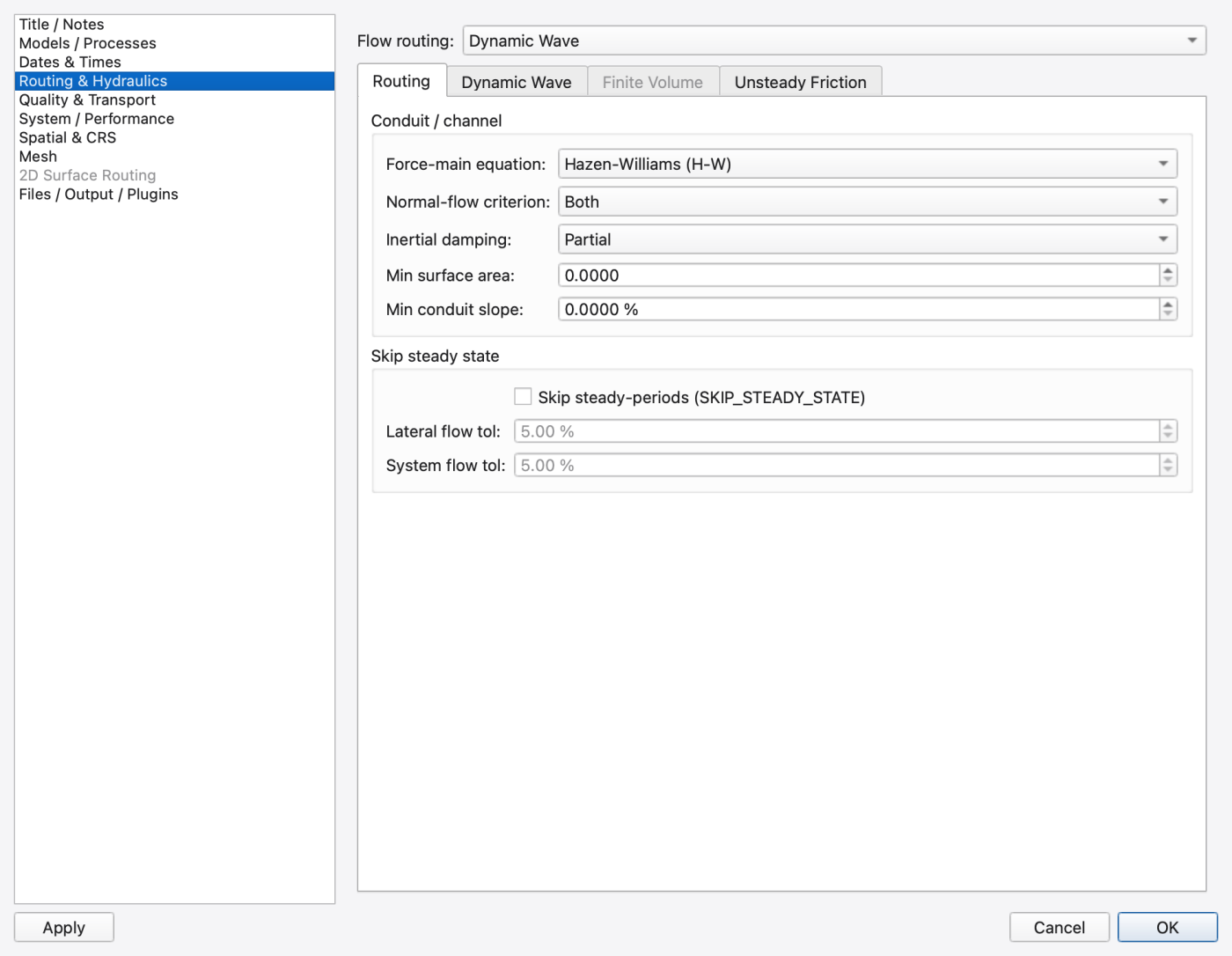
The headline page of the dialog. Flow routing sits in a page header above the tab bar, always visible, and gates three of the four tabs below it:
| Control | Options | Writes |
|---|---|---|
| Flow routing | Steady / Kinematic Wave / Dynamic Wave / Finite Volume | FLOW_ROUTING |
The FV entry is disabled on an engine that does not carry the FV solver.
| Tab | Applies to | Enabled when |
|---|---|---|
| Routing | every solver | always |
| Dynamic Wave | DYNWAVE | Flow routing is Dynamic Wave |
| Finite Volume | FV | Flow routing is Finite Volume, on an engine that carries it |
| Unsteady Friction | DYNWAVE and FV | either of those, on an engine that carries the keys |
A greyed tab keeps its contents — the engine accepts every key on this page as inert under any other router, so a disabled tab never invalidates the project and your configuration survives switching routers mid-session.
The tab that applies under every solver.
Conduit / channel
| Control | Options | Writes |
|---|---|---|
| Force-main equation | Hazen-Williams (H-W) or Darcy-Weisbach (D-W) | FORCE_MAIN_EQUATION |
| Normal-flow criterion | Slope / Froude / Both / Neither | NORMAL_FLOW_LIMITED |
| Inertial damping | None / Partial / Full — dynamic-wave routing only | INERTIAL_DAMPING |
| Numerical stability area | Numerical area floor for legacy junction behavior; 0 selects 12.566 ft² (1.167 m²). A positive per-junction Storage Area specifies physical chamber geometry independently | MIN_SURFAREA |
| Min conduit slope | Lower clamp on conduit slope, percent | MIN_SLOPE |
Skip steady state — moved here from Dates & Times.
| Control | Writes |
|---|---|
| Skip steady-periods (SKIP_STEADY_STATE) | SKIP_STEADY_STATE |
| Lateral flow tol | LAT_FLOW_TOL — shown as a percentage, stored as a fraction |
| System flow tol | SYS_FLOW_TOL — same conversion |
Both tolerances grey out while Skip steady-periods is off; the values are kept, so turning it back on restores them.
It is on the shared Routing tab, not on Dynamic Wave, because the engine tests for a steady period from the main routing step with no routing-model guard — SKIP_STEADY_STATE is honoured under kinematic wave and steady flow too. The [EVENTS] windows it works with are edited on Dates & Times › Events.
Surcharge handling
| Control | Options / meaning | Writes |
|---|---|---|
| Method | EXTRAN (legacy) / SLOT (Preissmann) / DYNAMIC_SLOT / TPA (two-component pressure, experimental) | SURCHARGE_METHOD |
| DPS celerity | Target wave celerity, m/s — DYNAMIC_SLOT only | DPS_CELERITY |
| DPS alpha | Alpha exponent, ≥ 2 — DYNAMIC_SLOT only | DPS_ALPHA |
| DPS decay | Decay time, s — DYNAMIC_SLOT only | DPS_DECAY_TIME |
| TPA celerity | Acoustic celerity a in project length units per second — TPA only | TPA_CELERITY |
The three DPS rows enable only under DYNAMIC_SLOT; the TPA row only under TPA.
Solver
| Control | Options / meaning | Writes |
|---|---|---|
| Node continuity | Explicit (legacy) or Semi-implicit — better on low-slope networks | NODE_CONTINUITY |
| Anderson acceleration (ANDERSON_ACCEL) | Accelerates the iterative solve | ANDERSON_ACCEL |
| Max trials | Iteration cap per routing step | MAX_TRIALS |
| Head tolerance | Convergence tolerance on node head | HEAD_TOLERANCE |
| Lengthening step | Conduit lengthening time step, s | LENGTHENING_STEP |
| Variable step factor | Courant safety fraction; 0 disables | VARIABLE_STEP |
| Minimum step | Smallest routing step the adaptive solver may take, s | MINIMUM_STEP |
Minimum step matters most in 1D–2D coupled runs: the coupling drives the 1D step toward this floor, and raising it (1.0–1.5 s) recovers most of the runtime. The System / Performance page has a one-click preset that does exactly that.
Finite volume solver
| Control | Options / meaning | Writes |
|---|---|---|
| Cell length | Target cell length in project length units; the special value reads whole conduit (one cell per conduit) | FV_CELL_LENGTH |
| Min cells per conduit | Floor on cells per conduit | FV_MIN_CELLS |
| CFL number | Courant number the explicit substep targets | FV_CFL |
| Riemann solver | HLLC or HLL | FV_RIEMANN |
| Spatial order | 1st order, or 2nd order (MUSCL-Hancock) | FV_ORDER |
| Slope limiter | Minmod / van Leer / Superbee — enabled only at 2nd order | FV_LIMITER |
| Time integration | Euler or RK2 | FV_TIME_INTEGRATION |
| Slot celerity | Preissmann-slot pressure-wave celerity | FV_SLOT_CELERITY |
| Pressure closure | SLOT (Preissmann) or TPA — TPA carries a signed pressure head so sub-atmospheric full-pipe flow is representable | FV_PRESSURE_CLOSURE |
| Implicit pressurized head solve (experimental) | Solves surcharged-cell heads implicitly; CPU backend only and local time stepping stands down while it engages | FV_PRESSURIZED_IMPLICIT |
| Structure coupling | Re-evaluate weir / orifice / pump flows Every substep or Every routing step | FV_STRUCTURE_COUPLING |
Deliberately not on this page: FV_SCALAR_SCHEME (its only consumer is the Eulerian ARD transport engine, so it lives on Quality & Transport) and FV_DISPERSION, which is inert on every path — the engine warns at open when a deck sets it. Decks that set the retired FV_NODE_COUPLING, FV_NODE_DT, FV_NODE_PICARD or VIRTUAL_JUNCTION_MOMENTUM FULL still open; the engine warns once and uses the built-in behaviour.
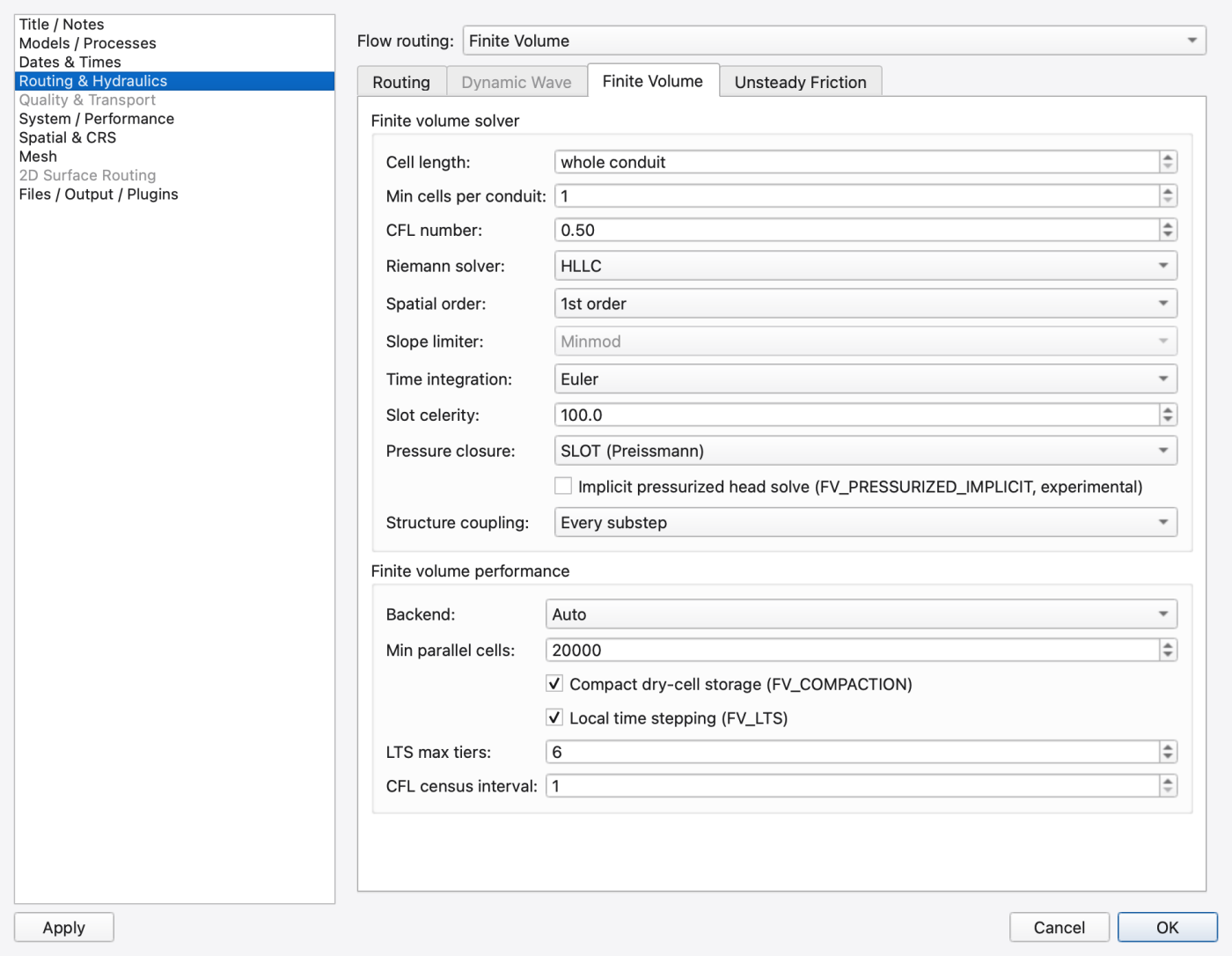
Finite volume performance — also FV-only:
| Control | Options / meaning | Writes |
|---|---|---|
| Backend | Auto / CPU (serial) / OpenMP / CUDA / HIP / SYCL | FV_BACKEND |
| Min parallel cells | Cell count below which the solver stays serial | FV_MIN_PARALLEL_CELLS |
| Compact dry-cell storage (FV_COMPACTION) | Skip fully dry reaches in the substep loop | FV_COMPACTION |
| Local time stepping (FV_LTS) | Advance slow cells with larger substeps grouped in tiers | FV_LTS |
| LTS max tiers | Cap on the tier spread; enabled only while LTS is on | FV_LTS_MAX_TIERS |
| CFL census interval | Substeps between full Courant re-surveys; 1 = every substep | FV_CFL_CENSUS_INTERVAL |
Its own tab, because both the dynamic-wave and the finite-volume solvers consume it — it belongs to neither alone.
| Control | Options / meaning | Writes |
|---|---|---|
| Method | None, or Vitkovsky (instantaneous-acceleration model) | UNSTEADY_FRICTION |
| Coefficient k3 | Brunone-type coefficient; enabled only when a method is selected | UF_K3 |
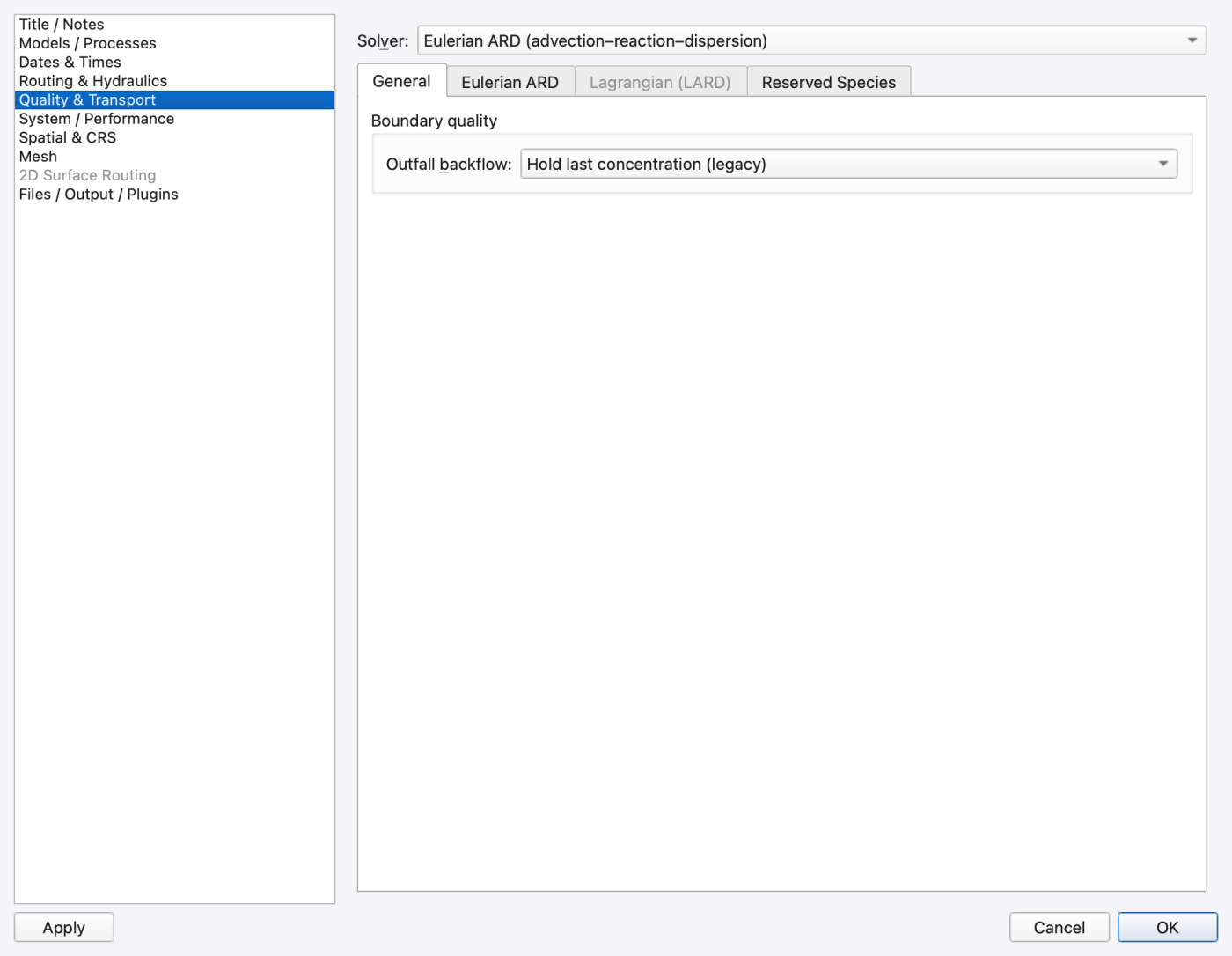
The sidebar remains available on a new model so that water age and heat transport can be enabled. Individual solver tabs follow their prerequisites. The transport matrix previews pending choices as Planned. Saved child switches can remain On while their parent is Off; these display Inactive and retain their values for later use.
Solver sits in a page header above the tab bar, for the same reason Flow routing does on Routing & Hydraulics: it gates two of the four tabs.
| Control | Options | Writes |
|---|---|---|
| Solver | Legacy (complete mix) / Eulerian ARD (advection–reaction–dispersion) / Lagrangian (LARD) | QUALITY_SOLVER |
| Tab | Enabled when |
|---|---|
| General | always — what applies under every solver, as Routing does on Routing & Hydraulics |
| Eulerian ARD | Solver is Eulerian ARD |
| Lagrangian (LARD) | Solver is Lagrangian |
| Reserved Species | always |
Every key is written whatever the solver selection, so you can configure LARD before switching to it and the settings survive.
Boundary quality
| Control | Options | Writes |
|---|---|---|
| Outfall backflow | Hold last concentration (legacy) or Fresh (zero concentration and age) | OUTFALL_BACKFLOW_QUALITY |
Under Hold last an outfall re-injects its held state, and under water age that water keeps ageing with the clock, so a permanently supplying outfall grows old without bound. Fresh makes a supplying outfall behave like an EPANET-style reservoir.
| Control | Options | Writes |
|---|---|---|
| Scalar scheme | MUSCL / Upwind / QUICKEST-ULTIMATE | FV_SCALAR_SCHEME |
Dispersion and the transport-mesh spacing for the ARD engine are configured in its component file (model.ard: [TRANSPORT_OPTIONS], [CONDUIT_DISPERSION]), bound on the Files / Output / Plugins page. A bound component file's SCALAR_SCHEME overrides the combo above.
| Control | Meaning | Writes |
|---|---|---|
| Quality step | Transport substep in seconds; 0 follows the routing step | QUALITY_STEP |
| Max segments per link | Segment slab capacity per link | MAX_SEGMENTS_PER_LINK |
| Dispersion | Off, or RWPT (random-walk particle tracking) | DISPERSION |
| RWPT seed | Deterministic seed — the same seed reproduces a run bit-for-bit at any thread count; enabled only under RWPT | RWPT_SEED |
| Control | Meaning | Writes |
|---|---|---|
| Track water age | Adds the reserved __WATER_AGE__ species, reported in hours | WATER_AGE |
| Simulate heat transport | Adds the reserved __TEMPERATURE__ species, reported in °C | HEAT_TRANSPORT |
| Edit Source Ages... | Opens the Water Age Sources editor — writes straight to the engine with its own OK/Cancel | [WATER_AGE_SOURCES] |
| Edit Initial Quality... | Opens the per-element Initial Quality editor — likewise | [INITIAL_QUALITY] |
QUALITY_SOLVER and WATER_AGE are written together on save: a deck carrying WATER_AGE ON without its transport-engine line reopens with age tracking silently off. See 16 — Water Quality, Reaction Systems, Water Age and Heat for the editors these two buttons open.
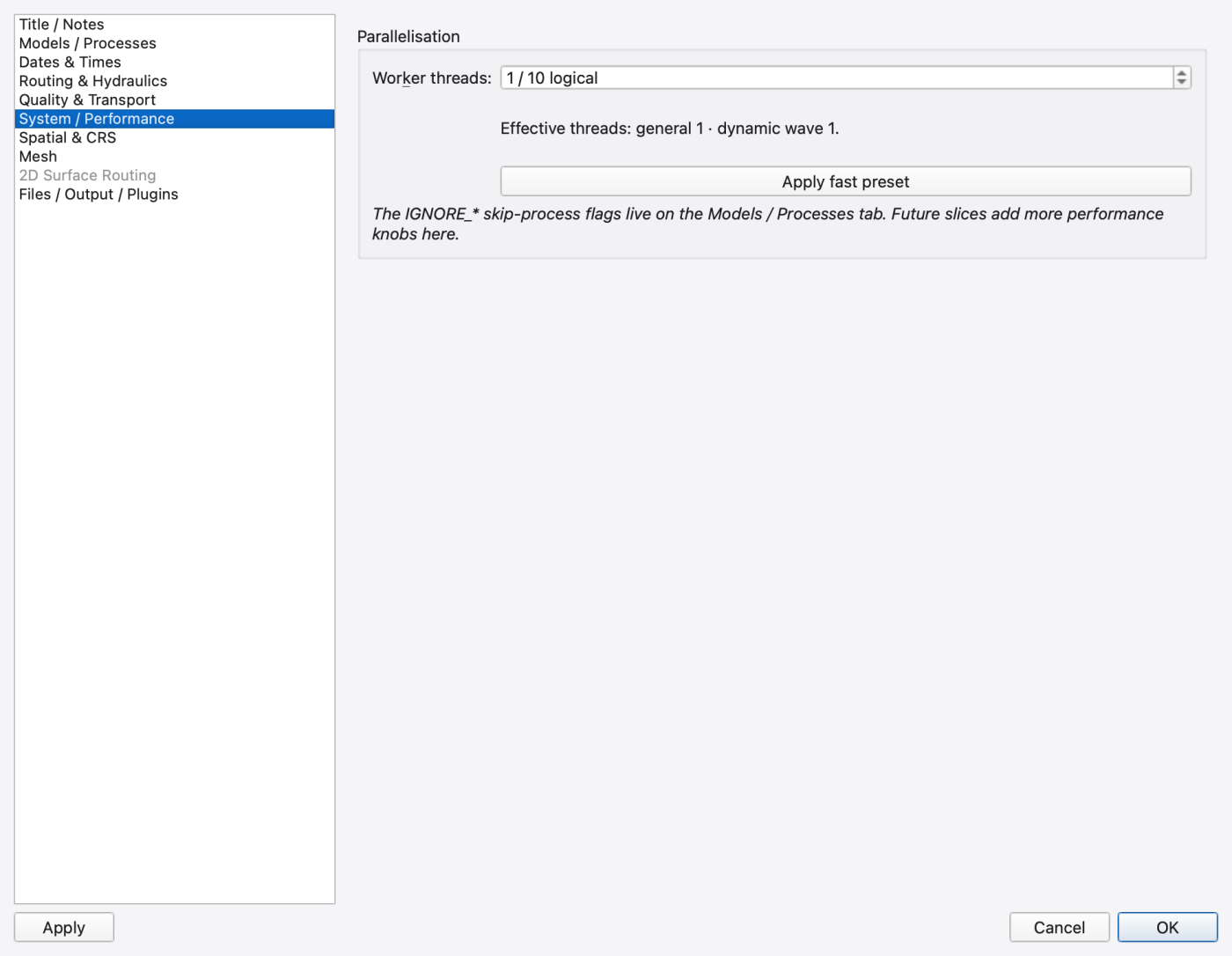
| Control | Meaning | Writes |
|---|---|---|
| Worker threads | OpenMP team size for the 1D and 2D solvers. 0 = auto, and the spin's special value reads auto | THREADS |
Under the spin is a live Effective threads line reporting what the engine would actually use for the general, dynamic-wave and 2D teams at the requested count — read from the engine, so it never re-implements its heuristics. Asking for more threads than the machine has logical processors is allowed but flagged with a warning glyph, as is exceeding the performance-core count on a machine that has efficiency cores. The tooltip summarises the machine's logical CPUs, performance cores, any OMP_NUM_THREADS / affinity limit, and whether a 2D Kokkos backend has already fixed its thread count for this process.
Apply fast preset sets Worker threads to the machine's performance-core count and Minimum step (on Routing & Hydraulics) to 1.0 s — the conservative speed recipe for 1D–2D coupled runs, roughly 2.6× faster with mass balance as good as or better than the default. It only fills in the controls; you still press Apply or OK to commit.
The IGNORE_* flags are on Models / Processes, not here — they are about which models run, not how fast.
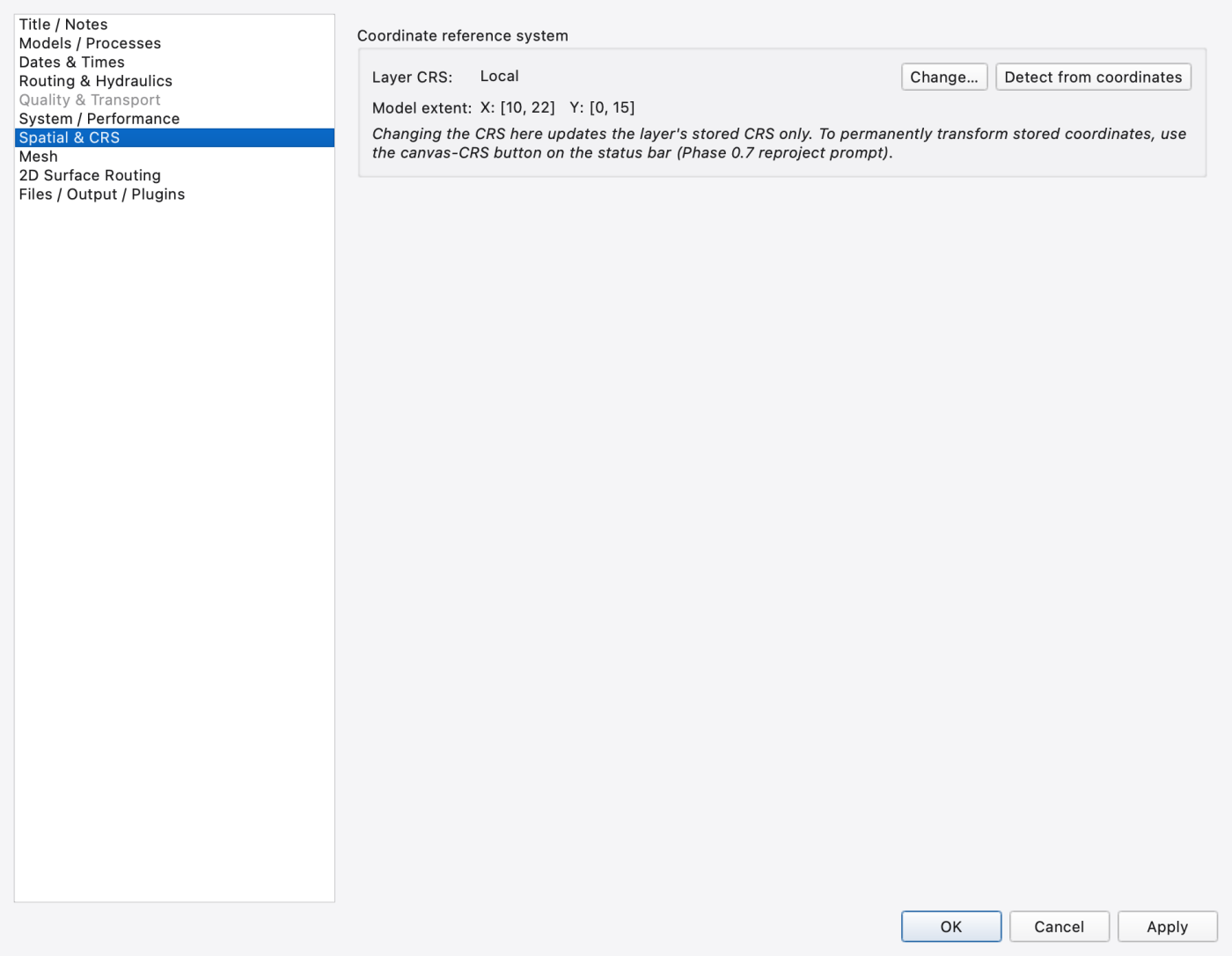
| Control | What it shows | Writes |
|---|---|---|
| Layer CRS | Read-only authority code of the layer's stored CRS, e.g. EPSG:6595, or *(local)* / *(none)* | — |
| Change… | Opens the CRS picker; applies the choice to the layer and to [OPTIONS] CRS | CRS |
| Detect from coordinates | Inspects the model extent and suggests EPSG:4326 when every coordinate falls inside geographic bounds; non-destructive | — |
| Model extent | Read-only X: [min, max] Y: [min, max] in the stored CRS | — |
Changing the CRS here updates the stored CRS — it does not transform coordinates. To permanently reproject a model, use the CRS button in the status bar (see 06 — Coordinate Reference Systems).
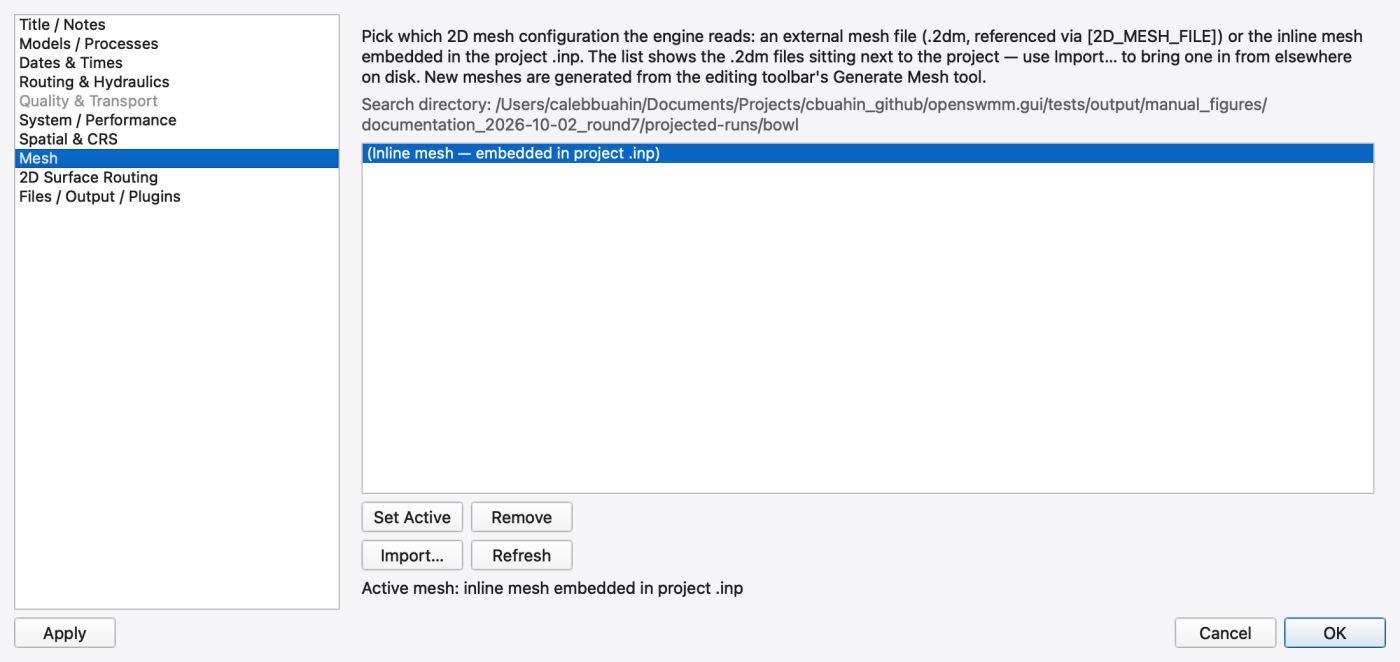
This page picks which 2D mesh configuration the engine reads. It lists every *.2dm file sitting next to the project .inp, plus a synthetic **(Inline mesh — embedded in project .inp)** row when the deck itself carries [2D_VERTICES] and [2D_TRIANGLES]. Above the list is the search directory; below it is the active reference read from [2D_MESH_FILE].
| Button | What it does |
|---|---|
| Set Active | Patches [2D_MESH_FILE] to point at the selected configuration (or removes the reference when the inline row is chosen) |
| Remove | Deletes the selected .2dm from disk |
| Import… | Browses for a .2dm anywhere on disk, copies it into the project folder and loads it as the active mesh; needs a project window |
| Refresh | Re-scans the directory and re-reads the reference |
New meshes are created with Generate Mesh — see 19 — 2D Overland Flow: Meshes, Cell Parameters, Boundary Conditions and 1D–2D Coupling.
This page exists only in a build compiled with the 2D module, and the sidebar row is selectable only while 2D Surface Routing is checked on Models / Processes › Modules. Every key here is stored in [2D_OPTIONS]. Where the project has no value for a key, the page shows the corresponding default from Preferences › Simulation Defaults › the 2D tabs (04 — Preferences) — the same value File → New would synthesise.
Five tabs: Hydrodynamics, Wetting & Drying, Coupling, Processes and Performance & Output.
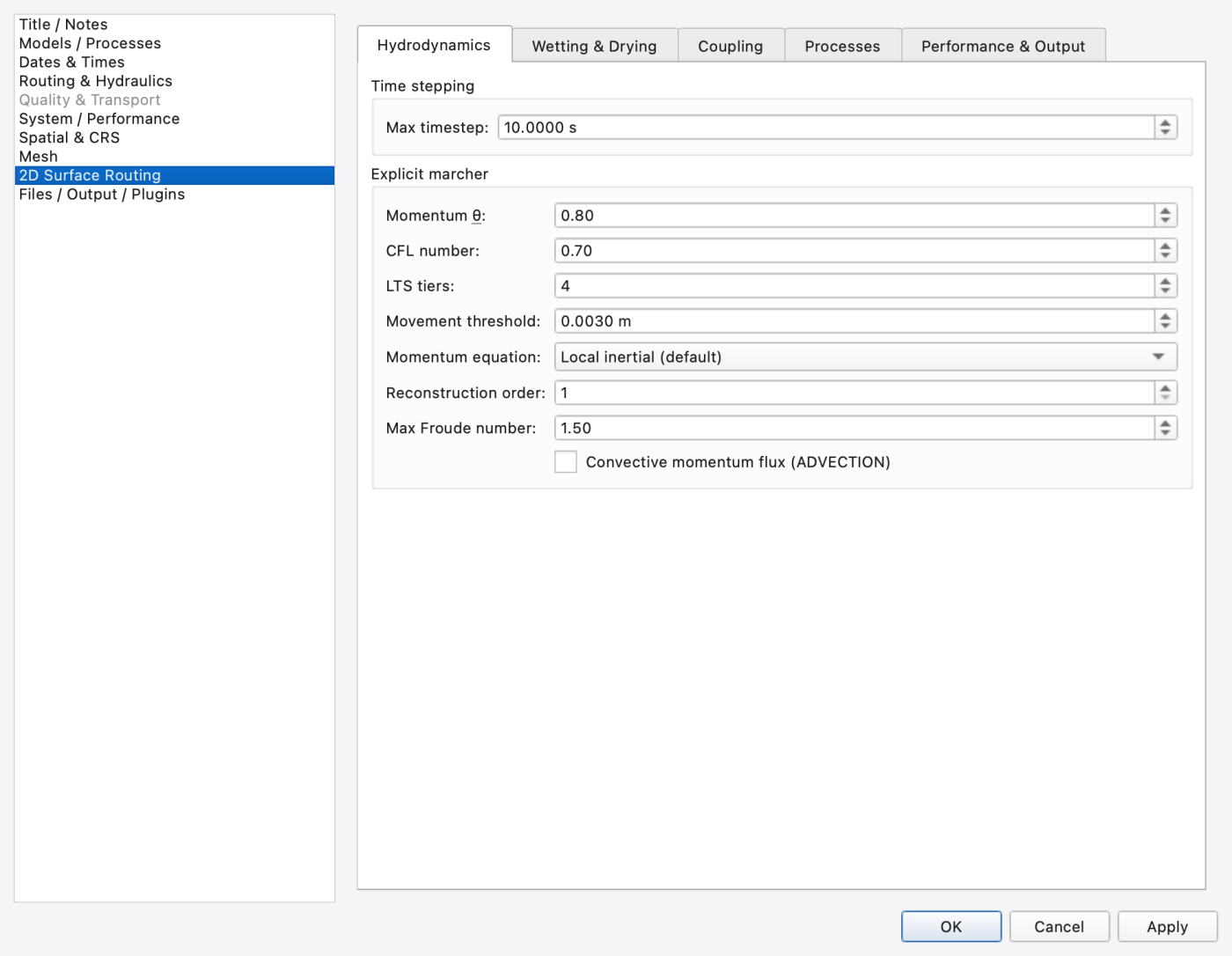
Time stepping
| Control | Meaning | Writes |
|---|---|---|
| Max timestep | Upper bound on the marcher's CFL substeps and on the 1D↔2D co-advance batch | MAX_TIMESTEP |
Explicit marcher — the local-inertial marcher is the only 2D integrator in this engine, so there is no solver selector and these settings are always live.
| Control | Meaning | Writes |
|---|---|---|
| Momentum θ | θ-weighting of the face discharge in the momentum update; 1.0 is the classic Bates scheme, below 1 damps thin-film checkerboarding | THETA |
| Smoothing reference interval | Per-step smoothing (zero) keeps the existing weight on every face step. A positive number of seconds makes θ the retention over that fixed interval, so shortening the routing step does not apply more smoothing per second. θ = 1 disables blending. This control is available when the selected engine supports it. | THETA_REFERENCE_STEP |
| CFL number | Courant safety factor α on each cell's stable step | CFL_NUMBER |
| LTS tiers | Local-timestepping tiers; cells march at power-of-two multiples of the finest step. 1 = a global timestep | LTS_TIERS |
| Movement threshold | Cells shallower than this exchange no flow with their neighbours; rain, infiltration and evaporation still act on them, so thin films cost nothing until water must move. A cell starts moving water a little above the threshold and stops a little below it | H_MOVE |
| Max Froude number | Froude cap on face discharge — the supercritical guard | FROUDE_MAX |
| Convective momentum flux (ADVECTION) | Local inertial only: optionally include convective momentum flux at interior faces (Stelling–Duinmeijer staggered upwind). Full shallow-water includes it automatically; diffusive wave omits it. The checkbox is replaced by an explanatory message for those equations. | ADVECTION |
For a laboratory timestep study, a reference interval of 1 s with Momentum θ 0.8 retains 80% of the momentum difference over one second. The engine scales that retention to each actual face step, including shorter steps at a coupling window boundary. Keep the interval fixed while reducing the routing step; changing both would change the numerical model during the comparison. Check exchange rates, water levels and water balance as well as a quiet final window. The reference interval is a numerical control and does not change the manhole's discharge coefficients. The hydraulic reference explains the scaling in §9.5.1.
Everything that decides how a partially wet or drying cell is treated.
Depth thresholds
| Control | Meaning | Writes |
|---|---|---|
| Dry depth threshold | Depth below which a cell is treated as dry, m | DRY_DEPTH |
| Limiter epsilon | Limiter regularisation | LIMITER_EPSILON |
| Flux head epsilon | Head-difference regularisation for the diffusive-wave flux, m | FLUX_DH_EPS |
Cell closure
| Control | Options | Writes |
|---|---|---|
| Cell closure | Flat (η = z̄ + V/A, legacy) or VFR (planar-bed volume/free-surface) | CELL_CLOSURE |
| Face reconstruction | Mean (upwind cell depth, legacy) or VFR face (edge depth + wetting gate) | FACE_RECONSTRUCTION |
| VFR min wet fraction | Wetted-area-fraction floor that regularises the VFR closure as a cell dries; used only under VFR | VFR_MIN_WET_FRAC |
Flat overstates the surface on sloped and stepped cells, which lets water climb uphill and strand on slopes; VFR uses the exact planar-bed relation so a lake at rest stays at rest. The VFR face reconstruction blocks flow across an edge whose bed is above the water and pairs naturally with the VFR cell closure. Both work on every backend.
1D ↔ 2D coupling
| Control | Meaning | Writes |
|---|---|---|
| Coupling Cd | Discharge coefficient at coupling points | COUPLING_CD |
| Exchange interval | How often exchange volumes are settled; the special value reads Every routing step (0) and the batching interval is clamped to [routing step, 60 s] | COUPLING_SYNC |
| Derive exchange areas automatically (COUPLING_AREA AUTO) | Overrides every coupling point's exchange area with 1.25 × the largest connected conduit area, clamped 0.05–2 m²; explicit AREA values in the input are replaced while this is on | COUPLING_AREA |
Coupling every routing step gives the tightest feedback and is what fill-and-spill ponds behind weirs and culverts need; a batching interval is much faster on large meshes but its one-span feedback delay can ring on rapidly filling ponds.
The 2D process switches — what the surface does with water besides move it.
| Control | Options | Writes |
|---|---|---|
| Rainfall mode | Natural neighbour (all gages) / Nearest neighbour (closest gage) / System (uniform gage mean) / None (no direct rainfall) | RAINFALL_MODE |
| Infiltration | Automatic (on when per-cell rows exist) / On / Off | INFILTRATION |
| Infiltration step | Same as wet-weather step, or an explicit cadence | INFIL_STEP |
| Default method | None / Horton / Modified Horton / Green-Ampt / Modified Green-Ampt / Curve Number / Constant rate | INFIL_DEFAULT_METHOD |
| Destination | Lost / Subcatchment aquifer / 2D aquifer | INFIL_DESTINATION |
| Evaporation | Forced only / Project climate rate / Off | EVAPORATION |
| Transport on the mesh | Four check boxes: Pollutants, MSX species, Water age, Temperature | TRANSPORT_POLLUTANTS, TRANSPORT_MSX, TRANSPORT_AGE, TRANSPORT_TEMPERATURE |
Natural neighbour spatially interpolates every located gage onto each cell (inverse-distance outside the gage hull). See 19 — 2D Overland Flow: Meshes, Cell Parameters, Boundary Conditions and 1D–2D Coupling for assigning gages to cells, and Edit per-cell infiltration… on this tab for per-cell methods and parameters.
The four Transport on the mesh boxes are the 2D column of the Transport by domain matrix on Models / Processes — one model, two views, kept in step while the dialog is open.
Groundwater (subsurface) — the process enables for the two-zone subsurface column under every mesh cell. The aquifer parameters are edited in Mesh 2D › Groundwater (2D), and both places write the same [2D_AQUIFER_OPTIONS] values.
| Control | Options | Writes |
|---|---|---|
| Subsurface | Automatic (on when aquifer rows exist) / On / Off | GROUNDWATER |
| Evapotranspiration | Automatic / None / Capillary rise / Boundary ET / Both | GW_ET |
Automatic ET resolves to Both in MESH mode and None in PER_SUBCATCH mode. Boundary ET uses project climate demand; wilting suction applies to that boundary process. The climate-editor link opens its demand sources. The dry-only evaporation switch applies to lumped runoff and LID surfaces; it does not gate mesh evaporation or groundwater ET.
With Subsurface on, Destination above locks to the 2D aquifer: infiltrated water enters the column under the cell, which is the mutual exclusion the engine validates.
Performance
| Control | Options | Writes |
|---|---|---|
| Backend | Auto / CPU (built-in marcher) / OpenMP (Kokkos) / CUDA / HIP / SYCL | BACKEND |
Auto prefers an installed GPU plugin above the device mesh-size floor, then the OpenMP plugin above its own floor, else the built-in CPU marcher. A named backend loads that plugin outright; if it is missing or has no usable device the run falls back to CPU with a notice. The OPENSWMM_2D_BACKEND environment variable overrides this setting.
Output
| Control | Meaning | Writes |
|---|---|---|
| Write 2D results to output (REPORT_2D) | Write 2D results to the output file at all | REPORT_2D |
| 2D results file | HDF5 file receiving 2D results; relative paths resolve against the input file's folder. Blank uses <model>.2d.h5 next to the input | OUTPUT_FILE |
Retired keys. MIN_TIMESTEP, REL_TOLERANCE, ABS_TOLERANCE, MAX_CVODE_STEPS, MAX_KRYLOV_DIM, LINEAR_SOLVER, PRECONDITIONER, JACOBIAN, ATOL_AREA_REF, COUPLING_INTERVAL, COUPLING_WINDOW, ACTIVE_SET, ACTIVE_SET_HALO and MOMENTUM configured the deleted CVODE/ARKODE 2D stack. A deck that still carries them opens with a warning and the keys are ignored; nothing on this page writes them. Older manuals and tutorials that mention a CVODE solver, linear solver or preconditioner for the 2D module are describing a solver that no longer exists.
This page has three nested sub-tabs so the unrelated concerns do not compete for vertical space.
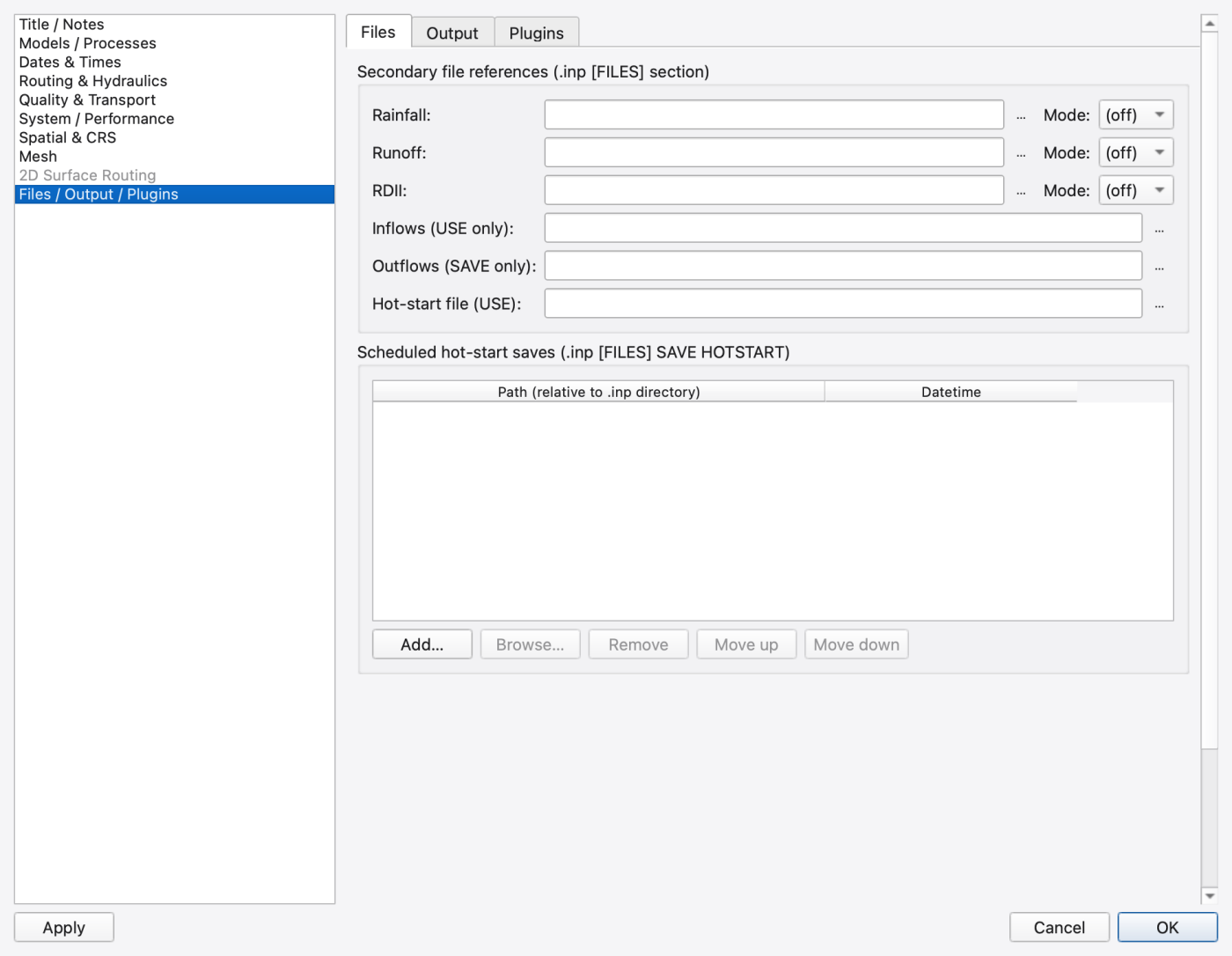
Files sub-tab. Secondary file references (.inp [FILES] section) — each row is a path picker showing the path relative to the project directory, with a browse button and, where applicable, a mode combo:
| Row | Mode combo | Writes |
|---|---|---|
| Rainfall | (off) / USE / SAVE | [FILES] RAINFALL |
| Runoff | (off) / USE / SAVE | [FILES] RUNOFF |
| RDII | (off) / USE / SAVE | [FILES] RDII |
| Inflows (USE only) | — | [FILES] USE INFLOWS |
| Outflows (SAVE only) | — | [FILES] SAVE OUTFLOWS |
| Hot-start file (USE) | — | [FILES] USE HOTSTART |
Leave a row blank to omit it from [FILES].
Scheduled hot-start saves (.inp [FILES] SAVE HOTSTART) — an uncapped table, one row per save, with Path, Datetime and Format columns and Add…, Browse…, Remove, Move up and Move down. Leave the Datetime cell as *(end of run)* to write at the end of the simulation; otherwise the engine writes the file from the state at the end of the first time step that reaches that time, and not at all if the run ends first (the report then warns). All three cells are always-open editors, so no click-to-edit is needed.
Format chooses the file written. Native is the OpenSWMM file, which also keeps water age, reaction species, the aquifer with its species (and the 2D surface state saved with it), LID units in storage nodes and snow; EPA SWMM 5 cannot read it. Legacy is always the SWMM 5 file; when OpenSWMM reads one it restores the node, link and subcatchment state. Auto, the meaning of a row without a format in the .inp, is the SWMM 5 file, or Native when storage nodes carry LID units. A new row starts as Native when the model has state only the native file keeps (water age, reaction species, an aquifer or storage-node LIDs) or a 2D mesh, and as Auto otherwise. The Hot-start file (USE) row reads either format.
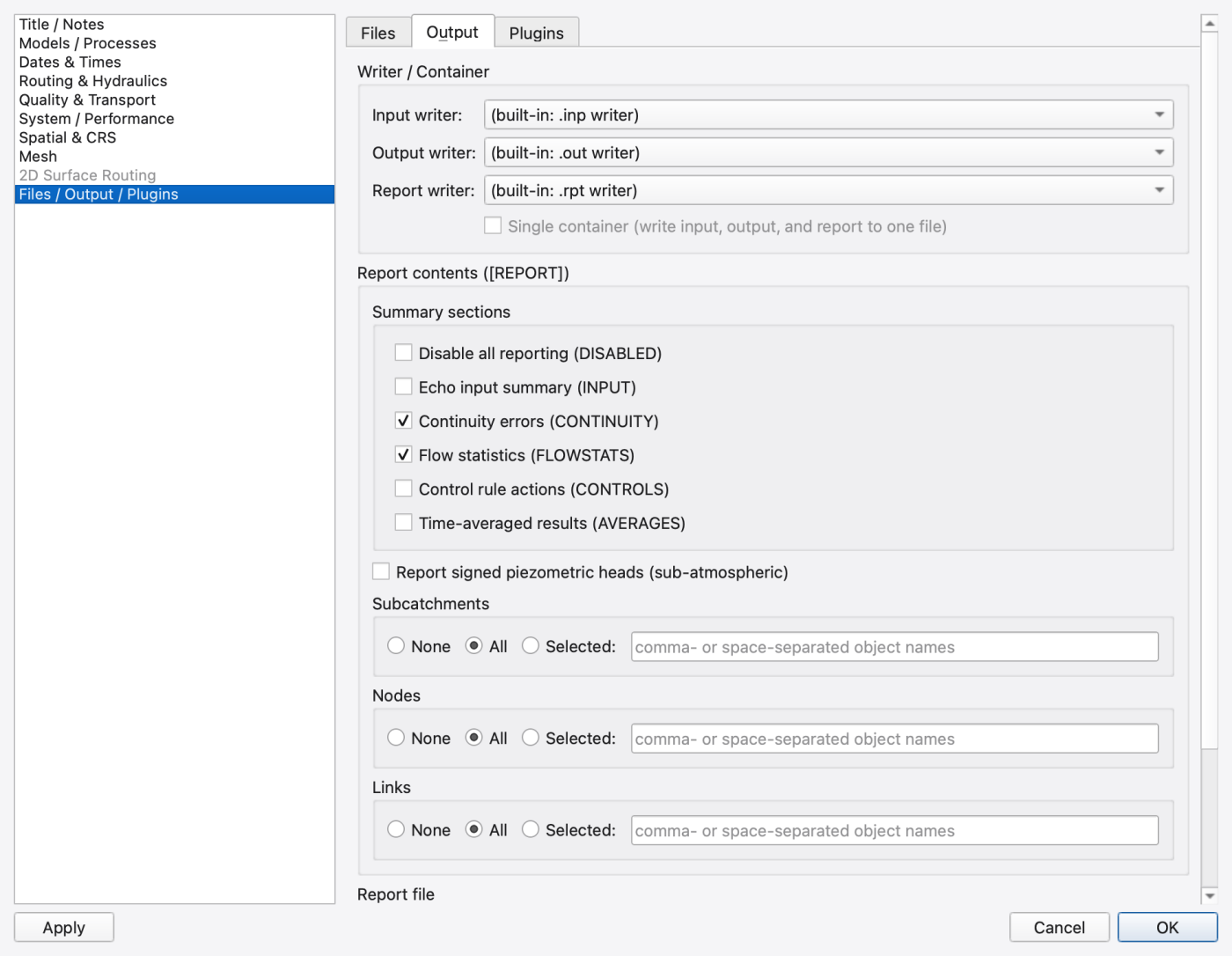
Output sub-tab. Writer / Container selects which plugin drives each of the three writer roles:
| Control | What it does |
|---|---|
| Input writer | Plugin that writes the model file; empty id = the built-in .inp writer |
| Output writer | Plugin that writes results; empty id = the built-in .out writer |
| Report writer | Plugin that writes the report; empty id = the built-in .rpt writer |
| Single container (write input, output, and report to one file) | Enabled only when the chosen input-writer plugin advertises all three roles for one extension (a GeoPackage, for instance); checking it locks the other two combos to that plugin |
Writer choices are stored separately for each role, including an explicit built-in choice. Output paths and single-container mode travel with the model and project. Single-container mode uses one destination for model configuration, results and report data. Separate native .out and .rpt companions are also produced for viewing results in the GUI.
HDF5 model saves now include the complete editable native configuration. Older column-only HDF5 exports cannot be reopened because they omitted model fields.
Report contents ([REPORT]) — what the engine prints to the .rpt text file. This is independent of the Reporting step on Dates & Times, which controls how often rows are written to the binary output.
| Check box | Writes |
|---|---|
| Disable all reporting (DISABLED) | RPT_DISABLED — greys out the six flags and the three selectors below, because none of them matter then |
| Echo input summary (INPUT) | RPT_INPUT |
| Continuity errors (CONTINUITY) | RPT_CONTINUITY — on by default |
| Flow statistics (FLOWSTATS) | RPT_FLOWSTATS — on by default |
| Control rule actions (CONTROLS) | RPT_CONTROLS |
| Time-averaged results (AVERAGES) | RPT_AVERAGES |
| Conduit time step summary (LINK_STEPS) | RPT_LINK_STEPS — adds the per-conduit Conduit Time Step Summary table (minimum / average / maximum local time step, percent of time in each step range, percent converged); off by default |
| Report signed piezometric heads (sub-atmospheric) | REPORT_SIGNED_HEADS — an [OPTIONS] key that shapes the .out, not the .rpt, so it stays live even when reporting is disabled |
Three element selectors — Subcatchments, Nodes and Links — each a None / All / Selected: radio group plus a name list that is enabled only under Selected:. The list accepts comma- or space-separated names and round-trips comma-separated; an empty list collapses to NONE. They write RPT_SUBCATCHMENTS, RPT_NODES and RPT_LINKS.
Report file and Results output file override the per-project .rpt and .out paths. Leaving either blank derives the path from the input file (same folder, matching extension). The Browse… filters follow the extension the selected writer plugin advertises.
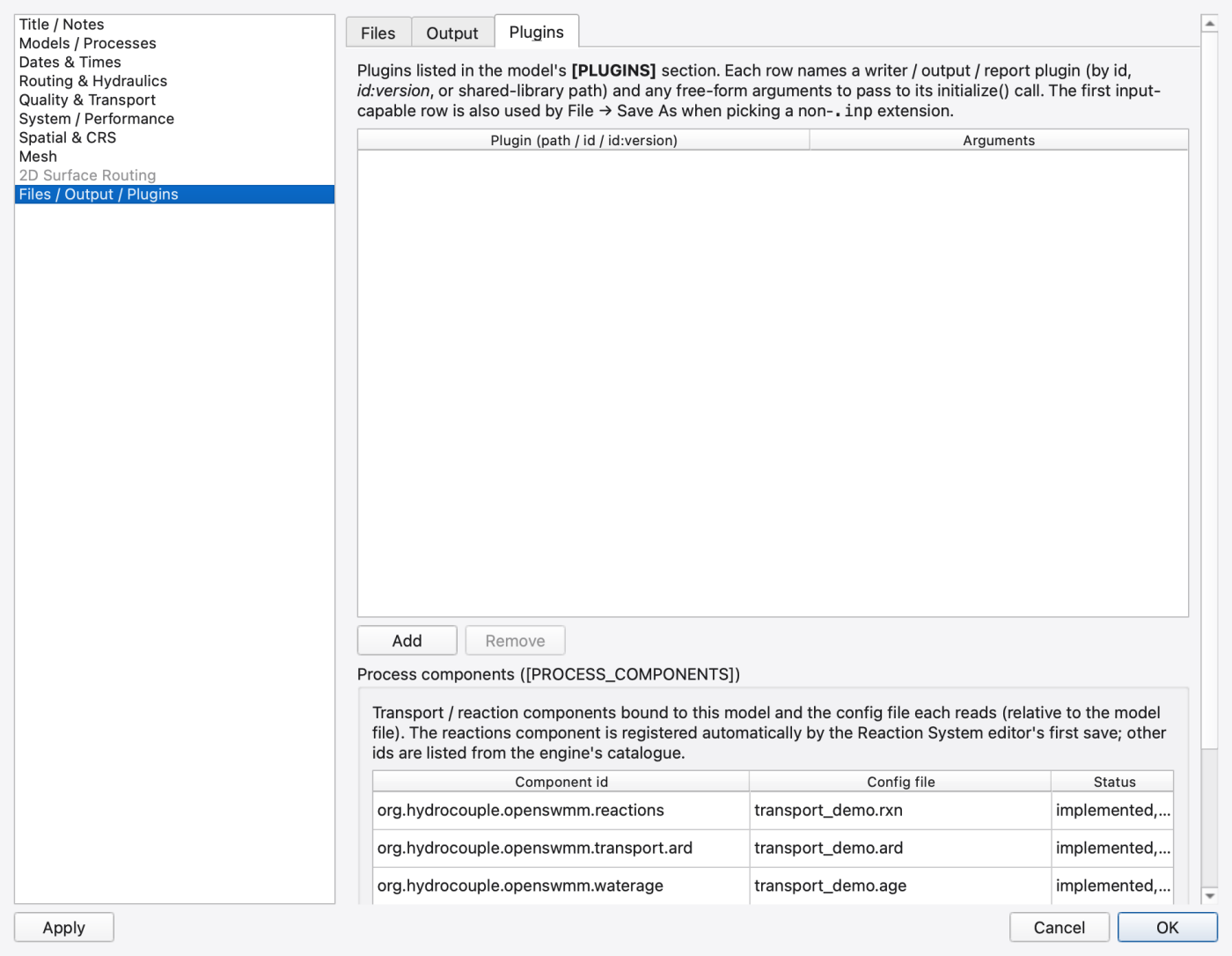
Plugins sub-tab. A two-column table over the model's [PLUGINS] section:
| Column | Contents |
|---|---|
| Plugin | The id of an installed plugin, an id:version pin, or a shared-library path |
| Arguments | Free-form whitespace-tokenised arguments passed to the plugin's initialisation |
Add appends a blank row; Remove drops the current one. A row naming a plugin that is statically linked into this build is annotated as such. The first input-capable row provides a fallback for File → Save As when no explicit input writer has been chosen. See A3 — Plugins.
Validation runs before either write:
[EVENTS] row with Start ≥ End, a plugin row with an empty plugin id, or a hot-start save row with an empty path. Apply and OK refuse until the highlighted row is fixed.[REPORT] selector set to Selected with an empty list (it will be written as NONE), or a .rpt / .out override whose parent directory does not exist. These appear as a Yes/No prompt so you can override deliberately.An Apply or OK that wrote at least one key marks the project dirty.
.inp still carries the legacy IGNORE_* key.FLOW_ROUTING FV, but the dialog keeps them, so switching to dynamic wave and back does not lose your setup.Ctrl+, is Preferences, not this dialog.** Application-wide settings live in 04 — Preferences; everything here belongs to the model..oswp sidecar and portabilityThe 2D Hydrodynamics tab offers independent Coriolis effect and Horizontal turbulent mixing controls. Both default to off. These options require Full shallow-water, one timestep tier, and the CPU solver. Coupled groundwater, heat, snow, species transport and node exchanges are not yet qualified with these options; the engine refuses such combinations.
Choose Coriolis From latitude and enter signed degrees north, or choose the advanced direct parameter input in inverse seconds. Latitude and parameter drafts are retained when changing mode; only the selected mode acts. No latitude is inferred from map coordinates or the heat configuration.
Smagorinsky is a depth-averaged horizontal subgrid mixing closure. It represents unresolved horizontal shear mixing while Manning's roughness remains the bed-friction model. Its dimensionless coefficient defaults to 0.10 when enabled; investigate 0.05–0.20 and mesh/timestep sensitivity. The filter width is the square root of each cell's area. It does not provide vertical turbulence or a three-dimensional LES. Wall and open-boundary turbulent traction is zero in this implementation.
Background eddy viscosity (m²/s) adds a constant horizontal eddy viscosity to the closure's value (EDDY_VISCOSITY_BACKGROUND, default 0). With a Smagorinsky coefficient of 0 it gives constant-viscosity mixing. On a fine mesh the Smagorinsky term alone can be far smaller than the mixing in a jet or shear layer, because its length scale is the cell rather than the shear-layer width. The background value is a model parameter, not a measured constant: report it and test sensitivity. A physically equivalent value grows with model scale (as length^1.5 under Froude similarity), so a value suited to a laboratory flume does not transfer to field scale. The row appears whenever a turbulence closure is selected; a stored value is kept but inactive when mixing is off. Engines without this option hide the row.
Mixing length (depth) uses the same mixing as Smagorinsky but with a shear-based mixing length set by the flow rather than the cell. The eddy viscosity is l² times the vorticity, where l is c times the water depth, capped at 0.41 times the distance to the nearest mesh boundary. Mixing-length coefficient c defaults to 0.5, the depth-averaged horizontal mixing length reported by Stansby (2003, 2006).
Select Turbulent viscosity and strain in the output variable list to write viscosity (m²/s) and strain rate (1/s) maps. These fields appear in the general 2D results variable selector when present. Old result files remain readable. Optional-process velocities are published from accepted cell momentum; edge discharges retain their flux/continuity meaning.
Enabling these processes selects conservative shared-face stresses, nonlinear stage checks and global stepping. Mixing may require shorter steps. The engine reports the effective Coriolis parameter, coefficient and filter convention; results files retain the corresponding metadata. The coefficient is not a universal calibration, and improved agreement at one gauge alone does not establish correctness.
Select solid boundary edges with the mesh edge tool and choose Wall. Wall drag Cw defaults to Free slip (zero). A positive dimensionless coefficient adds tangential traction tau/rho = -Cw |ut| ut, using wetted wall area. It does not change bed Manning roughness or allow water through the wall. Use separate boundary groups to test throat and obstruction walls independently. Bulk edits use one undo entry; the edge attribute table exposes the same value. INP/sidecar saves use WALL_DRAG Cw; GeoPackage saves preserve the coefficient. Assignments transfer with surviving and subdivided edges during supported mesh edits; inspect any reported dropped assignments after geometry changes.
Positive wall drag currently requires CPU Full SWE with one timestep tier and uncoupled surface hydraulics. Smagorinsky mixing is independent and optional. No material coefficient is assumed. A prescribed Cw is a diagnostic partial-slip closure; a roughness-based wall function needs separate wall-material evidence.
Wall-friction save/reopen qualification covers triangular meshes. For quad walls on local edge 3, use INP: the existing GeoPackage boundary table is restricted to edge indices 0–2. Solver wall-friction tests cover triangles and quads independently of that file-format limitation.
 1.9.8
1.9.8