 |
SWMMVis
6.0.0-alpha.4
Qt6/C++ GIS-based graphical user interface for the SWMMVis engine (6.0.0-alpha.4)
|
|
SWMMVis
6.0.0-alpha.4
Qt6/C++ GIS-based graphical user interface for the SWMMVis engine (6.0.0-alpha.4)
|
Draw a longitudinal section through the model and see what the water does along it. The 1D and 2D tools open tabs in dockable profile panels; the terrain tool opens its own window:
| Tool | Section through | Shows |
|---|---|---|
| Plot Profile | A routed path of nodes and links | Inverts, crowns, node structures, ground, animated HGL / EGL and their maximum envelopes, plus optional attribute tracks |
| Plot 2D Profile | A polyline you draw across the 2D mesh | Bed elevation, animated water depth and surface, and the maximum-depth envelope |
| Terrain Profile | A polyline you draw over a DEM raster | Ground elevation only |
| Command | Menu | Ribbon | Shortcut |
|---|---|---|---|
| Plot Profile | Analysis → Plot Profile | Analysis → Plots | Ctrl+Shift+T |
| Plot 2D Profile | Analysis → Plot 2D Profile | Analysis → Plots | — |
| Terrain Profile | — | The Terrain toolbar's Profile group | — |
| 2D bed-only profile | — | The Mesh 2D toolbar's profile tool | — |
All three are checkable map tools: clicking the action arms the tool, clicking it again returns to the select tool.
1D Profiles and 2D Profiles each hold multiple independent tabs. A new network path or mesh trace opens another tab. Drag tabs to reorder them; use the tab close button to remove one profile. Reopening an already-open saved 2D section selects its existing tab. Closing a tab does not delete a saved section.
The panels start in the bottom docking area alongside Time Series. Drag a panel's title bar to move, float, or dock it beside another panel. Closing the panel only hides it: reopen it through View → Panels → 1D Profiles / 2D Profiles. Dock positions are remembered after restart; unsaved plot tabs are not.
Each tab keeps its own sources, zoom, cursor and display settings. Selecting a tab for another project activates that project. Only the active, visible 2D tab controls the map's profile line and marker. Switching tabs or hiding the panel ends marker dragging; returning to a tab restores its cursor and current results. Closing a project removes its profile tabs and its sources from comparison plots.
Plot Profile arms the profile-trace tool on the map. What happens next depends on what is already selected:
| Starting state | Behaviour |
|---|---|
| Two nodes already selected | Routing starts immediately between them |
| One node selected | It becomes the start; click the end node or link |
| Nothing selected | Click the start node or link, then Ctrl/⌘-click the end |
Clicking additional nodes between the endpoints adds waypoints the path must pass through. The status bar narrates each step, and Esc cancels. The previously accepted path stays drawn on the map so you can trace a new one from a visible reference.
The router enumerates simple paths through the routing graph between the two endpoints. When there is more than one candidate, a path picker lists them:
| Column | Meaning |
|---|---|
| Length | Total path length |
| Conduits | Number of conduits on the path |
| Non-conduits | Pumps, orifices, weirs and outlets on the path |
| Invert drop | Total fall from the first invert to the last |
Selecting a row highlights that candidate on the map; double-clicking zooms the map to it; OK accepts it. If the enumeration hit its cap the dialog says the list is truncated.
Because routing is a path search, a start and end with no connected route between them reports exactly that rather than drawing a broken profile.
FIGURE PLACEHOLDERdocs/manual/images/23_profile_path_picker.png
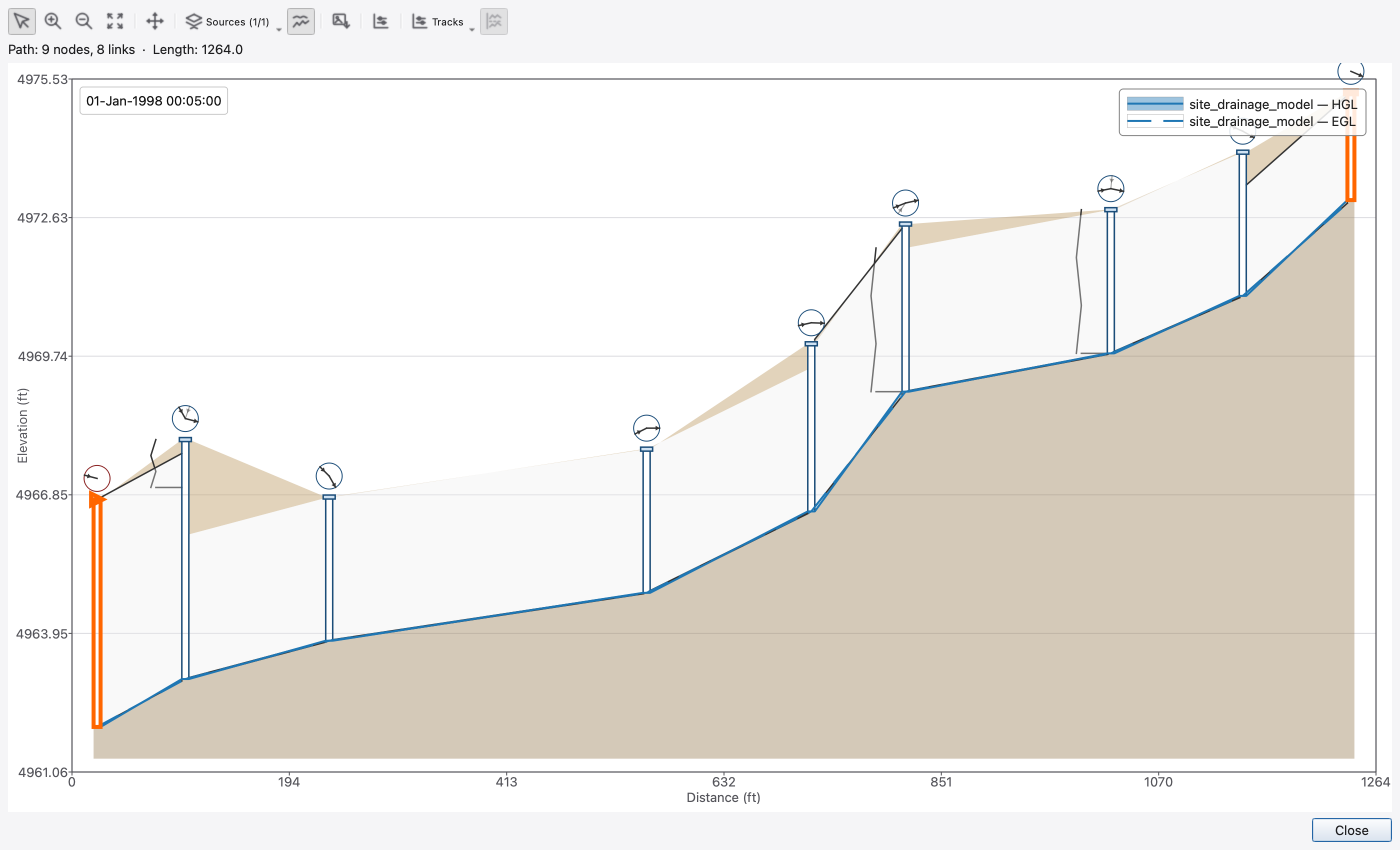
Along the horizontal chainage axis, from the bottom up:
The ground line comes from one of four sources, chosen in Display Options…: Auto (the 2D mesh vertex elevations when the project has a mesh, otherwise the node rims), Node rims (invert + maximum depth), Mesh 2D, or Terrain DEM (sampled from the active DEM raster at each path station).
FIGURE PLACEHOLDERdocs/manual/images/23_profile_anatomy.png
| Region | Contents |
|---|---|
| Toolbar | Select, Zoom In, Zoom Out, Pan, Fit to Path; Sources; 2D Inundation; Tracks; Export PNG…; Display Options… |
| Header | Path: N nodes, M links · Length: … |
| Chart | The profile itself |
| Display Options… | Ground source; HGL and EGL; maximum envelopes; node/link labels and other appearance settings |
| Tracks pane (below) | Attribute tracks, when enabled |
Interaction mirrors the comparison plots: Select identifies and selects the element under the cursor, Zoom In / Zoom Out accept a click or a drag-rectangle, Pan drags the view, and Fit to Path returns to the full extent.
Right-clicking a node or a link in the profile gives Zoom to on map, a Plot Time Series… submenu of that kind's attributes, and Properties…. The time-series pick opens a dedicated tab in the Time Series panel — see 22 — Time-Series and Comparison Plots.
The profile follows the global animation cursor, so pressing Play on the Animation tab animates the HGL along the section while the map animates in step.
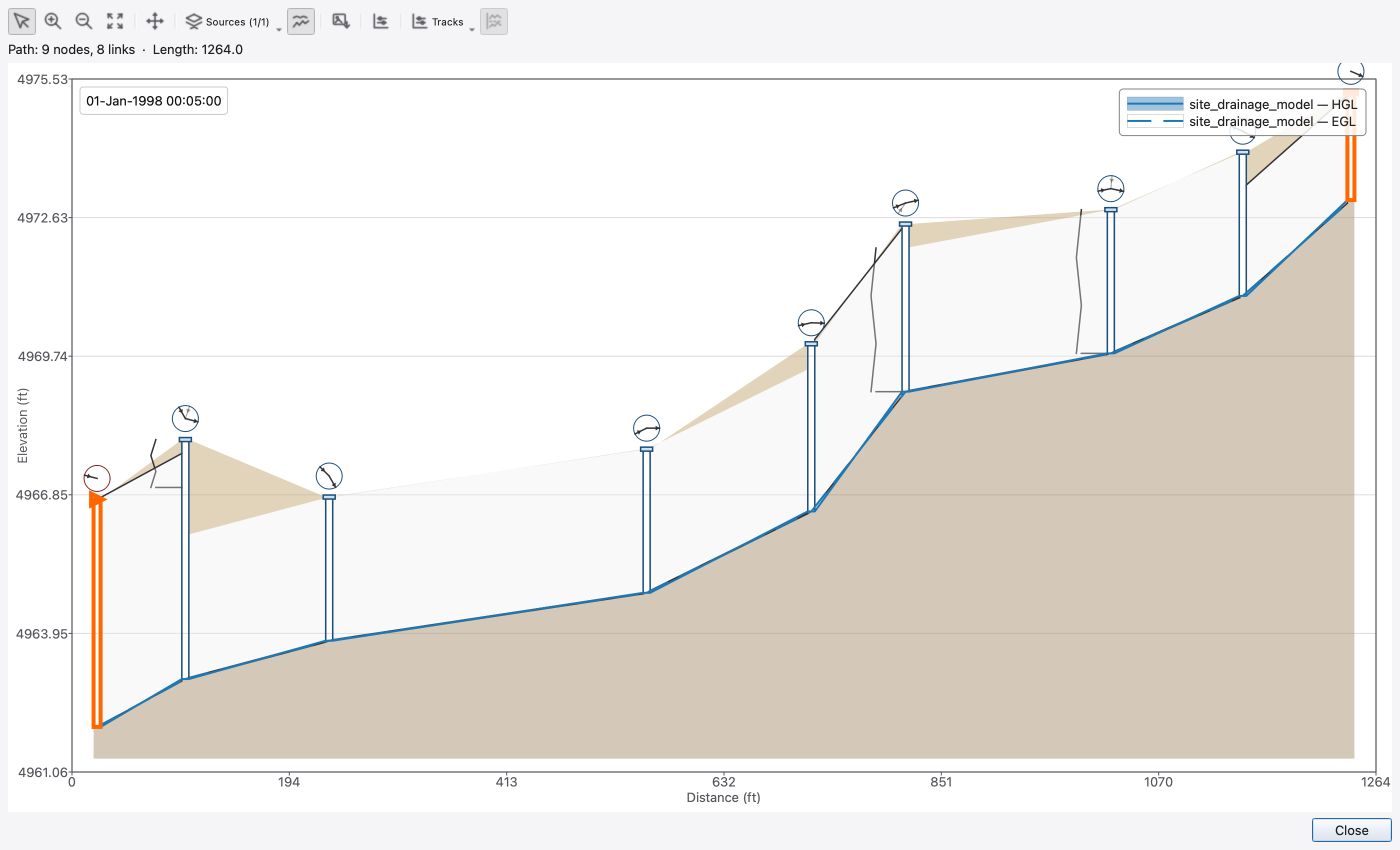
The Sources toolbar button lists every results layer the animation controller knows about, with a checkbox each; the button caption reads Sources (on/total). Each enabled source draws its own HGL in its own tint, so several runs share one section.
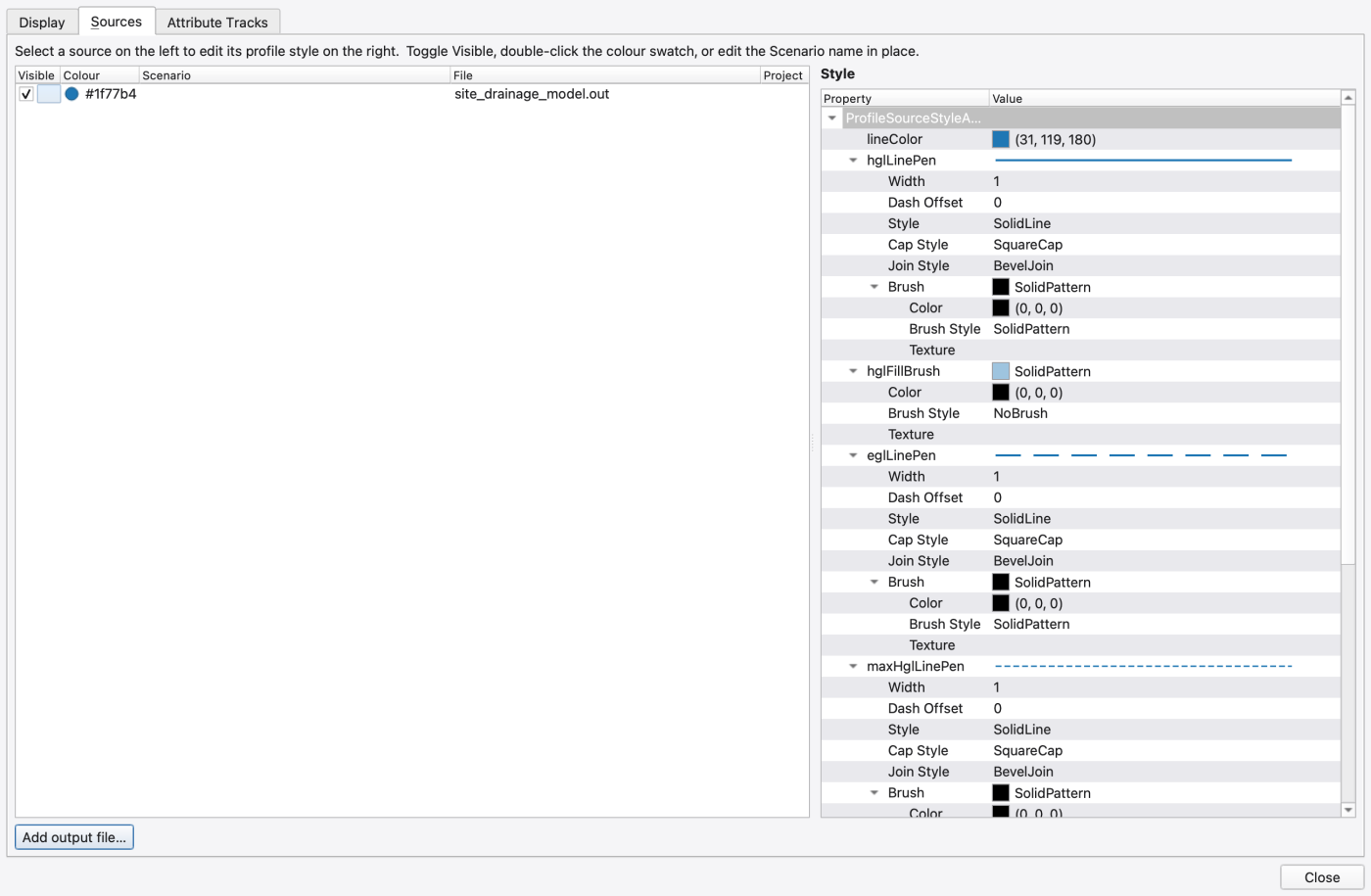
The Sources tab of the Display Options dialog does more:
.out file as an extra comparison source, without loading it into the project as a map layer.
The Tracks toolbar button adds mini-charts below the profile, sharing its chainage axis exactly — the tracks pane adopts the profile's left and right gutters and stays locked to it through zoom and pan.
Eleven attributes can be tracked, all of them read from the same runs the profile already has open:
| Node tracks | Link tracks |
|---|---|
| Depth, Head, Volume, Lateral inflow, Total inflow, Overflow | Flow, Depth, Velocity, Volume, Capacity |
Node attributes draw as a polyline through the value at each node. Link attributes draw as one horizontal segment per link with no vertical connectors — a link's flow or velocity is a single value over its length, and interpolating it across nodes would invent data.
Pane-level options are Track height, Show track titles, and an envelope overlay (the per-element minimum-to-maximum range over the whole run) with its own opacity. Each attribute has its own pen — colour, width and dash — editable from the Attribute Tracks tab of the Display Options dialog.
Elements the results file does not know leave a gap rather than a zero, so "no data" and "zero" stay distinguishable.
FIGURE PLACEHOLDERdocs/manual/images/23_profile_attribute_tracks.png
Display Options… opens a tabbed property editor over the profile's option object. Everything is live — the plot repaints as you edit.
| Tab | What it edits |
|---|---|
| Display | Every profile knob: layer visibility, labels, ground source, 2D inundation, connectivity, flooding indicator, per-type colours, line pens and fill brushes, axis number formats, legend and time label |
| Sources | The per-run controls described above |
| Attribute Tracks | The track options above (present once tracks are enabled) |
Selected controls worth knowing:
| Group | Controls |
|---|---|
| Layer visibility | HGL line, HGL fill, EGL, Max HGL band, Max HGL line, Max EGL line |
| Labels | Node labels, Link labels, Inline node labels, Orientation (Vertical / Horizontal / Diagonal) and an explicit angle |
| Ground | Ground source — Auto / Node rims / Mesh 2D / Terrain DEM |
| 2D inundation | Show 2D inundation plus the band's line pen and fill brush |
| Connectivity | Show branch stubs, Show node roses |
| Flooding | Wedge radius, sweep angle and colour |
| Theming | Fill and outline colours per node type and per link type; the virtual-junction pen; soil and bedding fills; a pen per result line and a brush per result fill |
| Axes | X and Y number format — decimals, significant figures, scientific, engineering or thousands-separated, with a digit count, or an explicit format string |
| Legend | Visible, Position (four corners), Font, Opacity, Offset |
| Time label | Visible, Position, Colour, Font, Format (default dd-MMM-yyyy HH:mm:ss), Offset |
Export PNG… saves the chart as an image. There is no numeric export from the profile window — plot the same attributes in the comparison plot and export from there.
Plot 2D Profile arms a polyline tool over the mesh: click to add vertices, double-click or Enter to finish, right-click to undo the last vertex, Esc to cancel. The action tells you so in its tooltip, and refuses to arm when the project has no mesh loaded.
The 2D Profiles panel draws, along the traced chainage:
Its toolbar carries Select, Zoom In, Zoom Out, Fit, Pan, Cell boundaries, Move marker on map, and Display Options…. Move marker on map turns the traced line on the map into a draggable position arrow — drag it and the profile's cursor follows, so you can relate a feature in the section to a place on the map.
The same tool on the Mesh 2D toolbar draws a 2D Mesh Bed Profile — the identical chart with no water, useful while you are building the mesh and before any run exists.
Display Options for the mesh profile edits: Show depth fill, Show WSE line, Show max envelope fill, Show max envelope line, Show cell boundaries; the soil brush, ground pen, depth brush, WSE pen and envelope pen and brush; the cell-boundary colour; X and Y axis number formats; and the same legend and time-label groups as the 1D profile.
FIGURE PLACEHOLDERdocs/manual/images/23_2d_mesh_profile.png
Use Series and styles in the 2D section tab to add groundwater table/base elevations and separate scalar tracks for available surface or SAT/UNSAT species. Each series chooses its result source, variable, visibility and appearance. Groundwater remains visible when the surface cell is dry. Concentrations retain their native units and use separate axes from elevations.
Sources retain their own report times and cell mapping. The sample table shows requested and effective times, units, values and availability. Static values, maximum envelopes, unavailable sources and missing report times have distinct labels; a missing value is not zero. Comparing elevations across different sources requires a matching declared vertical datum and compatible coordinates.
Choose Save section to retain its path, sources and configuration in the project, then save the project. Analysis → Saved 2D Sections… reopens it. Closing an unsaved section does not retain its edits. Export CSV… writes samples with source identity, time, units and status; unknown-unit data is refused for scientific export. Export image… saves the combined figure. The cursor can be moved with the keyboard, with series status exposed to accessibility tools as it moves.
Two behaviours explain what you see where the water meets dry ground. Neither is a control you set, but both matter when reading the plot:
Dry gaps between two wet runs are bridged only when the gap contains a cell with no valid surface at all. Two pools separated by a genuinely dry crest stay split, each flat at its own level; a bridged surface is monotone between its two wet ends, so water is never painted flowing uphill; and an off-mesh sample inside a gap blocks bridging across it, preserving a real hole in the data.
Because the map fill and the profile now share the same reconstruction, the inundation edge you see on the map and the waterline in the profile agree.
The Terrain toolbar's profile tool traces a polyline over the active terrain raster — the DEM chosen in that toolbar's Active Terrain combo. Click to add vertices, double-click or Enter to finish, right-click to undo, Esc to cancel.
The Terrain Profile window is the mesh-profile chart with no water: ground elevation only, with Select, Zoom In, Zoom Out, Fit, Pan, Move marker on map and Display Options….
Elevations are converted from the DEM's raw values into the project's vertical units using the terrain toolbar's DEM vertical unit and × factor controls. Change either and the profile re-samples, so the ground line always reads in model units.
FIGURE PLACEHOLDERdocs/manual/images/23_terrain_profile.png
 1.9.8
1.9.8