 |
SWMMVis
6.0.0-alpha.4
Qt6/C++ GIS-based graphical user interface for the SWMMVis engine (6.0.0-alpha.4)
|
|
SWMMVis
6.0.0-alpha.4
Qt6/C++ GIS-based graphical user interface for the SWMMVis engine (6.0.0-alpha.4)
|
Decide how everything on the map is painted: symbols and colours for SWMM object kinds and GIS features, classified and rule-based renderers, colour ramps, labels, the 2D mesh and 2D flood-map display, annotation text, and the legend — then save a style you like and reuse it.
| Surface | How to open it | Shortcut |
|---|---|---|
| Layer Properties (the style dialog) | Layer right-click → Properties…, or Styles ▸ Edit Symbology…, or double-click a kind row | — |
| Layer Styling dock | View → Layer Styling (ribbon View) | Ctrl+Alt+8 |
| Style Manager | Tools → Style Manager (ribbon View) | — |
| Set Style | Results → Set Style (ribbon Animation) | — |
| Legend dock | View → Panels → Legend | Ctrl+Alt+5 |
| On-canvas legend | View → Show Legend (ribbon Animation) | — |
| Legend Properties | Right-click the on-canvas legend → Properties… | — |
| Annotation style | Place or click a text annotation with the Add Text tool | — |
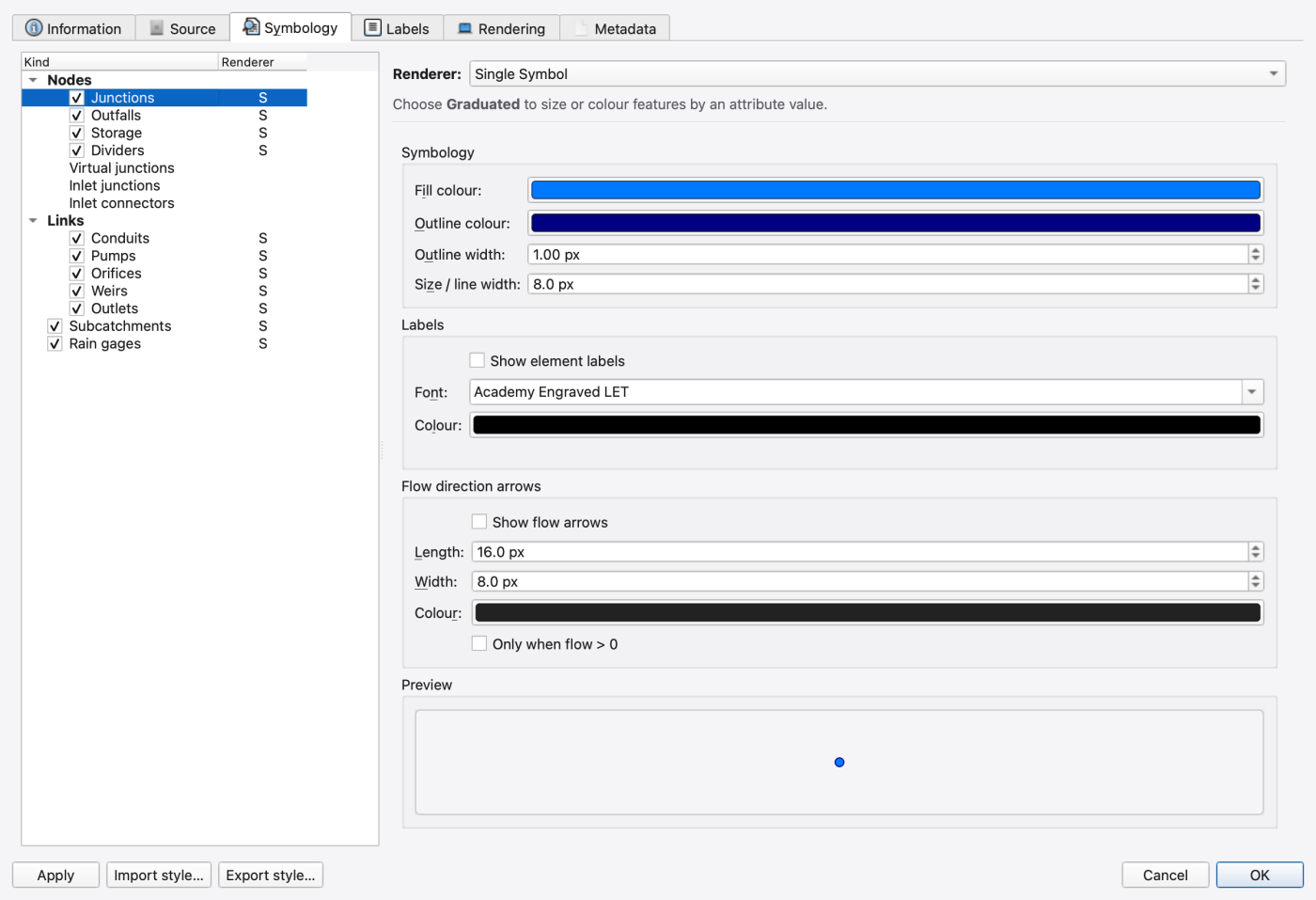
The Layer Properties dialog buffers your edits. Apply commits without closing, OK commits and closes, and Cancel rolls every subject back to the snapshot taken when the dialog opened. When a canvas undo stack is available the whole edit is pushed as one command on OK, so Ctrl+Z afterwards reverses the styling change as a unit.
The Layer Styling dock is a docked, non-modal version of the same symbology editing, aimed at the active layer's rule list. It has no Apply/Cancel — the map repaints on every edit, so you can leave it open and style while panning and zooming. Layers with no rule list (a plain basemap, for instance) show a placeholder instead.
The dialog's tab set adapts to the layer type. Information, Rendering and Metadata are universal; Source appears when the layer has an editable CRS; Symbology and Labels appear only where they mean something. The Information/Source/Rendering/Metadata tabs are described in 07 — Layers and Data Sources — this chapter covers Symbology, Labels, and the surfaces around them.
For a simple layer the Symbology tab opens with a Renderer dropdown over a panel that changes with the selection:
| Renderer | What it does | Availability |
|---|---|---|
| Single Symbol | One symbol for every feature. | Always. |
| Graduated | Classifies a numeric attribute into bands and colours (and optionally sizes) by band. | Needs at least one numeric attribute; greyed out otherwise, with the reason as the tooltip. |
| Categorized | One symbol per distinct attribute value. | Needs at least one attribute. |
| Rule-based | An ordered list of rules, each with its own renderer. | Needs at least one attribute. |
Switching the dropdown changes the layer's renderer and shows its editor. If the renderer is changed from somewhere else — undo, or a style import — the tab follows.
Whichever renderer you choose, the Base symbol & labels group — size or line width, outline, marker shape and the label settings — is available under it; the renderer only decides where the colour comes from: a single colour, the ramp, or the category. With Size by value on, the static size is greyed out because the value drives it.
A SWMM model layer or results layer is not one thing but eleven, so its Symbology tab is a tree on the left, editor on the right:
Each kind carries its own visibility checkbox and its own renderer; the badge after the name is the renderer class (**S**ingle, **G**raduated, **C**ategorized, **R**ule-based). Pick a kind and the right pane becomes that kind's Symbology tab. Opening the dialog from a kind row's context menu focuses that kind directly.
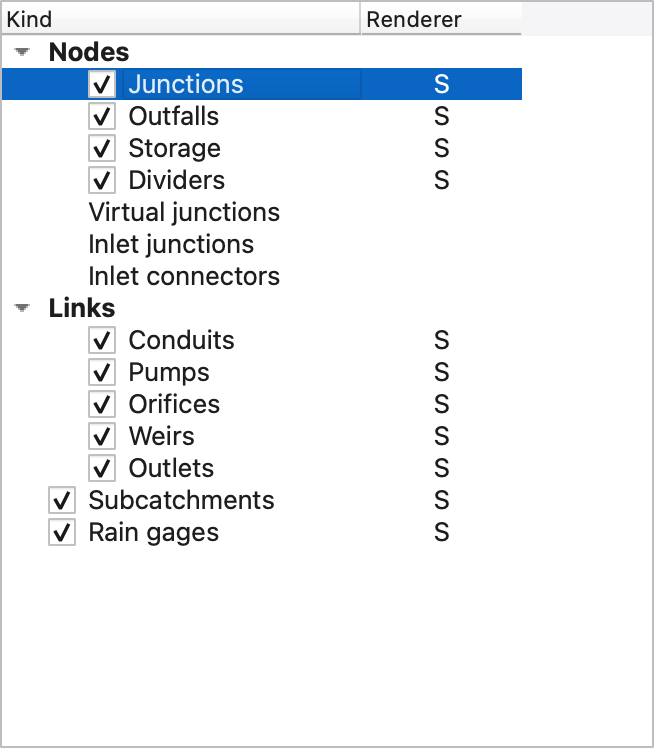
The editor matches the geometry archetype of what you are styling.
For a SWMM element: Fill colour, Outline colour, Outline width (px), Size / line width (px); a Labels group with Show element labels, font and colour; and, for links, a Flow direction arrows group with Show flow arrows, Length, Width, Colour and Only when flow > 0. A live preview sits at the bottom.
For a GIS vector layer the editor is tabbed by geometry:
| Tab | Controls |
|---|---|
| Marker | Size (px) and Shape. |
| Line | Width (px), Style (dash pattern), Render as polyline (otherwise a midpoint glyph), and a Flow arrows group with length, width and colour. |
| Polygon | Outline colour, Outline width (px), Fill opacity. |
| Labels | The label editor described below. |
Nineteen marker shapes are available: circle, square, triangle, diamond, star, cross, plus, ×-cross, pentagon, hexagon, arrow, equilateral triangle, half-circle, downward triangle, octagon, hexagram, and up/down/left arrows.
Graduated rendering classifies a numeric attribute. Its editor is the shared Classified rendering panel:
| Control | What it does |
|---|---|
| Mode | None (single symbol), Graduated (numeric ramp), Categorized (not yet implemented in this panel). |
| Color by | The numeric attribute driving the colours. |
| Classification editor | Method, class count, ramp, breaks table — see below. |
| Size by value | Off by default. When on, the symbol size (or line width) also varies with the value. |
| Min / Max | The size or width range the values map into. |
| Size by | The attribute driving size, or *(same as color)*. |
| Flow direction arrows | For link kinds: Show flow arrows, Length, Width, Colour. |
The Color by attribute shown in the combo is the one the layer stores and Export style… writes. On a results layer the attributes are named as they appear on screen — flow (m³/s), depth (m), velocity (m/s) and capacity for links; depth (m), head (m), volume (m³), inflow (m³/s), overflow (m³/s) and lateral inflow (m³/s) for nodes; runoff (m³/s) and the rest for subcatchments — plus one entry per pollutant or species.
FIGURE PLACEHOLDERdocs/manual/images/08_graduated_base_symbol.png
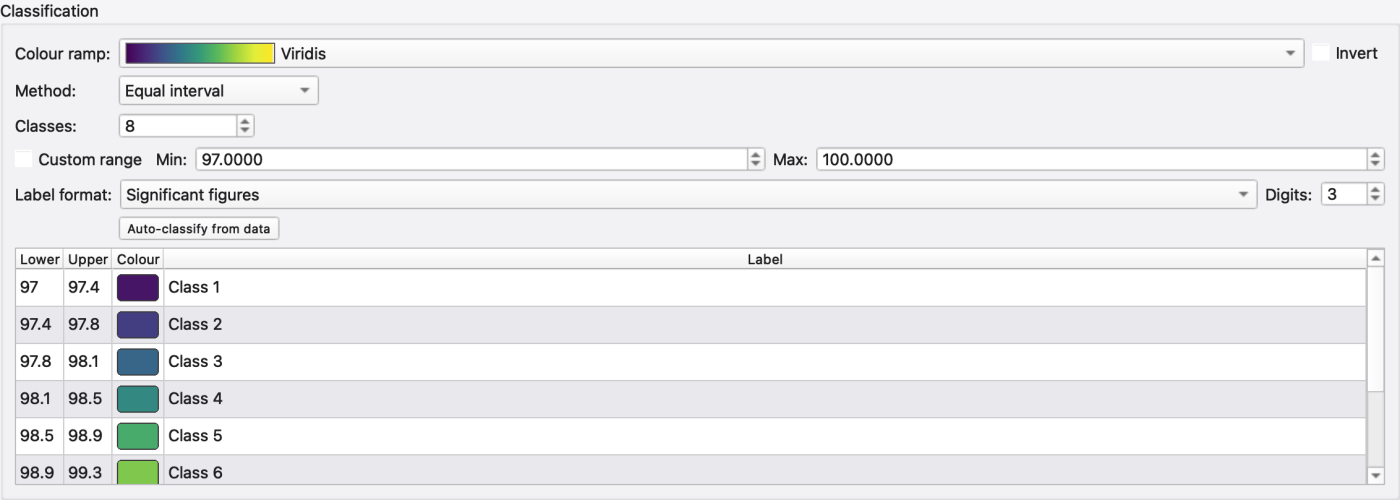
Wherever something is classified — graduated symbols, 2D depth fill, elevation bands, contour and isoline levels — the same editor appears:
| Control | What it does |
|---|---|
| Display | Continuous (smooth ramp) or Classified (discrete bands). |
| Attribute | The value being classified. |
| Colour ramp | Ramp picker with gradient swatches, plus Invert. |
| Method | Equal interval, Quantile, Natural breaks (Jenks), Standard deviation, Logarithmic, Exponential, Manual. |
| Classes | Number of classes. |
| Range | Fixed over run, Per-frame auto-stretch, Fixed (user range). |
| Custom range + Min / Max | An explicit data range instead of the observed one. |
| Label format + Digits | Decimal places or Significant figures, and how many. |
| Auto-classify from data | Recomputes the breaks from a sample of the actual values. |
| Class table | One row per class: Lower, Upper, Colour (click to pick), Label (editable). |
Editing a Lower or Upper cell switches the method to Manual, which is what you want when you are hand-tuning breaks.
| Control | What it does |
|---|---|
| Attribute | The field whose distinct values become categories. |
| Category table | Value, Label, Colour — all editable. |
| Sample unique values | Scans the data and fills the table with the values it finds. |
| Add / Remove / Clear | Manual table editing. |
| Edit symbol… | Opens a small dialog for the selected category's symbol: Shape, Size, Line width or Outline width, Dash. |
Model attributes also include defined User flag: NAME fields. Select one in Attribute, then click Sample unique values to create its categories. Changes to flag values refresh the feature colours.
The rule editor puts an Active Rule combo and a rule list above the renderer editor:
| Control | What it does |
|---|---|
| Active Rule | Which rule the editor below is editing. |
| + | Adds a rule. |
| Duplicate / Delete | On the active rule. |
| ↑ / ↓ | Reorder the rule list — order is paint order. |
| Rule list | Per-rule visibility checkboxes; drag to reorder. |
| Renderer | The renderer class used by the active rule. |
This is also what the Layer Styling dock hosts.
Every ramp picker is a combo that previews each ramp as a gradient swatch. Twenty-five built-in ramps ship with the application:
Grayscale · Viridis · Plasma · Magma · Inferno · Cividis · Turbo · RdBu · RdYlGn · Spectral · BrBG · Legacy SWMM (5-interval) · Legacy SWMM (pollutant) · Terrain · Plotly3 · IceFire · Blackbody · Electric · Hot · Jet · Picnic · Portland · Rainbow · Bluered · Water Depth.
The last row of the dropdown, Edit Custom Ramp…, opens the ramp editor:
| Control | What it does |
|---|---|
| Name | Library name for the ramp. A warning appears when it collides with an existing custom ramp. |
| Preset | Seed the stops from any built-in ramp. |
| Interpolation | RGB, HSV (short), HSV (long). |
| Reverse | Mirrors the stop order. |
| Gradient preview | Live; repaints on every edit. |
| Stop table | Position (0–1) and Color, both editable, with Add Stop / Remove Stop. |
| Saved custom ramps + Load / Delete | Reopen or remove a ramp from your library. |
OK is disabled until the ramp is named and has at least two stops. Custom ramps are stored per user, not in the project; deleting one leaves styles that already reference it working, since they hold the ramp's stops.
FIGURE PLACEHOLDERdocs/manual/images/08_color_ramp_editor.png
The Labels tab configures how a layer's features are labelled.
| Group | Controls |
|---|---|
| Labels | Show labels; Field — a combo of the layer's attributes for kinds that have them, or a free-text field (blank = the element's name). |
| Decimals | Auto (6 significant digits) or 0–10 fixed decimals, applied to numeric fields and to numeric {tokens} in expressions. |
| Expression | A label template with {token} placeholders, plus a button that opens the expression builder. |
| Font | Family, Size, Bold, Italic, Colour. |
| Halo (outline around text) | Enable halo, Colour, Radius. |
| Placement | Position: Auto, Above, Below, Left, Right, Centre. |
| Visibility scale window | Hide when 1: ≥ (hide when zoomed further out than this denominator) and Hide when 1: ≤ (hide when zoomed further in). 0 or none means no limit. |
| Background frame | Draw background behind labels, Colour, Padding, Corner radius. |
| Per-feature priority | An attribute name; higher values win label collisions. |
FIGURE PLACEHOLDERdocs/manual/images/08_labels_decimals.png
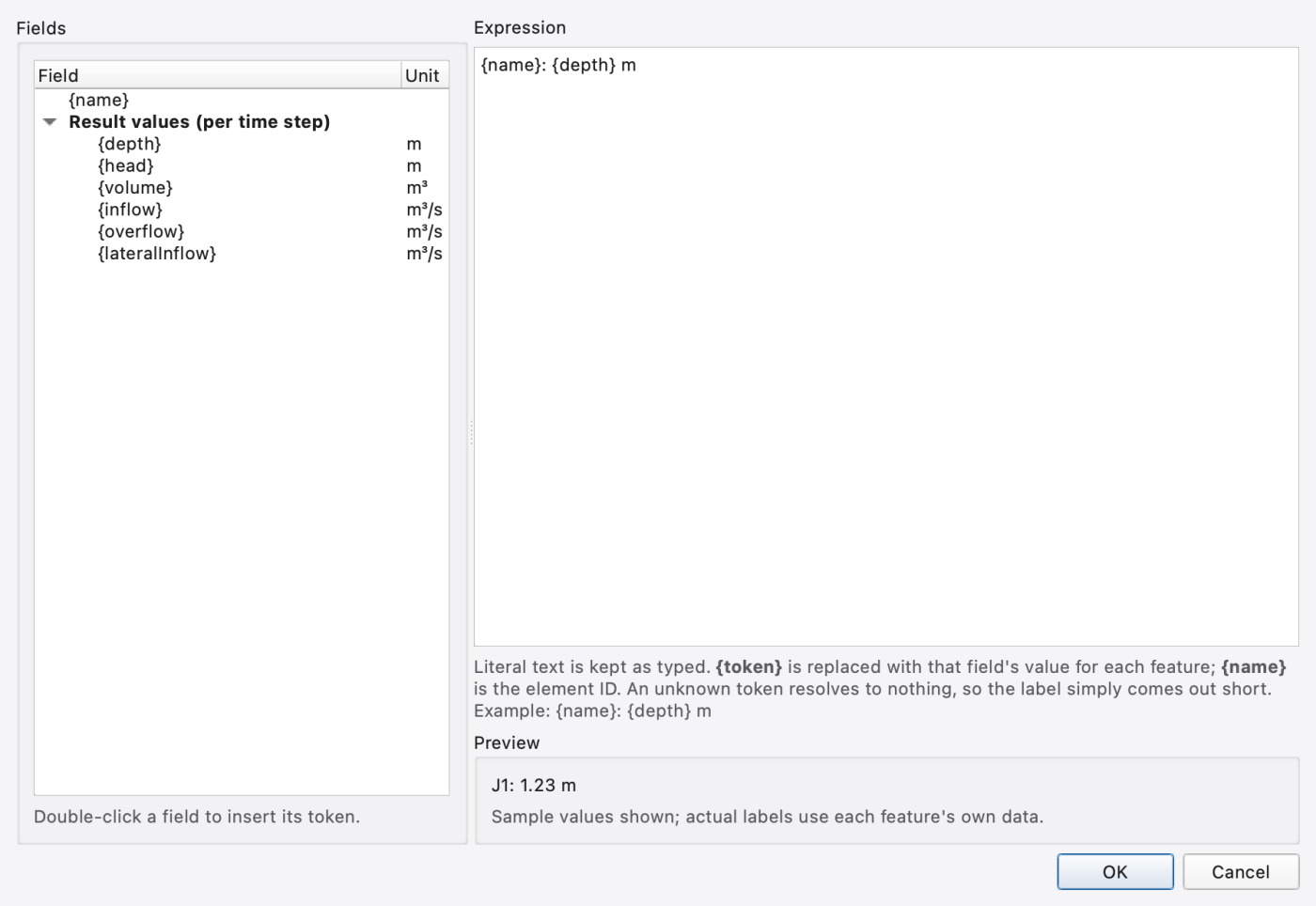
The template language is deliberately small: literal text with {token} placeholders, where {name} resolves to the element id and every other token is an attribute lookup. A misspelt token is not an error — it silently substitutes an empty string — which is exactly why the builder exists:
For a model layer, choose a static field such as max depth (maxDepth), or enter {name}: {maxDepth} m in Expression. The expression overrides Field. depth belongs to a results layer and means the value at the current animation time; it is not a static model property. Select the results layer and use its field picker for dynamic depth labels. Use the units advertised for the chosen field; a literal m does not convert a value to metres.
The manager stays open while you select another layer in the Layers panel; Apply and Save Current target that selected layer.
Tools → Style Manager browses a per-user library of saved styles — a folder of .swmm-rule.json files, one per saved rule list, created on first use.
| Control | What it does |
|---|---|
| Style library list | Every file in the library. |
| Open folder… | Reveals the library folder in the file manager. |
| Preview | Text summary of the selected style: rules loaded, rules skipped, per-rule names and renderer classes, hidden rules, and any warnings. |
| Apply to layer | Applies the selected style to the active layer and reports how many rules were loaded and how many skipped for unknown renderer ids. The map repaints immediately and the applied rules are what Layer Properties shows afterwards. |
| Save current… | Prompts for a name and saves the active layer's current rule list into the library, asking before overwriting. |
| Import… | Copies a .swmm-rule.json or a QGIS .qml into the library. |
| Export… | Writes the selected library entry to a path of your choosing. |
| Delete | Removes a library entry. |
With no active layer, Apply and Save Current are disabled but browsing, previewing, importing and exporting still work — useful for curating the library.
Single-layer round-tripping is also available straight from the style dialog's button bar: Export style… writes a .swmm-style.json capturing the layer's full styling, and Import style… reads that format or a minimal subset of QGIS .qml, reporting any warnings.
FIGURE PLACEHOLDERdocs/manual/images/08_style_manager.png
Results → Set Style opens the same Layer Properties dialog on whichever layer is selected in the Layers panel, falling back to the topmost visible layer when nothing is selected. For a results layer, that is where you choose the result variable driving the colours and the ramp that maps it.
The variables a 1D results layer can colour by are the node results (depth, head, volume, total inflow, overflow, lateral inflow), the link results (flow, depth, velocity, capacity) and the subcatchment results (runoff, infiltration, evaporation, snow depth), plus any pollutant or species series the file carries. The full list and what each means is in 21 — Results Layers, Result Styling and Animation.
The status bar also carries a per-attribute theming widget with one combo per object family — Node, Link, Subcatchment — so you can change the coloured variable during playback without opening a dialog.
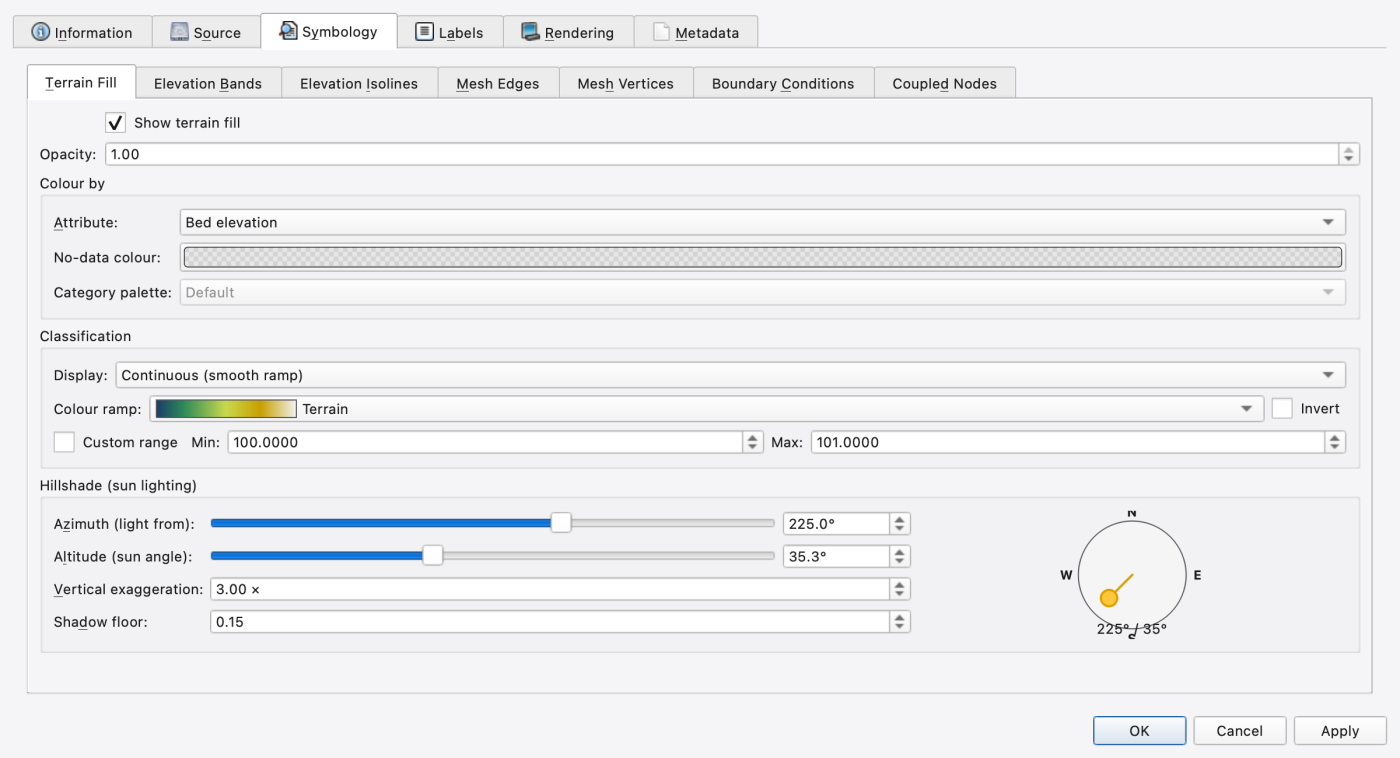
For a 2D mesh layer the Symbology tab becomes a tabbed panel, one tab per display sublayer. Each tab starts with a Show … checkbox that toggles that sublayer.
| Tab | Controls |
|---|---|
| Terrain Fill | Colour by — attribute (bed elevation and any per-cell attribute), No-data colour, Category palette for categorical attributes; the classification editor for the colour mapping; a Hillshade (sun lighting) group with Azimuth (°), Altitude (°), Vertical exaggeration (×) and Shadow floor. |
| Elevation Bands | Classification editor plus Interpolate band boundaries (marching triangles) — on, class boundaries are interpolated through the triangles; off, each cell is flat-filled. |
| Elevation Isolines | Line count, Line colour, Line width (px), Show elevation labels. |
| Mesh Edges | Colour, Width (px), Stroke style, Show edges at (minimum on-screen pixels per cell before the wireframe appears); a Slope emphasis group with Widen steep edges, Slope break, Wide width and Wide colour. |
| Mesh Vertices | Colour, Marker size (px), Outline colour, Outline width (px), Show vertices at (px per cell). |
| Boundary Conditions | A per-type grid — one row per boundary-condition type with a visibility checkbox, Colour and Width. Types with no edges in the mesh are labelled *(none in mesh)*. The interior-edge row recolours the wireframe rather than drawing its own lines, so its width column reads *(wireframe width)*. The boundary ring stays visible at every zoom. |
| Coupled Nodes | Colour and Marker size for the mesh vertices coupled to 1D SWMM nodes. |
Mesh edge and boundary widths are the full stroke width in screen pixels, independent of zoom and whether the mesh is active. With Widen steep edges enabled, steep edges use Wide width and Wide colour. While the Boundary Conditions sublayer is shown, its Wall / interior edges colour overrides the wireframe colours; turn that row off to use the Mesh Edges colours. The wireframe widths still come from Mesh Edges.
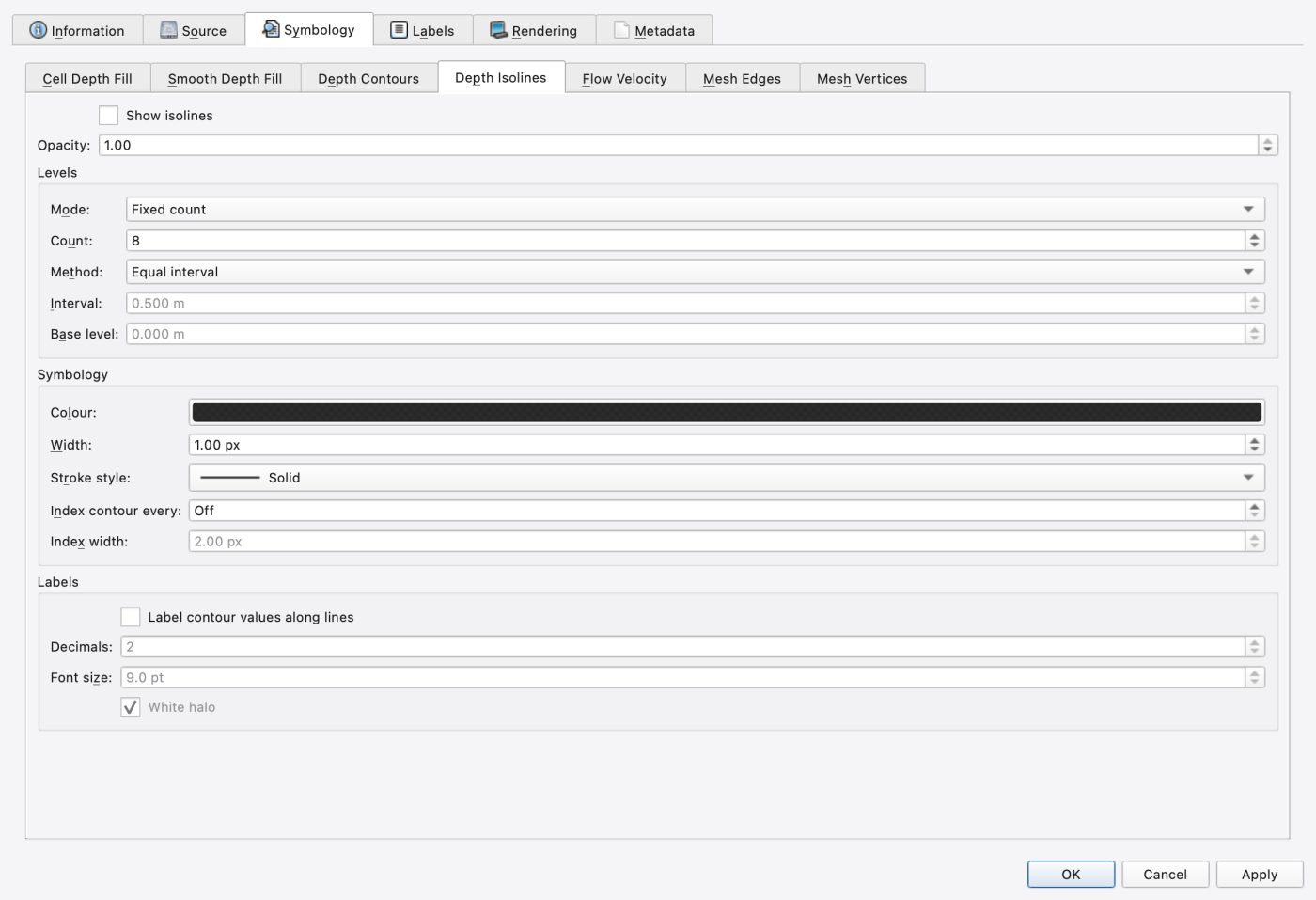
A 2D results layer gets the same treatment.
| Tab | Controls |
|---|---|
| Cell Depth Fill | Attribute — Depth or Elevation; a Colour group offering Source (Colour ramp or Two-colour gradient), Ramp, Invert ramp, or Low colour / High colour; and the classification editor. |
| Smooth Depth Fill | The same controls, applied to the Gouraud-interpolated fill. |
| Depth Contours | Classification editor plus Interpolate band boundaries (marching triangles). |
| Depth Isolines | Levels group: Mode (Fixed count or Fixed interval + base), Count, Method (equal interval, quantile, natural breaks, standard deviation, logarithmic, exponential), Interval, Base level (contours fall at base + k × interval). Symbology group: Colour, Width, Stroke style, Index contour every N (Off to disable) and Index width. Labels group: Label contour values along lines, Decimals, Font size, White halo. |
| Flow Velocity | Sizing: Length scaling (Linear and the other scaling laws), Scale (px per m/s), Min length, Max length, Head size, Shaft width. Colour: Colour by magnitude with a ramp, or a Single colour. Placement & filtering: Spacing (minimum on-screen px between arrows) and Dry depth cutoff (suppress arrows below this depth). |
| Mesh Edges | Colour, Width, Stroke style — the wireframe drawn once for the whole layer. |
| Mesh Vertices | Colour, Marker size, Outline colour, Outline width. |
Every control applies straight to its sublayer, so the map repaints immediately and the setting survives a project round-trip.
There are two legend surfaces, driven by the same data.
The Legend dock (Ctrl+Alt+5) is a tree of every visible layer's legend rows, grouped Layer → Item, with three columns — Item, Color and Size. The Color column is click-to-edit, and each edit is pushed onto the canvas undo stack, so Ctrl+Z reverses it uniformly across the dock, the on-canvas legend and the map. Right-clicking a sublayer row offers Edit Style…, which opens the Layer Properties dialog focused on that sublayer's tab.
The on-canvas legend is a translucent, draggable box painted over the map. View → Show Legend toggles it. Right-clicking it opens:
| Item | What it does |
|---|---|
| Change color… | On a legend class row — recolours that class. |
| Hide layer "…" | Hides the layer the clicked row belongs to. |
| Move layer up / Move layer down | Reorders that layer in the stack. |
| Properties… | Opens Legend Properties. |
| Copy legend as image | Puts the rendered legend on the clipboard. |
| Auto-size legend | Sizes the box to its contents. |
| Reset layout | Returns the box to its default position and size. |
| Hide legend | Same as clearing Show Legend. |
The legend follows the map automatically — it subscribes to layer additions, removals, reordering, visibility and repaints — and is clamped back into view when the canvas is resized, so it can never escape off-screen.
Legend Properties is a modeless property editor over the shared legend style. Edits are live; Reset restores the built-in defaults and closing with Cancel reverts to the state when the dialog opened. Properties are grouped as General, Frame and Background and cover the title (shown/hidden, text, font, colour), item and layer-header colours, row spacing, swatch size, padding, anchor corner, explicit width and height, maximum label width, frame visibility and colour, corner radius, and background colour and gradient end colour.
FIGURE PLACEHOLDERdocs/manual/images/08_legend_dock_and_overlay.png
Placing a text annotation with the Add Text tool opens Add Text Annotation; clicking an existing annotation with the same tool reopens it as Edit Text Annotation. A Text field sits at the top for the label itself, above a property tree exposing every style attribute with a type-appropriate editor — colour pickers for colours, a font dialog for fonts, checkboxes for toggles, spin boxes for numbers:
Placement is undoable. Note that edits made while editing an existing annotation commit as you make them — Cancel does not roll them back.
Styling lives in the project's .oswp sidecar, not in the .inp — SWMM's input format has nowhere to put it. The sidecar records each layer's renderer, the per-kind renderers for model and results layers, rule lists and their metadata, label configuration, per-sublayer visibility, opacity and style settings, the legend overlay style, and basemap connection details. Custom colour ramps and the style library are stored per user, outside the project, so they follow you between projects. See 03 — Working with Projects.
Two file formats are easy to confuse. A .swmm-style.json, written by Export style… in Layer Properties, holds one layer's full style — renderer, attribute, classification, labels — and is read back with Import style…. A .swmm-rule.json is the Style Manager's library format: a rule list saved with Save current… and applied to any layer of the same kind with Apply to layer.
.oswp sees the ramp's colours (they are stored with the style) but will not find it in their ramp library..qml import is a minimal subset.** Rules whose renderer has no counterpart here are skipped, and the count of skipped rules is reported..oswp sidecar stores 1.9.8
1.9.8