 |
SWMMVis
6.0.0-alpha.4
Qt6/C++ GIS-based graphical user interface for the SWMMVis engine (6.0.0-alpha.4)
|
|
SWMMVis
6.0.0-alpha.4
Qt6/C++ GIS-based graphical user interface for the SWMMVis engine (6.0.0-alpha.4)
|
Navigate every object in the project by type, edit one object's attributes property by property, open the compound editors behind the multi-row attributes (inflows, treatment, LID usage, cross-sections, inlet usage, …), convert an object from one SWMM type to another, and see the selected link or node drawn to scale.
FIGURE PLACEHOLDERdocs/manual/images/10_three_docks.png
| Dock | Menu | Shortcut |
|---|---|---|
| Object Browser | View → Panels → Object Browser | Ctrl+Alt+2 |
| Properties | View → Panels → Properties | Ctrl+Alt+3 |
| Section View | View → Panels → Section View | Ctrl+Alt+9 |
Edit → Search (Ctrl+F) raises the Object Browser and focuses its filter box. All three docks bind to the active project tab and re-bind on every tab switch.
The tree is built on demand: only the category rows exist up front, and object names are fetched as rows scroll into view, so a million-object project costs nothing at rest.
It has two sections, separated by a bold italic Data Objects divider row (inert — it has no menu and cannot be selected):
Network section — the spatial categories, each row reading Label (count):
Junctions, Outfalls, Storage Units, Dividers, Conduits, Pumps, Orifices, Weirs, Outlets, Subcatchments, Rain Gages.
Data Objects section — the non-spatial categories:
Curves, Time Series, Time Patterns, LID Controls, Pollutants, Land Uses, Aquifers, Snowpacks, Control Rules, Transects, Unit Hydrographs, Streets, Inlets.
Empty categories are omitted. Counts are live.
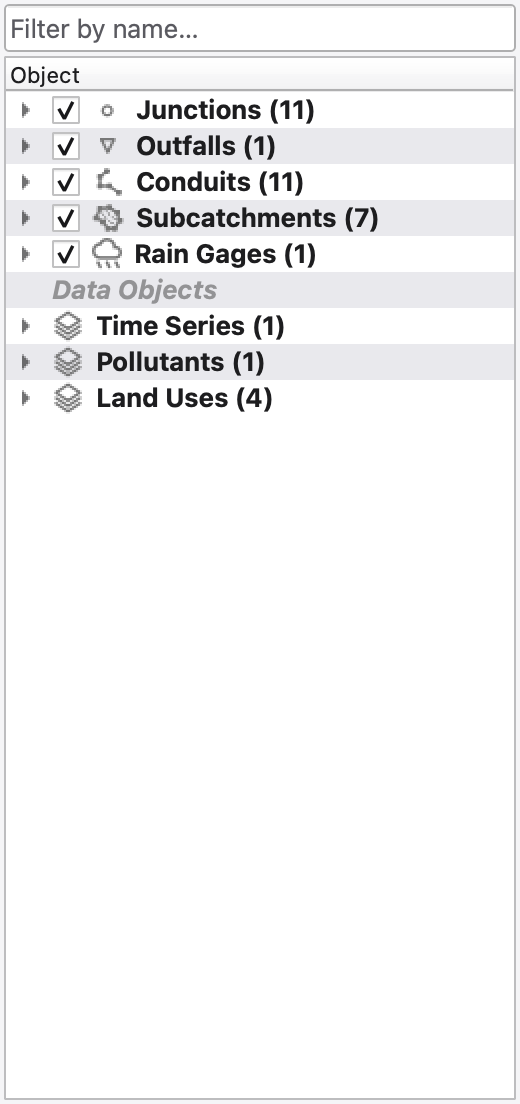
Every network category header and every network leaf carries a checkbox that drives map visibility. Unchecking a header hides the whole category in one step; individual leaves can then be re-checked. Leaf checks are typed, so unchecking a subcatchment does not also hide a rain gage that happens to share its name.
Data-object rows carry no checkbox — the canvas only paints spatial objects.
Type into Filter by name…. The filter is case-insensitive, substring-based and recursive (a category stays visible while any of its objects match), and it waits until you pause typing, so a huge project is not re-filtered on every keystroke. The (x) button clears it.
The filter changes what is shown, never what is selected.
Category rows can be dragged to reorder the tree; leaves cannot. The order is part of the project and the change is undoable. Move Up / Move Down on a category's context menu step past categories that are hidden because they are empty, so one step always produces a visible change.
| Row | Double-click does |
|---|---|
| Network leaf (node / link / subcatchment / gage) | Zoom the map to that object |
| Data leaf with a comprehensive editor | Open that editor with the object pre-selected |
| Category header | Expand / collapse |
Right-click behaviour depends on the row.
Network category header
| Item | What it does |
|---|---|
| Move to Top / Move Up / Move Down / Move to Bottom | Reposition the category in the tree (undoable) |
| Reset to Default Order | Restore the built-in category order |
Network leaf
| Item | What it does |
|---|---|
| Plot Time Series… | Plot this object's results. With two or more .out layers loaded this becomes a submenu naming each results layer, so you pick the run first |
| Rainfall Visualization… | Rain gages only — open the shared rainfall comparison dialog |
| Zoom to Object | Centre and zoom the map on it |
| Sort Category A→Z | Sort every object in this category alphabetically (undoable) |
| Reset Category to Default Order | Restore the engine order |
| Delete… | Delete this object, with confirmation, through the shared undoable delete path |
Data category header
| Item | What it does |
|---|---|
| Add New… | Open that category's comprehensive editor in create mode |
Data leaf
| Item | What it does |
|---|---|
| Edit… | Open the category's comprehensive editor with this object pre-selected |
| Delete… | Delete it. Enabled only for the kinds that can be deleted from here (curves, time series, transects); the rest show the action disabled with a tooltip |
A left-click already selects the object and the Properties panel follows it, so there is no separate Properties… entry.
FIGURE PLACEHOLDERdocs/manual/images/10_browser_context_menu.png
FIGURE PLACEHOLDERdocs/manual/images/10_data_object_edit_menu.png
Every non-spatial data category ships a dedicated editor, reached from Add New…, Edit…, a leaf double-click, the Properties panel's Open in … button, the Model → Data Objects menu and the Model ribbon:
| Category | Editor |
|---|---|
| Curves | Curve Editor |
| Time Series | Time Series Editor |
| Time Patterns | Pattern Editor |
| LID Controls | LID Control Editor |
| Pollutants | Pollutant Editor |
| Land Uses | Land Use Editor |
| Aquifers | Aquifer Editor |
| Snowpacks | Snowpack Editor |
| Control Rules | Rules Editor |
| Transects | Transect Editor |
| Unit Hydrographs | Hydrograph Group Editor |
| Streets | Street Editor |
| Inlets | Inlet Editor |
Each editor is a single shared window no matter which surface opened it, so you never end up with two views onto the same object. They are covered in 17 — Time Series, Curves, Patterns and Calibration Data, 13 — Hydrology: Rain Gages, Subcatchments, LID, Snow, Groundwater and RDII and 14 — Hydraulics: Nodes, Links, Cross-Sections, Streets, Inlets and Controls.
Selecting an object anywhere populates the Properties panel with a property tree. The rows are fixed per object kind, and each property's type decides its editor — a numeric row gets a spin box, a boolean a checkbox, an enumeration a combo, a colour a colour picker.
The panel header carries:
| Control | Purpose |
|---|---|
| Layer: combo | Switch between the layers that returned results in the last identify |
| Open in … button | Data objects only — open the category's comprehensive editor on this object |
| Plot Rainfall… button | Rain gages only — open the Rainfall Visualization dialog |
| Stats source: combo | Which loaded .out drives the post-run statistic rows. Defaults to the project's active results layer; (editing engine) when none is loaded |
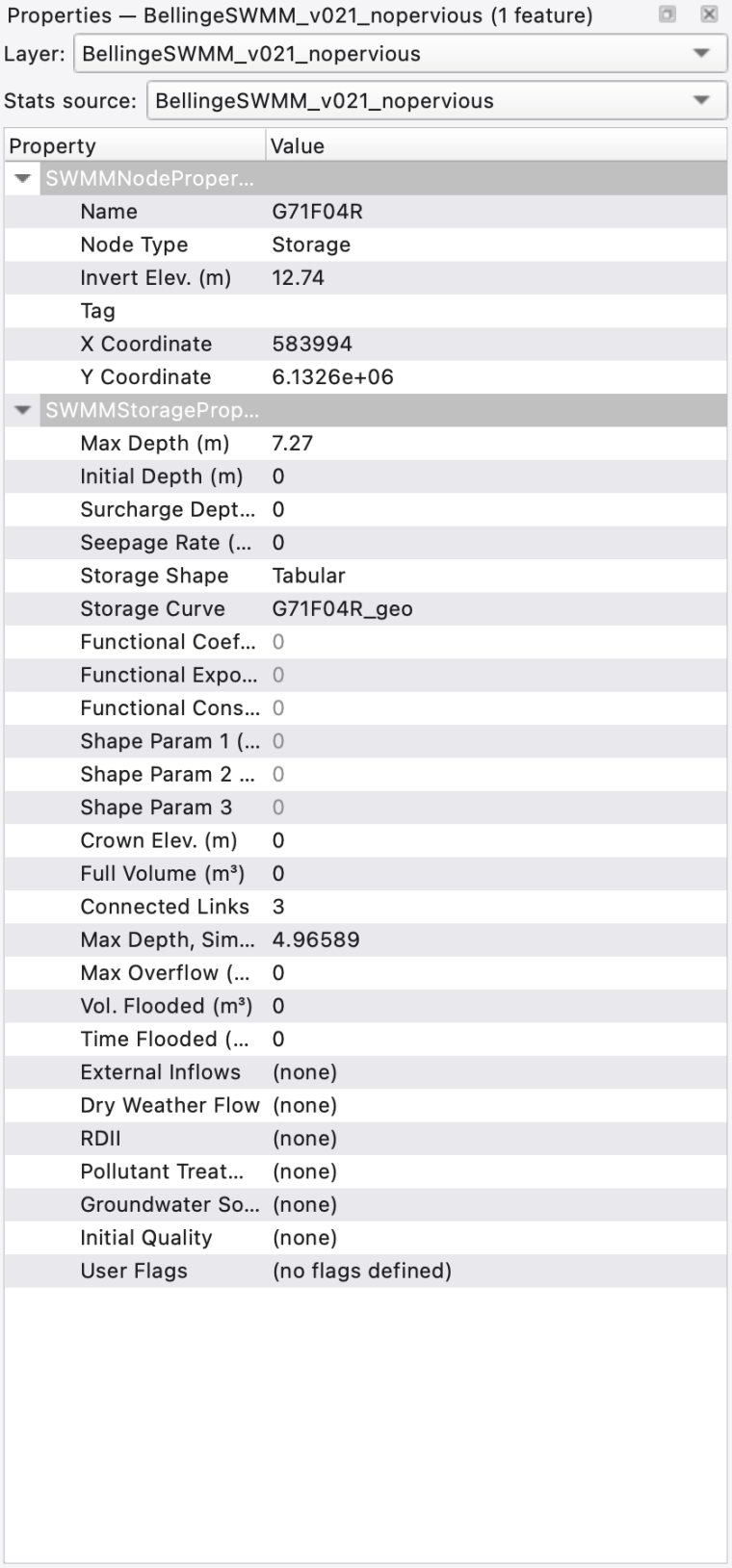
| Row kind | Editor | Notes |
|---|---|---|
| Number | Double spin box | Range and decimals are fixed per property, and the editor steps by an amount suited to the field — whole units for lengths, 0.001 for roughness; the header carries the unit resolved from the project's flow-unit system |
| Integer | Spin box | e.g. barrels; number of inlets |
| Boolean | Checkbox | e.g. flap gate |
| Enumeration | Combo | e.g. outfall type; divider type; storage shape; inlet placement |
| Text | Line edit | Name and tag |
| Colour / font | Colour and font pickers | Annotation and layer styling rows |
| Date-time | Calendar popup formatted MM/dd/yyyy HH:mm | Seconds are preserved even though the format omits them |
| Data-object reference | Combo of what is actually defined plus a … button | e.g. rain gage; subcatchment outlet; pump curve; outfall tidal curve; inlet design; aquifer. The … opens that family's editor and the combo repopulates when it closes |
| Compound | Cell shows a summary and a button opening a dialog | Inflows; DWF; RDII; treatment; cross-section; inlet usage; land use; LID usage; loadings; groundwater; initial quality; user flags |
| Culvert code | Dedicated combo | Inline on the conduit; no longer a dialog page |
| Read-only | Greyed value | Derived values (crown elevation; full volume; degree) and the post-run statistics |
Reference rows are closed pickers: you choose from what exists rather than typing a name, so a model can never cite an object that is not there.
Right-clicking a row opens a small menu when the row is a reference or a compound cell — Edit "name" in *Editor*… for a data reference, Edit… for a compound cell. Plain rows have no menu.
The engine always stores a link offset as a depth above the end node's invert. The LINK_OFFSETS option decides how it is shown:
LINK_OFFSETS | Property and column labels | Value shown |
|---|---|---|
DEPTH | Inlet Offset / Outlet Offset | The stored depth |
ELEVATION | Upstream Elevation / Downstream Elevation | Depth plus the end node's invert |
A value typed in elevation mode has the invert subtracted before it is stored, and an elevation below the invert clamps to depth 0 — matching the legacy SWMM GUI. Weir and outlet crest heights follow the same rule, measured from the upstream node.
The mode is switched from the status bar; flipping it re-labels the rows in the Properties panel and the Attribute Table without touching the stored values.
FIGURE PLACEHOLDERdocs/manual/images/10_offset_mode_toggle.png
The Properties panel is a single-object editor. With several objects selected it shows one of them; it does not offer group editing.
To change one attribute across many objects, use the Attribute Table's right-click Apply this "…" value to N selected rows / Apply "…" value to N selected rows…, which commits the whole batch as one undo step. See 11 — Attribute Tables and the Attribute Calculator.
Compound attributes are the ones that are a list, not a value. Each is a modal dialog whose body is a stack of pages, one per attribute, and each page commits to the engine as you go — so the summary in the cell is refreshed even if you close with Cancel.
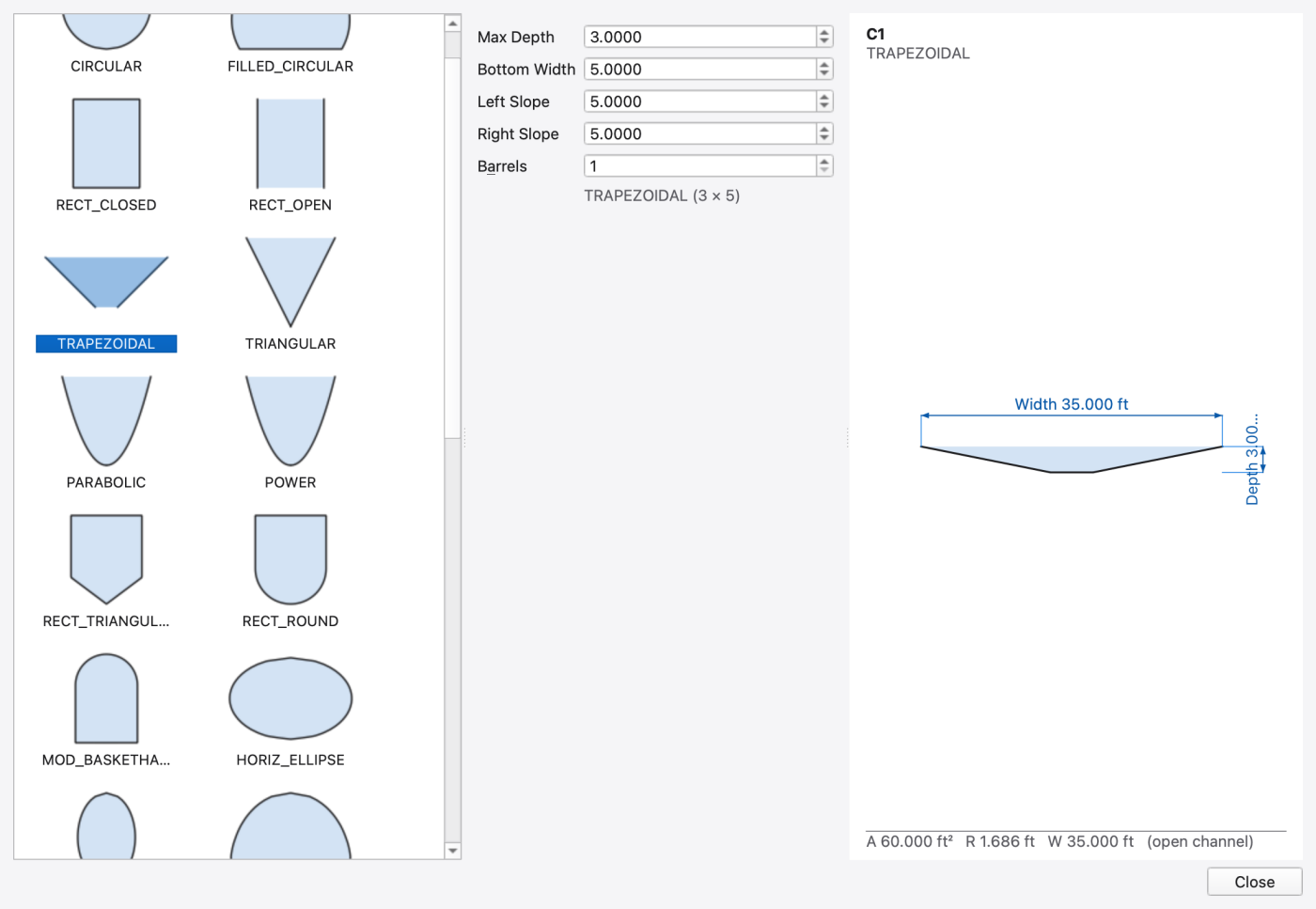
Opened from a node's Inflows, Dry Weather Flow, RDII or Treatment row.
| Page | Writes | What the page holds |
|---|---|---|
| Inflows | [INFLOWS] | Table of the node's entries plus a form: constituent (FLOW or any pollutant), type (CONCEN / FLOW / MASS — MASS is disabled when the constituent is FLOW), time-series picker, baseline, scale factor, monthly factor, baseline pattern picker |
| Dry Weather Flow | [DWF] | Table of entries plus a form: constituent, average value, and four pattern pickers — Monthly; Daily; Hourly; Weekend |
| RDII | [RDII] | Unit-hydrograph group picker and sewershed area, with the node's current assignment in a table |
| Treatment | [TREATMENT] | Two-column table (Pollutant, Expression) edited inline, with a live validity banner from the engine's expression validator |
Every picker's … button opens the corresponding comprehensive editor (Time Series, Pattern, Hydrograph Group) and re-selects the object you worked on when it closes. Add and Remove buttons manage entries; editing an entry is remove-and-re-add through the table selection and the form below.
A node's Groundwater Sources row is navigational only — it opens the owning subcatchment's Groundwater Exchange dialog rather than a page here.
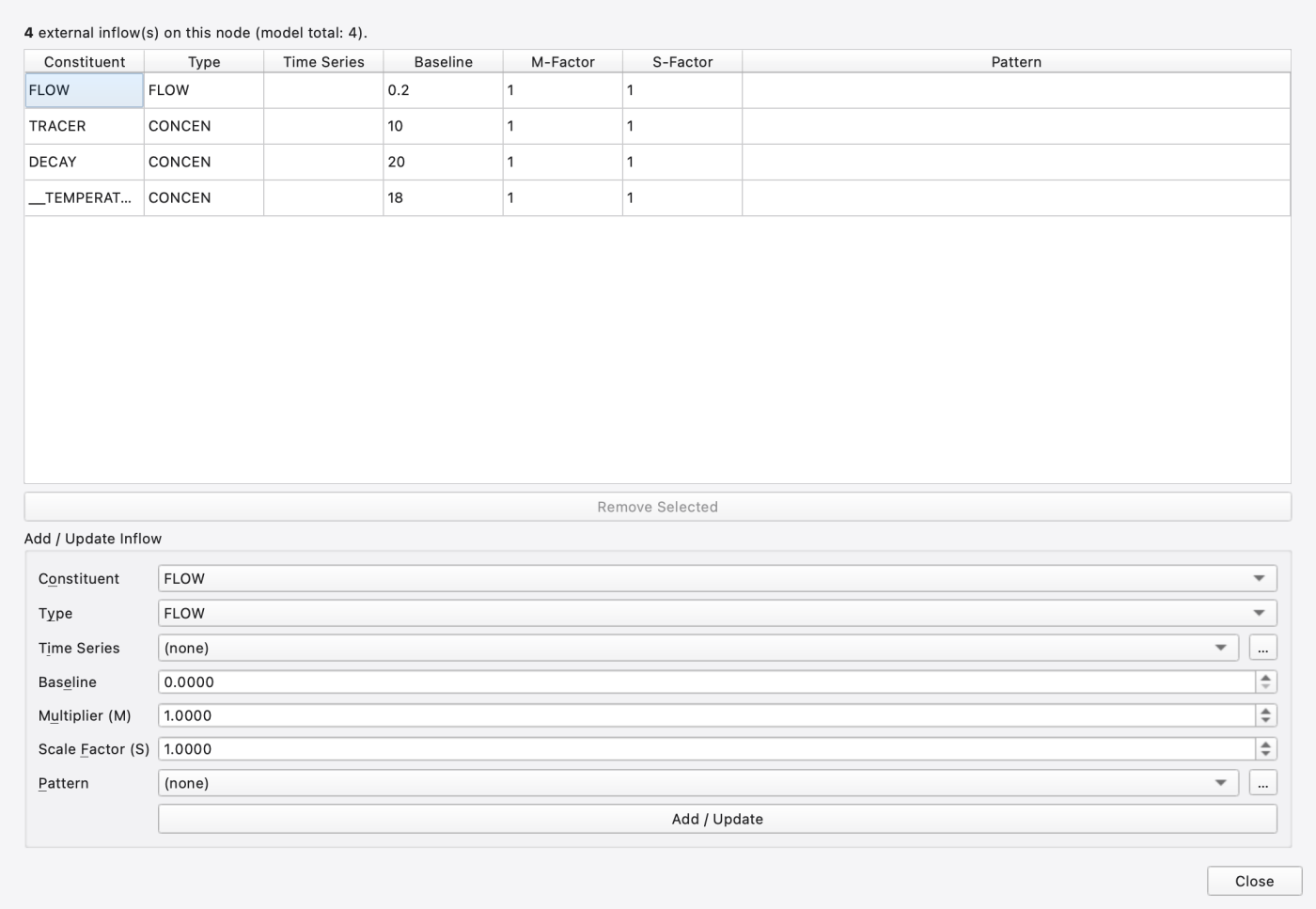
Opened from a link's Cross-Section or Inlets row.
| Page | Writes | What the page holds |
|---|---|---|
| Cross-Section | [XSECTIONS] | Shape combo covering the full SWMM shape set, geom1–geom4 spin boxes shown or hidden per shape, barrels, and a live section preview that tracks typing before a value is committed. IRREGULAR swaps geom1 for a transect picker and STREET for a street picker; both … buttons open the matching editor |
| Inlets | [INLET_USAGE] | The conduit's usage row — inlet design, capture node, number of inlets, percent clogged, flow restriction, local depression height and width, placement. Commits as one undoable operation, the same one an inlet junction's property rows push |
The culvert code moved out of this dialog: it is an inline combo on the conduit's own property row.
Opened from a subcatchment's Land Use, LID Usage or Initial Loadings row.
| Page | Writes | What the page holds |
|---|---|---|
| Land Use | [COVERAGES] | Full matrix — one row per defined land use with an editable percent column and a live sum footer |
| LID Usage | [LID_USAGE] | Table of the subcatchment's LID units plus a form: LID control combo, number of units, unit area, top width, initial saturation, percent of impervious area treated |
| Initial Loadings | [LOADINGS] | One editable row per pollutant — initial surface buildup |
The subcatchment's fourth compound kind, Groundwater, opens the dedicated Groundwater Exchange dialog instead of a page here — see 13 — Hydrology: Rain Gages, Subcatchments, LID, Snow, Groundwater and RDII.
FIGURE PLACEHOLDERdocs/manual/images/10_subcatch_lid_usage.png
Nodes and links can be converted to another SWMM type in place, from either of two surfaces:
Both run the same flow: a confirmation warning that the old type's specific attributes will be cleared and that the conversion is not undoable, then the engine conversion, then a summary of the fields the engine cleared plus any topology warnings.
Offered targets:
| Kind | Targets |
|---|---|
| Node | Junction, Outfall, Storage, Divider, Virtual Junction, and Inlet Junction when the engine supports it |
| Link | Conduit, Pump, Orifice, Weir, Outlet |
Virtual and inlet junctions are junctions with extra rules rather than separate node types, so they appear in this list as their own targets. Both are offered greyed out with the violated rule as a tooltip when the engine's usage rules are not met — a virtual junction needs exactly two identical conduits, zero offsets and no 2D coupling; an inlet junction needs all of that plus both conduits being STREET sections. Point inflows do not disqualify a node.
Converting to an inlet junction takes an extra step: the Inlet Junction Setup dialog collects the inlet design, the capture (underdrain) node and the placement before the conversion happens, because the engine requires all three for the node to validate. Virtual and inlet junctions, and the host conduit's own end nodes, are excluded from the capture-node list.
The map's link context menu also carries Flip Direction, which swaps a link's upstream and downstream nodes without moving it.
FIGURE PLACEHOLDERdocs/manual/images/10_convert_to_menu.png
The Section View dock draws the current selection to scale. It follows the selection exactly as the Properties panel does and repaints whenever an attribute changes, so an edit made in the property grid, the attribute table or the cross-section dialog shows up immediately.
| Selected | What is drawn |
|---|---|
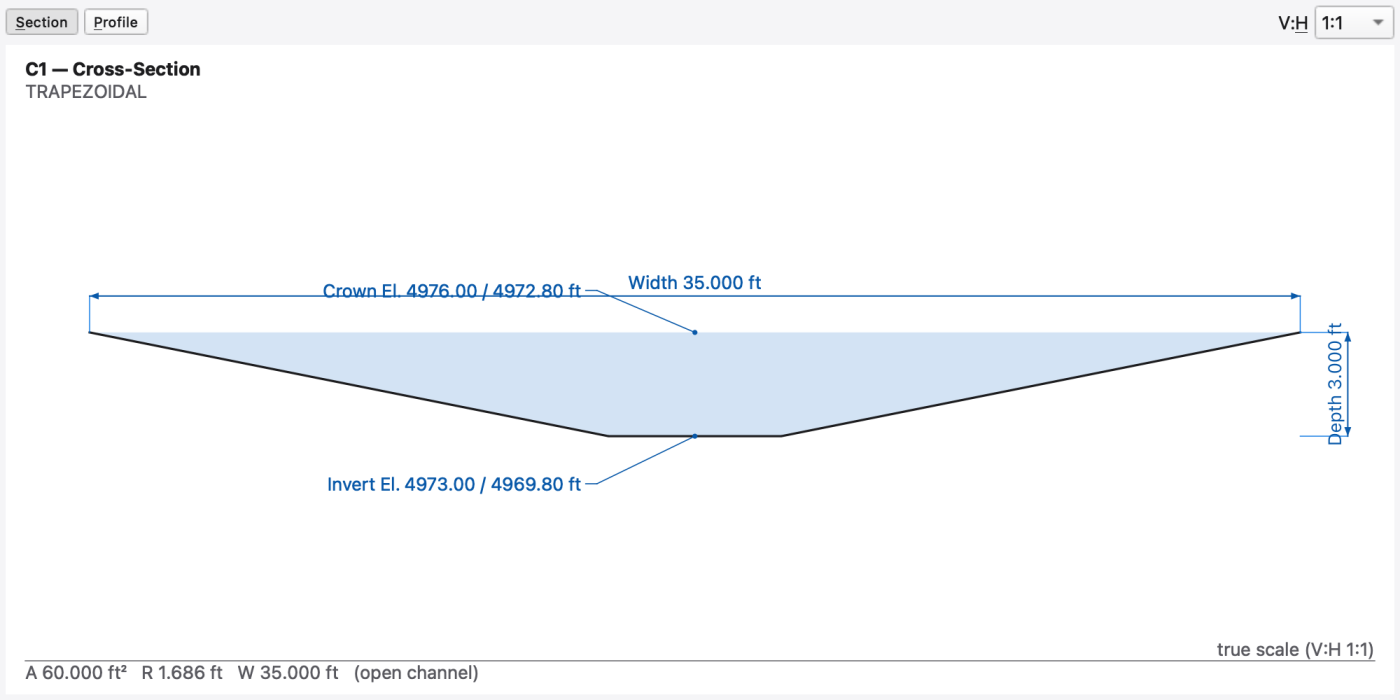
| Link — Section | True-shape cross-section sampled from the engine, dimensioned for full depth and maximum width, with invert and crown elevations leadered from each end node's invert plus the link's offset there. A sloping run reports both ends; a flat one collapses to a single value |
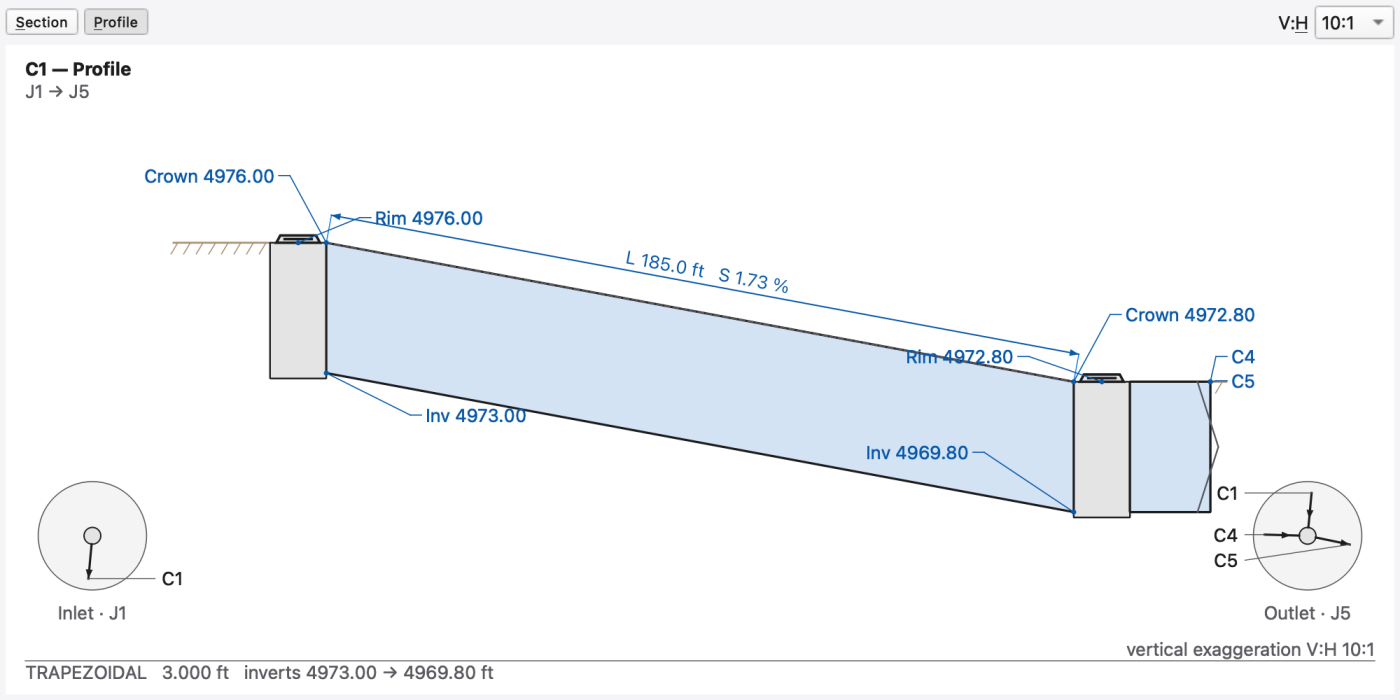
| Link — Profile | Longitudinal profile between the two nodes: both structures rim-to-invert, the ground line, the barrel drawn at its true crown and invert elevations including offsets, the upstream offset dimension, and length and slope along the barrel axis |
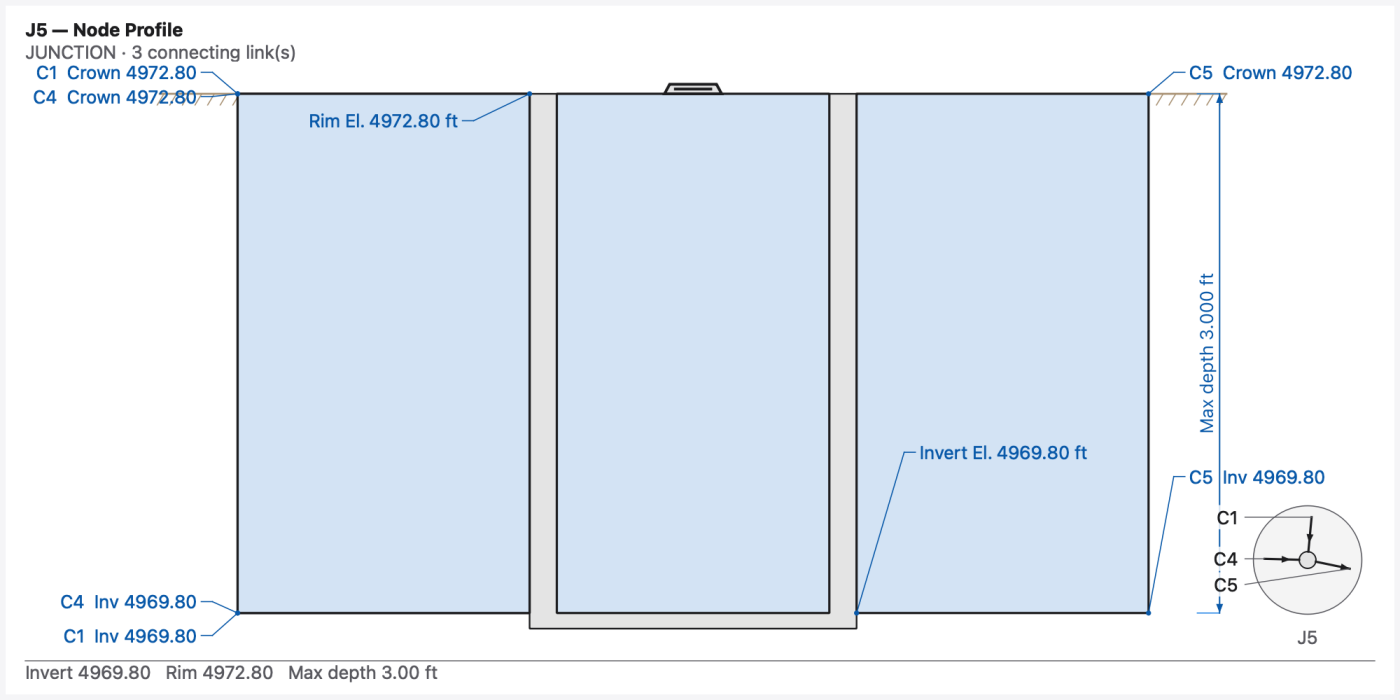
| Node | Node profile — the structure, rim and invert, every connecting link stubbed at its own invert offset (inbound left, outbound right, ordered by invert like a manhole schedule), plus a plan-view inset of link headings. Up to eight connections are drawn and the footer notes any remainder |
| Anything else | *"No section view for this object type."* |
Two toolbar controls:
1:1 being true shape and true scale; Auto instead fills the pane and states the achieved ratio on the drawing.Each mode keeps its own ratio, and the combo follows the mode. Section defaults to 1:1, because any other ratio misreports the barrel's shape — the one thing a cross-section exists to show. Profile defaults to 10:1, the conventional drainage-sheet exaggeration, because a reach at a fraction of a percent slope is unreadable at true aspect. Both choices persist across selections, and whatever ratio is in force is stated on the drawing — 1:1 reads true scale (V:H 1:1).
The blue fill in these previews represents the authored cross-section geometry; it is not a simulated water level. C1 is a trapezoidal open channel 3 ft deep and 35 ft wide at the crown. Its longitudinal preview runs from J1 to J5.
All three docks and the map are views onto one model, and they stay in step:
Ctrl+Z steps back through everything in one history..out. 1.9.8
1.9.8