 |
SWMMVis
6.0.0-alpha.4
Qt6/C++ GIS-based graphical user interface for the SWMMVis engine (6.0.0-alpha.4)
|
|
SWMMVis
6.0.0-alpha.4
Qt6/C++ GIS-based graphical user interface for the SWMMVis engine (6.0.0-alpha.4)
|
Find out what SWMMVis is, how it relates to the OpenSWMM engine and to EPA SWMM 5, install it, launch it for the first time, work through the Welcome page, and open your first model.
| Thing | Where |
|---|---|
| The application | macOS: SWMMVis.app; Windows: Start menu entry; Linux: desktop entry org.openswmm.swmmvis.desktop (categories Education / Science) |
| Welcome page | The first tab in the MDI workspace; reopen with Help → Show Welcome Page (ribbon View → Start → Welcome) |
| License agreement | Shown automatically at launch; re-enable it in Tools → Preferences… → General |
| Bundled examples | Welcome page, Example Projects |
| About and credits | Help → About |
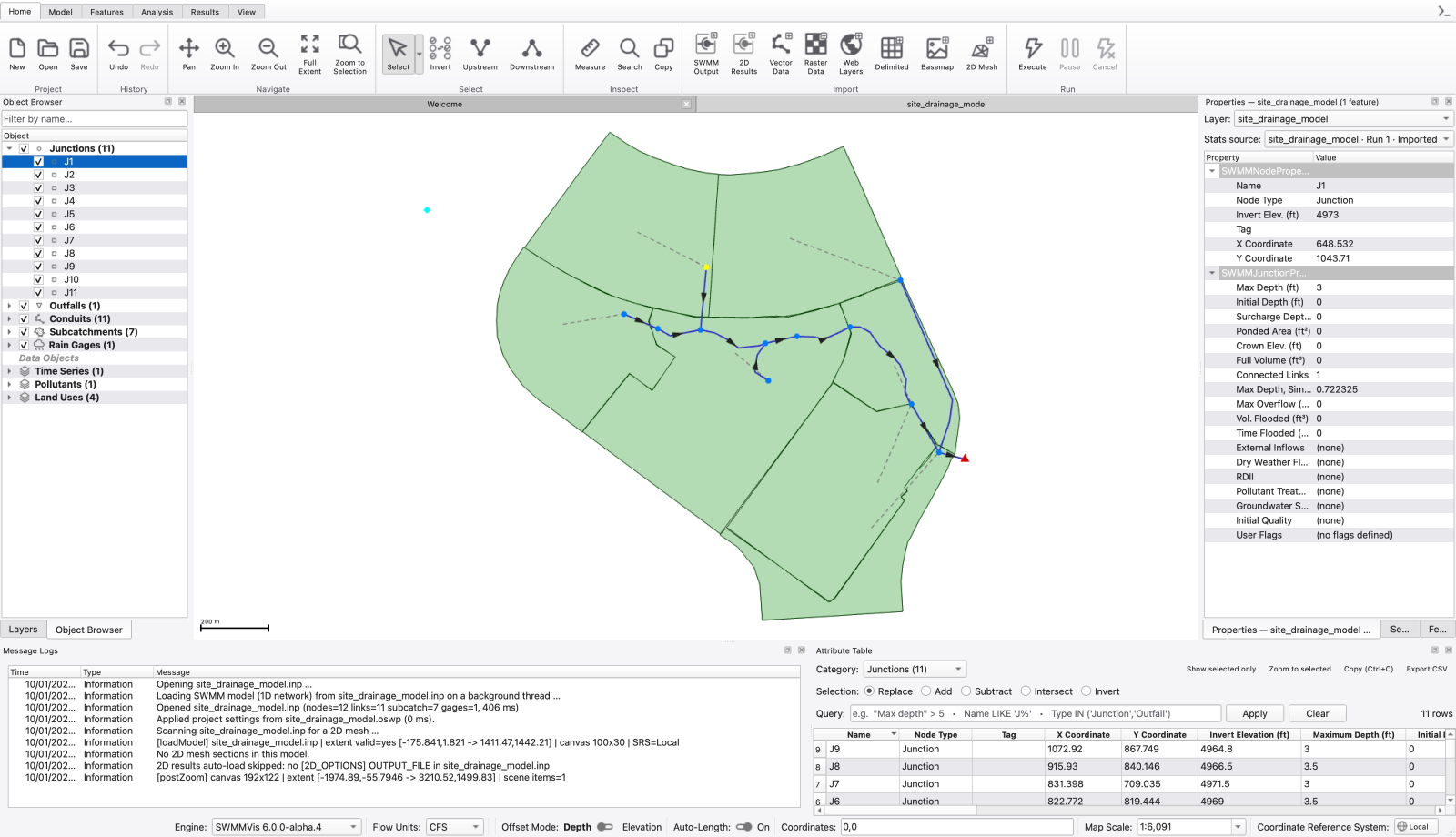
SWMMVis (repository openswmm.gui) is a Qt 6 / C++20 desktop application for building, running, and analysing storm-water models. It is a ground-up replacement for the legacy Delphi EPA SWMM GUI (epaswmm5.exe), built directly on the OpenSWMM engine rather than driving it as an external executable.
Two things distinguish it from the classic SWMM interface:
The application is licensed GPL v3; the engine it links is Apache 2.0. Third-party components and their licences are listed in Help → About.
SWMMVis is not a standalone solver. It holds an in-process engine handle (SWMM_Engine) per open project and drives it through the engine's C API — the model you see in the Object Browser, the Properties panel, and the attribute tables is the engine's live state, not a parsed copy of a text file. That is why changing Flow Units in the status bar immediately re-labels every units suffix in every open editor.
The build this manual documents ships engine 6.0.0-alpha.4. The status bar's Engine: picker offers the following engines per project when their workers are bundled:
| Entry | What it runs |
|---|---|
| OpenSWMM 6.0.0-alpha.4 | The refactored SWMM 6 engine — required for finite-volume 1D routing; 2D overland flow; 1D–2D coupling; transport, reaction and heat modules; semi-implicit node continuity; Anderson acceleration |
| SWMM 5.3.0 (Legacy) | The legacy solver bundled with the OpenSWMM engine — for comparison with classic SWMM workflows |
| SWMM 5.2.4 (EPA) | The separately bundled EPA 5.2.4 worker; this choice requires that worker to be installed |
The default for new projects is set in Preferences → General → Default engine mode; the status-bar picker overrides it per project. Options that only the refactored engine understands are hidden or disabled when the legacy engine is selected — see 18 — Simulation Options.
Pre-release. 6.0.0-alpha.4 is an alpha. The
.oswpproject format, the preference keys, and the window layout may still change before 6.0.0.
SWMMVis reads and writes standard SWMM input files. A .inp written by EPA SWMM 5.2 opens directly; a .inp written by SWMMVis is a normal SWMM input file that EPA SWMM 5 will read, except for sections SWMM 5 does not define — for example [2D_OPTIONS], [2D_MESH_FILE], [REACTION_*], [HEAT_SOURCES], [HEAT_FLUXES], [RDII_DECAY], and [USER_FLAGS]. SWMM 5 ignores or rejects those, so a model that uses SWMM 6 capabilities is not round-trippable to 5.x.
Two SWMM 5 conventions are preserved deliberately:
LINK_OFFSETS** — the status bar's Offset Mode toggle switches between DEPTH and ELEVATION and, exactly like EPA SWMM, offers to convert existing link offsets when you flip it (the prompt is skipped when the model has no links).CFS, GPM and MGD select US customary; CMS, LPS and MLD select SI.Results files are the standard SWMM binary .out (opened with File → Import → Open SWMM Output) plus the SWMM 6 .h5 2D results file. See A2 — File Formats.
Each paragraph below names the chapter that covers it in full.
Map, navigation and printing. Pan, zoom, zoom-to-extent and zoom-to-selection, a measure tool, live cursor coordinates, an editable map-scale box, and map image export. Export currently writes PNG; SVG, DXF and EMF appear in the file-type list but are not implemented yet and report so. See 05 — The Map Canvas.
Coordinate reference systems. Every layer and every canvas carries a CRS; layers reproject on the fly. A model whose .inp has no CRS is prompted for one at open time, with a one-click "local projected" fallback in the model's own linear unit. See 06 — Coordinate Reference Systems.
Layers and data sources. Vector and raster files through GDAL, WMS/WMTS/WCS, WFS, XYZ tiles and stored basemaps, delimited text, SWMM model layers, SWMM results, .2dm meshes and .h5 2D results — all in one ordered, groupable layer tree with per-layer opacity, filters and scale-visibility. See 07 — Layers and Data Sources.
Symbology and legends. Per-layer renderers, rule lists, colour ramps, labels and label expressions, a per-user style library (Tools → Style Manager…), a live-editing Layer Styling dock, a docked Legend and a draggable on-canvas legend overlay. See 08 — Styling, Labels and Legends.
Selection and network tracing. Click, rubber-band and polygon selection, attribute search, invert selection, and upstream/downstream network tracing. See 09 — Selection and Search.
Browsing and editing model data. The Object Browser groups every SWMM object by category; the Properties panel edits the selection; compound editors handle multi-part properties; the Section View draws cross-sections. See 10 — Object Browser, Properties and Section View and 11 — Attribute Tables and the Attribute Calculator.
Editable GIS features. Create points, lines and polygons in a companion GeoPackage; edit their attributes and vertices; use roles for mesh boundaries, breaklines, regions and corridors. See 12A — Editable GIS Feature Layers.
Drawing the network. Add junctions, virtual junctions, inlet junctions, outfalls, flow dividers, storage units, conduits, pumps, orifices, weirs, outlets, subcatchments, rain gages and text annotations directly on the map; move, reshape and delete existing geometry inside an edit session; import features from a GIS layer as SWMM objects. See 12 — Editing the Network on the Map.
Hydrology. Rain gages, subcatchments, infiltration, LID controls, snowpacks, aquifers and groundwater, unit hydrographs and RDII. See 13 — Hydrology: Rain Gages, Subcatchments, LID, Snow, Groundwater and RDII.
Hydraulics. Nodes and links, cross-sections and transects, streets and HEC-22 inlets, control rules, and inflows. See 14 — Hydraulics: Nodes, Links, Cross-Sections, Streets, Inlets and Controls.
Climatology. Temperature, evaporation, wind, snowmelt and areal depletion, and solar radiation, all in one tabbed dialog. See 15 — Climate: Temperature, Evaporation, Wind, Snowmelt and Solar Radiation.
Water quality and transport. Pollutants, land uses, build-up/wash-off, treatment, initial quality, multispecies reaction systems, water age and heat transport. See 16 — Water Quality, Reaction Systems, Water Age and Heat.
Data objects. Time series, curves, time patterns, control rules, transects, streets and inlets, each with its own MVC editor; observed calibration series are loaded in the comparison plot. See 17 — Time Series, Curves, Patterns and Calibration Data.
Simulation options. Every [OPTIONS] key and the [FILES] external-file slots on a paged dialog. See 18 — Simulation Options.
2D overland flow. Mesh generation from terrain, mesh editing, per-cell parameter assignment from rasters or shapefiles, edge boundary conditions, and 1D↔2D coupling. See 19 — 2D Overland Flow: Meshes, Cell Parameters, Boundary Conditions and 1D–2D Coupling.
Running simulations. Run, pause and stop with partial-result flushing; a Simulation Status dock that tracks concurrent runs; live 1D and 2D results while the run is still writing. See 20 — Running a Simulation.
Analysing results. Results layers and result-driven symbology, map animation with a scrubber and look-back window, time-series and comparison plots, longitudinal and 2D profile plots, result columns in the attribute table, flow balance, travel time, mass balance and a statistics dashboard. See 21 — Results Layers, Result Styling and Animation, 22 — Time-Series and Comparison Plots, 23 — Profile Plots, 24 — Tabular Results and Reports and 25 — Analysis Tools: Flow Balance, Travel Time, Rainfall Visualisation, 2D Cell Time Series.
SWMMVis is built and packaged for macOS, Windows and Linux from the same CMake project.
| Requirement | Notes |
|---|---|
| Qt | 6.5 or newer (Widgets, OpenGL, Network, Concurrent, Svg, Charts) |
| GDAL | 3.x — supplies GIS formats and the PROJ CRS database |
| Graphics | The map, 2D mesh and 2D results layers render through Qt's scene graph. On macOS the OpenGL RHI backend is forced; other platforms use Qt's native backend |
| OpenSWMM engine | 6.0.0-alpha.4 — shipped inside the application bundle |
To install a released build, download the installer or archive for your platform and run it. On macOS, drag SWMMVis.app out of the disk image into /Applications; if the bundle was downloaded from the web, right-click it and choose Open the first time so Gatekeeper lets it through. On Linux the package installs org.openswmm.swmmvis.desktop and an AppStream metainfo file, so the application appears in the desktop menu under Education / Science.
To build from source, clone openswmm.gui, openswmm.engine (branch swmm6_rel), QPropertyModel (branch dev) and vcpkg as siblings in one parent directory, point QT_ROOT_DIR at your Qt kit, then configure and build with the platform preset:
Full build instructions, the dependency table and the test invocation are in the repository README.md; release-by-release changes are in CHANGELOG.md and docs/releases/.
FIGURE PLACEHOLDERdocs/manual/images/01_install_macos_dmg.png
Launching the application runs three things in order.
licenseagreementdialog.h), shown modally once the event loop starts.The License Agreement dialog presents the GNU General Public License v3 notice for SWMMVis with two buttons and one checkbox.
| Control | What it does |
|---|---|
| Yes, I Agree | Accepts and continues into the application |
| No, Exit | Quits immediately — the application does not start |
| Show this agreement on startup | Unchecked, suppresses the dialog on later launches. Stored in QSettings under SWMMVis/LicenseAgreement/showOnStartup |
You can bring the dialog back later with Preferences → General → Show license agreement on startup.
FIGURE PLACEHOLDERdocs/manual/images/01_license_agreement.png
The Welcome page is an ordinary tab in the MDI workspace, titled Welcome. It has four sections plus a startup checkbox.
| Section | Contents |
|---|---|
| Start Modeling | New Project ... and Open ... — the same commands as File → New and File → Open |
| Open Recent Files | One button per entry in the recent-files list — the same list as File → Open Recent, up to 20 entries — followed by Clear Recent Files |
| Learn SWMM | Three external links opened in your browser: User Manual; Engine API Reference; Report an Issue |
| Example Projects | One button per bundled example, grouped under collapsible category headers inside a scrolling list; the button's caption is the example's description |
| Show welcome page on start up | Unchecked, the Welcome tab is hidden at the next launch. Stored under SWMMVis::ShowWelcomeOnStartup |
Closing the Welcome tab with its × only hides it; Help → Show Welcome Page brings it back with its content intact.
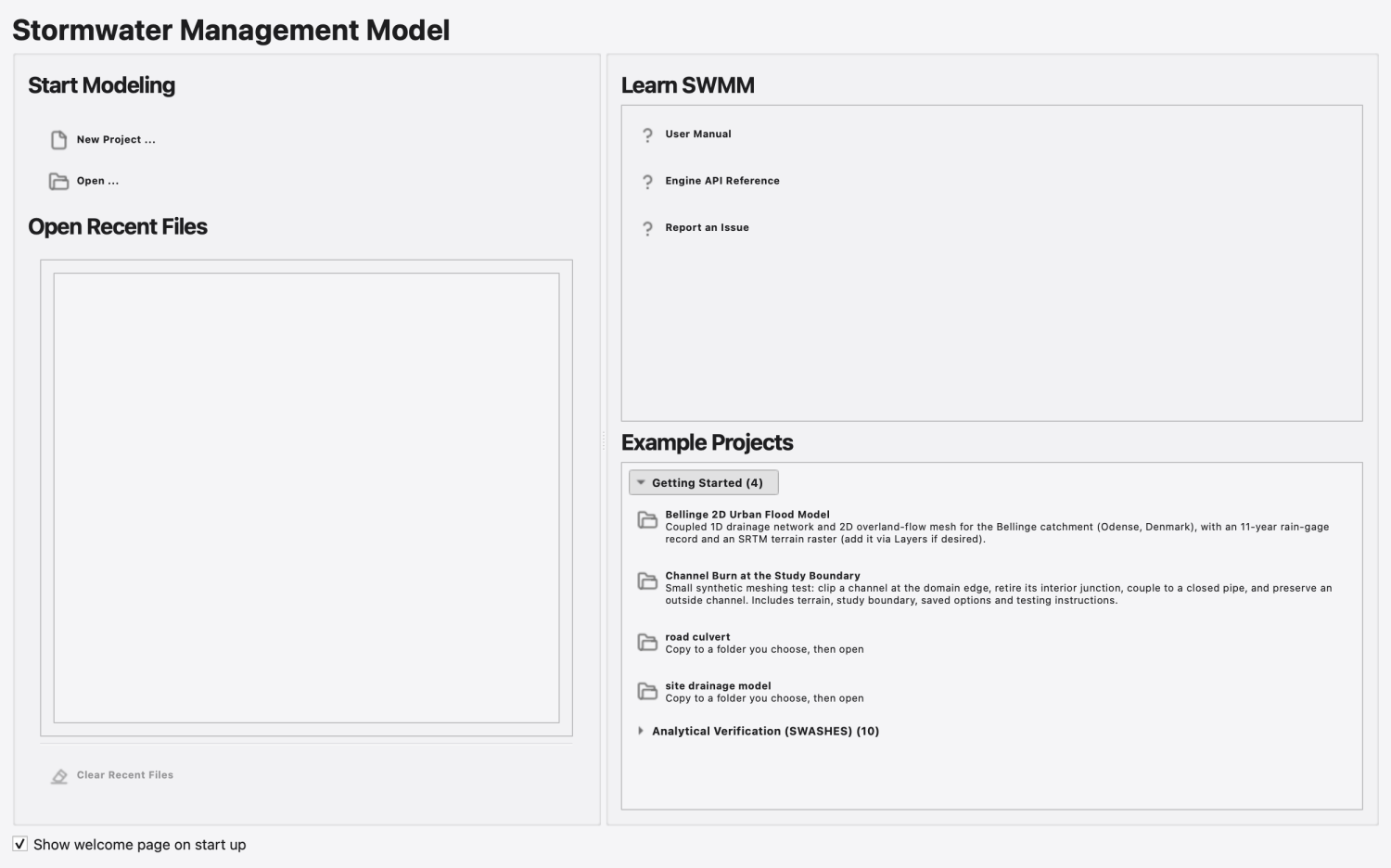
Examples ship as a read-only payload inside the installation (<bundle>/Resources/examples on macOS, <prefix>/share/openswmmgui/examples elsewhere). At startup the examples seeder (src/project/examplesseeder.cpp) mirrors that payload once per application version into your per-user data folder (QStandardPaths::AppLocalDataLocation + /examples), stamping a .seeded_version marker so later launches skip the copy. If the per-user folder cannot be written, the Welcome page falls back to scanning the read-only install folder.
Two example shapes are recognised:
| Shape | Discovery rule |
|---|---|
| Directory example | A subdirectory containing at least one .oswp (preferred) or .inp. The whole directory is the unit that gets copied |
| Flat example | A single top-level .inp (legacy single-file bundles) |
A directory example may carry an example.json manifest with name, description and category fields; the first two become the button's title and caption. Without a manifest the folder or file name is prettified (_ and - become spaces) and the caption reads Copy to a folder you choose — then open.
category decides which collapsible header the button appears under. Examples with no category land in Getting Started, which leads the list and starts expanded; named categories follow in alphabetical order, collapsed, with their entry count in the header. Within a group, examples keep folder-name order.
When a directory example holds more than one .inp and no .oswp — as the SWASHES cases do, shipping a deck per solver — the alphabetically first .inp is the one the button opens. The whole folder is still copied, so the other decks are there to open from File → Open.
Clicking an example never opens the bundled copy in place, so a run can never write results into your installation. Instead:
.oswp — or its .inp when there is no project file — is opened.Two groups ship with this build (the curated list lives in CMakeLists.txt as _SWMMVIS_EXAMPLE_INPS and _SWMMVIS_EXAMPLE_DIRS):
Getting Started — site_drainage_model.inp, road_culvert.inp and bellinge_2d. These are the models the tutorials in Part V use.
Analytical Verification (SWASHES) — ten cases from Delestre et al. (2013), SWASHES: a compilation of shallow water analytic solutions for hydraulic and environmental studies (doi 10.1002/fld.3741), each with a closed-form solution to check a solver against: swashes_lake_at_rest_immersed (§3.1.1), swashes_bump_subcritical (§3.1.3), swashes_bump_transcritical (§3.1.4), swashes_bump_shock (§3.1.5), swashes_macdonald_short_sub2sup (§3.2.2), swashes_macdonald_rain_sub (§3.3.1), swashes_p2d_jump_short (§3.5.4), swashes_stoker_wet_dam_break (§4.1.1), swashes_ritter_dry_dam_break (§4.1.2) and swashes_thacker_radial_2d (§4.2.2).
Each SWASHES folder holds the decks its case supports — 1d_dynwave.inp (dynamic-wave routing, the default open target), 1d_fv.inp (finite-volume routing) and 2d_explicit.inp (2D shallow-water mesh) — plus reference.csv with the analytic depth and unit discharge, and a README.md giving the case parameters and boundary conditions. Input files only: no results ship. Three cases are single-dimension by nature — the rain and pseudo-2D cases are 1D only, and the radial Thacker case is 2D only. The decks are generated by the SWASHES suite in the openswmm.engine benchmarks and imported by scripts/import_swashes_examples.py; re-run that script to refresh them.
FIGURE PLACEHOLDERdocs/manual/images/01_example_copy_prompt.png
Any of these open a model:
Ctrl+O), or Open ... on the Welcome page. The file dialog offers every readable input format (.inp, .gpkg, …) plus SWMMVis project files (.oswp)..inp or .oswp file from your file manager and drop it on the main window. Dropping several files opens several projects; other file types are ignored.There is no command-line argument for opening a model, and double-clicking a .inp in your file manager will not hand it to SWMMVis — use one of the routes above. (A SWMMVIS_OPEN_ON_STARTUP environment variable exists as a development and testing hook; it is not a supported user feature.)
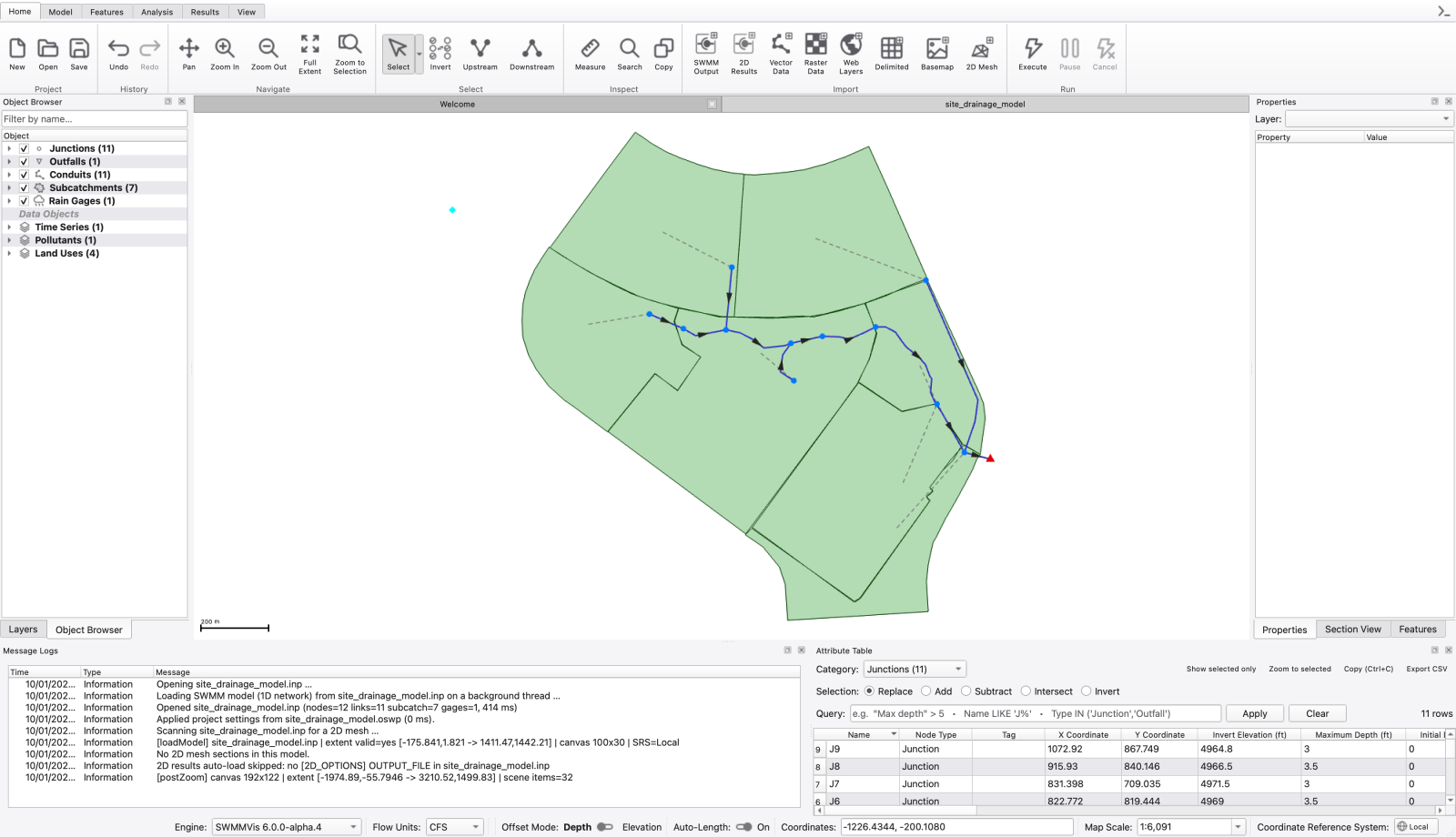
While the file loads, the status bar shows Opening <name>… with a progress bar and the Message Logs dock records each stage; parsing and layer construction run off the GUI thread, so the window stays responsive. When it finishes you get:
If the model has no CRS. A .inp with no coordinate system loads with the placeholder CRS Untitled (Local), and SWMMVis asks you to choose one, because reprojecting basemaps and GIS layers needs a real CRS. The prompt offers Choose CRS…, Use local projected (ft) / **(m)** — which matches the model's flow-unit system and is enough for 2D mesh generation — and Abort Open. Models whose coordinates are already in an auto-generated local CRS (Local (ft) / Local (m)) are not prompted. See 06 — Coordinate Reference Systems.
| Route | What you get |
|---|---|
| Help → Show Welcome Page | The Welcome tab, including the Learn SWMM links to this manual; the engine API reference; and the issue tracker |
| Help → Keyboard Shortcuts… | Preferences opened on the Keyboard page — browse and rebind every command (see A1 — Keyboard Shortcuts) |
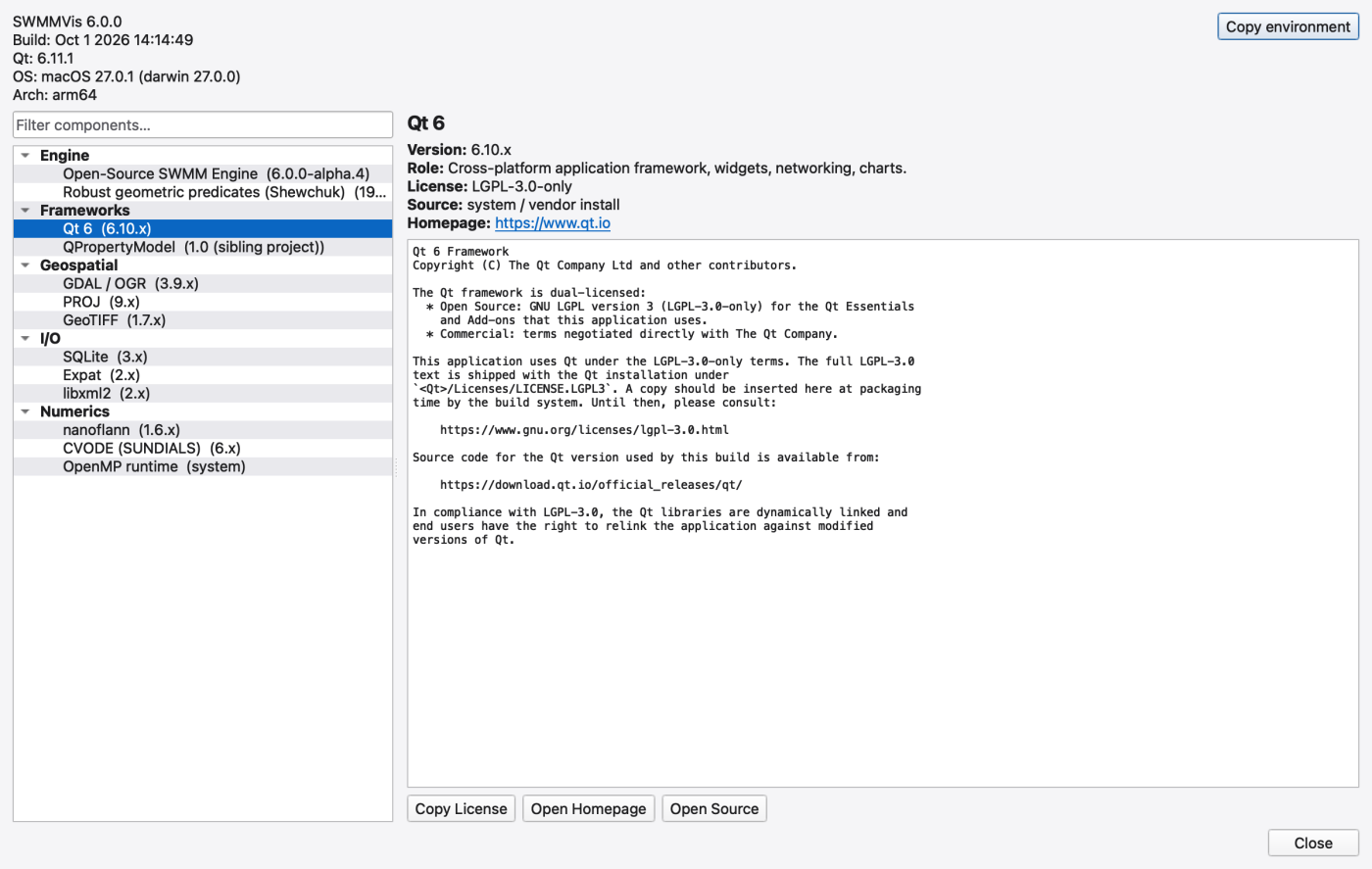
| Help → About | The About dialog: a searchable list of every shipped component with its version; role; provenance; SPDX identifier and full licence text |
Command Palette (Ctrl+Shift+P) | Search every command by name when you cannot remember where it lives |
| Tooltips and status tips | Every ribbon button and menu item carries a one-line description; long tooltips on the model-authoring actions explain what the tool does to the model |
| Message Logs dock | Every warning and error the GUI and the engine produce, timestamped |
Help → Help exists in the menu with the platform help shortcut bound to it, but it is not connected to anything in this build and does nothing. Use the Welcome page's User Manual link instead.
.app may need right-click → Open once.File → New does not ask any questions.** It creates a blank untitled project immediately from your Simulation Defaults and Object Defaults preferences. Set those up first if you build new models often — see 04 — Preferences.SWMM_LOG_FILE.** Set this environment variable to a path (or to 1 for an automatic location under the application data folder) to tee every diagnostic message to a file. Useful on Windows, where the application has no console..inp versus .oswp; saving; recents; undo; portability 1.9.8
1.9.8