 |
SWMMVis
6.0.0-alpha.4
Qt6/C++ GIS-based graphical user interface for the SWMMVis engine (6.0.0-alpha.4)
|
|
SWMMVis
6.0.0-alpha.4
Qt6/C++ GIS-based graphical user interface for the SWMMVis engine (6.0.0-alpha.4)
|
Build the conveyance network — junctions, virtual and inlet junctions, outfalls, dividers and storage units joined by conduits, pumps, orifices, weirs and outlets — give the conduits cross-sections, transects or street sections, attach inflows and treatment to the nodes, and drive the whole thing with control rules.
| Task | Where |
|---|---|
| Add a node | Model → Add Node → Add Junction / Add Virtual Junction / Add Inlet Junction / Add Outfall / Add Flow Divider / Add Storage (ribbon Model ▸ Nodes) |
| Add a link | Model → Add Link → Add Conduit / Add Pump / Add Orifice / Add Weir / Add Outlet (ribbon Model ▸ Links) |
| Edit a selected object | Properties panel (right dock) or the object's attribute table |
| Cross-section / inlet usage | The Cross Section and Inlets property rows on a conduit → Edit… |
| Inflows / DWF / RDII / Treatment | The matching property rows on a node → Edit… |
| Transects | Model → Data Objects → Transects… |
| Streets | Model → Data Objects → Streets… (ribbon Model ▸ Data Objects ▸ Street) |
| Inlets | Model → Data Objects → Inlets… (ribbon Model ▸ Data Objects ▸ Inlet) |
| Control rules | Model → Data Objects → Control Rules… (ribbon Model ▸ Data Objects ▸ Control Rule) |
| Offset convention | The Offset Mode: Depth ⇄ Elevation toggle on the status bar |
Drawing and snapping the network on the map is covered in 12 — Editing the Network on the Map; this chapter is the reference for what the objects are.

The status bar carries an Offset Mode: toggle flanked by the labels Depth and Elevation; the active side is bolded. It writes the [OPTIONS] key LINK_OFFSETS (DEPTH is the SWMM default and the unchecked position). Flipping it changes the convention, and the property labels follow: a conduit's rows read Inlet Offset / Outlet Offset in depth mode and Inlet Elevation / Outlet Elevation in elevation mode; an orifice's or outlet's single row reads Offset or Elevation.
The switch happens whether or not you convert; when the model already has links, SWMMVis then offers to convert the existing offset values to the new convention (matching legacy EPA SWMM behaviour, which skips the prompt on an empty network). Both the Properties panel and the attribute tables re-label and re-value together.
FIGURE PLACEHOLDERdocs/manual/images/14_offset_mode_toggle.png
Every node carries Name, Node Type (read-only), Invert Elev., Tag, X Coordinate, Y Coordinate, a read-only computed block (Crown Elev., Full Volume, Connected Links) and, after a run, Max Depth, Sim., Max Overflow, Vol. Flooded and Time Flooded. Every node also carries the five compound rows — External Inflows, Dry Weather Flow, RDII, Pollutant Treatment and the read-only Groundwater Sources — plus Initial Quality and User Flags.
Each node type below is described the same way: what it is, when to use it, how to add one, its property rows, and any behaviour specific to the type. Placing nodes on the map is covered in 12 — Editing the Network on the Map.
FIGURE PLACEHOLDERdocs/manual/images/14_node_types_gallery.png
What it is. The ordinary node of a drainage network — a manhole, a channel confluence, any point where conduits meet. Runoff from subcatchments, dry-weather flow, RDII and external inflows enter the network at junctions, and the water level at a junction is the hydraulic grade line the attached links see. When that level rises above the ground surface (the invert plus the maximum depth) the junction floods: the excess either leaves the model or, when ponding is allowed, sits over a ponded area until the network can take it back.
When to use it. Every manhole, pipe junction and channel confluence; any point where flow enters the network; any change of pipe size or slope you want a flood check on. Use a positive junction Storage Area for a constant-area manhole; use a storage unit for a pond or depth-varying storage geometry, an outfall when it is the downstream boundary, and a virtual junction when it is only a computational break in one continuous pipe.
How to add one. Model → Add Node → Junction (ribbon Model ▸ Nodes), then click the map; clicking on a conduit inserts the junction into it — see placing a node.
Properties.
| Property | What it does | Writes |
|---|---|---|
| Max Depth | Depth from the invert to the ground surface; 0 lets the engine use the highest connecting crown | [JUNCTIONS] |
| Initial Depth | Water depth at the start of the run | [JUNCTIONS] |
| Surcharge Depth | Extra depth above the maximum depth that the node can hold under pressure before it floods — a sealed or bolted manhole cover | [JUNCTIONS] |
| Storage Area | Physical chamber area (ft²/m²); 0 retains legacy junction behavior. Positive area stores water below the rim, including above connected pipe crowns | Optional seventh [JUNCTIONS] field |
| Ponded Area | Surface area over which flooded water ponds when ponding is allowed in Simulation Options; 0 means flooded water is lost from the model | [JUNCTIONS] |
Type-specific behaviour. Surcharge depth and ponded area are two different answers to "what happens when the node is full". A surcharge depth keeps the water inside the system, pressurised, until the head exceeds the ground plus the surcharge depth; a ponded area lets the water leave the pipes, sit on the surface, and drain back in as the network recovers. A node with a surcharge depth does not start ponding until that depth is exceeded.
Physical chamber storage. In updated OpenSWMM 5.3.0 and 6.0.0, set Storage Area in Properties or the junction attribute table. The node keeps its junction symbol. Below the rim its volume is area × depth, including when connected pipes are surcharged. Above-rim shaft volume is capped; surface ponding uses Ponded Area separately. Surcharge Depth permits pressure head and does not lengthen the chamber. With ponding enabled, the pond starts at the rim; pressure allowance applies when ponding is off.
Zero is the default for existing and newly created junctions. It preserves legacy behavior and is different from specifying a physical area. Numerical stability area in Simulation Options remains MIN_SURFAREA; it is not the chamber geometry and does not silently enlarge an explicitly smaller chamber. Set a default Storage Area in Preferences → Object Defaults when creating many manholes.
Use dynamic-wave routing for 5.3.0; 6.0.0 also supports physical storage through its CPU finite-volume paths with zero Surcharge Depth. Use dynamic wave for above-rim pressure allowance. Dynamic Slot currently refuses positive chamber areas; select EXTRAN or SLOT instead. Kinematic/steady routing rejects positive Storage Area. Virtual and inlet junctions keep their zero-storage semantics. Stock EPA 5.2.4 and older workers do not support this field: the GUI refuses such a run, and stock-EPA export refuses to drop the volume. Use an updated worker when selecting 5.3.0. For very small chambers, use a shorter routing step and enough trials to resolve filling and drying. A run that cannot close the chamber water budget stops with a timestep/convergence message; the engine does not enlarge the area to make it run.
What it is. A grade break inside an otherwise continuous pipe — a computational point between two conduits, with no manhole, no storage and no depth of its own. It carries only a name and an invert; everything else is derived from the two attached conduits (max depth is the pipe crown, surcharge depth and ponded area are zero), so it has no depth or ponding rows. The one editable depth is Max Depth, Display — the optional [VIRTUAL_JUNCTIONS] MaxDepth that supplies the ground line profile views draw. It feeds no hydraulics.
When to use it. A change of slope, size or roughness along one pipe where you want a profile point but no manhole, or a long pipe you want split for finer results. Use a junction instead when the node must accept a third link, real storage or 2D surface coupling. Virtual junctions require dynamic-wave routing.
How to add one. Model → Add Node → Virtual Junction is a split tool: click a conduit and the virtual junction is inserted there — see virtual junctions. An existing junction that sits between two identical conduits can also be promoted with Convert To ▸ Virtual Junction.
Properties. Besides the shared node rows, only Max Depth, Display. Point lateral inflows are allowed at a virtual junction, so the Inflows / DWF / RDII / Treatment rows are present exactly as on a junction. Only 2D surface coupling stays prohibited.
Deleting or re-fusing a virtual junction cascades like any other node delete — its inflow, DWF and RDII rows are erased and any subcatchment that drained to it loses its outlet — and the prompt names the counts before you commit.
Type-specific behaviour. The rules a virtual junction must satisfy; the message is shown verbatim when an edit is refused:
| Rule | Text |
|---|---|
| 609 | A virtual junction must connect exactly two conduits (no pumps; orifices; weirs or outlets) |
| 611 | The two conduits must have identical cross sections (shape; dimensions and barrels) |
| 613 | Both conduit offsets at the node must be zero (invert continuity) |
| 615 | The conduit inverts do not agree at the node |
| 617 | A virtual junction cannot be coupled to a 2D surface mesh (it has no opening) |
| 619 | Virtual junctions require dynamic-wave (DYNWAVE) flow routing |
What it is. A virtual junction that also carries one street inlet of its own — a grate, curb opening, combination or slotted drain at a real point on a street conduit, capturing flow into a sewer node. Modelling the inlet as its own node, rather than as an attribute of the street conduit, gives it a real location: the gutter depth at the inlet is the node depth, it can flood above the curb, and backflow from a surcharged capture node re-enters the street at that point instead of at the end of the host conduit.
When to use it. Street inlets whose location, gutter depth and flooding you want to see explicitly. For a simpler inlet booked at the downstream end of a street conduit, use the conduit's Inlets row instead (Inlet usage on a conduit, below); T2 — Streets, Inlets and the Inlet Junction puts the two side by side.
How to add one. By splitting a STREET conduit with Model → Add Node → Inlet Junction, or by promoting an existing junction that sits between two same-section STREET conduits (Convert To ▸ Inlet Junction). See inlet junctions.
Properties. It inherits the whole virtual-junction surface and adds:
| Property | What it does | Writes |
|---|---|---|
| Inlet Design | The [INLETS] design placed here | [INLET_USAGE] |
| Capture Node | The underdrain node that receives captured flow | [INLET_USAGE] |
| Number of Inlets | Inlets in the group | [INLET_USAGE] |
| % Clogged | Clogging fraction | [INLET_USAGE] |
| Flow Restriction | Maximum captured flow; 0 = unrestricted | [INLET_USAGE] |
| Local Depression Height / Width | Extra gutter depression at the inlet | [INLET_USAGE] |
| Placement | AUTOMATIC / ON_GRADE / ON_SAG | [INLET_USAGE] |
| Approach Street | Read-only — the street section of the host conduits | — |
| Street Max Depth | The optional [INLET_JUNCTIONS] MaxDepth — the flood threshold and the profile ground line; not read by the routing | [INLET_JUNCTIONS] |
Type-specific behaviour. Because an inlet junction is also a virtual junction, rules 609–619 apply, plus:
| Rule | Text |
|---|---|
| 623 | An inlet junction sits between two STREET conduits (RECT_OPEN or TRAPEZOIDAL for a drop inlet) |
| 625 | The inlet design named on this row does not exist |
| 627 | The capture node must be an existing node other than the inlet itself; and not a virtual or inlet junction |
| 629 | An inlet cannot be placed on both conduits of an inlet-junction pair |
| 633 | This inlet junction has no inlet design assigned |
| 635 | The inlet design is not compatible with the host's cross section |
Creation asks first rather than inserting a half-configured node: the Inlet Junction Setup dialog collects the Inlet Design (with a "…" button that opens the Inlet editor filtered to the gutter types), the Capture Node (the list already excludes the host conduit's end nodes and every virtual or inlet junction; its "…" button lets you click the node on the map instead — the dialog is a floating panel, so the map stays live while it is open) and the Placement. OK stays disabled until both identity fields are set, because the engine rejects a partial usage row. The same map pick sits behind the "…" of an existing inlet junction's Capture Node property row. Link-drawing rejects inlet junctions as endpoints exactly as it rejects virtual junctions.
FIGURE PLACEHOLDERdocs/manual/images/14_inlet_junction_setup.png
FIGURE PLACEHOLDERdocs/manual/images/14_inlet_junction_properties.png
What it is. The downstream boundary of the network — the point where water leaves the model into a river, a lake, the sea or a treatment works. An outfall has exactly one connecting link and no storage of its own; what it contributes is the water-surface stage its link sees, which is how backwater from the receiving water enters the model.
When to use it. Every point where the network discharges. If flow continues downstream the node is a junction, not an outfall; a pond that discharges on is a storage unit. An outfall cannot sit in the middle of a network.
How to add one. Model → Add Node → Outfall (ribbon Model ▸ Nodes), then click the map. An outfall must end the network, so it cannot be inserted into a conduit — see placing a node.
Properties.
| Property | What it does | Writes |
|---|---|---|
| Outfall Type | FREE / NORMAL / FIXED / TIDAL / TIMESERIES — see below | [OUTFALLS] |
| Stage Elev. | Fixed stage — FIXED only | [OUTFALLS] |
| Tidal Curve | Tidal (hour → stage) curve picker — TIDAL only | [OUTFALLS] |
| Stage Time Series | Stage series picker — TIMESERIES only | [OUTFALLS] |
| Flap Gate | NO / YES — stops water flowing back from the receiving water into the network | [OUTFALLS] |
Outfalls have no depth or ponding rows.
Type-specific behaviour. The stage source follows the type:
| Outfall Type | Stage used as the boundary |
|---|---|
FREE | The lower of the critical and normal depth in the connecting link — no backwater from downstream |
NORMAL | Normal depth in the connecting link |
FIXED | A constant water-surface elevation (Stage Elev.) — a reservoir or pond at a known level |
TIDAL | A stage that repeats every day from a tidal curve of hour against stage (Tidal Curve) |
TIMESERIES | A stage that follows a time series (Stage Time Series) — a river or a measured downstream level |
The three stage rows follow the live Outfall Type: they enable and disable as you change it, so an outfall never carries a stale stage source. The stage only reaches upstream under dynamic-wave routing, which carries backwater; under steady or kinematic-wave routing an outfall simply records what leaves.
What it is. A node that splits its inflow between two outgoing links according to a rule you choose, rather than leaving the split to the hydraulics. One of the two links is the diverted link; the other carries whatever is not diverted. The split is only applied under kinematic-wave routing — under dynamic-wave routing a divider behaves as a junction and the two links share the flow hydraulically.
When to use it. A side-weir overflow into a relief sewer or a channel, a cutoff that sends everything above a threshold down a bypass, or a diversion you know as a table of diverted flow against inflow — when you are not running dynamic wave. Under dynamic wave, model the overflow with a real weir or orifice link instead and let the hydraulics split the flow.
FIGURE PLACEHOLDERdocs/manual/images/14_flow_divider_concept.png
How to add one. Model → Add Node → Flow Divider (ribbon Model ▸ Nodes), then click the map or an existing conduit, and draw the second outgoing link afterwards — a divider needs exactly two. See placing a node.
Properties.
| Property | What it does | Writes |
|---|---|---|
| Divider Type | Cutoff, Overflow, Tabular or Weir — see below | [DIVIDERS] |
| Max Depth; Initial Depth; Surcharge Depth; Ponded Area | As for a junction | [DIVIDERS] |
FIGURE PLACEHOLDERdocs/manual/images/14_flow_divider_properties.png
Type-specific behaviour. Each type decides the diverted flow differently:
| Divider Type | Diverted flow | Parameters |
|---|---|---|
| Cutoff | All inflow above a threshold is diverted; everything up to the threshold stays in the non-diverted link | Cutoff flow |
| Overflow | Whatever exceeds the capacity of the non-diverted link is diverted — the non-diverted link fills first | none |
| Tabular | A diversion curve gives the diverted flow as a function of the total inflow | Diversion curve |
| Weir | Diverted flow from a weir equation: nothing below the minimum flow, then rising with inflow up to the maximum depth, scaled by the weir coefficient | Minimum flow; maximum depth; weir coefficient |
What you must do in the .inp in this release. Only the Divider Type and the depth rows have Properties-panel and attribute-table rows. The diverted link and the type-specific parameters — the cutoff flow, the weir's minimum flow, maximum depth and coefficient, the tabular diversion curve — have no rows yet. They round-trip through the file untouched, so set them by editing the node's line in the [DIVIDERS] section of the .inp (the file layout is in A2 — File Formats) and reopen the model.
What it is. A node with real volume — a detention pond, a tank, a vault or a pump wet well — whose water surface rises and falls as it fills and drains. A stage–area relationship (a function, a table or a geometric shape) says how much surface area the unit has at each depth, and so how depth maps to volume. Evaporation and seepage act on the stored water, and the unit can host LID layers (Storage-node LID hydraulics, below).
When to use it. Any node whose storage volume affects the result: ponds, tanks, wet wells, the headwater of an orifice, weir or outlet. A manhole with negligible volume is a junction, not a storage unit.
How to add one. Model → Add Node → Storage (ribbon Model ▸ Nodes), then click the map or an existing conduit — see placing a node.
Properties.
| Property | What it does | Writes |
|---|---|---|
| Max Depth; Initial Depth; Surcharge Depth; Ponded Area | As for a junction | [STORAGE] |
| Seepage Rate | Bottom seepage | [STORAGE] |
| Storage Shape | Tabular / Functional / Cylindrical / Conical / Paraboloid / Pyramidal | [STORAGE] |
| Storage Curve | Depth–area curve picker — Tabular only | [STORAGE] / [CURVES] |
| Functional Coeff. (A); Functional Exponent (B); Functional Constant (C) | Area = A·Depth^B + C — Functional only | [STORAGE] |
| Shape Param 1 / 2 / 3 | The three raw dimensions of a geometric shape | [STORAGE] |
Type-specific behaviour. The stage–area relationship follows Storage Shape:
Area = A·Depth^B + C from the three coefficients; a quick way to describe a pond whose area grows with depth.The three shape-parameter rows carry generic labels because their meaning depends on the shape; the row's tooltip and the Section View supply the specific one:
| Shape | Param 1 | Param 2 | Param 3 |
|---|---|---|---|
CYLINDRICAL | Major Axis Length | Minor Axis Width | — |
CONICAL | Major Axis Length | Minor Axis Width | Side Slope (run/rise) |
PARABOLIC (paraboloid) | Top Major Axis | Top Minor Axis | Height at Top Axes |
PYRAMIDAL | Base Length | Base Width | Side Slope (run/rise) |
TABULAR and FUNCTIONAL use no raw dimensions. For the elliptical shapes the first two parameters are the full axes, not semi-axes.
FIGURE PLACEHOLDERdocs/manual/images/14_storage_shapes.png
Select a junction, divider, storage unit or outfall and use its Properties panel to choose how it exchanges water with a 2D surface. 2D Coupleable and 2D Coupling Structure describe the node's opening; the mesh must also map that node to a cell or vertex. See 19 — 2D Overland Flow: Meshes, Cell Parameters, Boundary Conditions and 1D–2D Coupling for generating or remapping those spatial connections.
| Property | What it does | Writes |
|---|---|---|
| 2D Coupleable | Allows the node to participate in mesh coupling. Turning it off selects NOT_COUPLEABLE and clears its structure parameters; turning it back on restores the node class's default structure. | [2D_NODE_COUPLING] type |
| 2D Coupling Structure | Chooses NOT_COUPLEABLE, MANHOLE, GRATE, CURB, OPEN_STORAGE or OUTFALL_2D, as allowed for the node class. Changing the structure clears its previous parameters. | [2D_NODE_COUPLING] type (NONE, MANHOLE, GRATE, CURB, OPEN or OUTFALL) |
| 2D Manhole Diameter | Diameter of a MANHOLE opening, in project length units; must be positive. | D |
| 2D Inlet Perimeter | Weir crest length for GRATE, CURB or OPEN_STORAGE, in project length units; must be positive. | PERIMETER |
| 2D Opening Area | Orifice/open area for GRATE, CURB or OPEN_STORAGE, in project area units; must be positive. | AREA |
| 2D Chamber Area | 1D chamber plan area above the rim, in project area units; must be positive. | CHAMBER_AREA |
| 2D Lid Open Fraction | Open fraction of the lid, greater than zero and at most one. | LID_OPEN_FRACTION |
| 2D Crest Elevation | Crest policy: NODE_RIM, MESH_BED, CREST_MAX or CREST_MIN; the last two choose the higher/lower elevation. CREST_DEFAULT leaves the policy at its structure default. This is a policy selector, not a numeric elevation. | CREST |
| 2D Exchange Law | ORIFICE or WEIR_ORIFICE; LAW_GLOBAL inherits the global coupling law from Simulation Options. | LAW |
| 2D Coefficients | Selects COEFFS_DEFAULT, RUBINATO2017, RUBINATO2017_LOWER or RUBINATO2017_UPPER for WEIR_ORIFICE. COEFFS_GLOBAL inherits the global preset; individual coefficient rows override the selected preset. | COEFFS |
| 2D Weir Coeff. (Cw) | Positive free-weir coefficient override for WEIR_ORIFICE. | CW |
| 2D Submerged Weir Coeff. (Csw) | Positive submerged-weir coefficient override for WEIR_ORIFICE. | CSW |
| 2D Orifice Coeff. In (Coi) | Positive surface-to-sewer orifice coefficient override for WEIR_ORIFICE. | COI |
| 2D Orifice Coeff. Out (Coo) | Positive sewer-to-surface orifice coefficient override for WEIR_ORIFICE. | COO |
| 2D Discharge Spread | OUTFALL_2D discharge spread radius, in project length units; must be nonnegative. | SPREAD |
| 2D Tailwater Relaxation (s) | OUTFALL_2D tailwater relaxation time in seconds; must be nonnegative. | TAILWATER_RELAX |
The numeric rows are text fields: leave one blank to use the inherited or structure default. Length/area labels carry the current project units, and all supplied numbers must be finite. Structure parameters belong to [2D_NODE_COUPLING]; edits are undoable. A legacy coupling-map Cd or Area, when explicitly authored, retains precedence over the corresponding resolved orifice coefficients or opening area.
The panel greys out parameters that do not apply to the selected structure. Diameter is editable for MANHOLE; opening area and perimeter for GRATE, CURB and OPEN_STORAGE; discharge spread and tailwater relaxation for OUTFALL_2D. Other structure rows apply to non-outfall openings. An outfall can use only OUTFALL_2D or NOT_COUPLEABLE; OPEN_STORAGE requires a storage node. Ordinary junctions and dividers default to MANHOLE, storage units to OPEN_STORAGE, and outfalls to OUTFALL_2D. Inlet and virtual junctions remain excluded from mesh coupling as described above.
Assign a LID Control and LID Initial Saturation (%) to the storage node, then use Model → LID Control to edit its ordered layers. The node footprint supplies layer areas. Existing formulation (with backwater) uses five numerical cells per MEDIA layer; Richards 1D uses the configured Numerical cells per porous layer. Dynamic Wave routes ordinary network links and downstream heads.
The storage node's Bottom Connection row opens the Node Beds page of 2D Groundwater, focused on that node. Assign a storage-node LID Control first; a node without one shows No storage LID. Choose Bottom destination:
| Choice | Meaning |
|---|---|
| Keep current behavior | Preserve the existing bottom-drainage and aquifer-bed behavior |
| Sealed | Prevent both local bottom loss and aquifer exchange |
| Mesh aquifer | Route bottom exchange through the assigned mesh-aquifer bed instead of local BOTTOM loss |
For Mesh aquifer, select the receiving cell, enable Exchange, and enter a positive Exchange area in the displayed project area units. Use current LID footprint copies the node's current geometric base area into that contact area; use it again after changing the footprint. Review Bed Kc and Bed thickness: a positive conductivity represents a semi-confining bed; zero represents direct aquifer contact. Automatic bed rows are read-only. Press Apply to save the reviewed connection before initializing the simulation. A single receiving cell is a lumped contact, and Richards mesh coupling uses the CPU water-only solver.
Conventional subcatchment LIDs use one underdrain definition, with one opening/closing threshold pair and an optional head-based discharge curve. A storage-node LID supports any number of network connections at different elevations. Configure each link's offset or LID outlet anchor separately; use control rules to operate each controllable link independently. Orifices used as valves accept settings from 0 (closed) to 1 (fully open), including partial openings. The setting specifies opening, not a linear fraction of discharge. This supports distinct drawdown, intermediate-release and emergency-overflow paths with downstream-head feedback.
Choose Richards 1D in the LID editor to use the optional semi-discrete column. Enter residual water content, retention alpha/n, pore connectivity and positive specific storage for every porous material. The column owns complete pore/elastic water and local pressure; the node owns surface ponding. Each interface flux uses a signed total-head difference and both materials' conductivity. Different materials use half-cell resistances in series. Node HEAD/DEPTH then describes surface ponding, so review existing control thresholds. Check cell count, routing step and ODE tolerance. See T10 — Distributed LIDs: Active Control and Receiving-Water Backwater for reproducible examples.
The following equations describe Existing formulation (with backwater).
For cell geometry G, retained fraction theta and porosity phi, total water is the retained sum sum(theta * G) plus mobile pore water sum((phi - theta) * G * submerged_fraction). Reported node volume includes both. Internal drainage transfers the same volume between these stores.
MEDIA drainage is q = Ks * exp(-slope * (phi - theta)) above field capacity, otherwise zero. Conductivity slope is dimensionless and nonnegative; it is not an exponent. AGGREGATE drains at its specified conductivity. SURFACE → first MEDIA entry uses modified Green–Ampt; for an existing ponded front, capacity is Ks * (1 + (suction + ponded_depth) * deficit / F). The native routine handles F = 0 and supply limits. Actual ponded depth is theta_surface * thickness / surface_void_fraction. Only accepted entry advances infiltration history. All transfers use donor water and receiver space limits, with explicit substeps at most one second.
A reversed link enters its physical port. A cell intersected by the mobile table receives into mobile storage even when the inlet lies above that table; only wholly exposed cells fill retained pore capacity. Partially submerged cells continue draining retained excess; only fully submerged cells skip free drainage. These consistent rules prevent retained water from accumulating to porosity and producing a sudden head jump that a continuity check misses. The rising mobile table fills submerged pores and reconciles upper-zone infiltration deficit/wetness; reverse inflow does not increment surface infiltration F. Full resaturation clears the old front. Gradual recession tracks remaining moisture until accepted surface entry starts the next approximate front. Previously submerged cells retain field-capacity moisture. Dry recovery respects actual moisture and is suppressed for an empty surface over a backwater-wetted upper zone.
Node HEAD/DEPTH follows the mobile table; surface ponding can be higher and supplies the local overflow head. Use physical weir crests and layer-relative anchors consistently. A depth-relief rule does not replace a surface overflow. This model omits intercell matric-gradient redistribution and upward capillary flow. Check smaller routing steps for both continuity and performance. See T10 — Distributed LIDs: Active Control and Receiving-Water Backwater for equations, simulated figures and the six-minute resaturation example, and 16 — Water Quality, Reaction Systems, Water Age and Heat for mass accounting. Native V10 hotstarts save infiltration history and retained quality; compatible older files reconstruct missing history and issue a continuation warning.
The four compound rows open one modal dialog showing the form matching the row you opened. There are no tabs to switch between them: close the dialog and open another compound row. Inflows, DWF and RDII have an existing-entry table with Remove Selected and an add/update form below. Treatment is an inline expression table. Changes apply immediately; closing does not undo them. The property summary refreshes when the dialog closes.
External Inflows ([INFLOWS])
| Control | What it does |
|---|---|
| Constituent | FLOW or a defined pollutant |
| Type | FLOW, CONCEN or MASS — MASS is pollutant-only and is disabled (with the selection stepped down) when the constituent is FLOW |
| Time Series | Inflow series picker; the "…" button opens the Time Series editor |
| Baseline | Constant baseline added to the series |
| Multiplier (M) | Baseline multiplier |
| Scale Factor (S) | Series scale factor |
| Pattern | Optional baseline pattern; the "…" button opens the Pattern editor |
| Add / Update | Commits the row; adding a second entry for a constituent that already has one prompts to replace |
Table columns: Constituent; Type; Time Series; Baseline; M-Factor; S-Factor; Pattern.
Dry Weather Flow ([DWF])
Form: Constituent, Average Value, and four pattern pickers — Monthly Pattern, Daily Pattern, Hourly Pattern, Weekend Pattern — each with a "…" button into the Pattern editor. Table columns: Constituent; Average; Monthly; Daily; Hourly; Weekend.
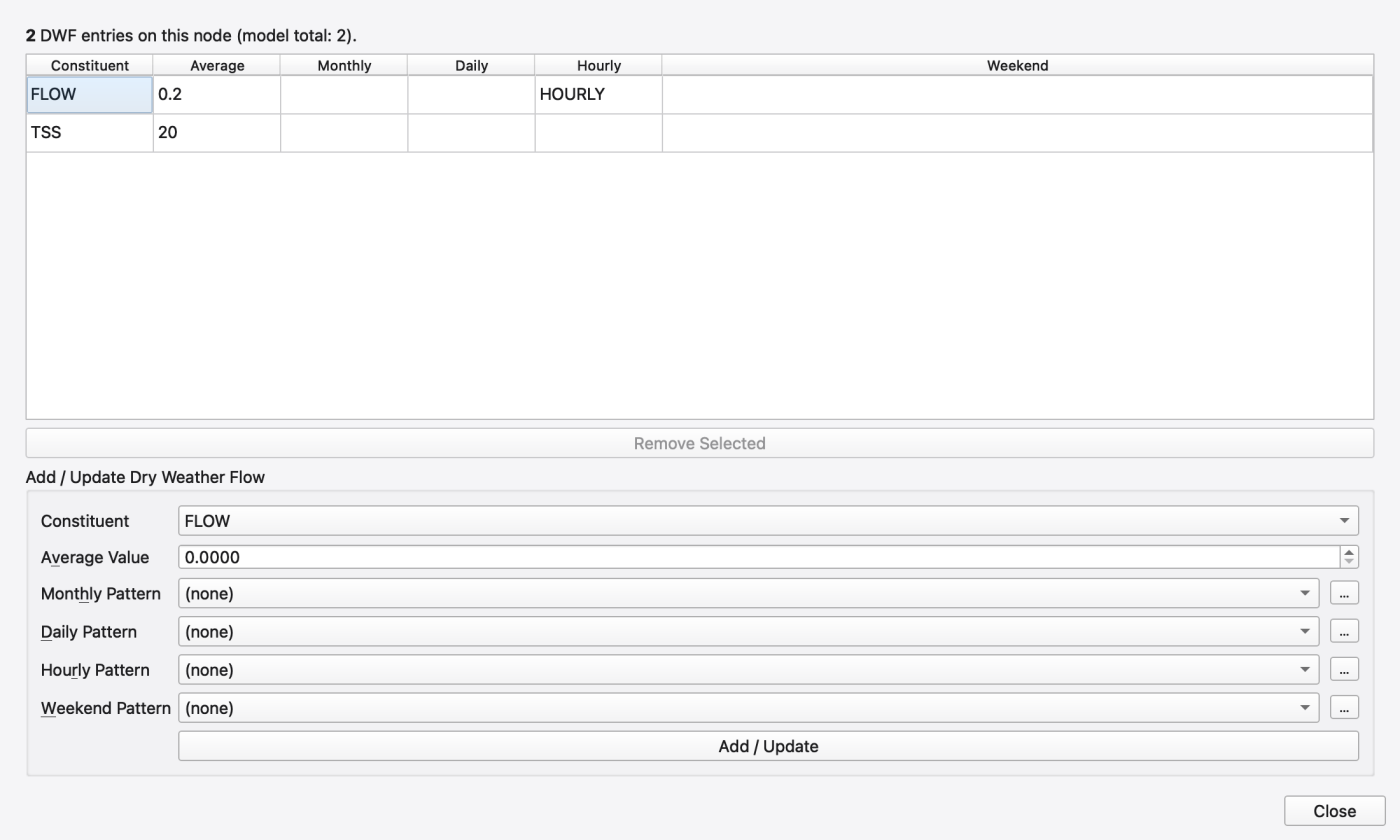
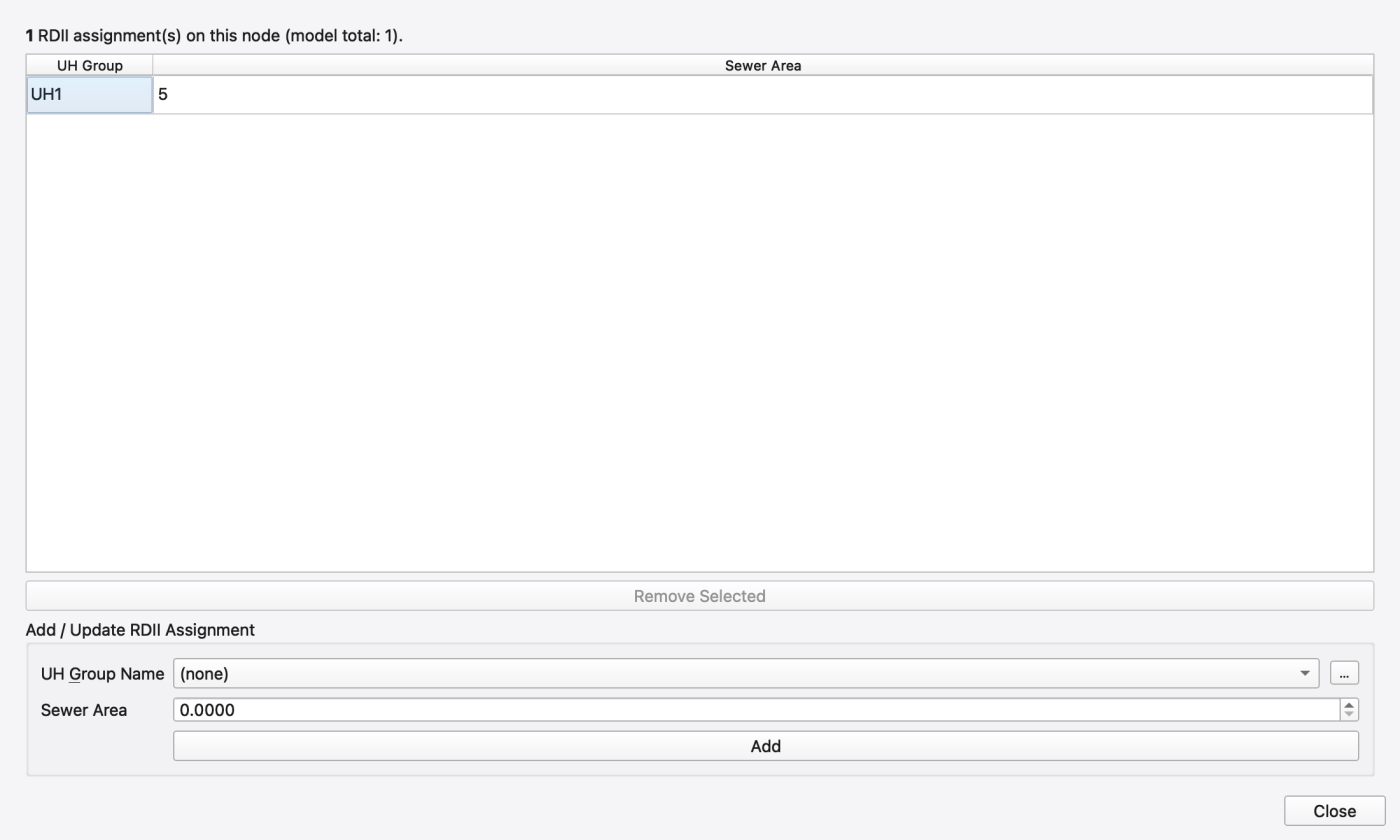
RDII ([RDII])
Form: UH Group Name (picker whose "…" button opens the Unit Hydrograph editor — see 13 — Hydrology: Rain Gages, Subcatchments, LID, Snow, Groundwater and RDII) and Sewer Area. Table columns: UH Group; Sewer Area.
Pollutant Treatment ([TREATMENT])
A two-column table — Pollutant | Expression — edited inline, one removal expression per pollutant. The expression cell hosts a syntax-highlighting, completing editor that validates as you type; a banner above the table shows the verdict (● Valid expression, or ⚠ Column N: …). Clearing a cell clears that pollutant's treatment.
Expression vocabulary, mirroring the engine's treatment grammar: variables C, R, DT, HRT, Q, V, D, AREA; functions exp, log, ln, sqrt, min, max, abs, sgn, step. The authoritative accept/reject verdict always comes from the engine, so the highlighter can lag the grammar without ever mis-validating.
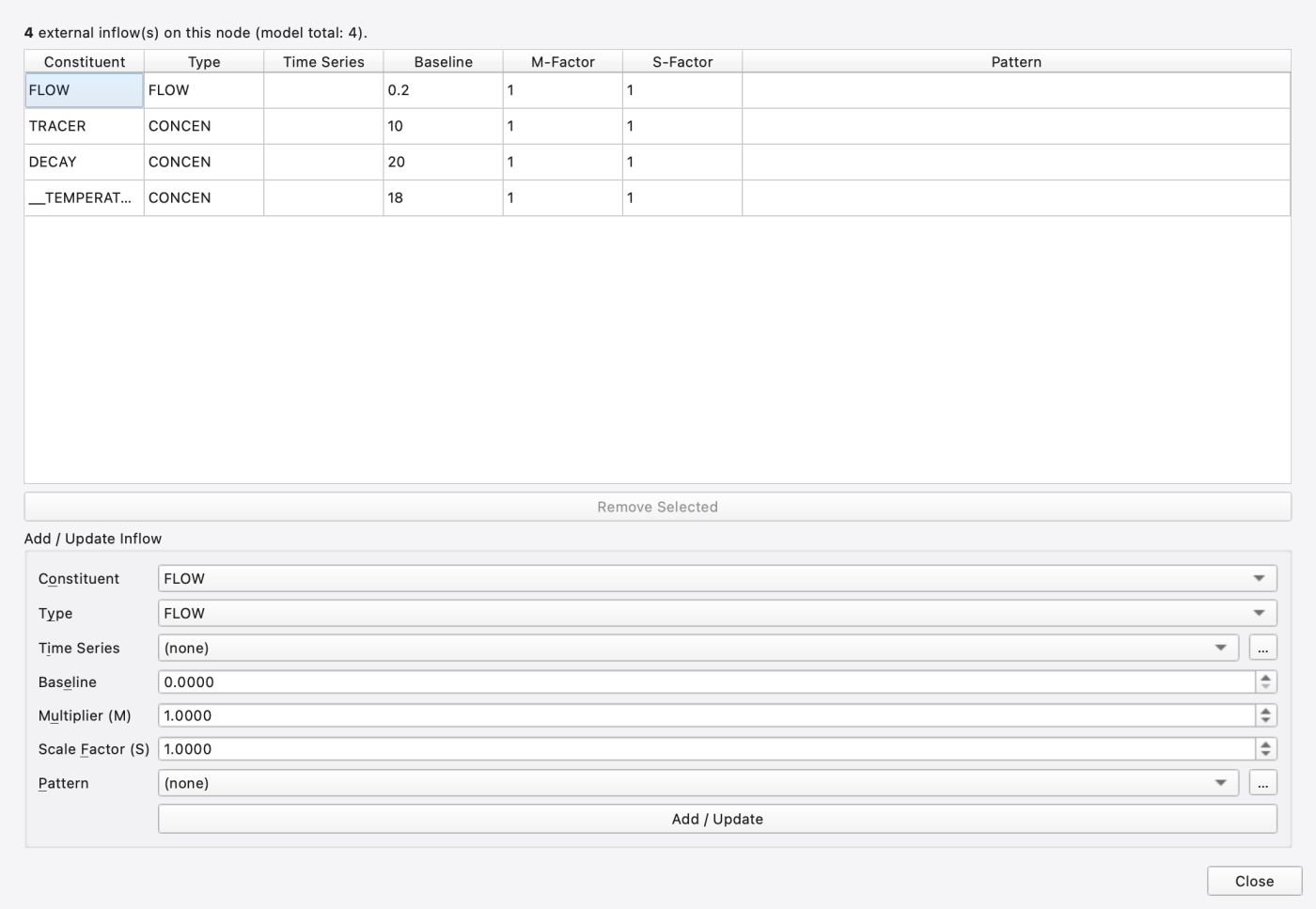
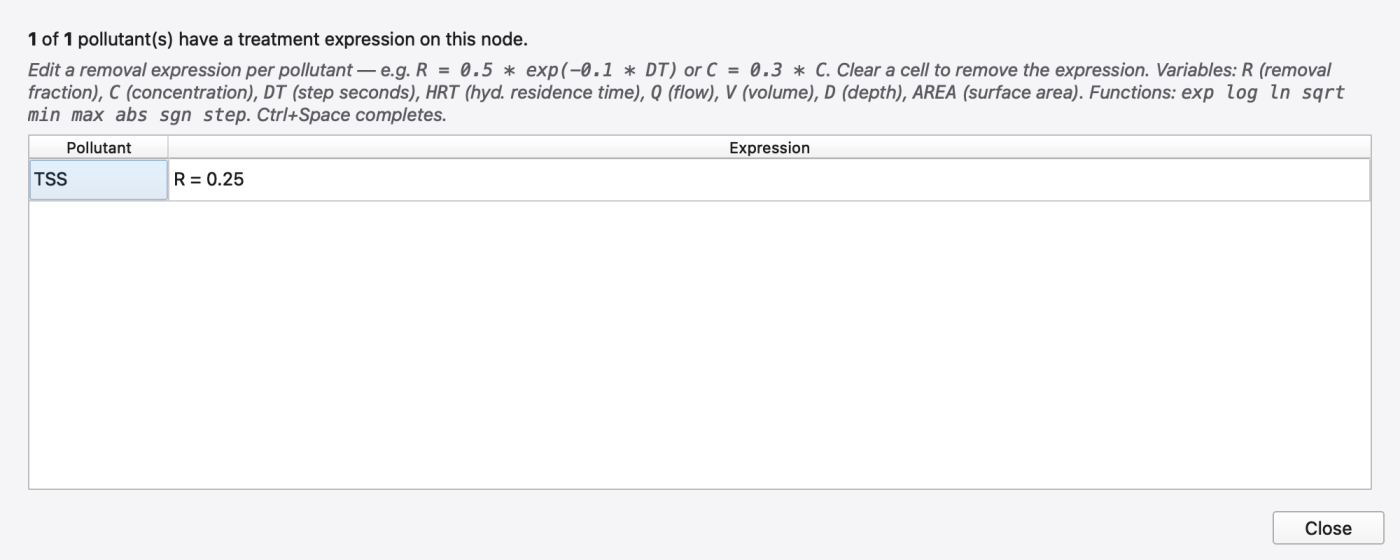
Reproducing the populated editors. Open a disposable copy of tutorials/models/node_editor_example.inp. Select J1 in the Junctions attribute table, then open Dry Weather Flow, RDII or Pollutant Treatment through that property cell's Edit… button. The assignment tables show the stored values; the lower add-entry forms initially show defaults. Select an existing assignment row to load its values into the form before using Add / Update. For the matching data, open Model → Data Objects → Time Series… and select QEXT, or Time Patterns… and select HOURLY. The Initial Quality dialog contains J1 and C1 TSS rows (see 16 — Water Quality, Reaction Systems, Water Age and Heat).
This synthetic CFS model is uncalibrated and is supplied to demonstrate loaded editor state. Its reference engine run completed with routing continuity −0.091 percent and RDII continuity 0.000 percent, but quality routing continuity was 22.434 percent. That imbalance remains unresolved: do not use this example to validate treatment removal, pollutant mass balance or initial-quality behavior. The captures verify displayed assignments; editing, saving and reopening these assignments still require separate verification.
Every link carries Name, Link Type (read-only), From Node, To Node, Tag, Initial Quality, User Flags and a read-only post-run block (Max Flow, Sim., Max Velocity, Max/Full Depth, Total Flow Volume, Time Surcharged).
Each link type below follows the same pattern as the nodes: what it is, when to use it, how to add one, its property rows, and any type-specific behaviour. Drawing links on the map is covered in adding a link.
What it is. A pipe or open channel that carries flow from its upstream node to its downstream node. Its length and roughness decide how fast water travels and how much head it loses; the inlet and outlet offsets raise each end above the node invert (a pipe entering a manhole above its floor); the entry, exit and average loss coefficients add the minor losses at bends, fittings and transitions; and the cross-section, on the Cross Section row, decides its capacity.
When to use it. Every pipe, culvert, channel, swale and street. When flow is controlled by a structure rather than by friction, use a pump, orifice, weir or outlet instead.
How to add one. Model → Add Link → Pipe (ribbon Model ▸ Links): click the upstream node, add any bends, and click the downstream node.
Properties.
| Property | What it does | Writes |
|---|---|---|
| Length | Conduit length | [CONDUITS] |
| Manning's n | Roughness | [CONDUITS] |
| Inlet Offset / Outlet Offset (or Elevation) | End offsets in the current LINK_OFFSETS convention | [CONDUITS] |
| Initial Flow; Maximum Flow | Initial and limiting flow | [CONDUITS] |
| Entry Loss Coeff.; Exit Loss Coeff.; Avg. Loss Coeff. | Minor losses | [LOSSES] |
| Flap Gate | NO / YES | [LOSSES] |
| Seepage Rate | Conduit seepage | [LOSSES] |
| Cross Section | Summary + Edit… → the cross-section editor | [XSECTIONS] |
| Geom 1 … Geom 4 | The four raw geometry slots, inline | [XSECTIONS] |
| Barrels | Number of barrels | [XSECTIONS] |
| Culvert Code | FHWA HDS-5 inlet-geometry code, chosen inline from a grouped combo | [XSECTIONS] |
| Inlets | Summary + Edit… → the inlet-usage page | [INLET_USAGE] |
The culvert combo carries all 57 HDS-5 codes plus a "(none)" entry for code 0, labelled N) <shape/material group>: <inlet edge description> (for example 3) Circular Concrete: Groove end projecting). Code 0 means no culvert / no inlet control.
What it is. A link that lifts water from its inlet node to its outlet node according to a pump curve, instead of by gravity. It starts and stops on the depth at its inlet node (Startup Depth / Shutoff Depth) and can be operated by control rules.
When to use it. Lift stations, wet wells, anywhere water must go uphill. An ideal pump — one with no curve — simply passes on whatever arrives, which is useful as a placeholder.
How to add one. Model → Add Link → Pump (ribbon Model ▸ Links), then click the inlet node and the outlet node.
Properties. Pump Curve (curve picker), Initial Status (OFF / ON), Startup Depth, Shutoff Depth. Post-run adds Pump Cycles, Pump On Time and Volume Pumped. Writes [PUMPS].
Type-specific behaviour. The pump's behaviour follows the curve type you pick, which is set in the Curve editor (17 — Time Series, Curves, Patterns and Calibration Data):
| Curve type | Relation | In words |
|---|---|---|
| Pump 1 | Volume → Flow | An off-line pump: flow steps with the volume stored in the wet well (the inlet node) |
| Pump 2 | Depth → Flow (on/off) | Flow steps with the depth at the inlet node |
| Pump 3 | Head → Flow (continuous) | A centrifugal pump: flow varies continuously with the head difference between the two end nodes |
| Pump 4 | Depth → Flow (continuous) | Flow varies continuously with the depth at the inlet node |
| Pump 5 | Head → Flow (variable speed) | A variable-speed pump: the curve is scaled by the pump's speed setting, which control rules can change |
What it is. An opening in the wall or floor of a node — a plate with a circular or rectangular hole — through which flow passes under the head across it. A side orifice is a vertical opening in the wall of a manhole or tank; a bottom orifice is a horizontal opening in its floor, driven by the depth of water above it. Orifices are gates: control rules can open and close them, at the Open/Close Rate you set.
When to use it. Outlet structures of ponds and tanks, sluice gates, flow regulators, the drawdown opening of a storage node — anywhere discharge is set by an opening and a head rather than by a pipe's friction.
How to add one. Model → Add Link → Orifice (ribbon Model ▸ Links), then click the two end nodes.
Properties. Type (SIDE / BOTTOM), Offset (or Elevation), Discharge Coeff., Flap Gate, Open/Close Rate (1/s), plus a Cross Section row and the four Geom rows (an orifice's opening is a cross-section like a conduit's — circular or closed rectangular). Writes [ORIFICES].
What it is. A crest that water spills over once the upstream level rises above it — an overflow in a tank wall, a diversion structure in a channel, or a road embankment that is overtopped. Discharge follows a weir equation driven by the head above the crest; the type decides the shape and so the equation.
When to use it. Overflow and bypass structures, flow splits in open channels, combined-sewer overflows, roads and embankments that flood over.
How to add one. Model → Add Link → Weir (ribbon Model ▸ Links), then click the two end nodes.
Properties. Type (TRANSVERSE / SIDEFLOW / VNOTCH / TRAPEZOIDAL / ROADWAY), Inlet Offset and Outlet Offset, Crest Height, Discharge Coeff., End Contractions, Flap Gate, plus Cross Section and the four Geom rows. Writes [WEIRS].
Type-specific behaviour. The weir shape is derived from the type — there is no separate shape control:
| Type | Shape and typical use |
|---|---|
TRANSVERSE | Rectangular crest across the direction of flow — an overflow at the end of a channel or tank |
SIDEFLOW | Rectangular crest along the side of a channel — a side overflow into a relief sewer |
VNOTCH | Triangular notch — small flows measured accurately |
TRAPEZOIDAL | Trapezoidal (Cipolletti) crest |
ROADWAY | A road embankment overtopped by flood water, using the FHWA roadway-overflow relation |
What it is. A link whose discharge is given directly by a rating you supply — flow against head or depth — rather than by a pipe, orifice or weir equation. It stands in for any special-purpose control: a proprietary flow regulator, a vortex valve, a tabulated outlet structure.
When to use it. When you have a manufacturer's or measured rating rather than a geometry, or when none of the standard structures fits.
How to add one. Model → Add Link → Outlet (ribbon Model ▸ Links), then click the two end nodes.
Properties. Rating Curve type (FUNCTIONAL_HEAD, FUNCTIONAL_DEPTH, TABULAR_HEAD, TABULAR_DEPTH), Offset (or Elevation), Coefficient and Exponent for the functional forms, a Rating Curve picker for the tabular forms, and Flap Gate. The exponent and curve rows show and hide with the chosen type. Writes [OUTLETS].
Type-specific behaviour. The rating's form follows the type:
| Type | Discharge |
|---|---|
FUNCTIONAL_HEAD | Q = C·Hⁿ, with H the head difference across the outlet |
FUNCTIONAL_DEPTH | Q = C·Dⁿ, with D the depth above the outlet's offset at the inlet node |
TABULAR_HEAD | A rating curve of flow against head difference |
TABULAR_DEPTH | A rating curve of flow against depth |
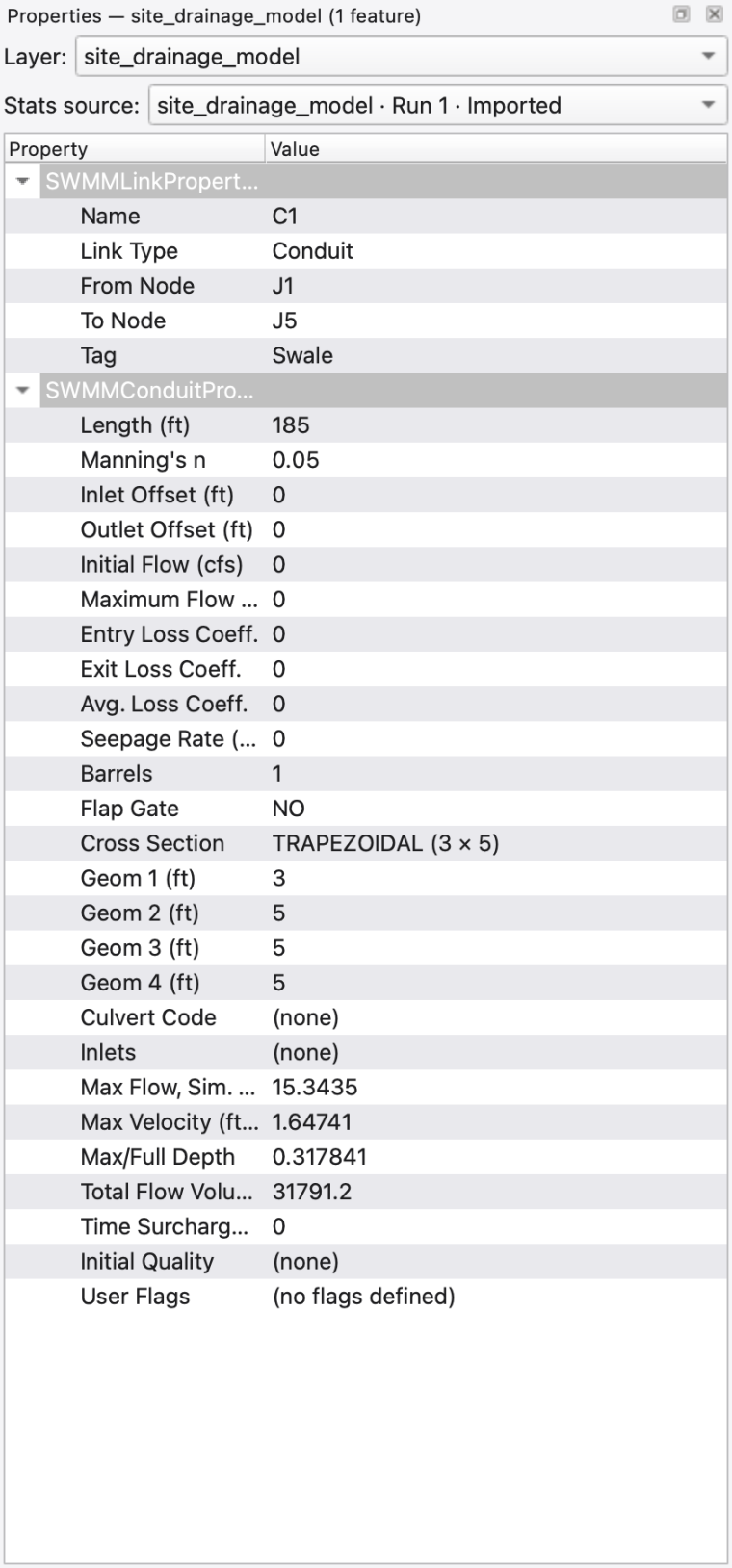
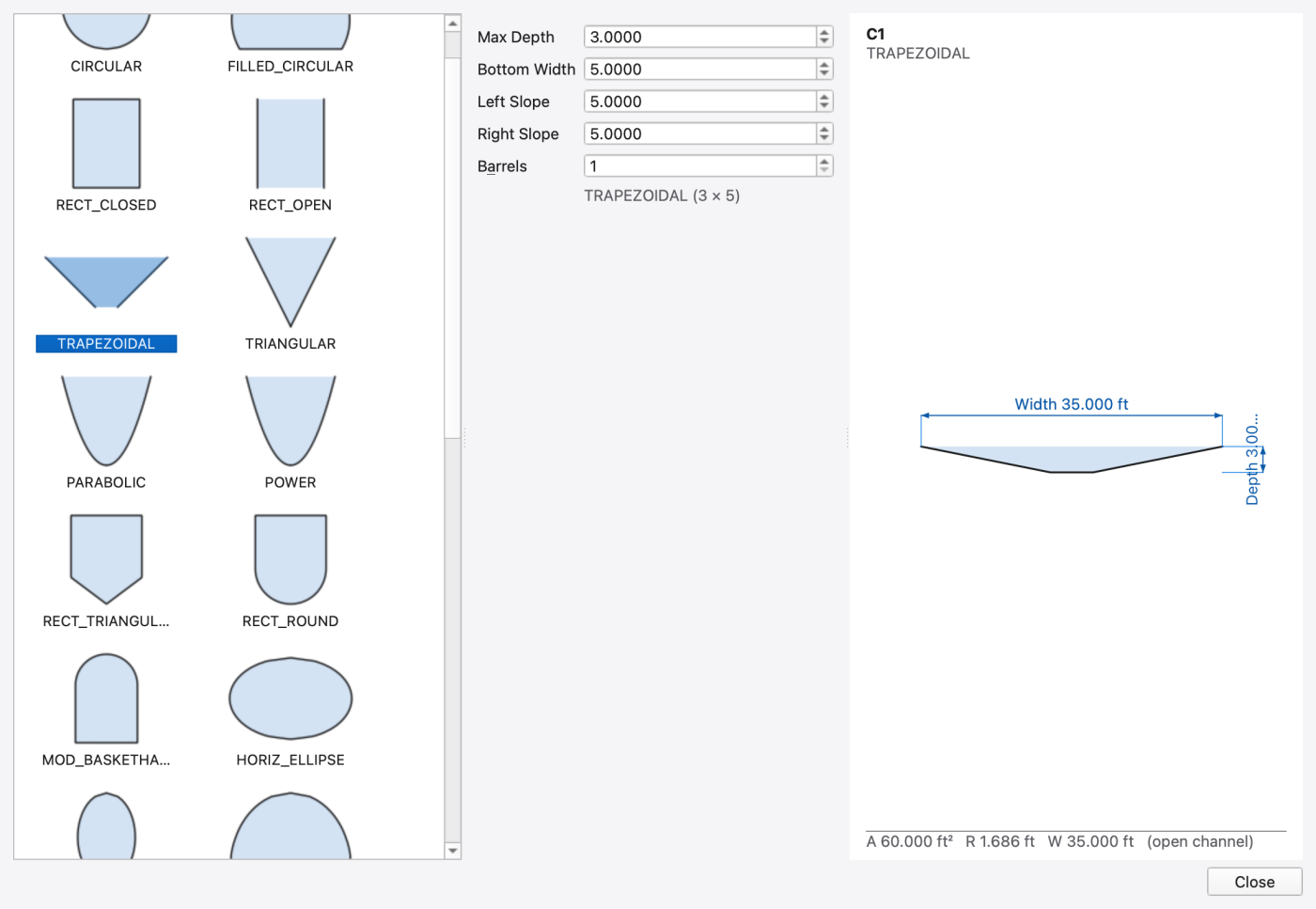
The conduit's Cross Section row opens a three-pane editor: a shape gallery (one icon per allowed shape), a parameters form whose four rows re-label themselves per shape, and a live engine-accurate section drawing with labelled dimensions. The drawing tracks the widget values as you type, not the last committed value, and highlights the dimension line of the spin box you are editing. Changes commit as you make them.
| Shape | Geom 1 | Geom 2 | Geom 3 | Geom 4 |
|---|---|---|---|---|
CIRCULAR | Diameter | |||
FILLED_CIRCULAR | Diameter | Filled Depth | ||
RECT_CLOSED | Max Depth | Width | ||
RECT_OPEN | Max Depth | Width | ||
TRAPEZOIDAL | Max Depth | Bottom Width | Left Slope | Right Slope |
TRIANGULAR | Max Depth | Top Width | ||
PARABOLIC | Max Depth | Top Width | ||
POWER | Max Depth | Top Width | Exponent | |
RECT_TRIANGULAR | Max Depth | Top Width | Triangle Height | |
RECT_ROUND | Max Depth | Top Width | Bottom Radius | |
MOD_BASKETHANDLE | Max Depth | Bottom Width | Top Radius | |
HORIZ_ELLIPSE | Max Height | Max Width | ||
VERT_ELLIPSE | Max Height | Max Width | ||
ARCH | Max Height | Max Width | ||
EGGSHAPED | Max Depth | |||
HORSESHOE | Max Depth | |||
GOTHIC | Max Depth | |||
CATENARY | Max Depth | |||
SEMIELLIPTICAL | Max Depth | |||
BASKETHANDLE | Max Depth | |||
SEMICIRCULAR | Max Depth | |||
FORCE_MAIN | Diameter | Roughness (C or e) | ||
IRREGULAR | Transect picker | |||
CUSTOM | Max Depth | Shape-curve picker | ||
STREET | Street picker | |||
DUMMY | — | — | — | — |
For IRREGULAR and STREET the first geometry slot is an index into the transect or street list, so the raw spin box is replaced by a name picker whose "…" button opens the Transect or Street editor; the picked name is translated back to an index on commit. CUSTOM keeps Geom 1 as a real dimension and replaces only Geom 2 with the shape-curve picker. FORCE_MAIN's second slot is the friction-law coefficient (Hazen-Williams C or Darcy-Weisbach roughness height), not a dimension. DUMMY has no geometry at all — it lets a link be routed without conveyance.
The Section View dock (View → Panels → Section View, Ctrl+Alt+9) shows the same drawing for whatever link is currently selected, without opening a dialog.
Model → Data Objects → Transects… opens a non-modal three-pane editor over [TRANSECTS]:
Dragging a handle on the chart and typing in the station table are the same edit, so the list, the property tree, the table and the chart stay in lock-step.
Assign a transect to a conduit by setting the conduit's cross-section shape to IRREGULAR and picking the transect by name.
FIGURE PLACEHOLDERdocs/manual/images/14_transect_editor.png
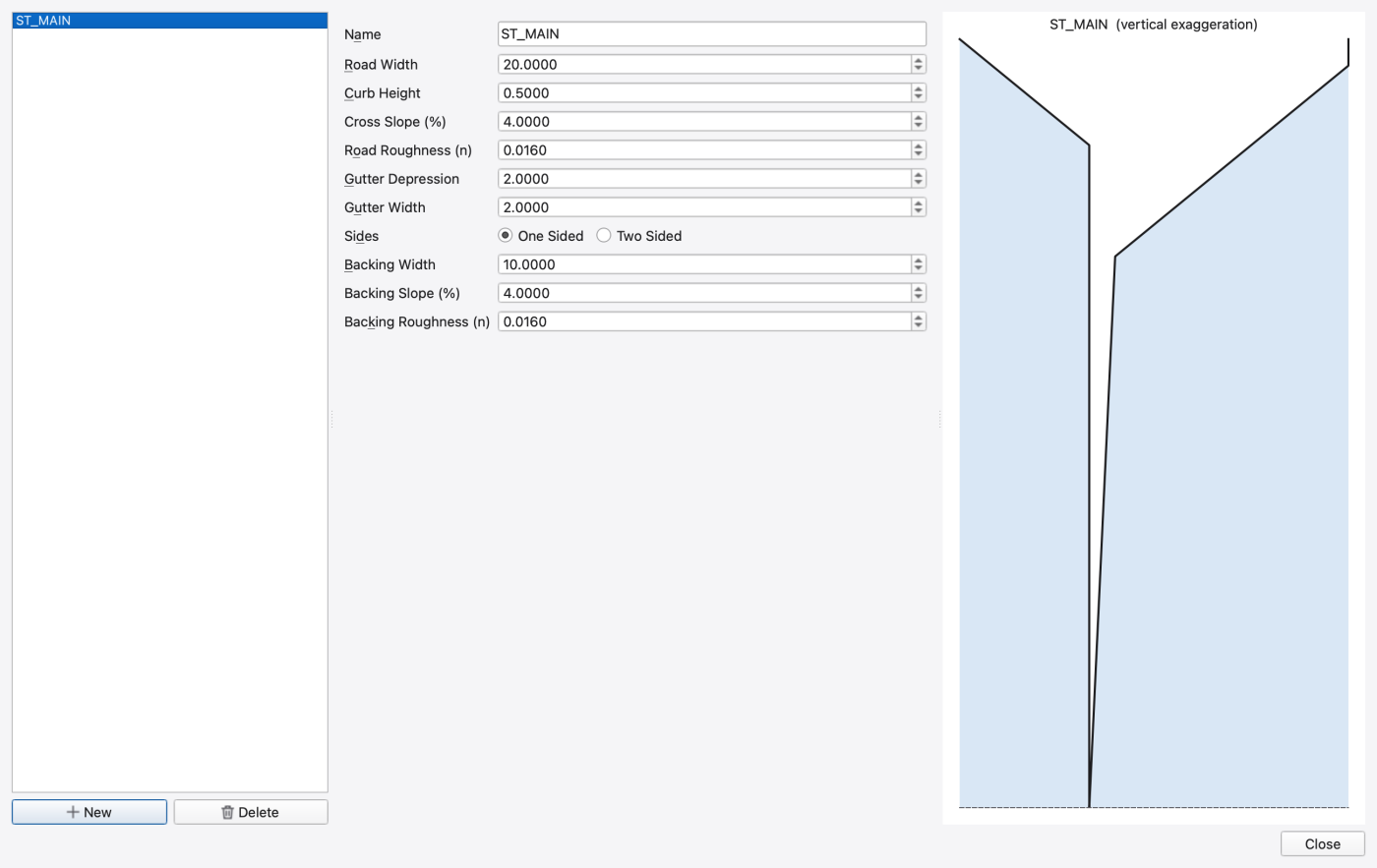
Model → Data Objects → Streets… opens a three-pane editor over [STREETS]. A street is parametric, so the middle pane is a field form rather than a station table, and the right pane is a schematic section preview (drawn with vertical exaggeration) of the crown, curb, depressed gutter and backing.
| Field | What it does |
|---|---|
| Name | Street id |
| Road Width | Crown-to-curb road width |
| Curb Height | Curb height |
| Cross Slope (%) | Road cross slope |
| Road Roughness (n) | Manning's n for the road surface |
| Gutter Depression | Depression depth at the curb |
| Gutter Width | Depressed-gutter width |
| Sides | One Sided or Two Sided |
| Backing Width; Backing Slope (%); Backing Roughness (n) | The strip behind the curb |
Assign a street to a conduit by setting the conduit's cross-section shape to STREET and picking the street by name.
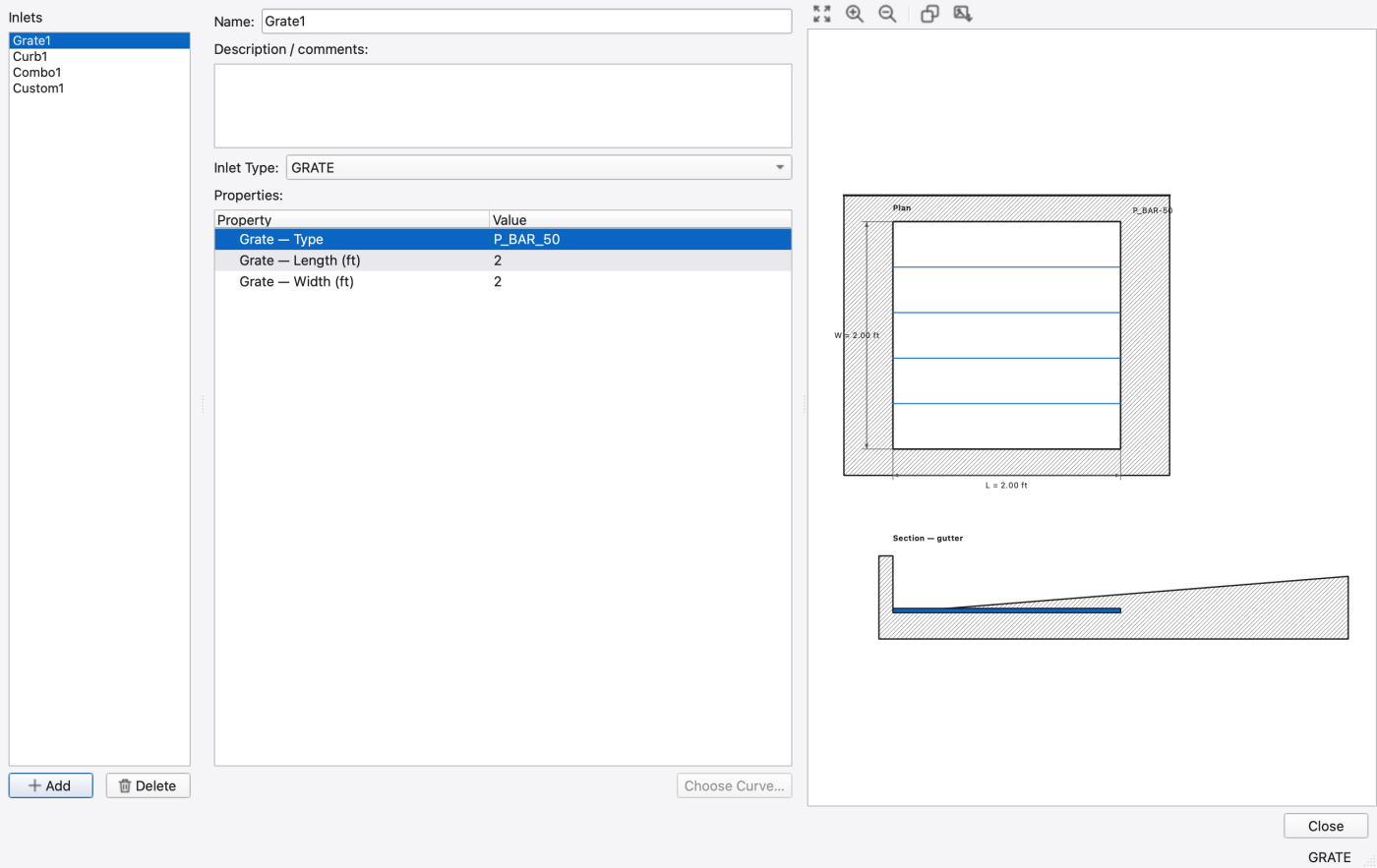
Model → Data Objects → Inlets… opens a three-pane editor over [INLETS]: the design list with Add / Delete, a middle pane with Name, a comments field, an Inlet Type combo and a property tree whose rows are filtered by the chosen type, and a drawing view showing the design in plan and section with dimension callouts (toolbar: fit, zoom, copy, export image).
Inlet types (HEC-22): GRATE, CURB OPENING, COMBINATION, SLOTTED DRAIN, DROP GRATE, DROP CURB, CUSTOM.
| Group | Rows | Applies to |
|---|---|---|
| Grate | Grate — Type, Grate — Length, Grate — Width, Grate — Open Area Fraction, Grate — Splash-over Velocity | GRATE, DROP GRATE, COMBINATION |
| Curb opening | Curb Opening — Length, Curb Opening — Height, Curb Opening — Throat Angle | CURB OPENING, DROP CURB, COMBINATION |
| Slotted drain | Slotted Drain — Length, Slotted Drain — Width | SLOTTED DRAIN |
| Custom | Custom — Curve Type, Custom — Curve | CUSTOM |
Grate bar patterns: P_BAR-50, P_BAR-50x100, P_BAR-30, CURVED_VANE, TILT_BAR-45, TILT_BAR-30, RETICULINE, GENERIC. The open-area fraction and splash-over velocity rows are only meaningful for GENERIC and are hidden otherwise. Throat angles are HORIZONTAL, INCLINED, VERTICAL. A custom inlet's curve is either a Diversion curve (captured flow versus approach flow) or a Rating curve (captured flow versus water depth); the … button next to the curve row picks it.
Deleting a design warns which conduits and inlet junctions reference it. Edits are undoable — they push onto the project's undo stack like map edits.
When the editor is opened from an inlet-usage picker it filters the list to the designs legal on the host cross-section: gutter types for STREET, drop types for RECT_OPEN and TRAPEZOIDAL, CUSTOM everywhere.
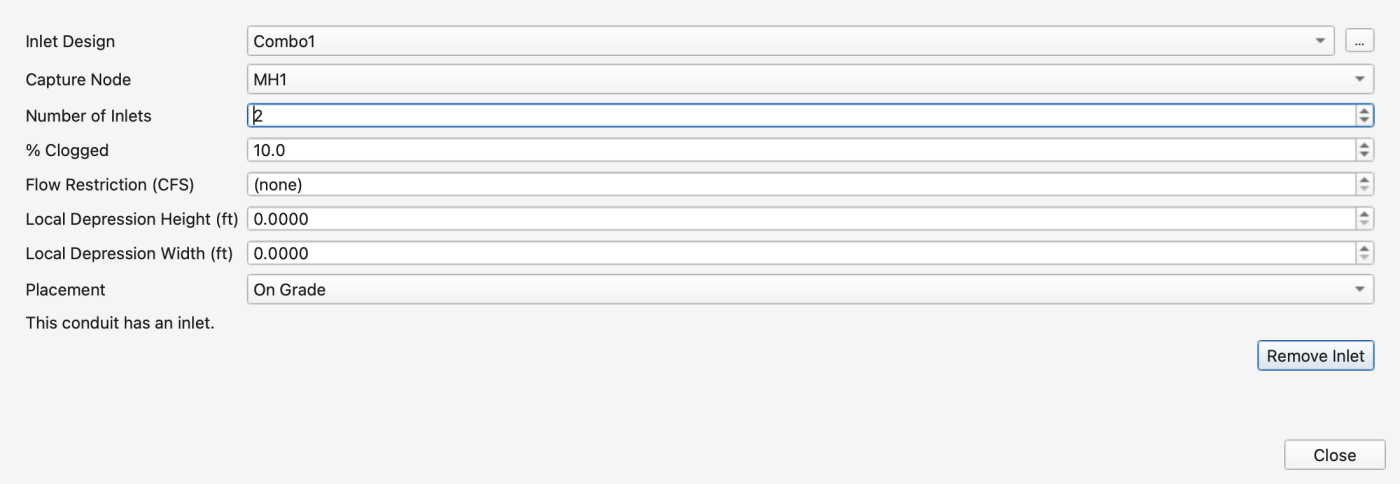
A conduit's Inlets row opens the inlet-usage page — the same [INLET_USAGE] row an inlet junction owns, but hosted on the link. The eight fields are Inlet Design, Capture Node, Number of Inlets, % Clogged, Flow Restriction (0 shows as *(none)* and means unrestricted), Local Depression Height, Local Depression Width and Placement (Automatic / On Grade / On Sag), with a Remove Inlet button.
Nothing is committed while either the design or the capture node is unset, because the engine rejects a partial row. The capture-node list excludes the conduit's own end nodes and every virtual or inlet junction (rule 627). The whole row commits as one undoable command, so this edit and the same edit made on an inlet junction's property rows are literally the same operation.
Model → Data Objects → Control Rules… opens a non-modal two-pane editor over [CONTROLS].
RULE block.The editor highlights the SWMM rule grammar and completes it:
| Token class | Vocabulary |
|---|---|
| Block keywords | RULE, IF, THEN, ELSE, AND, OR, NOT, PRIORITY |
| Object types | NODE, LINK, CONDUIT, PUMP, ORIFICE, WEIR, OUTLET, SUBCATCH, SIMULATION, GAGE |
| Variables | DEPTH, HEAD, FLOW, VOLUME, INFLOW, SETTING, STATUS, CLOCKTIME, DATE, MONTH, DAY, TIME, OVERFLOW, INTENSITY, n-HR_DEPTH |
| Operators | =, <, >, <=, >=, <>, IS |
| Numbers | Decimals and clock times HH:MM[:SS] |
| Comments | ; to end of line |
Completion draws on that vocabulary plus the live node, link, rain gage and subcatchment names from the model, so premises and actions can be completed against real object ids. The popup triggers after two characters or on Ctrl+Space.
Validation uses the engine's own rule parser and runs about a quarter of a second after you stop typing, checking NODE / LINK / CURVE / TIMESERIES references against the live names without changing the model. There is also an explicit validate-now button. Edits are saved when the editor loses focus and when you change the selected rule.
Rain-gage conditions use GAGE, followed by a live gage ID and either INTENSITY (in/hr or mm/hr) or n-HR_DEPTH (inches or millimeters). The lookback n is from 1 to 48 hours, matching the legacy solver. Use 24-HR_DEPTH for one day and 48-HR_DEPTH for two days:
Depth sums completed simulation-hour buckets and excludes the current partial hour. History starts at zero; rainfall before the simulation start and DRY_DAYS do not seed it. The gage must be used by hydrology; a gage referenced only by a rule returns zero, matching legacy. A runoff interface file also bypasses this accumulation. Longer lookbacks are rejected.
Use the documented hour spelling. The legacy parser accepts numeric prefixes, so 3-DAY_DEPTH means three hours, not three days. The editor offers INTENSITY and representative hour depths and highlights any n-HR_DEPTH token; engine validation checks the supported range.
The rule body is free text, so anything the engine's parser accepts can be written here — including the engine's curve-, time-series- and PID-modulated actions. Note that PID is not in the highlighter/completer vocabulary above, so a PID action will not be coloured or completed; the engine validator is still the authority on whether it is accepted.
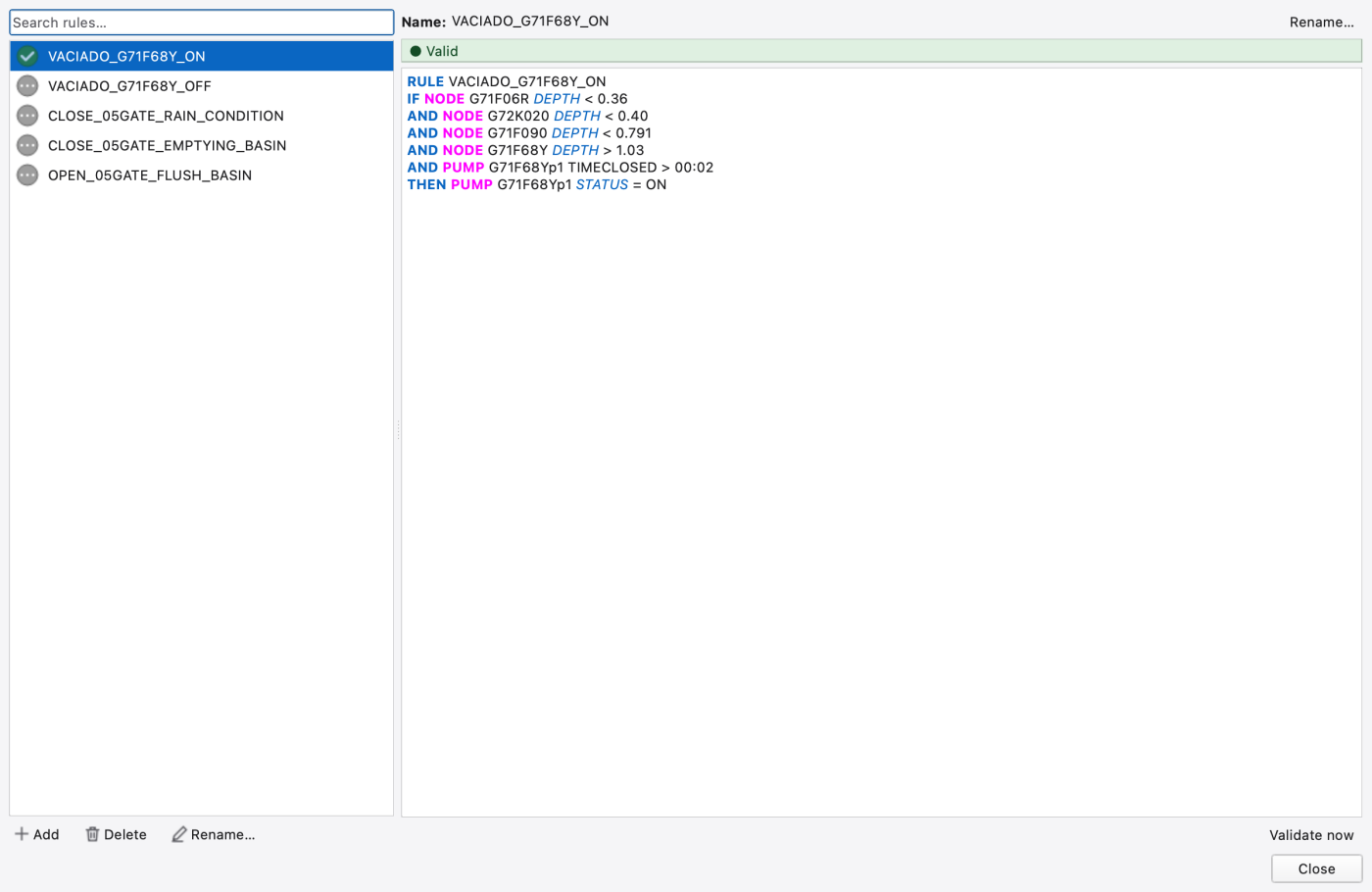
FIGURE PLACEHOLDERdocs/manual/images/14_rules_completion.png
DYNWAVE. Rule 619 refuses them under steady-flow or kinematic-wave routing; set the routing model in 18 — Simulation Options first.STREET while it hosts an inlet or touches an inlet junction is refused with rule 623 — remove the inlet usage first.Geom 1 on IRREGULAR and STREET is an index, not a dimension.** Always set it through the name picker; typing a raw number is not offered because the indices are not stable across rename or reorder..inp-only in this release. The type is editable; the diverted link and its coefficients are not.MASS inflows are pollutant-only.** The Type combo disables it (and steps the selection down) when the constituent is FLOW.LINK_OFFSETS and the other model-wide options 1.9.8
1.9.8