 |
SWMMVis
6.0.0-alpha.4
Qt6/C++ GIS-based graphical user interface for the SWMMVis engine (6.0.0-alpha.4)
|
|
SWMMVis
6.0.0-alpha.4
Qt6/C++ GIS-based graphical user interface for the SWMMVis engine (6.0.0-alpha.4)
|
Download the portable inputs: vfr_slope.inp.
A portable input is now tracked at docs/manual/tutorials/models/vfr_slope.inp. It contains the mesh, gage and current options; generated outputs are not shipped. The October 2 verification run passes with the stand-alone routing and dry-cell activation fixes: both FLAT/MEAN and VFR/VFR_FACE receive 60 m³ of rain and retain 60 m³ in this closed domain. Older builds can exit successfully while taking zero surface steps; use the checks in step 5 before relying on their outputs. The controls and status report below are real application captures. Map animation, cell plotting and rebuilding the mesh from a raster still need separate workflow verification. Use T5 — Culverts, Embankments, Boundary Conditions and Edge Conveyance for the coupled example.
Prepare a disposable copy and retain its report with scripts/prepare_manual_fixtures.py --case slope --output <new-folder>; add --engine <explicit-cli-path> to run it. No retired CVODE options are required. The synthetic model uses local metre coordinates and is not a calibrated site.
The synthetic input explicitly assigns EPSG:3857 so its mesh, output and canvas share a projected coordinate system. These coordinates do not locate a real site.
Run a model that has no 1D network at all — no junctions, no conduits, no outfalls, no subcatchments. Just a triangulated surface, a rain gage, and the explicit local-inertial marcher. You will open a 3 % tilted plane, confirm that the Object Browser really is empty of network objects, style the mesh by bed elevation, follow rainfall onto the cells, animate depth and velocity, pull a time series out of a single cell, read the 2D mass balance, and then experiment with the wetting/drying closure that this example exists to demonstrate.
The last step builds the same kind of model from scratch, starting from a synthetic slope raster.
[JUNCTIONS] / [CONDUITS][2D_OPTIONS] RAINFALL_MODE SYSTEM — uniform rain from the gage meanCELL_CLOSURE / FACE_RECONSTRUCTION — the VFR wetting/drying closureWALL boundaries — every boundary edge, because none are listed| File | What it is |
|---|---|
docs/manual/tutorials/models/vfr_slope.inp | Tracked input — open a working copy |
vfr_slope.oswp | GUI sidecar created when saving the working copy |
vfr_slope.2d.h5 | Generated by the engine; inspect the run before using it |
vfr_slope.out / .rpt | Generated output and report — see the verification gate in step 5 |
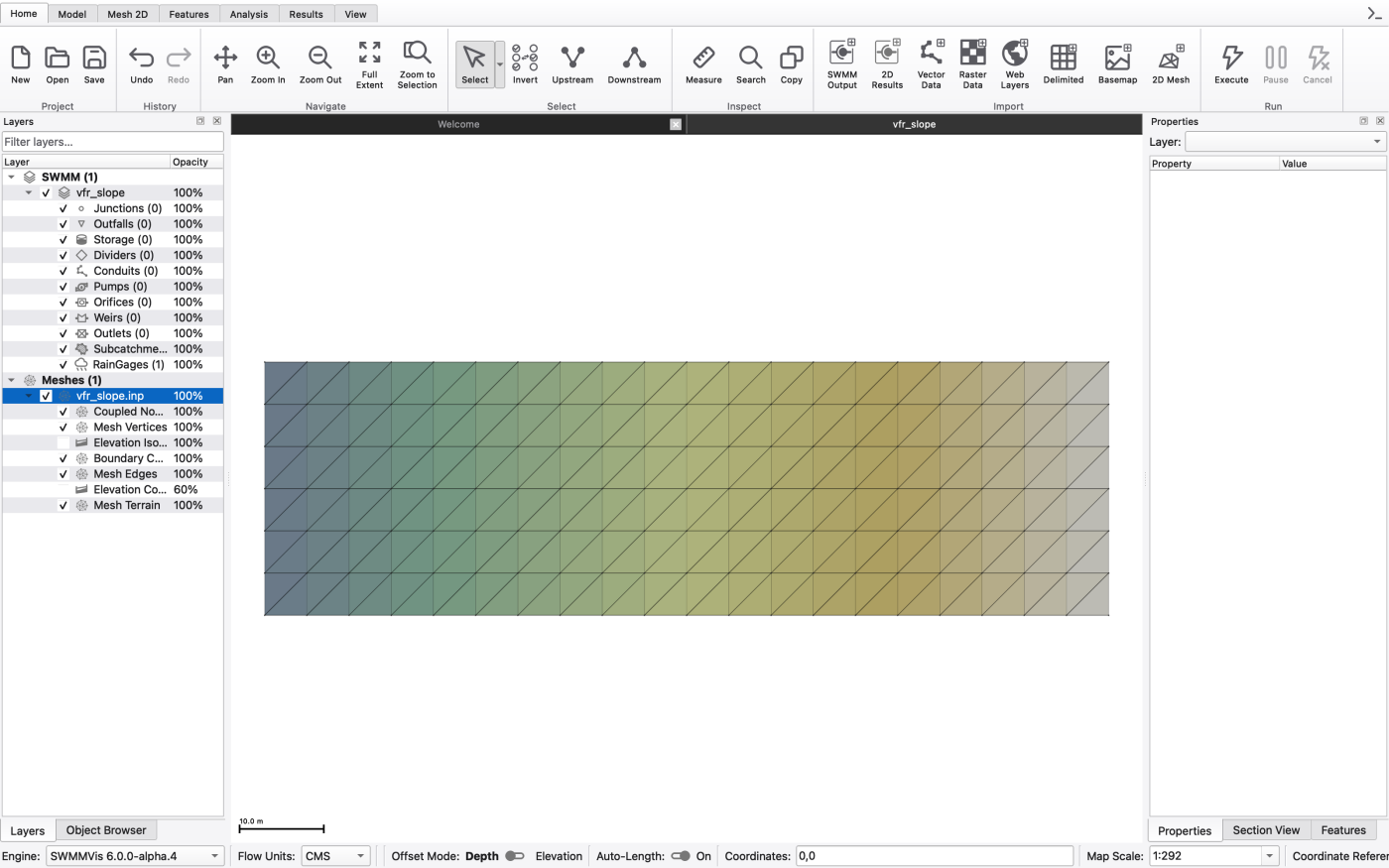
File → Open… → a working copy of vfr_slope.inp.
Open the Object Browser (Ctrl+Alt+2). The Junctions, Outfalls, Conduits, Pumps, Orifices, Weirs, Outlets, Storage and Subcatchments categories are all empty. The only model objects are one rain gage and the mesh. The Layers panel (Ctrl+Alt+1) shows a Meshes entry and, once results are loaded, a SWMM 2D Outputs entry; the SWMM 1D Outputs category stays hidden because it is empty.
The complete section list of vfr_slope.inp is:
No [COORDINATES], no [SUBCATCHMENTS], and — importantly — no [2D_BOUNDARY_CONDITIONS].
The [OPTIONS] block is minimal:
FLOW_ROUTING DYNWAVE is still set even though there is nothing to route in 1D. The 1D network is empty; the surface still needs the routing clock. Use a build with the stand-alone surface routing fix.
The mesh is a structured 21 × 7 vertex grid: x from 0 to 100 m in 5 m steps, y from 0 to 30 m in 5 m steps, with Z = 0.03 x — a 3 % ramp rising from 0.0 m at the west edge to 3.0 m at the east. 147 vertices, 240 triangles, Manning's n = 0.030 everywhere.
Because [2D_BOUNDARY_CONDITIONS] is absent, every boundary edge takes the default WALL — the plane is a closed box. Rain falls on the ramp, runs downhill to the west, and pools against the low wall at x = 0. Nothing ever leaves the domain; the storm's water is either stored or evaporated.
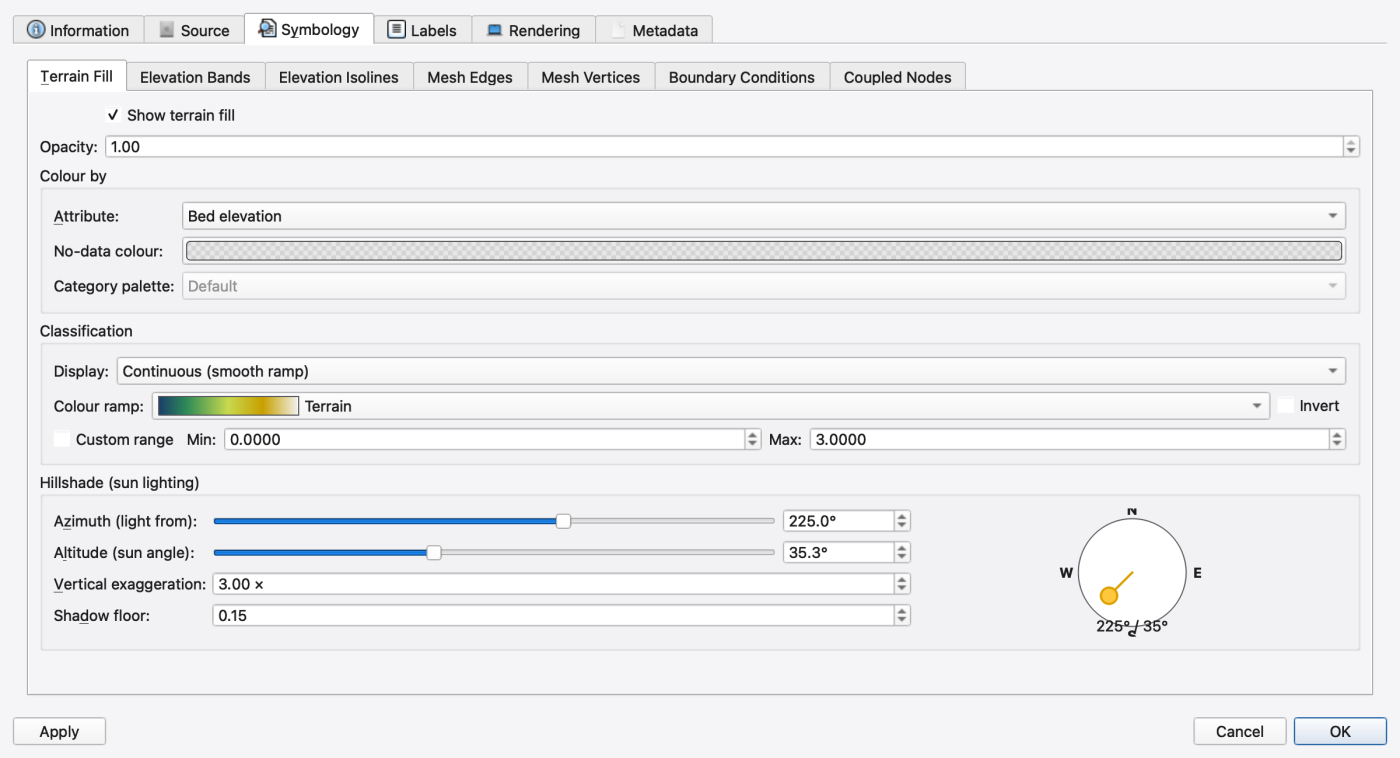
Style the mesh to see the ramp. Double-click the mesh layer in Layers → Terrain Fill tab:
| Control | What it does |
|---|---|
| Show terrain fill | turns the filled surface on |
| Attribute: | the cell attribute to colour by — leave it on Bed elevation |
| Category palette: | the colour ramp |
| No-data colour: | colour for cells without a value |
| Azimuth (light from): / Altitude (sun angle): | hillshade direction and elevation |
| Vertical exaggeration: / Shadow floor: | hillshade strength and its darkest value |
The Elevation Bands and Elevation Isolines tabs add filled bands and contour lines with optional elevation labels; Mesh Edges draws the wireframe and can widen and recolour steep edges past a slope break.
There is one gage:
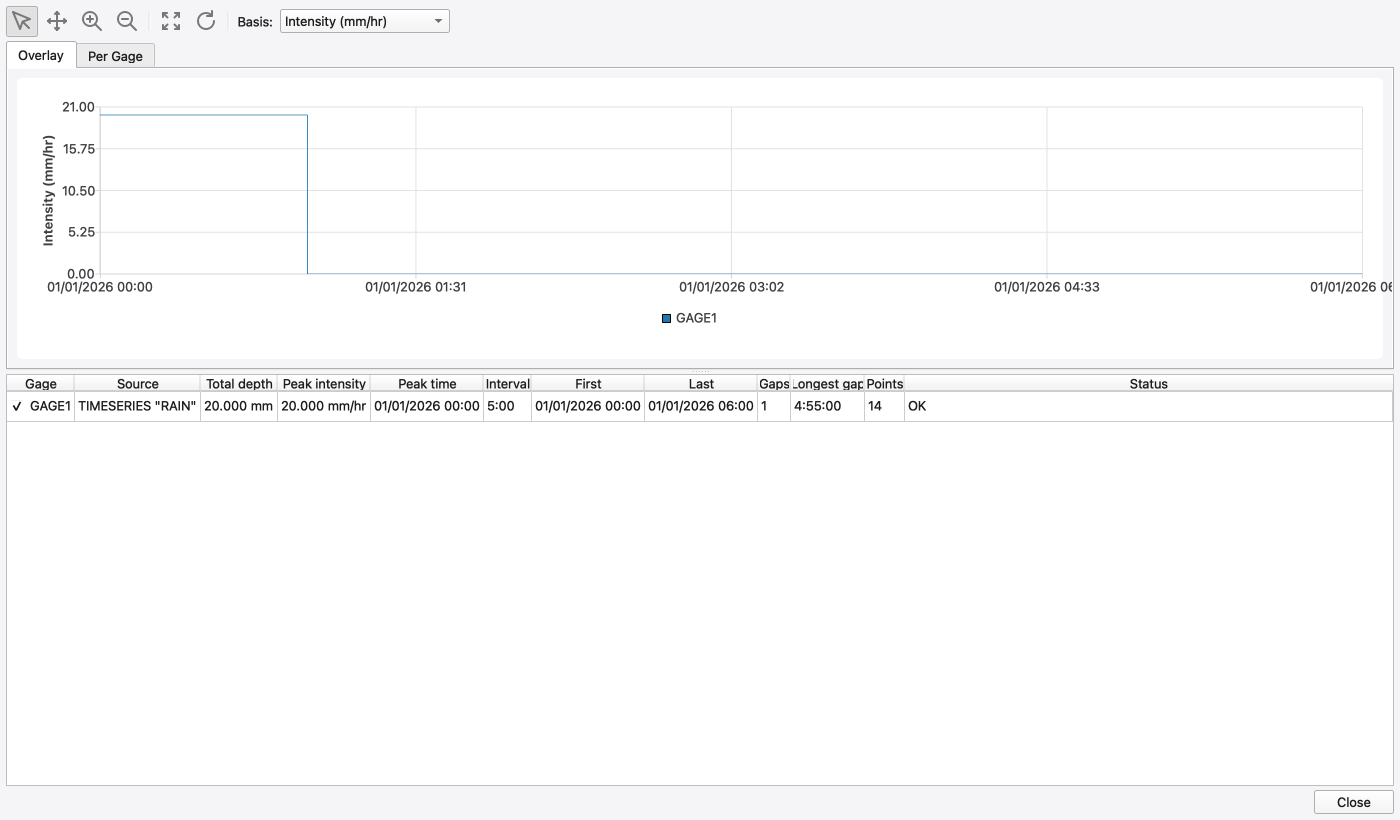
The tracked file supplies twelve consecutive five-minute samples of 20 mm/hr, followed by zero rain. This specifies 20 mm over one hour, then five dry hours. Sparse intensity entries an hour apart do not establish a continuous one-hour block; retain all twelve samples. The gage sits at (−10, 15) — outside the mesh, to the west.
[2D_OPTIONS] RAINFALL_MODE SYSTEM is what pushes that rain onto the cells:
| Value | What the mesh sees |
|---|---|
NATURAL_NEIGHBOUR (default) | natural-neighbour (Laplace) weights inside the convex hull of the gages, inverse-distance-squared extrapolation outside; weights are precomputed once |
SYSTEM | one uniform value — the arithmetic mean of every gage's current rainfall |
NONE | no rain on the mesh; use this when subcatchments already capture the storm and rain-on-mesh would double-count it |
SYSTEM is also the automatic fallback when no gage has a map location, so a gage with no [SYMBOLS] row silently gives you uniform rain even if you asked for natural neighbour.
Set it in Simulation Options → 2D Surface Routing → Processes, in the Rainfall mode: combo — the entries read Natural neighbour (all gages), System (uniform gage mean) and None (no direct rainfall).
To see the storm itself, use Analysis → Rainfall Visualization…. The dialog opens on the Overlay tab with a Basis: combo offering Intensity (mm/hr), Depth per interval (mm) and Cumulative depth (mm), and a statistics table underneath listing total depth, peak intensity, peak time, interval, first and last timestamps, gaps and point count.
Press Ctrl+R. Because this is a 2D-only model there is no .out content of interest; the interesting product is vfr_slope.2d.h5, written because [2D_OPTIONS] sets REPORT_2D YES and OUTPUT_FILE vfr_slope.2d.h5.
While it runs, watch the Simulation Status panel (Ctrl+Alt+6). Its columns are Name, Status, Progress, Sim Start, Sim Current, Sim End, Runoff Err (%), Routing Err (%), 2D Err (%), Duration, Avg Timestep and Engine Version. The 2D Err (%) column is the one to watch here — it is polled live during the run, not only at the end. In a model with no 2D it would read —.
On completion the 2D results layer is attached automatically, named 2D Results (live) while the run is in progress and keyed by the canonical .h5 path so a re-run overwrites rather than stacking duplicates. The GUI reads the engine's DRY_DEPTH so its wet/dry rendering threshold matches the solver's.
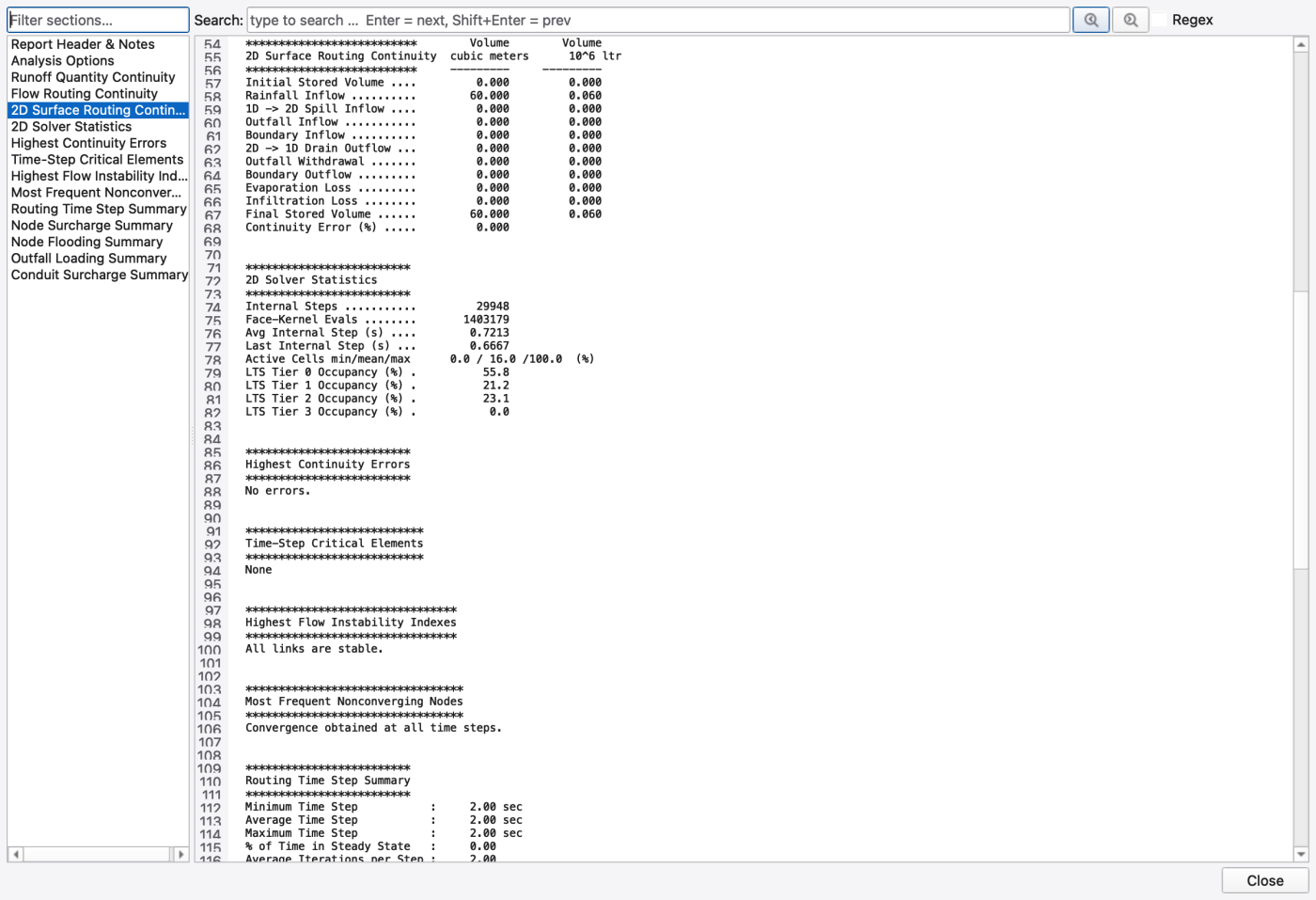
The closed domain has area 3,000 m². A 20 mm storm should supply 60 m³. With zero evaporation, no infiltration and wall boundaries, the expected final storage is also 60 m³. Confirm nonzero internal steps, a nonzero depth field and a consistent mass balance before proceeding.
The October 2 runs with the corrected engine produced:
| Check | FLAT / MEAN | VFR / VFR_FACE |
|---|---|---|
| Internal 2D steps | 29,948 | 30,500 |
| Rainfall inflow | 60.000 m³ | 60.000 m³ |
| Final storage | 60.000 m³ | 60.000 m³ |
| Reported continuity error | 0.000% | 0.000% |
| Saved report frames | 180 | 180 |
| Final maximum depth near the toe | 0.2793 m | 0.2928 m |
| Final maximum depth near the crest (x > 90 m) | 0.003765 m | 0.002501 m |
The saved depths are nonuniform and the toe is deeper than the crest, consistent with downslope redistribution. These are reference checks for this fixture, not calibration targets. Float precision in HDF5 gives a reconstructed final volume within 0.000001 m³ of 60 m³. The first saved frame is at two minutes and the last at six hours; there is no initial zero-time frame.
The earlier zero-step runs exposed two separate issues: the routing gate required a 1D node and quiescent dry cells did not revisit activation after rainfall. Adding an isolated node addressed only the first issue. Use the original mesh-only input with both fixes; a dummy node is unnecessary.
The baseline explicitly sets CELL_CLOSURE FLAT and FACE_RECONSTRUCTION MEAN. There are no retired solver keys to remove.
The numerical verification gate now passes. The following map and plot steps remain procedures to check in the GUI; the accepted report and editor figures do not establish animation or picking behavior.
Style the 2D results layer (double-click it in Layers). Its style panel has scalar-fill tabs plus Depth Contours, Depth Isolines, Flow Velocity, Mesh Edges and Mesh Vertices.
Use the Animation ribbon tab transport — Play, Pause, Stop, Skip Back, Skip Forward — and the Show Legend toggle. Then look for:
RAINFALL_MODE SYSTEM gives every cell the same intensity; FIGURE PLACEHOLDERdocs/manual/images/t06_depth_animation_frame.png
Per-cell time series. Activate the Select 2D Cells tool. It supports B for box mode and L for lasso mode; Shift adds to the selection, Ctrl toggles, a plain click replaces, and Esc clears. Pick a cell near the west wall and one near the crest. The picked cells are handed to the Comparison Plot dialog, seeded with those cells and their attributes, so you get both traces in a single chart. Right-clicking a mesh edge plots its flux time series; right-clicking a vertex plots interpolated depth and HGL there.
Selecting a single cell also shows it in the Properties panel, titled 2D Cell <n>.
FIGURE PLACEHOLDERdocs/manual/images/t06_cell_timeseries.png
Mass balance. There is no separate mass-balance dialog: Analysis → Show Mass Balance opens the status report, which is where continuity lives. Its 2D Surface Routing Continuity block accounts for rainfall inflow, coupling exchange, outfall and boundary flux, evaporation, infiltration, and initial and final storage. In this model boundary outflow should be zero — every edge is a wall — so rainfall in must equal final storage plus evaporation and infiltration losses.
The 2D solver statistics block underneath reports internal steps, face-kernel evaluations, average internal step, active-cell percentages and the occupancy of each local-timestepping tier. On a small mesh like this one the tier occupancy tells you whether LTS_TIERS is buying you anything.
Set CELL_CLOSURE to VFR and re-run, then compare.
Simulation Options → 2D Surface Routing → Wetting & Drying, in the Cell closure group:
| Control | Entries | Writes |
|---|---|---|
| Cell closure: | Flat (η = z̄ + V/A, legacy) / VFR (planar-bed volume/free-surface) | CELL_CLOSURE |
| Face reconstruction: | Mean (upwind cell depth, legacy) / VFR face (edge depth + wetting gate) | FACE_RECONSTRUCTION |
| VFR min wet fraction: | (0, 0.5] | VFR_MIN_WET_FRAC |
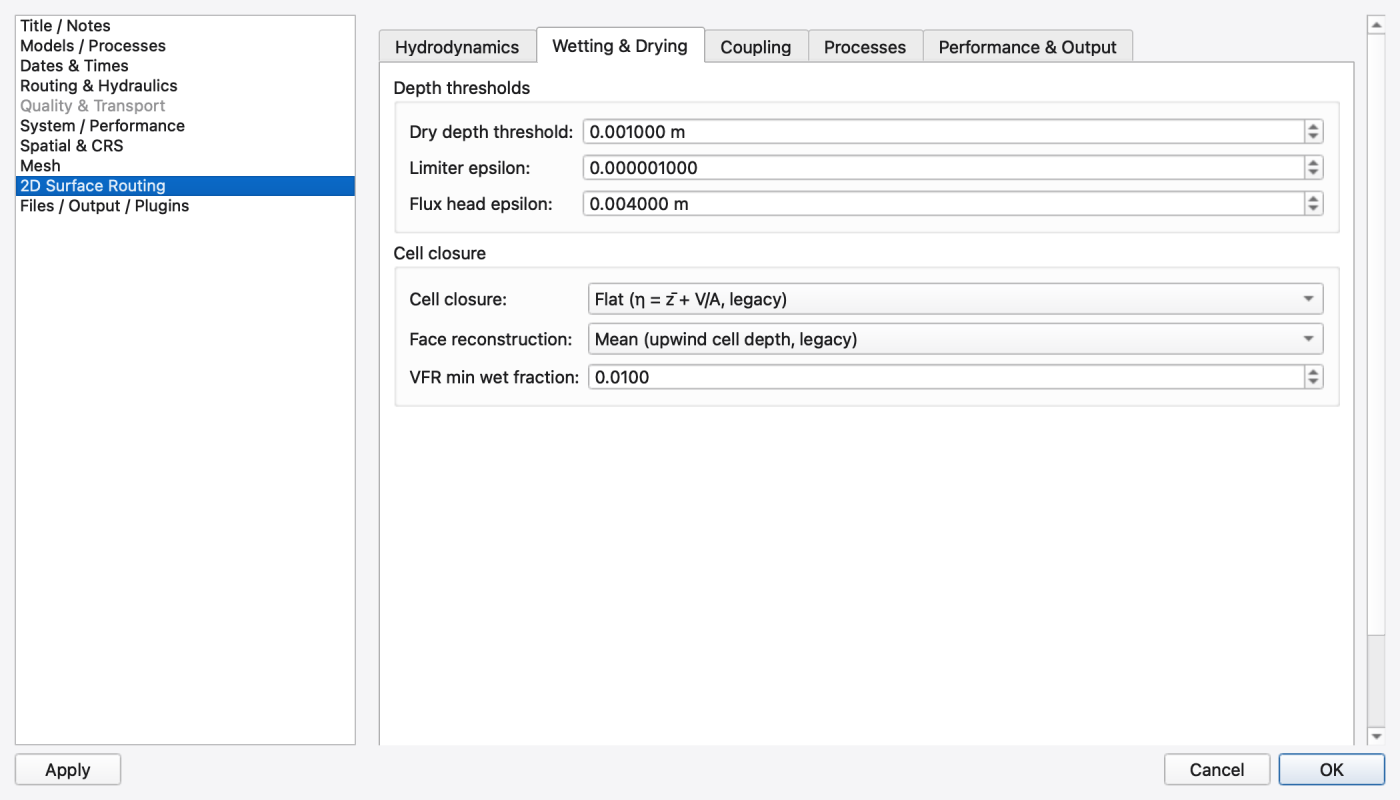
Under FLAT the free surface of a cell is reconstructed as η = z̄ + V/A, which is exact only when the cell is fully wetted. On a partially wet cell spanning a slope it overstates η by up to two-thirds of the cell's relief — and that is what drives thin films to climb and strand up the ramp during drainage.
Under VFR the engine uses the exact stage–storage relation of the planar bed through the cell's three vertex elevations, regularised by VFR_MIN_WET_FRAC. The verified comparison shows deeper toe ponding and fewer cells above 1 mm under VFR: 66 versus 221 under FLAT at six hours. Thin residual films remain upslope in both runs; do not expect the entire wet surface to be flat or every crest cell to be dry. Run-time cost and the rendered shoreline have not been verified.
Compare the two runs by keeping both results layers on the canvas and adding series from each in the Comparison Plot (22 — Time-Series and Comparison Plots).
FIGURE PLACEHOLDERdocs/manual/images/t06_flat_vs_vfr.png
Any pure-2D model is the same three ingredients: a mesh, a rain gage, and 2D options. Here is the raster route.
The project CRS (…) has no usable planar linear unit. 2D mesh generation requires a projected or local CRS in metres or feet. Geographic (lat/lon) CRSes are not supported.
Use Project → Change CRS… and pick a projected CRS, or the Local projected option when the source units are unknown.
Open Generate 2D Mesh (Mesh 2D ribbon tab, or Model → Generate Mesh). The dialog has three tabs plus a persistent footer.
Sources tab:
Quality tab: Max triangle area:, Min angle:, Size gradation:, Max Steiner points:, then PSLG Optimisation (Geometry simplification ε:, Steiner snap radius:), Minimum Cell Size (Minimum cell size:, Trim corners sharper than:) and Terrain-Adaptive Thinning.
Hydraulics tab: Roughness (Manning's n): and Initial depth: — the initial per-cell values written into [2D_TRIANGLES].
Footer: the Output: radio pair chooses External .2dm (a standalone mesh file referenced by [2D_MESH_FILE]) or Inline in .inp (the mesh embedded in the input file, as vfr_slope.inp does). Then Generate.
FIGURE PLACEHOLDERdocs/manual/images/t06_generate_mesh_dialog.png
SYSTEM on its own.RAINFALL_MODE, MAX_TIMESTEP, DRY_DEPTH, REPORT_2D and OUTPUT_FILE. The 2D results file: field has the placeholder <model>.2d.h5 (automatic).If generation fails, the dialog reports the reason directly — see A5 — Troubleshooting for the full catalogue of mesh failures (self-intersecting boundary, degenerate segments, minimum-cell-size conditioning that would have made things worse, and so on).
SYSTEM, not a coincidence.WALL.NATURAL_NEIGHBOUR and add a second gage with a different series. Give both [SYMBOLS] locations and watch the rainfall field vary across the ramp; drop the location from one and it silently reverts to SYSTEM.CFL_NUMBER from 0.7 toward 0.3 and compare run time against the 2D continuity error in the report.THETA from 0.8 to 1.0 (pure Bates 2010) and compare the leading edge of the sheet flow.DRY_DEPTH and H_MOVE and watch the active-cell percentage and the internal step count in the report's 2D solver statistics block climb.VFR_MIN_WET_FRAC down toward its lower bound and see how much extra substepping the sharper shoreline costs. 1.9.8
1.9.8