 |
SWMMVis
6.0.0-alpha.4
Qt6/C++ GIS-based graphical user interface for the SWMMVis engine (6.0.0-alpha.4)
|
|
SWMMVis
6.0.0-alpha.4
Qt6/C++ GIS-based graphical user interface for the SWMMVis engine (6.0.0-alpha.4)
|
Put the two ways of attaching a street inlet side by side on one street reach and see the difference in the GUI and in the report. You will draw and inspect a street cross-section, design HEC-22 inlets in the inlet editor, compare a conduit-attribute inlet ([INLET_USAGE]) against a SWMM 6 inlet junction ([INLET_JUNCTIONS]), run the model, read the two street report tables, and then break the rules on purpose to see what the engine refuses.
Street cross-sections · the Section View · the Inlet Editor and its drawing view · [INLET_USAGE] on a conduit · inlet junctions and the virtual-junction rules · the Report Viewer's street tables · Comparison Plot.
| File | What it is |
|---|---|
docs/manual/tutorials/models/street_inlet_junction.inp | The model — based on the engine inlet example with explicit local map units |
openswmm.engine/examples/inlets/README.md | The engine-side notes this tutorial follows |
No .rpt or .out is checked in, so the numbers below are ones you produce.
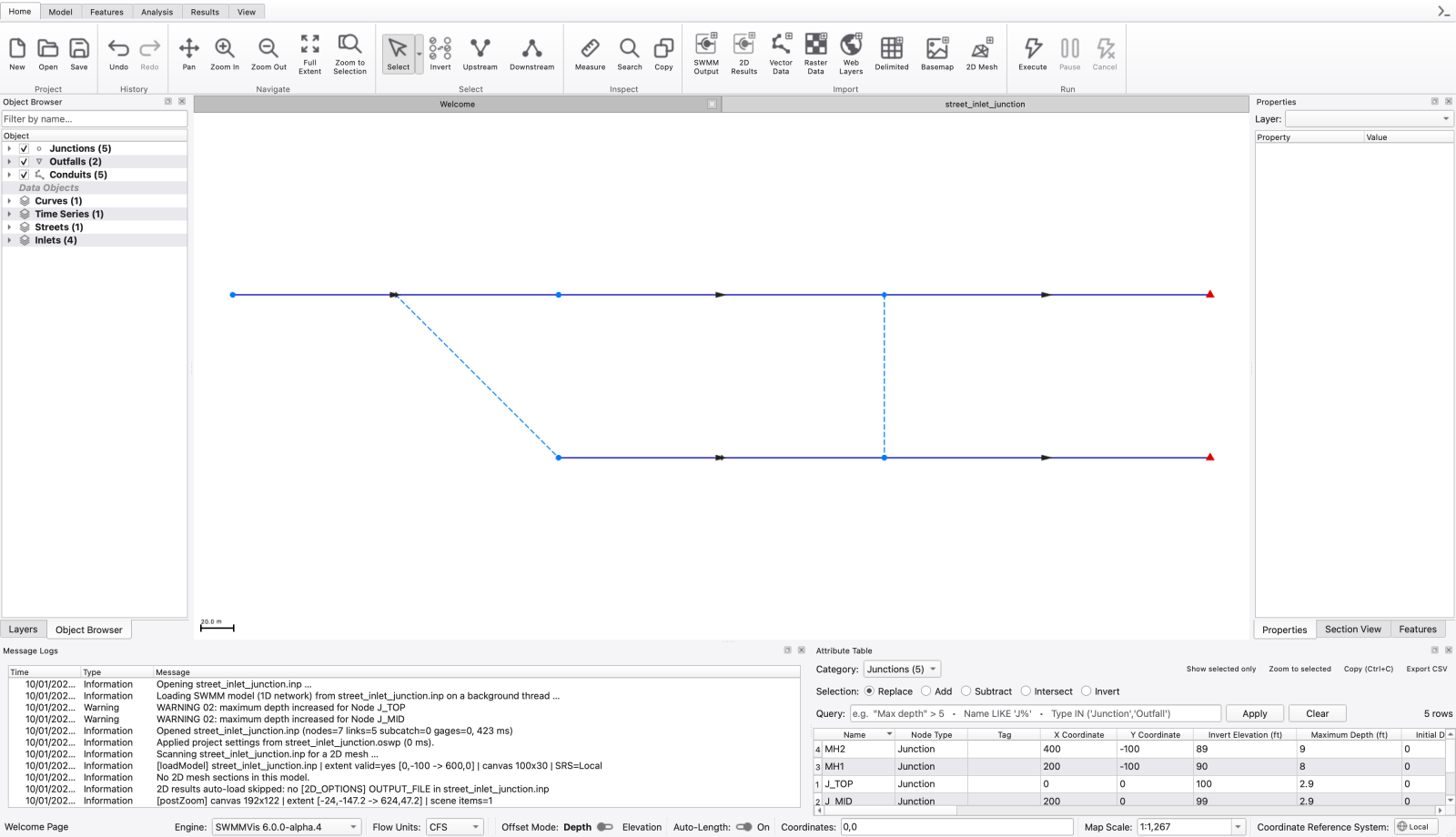
The network is five links: a street reach and a parallel buried sewer.
A two-hour gutter hydrograph peaking at 12 cfs at 00:45 enters at J_TOP. FLOW_UNITS is CFS, routing is DYNWAVE (an inlet junction requires it), the run is three hours with a one-minute report step. The [MAP] section declares local coordinates in feet; these synthetic coordinates are not a geographic CRS.
| Attachment | Design | Captures to | |
|---|---|---|---|
| Conduit-attribute inlet | [INLET_USAGE] on conduit ST_A | Combo1 (2 inlets) | MH1 |
| Inlet junction | [INLET_JUNCTIONS] node IJ1 between ST_B and ST_C | Curb1 (1 inlet) | MH2 |
Both are on grade, neither is flow-limited, and both are 10 % clogged.
Copy docs/manual/tutorials/models/street_inlet_junction.inp to a working folder, then open that copy with File → Open… (Ctrl+O). The street runs left to right along y = 0 with the sewer 100 ft below it on the map.
IJ1 is not in [JUNCTIONS] — it lives in [INLET_JUNCTIONS], and SWMMVis draws it with its own inlet-junction symbol. Everything else is an ordinary junction or outfall.
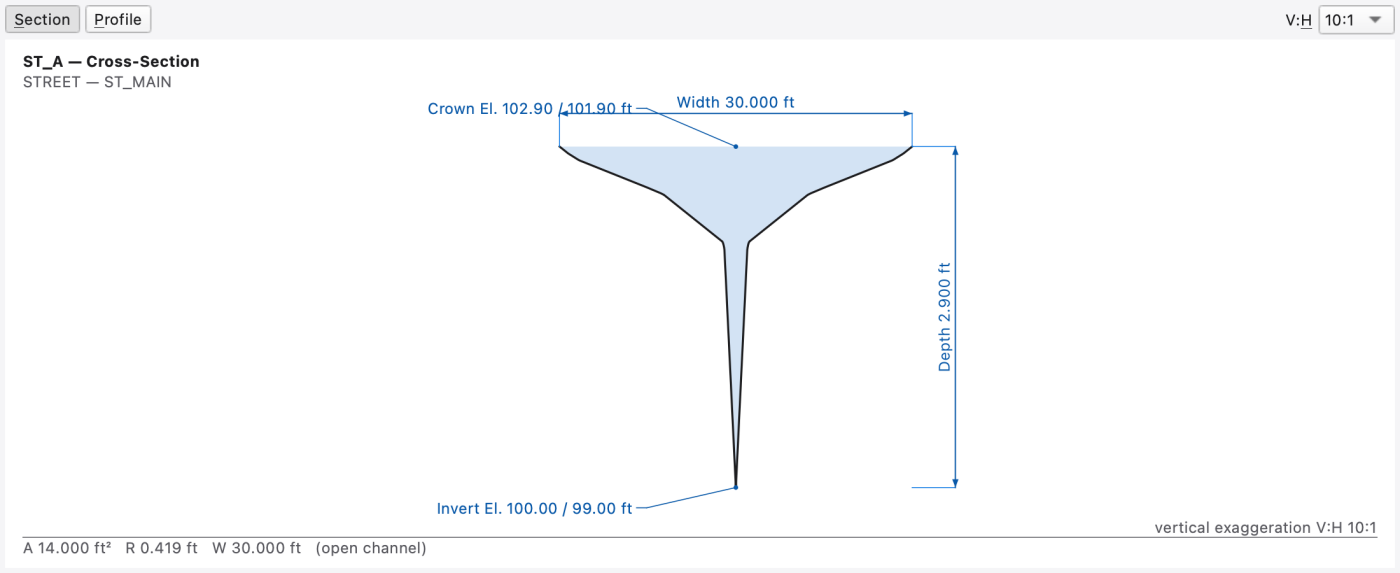
Select conduit ST_A on the map and open the Section View dock (Ctrl+Alt+9, or View → Panels → Section View). With Section pressed, the panel draws the street cross-section it was built from and the subtitle reads STREET — ST_MAIN. Set V:H to 5:1 or 10:1 to see the 4 % cross slope and the depressed gutter more clearly. The supplied geometry has a 20 ft half-roadway and a 0.5 ft curb; step 3 explains the unusually deep depression in this fixture.
Press Profile to swap to the longitudinal view between J_TOP and J_MID, annotated with Rim, Inv, Crown, the length and the slope.
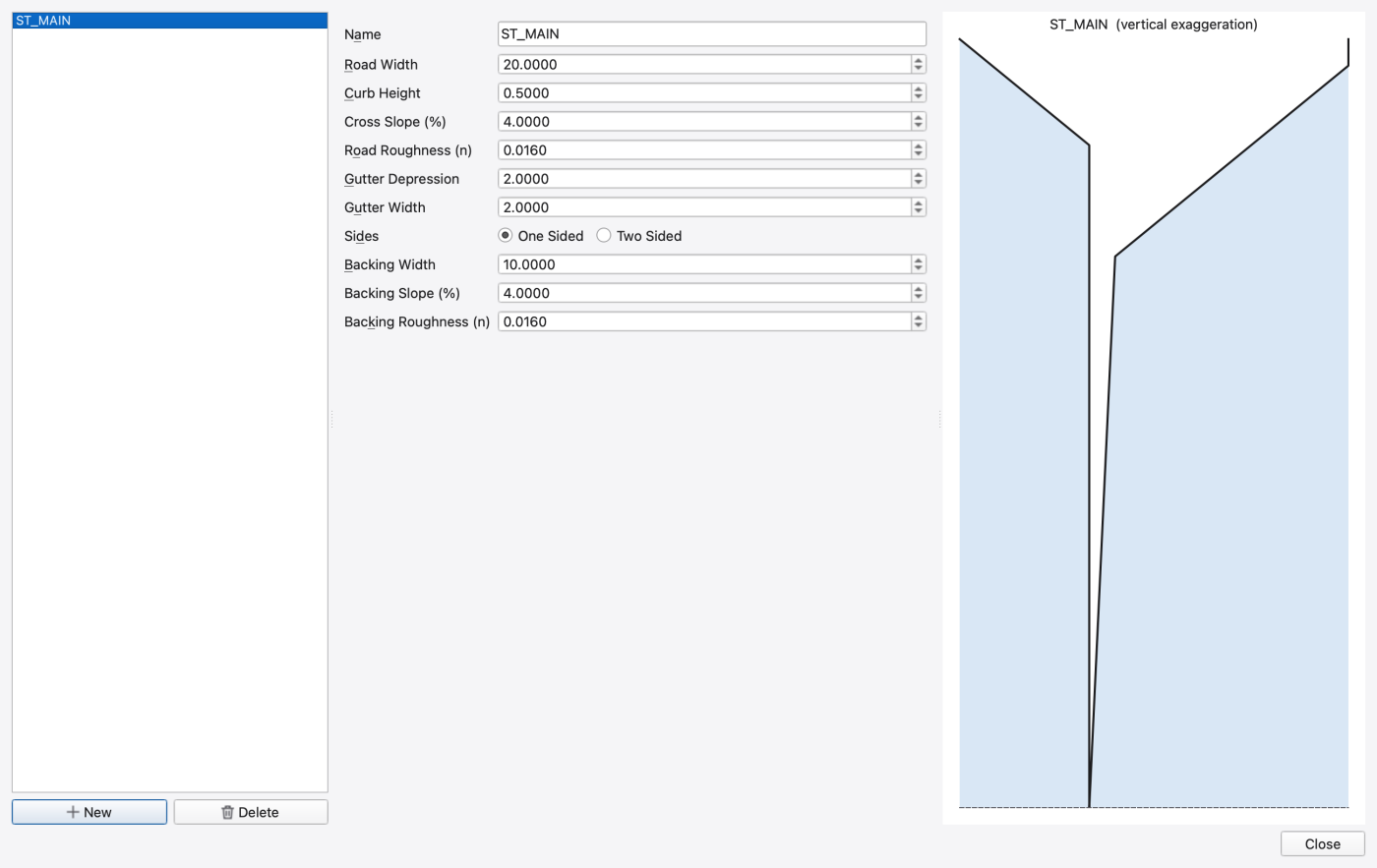
Model → Data Objects → Streets… opens Street Cross-Sections: a list of streets on the left, a form in the middle, and a live cross-section preview on the right that redraws as you type.
| Field | [STREETS] column | Value in ST_MAIN |
|---|---|---|
| Name | Name | ST_MAIN |
| Road Width | Tcrown — half-width of the crowned roadway | 20 ft |
| Curb Height | Hcurb | 0.5 ft |
| Cross Slope (%) | Sx | 4 |
| Road Roughness (n) | nRoad | 0.016 |
| Gutter Depression | a | 2 ft in this OpenSWMM 6 fixture |
| Gutter Width | W | 2 ft |
| Sides | Sides — One Sided or Two Sided | One Sided |
| Backing Width | Tback | 10 ft |
| Backing Slope (%) | Sback | 4 |
| Backing Roughness (n) | nBack | 0.016 |
The supplied a = 2 is interpreted as 2 ft by the current OpenSWMM 6 street geometry, not 2 inches. The Section View consequently shows a total section depth of 2.900 ft. This is an exaggerated tutorial geometry. For a two-inch depression, use 0.1667 ft in a separate copy and regenerate the results; the reference numbers below apply to the unchanged input.
The preview draws the engine-ordered station/elevation polyline — backing, curb, depressed gutter, crown — with a dashed gutter-invert reference line and the vertical exaggeration in its caption. Switching Sides to Two Sided mirrors it about the crown; watch the preview to confirm you meant it.
The dialog has New and Delete buttons and only a Close button — edits apply as you make them.
A street is attached to a conduit through its cross-section: in [XSECTIONS] the shape is STREET and Geom1 is the street name.
Model → Data Objects → Inlets… opens the Inlet Editor — a three-pane modeless window. The left pane lists the designs under the heading Inlets with Add and Delete. The middle pane carries Name:, Description / comments:, Inlet Type:, a Properties: tree and a Choose Curve… button. The right pane is the drawing view, with a toolbar of Fit (F), Zoom in, Zoom out, Copy and Export.
Inlet Type: offers GRATE, CURB OPENING, COMBINATION, SLOTTED DRAIN, DROP GRATE, DROP CURB and CUSTOM, and the Properties: tree changes with it:
| Type | Property rows |
|---|---|
| GRATE | Grate — Type, Grate — Length (ft), Grate — Width (ft), and for a GENERIC grate Grate — Open Area Fraction and Grate — Splash-over Velocity (ft/s) |
| CURB OPENING | Curb Opening — Length (ft), Curb Opening — Height (ft), Curb Opening — Throat Angle |
| COMBINATION | both blocks |
| SLOTTED DRAIN | Slotted Drain — Length (ft), Slotted Drain — Width (ft) |
| DROP CURB | curb rows without the throat angle |
| CUSTOM | Custom — Curve Type, Custom — Curve |
Grate — Type offers the HEC-22 grate library: P_BAR-50, P_BAR-50x100, P_BAR-30, CURVED_VANE, TILT_BAR-45, TILT_BAR-30, RETICULINE and GENERIC.
Four designs are defined in this deck; two of them are unplaced library entries you will use in the variations.
Click through them and watch the drawing view:
Curb1** — a CURB design, 3 ft long, 0.5 ft high, HORIZONTAL throat. The view shows Elevation — curb face (or Plan — opening) beside Section — throat, with the throat note reading the type and angle, and dimension lines labelled L and h.Grate1** — a P_BAR-50 grate 2 ft × 2 ft, drawn as Plan plus Section — gutter, with the hatched curb and pavement body and L / W dimensions.Combo1** — the two-line combination form: a CURVED_VANE grate and a VERTICAL-throat curb opening sharing one name. SWMMVis merges the pair into a single COMBINATION design; the drawing adds the sweeper note Sweeper L curb − L grate = ….Custom1** — a CUSTOM design pointing at the DIV_CAP curve. The drawing becomes a Capture curve plot; the note line reads Kind: Diversion (captured vs approach flow) because the curve's own [CURVES] type is DIVERSION, not because the [INLETS] line says so.
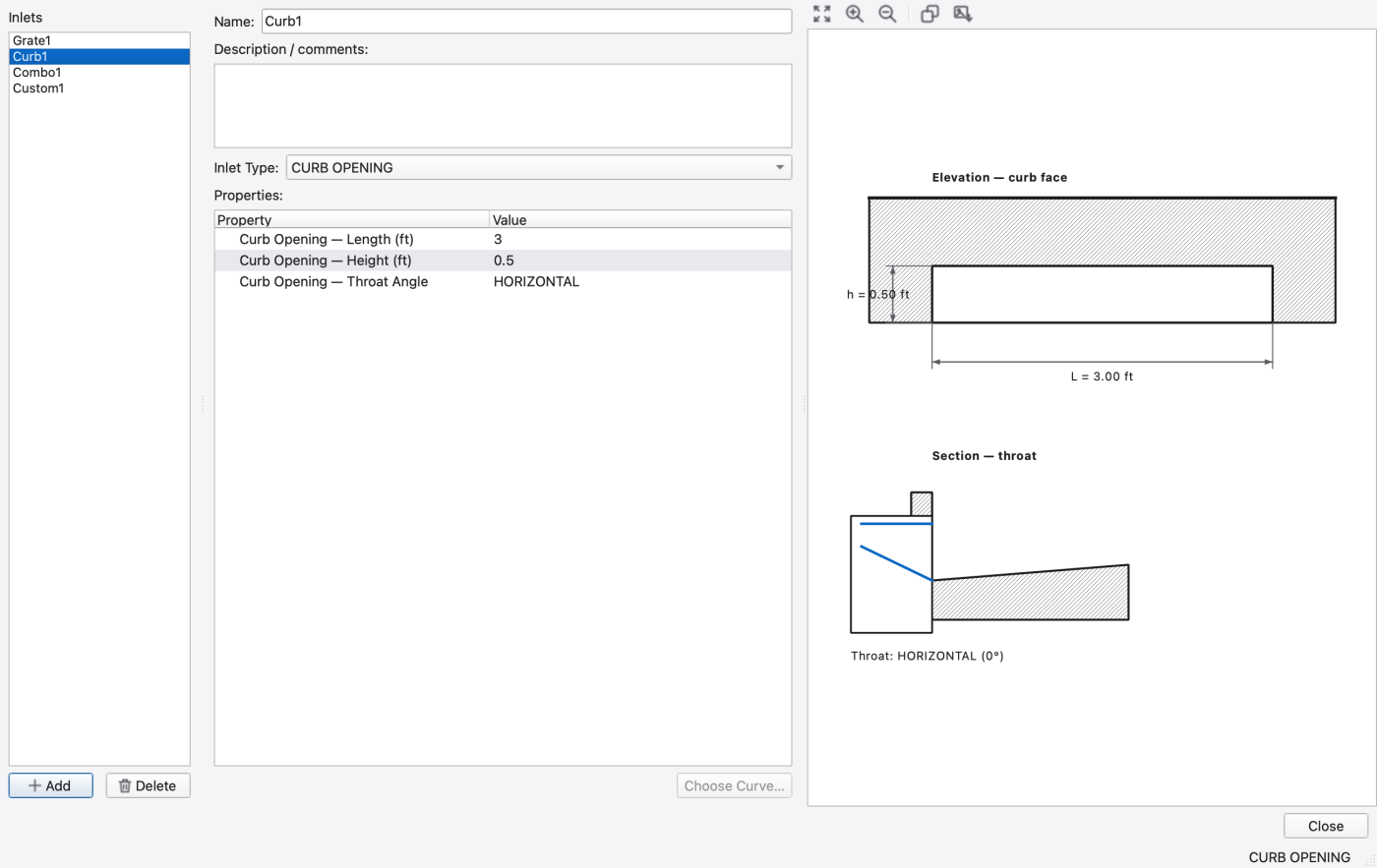
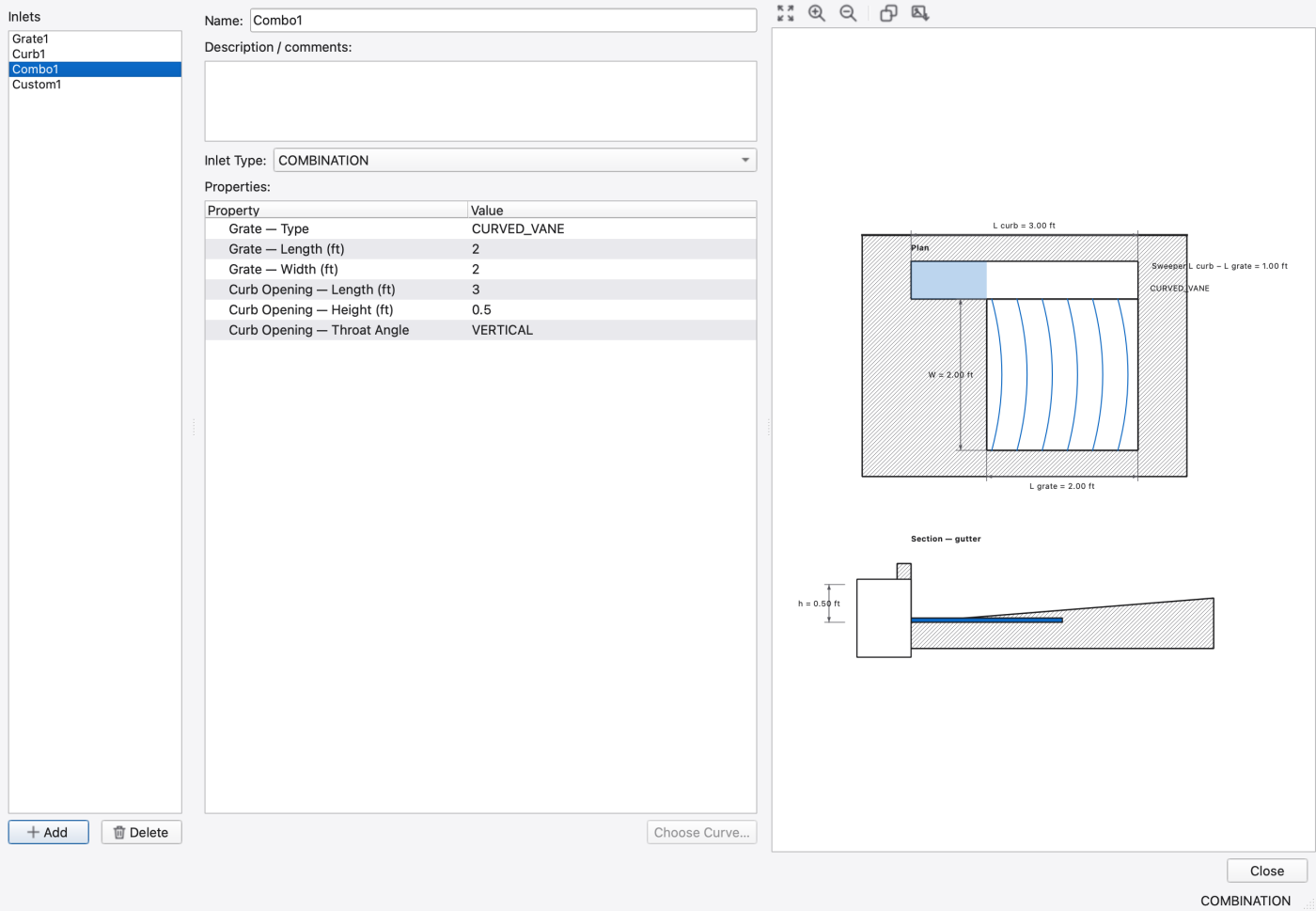
FIGURE PLACEHOLDERdocs/manual/images/t02_inlet_editor_custom.png
The editor validates as you type: Grate length and width must be greater than zero., A GENERIC grate's open area fraction must be in (0, 1]., Curb opening length and height must be greater than zero. and, for a custom design, Curve "%1" is a %2 curve; a %3 curve is required.
Select ST_A and find the Inlets row in the Properties dock. Its summary reads Combo1 → MH1; clicking it opens Edit Link Attribute — ST_A on its Inlets page:
| Row | [INLET_USAGE] column | Value |
|---|---|---|
| Inlet Design | Inlet | Combo1 |
| Capture Node | Node | MH1 |
| Number of Inlets | #Inlets | 2 |
| % Clogged | Clog | 10 |
| Flow Restriction (CFS) | Qmax | 0 — not flow-limited |
| Local Depression Height (ft) | aLocal | 0 |
| Local Depression Width (ft) | wLocal | 0 |
| Placement | Placement — Automatic, On Grade, On Sag | On Grade |
A Remove Inlet button deletes the row. The status line reads This conduit has an inlet. when one is set and No inlet on this conduit. Pick a design and a capture node to add one. when it is not.
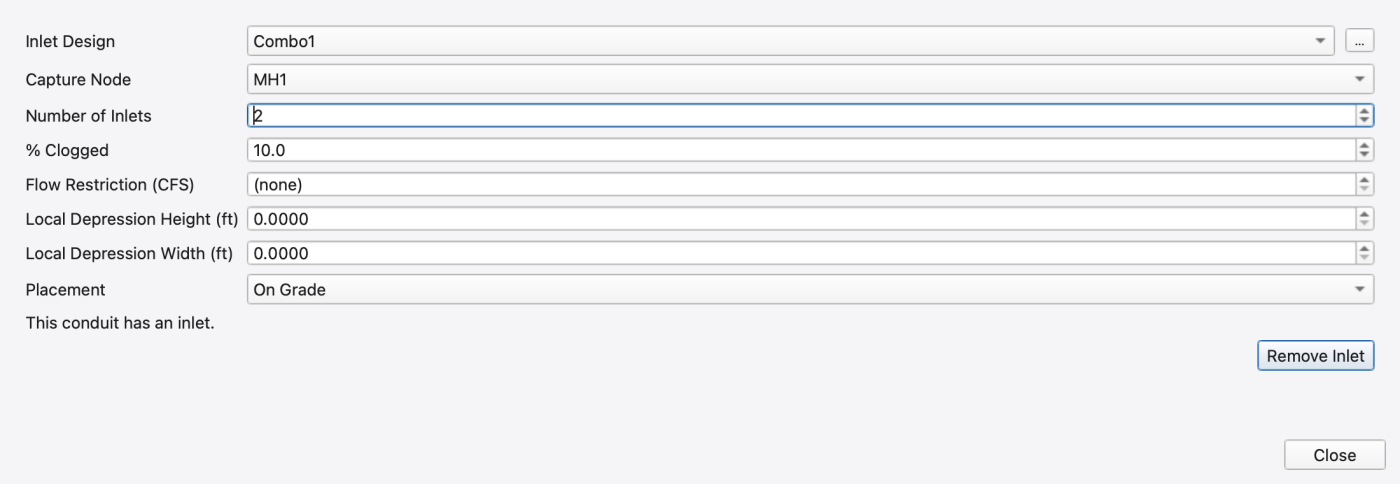
This form is an attribute of a link. Capture is booked at the host conduit's downstream node — J_MID — and the bypass simply stays there. There is no object at the inlet, so it has no coordinate, no flood volume and no ponded depth of its own.
Select IJ1. Its Properties dock carries the same eight inlet rows — Inlet Design, Capture Node, Number of Inlets, % Clogged, Flow Restriction (CFS), Local Depression Height (ft), Local Depression Width (ft), Placement — plus a read-only Approach Street, and a Street Max Depth (ft) row where an ordinary junction shows its rim depth. IJ1's max depth of 0.5 ft is the curb: once the gutter fills to the top of the curb the node floods. What each row means is in inlet junction.
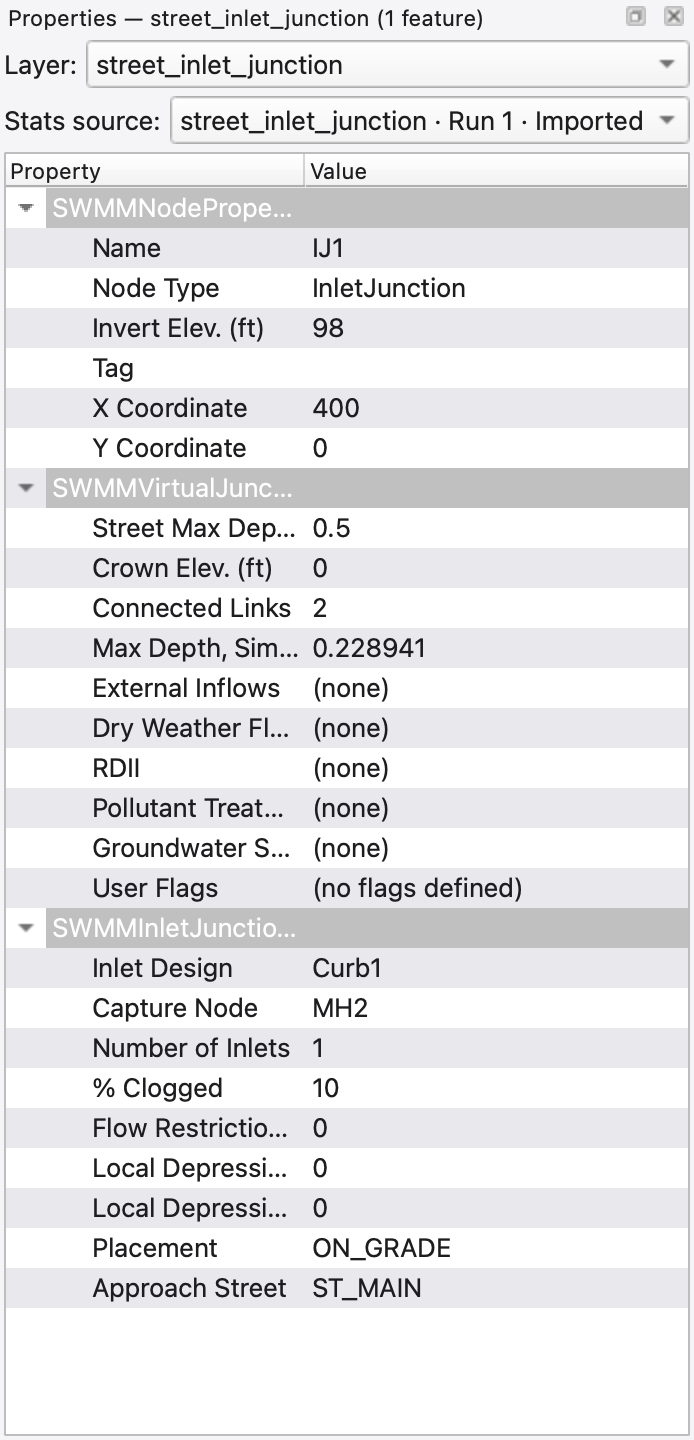
To create one yourself, use Model → Add Node → Add Inlet Junction (ribbon Model tab, Nodes group). The status bar prompts Click a street conduit to insert an inlet junction at that point. Click anywhere on a street conduit and the floating New Inlet Junction panel opens (the split happens when you press OK; the … button next to Capture Node lets you click the capture node on the map):
| Control | What it sets |
|---|---|
| Inlet Design | The [INLET_JUNCTIONS] Inlet column. The picker button opens the Inlet Editor filtered to designs compatible with a STREET cross-section |
| Capture Node | Where captured flow goes. The list excludes the new node's own end nodes and any virtual or inlet junction |
| Placement | Automatic, On Grade or On Sag |
OK stays disabled until both a design and a capture node are chosen; its tooltip explains An inlet junction needs both an inlet design and a capture node.
The other route is the right-click Convert To ▸ Inlet Junction entry on a node in the map or Object Browser.
FIGURE PLACEHOLDERdocs/manual/images/t02_new_inlet_junction.png
An inlet junction is a node: it sits at a real point on the street, so the gutter depth at the inlet is the node depth, it can flood above the curb, and backflow from a surcharging capture node re-enters the street there. Why that makes it a virtual junction, and the rules it inherits, are explained in inlet junction.
Analysis → Execute (Ctrl+R). The model is three hours at a five-second routing step and is small enough to finish quickly on many machines.
Analysis → Report opens the Report Viewer. Use the section navigator on the left, or Filter sections… with the word Street.
**Street Flow Summary** — one row per STREET conduit, with columns Street Conduit, Peak Flow, Maximum Spread and Maximum Depth. Spread is the width of water on the pavement at the maximum depth, divided by the number of sides and clipped to Tcrown.
ST_A carries the whole hydrograph and has the widest spread in the model. Compare it against ST_MAIN's Tcrown of 20 ft to see how close the water comes to the crown.ST_B carries bypass downstream of Combo1, so its peak flow and spread are much smaller in this example. Subtract values at the same time when comparing hydrographs; separately reported maxima need not be simultaneous.ST_C carries what Curb1 did not capture and is narrower again.The three rows decrease down this particular reach, showing how the inlets transfer most of its approach flow into the sewer.
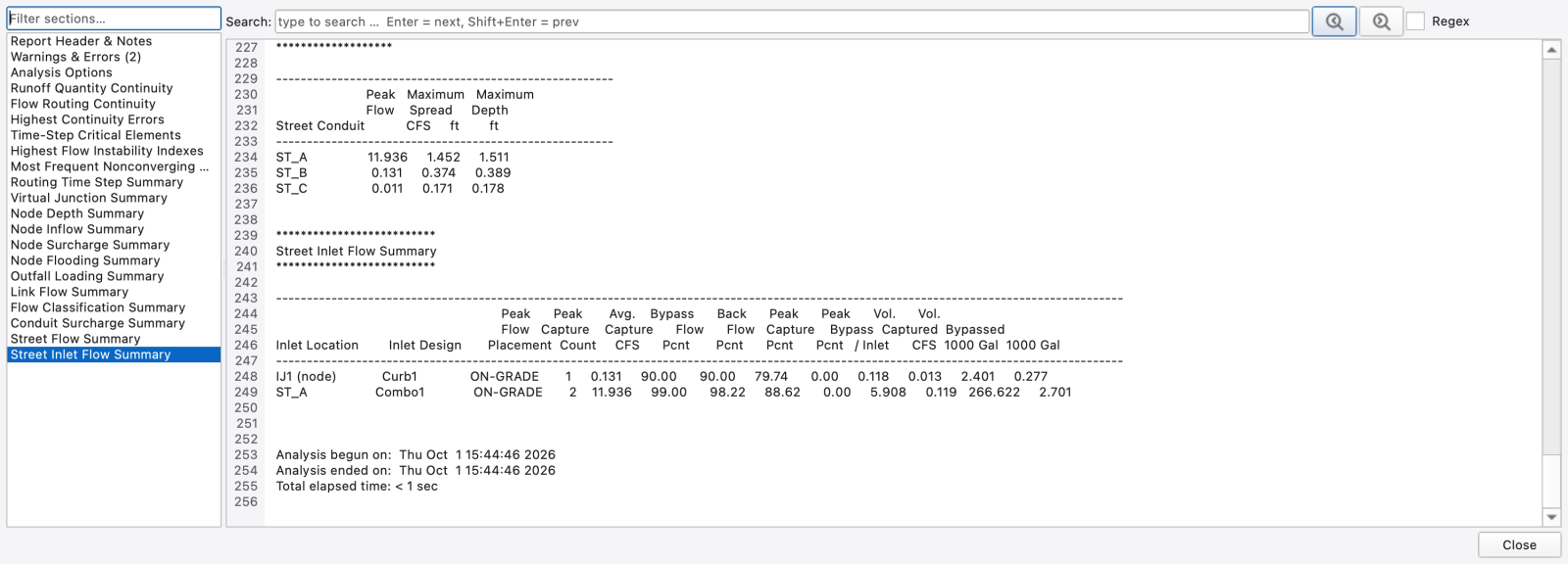
**Street Inlet Flow Summary** — one row per inlet placement, with columns Inlet Location, Inlet Design, Placement, Count, Peak Flow, Peak Capture Pcnt, Avg. Capture Pcnt, Bypass Flow Pcnt, Back Flow Pcnt, Peak Capture / Inlet, Peak Bypass, Vol. Captured and Vol. Bypassed (both in 1000 Gal). The conduit inlet is listed under its host link name, ST_A; the inlet junction is listed under its node name with a marker — IJ1 (node).
| Column | Read it as |
|---|---|
| Peak Flow | the approach flow the inlet saw |
| Peak Capture Pcnt | capture efficiency at that peak |
| Avg. Capture Pcnt | efficiency averaged over every period with capture |
| Bypass Flow Pcnt | how often capture was partial — on an on-grade inlet under a rising hydrograph this approaches 100 % |
| Back Flow Pcnt | how often the capture node pushed water back onto the street — 0 in this deck, because the sewer never surcharges |
| Vol. Captured / Vol. Bypassed | close against the street continuity: what ST_A delivered equals what Combo1 captured plus what it passed to ST_B |
Do not infer a fixed ordering between Peak Capture Pcnt and Avg. Capture Pcnt. In the reference OpenSWMM 6 run, Combo1 reports 99.00 % at peak and 98.22 % average; Curb1 reports 90.00 % for both.
| Reference result | Value |
|---|---|
Peak flow in ST_A / ST_B / ST_C | 11.936 / 0.131 / 0.011 cfs |
Volume captured by ST_A / IJ1 | 266.622 / 2.401 thousand US gallons |
| Backflow percentage, both inlet rows | 0.00 % |
| Flow routing continuity error | 0.014 % |
| Node flooding | None |
These are rounded report values for the supplied base deck. Preserve your own report with its engine version when comparing edited designs.
Finally check the Node Depth Summary and Node Flooding Summary. IJ1 appears as an ordinary junction: its 0.5 ft max depth is the flood threshold at the curb, so a peak beyond the inlet's capacity floods IJ1 rather than backing into a fictitious storage volume. J_MID, the conduit inlet's capture point, has no such threshold of its own. That is the modelling difference the two forms make.
There is no dedicated capture or bypass plot variable — capture is a difference between conduit flows, so plot the conduits.
Select ST_A, ST_B and ST_C, press Ctrl+T (Analysis → Plot Time Series), and tick Flow (ft³/s) for each in the Plot Variables picker. In the Comparison Plot the three hydrographs nest inside one another; the gaps show the reduction in street flow along the reach. Conduit storage, travel time and the reporting interval can also affect instantaneous differences, so do not equate every plotted gap with an exact inlet capture.
Add Lateral inflow (ft³/s) at MH1 and MH2 from the right-click attribute menu to see the same two captures from the sewer's point of view — compare the lateral-inflow series with the conduit-flow differences, and compare integrated volumes with the inlet report. Add Depth (node) (ft) at IJ1 to see the gutter depth that drove the curb-opening capture, and watch it against the 0.5 ft curb.
Temporarily uncheck ST_A in the Series tree and use Fit to inspect the much smaller bypass series. Export Data… on the Comparison Plot toolbar writes the samples out for comparisons in a spreadsheet.
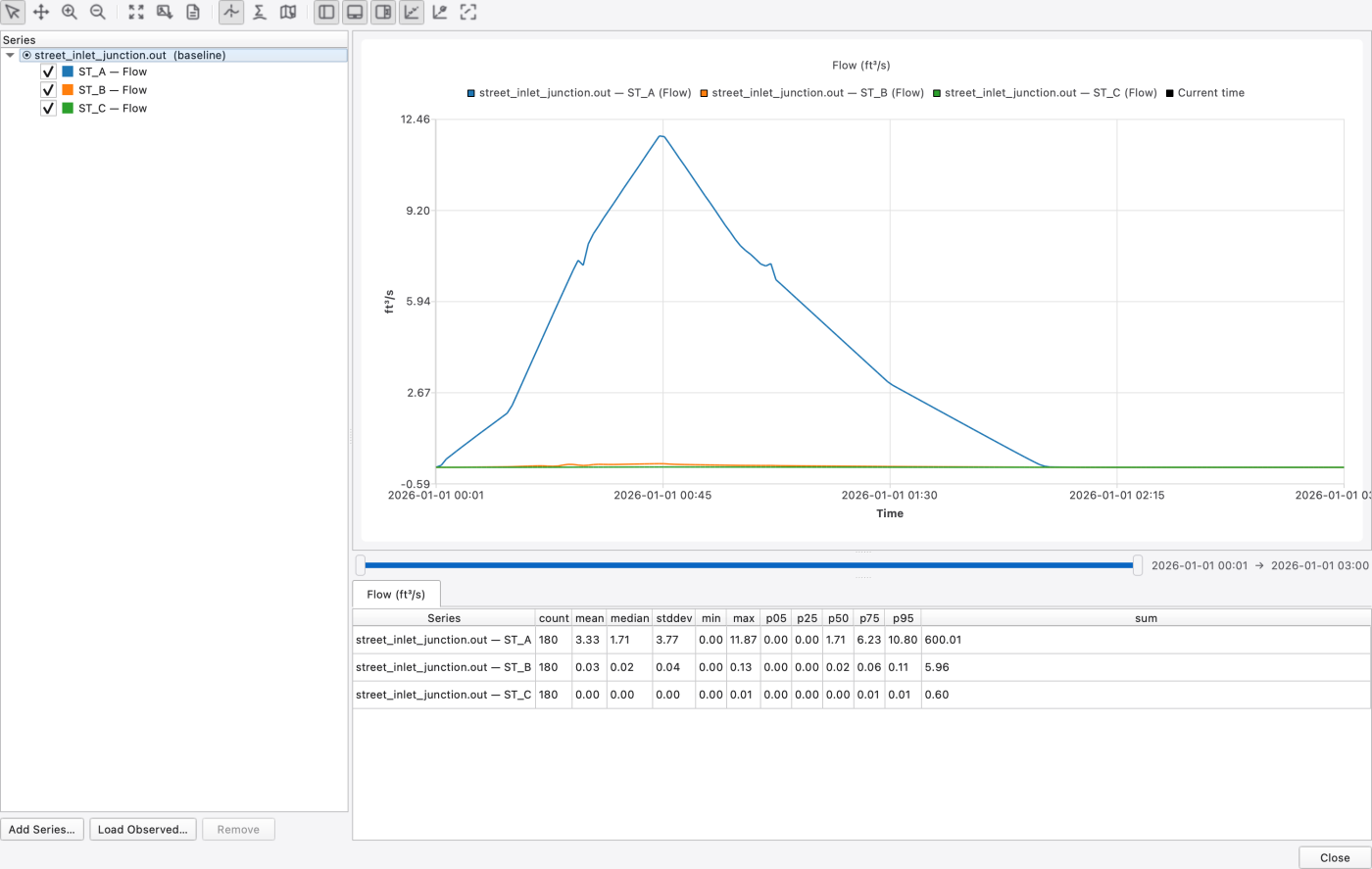
Use Export Data… in the Comparison Plot to save the selected series as a CSV. Check that the export identifies ST_A, ST_B and ST_C, includes time and flow units, and contains the three-hour record. Compare simultaneous samples when computing differences; the report's independent peak values are not a substitute for this time alignment.
File → Save keeps the input and its matching .oswp sidecar. Retain the .rpt and .out in the same folder, close the project tab, and reopen the .oswp. Confirm that IJ1 still uses Curb1 and captures to MH2, and that both street report tables remain available. Copy the folder before each variation so rerunning cannot replace your only base result.
Street Flow Summary: peak flow and spread drop at each inlet.IJ1 in the Node Flooding Summary if the peak exceeds Curb1's capacity — the conduit-attribute inlet cannot produce that row at all.ST_A's Maximum Spread approaches Tcrown (20 ft). If it does, water has reached the crown and the street is fully flooded.Each of these is a small edit followed by a re-run. Keep the base run's .out so you can load both into one Comparison Plot.
Select IJ1 and change Inlet Design from Curb1 to Custom1. The HEC-22 curb-opening equations are replaced by a lookup in the DIV_CAP curve — captured flow as a function of approach flow. The [INLETS] CUSTOM line carries no kind token; the curve's own [CURVES] type decides whether it is read as a diversion curve (approach flow) or a rating curve (ponded depth).
The Inlet Editor's picker mode only offers designs compatible with the host cross-section, and rejects the rest with *"%1" is a %2 design, which cannot be placed on this conduit's cross-section. No inlet was assigned.*
On ST_A's Inlets page, change Inlet Design from Combo1 to Grate1. Compare Vol. Captured between the two runs as a design sensitivity. The components interact hydraulically, so the difference is not an isolated measurement of the original curb opening's contribution.
Raise % Clogged on either inlet from 10 to, say, 50. Compare capture and downstream spread after rerunning; the network response and a combination inlet's total efficiency need not change proportionally. A useful sensitivity check before arguing about grate types.
Raise OUT_ST above IJ1 so both ST_B and ST_C fall toward the node, and set Placement to Automatic. The inlet switches to the sag weir/orifice equations, capture becomes a function of the ponded depth at IJ1 rather than the approach flow, and the Placement column in Street Inlet Flow Summary changes from ON-GRADE to ON-SAG.
Use Model → Add Node → Add Inlet Junction to insert one on ST_C, capturing to MH2 or to a new manhole. Because the tool splits ST_C in two, the pair either side of the new node inherits ST_C's cross-section and zero offsets automatically — which is exactly what the rules require.
An inlet junction is a virtual junction, so the engine enforces every [VIRTUAL_JUNCTIONS] rule on it. SWMMVis surfaces the rule text as the tooltip on the greyed-out Convert To ▸ Inlet Junction entry, and refuses the edit:
| Rule | Message |
|---|---|
| 609 | A virtual junction must connect exactly two conduits (no pumps, orifices, weirs or outlets). |
| 611 | the two conduits must have identical cross-sections |
| 613 | both offsets must be zero |
| 615 | the inverts must agree |
| 617 | no 2D coupling on the node |
| 619 | requires DYNWAVE |
| 623 | An inlet junction sits between two STREET conduits (RECT_OPEN or TRAPEZOIDAL for a drop inlet). |
| 627 | The capture node must be an existing node other than the inlet itself, and not a virtual or inlet junction. |
| 629 | An inlet cannot be placed on both conduits of an inlet-junction pair. |
| 633 | This inlet junction has no inlet design assigned. |
Try it: attach a third conduit to IJ1, or give ST_B a non-zero inlet offset, or set Inlet Design on ST_B while IJ1 sits at its downstream end. The last one is rule 629 — it would capture the same water twice, and it is why the conduit-attribute inlet in this deck sits on ST_A, upstream of the pair, rather than on ST_B or ST_C.
If you switch Flow routing: away from Dynamic Wave in the page header of Model → Simulation Options… → Routing & Hydraulics, rule 619 fires and the inlet junction cannot be routed at all.
FIGURE PLACEHOLDERdocs/manual/images/t02_rule_violation.png
DYNWAVE requirement 1.9.8
1.9.8