 |
SWMMVis
6.0.0-alpha.4
Qt6/C++ GIS-based graphical user interface for the SWMMVis engine (6.0.0-alpha.4)
|
|
SWMMVis
6.0.0-alpha.4
Qt6/C++ GIS-based graphical user interface for the SWMMVis engine (6.0.0-alpha.4)
|
Take the classic EPA site-drainage deck from a cold start to a full 1D result set: open it, preserve its local coordinate system, walk the model with the Object Browser and the attribute tables, review the storm and the build-up/wash-off setup, run it, then read the report, animate the map, and plot depths, flows, profiles and TSS concentrations. Finish by changing the routing method, the infiltration model, and adding an LID control, comparing each variant against the base run.
Project open · local coordinates and basemap prerequisites · Object Browser and Properties · attribute tables · rain gages and time series · pollutants, land uses, build-up/wash-off and coverages · Simulation Options · running · report viewer and continuity · results styling and animation · time-series plots · profile plots · tabular results and CSV export · comparison plots · LID controls.
| File | What it is |
|---|---|
examples/site_drainage/site_drainage_model.inp | The model — the only file shipped with this example |
There is no checked-in .rpt or .out for this example, so every number below is one you will produce yourself. Running the model writes site_drainage_model.rpt and site_drainage_model.out beside the .inp.
What is in the deck:
| Object type | Count | Names |
|---|---|---|
| Rain gages | 1 | RainGage |
| Subcatchments | 7 | S1–S7 (28.92 acres total) |
| Junctions | 11 | J1–J11 |
| Outfalls | 1 | O1 (FREE) |
| Conduits | 11 | C1–C11 |
| Pollutants | 1 | TSS (MG/L) |
| Land uses | 4 | Residential_1, Residential_2, Commercial, Undeveloped |
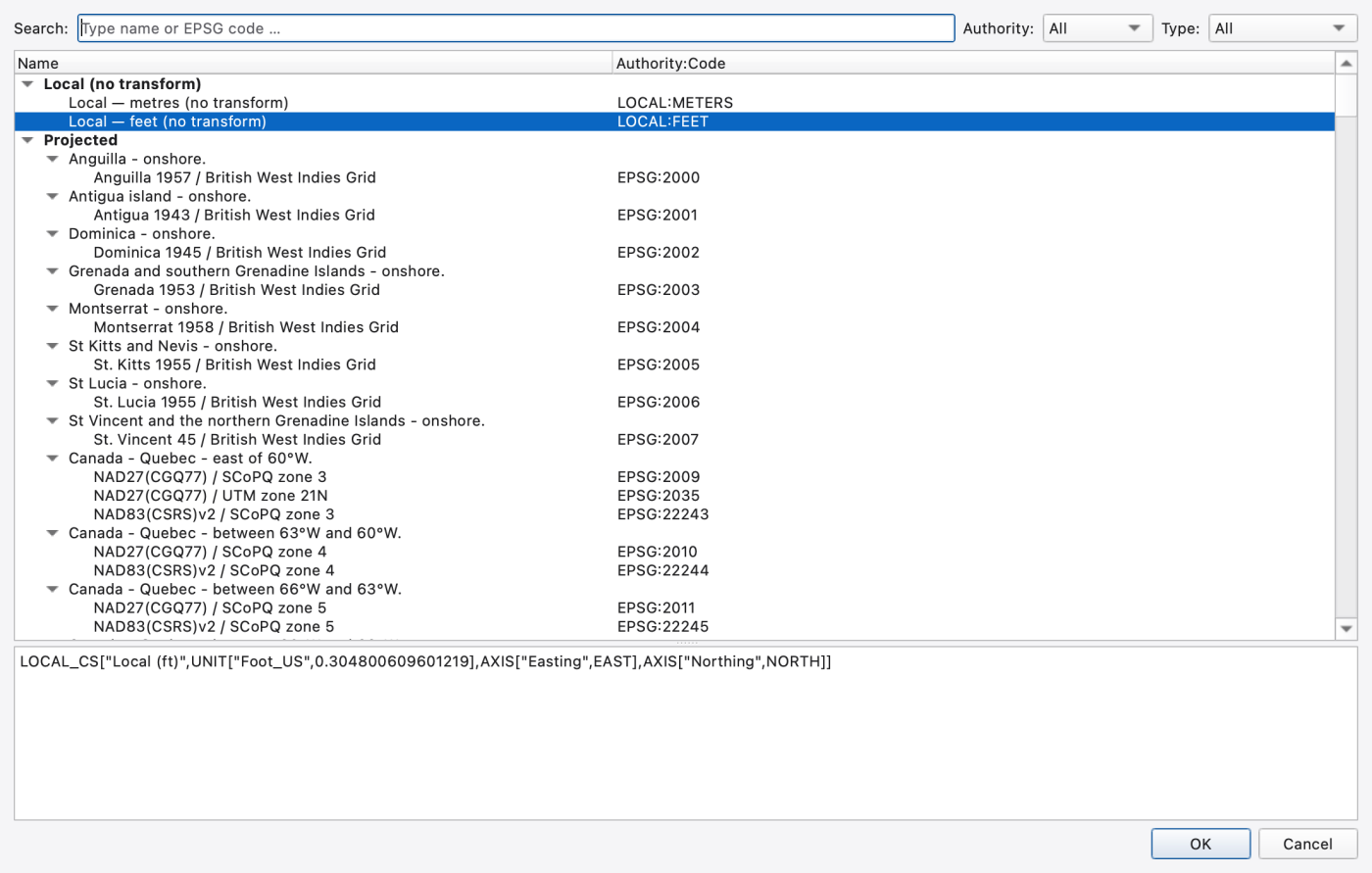
[OPTIONS] sets FLOW_UNITS CFS, INFILTRATION HORTON, FLOW_ROUTING DYNWAVE, LINK_OFFSETS DEPTH, and runs from 01/01/1998 00:00 to 01/02/1998 06:00 — 30 hours — with a 5-minute report step, a 1-minute wet step and a 5-second routing step. [MAP] declares Units Feet but no geographic coordinate reference system. Keep these synthetic plan coordinates in local feet; assigning an EPSG code would not georeference them.
The conveyance is a mix of grass swales and culverts, and the [TAGS] section says which is which — C1, C4–C6, C8–C10 are tagged Swale, C3, C7 and C11 Culvert, and C2 Gutter. That tag is a useful thing to style and label by later.
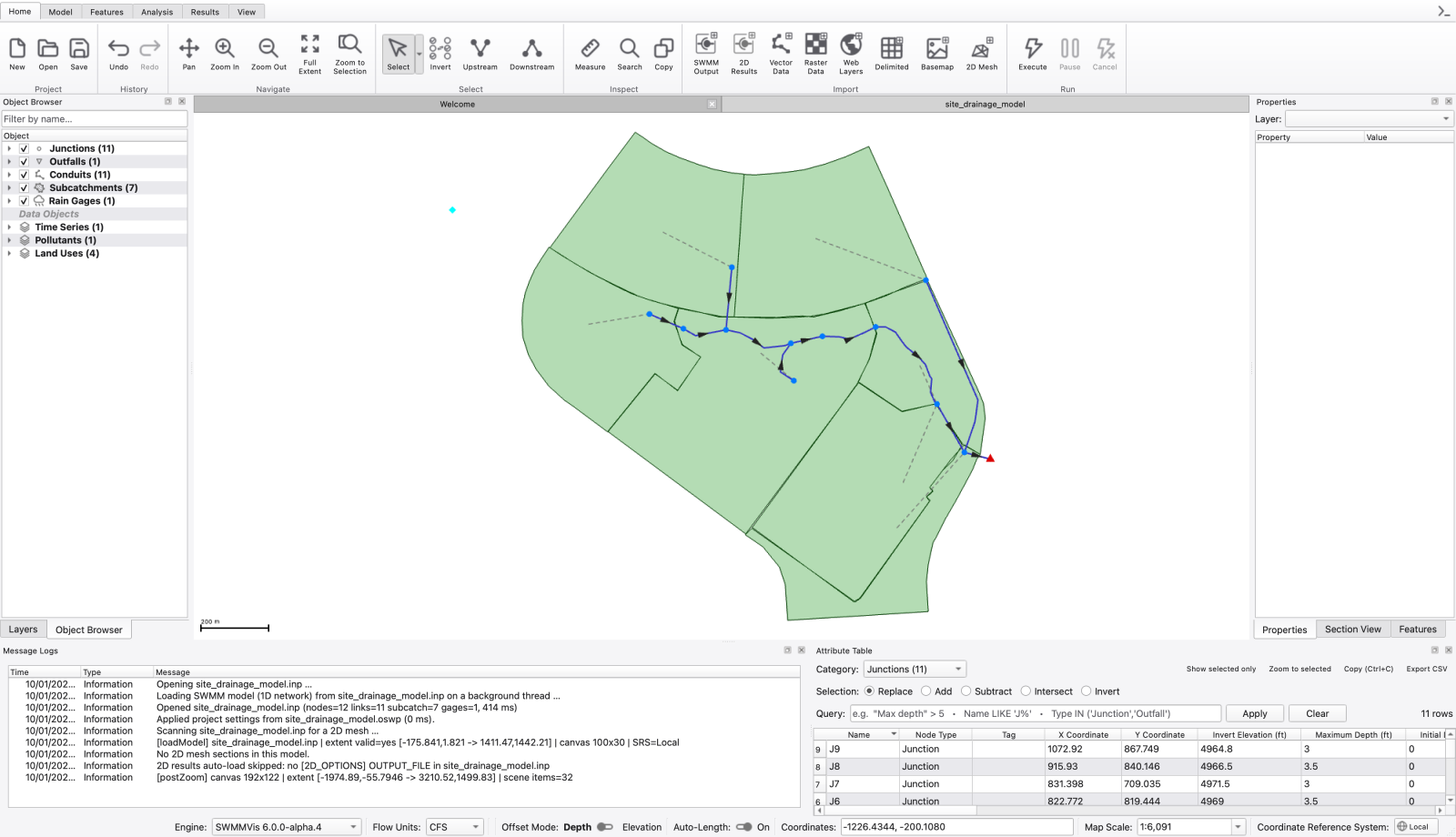
Copy examples/site_drainage/site_drainage_model.inp to a working folder first. File → Open… (Ctrl+O) opens Open SWMM Model or Project; pick that copy. The .inp opens directly. SWMMVis builds the project from the input and keeps GUI settings in the matching .oswp sidecar. Keep that sidecar with the input when moving the working folder.
The network draws on the map canvas, and the Layers, Object Browser, Properties and Message Logs docks populate. Press Ctrl+Shift+F (Zoom Extent) if the view does not already frame the site.
The supplied deck has no surveyed geographic location. Use Model → Set Project CRS… (or the CRS button in the status bar) to inspect Select Coordinate Reference System. In Local (no transform), select Local — feet (no transform). This preserves the drawing's coordinate values and units. Cancel the dialog if that is already the current setting.
For this example, leave the background plain. A web basemap cannot locate synthetic coordinates. Choosing an EPSG code because imagery looks plausible would give the model a false location.
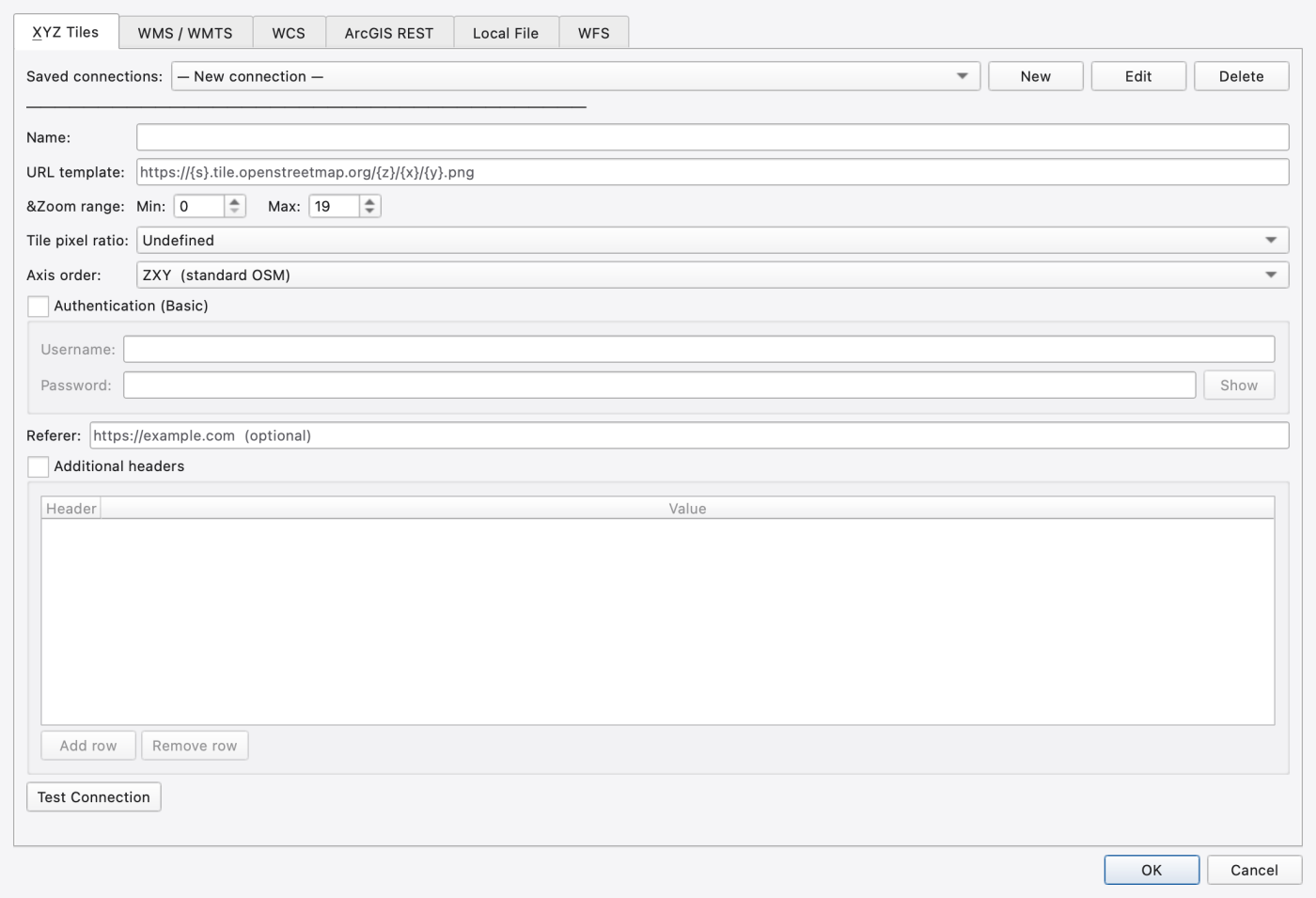
For a separate model with a known survey CRS, File → Import → Add Basemap opens Add Basemap. The XYZ Tiles tab offers saved connections and a URL-template field; the other tabs accept web services or a local raster. Confirm the model's true CRS and the provider's terms before adding a background. See 06 — Coordinate Reference Systems for assigning versus transforming coordinates and 07 — Layers and Data Sources for basemap setup.
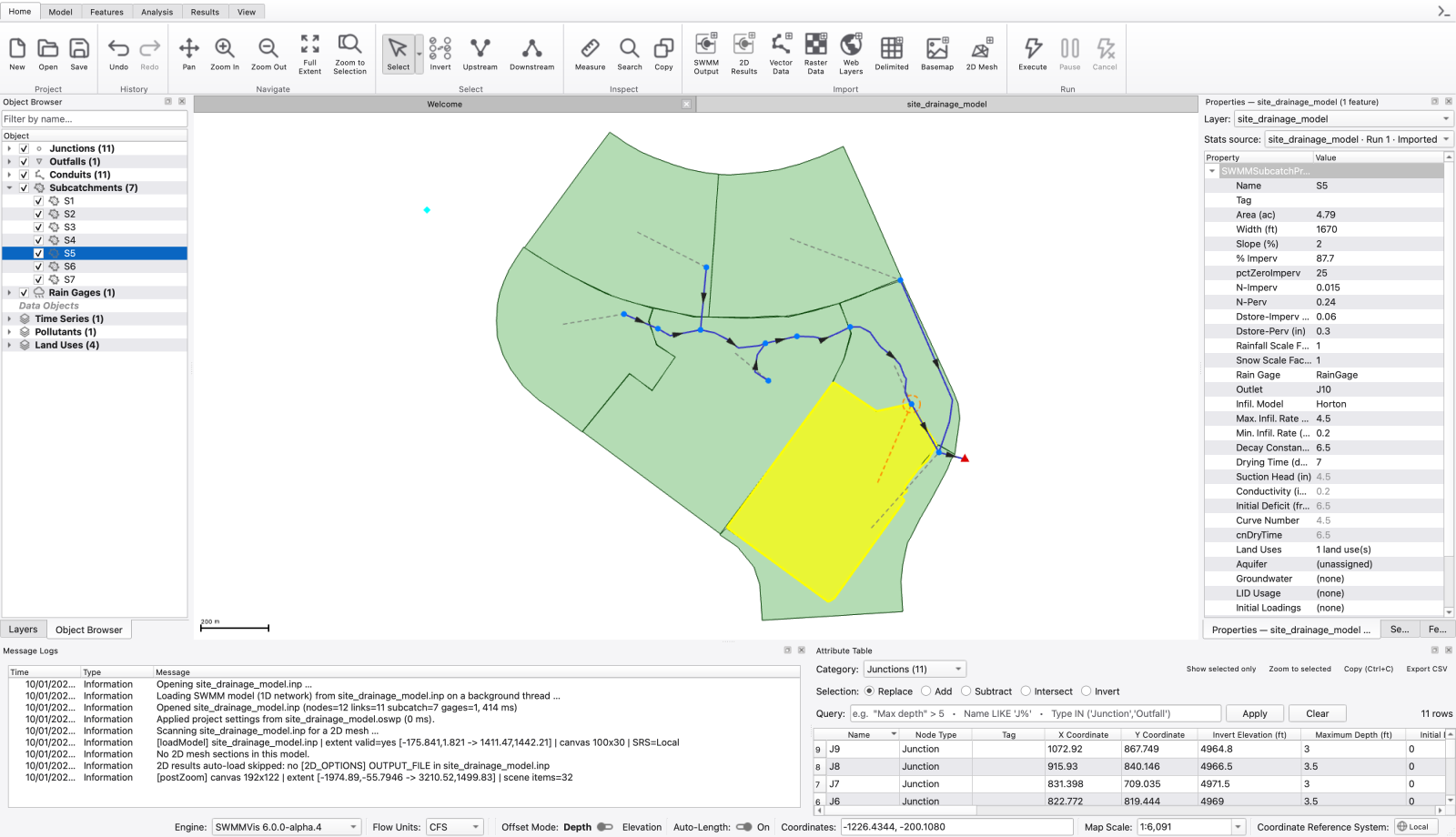
Three panels answer three different questions.
| Panel | Shortcut | Answers |
|---|---|---|
| Object Browser | Ctrl+Alt+2 | What objects exist? — every category, every name |
| Properties | Ctrl+Alt+3 | What is this one object? — one selected object, editable |
| Attribute Table | Ctrl+Alt+4 | How do they compare? — one row per object, sortable and queryable |
Expand Subcatchments in the Object Browser and click S5. The Properties dock retitles itself Properties — S5 and shows the area, imperviousness, width, slope and outlet. S5 is the 87.7 % impervious catchment draining to J10; S7 next to it is 0 % impervious and drains to the same node — a useful pair when you look at runoff coefficients later.
Right-click any object in the Object Browser for Plot Time Series…, Zoom to Object, Sort Category A→Z, Reset Category to Default Order and Delete…. The same Plot Time Series… and Zoom to Object entries are on the map canvas right-click menu, along with Convert To ▸ and Delete….
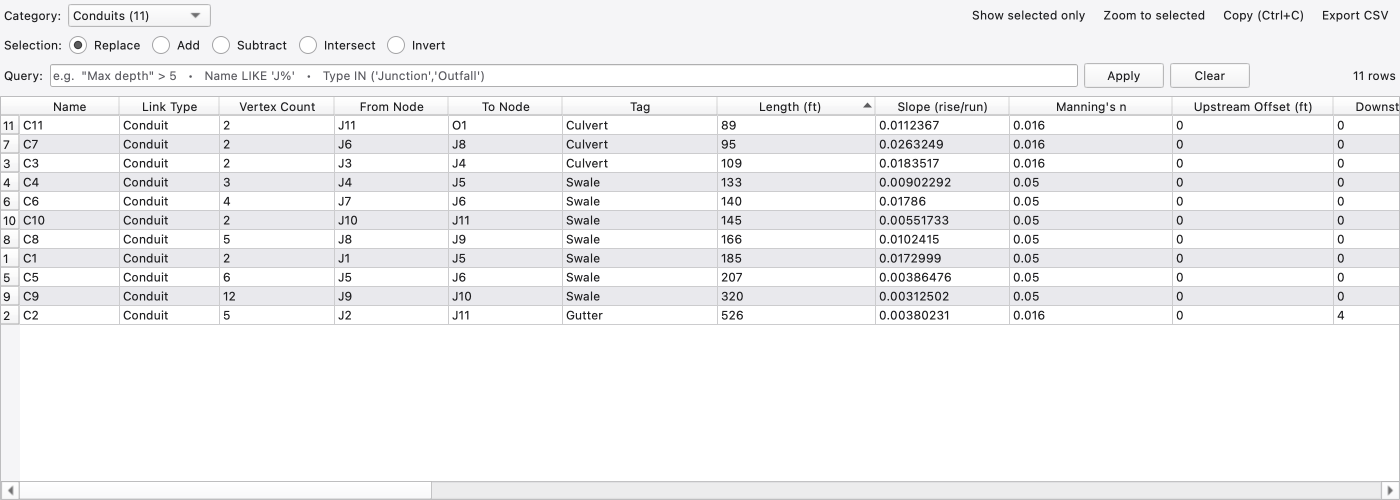
Open the Attribute Table dock and choose the conduits category in Category:. Sort by length, or type a query in Query: and press Apply to isolate the culverts. Export CSV… writes the table out.
Select a conduit and look at the Section View dock (Ctrl+Alt+9): the Section button draws the cross-section — a 3 ft deep trapezoid for the swales, a 4.75 ft circle for C11 — and Profile draws the longitudinal section between its end nodes with Rim, Inv and Crown annotations. The V:H combo (Auto, 1:1, 2:1, 5:1, 10:1, 20:1, 50:1) sets the vertical exaggeration.
Label conduits by slope. Right-click the model layer in Layers → Properties…, pick Conduits in the kind tree and open the Labels tab. Tick Show labels, set Field to Slope (rise/run) and Decimals to 3, then Apply: every conduit carries a three-decimal slope. Auto would show six significant digits, which is more than a slope needs.
FIGURE PLACEHOLDERdocs/manual/images/t01_slope_labels.png
Edit geometry. Turn on Edit → Edit Existing (Ctrl+E), activate Select and double-click C4, which has one bend: a square handle appears on the bend. Right-click the handle → Delete vertex and the conduit straightens between its two nodes. Edit → Undo (Ctrl+Z) puts the bend back. The editing gestures are in 12 — Editing the Network on the Map.
FIGURE PLACEHOLDERdocs/manual/images/t01_delete_vertex.png
Select RainGage in the Object Browser. The Properties dock shows Rain Type, Recording Interval (s), Snow Catch Factor (SCF), Rainfall Scale Factor, Data Source and Series Name among others. This gage is VOLUME format reading the time series named 2-yr.
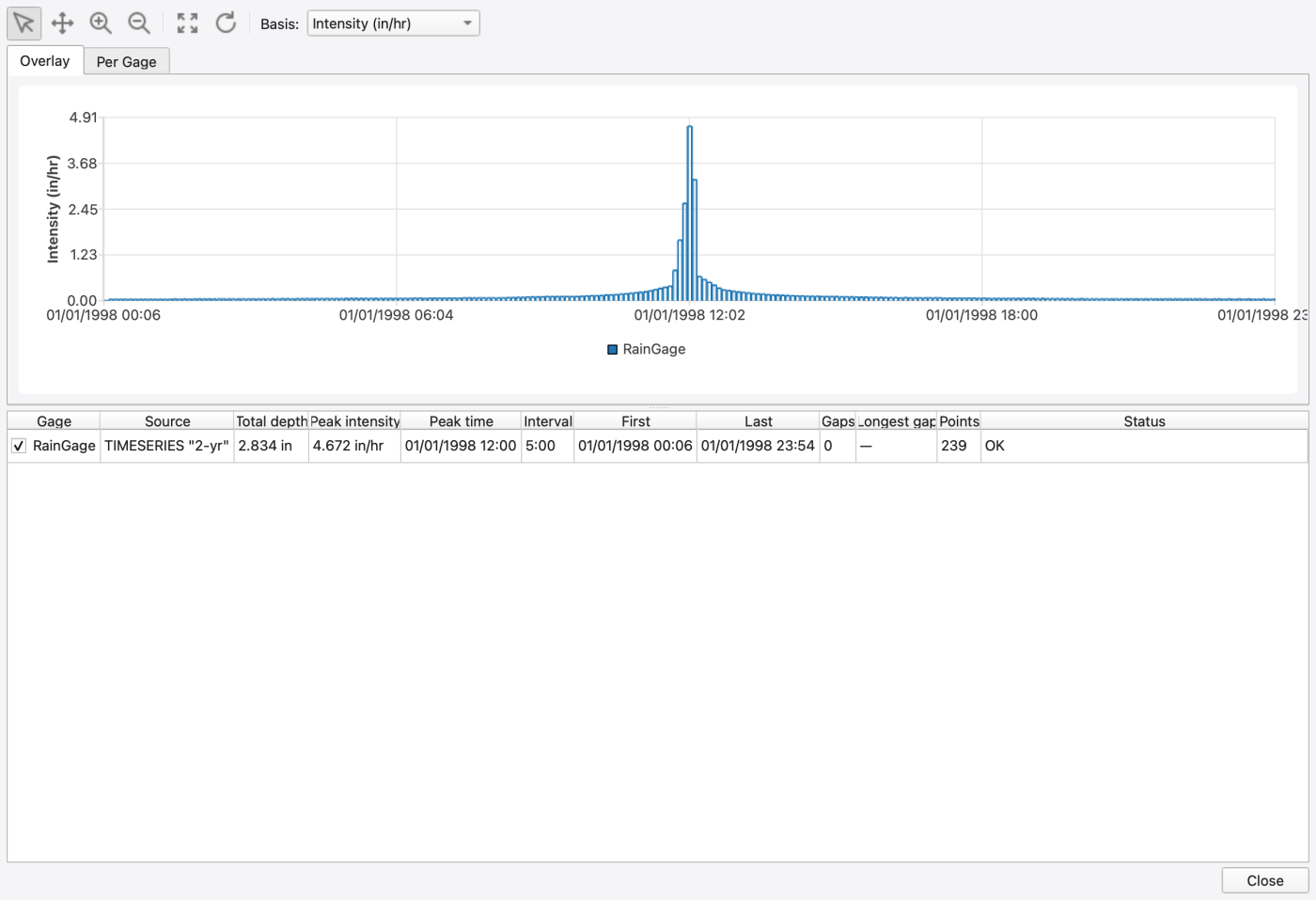
Click the … button beside Series Name to open the Time Series Editor on that series, or use the Plot Rainfall… button in the Properties dock to open Rainfall Visualization, whose Overlay and Per Gage tabs summarise every gage with columns for total depth, peak intensity, peak time, interval and gaps.
The 2-yr series contains 239 values at six-minute timestamps, totalling 2.834 in, with the largest volume, 0.389 in, at 12:00 on 1 January 1998. The gage's configured recording interval is 300 seconds (five minutes). Rainfall Visualization uses that configured interval and therefore displays a peak intensity of 4.672 in/hr. Dividing by the spacing between timestamps instead would give 3.89 in/hr. Preserve this distinction when reviewing the supplied example; for a measured rainfall record, verify that its interval and volume/intensity convention match the source data.
Model → Data Objects → Pollutants… opens the Pollutants dialog. TSS is the only constituent: concentration units MG/L, zero rain/groundwater/RDII concentrations, zero decay.
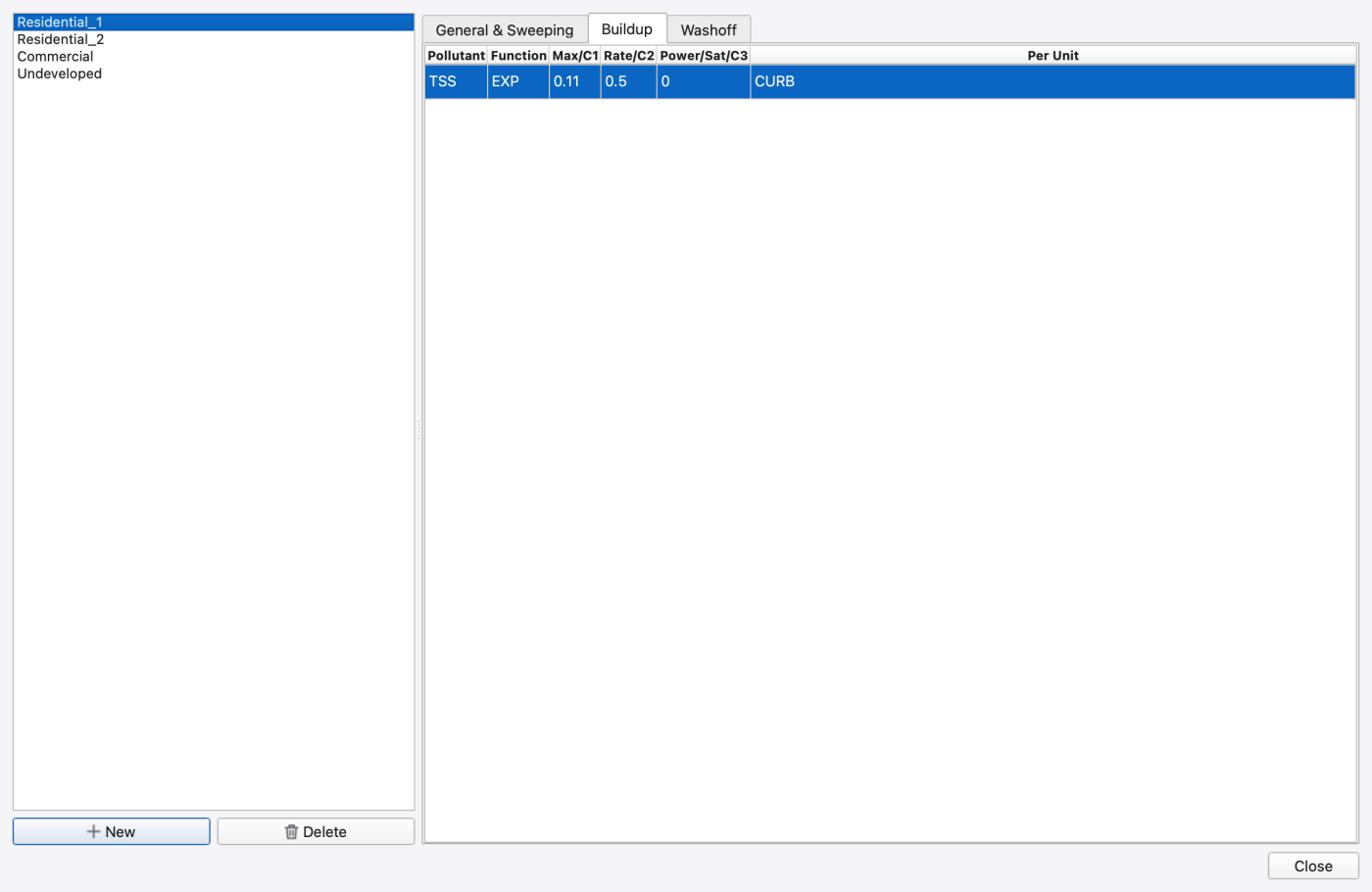
Model → Data Objects → Land Uses… opens Land Uses, whose tabs are General & Sweeping, Buildup and Washoff. No sweeping is configured in this deck (interval and removal are zero).
The Buildup grid has columns Pollutant, Function, Max/C1, Rate/C2, Power/Sat/C3 and Per Unit; the Washoff grid has Pollutant, Function, Coefficient, Exponent, Sweep Effic (%) and BMP Effic (%). In this model:
| Land use | Buildup | Washoff |
|---|---|---|
Residential_1 | EXP 0.11 / 0.5 per CURB | EXP 2 / 1.8 |
Residential_2 | EXP 0.13 / 0.5 per CURB | EXP 4 / 2.2 |
Commercial | EXP 0.15 / 0.2 per CURB | EXP 4 / 2.2 |
Undeveloped | NONE | RC 500 / 2 |
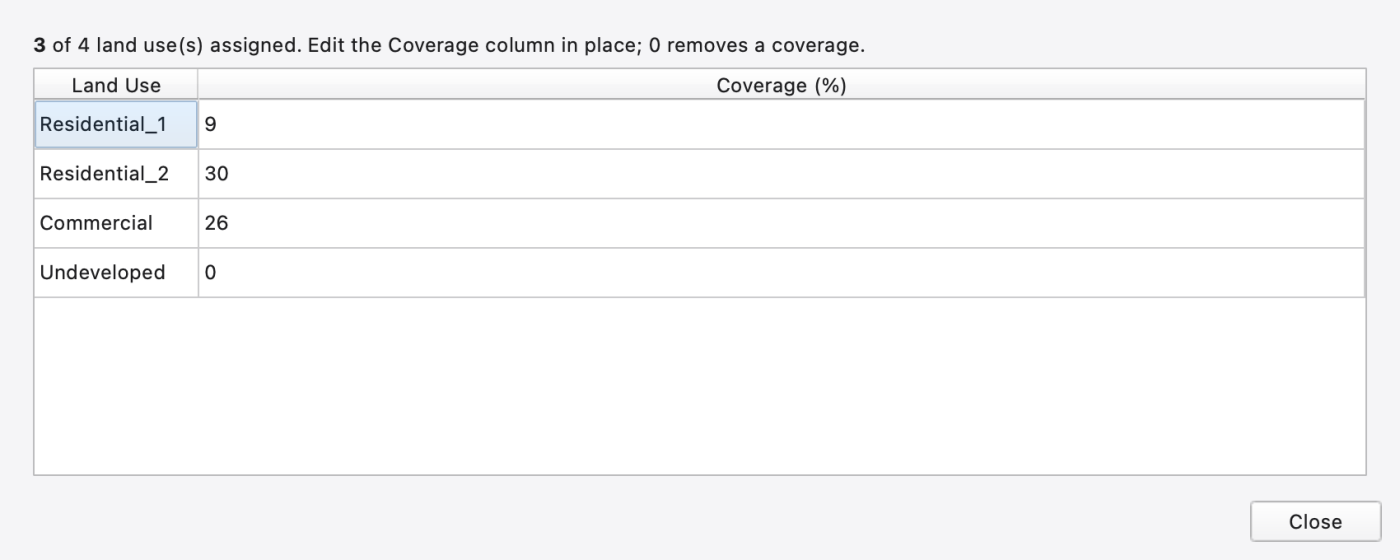
Coverages are a subcatchment property, not a land-use one. Select S4 and click the Land Uses row in the Properties dock: the compound editor Land Use Coverage — S4 opens with columns Land Use and Coverage (%). S4 is 9 % Residential_1, 30 % Residential_2 and 26 % Commercial; these sum to 65 %, leaving 35 % without a land-use assignment. The editor lists every land use, including zero coverage; its header reports three of four assigned for S4. S7 has zero coverage for all land uses, so it contributes no land-use wash-off. Its downstream conduit still carries TSS from other contributing areas (step 10).
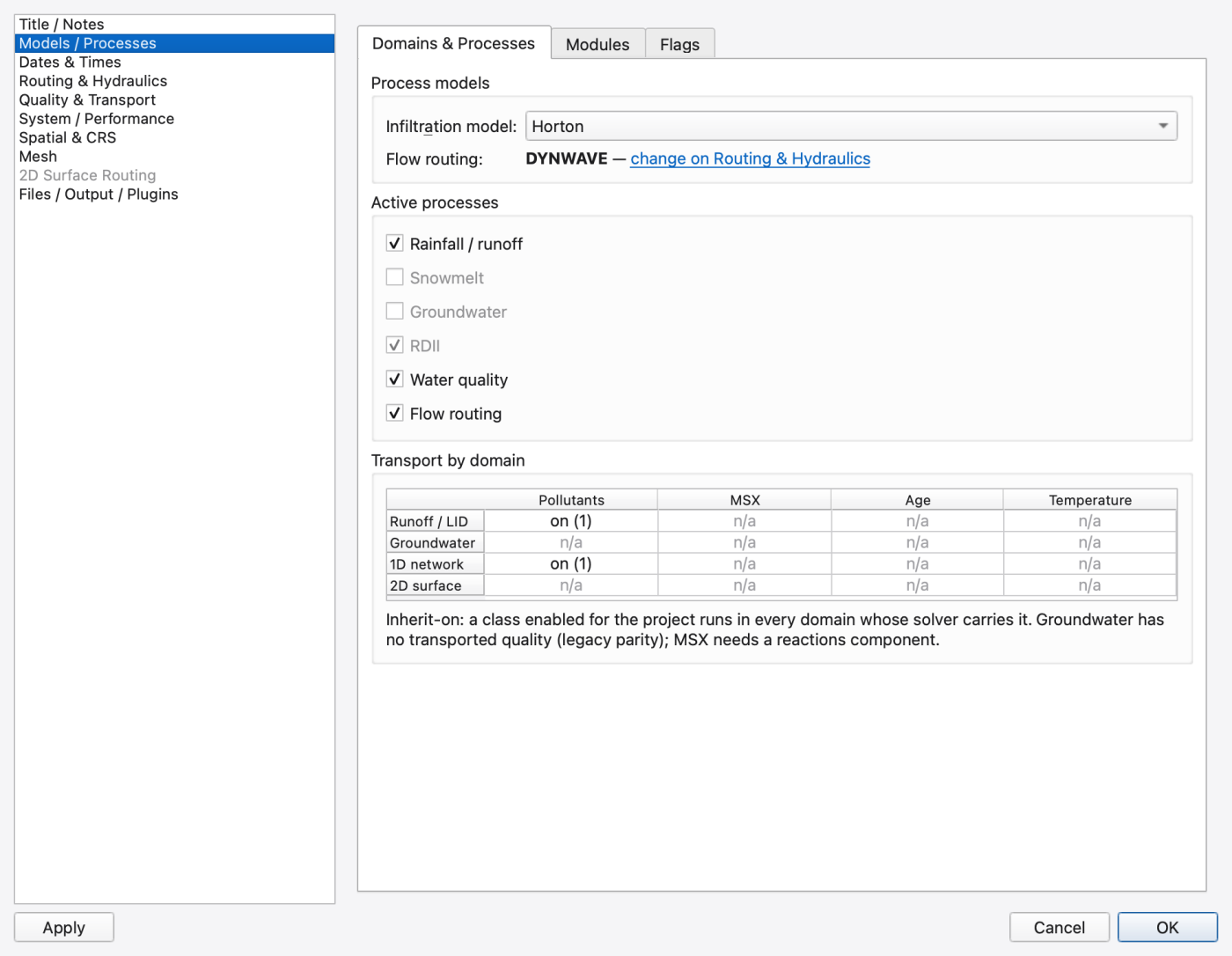
Model → Simulation Options… opens Simulation Options, a dialog with a category list down the left side: Title / Notes, Models / Processes, Dates & Times, Routing & Hydraulics, Quality & Transport, System / Performance, Spatial & CRS, Mesh, 2D Surface Routing and Files / Output / Plugins.
Five of those pages carry inner tabs, and the tabs grey out when they do not apply — the Finite Volume tab is only live under FV routing, for instance. Hover a greyed tab and its tooltip says why.
For this run, confirm three things:
| Page | Control | Value for this model |
|---|---|---|
| Models / Processes | Infiltration model: | Horton |
| Routing & Hydraulics | Flow routing: (page header) | Dynamic Wave |
| Models / Processes | Active processes | Rainfall / runoff and Water quality both ticked |
| Dates & Times | Start: / End: | 01/01/1998 00:00 → 01/02/1998 06:00 |
| Dates & Times | Reporting step: | 00:05:00 |
Note that flow units are not on this dialog. FLOW_UNITS is changed on the Flow Units: combo in the status bar; Preferences → Simulation Defaults only sets what File → New starts a blank project with. An existing model keeps whatever its .inp declares until you change the combo — CFS here. See 18 — Simulation Options for the complete page-by-page reference.
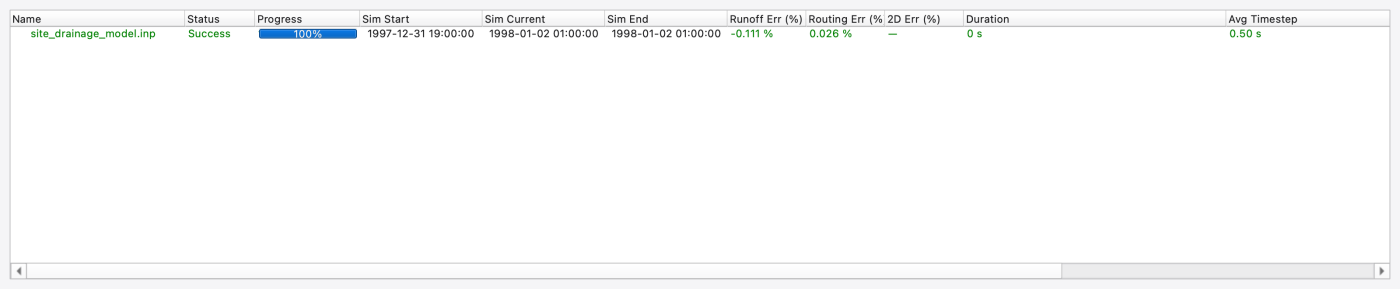
Analysis → Execute (Ctrl+R) runs the model. SWMMVis auto-saves any pending edits first — Run always uses the .inp on disk — and logs Auto-saved before running. if it had to.
The Simulation Status dock (Ctrl+Alt+6) shows the running job and its progress; Message Logs (Ctrl+Alt+7) collects engine warnings. Pause and Stop (Ctrl+.) act on the selected job. When the run finishes the results attach to the project as a results layer in the Layers panel. If output already exists, Overwrite output? lists the files that will be replaced. Copy the base run into a separate folder before confirming a rerun that you want to compare later.
In the captured build, the status dock shifts its date columns into the computer's local time (five hours earlier in this capture). Use Dates & Times and the report to check the model's simulation clock; this display inconsistency does not change the configured input dates.
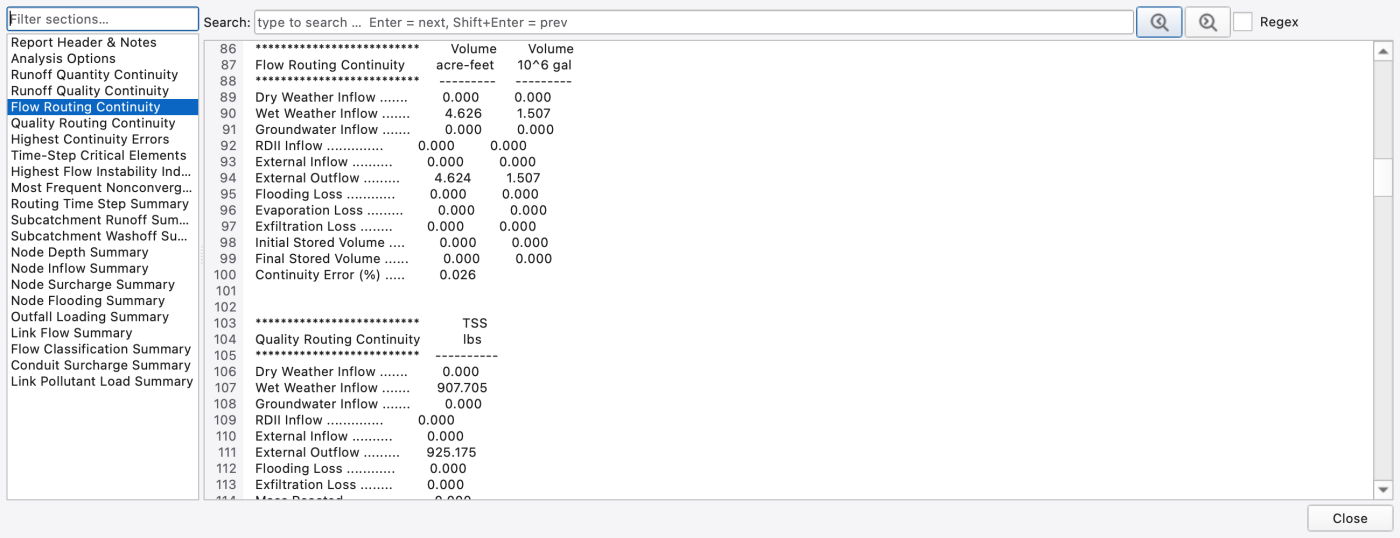
Analysis → Report opens the Report Viewer, whose title bar carries the report path. The left pane is a section navigator built from the .rpt's own headings — Report Header & Notes, the continuity blocks, every summary table, and Warnings & Errors (n). Filter sections… narrows the list; the right pane holds the whole raw report text with a Search: box (Enter = next, Shift+Enter = previous) and a Regex checkbox.
Analysis → Show Mass Balance opens the same viewer — there is no separate mass-balance dialog; the ledger is the engine's own text. Jump to these sections:
| Section | What to check |
|---|---|
Runoff Quantity Continuity | Total Precipitation against the 2.83 in you measured in step 4; Continuity Error (%) near zero |
Flow Routing Continuity | Wet Weather Inflow in, External Outflow at O1 out, Flooding Loss, and Continuity Error (%) |
Quality Routing Continuity | the TSS mass ledger — wash-off in, outfall load out |
Node Flooding Summary | which junctions overflow and for how long |
Link Flow Summary | peak flow magnitude — Max/Full Flow and Max/Full Depth per conduit |
The viewer shows a banner when the continuity error exceeds 10 %. A larger error needs investigation; it does not by itself prove that the routing step is the cause. Check warnings, inflows and outflows, then compare runs with a smaller Routing step: on Dates & Times.
A reference run with the OpenSWMM 6 engine used for these figures reported:
| Balance | Continuity error (%) |
|---|---|
| Runoff quantity | −0.111 |
| Flow routing | 0.026 |
| Runoff quality (TSS) | 0.000 |
| Quality routing (TSS) | −1.925 |
No nodes flooded in that run. The water-volume balances are much closer than the TSS routing balance; report them separately. These values identify the example run, not acceptance criteria for another project or engine version. The reference report's Outfall Loading Summary TSS total also disagrees with Quality Routing Continuity → External Outflow. Until that discrepancy is resolved, do not use the outfall summary's TSS load as a checked mass total.
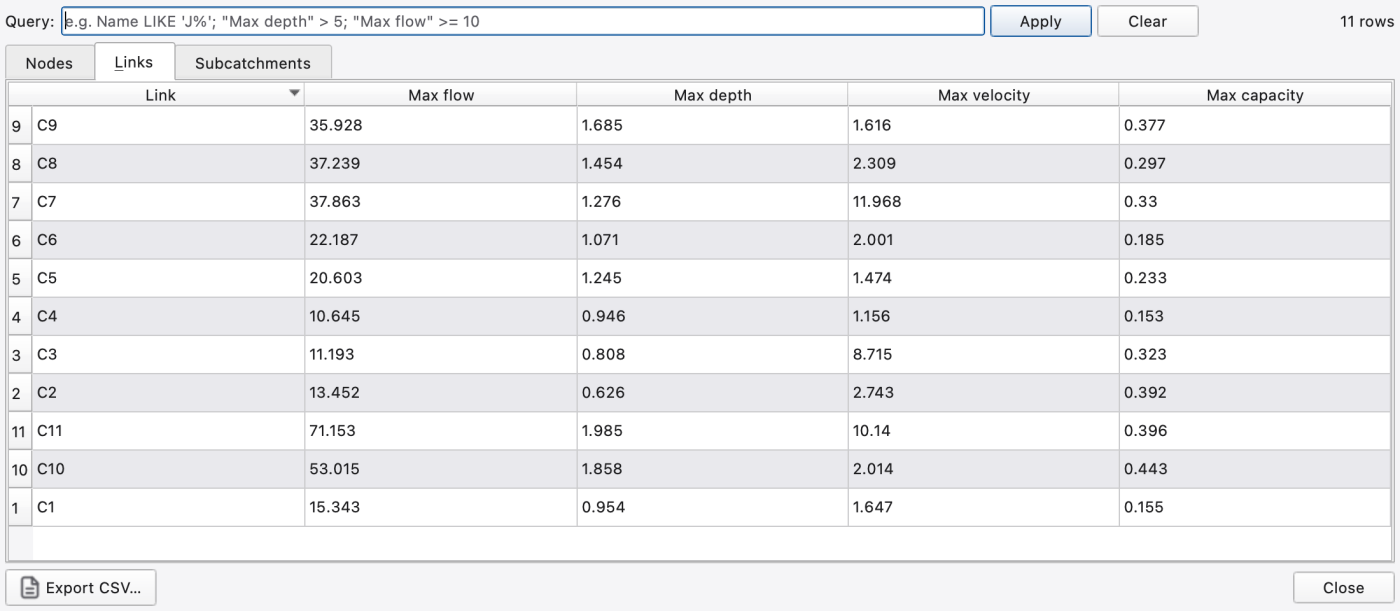
Analysis → Summarize Results opens the Statistics Dashboard instead: tabs Nodes (Node, Max depth, Max head, Max overflow, Volume), Links (Link, Max flow, Max depth, Max velocity, Max capacity) and Subcatchments (Subcatchment, Peak runoff, Total runoff, Total infil, Total evap), each sortable, filterable with the Query: box, and exportable with Export CSV…. The current dashboard presents these results as tables.
The Animation ribbon tab drives playback.
MM/dd/yyyy hh:mm), set Speed: (0.25× … 8×) and leave Cycle ticked to loop.
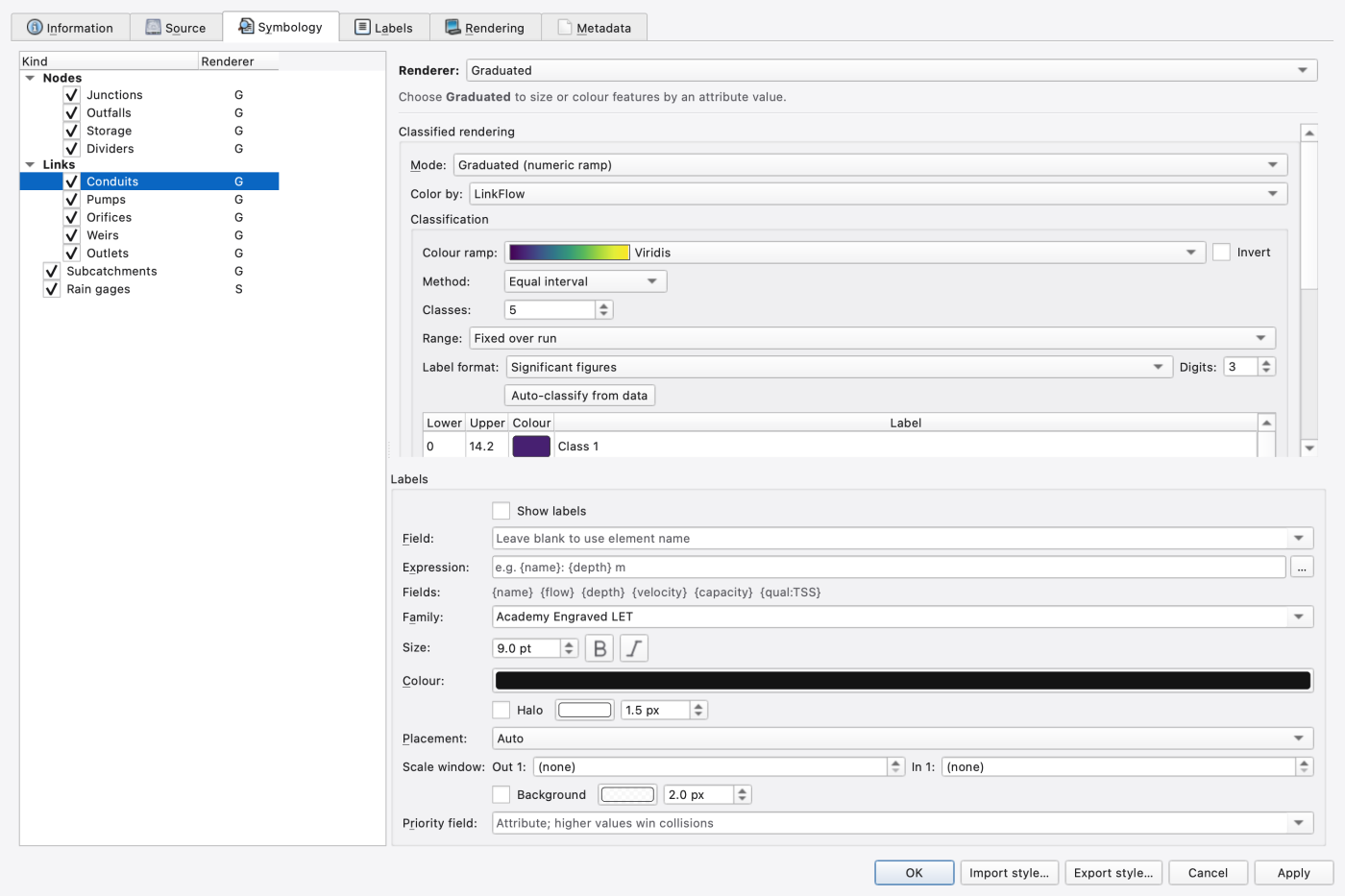
Export the style. Export style… on the dialog's button bar writes the renderer, its attribute and the classification to a .swmm-style.json you can Import style… onto another run. Open the file in a text editor: the attribute is stored under classifyAttribute.
FIGURE PLACEHOLDERdocs/manual/images/t01_style_export_json.png
Save the style to the library. Tools → Style Manager → Save current… → name it Site drainage flow. To see the round trip, set the Conduits renderer back to Single Symbol and Apply, then select the results layer in Layers, pick the saved entry in the Style Manager and Apply to layer: the classified colours return immediately, and Layer Properties shows the applied rules.
FIGURE PLACEHOLDERdocs/manual/images/t01_style_manager_apply.png
FIGURE PLACEHOLDERdocs/manual/images/t01_animation_peak.png
Select J11 (the junction just upstream of the outfall) and C11 on the map, then Analysis → Plot Time Series (Ctrl+T). The Plot Variables picker lists a checkable group per selected object plus a System Variables group; tick Depth (node) (ft) for J11 and Flow (ft³/s) for C11 and press OK. The series land in the Comparison Plot window.
Faster route: right-click the object on the map or in the Object Browser and use the Plot Time Series… submenu, which lists the attributes directly — for a node Depth (node) (ft), Head (ft), Volume (node) (ft³), Lateral inflow (ft³/s), Total inflow (ft³/s), Overflow (ft³/s); for a link Flow (ft³/s), Depth (link) (ft), Velocity (link) (ft/s), Volume (link) (ft³) and Capacity; then a separator and one entry per run species — TSS (MG/L) here — and All attributes.
That last group is how you get the pollutant plots: right-click C11 and pick TSS (MG/L) to see the concentration hydrograph leaving the site, then add C1 (draining the wholly residential S1) and C10 to the same plot. S7 has no land-use coverage, but it drains to J10, which also receives S5 and upstream network flow. Consequently C10 is a mixed downstream signal, not a clean zero-TSS control. Compare each concentration peak with its flow peak instead of assuming that every conduit has the same first-flush response.
Comparison Plot toolbar essentials: Fit, Show Animation Cursor (Ctrl+Shift+C) to tie the plot cursor to the map animation, Add System Series…, Add from Map…, Stats Panel, Export PNG… and Export Data…. Load Observed… reads a CSV/TSV of measured values for calibration.
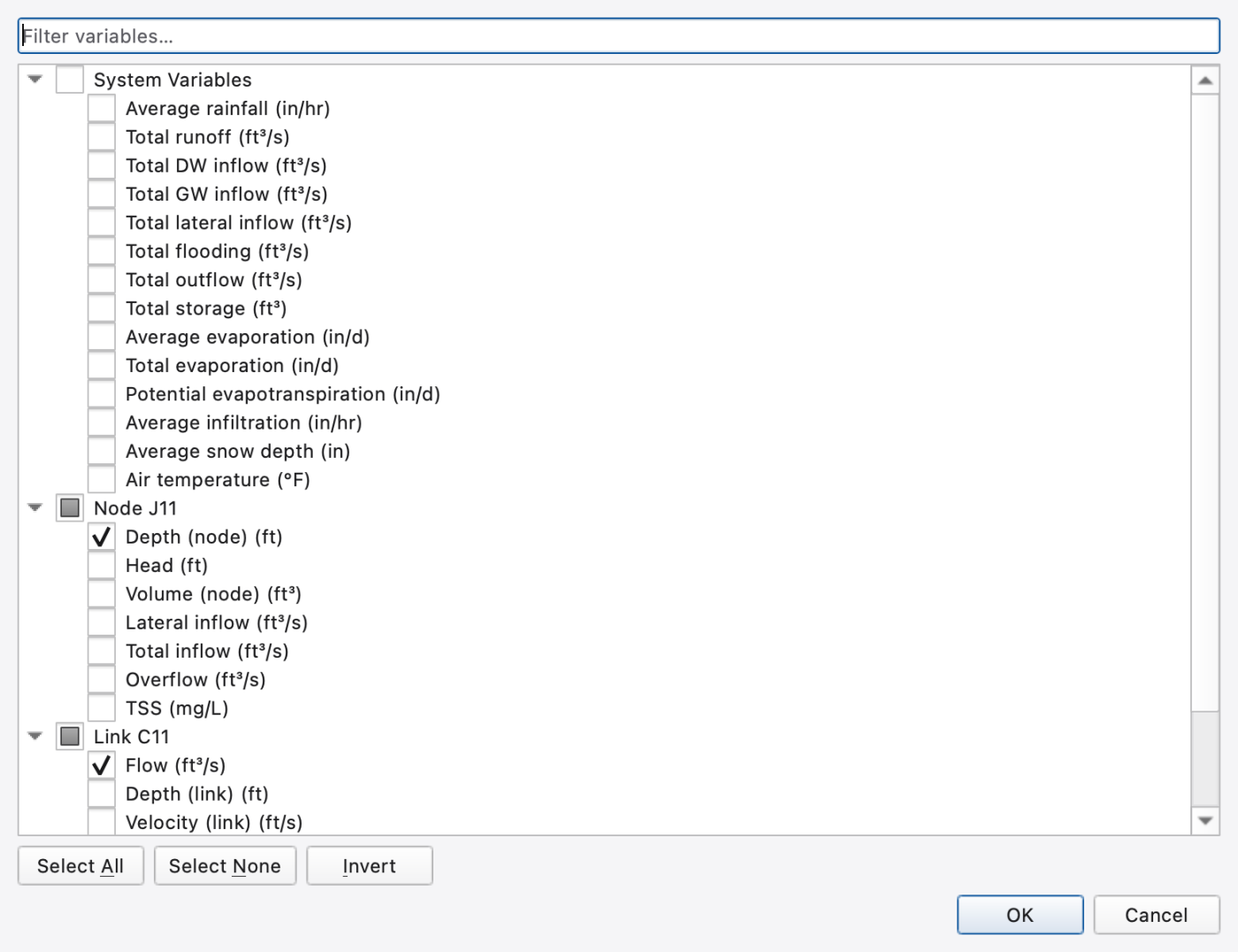
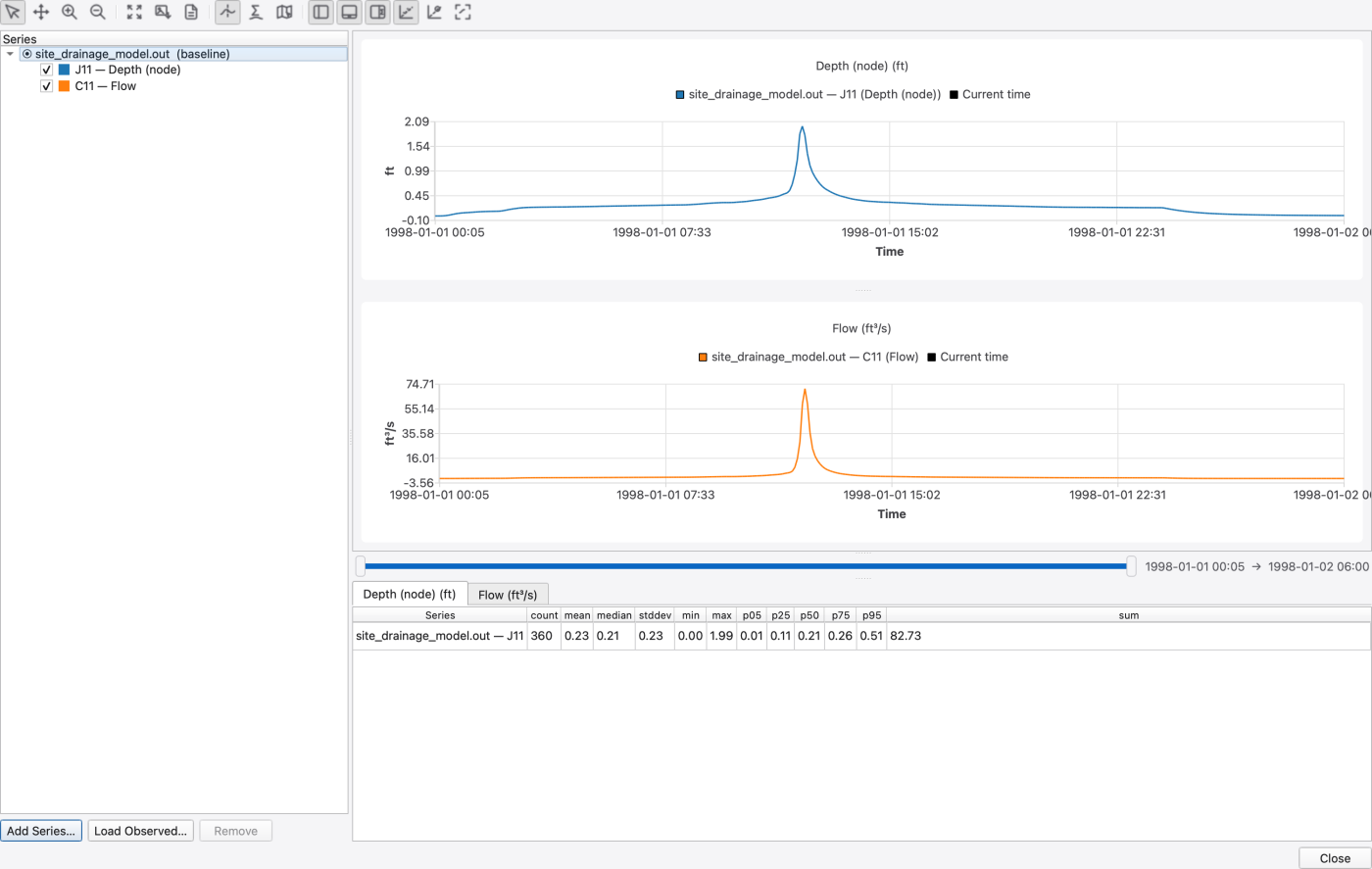
FIGURE PLACEHOLDERdocs/manual/images/t01_tss_plot.png
Analysis → Plot Profile (Ctrl+Shift+T) arms the profile picker. The status bar reads Click the profile start node or link — then Ctrl/⌘+click the end. Click J3, the most upstream junction on the main line, then Ctrl-click (⌘-click on macOS) the outfall O1. The route runs J3 → C3 → J4 → C4 → J5 → C5 → J6 → C7 → J8 → C8 → J9 → C9 → J10 → C10 → J11 → C11 → O1.
When more than one route connects the endpoints, Select Profile Path opens listing the candidates with Length, Conduits, Other and Drop columns — pick one and press OK.
The Profile Plot window draws ground, inverts, crowns, the animated HGL and the maximum-HGL envelope. Its header reads Path: n nodes, m links · Length: …. Display Options… opens Profile Display Options, whose Display tab toggles Current HGL line, Current HGL fill, Current EGL, Max HGL band, Max HGL line and Max EGL line, plus node/link labelling and legend and timestamp styling. Turn on Show Animation Cursor in the Comparison Plot and press Play on the Animation tab to watch the HGL and the plots move together.
FIGURE PLACEHOLDERdocs/manual/images/t01_profile_plot.png
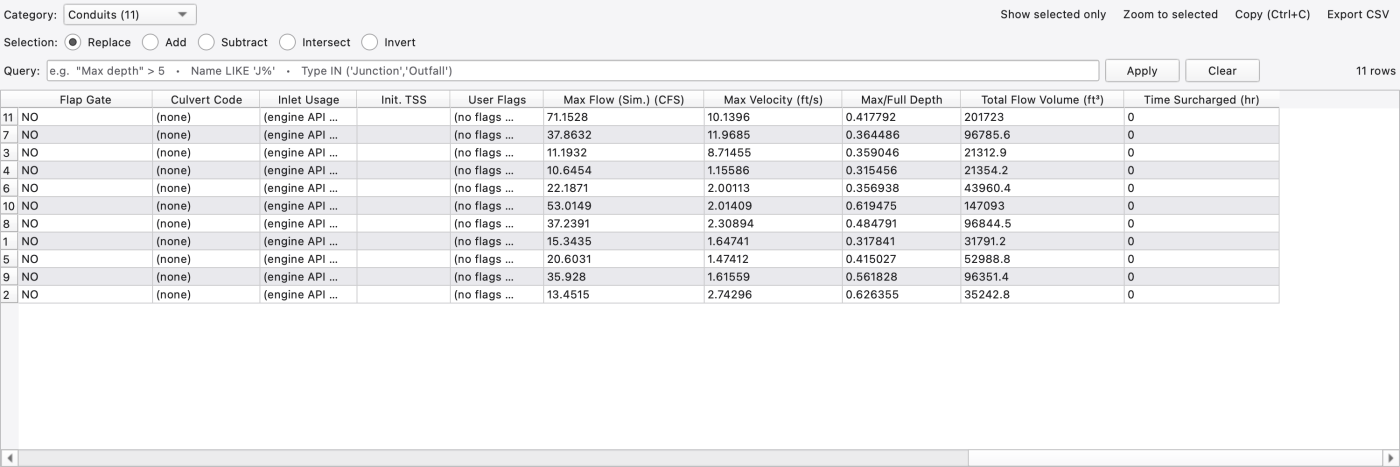
Analysis → Tabular View (Ctrl+Shift+A) raises the Attribute Table dock and puts the keyboard focus in it — it is not a separate window. Set Category: to Conduits and scroll to the right-hand end of the table: after the editable model attributes comes the read-only dynamics block the run produced — Max Flow (Sim.), Max Velocity, Max/Full Depth, Total Flow Volume and Time Surcharged (hr). The query bar, Show selected only, Ctrl+C and Export CSV… all work on those columns, so "every
conduit whose `"Max/Full Depth"` > 0.9, as a CSV" is one query and one button. For a period-by-period series instead of a per-object summary, use the comparison plot's Export Data… (step 10).
Ctrl+S). Keep the .inp, matching .oswp, .rpt and .out together in the working folder. The input holds the model; the sidecar holds GUI state and references to results. An image export does not save either of these..oswp. Check that the model and results layers are present, the project still uses local feet, and the report opens. Reopen the Links statistics view and compare its values with the base run. This checks the saved files rather than the still-open in-memory session.C3, C7, C11) are the capacity constrictions; Max/Full Depth in the Link Flow Summary tells you whether any of them runs full at the peak, and the Node Flooding Summary tells you whether that backed water up to the surface.EXP per unit curb length and wash-off is EXP on runoff rate, compare whether TSS concentration peaks before flow at each selected location. The Undeveloped land use uses an RC (rating-curve) wash-off with no build-up, so catchments carrying it behave differently — and S7, which carries no land use at all, contributes flow but no load.Swale-tagged conduits have Manning's n of 0.05 against 0.016 in the culverts. Style the network by the Tag field to see the two systems at a glance (08 — Styling, Labels and Legends).Each variation is a separate run. Save the base run's .out under a distinct name first (or copy the whole example folder) so you can load both into one plot: in the Comparison Plot every results layer contributes its own run, and Profile Display Options → Sources has Add output file… to bring a second .out into the profile.
The steps above open a finished model. Building the same network from an empty project is the quickest way to learn the drawing tools, and it is the one path this manual's other tutorials do not cover for a 1D network — T6 — A Stand-alone 2D Overland-Flow Model and T3 — From a DTM to an Animated 2D Inundation Map build from nothing, but only on a mesh.
Work with the finished model open in a second window as your reference.
Sub) and rain gages (RG); Preferences → Object Defaults sets the values for newly drawn objects: node invert elevation and max depth, conduit length, roughness and geometry, subcatchment area, width, slope and imperviousness. Filling these in first is much faster than correcting twenty objects afterwards. See 04 — Preferences..inp plus its .oswp sidecar, then continue from step 6 of the walkthrough above to set options and run.If a node or link does not appear where you expect, check the CRS and the map extent before suspecting the drawing tools — see A5 — Troubleshooting.
Simulation Options → Routing & Hydraulics → Flow routing: offers Steady, Kinematic Wave, Dynamic Wave and Finite Volume. The selector sits in the page header, above the tab bar, and the tabs below it grey themselves out to match: Dynamic Wave under DYNWAVE, Finite Volume under FV, Unsteady Friction under either. Models / Processes keeps a read-only mirror of the current choice with a link back here.
Plot flow in C11 from all three runs in one Comparison Plot: compare their peak timing, magnitude and volume, and check continuity before interpreting differences. Agreement is something to test; changing the solver alone does not guarantee it.
FIGURE PLACEHOLDERdocs/manual/images/t01_routing_comparison.png
Simulation Options → Models / Processes → Infiltration model: offers Horton, Modified Horton, Green-Ampt, Modified Green-Ampt and Curve Number. The five [INFILTRATION] parameters mean different things under each model, so switching the combo is only half the job — the parameters on each subcatchment have to be re-entered for the new model. Enter physically appropriate parameters for every subcatchment after changing this project-wide option. S7 is 0 % impervious and is a useful comparison case; inspect its runoff coefficient in the Subcatchment Runoff Summary. Do not reinterpret the old Horton numbers as Green-Ampt parameters.
S5 (87.7 % impervious, the worst offender) and click the LID Usage row in the Properties dock. The compound editor LID Usage — S5 opens with a table of LID Control, **#**, Area, Width, Init.Sat and Imperv, and an Add LID Usage group with LID Control, Number of Units, Area (per unit), Top Width, Init. Saturation and % From Impervious. Fill it in and press Add.S5 and flow in C10 against the base run. FIGURE PLACEHOLDERdocs/manual/images/t01_lid_editor.png
FIGURE PLACEHOLDERdocs/manual/images/t01_lid_usage.png
The LID editor warns that it cannot read existing layer values back from the engine: a loaded control displays defaults, and editing overwrites its layer values. Keep a copy of the input before editing a loaded control. Check both [LID_CONTROLS] and [LID_USAGE] in the saved .inp; the former holds the layer design and the latter places units within subcatchments.
.inp files and saving .oswp projects 1.9.8
1.9.8