 |
SWMMVis
6.0.0-alpha.4
Qt6/C++ GIS-based graphical user interface for the SWMMVis engine (6.0.0-alpha.4)
|
|
SWMMVis
6.0.0-alpha.4
Qt6/C++ GIS-based graphical user interface for the SWMMVis engine (6.0.0-alpha.4)
|
Everything until now has been a toy. Bellinge is a real municipal drainage model of a suburb of Odense, Denmark: 713 subcatchments, 995 junctions, 1015 conduits, pumps, orifices, weirs, outlets, control rules, dry-weather flow, and a 155 688-triangle overland-flow mesh in an external .2dm file. This tutorial is about working at that size — opening it without waiting, keeping the Layers panel legible, selecting sensibly, running with threads, animating a big results set, and comparing two runs.
[2D_MESH_FILE] — an external mesh with 78 285 vertices and 155 688 trianglesTHREADS, NODE_CONTINUITY SEMI_IMPLICIT, ANDERSON_ACCELexamples/bellinge_2d/:
| File | Purpose |
|---|---|
BellingeSWMM_v021_nopervious.oswp | GUI project — styling, legend, mesh display state |
BellingeSWMM_v021_nopervious.inp | 1D network plus [2D_OPTIONS] and [2D_MESH_FILE] (17 704 lines) |
BellingeSWMM_v021_nopervious.2dm | external overland-flow mesh (7.5 MB) |
rg_bellinge_Jun2010_Aug2021.dat | two-gage rain record (26.6 MB; 749 401 rows) |
output_SRTMGL1.tif (+ .aux.xml) | SRTM DEM — not referenced by the project |
example.json | Welcome-page metadata |
The example ships clean: no .out, no .rpt, no .2d.h5. Every number you see will be one you produced.
The dataset derives from the open Bellinge dataset published by the University of Southern Denmark and VCS Denmark.
FIGURE PLACEHOLDERdocs/manual/images/t08_bellinge_overview.png
The Welcome page lists every bundled example as a command link. Bellinge's reads Bellinge 2D Urban Flood Model with the description Coupled 1D drainage network and 2D overland-flow mesh for the Bellinge catchment (Odense, Denmark), with an 11-year rain-gage record and an SRTM terrain raster (add it via Layers if desired). (Examples with no metadata fall back to Copy to a folder you choose, then open.)
Click it. SWMMVis never opens an example in place — simulation results land next to the .inp, which would pollute the seeded baseline. Instead it asks Choose a folder to copy "Bellinge 2D Urban Flood Model" into, starting at your Documents folder, copies the whole folder, and opens the copy.
If a copy already exists at that path you get Example copy already exists — *"…" already exists.* / Open the existing copy, or replace it with a fresh copy of the example? — with Open Existing (the default), Replace and Cancel.
The project opens through BellingeSWMM_v021_nopervious.oswp because the Welcome page prefers a .oswp over an .inp when both are present.
If the Welcome page is not showing, View → Show Welcome brings it back; the show welcome on startup checkbox controls whether it appears automatically.
FIGURE PLACEHOLDERdocs/manual/images/t08_welcome_examples.png
A model this size loads in stages, and the Message Logs dock (Ctrl+Alt+7) narrates each one. The lines to expect:
The mesh becomes visible coarse first and finishes its wireframe, spatial index and editing structures on a worker thread, so the canvas is usable before the mesh is fully ready. A load that stops at Loading the 2D mesh failed: … is a real failure; one that reaches 2D mesh parsed is progressing.
Two useful facts about performance work already done here: applying the .oswp sidecar used to be quadratic in object count and took over 22 seconds on a model of this class — it is now around 250 ms; and the mesh reader's coupled-vertex tag lookup is now a hash rather than a linear scan over 78 285 vertices, so Bellinge's 977 vertex couplings and 43 triangle couplings resolve immediately.
The saved mesh display state — active flag, edge and node visibility, the four hillshade parameters and the seven contour parameters — is restored from the .oswp after the asynchronous mesh load joins the canvas, so the layer comes back looking the way you left it.
The project is in EPSG:25832 (ETRS89 / UTM 32N). The deck declares it as CRS EPSG:25832 under [OPTIONS], so the model opens already projected and you should not be prompted to pick a CRS. The .2dm header records the same frame for the mesh:
and the .oswp canvas extent is in UTM metres.
The bundled DEM is not. output_SRTMGL1.tif is 5635 × 2660 pixels of 16-bit signed elevation in EPSG:4326 at 1 arc-second (0.000277778°), with NoData −32768 and an approximate range of −7 to 100 m. Its footprint — roughly 9.59–11.16 °E, 54.94–55.68 °N — is far larger than the catchment.
output_SRTMGL1.tif. It appears under Raster Layers in the Layers panel and is reprojected on the fly for display.| Name | Zoom |
|---|---|
| OpenStreetMap | 0–19 |
| CartoDB Positron | 0–20 |
| CartoDB Dark Matter | 0–20 |
| Stadia Alidade Smooth | 0–20 |
| ESRI World Imagery | 0–23 |
Pick CartoDB Positron for a quiet backdrop under a dense network, or ESRI World Imagery to see roofs and roads under the mesh. Test Connection checks the URL before you commit. Use the Local File tab if you would rather have the SRTM GeoTIFF itself as the backdrop — that tab takes a local image plus a world file and a CRS assignment.
Check the CRS. If the project CRS is wrong, Change Coordinate Reference System offers two very different remedies under How should the change be applied?:
For Bellinge the stored coordinates are already correct, so you should never need the first option. Reprojecting a 995-node, 1015-link, 713-polygon model by accident is not something you want to discover after saving.
FIGURE PLACEHOLDERdocs/manual/images/t08_add_basemap_xyz.png
With a basemap, a DEM, a mesh, a model and (soon) two results layers on the canvas, the Layers panel earns its keep. Layers are grouped into eight categories, each hidden when empty:
SWMM, Meshes, SWMM 1D Outputs, SWMM 2D Outputs, Feature Layers, Raster Layers, Basemaps, Tables.
Right-click a category to move it up or down; right-click a layer for its context menu:
| Entry | Notes |
|---|---|
| Zoom to Layer | |
| Open Attribute Table | vector, model, tabular and results layers |
| Plot Time Series… | results layers |
| Set as Active Results Layer | checkable; 1D and 2D results |
| Move Up / Move Down | enabled per canvas position |
| Remove Layer | |
| Hide Layer / Show Layer | label flips with the current state |
| Properties… | |
| Styles → Edit Symbology… |
Several entries in that menu are visible but disabled placeholders today: Show in Overview, Show Feature Count, Move to Top, Move to Bottom, Rename Layer, Duplicate Layer, Filter…, Set Layer Scale Visibility…, Copy Style and Paste Style. Do not plan a workflow around them.
The .oswp stores per-kind renderers for Conduits, Dividers, Junctions, Orifices, Outfalls, Outlets, Pumps, RainGages, Storage, Subcatchments and Weirs, so the network comes up with its symbology already set. Note that the shipped project stores no basemap and no results layers — those are yours to add, and they will be saved with the project when you next save it.
FIGURE PLACEHOLDERdocs/manual/images/t08_layers_panel_large.png
The canvas splits repaints into four independent dirty channels — Raster (150 ms debounce), Scene (50 ms), Overlay and Extent (both immediate) — so a selection click never recomposes the basemap. A4 — Performance and Redraw Policy covers the whole picture; the settings that matter most on a model this size are:
| Where | Control | Effect |
|---|---|---|
| Preferences → Rendering → GPU Rendering | Use GPU rendering for SWMM layers (recommended) | keep on |
| Use GPU rendering for 2D terrain mesh layers (recommended) | keep on for a 155k-triangle mesh | |
| Preferences → Rendering → Label Rendering | Label zoom-out threshold (m11) | raise it to stop 995 junction labels rendering when zoomed out |
| Simulation Options → System / Performance | Worker threads: | see step 8 |
If a redraw feels wrong, launch with SWMMVIS_LOG_REDRAW=1 and watch which channel a gesture dirties. A selection change that fires Raster is a bug.
One caveat to know before you rely on it: saving an external .2dm back out does not produce a byte-identical file between runs, because the vertex-node map is written in hash order. Expect spurious diffs if the mesh is under version control.
Clicking 995 junctions is not a plan. Three tools scale:
Find by name. Edit → Search (Ctrl+F) raises the Object Browser dock and focuses its filter box (Filter by name…), with the text selected so typing replaces it. There is no separate Find dialog.
Trace the network. With a node, link or subcatchment selected, use Edit → Upstream or Edit → Downstream. Seeds are the selected nodes plus both endpoints of selected links, and subcatchments that drain into the network. The result replaces the selection and logs:
Pick one of the nine outfalls and trace upstream to isolate a whole tributary sewershed in one click.
Rubber-band and polygon. The Select tool takes Shift to add and Ctrl to subtract; Select by Polygon finalises with Return or a double-click and cancels with Esc, with Shift for union and Ctrl for subtract.
Then Zoom To Selection (Ctrl+Shift+J) and open the attribute table (Ctrl+Alt+4) to work on the subset. Delete or Backspace in the table deletes the selected rows' objects through the undo stack.
FIGURE PLACEHOLDERdocs/manual/images/t08_select_upstream.png
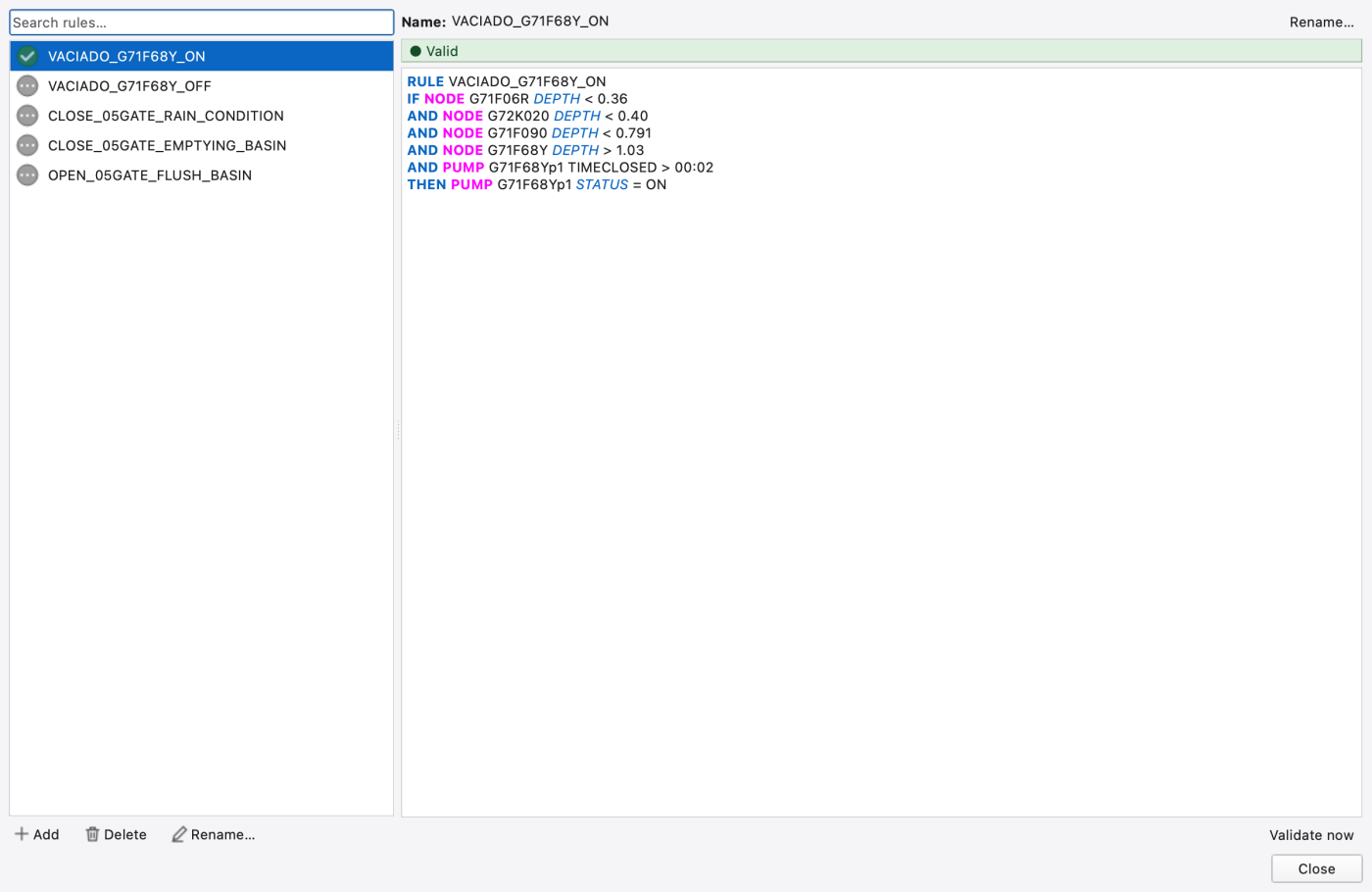
[CONTROLS] holds five rules over 28 rows — pump controls keyed off node depths and TIMEOPEN/TIMECLOSED. Open Model → Data Objects → Control Rule to reach the Control Rules Editor, a non-modal two-pane editor:
RULE … IF … THEN … ELSE … PRIORITY body.The first rule reads:
The rule body editor has a completer: Ctrl+Space forces it open, and while the popup is showing it consumes Enter, Return, Esc, Tab and Backtab.
[REPORT] CONTROLS YES is set, so the status report lists every control action taken during the run — the fastest way to confirm a rule fired.
Look at the run settings before pressing anything.
[OPTIONS], in part:
[2D_OPTIONS], in full:
Note that the simulated window is about two days, 29–30 June 2012, even though the rain file spans more than a decade. That is deliberate: it keeps the example runnable. Widen it on the Dates & Times page if you want a longer event.
Threads. THREADS 8 is set in the file. The GUI's control is Simulation Options → System / Performance → Worker threads: — a spin box with auto as its special value, a live *"/ N logical"* suffix that turns into *"/ N logical — oversubscribed"* if you exceed the machine, and an "effective threads" label computed by the engine itself rather than by the GUI. The threadLimitsSummary line beneath it reports logical processors, performance cores (efficiency cores slow the solvers and are avoided in auto mode), whether the engine was built without OpenMP, the OpenMP process limit, and whether the 2D Kokkos backend is already running with a fixed thread count.
There is also an Apply fast preset button, which sets THREADS to the machine's fast-preset value and MINIMUM_STEP to 1.0 s. Its tooltip cites roughly a 2.6× speed-up on this very benchmark with mass balance as good or better — and warns that pushing MINIMUM_STEP to 2.0 s gives about 4× but degrades continuity.
Press Ctrl+R. The Simulation Status panel shows Name, Status, Progress, Sim Start, Sim Current, Sim End, Runoff Err (%), Routing Err (%), 2D Err (%), Duration, Avg Timestep and Engine Version. Continuity errors are polled live, not just at the end, so a run drifting toward a bad mass balance is visible early. Rows are keyed by project window and engine version, so running the same model under two engine versions produces two rows.
Run times depend entirely on your machine and thread count, so measure yours — the example ships with no report and this manual will not invent a number.
On completion the .out is loaded automatically, becomes the active 1D results layer, is bound to the animation controller, and has its .rpt path recorded so the report viewer can find it. The 2D .h5 is attached as a 2D Results (live) layer keyed by canonical path, so re-running overwrites rather than stacking duplicates. Cancelling a run still loads the partial output — the engine flushes it either way.
FIGURE PLACEHOLDERdocs/manual/images/t08_simulation_status.png
Style the 1D results layer by a dynamic attribute (flow, depth, velocity, capacity) with a graduated renderer, and the 2D results layer by depth with a colour ramp and a dry-depth cut-off matching the engine's DRY_DEPTH 0.0001. The GUI reads that value from the engine, so the wet/dry edge in the animation matches the solver's.
Then use the Animation ribbon transport. On a mesh this size:
FIGURE PLACEHOLDERdocs/manual/images/t08_2d_animation_frame.png
Six pumps run in this model. Pick one, trace upstream from its discharge node to find the branch, then use Analysis → Profile (Ctrl+Shift+T) and the profile-selection tool to lay a path from a headwater junction, through the wet well, across the pump, to the receiving node.
The profile plot shows the invert, the crowns, the HGL at the animation time and the depth envelope. Home fits the view. Playing the animation while the profile is open shows the wet-well drawdown and the pump's on/off cycling directly against the rule thresholds you read in step 7.
Profile paths are not currently persisted in the project — the engine reads [PROFILE] and discards it, and the .oswp has no key for profiles — so re-lay the path after reopening.
FIGURE PLACEHOLDERdocs/manual/images/t08_profile_pumped_branch.png
Select one of the nine outfalls and use Analysis → Flow Balance Upstream. The result is an information box:
Read the parenthetical. This is the final reported time step, not a volume integral — useful for checking that a sewershed's boundary links balance at the end of a run, not for computing event volumes. For volumes, use the status report's continuity blocks or the tabular results export.
The rain record is the single largest file in the example: 26.6 MB, 749 401 rows, seven whitespace-separated columns in SWMM's standard rain-file layout — station year month day hour minute value. Two stations, rg5425 and rg5427.
Reading that source line token by token: the file path, the station id matched against column 1, MM as the depth unit, * meaning no start date, and a trailing **30** which is the optional rainfall scale factor the engine applies to every value. It is not a comment and it is not cosmetic — the gage record is multiplied by 30.
Two more things the filename does not tell you: the record actually begins in January 2009 for rg5427 and June 2009 for rg5425, not June 2010; and neither gage has a [SYMBOLS] map location in the shipped file, which matters for RAINFALL_MODE NATURAL_NEIGHBOUR — with no gage locations the engine falls back to SYSTEM (a uniform mean) on its own.
Open Analysis → Rainfall Visualization…. The dialog opens on the Overlay tab, with a Per Gage tab that stacks one chart per gage on a synchronised time axis. The Basis: combo switches between Intensity (mm/hr), Depth per interval (mm) and Cumulative depth (mm). Underneath is a twelve-column table: Gage, Source, Total depth, Peak intensity, Peak time, Interval, First, Last, Gaps, Longest gap, Points, Status.
Only the focused (or first) gage is checked by default — the visibility checkbox lives in the Gage column, so tick the second one to overlay both. The Gaps and Longest gap columns are the reason to run this on a decade-long record before trusting it.
FIGURE PLACEHOLDERdocs/manual/images/t08_rainfall_two_gages.png
A good pair for this model is **ANDERSON_ACCEL YES versus NO** — Anderson acceleration on the semi-implicit node-continuity solve.
.out stays on the canvas.ANDERSON_ACCEL to NO on the Routing & Hydraulics page, and run that copy..out (File → Import → Add SWMM Output…) onto the same canvas.Open the Comparison Plot. Each distinct .out becomes one run source, de-duplicated by results-file path, and one can be marked the baseline. Add the same series from both runs — Add Series… opens the Plot Variables picker; Add from Map… lets you click objects on the map to add them; Add System Series… covers rainfall, runoff, flooding and the other system-wide variables. Configure 1v1 Comparisons pairs series explicitly with Add, vs, Remove Selected and Reset to Auto. The animation cursor toggle is Ctrl+Shift+C and Charts Only is Ctrl+Shift+F.
Compare on three axes: the hydrographs at a surcharged junction, the routing continuity error in each report, and the wall-clock duration in the Simulation Status panel. The same recipe works for NODE_CONTINUITY SEMI_IMPLICIT versus the default, for THREADS values, and for the fast preset.
FIGURE PLACEHOLDERdocs/manual/images/t08_comparison_two_runs.png
MINIMUM_STEP and MAX_TRIALS rather than waiting for the end.[REPORT] CONTROLS YES means every control action appears in the report. Cross-check them against the five rules.—..out file size and the animation frame count.[SYMBOLS] locations and switch from the effective SYSTEM fallback to true NATURAL_NEIGHBOUR weighting.CELL_CLOSURE FLAT against the shipped VFR and see how much run time the closure costs on a real mesh — and whether the inundation extent changes where it matters. 1.9.8
1.9.8